

Monitoring components
Components used for popups
Business benefits
Why popup monitoring matters
Advanced processing
Filter and modify popup events
Deployment and configuration
Install and enable popups
Overview
GermainUX monitors browser dialogs displayed while users interact with a web application. Each popup is associated with its application, page, browser, user, and session context, helping teams understand why it appeared and how it affected the user’s workflow.Native browser dialogs are monitored by default for each applicable User Monitoring Profile.
Monitoring components
Supported popup types
GermainUX monitors these native JavaScript dialogs by default:
GermainUX can also monitor application-specific HTML dialogs and modal windows through custom configuration. Because these dialogs are implemented differently by each application or framework, their detection must be adapted to the application.
Capabilities
GermainUX can:- Detect native browser dialogs displayed to real users.
- Capture the popup type and available message.
- Associate the popup with the relevant user, page, session, and application.
- Record how long a native popup remained open when duration monitoring is enabled.
- Generate an event when a popup closes when close-event monitoring is enabled.
- Determine whether a popup should be treated as an error in Session Replay.
Show all 9
Show all 9
- Correlate popups with clicks, navigation, JavaScript errors, network requests, and other browser activity.
- Monitor custom HTML dialogs through application-specific detection logic.
- Use the JS Profiler to investigate the JavaScript activity responsible for a popup.
Default monitoring
No configuration is required to monitor the three native dialog types.
Business benefits
Popup Dialog Monitoring helps organizations:- Identify unexpected dialogs interrupting user workflows.
- Detect recurring application warnings and errors.
- Determine which users, pages, and business processes are affected.
- Measure time lost while users interact with blocking dialogs.
- Understand what happened before and after a popup appeared.
- Identify dialogs contributing to abandonment, workflow delays, or repeated user actions.
- Reduce the time required to reproduce intermittent popup-related problems.
- Prioritize issues according to frequency and actual user or business impact.
Continuous monitoring
GermainUX RUM JS or the GermainUX RUM Extension continuously monitors native dialogs during real user sessions. Use:- RUM JS when the GermainUX monitoring script can be deployed directly in the application.
- RUM Extension when direct script deployment is unavailable or the application’s security model prevents access to the required browser context.
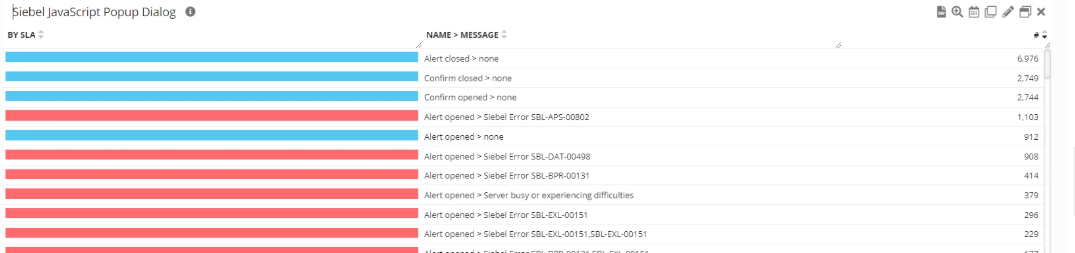
Code-level investigation with JS Profiler
When a popup is caused by an unclear or intermittent application condition, the GermainUX JS Profiler can provide deeper evidence, including:- JavaScript function execution.
- Function timing.
- JavaScript errors and stack traces.
- Browser events and user interactions.
- DOM activity.
- Network requests and resource loading.
- Application, page, workflow, and session context.
Analytics
GermainUX can analyze popup dialogs through KPIs, measures, pivots, trends, drill-through views, and session context.
GermainUX users can create watches to receive notifications when collected popup insights meet conditions of interest.
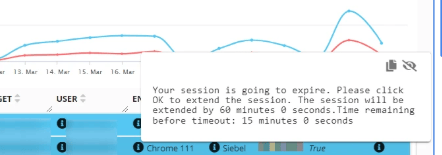
Configuration
Configuration is required only when the default behavior needs to be customized.Select native popup types
Usesettings.plugins.popup.types to specify which native dialog types GermainUX should monitor.
The following example monitors only alert dialogs:
alertconfirmprompt
Disable native popup monitoring
Configure an empty array to disable monitoring of native dialogs:Monitor popup duration
EnablemonitorActiveDuration to create a GermainUX UX transaction representing how long the native popup remained open:
Monitor popup closure
EnablemonitorCloseEvent to generate an event when a native popup closes:
Error categorization
UseerrorCategorizer to determine whether a popup represents an error.
true categorizes the popup as an error. Returning false does not.
This categorization is used by the Session Replay error counter. It does not change the original popup or its behavior in the application.
Advanced processing
UsefactProcessor to modify or filter the GermainUX event generated for a popup:
- Remove sensitive information.
- Normalize dynamic popup messages.
- Categorize known popup types.
- Exclude non-actionable dialogs.
- Add approved application context.
Custom HTML dialogs
Custom dialogs created with HTML, CSS, or application frameworks do not use the browser’s nativealert, confirm, or prompt APIs.
Monitoring these dialogs requires application-specific logic based on their implementation, such as:
- DOM elements or attributes.
- CSS selectors.
- Dialog roles.
- Application events.
- Framework-specific state.
- Text or message patterns.
Privacy and security
Popup messages and prompt values can contain personal, confidential, or security-sensitive information. Before collecting popup content:- Review the information displayed by the application.
- Avoid collecting passwords, authentication tokens, secrets, payment data, or unnecessary personal information.
- Mask or remove sensitive values through application-specific processing.
- Restrict access to detailed popup and Session Replay evidence.
- Apply the organization’s retention and compliance requirements.
- Revalidate the configuration after application changes.
Recommended investigation workflow
1
Use RUM JS or the RUM Extension to identify a recurring or unexpected popup
2
Determine the affected users, sessions, pages, and workflows
3
Review the popup type, message, and available duration
4
Examine what the user did before and after the popup through Session Replay
5
Correlate the event with JavaScript errors, clicks, and network requests
6
Enable the JS Profiler for a controlled scope when deeper code-level evidence is required
7
Identify and correct the responsible code, condition, or dependency
8
Validate the correction through continuous popup monitoring
Deployment and configuration
- Review Browser Monitoring.
- Review the Browser Monitoring Deployment Overview.
- Deploy GermainUX RUM JS when the monitoring script can be added to the application.
- Deploy the GermainUX RUM Extension when direct script deployment is unavailable or access to the complete browser-page context requires an extension.
- Deploy the GermainUX JS Profiler for deeper JavaScript and browser diagnostics.
- Review the available Browser Monitoring configuration.
Show all 10
Show all 10
- Review JavaScript Console and Error Monitoring.
- Review Dead, Error and Rage Click Monitoring.
- Review the KPIs for User Monitoring and Replay.
- Review the available Browser Monitoring KPIs.
Get Help
Contact GermainUX Support
The GermainUX team helps you get up and running faster, empower your team, turn data into actionable insights, and optimize performance to deliver measurable business outcomes.
Can't find what you need?
Search all GermainUX docs with Ctrl + K, or use the feedback buttons at the bottom of this page to tell us what is missing.
The content of this document is proprietary to GERMAIN SOFTWARE.