

Dead clicks
Customization
Validation
Troubleshooting

Benefits
Click monitoring helps organizations:- Detect elements that users click but that do not respond.
- Identify clicks associated with JavaScript errors.
- Detect repeated interactions that may indicate frustration.
- Understand which pages, features, and workflows create friction.
- Replay affected sessions to see what the user experienced.
- Measure how many users and sessions are affected.
Show all 9
Show all 9
- Correlate interaction friction with errors, performance, abandonment, and lost productivity.
- Prioritize application improvements based on frequency and business impact.
- Notify teams when a significant click-related issue is detected.
Preconfigured click types
GermainUX automatically monitors the following click types:Dead clicks
A dead click occurs when the user clicks or touches an element and GermainUX detects no resulting DOM change or scrolling within 500 milliseconds. Dead clicks can indicate:- A button or link that does not work
- An element that appears interactive but is not
- A delayed response
- An invisible overlay blocking the interaction
- A disabled control without clear feedback
- A missing event handler
- User confusion about what can be clicked
- Copying text
- Focusing an input
- Starting a file download
- Opening a native browser function
- Triggering background processing
- Interacting with a canvas or specialized control
- Waiting for a response that takes longer than the configured threshold
Error clicks
An error click occurs when a click or touch interaction is followed by a JavaScript console error within 300 milliseconds. Error clicks help associate a technical failure with the user action that likely triggered it. They can help answer:- Which user action preceded the error?
- Which page or element was involved?
- Did the error prevent the expected result?
- Was the error visible to the user?
- How many users encountered the same problem?
- Did the error cause abandonment or workflow failure?
Rage clicks
A rage click occurs when a user performs at least three consecutive clicks on the same element, with less than 500 milliseconds between each click. Rage clicks can indicate:- A slow or unresponsive control
- A button that provides no immediate feedback
- A failed interaction
- An unexpected overlay
- A delayed network request
- User uncertainty
- An element that appears clickable but is not
- Duplicate-submission risk
Session Replay
Dead, error, and rage clicks appear in the corresponding recorded user session. Session Replay helps teams:- See the application state at the time of the interaction.
- Identify the element the user selected.
- Review what happened immediately before and after the click.
- Determine whether the page responded later.
- Inspect related JavaScript and console events.
- Review related network requests.
- Understand whether the user recovered, repeated the action, or abandoned.
- Determine whether the same friction affected a business workflow.
Analysis at scale
GermainUX can analyze click friction across the complete monitored user population. Measures can include:- Click count
- Dead-click count
- Error-click count
- Rage-click count
- Unique users affected
- Unique sessions affected
Show all 11
Show all 11
- Friction rate
- Abandonment following the interaction
- Workflow delay
- Lost productivity
- Conversion impact
- Click type
- Element
- Element text
- Page or route
- Application
- Environment
Show all 15
Show all 15
- Application version
- User or role
- Browser
- Browser version
- Device
- Operating system
- Business process
- Customer segment
- Time period
Heatmaps
GermainUX heatmaps can aggregate click activity across users and sessions. They help identify:- Frequently selected elements
- Areas receiving unexpected interaction
- Dead-click concentrations
- Rage-click concentrations
- Differences between successful and unsuccessful users
- Elements that attract attention but do not help users progress
Business impact
Click friction can be correlated with business outcomes.Customization
Customize the default settings only when the application’s behavior requires it.Customize dead-click detection
The default dead-click threshold is 500 milliseconds. UsedeadClickThresholdMillis to change how long GermainUX waits for a visible page effect.
Use deadClickIgnoreNodeTypes to exclude element types that should not be evaluated for dead clicks.
The following example waits up to one second and ignores input and textarea elements:
Customize error-click detection
The default error-click threshold is 300 milliseconds. The following example associates console errors occurring within one second of a click:Customize rage-click detection
By default, GermainUX identifies a rage click when it detects three consecutive clicks on the same element with no more than 500 milliseconds between clicks. The following example requires five consecutive clicks with no more than 300 milliseconds between each click:Exclusions
Exclude elements that legitimately produce patterns resembling friction. Possible examples include:- Game controls
- Increment and decrement buttons
- Carousel controls
- Map controls
- Rich-text editors
- Drawing canvases
Show all 9
Show all 9
- Repeated-selection interfaces
- Controls that intentionally do not update the DOM
- Third-party widgets that GermainUX cannot fully observe
KPIs and SLAs
Click monitoring is preconfigured with the appropriate browser and user-experience KPIs. Review the available KPIs for Browser Monitoring. Customize KPIs or SLAs only when required to:- Set an application-specific friction threshold.
- Define an SLA for a critical control or workflow.
- Add a custom measure or pivot.
- Exclude an accepted interaction pattern.
- Categorize click friction by business impact.
- Relate an element to a specific business process.
- Configure a customer-specific notification.
- Dead-click rate exceeds the permitted percentage.
- Error clicks affect more than a defined number of users.
- Rage clicks increase after an application release.
- Click friction occurs on a critical business-process milestone.
- An important button produces repeated dead or error clicks.
Notifications
When click friction meets a configured condition, GermainUX can:- Send an alert.
- Notify interested users through a Watch.
- Include the insight in a dashboard or report.
- Initiate an approved investigation workflow.
Validation
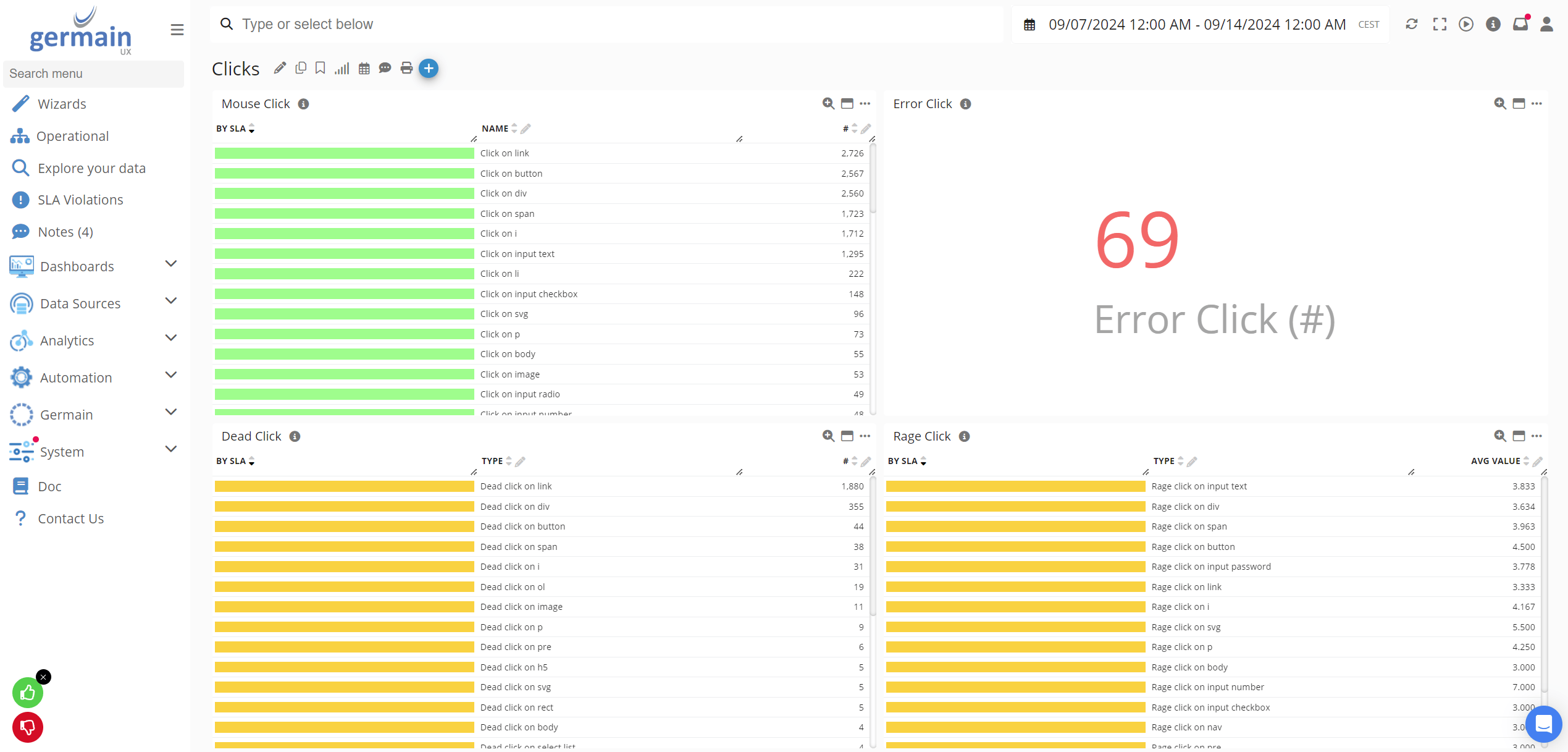
Dead clicks
Open the monitored application
Select an element that intentionally produces no page effect
Wait for the default threshold
Confirm that GermainUX creates a dead-click event
Open the associated Session Replay
Verify that the correct element and page are identified
Error clicks
Use a safe test control that produces a JavaScript error
Click the control
Confirm that the console error occurs within the configured interval
Verify that GermainUX creates an error-click event
Confirm that the click and error appear in the same session
Rage clicks
Click the same test element three times rapidly
Keep the interval between clicks below 500 milliseconds
Confirm that GermainUX creates a rage-click event
Verify the affected element and session
Troubleshooting
If click events are missing:- Confirm that GermainUX RUM JS is running.
- Verify that the correct UX Monitoring Profile is active.
- Confirm that click monitoring has not been disabled.
- Check whether the element is excluded.
- Verify that the interaction occurs within an accessible browser context.
- Review cross-origin iframe restrictions.
- Confirm that sampling or consent did not exclude the session.
- Check the browser console for RUM JS errors.
- Increase the dead-click threshold.
- Exclude legitimate non-DOM interactions.
- Review delayed responses and background actions.
- Confirm that the application provides appropriate visual feedback.
- Reduce the error-click interval.
- Exclude unrelated console errors.
- Review recurring background errors that occur after every click.
- Improve JavaScript error categorization.
- Increase the required click count.
- Reduce the permitted interval.
- Exclude controls designed for repeated interaction.
Deployment and configuration
- Deploy GermainUX RUM JS.
- Use the preconfigured click monitoring unless application-specific customization is required.
- Review dead, error, and rage clicks in Session Replay and heatmaps.
- Adjust thresholds or exclusions only after validating false-positive patterns.
- Review the available Browser Monitoring KPIs.
- Configure custom SLAs, alerts, Watches, dashboards, or reports only when required.
- Correlate click friction with errors, network activity, workflow delays, conversion, and lost productivity.
Get More Information
GermainUX can help determine which monitoring, analytics and automation capabilities are appropriate for your Browsers. Contact GermainUX Support.Get Help
Contact GermainUX Support
Can't find what you need?
The content of this document is proprietary to GERMAIN SOFTWARE.