

When to Use a Rule
Validate the Rule
Execute a Command from a Rule
Recommended Practices
Overview
Rules are the most flexible way to create custom, automated analytics in GermainUX. A Rule can inspect collected data, apply business or technical logic, transform events, generate new facts, enrich existing data, and trigger actions. After a Rule is created, it can be assigned to a compatible GermainUX component and run continuously or according to that component’s schedule. Rules use MVEL expressions within GermainUX rule definitions. See the MVEL documentation and watch the Rules overview.When to Use a Rule
Use a Rule when preconfigured analytics do not fully address the required logic. Common uses include:- Parsing application, server or integration logs
- Detecting custom errors or business conditions
- Transforming collected messages into GermainUX facts
- Enriching data with additional attributes or classifications
- Correlating events from different sources
- Creating custom metrics, events or transactions
- Executing a controlled command or automation
- Routing data to a KPI, alert, report or downstream process
Example Use Case
The workflow below uses a Rule that parses errors from a Siebel CRM web-server log. The same process applies to other applications, technologies and analytical use cases.Create a Rule
A Rule can be created through the Rule Wizard or manually from the Rules configuration area.Create a Rule with the Wizard
Go to: Germain Workspace → Systems > Wizards → Rules The wizard provides a guided workflow for naming, defining and validating the Rule.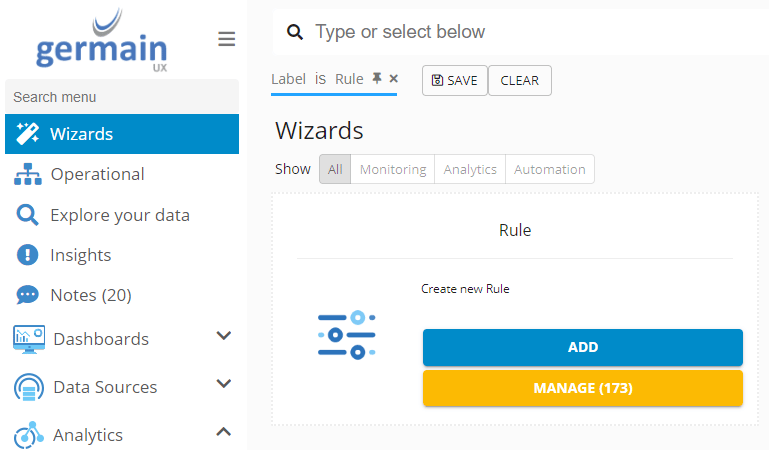
Create a Rule Manually
Go to: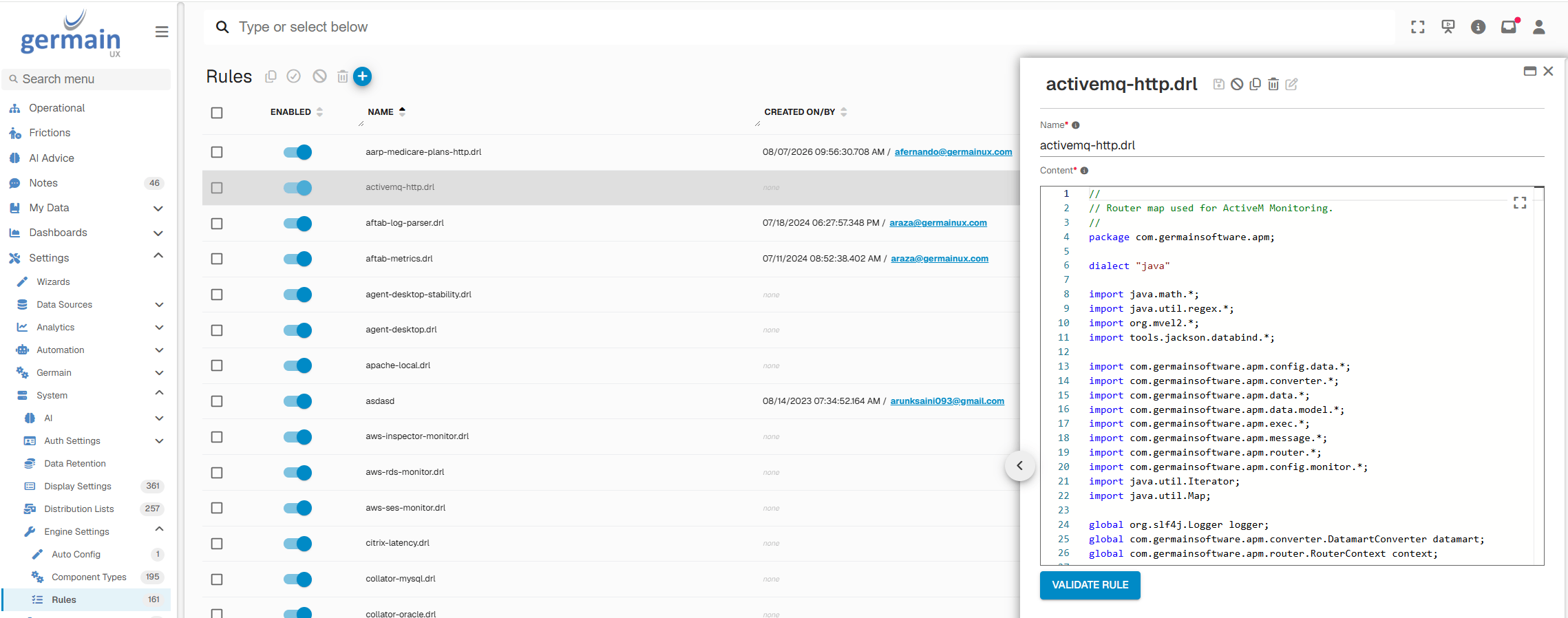
Select Add to create a Rule
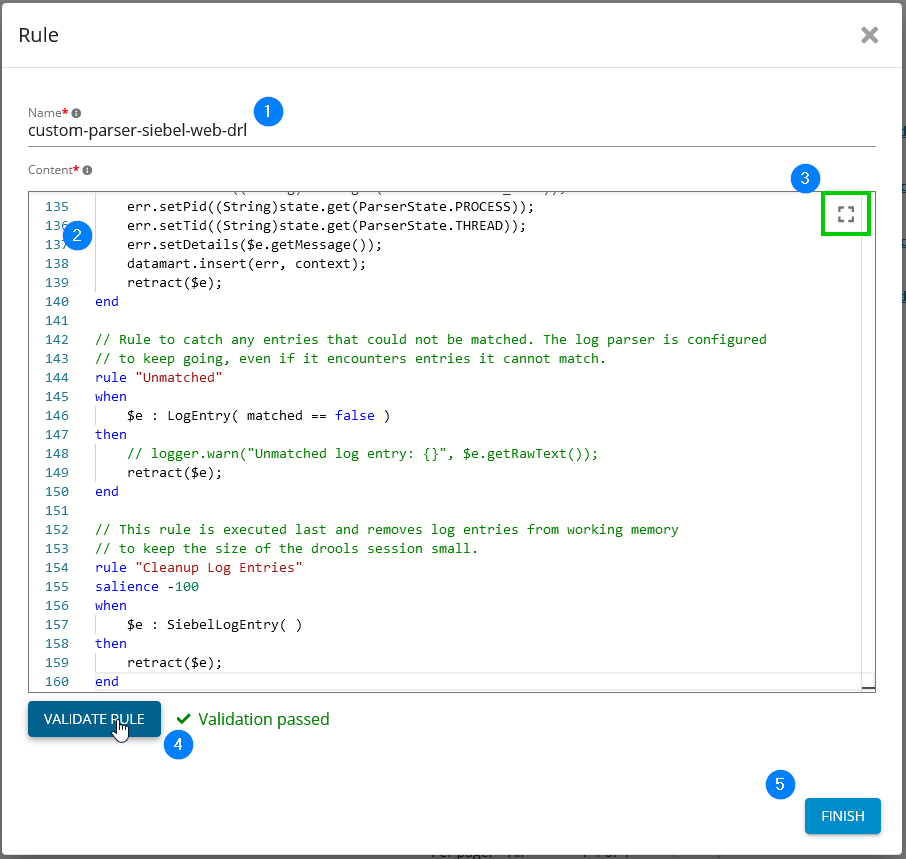
Enter a unique, descriptive name—for example, custom-parser-siebel-web-drl
Paste or write the Rule definition in the Content field
Modify the imports, conditions and actions for the data being processed
Use the expand control when a larger editing area is needed
Select Validate to check the Rule and identify syntax or configuration problems
Correct all reported issues
Select Finish, then Close
Confirm that the Rule appears in the Rules list
Validate the Rule
Validation should confirm more than syntax. Before deployment, verify that the Rule:- Matches the intended message or fact type
- Uses the correct fields and data types
- Applies the expected constraints
- Produces the correct event, metric or transaction
- Handles missing or unexpected values safely
- Does not create duplicate facts
Show all 9
Show all 9
- Retracts or preserves the source message as intended
- Logs enough context for troubleshooting without exposing sensitive data
- Performs efficiently at the expected event volume
Assign the Rule to a Component
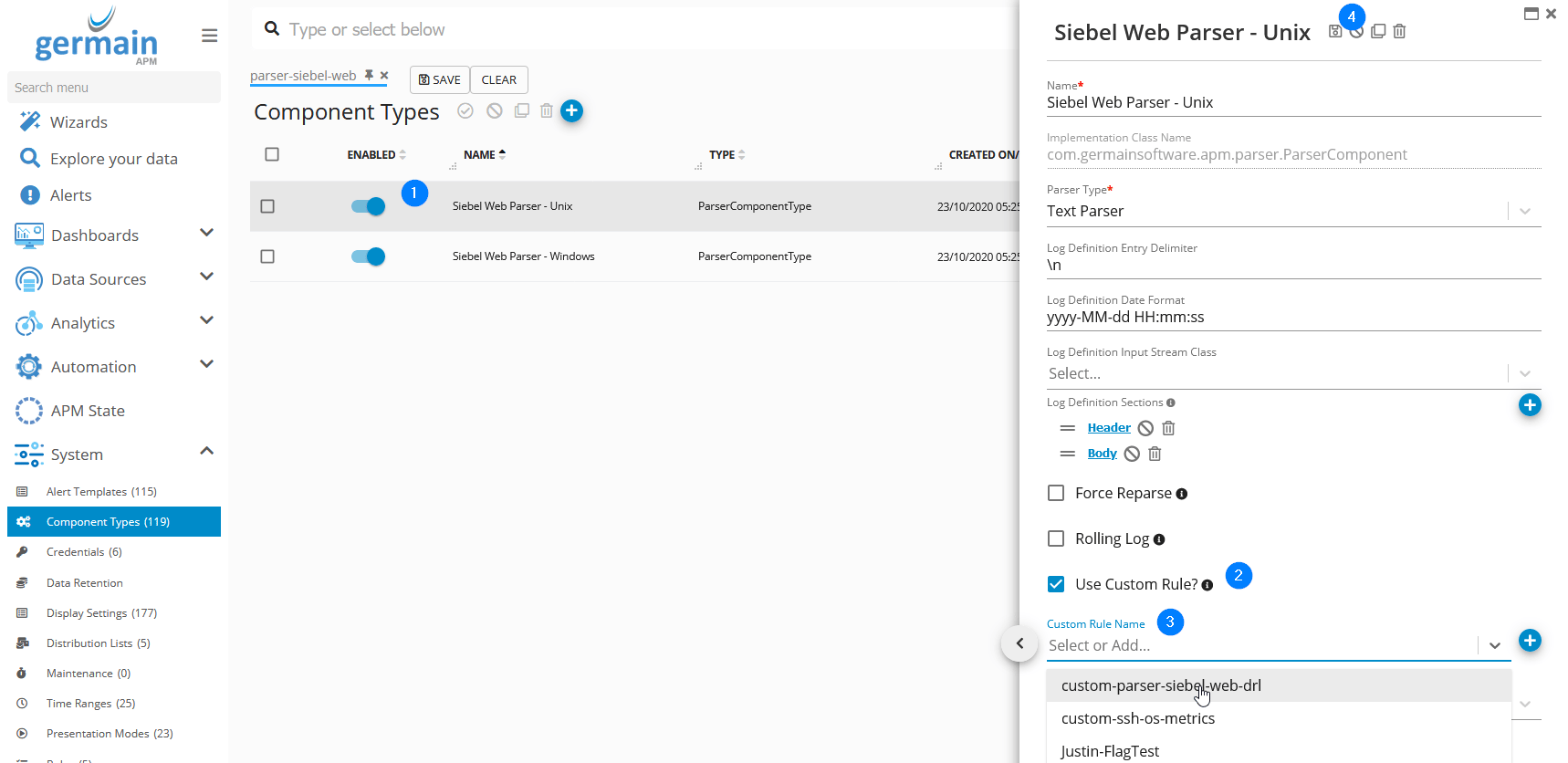
Creating a Rule does not automatically deploy it. The Rule must be assigned to the component that will process the relevant data.Open the GermainUX component configuration
Search for the component by its name, monitored technology or current Rule name
Select the component
Enable Use Custom Rule?
Select the Rule from Custom Rule Name
Select Save
Restart or reload the affected component when required for the new configuration to take effect
Confirm the Deployment
After deployment:Confirm that the component starts successfully
Check its logs for Rule-loading or execution errors
Generate or locate a known source event
Verify that the Rule matches the event
Confirm that the expected GermainUX fact is created
Validate the result through the relevant KPI or dashboard
Monitor processing volume and performance before expanding deployment
Execute a Command from a Rule
A Rule can invoke a configured command and process its output within the same Rule file. This can support advanced collection, diagnostics or automation when the required data is not otherwise available. A command definition typically includes:Command-Execution Flow
Create and name the command definition
Set the executable
Add each argument separately and in the correct order
Optionally define an output-matching expression
Execute the command
Match the returned result in a second Rule using the same command name
Parse the output and generate the required metric, event or transaction
Handle nonzero exit codes, timeouts and unexpected output
exec.executeCommand(...), and handles the result in a Rule with the same name.
Command Security
Command execution can affect the host and connected services. Apply the following safeguards:- Run only reviewed and trusted commands.
- Use a dedicated account with the minimum required permissions.
- Do not construct executable names or arguments directly from untrusted input.
- Keep credentials outside Rule content and use approved credential mechanisms.
- Restrict network and filesystem access to what the command requires.
- Define timeouts and output limits where supported.
Show all 9
Show all 9
- Handle failures without repeatedly launching the same command.
- Avoid logging secrets, tokens or sensitive command output.
- Test commands in a non-production environment before enabling continuous execution.
Update an Existing Rule
When modifying a deployed Rule:Identify every component that uses it
Preserve a working copy of the current definition
Make and validate the change
Test the new behavior with representative input
Deploy during an appropriate change window
Restart or reload affected components when required
Confirm that processing resumes and the expected facts are produced
Roll back to the previous Rule if validation fails
Recommended Practices
- Use descriptive Rule names and comments.
- Keep each Rule focused on a clear responsibility.
- Reuse common logic carefully instead of duplicating large Rule blocks.
- Apply specific constraints to avoid matching unrelated data.
- Prevent recursive processing and duplicate fact creation.
- Include meaningful validation and error logging.
Show all 9
Show all 9
- Review performance before applying a Rule to high-volume streams.
- Document the components, KPIs and automations that depend on the Rule.
- Treat changes to production Rules as controlled configuration changes.
Get Help
Contact GermainUX Support
Can't find what you need?
The content of this document is proprietary to GERMAIN SOFTWARE.