

Configure User Feedback for Shopify
Popup for Shopify shoppers
Configure the feedback experience
Match popup to store branding
Configure dashboards
Find and add Shopify dashboards
Troubleshooting
Resolve missing Shopify feedback
Configure User Feedback for Shopify
Enable the GermainUX feedback popup to collect feedback from real Shopify customers while they browse, search, add products to their cart, or complete other monitored journeys. Feedback is correlated with the customer’s session, page, actions, errors, performance, and Session Replay, helping teams understand both what the customer reported and what happened before the feedback was submitted.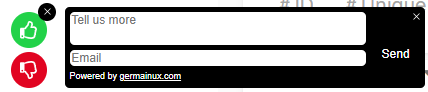
Feedback Popup - GermainUX
Prerequisites
Before enabling feedback:Feedback capabilities
GermainUX can collect:- Positiveor negativefeedback
- Customer comments
- Real-timealert — Notifies your team as soon as feedback is submitted, giving you an opportunity to respond while you still have the customer’s attention.
- AI analysis of the feedback — Analyzes the customer’s comment to help your team understand, categorize, and prioritize the feedback.
Enable the feedback popup
Go to: Germain Workspace > Analytics > UX Monitoring Profiles Select the profile used by the Shopify store, then enable the feedback feature.Initialization script
Where an initialization script is required, use:germainApm.start(settings).
Do not call germainApm.start() more than once. If the Shopify profile already contains an initialization script, add the feedback setting to that existing script.
Configure the feedback experience
Configure the popup to match the store’s branding and the purpose of the feedback request.Feedback choices
Configure the positive and negative choices. Available properties can include:- Icon
- Label
- Background color
- Text color
- Hover style
- Selected style
Use labels that match the question being asked. A generic thumbs-up or thumbs-down prompt may not provide enough context for analysis.
Prompt
Use one short, specific question. Examples:- Did you find what you were looking for?
- Was this product information helpful?
- How easy was it to complete this step?
- Did checkout work as expected?
- Are you satisfied with your shopping experience?
- Was this support article helpful?
Customer comment
The optional comment field can help explain the selected rating. Recommended placeholder:Popup position
Supported positions can include:- Top left
- Top right
- Bottom left
- Bottom right
- Navigation
- Cookie-consent controls
- Chat widgets
- Add-to-cart buttons
- Checkout actions
- Accessibility controls
- Mobile navigation
- Other fixed-position elements
Place the popup inside a specific element
UseparentSelector when the popup must be rendered inside a particular page container rather than attached to the default page location.
The selector must:
- Match a stable element
- Exist when the popup is initialized
- Be present on every targeted page
- Avoid dynamic theme-generated identifiers
parentSelector after every material theme change.
Configure display rules
Use display rules to prevent excessive or irrelevant prompts. Consider:- Maximum displays per session
- Maximum displays per customer over time
- Delay before display
- Minimum time on page
- Display after a specific action
- Display after journey completion
Show all 15
Show all 15
- Display after an error
- Display after abandonment intent
- Page and URL inclusion
- Page and URL exclusion
- Device type
- Customer segment
- Traffic source
- Consent state
- Sampling percentage
Privacy and security
Free-text feedback can contain personal, confidential, or payment-related information even when customers are asked not to provide it. Configure:- Comment masking or sanitization
- Data-retention limits
- Role-based access
- Consent requirements
- Geographic privacy rules
- Export restrictions
Show all 9
Show all 9
- Sensitive-data detection, where available
- Page exclusions
- Audit access
- Payment-card details
- Passwords
- Security codes
- Authentication information
- Government identifiers
- Medical information
- Other sensitive personal data
Configure feedback KPIs
Use feedback KPIs to measure:- Total responses
- Positive responses
- Negative responses
- Positive-response rate
- Negative-response rate
- Comment volume
Show all 13
Show all 13
- Unique customers providing feedback
- Feedback by page
- Feedback by product or collection
- Feedback by journey stage
- Feedback associated with errors
- Feedback associated with slow performance
- Feedback associated with conversion or abandonment
Configure dashboards
Go to: Germain Workspace > Dashboards > All Search for:ShopifyFeedbackInsights for UX
Recommended dashboard measures
- Response Count
- Unique Respondents
- Positive Count
- Negative Count
- Positive Rate
- Negative Rate
Show all 10
Show all 10
- Comments
- Affected Sessions
- Conversion Rate
- Abandonment Rate
Recommended pivots
- Feedback Choice
- Page
- Product
- Collection
- Business-Process Step
- Error Category
Show all 13
Show all 13
- Browser
- Device
- Country
- Campaign
- Customer Segment
- Store
- Environment
Recommended dashboard views
Feedback overview
Show:- Total responses
- Positive and negative rates
- Response trend
- Most affected pages
- Recent comments
Negative-feedback analysis
Show:- Negative feedback by page
- Related application errors
- Related slow operations
- Related searches
- Conversion outcome
- Links to affected sessions and replay
Product and discovery feedback
Show:- Feedback by product
- Feedback by collection
- Search-related feedback
- Search with no results
- Product views and cart additions
Checkout feedback
Show:- Feedback by checkout step
- Checkout duration
- Checkout alerts
- Payment declines
- Application failures
- Completion and abandonment
Configure alerts and reports
Create alerts only for feedback conditions that require timely action. Examples:- Sudden increase in negative feedback
- Multiple negative responses for the same page
- Negative feedback associated with checkout failure
- New recurring complaint category
- Negative feedback following a release
- Feedback indicating a critical customer-impacting issue
- Weekly feedback trends
- Most common complaint categories
- Product and collection feedback
- Checkout feedback
- Feedback correlated with errors
- Feedback correlated with conversion
- Resolved versus recurring complaints
Analyze individual feedback
When reviewing an individual response:- Read the selected feedback and sanitized comment.
- Identify the page, product, or journey step.
- Review the customer’s preceding actions.
- Check related errors and network requests.
- Review page and interaction performance.
- Open Session Replay when available.
- Determine whether the issue is technical, functional, content-related, product-related, or policy-related.
- Assess conversion and revenue impact.
- Categorize the feedback.
- Assign or track the appropriate action.
Validate the configuration
Test the feedback experience before production rollout. Verify that:- The popup appears only on intended pages.
- The prompt and choices are correct.
- Positive and negative responses submit successfully.
- Optional comments are captured.
- Confirmation behavior works.
- The popup does not obstruct Shopify controls.
Show all 15
Show all 15
- Desktop and mobile layouts work correctly.
- Keyboard navigation works.
- The popup is usable with screen readers where required.
- Consent choices are respected.
- Sensitive pages are excluded.
- Feedback correlates with the correct session.
- Feedback appears at the right point in Session Replay.
- Dashboard KPIs update.
- No duplicate feedback event is generated.
Troubleshooting
The popup does not appear
Confirm that:- RUM JS is loaded.
settings.plugins.feedback.enabledistrue.- The initialization script reaches
germainApm.start(settings). - The page matches the display rules.
- Consent permits collection.
- The customer has not reached the display-frequency limit.
Show all 9
Show all 9
- The configured
parentSelectormatches an existing element. - Theme styles do not hide the popup.
- Another widget is not covering it.
Feedback submits but does not appear in GermainUX
Verify:- The Shopify application and environment names
- Network access to the GermainUX environment
- Consent and privacy rules
- Feedback KPI mapping
- Dashboard time range and filters
- Data-retention and access permissions
Feedback is not linked to Session Replay
Confirm that:- Session Replay was enabled for the session.
- The session was included by the replay sampling rules.
- Consent permitted replay.
- Feedback and RUM use the same application and session.
- The feedback event occurred before the session ended.
The popup conflicts with another widget
Change its position, display rule, orparentSelector. Test against cookie banners, chat, accessibility controls, cart drawers, and mobile navigation.
Related documentation
- Deploy Monitoring for Shopify
- Configure Shopify Events
- Configure Error Monitoring for Shopify
- Configure User Feedback for Shopify
- Check AI Insights and Automated Recommendations you can enable
Get Help
Contact GermainUX Support
The GermainUX team helps you get up and running faster, empower your team, turn data into actionable insights, and optimize performance to deliver measurable business outcomes.
Can't find what you need?
Search all GermainUX docs with Ctrl + K, or use the feedback buttons at the bottom of this page to tell us what is missing.
The content of this document is proprietary to GERMAIN SOFTWARE.