

Issues Detected
Find checkout-blocking problems
Website Support
Static and dynamic sites
Crawler Settings
Tune crawl behavior
Operational Recommendations
Choose the right method
Overview
GermainUX Website Crawler proactively evaluates pages across a website or web application, helping teams identify quality and availability issues before they affect users.Issues Detected
For an eCommerce website, GermainUX can crawl product, category, search, cart, and other customer-facing pages to identify issues that could disrupt product discovery, checkout, or conversion.
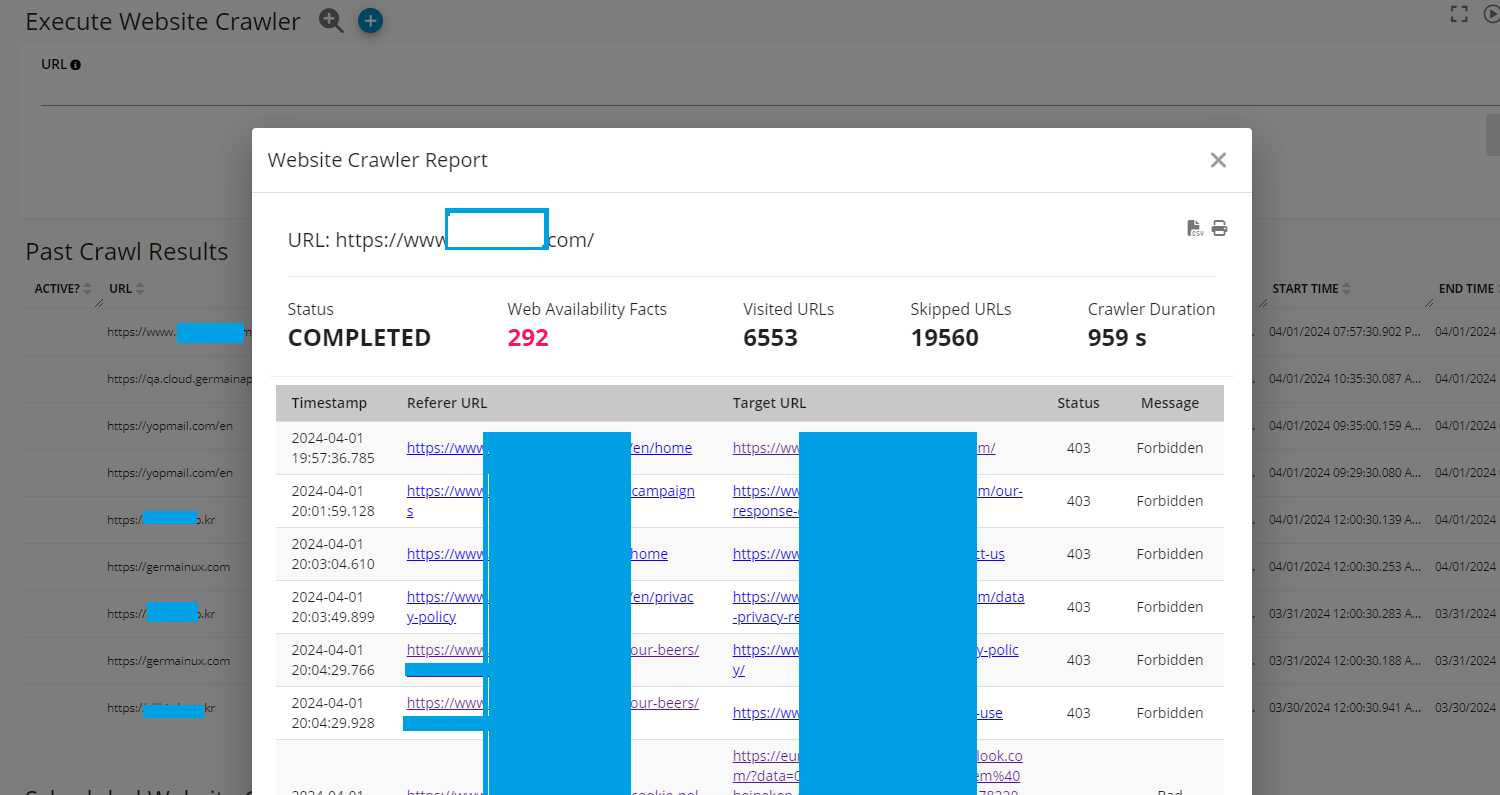
Website Crawler Report emailed or viewable on the workspace - GermainUX
Website Support
GermainUX supports both static and dynamic websites.
Website Crawler can monitor websites and applications built with technologies such as WordPress, Shopify, and Salesforce Experience Cloud.
Crawl a Website
GermainUX provides two ways to start a website crawl:Crawl Now
Use Crawl Now to analyze a website immediately and review the results when the crawl completes. Its simplified settings are sufficient for most common use cases. Go to GermainUX Workspace > Analytics > Website Crawler, enter the starting URL, and launch the crawl.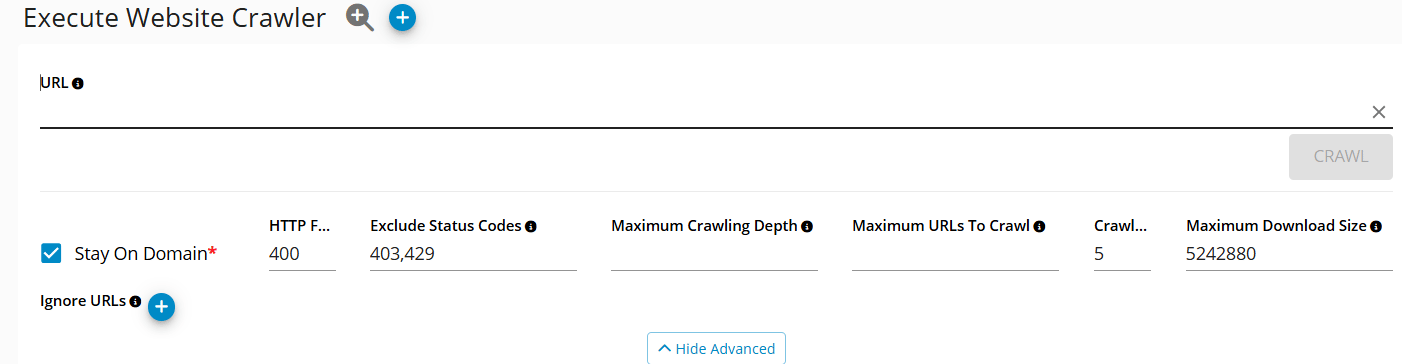
Immediate Website Crawling - GermainUX
Schedule Crawling
Use this option to execute a crawl automatically at a configurable frequency. Scheduled crawlers also support advanced settings, including:- Custom HTTP headers
- Authentication
- Connection settings
- Crawl limits
- URL inclusion and exclusion rules
- Failure-status handling
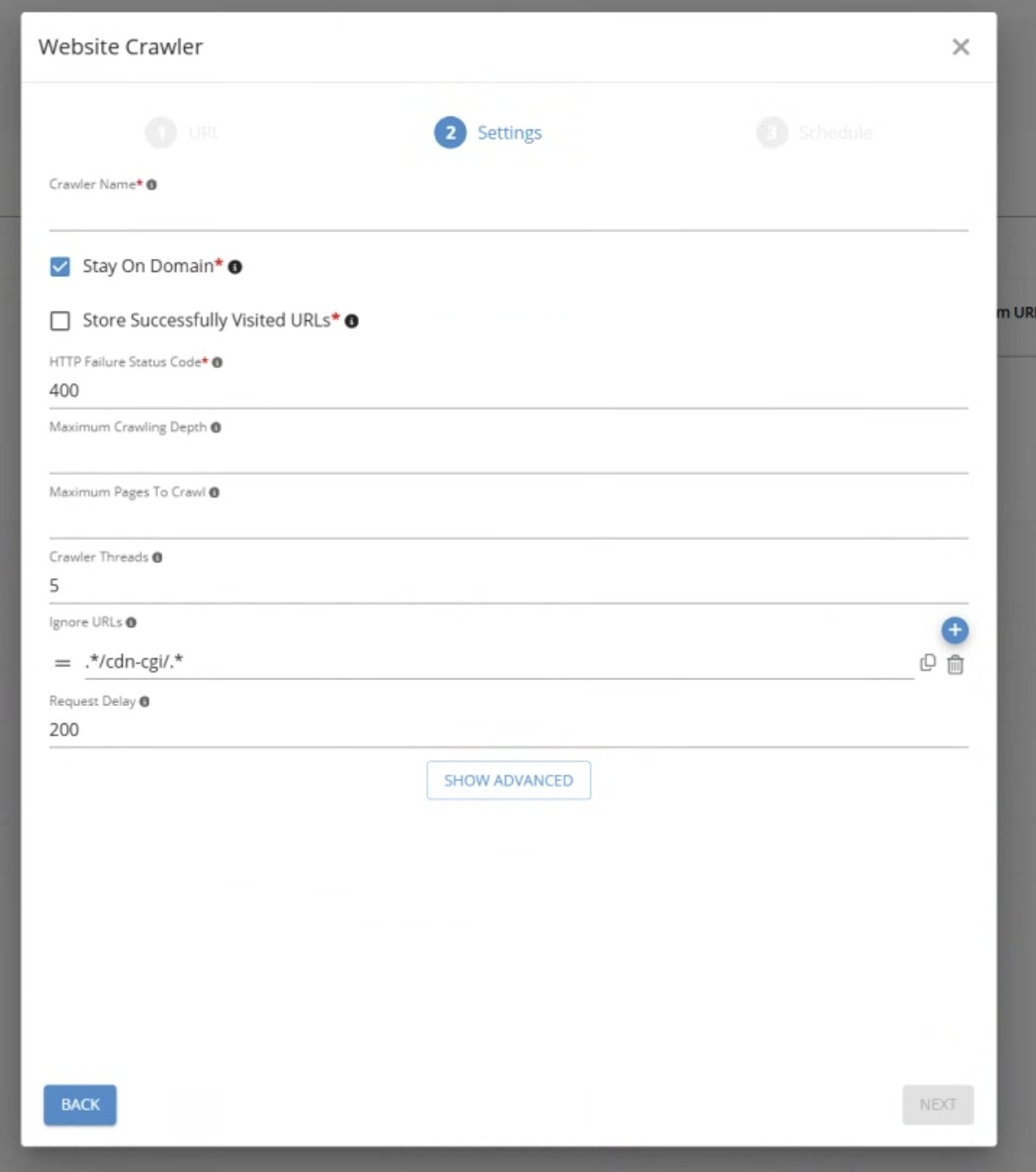
Schedule Website Crawling - GermainUX
Crawler Settings
Stay on Domain
Enable this setting for most audits to prevent the crawler from expanding into unrelated external websites.
Store Successfully Visited URLs
Ignore URLs
Use Ignore URLs to prevent the crawler from visiting known, irrelevant, sensitive, or potentially disruptive destinations. Regular expressions are supported. For example, the following pattern excludes URLs containingdrive.google.com:
Excluded Failure Status Codes
Use this setting when a particular HTTP status is expected and should not be reported as a failure. For example, you can exclude selected404 or 503 responses when they are known, intentional, and not relevant to the audit.
Blocked URLs
Use Blocked URLs to exclude specific pages or resources that should not be crawled or included in failure results. This can reduce false positives caused by known external services, security controls, or intentionally unavailable pages. For example, you can exclude an irrelevant Cloudflare-hosted URL whose expected response would otherwise generate unnecessary noise.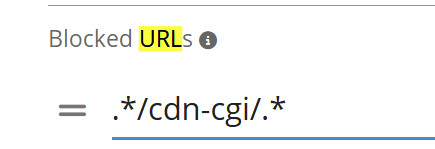
Operational Recommendations
- Confirm that you are authorized to crawl the target website.
- Start with conservative URL, depth, and thread limits.
- Use Stay on Domain unless external-link validation is required.
- Exclude logout, deletion, purchase, form-submission, and other state-changing URLs.
- Avoid crawling production applications at a frequency that could affect performance.
- Configure authentication and custom headers securely.
- Review exclusions regularly to ensure that genuine issues are not being hidden.
Get Help
Contact GermainUX Support
The GermainUX team helps you get up and running faster, empower your team, turn data into actionable insights, and optimize performance to deliver measurable business outcomes.
Can't find what you need?
Search all GermainUX docs with Ctrl + K, or use the feedback buttons at the bottom of this page to tell us what is missing.
The content of this document is proprietary to GERMAIN SOFTWARE.