

Reset a Forgotten Password
Requesting an emailed reset
Password-Reset Email Not Received
Troubleshooting a missing email
This process applies to database-managed GermainUX users. If your organization uses LDAP, Active Directory, OAuth, or another identity provider, reset your password through that provider.
Reset a Forgotten Password
- Open the GermainUX login page.
- Click Forgot Password.
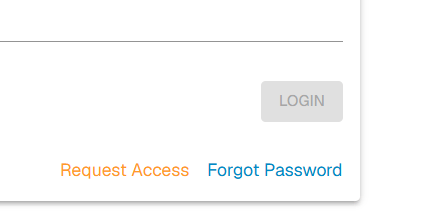
- Enter the email address associated with your GermainUX account.
- Submit the request.
- GermainUX sends a password-reset email to that address.
- Open the email and select the password-reset link.
- Enter and confirm your new password.
- Return to the GermainUX login page and sign in with the new password.
Password-Reset Email Not Received
If you do not receive the email:
For security reasons, GermainUX may display the same confirmation regardless of whether the submitted email address corresponds to an account.
Get Help
Contact GermainUX Support
The GermainUX team helps you get up and running faster, empower your team, turn data into actionable insights, and optimize performance to deliver measurable business outcomes.
Can't find what you need?
Search all GermainUX docs with Ctrl + K, or use the feedback buttons at the bottom of this page to tell us what is missing.
The content of this document is proprietary to GERMAIN SOFTWARE.