

What Feedback Captures
What feedback reveals
Prerequisites
Deploy monitoring components first
Analyze User Feedback
Review and segment responses
Dashboards
Find feedback dashboards quickly
Overview
GermainUX enables Salesforce users to provide positive or negative feedback directly from the application while they work. Users can also add comments explaining their experience.What Feedback Captures
Each submission is captured in real time and correlated with the user’s monitored session, helping teams understand:- What the user was doing when feedback was submitted
- Which page, feature, or workflow was involved
- What errors or performance issues occurred
- Whether similar feedback affects other users
- Which sessions should be investigated first
Prerequisites
Before enabling user feedback, deploy the appropriate GermainUX Real User Monitoring component for your Salesforce environment:
User Feedback is part of the GermainUX Real User Monitoring and Session Replay capability.
Enable User Feedback
1
Deploy GermainUX RUM JS or RUM Extension
Deploy browser monitoring for Salesforce, and check that sessions arrive. See Deploy Monitoring for Salesforce.
2
Configure the appearance and behavior of the feedback popup
In the left menu, go to Settings > Analytics > UX Monitoring Profiles, and open the Salesforce profile, or your copy of it. Feedback settings go in its Init Script, under
settings.plugins.feedback: the buttons, the comment box and the popup position. For every option, see Configure User Feedback.3
Enable the User Feedback Popup
The popup is off by default. In the same Init Script, before the line Select Save. The popup appears on the next page load in the monitored browsers.
germainApm.start(settings), add:Init Script
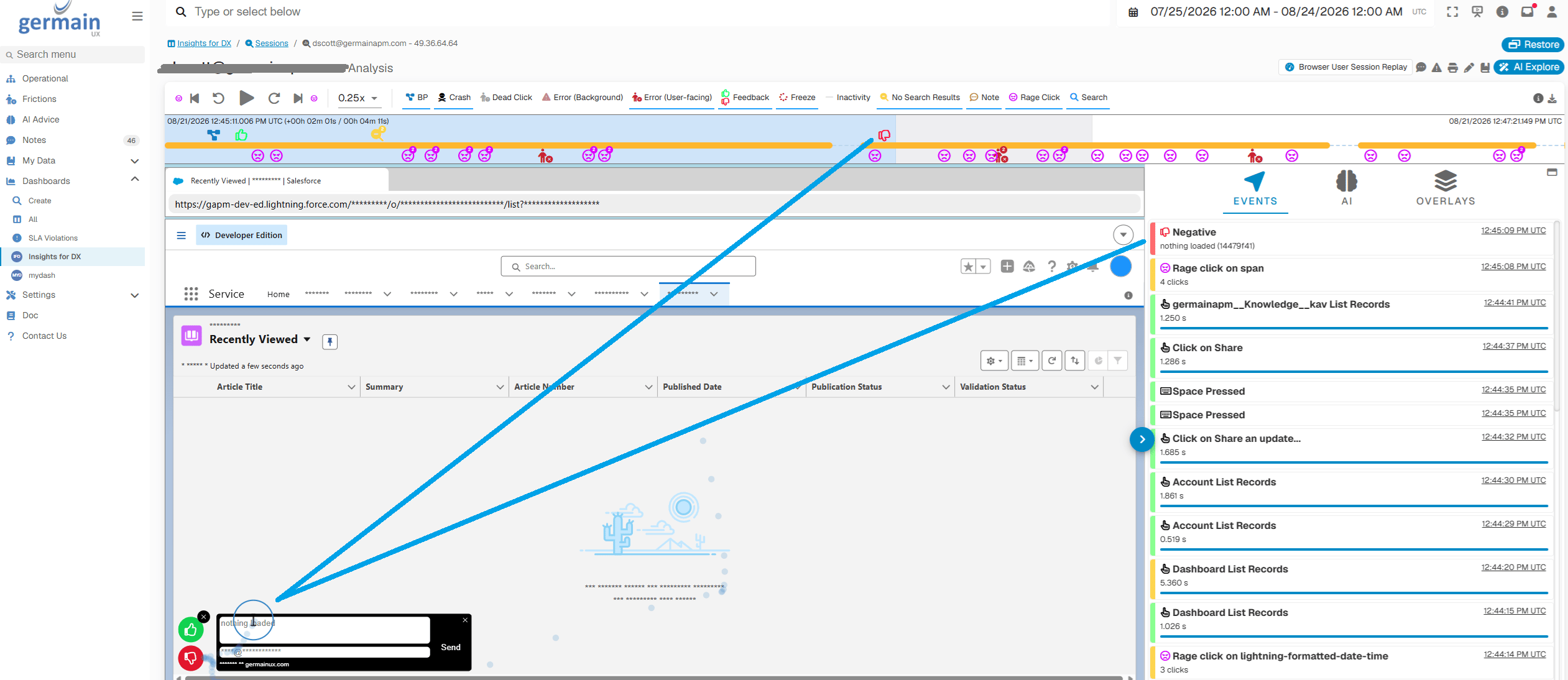
Let Salesforce users share feedback and ask for help - GermainUX
Analyze User Feedback
User Feedback KPI
GermainUX records every feedback submission using the preconfigured User Feedback KPI. The KPI captures:- Positive or negative feedback
- Any comment entered by the user
- The application and page context
- The associated monitored session
Agentforce likes and dislikes are recorded as User Feedback too, so you can compare Agentforce ratings with the rest of your Salesforce feedback. See Agentforce Monitoring for Salesforce.
Feedback can be analyzed across all users or within the context of an individual session.
Session-Level Measures
The User Session Replay KPI includes the following feedback measures:
These measures help teams segment and prioritize sessions based on the type and volume of feedback they contain.
See User Feedback KPIs and measures for details.
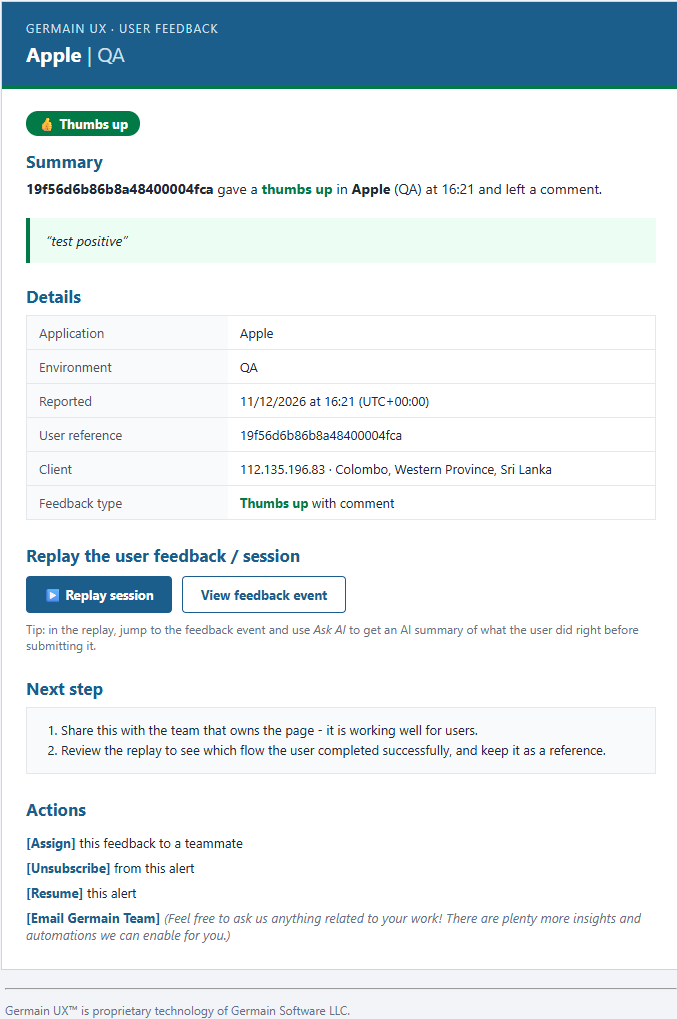
User feedback alert notification - GermainUX
Dashboards
To access dashboards containing Salesforce feedback data:- In the left menu, go to Dashboards > All.
- Search for Salesforce, Feedback, or Insights for UX.
- Add a feedback portlet to an existing dashboard
- Create a dedicated feedback dashboard
- Analyze a feedback submission within its associated session replay
Related Documentation
For everything the Salesforce UX Monitoring Profile captures and the KPI that holds it, see Salesforce Browser Monitoring Data.Dashboard & Reports
Dashboard & Reports
AI
Insights & Recommendations
Analytics
More Analytics Features
Automation
More Automation Features
Get Help
Contact GermainUX Support
The GermainUX team helps you get up and running faster, empower your team, turn data into actionable insights, and optimize performance to deliver measurable business outcomes.
Can't Find What You Need?
Search all GermainUX docs with Ctrl + K, or use the feedback buttons at the bottom of this page to tell us what is missing.
The content of this document is proprietary to GERMAIN SOFTWARE.