GermainUX alerts can automatically be posted to Microsoft Teams channels as rich Adaptive Cards, allowing teams to receive and respond to critical events in real time.
GermainUX alerts can automatically be posted to Microsoft Teams channels as rich Adaptive Cards, allowing teams to receive and respond to critical events in real time.
GermainUX alerts can automatically be posted to Microsoft Teams channels. Messages can be triggered by:
SLA conditions
Scheduled executions
Other GermainUX automation events
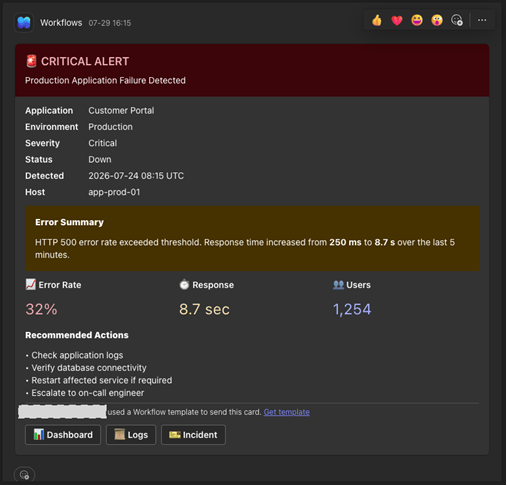
Instead of a plain text line, the alert is delivered as an Adaptive Card with a severity header, key facts, an error summary, headline metrics, recommended actions, and buttons linking to the dashboard, logs, and incident.
Example of a GermainUX alert posted to Microsoft Teams - GermainUX
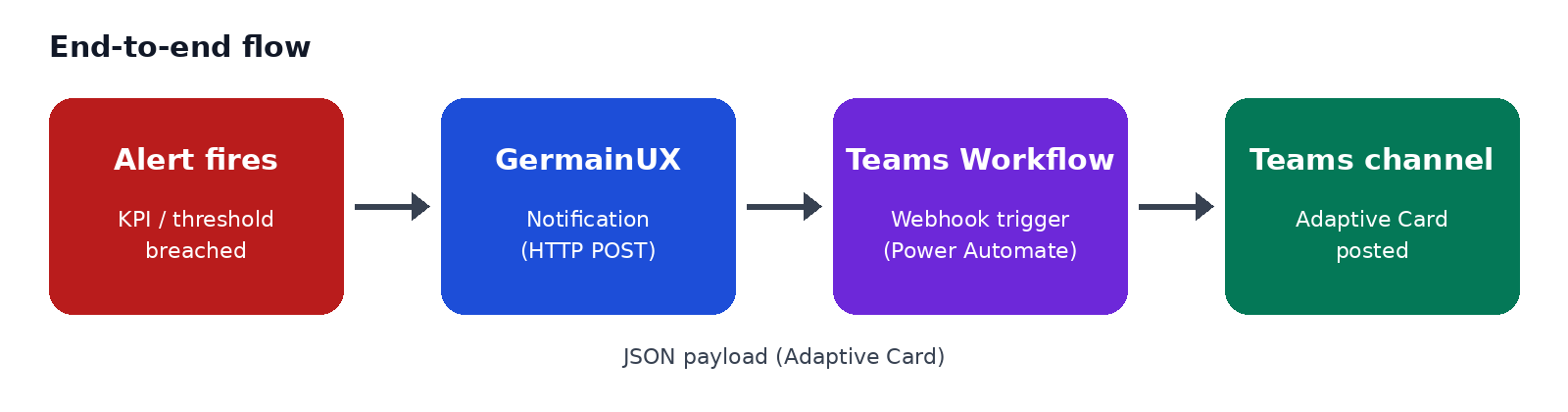
GermainUX integrates with Microsoft Teams through HTTP Actions and a Teams Workflow (Power Automate) webhook. When a configured condition occurs, GermainUX sends an HTTP POST containing an Adaptive Card to the workflow’s webhook URL, and the workflow posts the card to the selected channel.
Alert fires (KPI or threshold breached)GermainUX HTTP POSTTeams Workflow webhookAdaptive Card posted to channel
Compared with the Slack integration, there is no app, bot token, or OAuth scope to manage. The webhook URL itself carries a signature that authorizes the post, so no Authorization header is required.
How an alert travels from GermainUX to Teams - GermainUX
Microsoft is retiring the older Office 365 Connectors (“Incoming Webhook” connector) in Teams. Use the Workflows approach described here for all new integrations, and migrate existing connector-based webhooks to it.
If you do not already have a webhook workflow for the destination channel:
1
Open the channel
In Microsoft Teams, open the team and hover over the channel that should receive alerts (for example, “Production Alerts”).
2
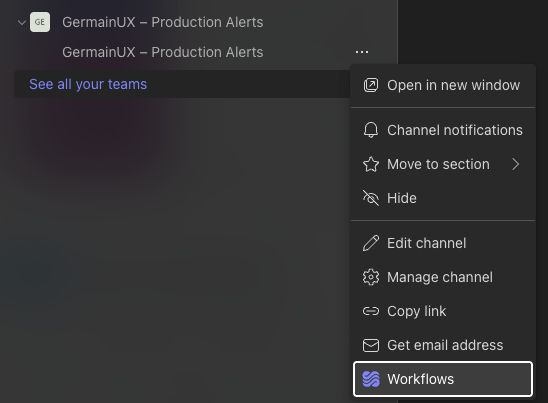
Open Workflows
Click … (More options) next to the channel name and choose Workflows.
Opening Workflows from the channel menu - GermainUX
3
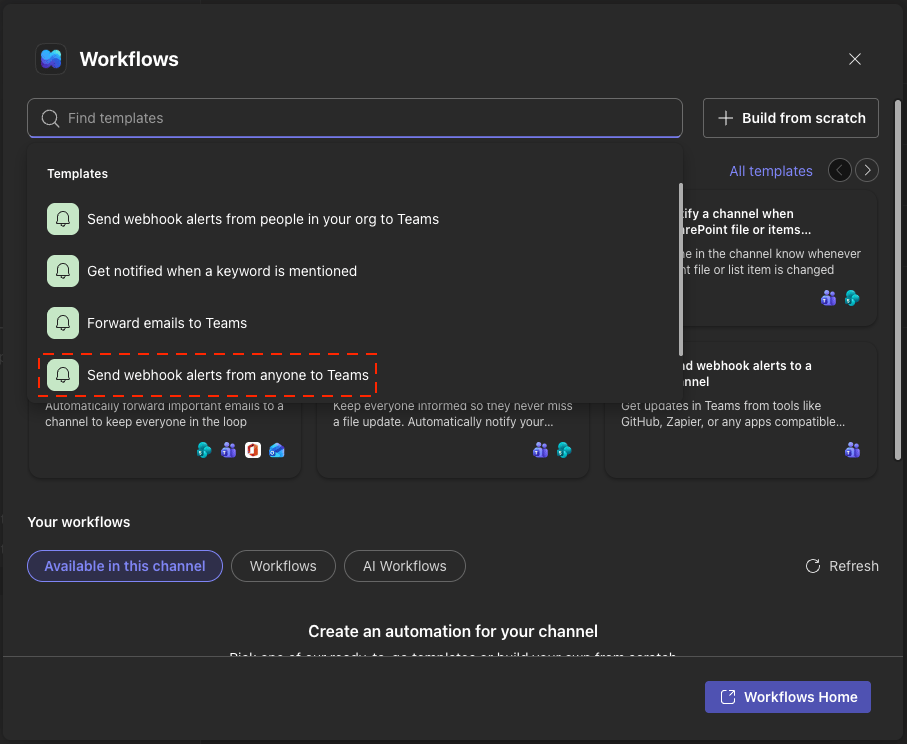
Select the webhook template
Select the template Send webhook alerts from anyone to Teams (in some tenants: Post to a channel when a webhook request is received).
Selecting the webhook template - GermainUX
4
Name the workflow
Name the workflow, for example GermainUX - Production Alerts, confirm the Microsoft Teams connection, and click Next.
5
Choose the team and channel
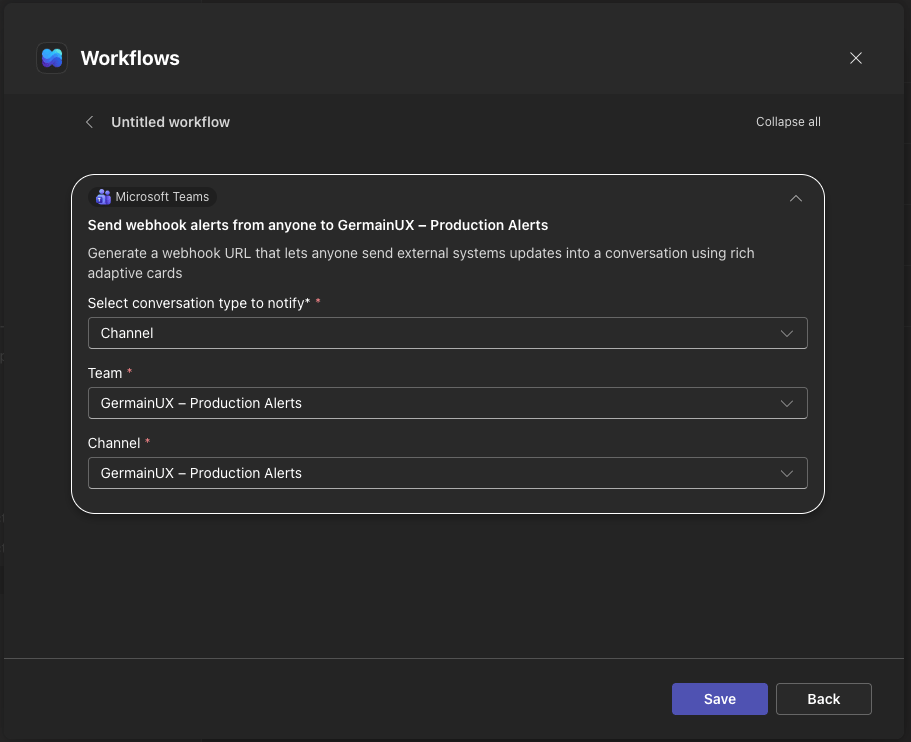
Confirm the Team and Channel, then click Add workflow.
Choosing the team and channel - GermainUX
6
Copy the webhook URL
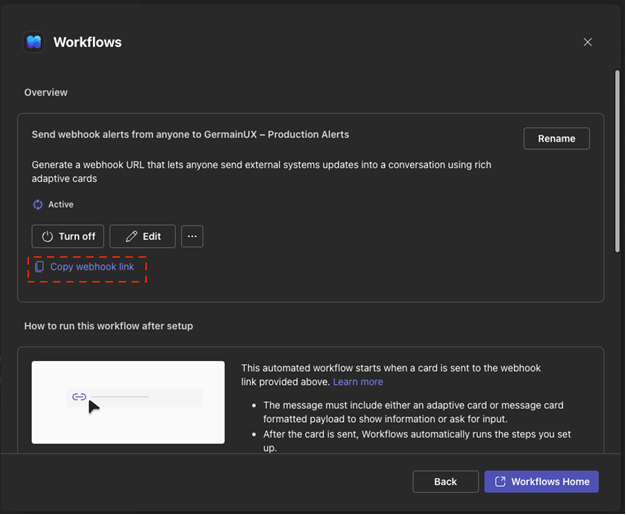
Copy the generated webhook URL. You will use it as the Path of the HTTP Action.
Copying the generated webhook URL - GermainUX
Create the workflow under a shared service account rather than a personal account. Workflows run as their creator, so alerts stop if that person leaves or loses access to the channel.
The following request posts a simple card to the Teams channel. Use it to confirm the workflow works before configuring GermainUX:
curl "https://<your-workflow-webhook-url>" \
  --request POST \
  --header "Content-Type: application/json" \
  --data '{
    "type": "message",
    "attachments": [{
      "contentType": "application/vnd.microsoft.card.adaptive",
      "content": {
        "type": "AdaptiveCard",
        "version": "1.4",
        "body": [{
          "type": "TextBlock",
          "text": "GermainUX detected CPU utilization of 91%, which exceeds the expected threshold.",
          "wrap": true
        }]
      }
    }]
  }'
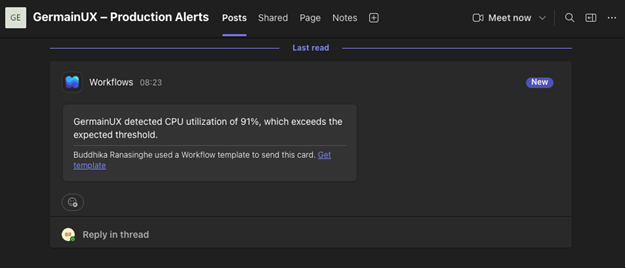
A successful request returns HTTP 202 Accepted. Note that 202 only means the workflow received the request; if the card is invalid the workflow run fails afterwards, so check the workflow’s run history in Teams (Workflows > Manage workflows) when a message does not appear.
Test message received in Teams - GermainUX
Store the webhook URL in a secure GermainUX configuration. Anyone who has the URL can post into the channel, so do not expose it in documentation, tickets, or logs.
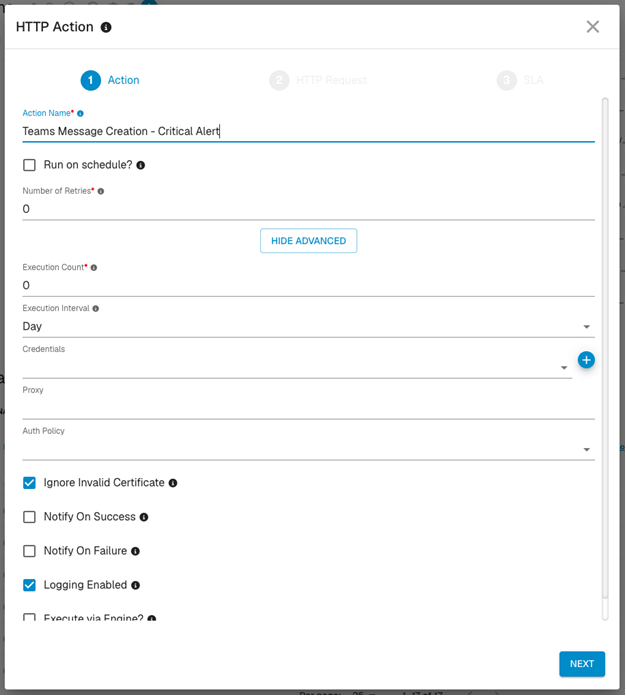
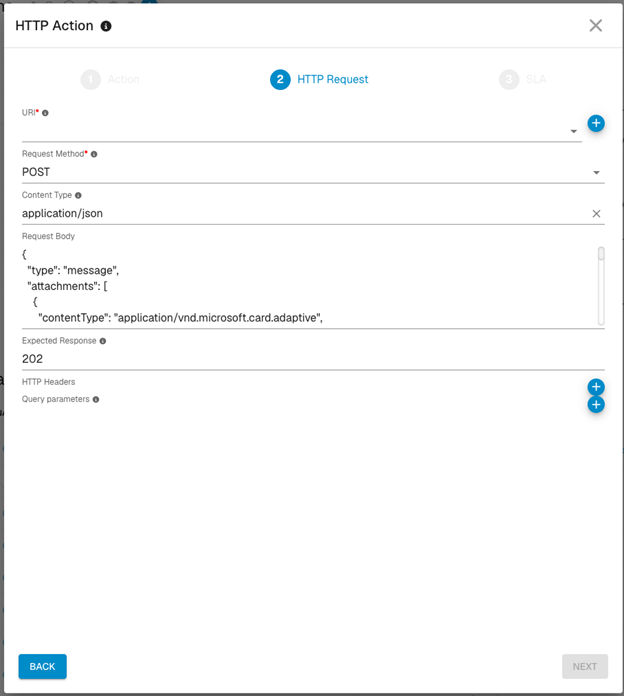
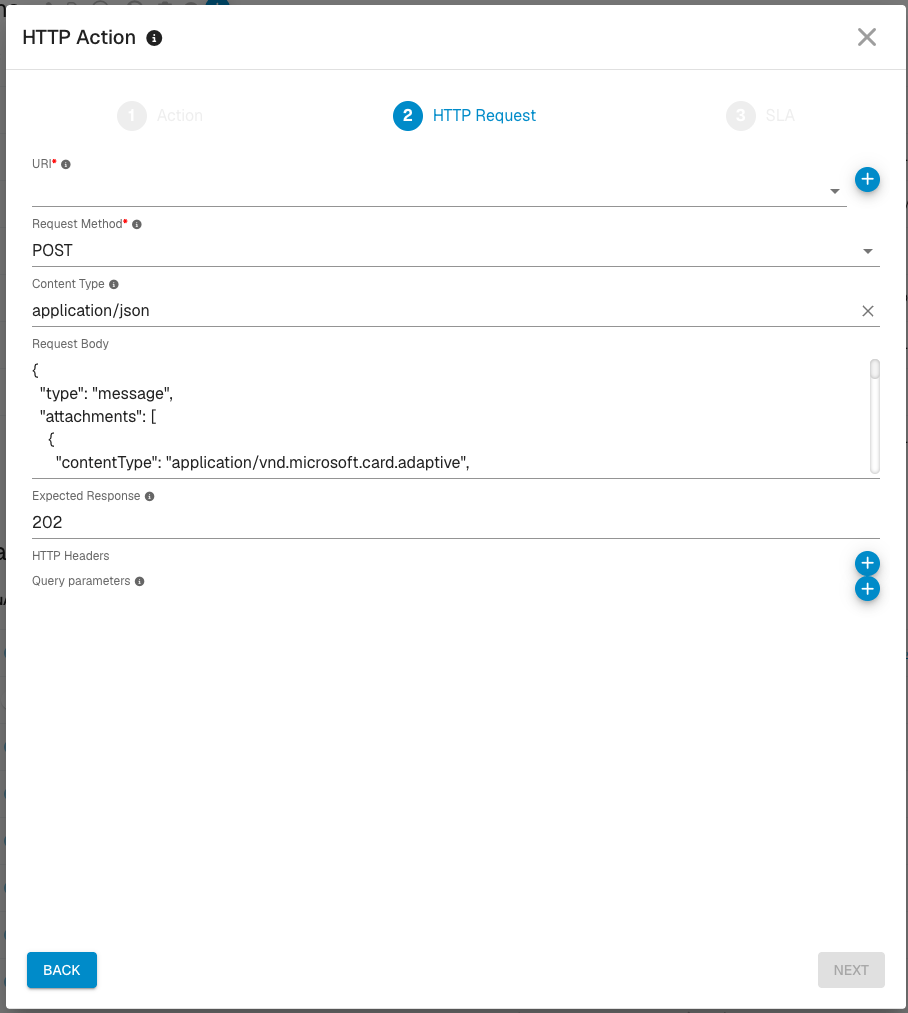
In the left menu, go to Settings > Automation > HTTP.This screen displays the available HTTP Actions and identifies those associated with SLAs. Select an existing action to edit it, or click + to open the HTTP Action wizard.
Important: Set Expected HTTP Response to 202, not 200. The Teams workflow webhook replies with 202 Accepted; leaving the Slack value of 200 makes GermainUX treat every successful post as a failure.
Use the following request body. It produces the full alert card and uses the GermainUX context variables ${context.kpi.name} and ${context.displayValue} to insert live alert data:
Select the SLA that should trigger the Teams message (for example, the HTTP Error Rate SLA for Customer Portal).When the SLA is breached, GermainUX will post the configured card to the selected Teams channel. Click Finish to save the configuration.
Because each HTTP Action is tied to a specific SLA, values that describe that SLA’s context can be written directly into the body. Values that change on every breach come from GermainUX context variables.
Card field
Source
Value in payload
KPI (facts)
Dynamic
${context.kpi.name}
Error Summary
Dynamic
${context.kpi.name}, ${context.displayValue}
Error Rate metric
Dynamic
${context.displayValue}
Application, Environment, Host
Static per action
Customer Portal, Production, app-prod-01
Severity, Status
Static per action
Critical, Down
Response, Users metrics
Static example
Replace with additional context variables if available in your version, or remove the columns
Severity colors: use style "attention" (red) for Critical, "warning" (amber) for Major, "good" (green) for Resolved, and "accent" (blue) for Informational. Create one HTTP Action per severity, each tied to the matching SLA.
Preview before deploying: paste the content object into the Adaptive Card Designer with the Microsoft Teams host selected.
Card version: keep version 1.4 for the widest compatibility across Teams desktop, web, and mobile.
The GermainUX team helps you get up and running faster, empower your team, turn data into actionable insights, and optimize performance to deliver measurable business outcomes.
Can't Find What You Need?
Search all GermainUX docs with Ctrl + K, or use the feedback buttons at the bottom of this page to tell us what is missing.
The content of this document is proprietary to GERMAIN SOFTWARE.
Was this page helpful?
{"docsConfig":{"theme":"mint","$schema":"https://mintlify.com/docs.json","name":"GermainUX Docs","description":"GermainUX is a real-time Operational Experience Intelligence platform that combines Monitoring + Analytics + AI + Automation to help organizations detect and resolve user, workflow, and technology issues faster, in order to 1)Improve CRM and ERP Adoption and Productivity 2)Increase eCommerce Conversion","colors":{"primary":"#2E7DF2","light":"#5B9CFF","dark":"#1A5FC8"},"logo":{"light":"https://mintcdn.com/germain-ux/ok7-BbqwVV0uk3t8/images/logo-light.png?fit=max\u0026auto=format\u0026n=ok7-BbqwVV0uk3t8\u0026q=85\u0026s=3cfe3238ac55802e43da3e4da5806f0d","dark":"https://mintcdn.com/germain-ux/ok7-BbqwVV0uk3t8/images/logo-dark.png?fit=max\u0026auto=format\u0026n=ok7-BbqwVV0uk3t8\u0026q=85\u0026s=1886121bf4312c96b6321ea733078b7f","href":"/"},"favicon":"https://mintcdn.com/germain-ux/Jw6D65yKWJ4U5yOS/images/favicon.png?fit=max\u0026auto=format\u0026n=Jw6D65yKWJ4U5yOS\u0026q=85\u0026s=bcc4dd08f0edb299e0b2af2f079f8526","appearance":{"default":"light"},"background":{"color":{"light":"#FFFFFF","dark":"#00112A"}},"navbar":{"links":[{"href":"https://germainux.atlassian.net/servicedesk/customer/portal/1","label":"Ticket"},{"href":"https://calendly.com/germainux","label":"Schedule"}],"primary":{"type":"button","label":"Contact GermainUX","href":"https://docs.germainux.com/getting-started/support"}},"footer":{"socials":{"website":"https://germainux.com"}},"seo":{"metatags":{"canonical":"https://docs.germainux.com","og:locale":"en_US","og:site_name":"GermainUX Docs","twitter:card":"summary_large_image"},"indexing":"navigable"},"styling":{"eyebrows":"section","latex":true},"integrations":{"gtm":{"tagId":"GTM-MRCBSV5R"}},"contextual":{"options":["view","chatgpt","claude"],"display":"header"},"navigation":{"pages":[]}},"deployment":{"deploymentMetadataValue":{"subdomain":"germain-ux","hasAudioNarration":false,"actualSubdomain":"germain-ux","customDomains":["docs.germainux.com"],"gitSource":{"type":"github","owner":"germainsoftware","repo":"germain-docs","deployBranch":"main","contentDirectory":"","isPrivate":true,"mountPath":"","label":"","_id":"6ae890c6c73aaa2ebb8f7a7f"},"chroma":{"latestBuiltDeploymentHistoryId":"6aec8dad37327199c83c79a6","collectionId":"d0043023-9699-497a-8378-1bbd219abe2b","liveDeploymentHistoryId":"6aec8dad37327199c83c79a6","schemaVersion":"v3"},"feedback":{"contextualFeedback":{"allowEmail":true,"textInputOnly":false},"edits":false,"issues":false,"thumbs":true},"entitlements":{"AI_CHAT":{"status":"ENABLED"},"WEB_MCP":{"status":"ENABLED"},"NARRATION":{"status":"ENABLED"}},"buildId":"6aedc36125df1b8f9bf59e6f","clientVersion":"0.0.4074","searchFilterCounts":[{"language":"default","tag":"Documentation","count":488},{"language":"default","tag":"GermainUX Documentation","count":488},{"language":"default","tag":"Integrations","count":251},{"language":"default","tag":"Release Notes","count":81},{"language":"default","tag":"Archive","count":73},{"language":"default","tag":"Analytics","count":57},{"language":"default","tag":"Management","count":56},{"language":"default","tag":"Deploy GermainUX","count":53},{"language":"default","tag":"Automation","count":43},{"language":"default","tag":"Success Stories","count":34}],"searchSettings":{"fullPageSearch":true,"showContentSnippets":true}},"assistantConfig":{"enableAskAiButton":false,"enableStarterQuestions":false,"enableContextualStarterQuestions":false,"enableAskAiSearchBar":true},"basePath":"","hasChatPermissions":true,"hasWebMcpPermissions":true,"toggles":[{"name":"kill-isr","enabled":true,"variant":{"name":"disabled","enabled":false,"feature_enabled":true},"impressionData":false},{"name":"agent-mintlify-slack","enabled":true,"variant":{"name":"disabled","enabled":false,"feature_enabled":true},"impressionData":false},{"name":"agent-integrations-settings","enabled":true,"variant":{"name":"disabled","enabled":false,"feature_enabled":true},"impressionData":false},{"name":"rbac-expansion","enabled":true,"variant":{"name":"disabled","enabled":false,"feature_enabled":true},"impressionData":false},{"name":"automations-pr-grouping","enabled":true,"variant":{"name":"disabled","enabled":false,"feature_enabled":true},"impressionData":false},{"name":"custom-prefix","enabled":true,"variant":{"name":"disabled","enabled":false,"feature_enabled":true},"impressionData":false},{"name":"analytics-v7","enabled":true,"variant":{"name":"disabled","enabled":false,"feature_enabled":true},"impressionData":false},{"name":"user-flows-analytics","enabled":true,"variant":{"name":"disabled","enabled":false,"feature_enabled":true},"impressionData":false},{"name":"no-publish-flow","enabled":true,"variant":{"name":"disabled","enabled":false,"feature_enabled":true},"impressionData":false},{"name":"workos-onboarding","enabled":true,"variant":{"name":"disabled","enabled":false,"feature_enabled":true},"impressionData":false},{"name":"llms-txt-v2","enabled":true,"variant":{"name":"disabled","enabled":false,"feature_enabled":true},"impressionData":false},{"name":"snapshot-serving-live","enabled":true,"variant":{"name":"disabled","enabled":false,"feature_enabled":true},"impressionData":false},{"name":"stripTemperatureMiddleware","enabled":true,"variant":{"name":"disabled","enabled":false,"feature_enabled":true},"impressionData":false},{"name":"support-platform-pylon-zendesk","enabled":true,"variant":{"name":"disabled","enabled":false,"feature_enabled":true},"impressionData":false},{"name":"snapshot-serving","enabled":true,"variant":{"name":"disabled","enabled":false,"feature_enabled":true},"impressionData":false},{"name":"instant-rollback","enabled":true,"variant":{"name":"disabled","enabled":false,"feature_enabled":true},"impressionData":false},{"name":"granular-notifications-server","enabled":true,"variant":{"name":"disabled","enabled":false,"feature_enabled":true},"impressionData":false},{"name":"granular-notifications","enabled":true,"variant":{"name":"disabled","enabled":false,"feature_enabled":true},"impressionData":false},{"name":"automations-fable","enabled":true,"variant":{"name":"disabled","enabled":false,"feature_enabled":true},"impressionData":false},{"name":"fixed-ai-action-pricing","enabled":true,"variant":{"name":"disabled","enabled":false,"feature_enabled":true},"impressionData":false},{"name":"automation-resolve-merge-conflict","enabled":true,"variant":{"name":"disabled","enabled":false,"feature_enabled":true},"impressionData":false},{"name":"scoped-publishing","enabled":true,"variant":{"name":"disabled","enabled":false,"feature_enabled":true},"impressionData":false},{"name":"mintql","enabled":true,"variant":{"name":"disabled","enabled":false,"feature_enabled":true},"impressionData":false},{"name":"page-level-analytics","enabled":true,"variant":{"name":"disabled","enabled":false,"feature_enabled":true},"impressionData":false},{"name":"editor-version-history-v2","enabled":true,"variant":{"name":"disabled","enabled":false,"feature_enabled":true},"impressionData":false},{"name":"billing-page-v2","enabled":true,"variant":{"name":"disabled","enabled":false,"feature_enabled":true},"impressionData":false},{"name":"full-page-search","enabled":true,"variant":{"name":"disabled","enabled":false,"feature_enabled":true},"impressionData":false},{"name":"workspace-projects","enabled":true,"variant":{"name":"disabled","enabled":false,"feature_enabled":true},"impressionData":false},{"name":"assistant-v5","enabled":true,"variant":{"name":"disabled","enabled":false,"feature_enabled":true},"impressionData":false},{"name":"fork-pr-previews","enabled":true,"variant":{"name":"disabled","enabled":false,"feature_enabled":true},"impressionData":false},{"name":"revalidation-jwt","enabled":true,"variant":{"name":"disabled","enabled":false,"feature_enabled":true},"impressionData":false},{"name":"vite-origin","enabled":true,"variant":{"name":"disabled","enabled":false,"feature_enabled":true},"impressionData":false},{"name":"workos-sso-scim","enabled":true,"variant":{"name":"disabled","enabled":false,"feature_enabled":true},"impressionData":false},{"name":"hobby-abuse-scan","enabled":true,"variant":{"name":"disabled","enabled":false,"feature_enabled":true},"impressionData":false},{"name":"dashboard-inbox","enabled":true,"variant":{"name":"disabled","enabled":false,"feature_enabled":true},"impressionData":false},{"name":"workos-signup","enabled":true,"variant":{"name":"disabled","enabled":false,"feature_enabled":true},"impressionData":false},{"name":"turbopuffer-dual-write","enabled":true,"variant":{"name":"disabled","enabled":false,"feature_enabled":true},"impressionData":false},{"name":"workos-enabled","enabled":true,"variant":{"name":"disabled","enabled":false,"feature_enabled":true},"impressionData":false},{"name":"approve-review-flow","enabled":true,"variant":{"name":"disabled","enabled":false,"feature_enabled":true},"impressionData":false},{"name":"sso-setup-deadline-banner","enabled":true,"variant":{"name":"disabled","enabled":false,"feature_enabled":true},"impressionData":false},{"name":"turbopuffer-serve","enabled":true,"variant":{"name":"disabled","enabled":false,"feature_enabled":true},"impressionData":false},{"name":"live-agents","enabled":true,"variant":{"name":"disabled","enabled":false,"feature_enabled":true},"impressionData":false},{"name":"comment-mode","enabled":true,"variant":{"name":"disabled","enabled":false,"feature_enabled":true},"impressionData":false}],"googleFontsInlined":false},"customCss":[],"page":{"pagePath":"integrations/microsoft-teams-notifications","slug":"/integrations/microsoft-teams-notifications","pageMetadata":{"title":"Microsoft Teams","description":"GermainUX alerts can automatically be posted to Microsoft Teams channels as rich Adaptive Cards, allowing teams to receive and respond to critical events in real time.","icon":"lightbulb","keywords":["Microsoft Teams","Teams Workflow webhook","Adaptive Card","HTTP Action","Power Automate"],"href":"/integrations/microsoft-teams-notifications"},"description":{"compiledSource":"\"use strict\";\nconst {jsx: _jsx} = arguments[0];\nconst {useMDXComponents: _provideComponents} = arguments[0];\nfunction _createMdxContent(props) {\n const _components = {\n p: \"p\",\n ..._provideComponents(),\n ...props.components\n };\n return _jsx(_components.p, {\n children: \"GermainUX alerts can automatically be posted to Microsoft Teams channels as rich Adaptive Cards, allowing teams to receive and respond to critical events in real time.\"\n });\n}\nfunction MDXContent(props = {}) {\n const {wrapper: MDXLayout} = {\n ..._provideComponents(),\n ...props.components\n };\n return MDXLayout ? _jsx(MDXLayout, {\n ...props,\n children: _jsx(_createMdxContent, {\n ...props\n })\n }) : _createMdxContent(props);\n}\nreturn {\n default: MDXContent\n};\n","frontmatter":{},"scope":{}},"pageType":"default","mdx":{"mdxSource":{"compiledSource":"\"use strict\";const{Fragment:_Fragment,jsx:_jsx,jsxs:_jsxs}=arguments[0];const{useMDXComponents:_provideComponents}=arguments[0];const GxFooter=()=>_jsx(`p`,{className:`gx-fine`,children:`The content of this document is proprietary to GERMAIN SOFTWARE.`});const GxStyle=()=>_jsx(`style`,{children:`\n.gx-meta { display:flex; flex-direction:column; gap:10px; margin:22px 0 6px; padding:16px 18px; border:1px solid rgba(15,23,42,.08); border-radius:16px; background:rgba(46,125,242,.035); font-size:13.5px; }\n.gx-meta-row { display:flex; flex-wrap:wrap; align-items:center; gap:6px; }\n.gx-meta-label { width:96px; flex:none; color:#64748b; }\n.dark .gx-meta-label { color:#94a3b8; }\n.gx-meta code { border-color:rgba(46,125,242,.25) !important; color:#1A5FC8 !important; background:rgba(46,125,242,.08) !important; }\n.dark .gx-meta { background:linear-gradient(135deg,rgba(46,125,242,.16),rgba(0,17,42,.4)); border-color:rgba(91,156,255,.22); }\n.dark .gx-meta code { color:#BFD6FF !important; background:rgba(91,156,255,.12) !important; border-color:rgba(91,156,255,.28) !important; }\n.gx-list ul { columns:2; column-gap:24px; list-style:none !important; padding-left:0 !important; margin:14px 0 0 !important; }\n.gx-list li { break-inside:avoid; position:relative; padding:4px 0 4px 22px !important; margin:0 !important; font-size:14.5px; }\n.gx-list li::marker { content:\"\"; }\n.gx-list li::before { content:\"\"; position:absolute; left:3px; top:13px; width:7px; height:7px; border-radius:50%; background:#2E7DF2; opacity:.75; }\n.dark .gx-list li::before { background:#5B9CFF; }\n.gx-flow { display:flex; flex-wrap:wrap; align-items:center; gap:10px 32px; margin:16px 0; }\n.gx-flow span { position:relative; display:inline-flex; align-items:center; padding:6px 12px; border-radius:8px; font-size:13.5px; font-weight:500; background:#fff; border:1px solid rgba(15,23,42,.12); color:#0f172a; box-shadow:0 1px 2px rgba(15,23,42,.05); }\n.gx-flow span:first-child, .gx-flow span:last-child { background:rgba(46,125,242,.08); border-color:rgba(46,125,242,.25); color:#1A5FC8; }\n.gx-flow span:not(:last-child)::after { content:\"\\\\2192\"; position:absolute; left:calc(100% + 9px); color:#94a3b8; font-weight:400; }\n.dark .gx-flow span { background:rgba(255,255,255,.03); border-color:rgba(255,255,255,.12); color:#e2e8f0; box-shadow:none; }\n.dark .gx-flow span:first-child, .dark .gx-flow span:last-child { background:rgba(91,156,255,.10); border-color:rgba(91,156,255,.28); color:#BFD6FF; }\n.dark .gx-flow span:not(:last-child)::after { color:#64748b; }\n#sidebar li[id] > a > div:first-child:has(> svg[aria-hidden]) { display: none; }\n#sidebar svg[style*=\"mask-image\"], #sidebar-content svg[style*=\"mask-image\"], #navigation-items svg[style*=\"mask-image\"], aside svg[style*=\"mask-image\"] { display: none !important; }\n#sidebar div:has(> svg[style*=\"mask-image\"]), #sidebar-content div:has(> svg[style*=\"mask-image\"]), #navigation-items div:has(> svg[style*=\"mask-image\"]), aside div:has(> svg[style*=\"mask-image\"]) { display: none !important; }\n.gx-fine { margin-top:56px; padding-top:20px; border-top:1px solid rgba(15,23,42,.08); font-size:13px; color:#64748b; }\n.dark .gx-fine { border-top-color:rgba(255,255,255,.08); color:#94a3b8; }\n.gx-fine p { margin:0 !important; font-size:13px !important; color:inherit !important; }\n.eyebrow { font-size:13px !important; font-weight:700 !important; letter-spacing:.12em !important; text-transform:uppercase; color:#2E7DF2 !important; display:inline-flex; align-items:center; gap:8px; padding:4px 12px; border-radius:999px; background:rgba(46,125,242,.10); border:1px solid rgba(46,125,242,.25); height:auto !important; margin-bottom:6px; }\n.dark .eyebrow { color:#8DB8FF !important; background:rgba(91,156,255,.12); border-color:rgba(91,156,255,.30); }\n#page-title { letter-spacing:-.02em; }\n.dark #page-title { background:linear-gradient(90deg,#FFFFFF 0%,#BFD6FF 100%); -webkit-background-clip:text; background-clip:text; -webkit-text-fill-color:transparent; }\n.mdx-content h2:not(.not-prose) { position:relative; padding-left:16px; }\n.mdx-content h2:not(.not-prose)::before { content:\"\"; position:absolute; left:0; top:.2em; bottom:.2em; width:4px; border-radius:4px; background:linear-gradient(180deg,#2E7DF2,#5B9CFF); }\n.dark table th { color:#BFD6FF; }\n.dark table td:first-child { color:#FFFFFF; font-weight:500; }\n@media (max-width: 820px) { .gx-list ul { columns:1; } }\n.gx-list-more:not(.is-open) > ul > li:nth-child(n+11) { display:none; }\n.gx-more-toggle { display:inline-flex; align-items:center; gap:6px; margin:8px 0 12px 22px; padding:0; border:0; background:none; cursor:pointer; font-size:14px; font-weight:600; color:#1A5FC8; }\n.gx-more-toggle:hover { text-decoration:underline; }\n.gx-more-toggle::after { content:\"\\\\25BE\"; display:inline-block; font-size:12px; transition:transform .15s; }\n.gx-list-more.is-open .gx-more-toggle::after { transform:rotate(180deg); }\n.dark .gx-more-toggle { color:#8DB8FF; }\n/* === Concept #1: hero header + numbered section tiles === */\n#content-area { counter-reset: gxsec; }\n#header { position:relative; overflow:hidden; padding:36px 30px 24px; border-radius:24px; border:1px solid rgba(91,156,255,.22); background:radial-gradient(800px 300px at 100% 0%, rgba(46,125,242,.32), transparent 65%), #0B2147; }\n#header::before { content:\"\"; position:absolute; inset:0; pointer-events:none; background-image:linear-gradient(rgba(255,255,255,.045) 1px,transparent 1px),linear-gradient(90deg,rgba(255,255,255,.045) 1px,transparent 1px); background-size:34px 34px; -webkit-mask-image:linear-gradient(100deg,transparent 15%,#000 75%); mask-image:linear-gradient(100deg,transparent 15%,#000 75%); }\n#header > * { position:relative; }\n#header #page-title { color:#fff !important; -webkit-text-fill-color:#fff !important; background:none !important; font-size:clamp(1.9rem,3.4vw,2.6rem) !important; line-height:1.06 !important; font-weight:800 !important; letter-spacing:-.035em !important; }\n#header .prose, #header .prose p, #header p { color:rgba(222,233,255,.82) !important; font-size:1.06rem; line-height:1.6; }\n#header .eyebrow { color:#BFD6FF !important; background:rgba(91,156,255,.14) !important; border-color:rgba(91,156,255,.32) !important; }\n#header button, #header [role=\"button\"] { color:#DCE8FF !important; border-color:rgba(191,214,255,.25) !important; background:rgba(255,255,255,.04) !important; }\n#content-area:has(#content > .gx-meta:first-child) #header { border-radius:24px 24px 0 0; border-bottom:0; padding-bottom:18px; }\n#content:has(> .gx-meta:first-child) { margin-top:0 !important; }\n#content > .gx-meta:first-child { margin:0 !important; padding:4px 30px 28px !important; border-radius:0 0 24px 24px !important; border:1px solid rgba(91,156,255,.22) !important; border-top:0 !important; background:#0B2147 !important; }\n#content > .gx-meta:first-child:has(+ .columns) { border-radius:0 !important; border-bottom:0 !important; padding-bottom:18px !important; }\n#content > .gx-meta:first-child + .columns { margin:0 0 8px !important; padding:4px 30px 30px !important; border:1px solid rgba(91,156,255,.22); border-top:0; border-radius:0 0 24px 24px; background:#0B2147; gap:12px !important; }\n#content > .gx-meta:first-child + .columns > * { background:rgba(255,255,255,.035) !important; border-color:rgba(91,156,255,.28) !important; border-radius:16px !important; }\n#content > .gx-meta:first-child + .columns h2, #content > .gx-meta:first-child + .columns [data-component-part=\"card-title\"] { color:#fff !important; font-size:15px !important; overflow-wrap:normal !important; word-break:normal !important; }\n#content > .gx-meta:first-child + .columns p, #content > .gx-meta:first-child + .columns [data-component-part=\"card-content\"] { color:rgba(214,226,250,.7) !important; }\n#content > .gx-meta:first-child + .columns svg { background-color:#5B9CFF !important; }\n#content > .gx-meta:first-child .gx-meta-label { color:rgba(191,214,255,.6) !important; }\n#content > .gx-meta:first-child code { font-family:inherit !important; font-weight:600 !important; font-size:12.5px !important; padding:5px 13px !important; border-radius:999px !important; color:#DCE8FF !important; background:rgba(46,125,242,.14) !important; border:1px solid rgba(91,156,255,.55) !important; }\n#content > .gx-meta:first-child a { text-decoration:none !important; border:0 !important; }\n#content > .gx-meta:first-child a:not(:has(code)) { color:#BFD6FF !important; font-weight:600; }\n#content > .gx-meta:first-child .gx-meta-row > span:not(.gx-meta-label) { color:#86EFAC !important; background:rgba(34,197,94,.14) !important; border-color:rgba(134,239,172,.35) !important; }\n.mdx-content > h2:not(.not-prose), #content > h2 { counter-increment:gxsec; display:flex !important; align-items:center; gap:14px; padding-left:0 !important; margin-top:2.6em !important; font-weight:750; letter-spacing:-.02em; }\n.mdx-content > h2:not(.not-prose)::before, #content > h2::before { content:counter(gxsec, decimal-leading-zero) !important; position:static !important; flex:none; width:40px; height:40px; border-radius:12px; display:inline-flex; align-items:center; justify-content:center; font-size:13px; font-weight:700; letter-spacing:0; color:#fff; background:linear-gradient(135deg,#2E7DF2,#5B9CFF) !important; box-shadow:0 6px 18px rgba(46,125,242,.35); }\n@media (max-width:820px) { #header, #content > .gx-meta:first-child, #content > .gx-meta:first-child + .columns { padding-left:20px !important; padding-right:20px !important; } }\n#content-area:has(#content > .columns:first-child) #header { border-radius:24px 24px 0 0; border-bottom:0; padding-bottom:18px; }\n#content:has(> .columns:first-child) { margin-top:0 !important; }\n#content > .columns:first-child { margin:0 0 8px !important; padding:4px 30px 30px !important; border:1px solid rgba(91,156,255,.22); border-top:0; border-radius:0 0 24px 24px; background:#0B2147; gap:12px !important; }\n#content > .columns:first-child > * { background:rgba(255,255,255,.035) !important; border-color:rgba(91,156,255,.28) !important; border-radius:16px !important; }\n#content > .columns:first-child h2, #content > .columns:first-child [data-component-part=\"card-title\"] { color:#fff !important; font-size:15px !important; overflow-wrap:normal !important; word-break:normal !important; }\n#content > .columns:first-child p, #content > .columns:first-child [data-component-part=\"card-content\"] { color:rgba(214,226,250,.7) !important; }\n#content > .columns:first-child svg { background-color:#5B9CFF !important; }\n/* === Shell: concept #1 (top bar, menus, page) === */\n#navbar, #navbar-transition, #navbar > div { background:#00112A !important; }\n#navbar { border-bottom:1px solid rgba(91,156,255,.18) !important; }\n#navbar a, #navbar button, #navbar .nav-tabs-item { color:rgba(220,232,255,.78) !important; }\n#navbar a:hover, #navbar button:hover, #navbar .nav-tabs-item[data-active=\"true\"] { color:#FFFFFF !important; }\n#navbar a[class*=\"bg-primary\"], #navbar a[class*=\"bg-primary\"] * { color:#FFFFFF !important; }\n#navbar a[href=\"/\"], #navbar a[href=\"/\"] * { color:#FFFFFF !important; }\n#search-bar-entry { background:rgba(255,255,255,.06) !important; border:1px solid rgba(255,255,255,.14) !important; box-shadow:none !important; }\n#search-bar-entry, #search-bar-entry * { color:rgba(220,232,255,.72) !important; }\nhtml:not(.dark) #navbar img[src*=\"logo-light\"] { display:none !important; }\nhtml:not(.dark) #navbar img[src*=\"logo-dark\"] { display:block !important; }\nhtml:not(.dark) #sidebar, html:not(.dark) #sidebar-content { background:#FFFFFF !important; }\nhtml:not(.dark) #sidebar { border-right:1px solid #E6ECF5 !important; }\n#navigation-items .sidebar-group-header { font-size:11.5px !important; letter-spacing:.08em; text-transform:uppercase; }\nhtml:not(.dark) #navigation-items .sidebar-group-header { color:#0B1B33 !important; }\n#navigation-items a { font-size:13.5px !important; border-radius:10px !important; }\nhtml:not(.dark) #navigation-items a { color:#4A5A75 !important; }\nhtml:not(.dark) #navigation-items a:hover { background:#F1F5FC !important; color:#0B1B33 !important; }\n#navigation-items li[data-active] > a, #navigation-items a[aria-current=\"page\"], #navigation-items a[class*=\"bg-primary\"] { background:#EAF2FF !important; color:#1A5FC8 !important; font-weight:600 !important; box-shadow:inset 3px 0 0 #2E7DF2; }\n.dark #navigation-items li[data-active] > a, .dark #navigation-items a[aria-current=\"page\"], .dark #navigation-items a[class*=\"bg-primary\"] { background:rgba(46,125,242,.16) !important; color:#BFD6FF !important; }\nhtml:not(.dark) #table-of-contents a { color:#5B6B85; }\nhtml:not(.dark) .mdx-content h2, html:not(.dark) .mdx-content h3 { color:#0B1B33; }\nhtml:not(.dark) .mdx-content p, html:not(.dark) .mdx-content li { color:#33415C; }\n`});function _createMdxContent(props){const _components={a:`a`,code:`code`,li:`li`,p:`p`,pre:`pre`,span:`span`,strong:`strong`,tbody:`tbody`,td:`td`,th:`th`,thead:`thead`,tr:`tr`,ul:`ul`,..._provideComponents(),...props.components},{Accordion,Badge,Card,CardGroup,CodeBlock,Frame,Heading,Note,OptimizedImage,Step,Steps,Table,Tip,Warning,_MdxComponentBoundary}=_components;if(!Accordion)_missingMdxReference(`Accordion`,true);if(!Badge)_missingMdxReference(`Badge`,true);if(!Card)_missingMdxReference(`Card`,true);if(!CardGroup)_missingMdxReference(`CardGroup`,true);if(!CodeBlock)_missingMdxReference(`CodeBlock`,true);if(!Frame)_missingMdxReference(`Frame`,true);if(!Heading)_missingMdxReference(`Heading`,true);if(!Note)_missingMdxReference(`Note`,true);if(!OptimizedImage)_missingMdxReference(`OptimizedImage`,true);if(!Step)_missingMdxReference(`Step`,true);if(!Steps)_missingMdxReference(`Steps`,true);if(!Table)_missingMdxReference(`Table`,true);if(!Tip)_missingMdxReference(`Tip`,true);if(!Warning)_missingMdxReference(`Warning`,true);if(!_MdxComponentBoundary)_missingMdxReference(`_MdxComponentBoundary`,true);return _jsxs(_Fragment,{children:[_jsxs(`div`,{className:`gx-meta`,children:[_jsxs(`div`,{className:`gx-meta-row`,children:[_jsx(`span`,{className:`gx-meta-label`,children:`Components`}),_jsx(_components.a,{href:`/deploy/germain-ux-engine`,children:_jsx(`code`,{children:`Engine`})})]}),_jsxs(`div`,{className:`gx-meta-row`,children:[_jsx(`span`,{className:`gx-meta-label`,children:`Integration`}),_jsx(`code`,{children:`Microsoft Teams Workflow webhook`})]}),_jsxs(`div`,{className:`gx-meta-row`,children:[_jsx(`span`,{className:`gx-meta-label`,children:`Availability`}),_jsx(Badge,{color:`green`,children:`2026.2 or later`})]})]}),`\n`,_jsx(_components.p,{children:`GermainUX alerts can automatically be posted to Microsoft Teams channels as rich Adaptive Cards, allowing teams to receive and respond to critical events in real time.`}),`\n`,_jsxs(CardGroup,{cols:4,children:[_jsx(Card,{title:`Create a Teams Workflow`,icon:`link`,href:`#create-a-teams-workflow`,children:_jsx(_components.p,{children:`Generate the webhook URL`})}),_jsx(Card,{title:`Post Alerts to Teams`,icon:`gear`,href:`#automatically-post-germainux-alerts-to-teams`,children:_jsx(_components.p,{children:`Configure the HTTP Action`})}),_jsx(Card,{title:`Card Payload`,icon:`code`,href:`#understanding-the-card-payload`,children:_jsx(_components.p,{children:`Layout and dynamic values`})}),_jsx(Card,{title:`Troubleshooting`,icon:`wrench`,href:`#troubleshooting`,children:_jsx(_components.p,{children:`Fix common issues`})})]}),`\n`,_jsx(Heading,{level:`2`,id:`overview`,children:`Overview`}),`\n`,_jsx(_components.p,{children:`GermainUX alerts can automatically be posted to Microsoft Teams channels. Messages can be triggered by:`}),`\n`,_jsx(`div`,{className:`gx-list`,children:_jsxs(_components.ul,{children:[`\n`,_jsx(_components.li,{children:`SLA conditions`}),`\n`,_jsx(_components.li,{children:`Scheduled executions`}),`\n`,_jsx(_components.li,{children:`Other GermainUX automation events`}),`\n`]})}),`\n`,_jsx(_components.p,{children:`Instead of a plain text line, the alert is delivered as an Adaptive Card with a severity header, key facts, an error summary, headline metrics, recommended actions, and buttons linking to the dashboard, logs, and incident.`}),`\n`,_jsx(Frame,{caption:`Example of a GermainUX alert posted to Microsoft Teams - GermainUX`,children:_jsx(OptimizedImage,{loading:`lazy`,src:`https://mintcdn.com/germain-ux/8X4Vi8q4fbsO9GOc/images/image-25.png?fit=max\u0026auto=format\u0026n=8X4Vi8q4fbsO9GOc\u0026q=85\u0026s=f33593e7f19b6969ec0c95ad3e360918`,alt:`Example of a GermainUX alert posted to Microsoft Teams`,\"data-og-width\":`507`,width:`507`,\"data-og-height\":`486`,height:`486`,\"data-path\":`images/image-25.png`,\"data-optimize\":`true`,\"data-opv\":`3`,srcset:`https://mintcdn.com/germain-ux/8X4Vi8q4fbsO9GOc/images/image-25.png?w=280\u0026fit=max\u0026auto=format\u0026n=8X4Vi8q4fbsO9GOc\u0026q=85\u0026s=2ce5f23aa478aed2b3ef3d8a834626b7 280w, https://mintcdn.com/germain-ux/8X4Vi8q4fbsO9GOc/images/image-25.png?w=560\u0026fit=max\u0026auto=format\u0026n=8X4Vi8q4fbsO9GOc\u0026q=85\u0026s=2a5c9f5e83b5e079db24fe874b60d4a4 560w, https://mintcdn.com/germain-ux/8X4Vi8q4fbsO9GOc/images/image-25.png?w=840\u0026fit=max\u0026auto=format\u0026n=8X4Vi8q4fbsO9GOc\u0026q=85\u0026s=fa39851e40d43d919e5dd75b5f5af5f0 840w, https://mintcdn.com/germain-ux/8X4Vi8q4fbsO9GOc/images/image-25.png?w=1100\u0026fit=max\u0026auto=format\u0026n=8X4Vi8q4fbsO9GOc\u0026q=85\u0026s=dafef84e8b15ab0dbb5b81dd488455e6 1100w, https://mintcdn.com/germain-ux/8X4Vi8q4fbsO9GOc/images/image-25.png?w=1650\u0026fit=max\u0026auto=format\u0026n=8X4Vi8q4fbsO9GOc\u0026q=85\u0026s=4785218928d101204bded742ccaca407 1650w, https://mintcdn.com/germain-ux/8X4Vi8q4fbsO9GOc/images/image-25.png?w=2500\u0026fit=max\u0026auto=format\u0026n=8X4Vi8q4fbsO9GOc\u0026q=85\u0026s=3dea76b63f2cfc25225b0e892aae0a14 2500w`})}),`\n`,_jsx(Heading,{level:`2`,id:`integration-overview`,children:`Integration Overview`}),`\n`,_jsxs(_components.p,{children:[`GermainUX integrates with Microsoft Teams through `,_jsx(_components.strong,{children:`HTTP Actions`}),` and a Teams `,_jsx(_components.strong,{children:`Workflow`}),` (Power Automate) webhook. When a configured condition occurs, GermainUX sends an HTTP `,_jsx(_components.code,{children:`POST`}),` containing an Adaptive Card to the workflow’s webhook URL, and the workflow posts the card to the selected channel.`]}),`\n`,_jsxs(`div`,{className:`gx-flow`,children:[_jsx(`span`,{children:`Alert fires (KPI or threshold breached)`}),_jsx(`span`,{children:`GermainUX HTTP POST`}),_jsx(`span`,{children:`Teams Workflow webhook`}),_jsx(`span`,{children:`Adaptive Card posted to channel`})]}),`\n`,_jsxs(_components.p,{children:[`Compared with the `,_jsx(_components.a,{href:`/automation/notifications/slack`,children:`Slack integration`}),`, there is `,_jsx(_components.strong,{children:`no app, bot token, or OAuth scope`}),` to manage. The webhook URL itself carries a signature that authorizes the post, so no `,_jsx(_components.code,{children:`Authorization`}),` header is required.`]}),`\n`,_jsx(Frame,{caption:`How an alert travels from GermainUX to Teams - GermainUX`,children:_jsx(OptimizedImage,{loading:`lazy`,src:`https://mintcdn.com/germain-ux/8X4Vi8q4fbsO9GOc/images/2.png?fit=max\u0026auto=format\u0026n=8X4Vi8q4fbsO9GOc\u0026q=85\u0026s=13e3651dd736b01bf1032593ef61cf48`,alt:`How an alert travels from GermainUX to Teams`,\"data-og-width\":`1600`,width:`1600`,\"data-og-height\":`420`,height:`420`,\"data-path\":`images/2.png`,\"data-optimize\":`true`,\"data-opv\":`3`,srcset:`https://mintcdn.com/germain-ux/8X4Vi8q4fbsO9GOc/images/2.png?w=280\u0026fit=max\u0026auto=format\u0026n=8X4Vi8q4fbsO9GOc\u0026q=85\u0026s=681469e148f0049419b5cbf7c15c5fda 280w, https://mintcdn.com/germain-ux/8X4Vi8q4fbsO9GOc/images/2.png?w=560\u0026fit=max\u0026auto=format\u0026n=8X4Vi8q4fbsO9GOc\u0026q=85\u0026s=7afb70983d57d6cac30a93485d0ad1f9 560w, https://mintcdn.com/germain-ux/8X4Vi8q4fbsO9GOc/images/2.png?w=840\u0026fit=max\u0026auto=format\u0026n=8X4Vi8q4fbsO9GOc\u0026q=85\u0026s=41aa18be3aaa329f3bee136ac0dbbaa0 840w, https://mintcdn.com/germain-ux/8X4Vi8q4fbsO9GOc/images/2.png?w=1100\u0026fit=max\u0026auto=format\u0026n=8X4Vi8q4fbsO9GOc\u0026q=85\u0026s=5ba433ed86ec6a1b1d0e4ba842cdb2af 1100w, https://mintcdn.com/germain-ux/8X4Vi8q4fbsO9GOc/images/2.png?w=1650\u0026fit=max\u0026auto=format\u0026n=8X4Vi8q4fbsO9GOc\u0026q=85\u0026s=3b13d52dd2683ad2c6589fb5f84569d1 1650w, https://mintcdn.com/germain-ux/8X4Vi8q4fbsO9GOc/images/2.png?w=2500\u0026fit=max\u0026auto=format\u0026n=8X4Vi8q4fbsO9GOc\u0026q=85\u0026s=bcc2fab0450134e4bb271c7f2e07c06b 2500w`})}),`\n`,_jsx(Note,{children:_jsx(_components.p,{children:`Microsoft is retiring the older Office 365 Connectors (“Incoming Webhook” connector) in Teams. Use the Workflows approach described here for all new integrations, and migrate existing connector-based webhooks to it.`})}),`\n`,_jsx(Heading,{level:`2`,id:`create-a-teams-workflow`,children:`Create a Teams Workflow`}),`\n`,_jsx(_components.p,{children:`If you do not already have a webhook workflow for the destination channel:`}),`\n`,_jsxs(Steps,{children:[_jsx(Step,{title:`Open the channel`,children:_jsx(_components.p,{children:`In Microsoft Teams, open the team and hover over the channel that should receive alerts (for example, “Production Alerts”).`})}),_jsxs(Step,{title:`Open Workflows`,children:[_jsxs(_components.p,{children:[`Click `,_jsx(_components.strong,{children:`… (More options)`}),` next to the channel name and choose `,_jsx(_components.strong,{children:`Workflows`}),`.`]}),_jsx(Frame,{caption:`Opening Workflows from the channel menu - GermainUX`,children:_jsx(OptimizedImage,{loading:`lazy`,src:`https://mintcdn.com/germain-ux/8X4Vi8q4fbsO9GOc/images/3.png?fit=max\u0026auto=format\u0026n=8X4Vi8q4fbsO9GOc\u0026q=85\u0026s=f25e93fd1f64c8c9e1a2a258ed0fea92`,alt:`Opening Workflows from the channel menu`,\"data-og-width\":`548`,width:`548`,\"data-og-height\":`403`,height:`403`,\"data-path\":`images/3.png`,\"data-optimize\":`true`,\"data-opv\":`3`,srcset:`https://mintcdn.com/germain-ux/8X4Vi8q4fbsO9GOc/images/3.png?w=280\u0026fit=max\u0026auto=format\u0026n=8X4Vi8q4fbsO9GOc\u0026q=85\u0026s=18af4e1d5b33805635a15787efe1a4e7 280w, https://mintcdn.com/germain-ux/8X4Vi8q4fbsO9GOc/images/3.png?w=560\u0026fit=max\u0026auto=format\u0026n=8X4Vi8q4fbsO9GOc\u0026q=85\u0026s=3e86ae19f629749b84c1cc19e520bb85 560w, https://mintcdn.com/germain-ux/8X4Vi8q4fbsO9GOc/images/3.png?w=840\u0026fit=max\u0026auto=format\u0026n=8X4Vi8q4fbsO9GOc\u0026q=85\u0026s=4c2841cfa6594abdf8f6d8afda47805d 840w, https://mintcdn.com/germain-ux/8X4Vi8q4fbsO9GOc/images/3.png?w=1100\u0026fit=max\u0026auto=format\u0026n=8X4Vi8q4fbsO9GOc\u0026q=85\u0026s=7aee61817beb10bbe177fcf4387f208d 1100w, https://mintcdn.com/germain-ux/8X4Vi8q4fbsO9GOc/images/3.png?w=1650\u0026fit=max\u0026auto=format\u0026n=8X4Vi8q4fbsO9GOc\u0026q=85\u0026s=c49f34f78c46a9b226fdfd67a2706d4f 1650w, https://mintcdn.com/germain-ux/8X4Vi8q4fbsO9GOc/images/3.png?w=2500\u0026fit=max\u0026auto=format\u0026n=8X4Vi8q4fbsO9GOc\u0026q=85\u0026s=9f0edb434f93d90f9ad7a3d7cd0a89fc 2500w`})})]}),_jsxs(Step,{title:`Select the webhook template`,children:[_jsxs(_components.p,{children:[`Select the template `,_jsx(_components.strong,{children:`Send webhook alerts from anyone to Teams`}),` (in some tenants: `,_jsx(_components.strong,{children:`Post to a channel when a webhook request is received`}),`).`]}),_jsx(Frame,{caption:`Selecting the webhook template - GermainUX`,children:_jsx(OptimizedImage,{loading:`lazy`,src:`https://mintcdn.com/germain-ux/8X4Vi8q4fbsO9GOc/images/4.png?fit=max\u0026auto=format\u0026n=8X4Vi8q4fbsO9GOc\u0026q=85\u0026s=cb87f4fd66514eef2c9bd7c8c6b0d55f`,alt:`Selecting the webhook template`,\"data-og-width\":`907`,width:`907`,\"data-og-height\":`744`,height:`744`,\"data-path\":`images/4.png`,\"data-optimize\":`true`,\"data-opv\":`3`,srcset:`https://mintcdn.com/germain-ux/8X4Vi8q4fbsO9GOc/images/4.png?w=280\u0026fit=max\u0026auto=format\u0026n=8X4Vi8q4fbsO9GOc\u0026q=85\u0026s=45b741cbd126592a0e4b44288c3eb6a4 280w, https://mintcdn.com/germain-ux/8X4Vi8q4fbsO9GOc/images/4.png?w=560\u0026fit=max\u0026auto=format\u0026n=8X4Vi8q4fbsO9GOc\u0026q=85\u0026s=ae284ff862fac221007250dcdd3aca09 560w, https://mintcdn.com/germain-ux/8X4Vi8q4fbsO9GOc/images/4.png?w=840\u0026fit=max\u0026auto=format\u0026n=8X4Vi8q4fbsO9GOc\u0026q=85\u0026s=9de5036440c5a29110ca12cf7c81aa23 840w, https://mintcdn.com/germain-ux/8X4Vi8q4fbsO9GOc/images/4.png?w=1100\u0026fit=max\u0026auto=format\u0026n=8X4Vi8q4fbsO9GOc\u0026q=85\u0026s=5d667eeef729dc7b5bbceed4ce5a5136 1100w, https://mintcdn.com/germain-ux/8X4Vi8q4fbsO9GOc/images/4.png?w=1650\u0026fit=max\u0026auto=format\u0026n=8X4Vi8q4fbsO9GOc\u0026q=85\u0026s=820e580a8166109200107270b14fc020 1650w, https://mintcdn.com/germain-ux/8X4Vi8q4fbsO9GOc/images/4.png?w=2500\u0026fit=max\u0026auto=format\u0026n=8X4Vi8q4fbsO9GOc\u0026q=85\u0026s=9b8d6018e41bc1a5b6272ea261cb1f0f 2500w`})})]}),_jsx(Step,{title:`Name the workflow`,children:_jsxs(_components.p,{children:[`Name the workflow, for example `,_jsx(_components.strong,{children:`GermainUX - Production Alerts`}),`, confirm the Microsoft Teams connection, and click `,_jsx(_components.strong,{children:`Next`}),`.`]})}),_jsxs(Step,{title:`Choose the team and channel`,children:[_jsxs(_components.p,{children:[`Confirm the `,_jsx(_components.strong,{children:`Team`}),` and `,_jsx(_components.strong,{children:`Channel`}),`, then click `,_jsx(_components.strong,{children:`Add workflow`}),`.`]}),_jsx(Frame,{caption:`Choosing the team and channel - GermainUX`,children:_jsx(OptimizedImage,{loading:`lazy`,src:`https://mintcdn.com/germain-ux/8X4Vi8q4fbsO9GOc/images/5.png?fit=max\u0026auto=format\u0026n=8X4Vi8q4fbsO9GOc\u0026q=85\u0026s=2e1b246da02852d0d1c24dccbc0b8912`,alt:`Choosing the team and channel`,\"data-og-width\":`911`,width:`911`,\"data-og-height\":`742`,height:`742`,\"data-path\":`images/5.png`,\"data-optimize\":`true`,\"data-opv\":`3`,srcset:`https://mintcdn.com/germain-ux/8X4Vi8q4fbsO9GOc/images/5.png?w=280\u0026fit=max\u0026auto=format\u0026n=8X4Vi8q4fbsO9GOc\u0026q=85\u0026s=78d579761994a30d88bd37a8d1c3d1c7 280w, https://mintcdn.com/germain-ux/8X4Vi8q4fbsO9GOc/images/5.png?w=560\u0026fit=max\u0026auto=format\u0026n=8X4Vi8q4fbsO9GOc\u0026q=85\u0026s=f827dba4050d72b213210bd493eac0ee 560w, https://mintcdn.com/germain-ux/8X4Vi8q4fbsO9GOc/images/5.png?w=840\u0026fit=max\u0026auto=format\u0026n=8X4Vi8q4fbsO9GOc\u0026q=85\u0026s=085fef232acf59d7c29c652400c8e8d3 840w, https://mintcdn.com/germain-ux/8X4Vi8q4fbsO9GOc/images/5.png?w=1100\u0026fit=max\u0026auto=format\u0026n=8X4Vi8q4fbsO9GOc\u0026q=85\u0026s=cc08c4f3e3ca821abe0525fc8eac80b6 1100w, https://mintcdn.com/germain-ux/8X4Vi8q4fbsO9GOc/images/5.png?w=1650\u0026fit=max\u0026auto=format\u0026n=8X4Vi8q4fbsO9GOc\u0026q=85\u0026s=4efb1e51a31e9e2c46f18961572415c5 1650w, https://mintcdn.com/germain-ux/8X4Vi8q4fbsO9GOc/images/5.png?w=2500\u0026fit=max\u0026auto=format\u0026n=8X4Vi8q4fbsO9GOc\u0026q=85\u0026s=955948f18b4cafac7acd5a8122e18f80 2500w`})})]}),_jsxs(Step,{title:`Copy the webhook URL`,children:[_jsxs(_components.p,{children:[`Copy the generated `,_jsx(_components.strong,{children:`webhook URL`}),`. You will use it as the `,_jsx(_components.strong,{children:`Path`}),` of the HTTP Action.`]}),_jsx(Frame,{caption:`Copying the generated webhook URL - GermainUX`,children:_jsx(OptimizedImage,{loading:`lazy`,src:`https://mintcdn.com/germain-ux/8X4Vi8q4fbsO9GOc/images/image-26.png?fit=max\u0026auto=format\u0026n=8X4Vi8q4fbsO9GOc\u0026q=85\u0026s=5787ea75e3a6a141e30db60320cc053b`,alt:`Copying the generated webhook URL`,\"data-og-width\":`626`,width:`626`,\"data-og-height\":`515`,height:`515`,\"data-path\":`images/image-26.png`,\"data-optimize\":`true`,\"data-opv\":`3`,srcset:`https://mintcdn.com/germain-ux/8X4Vi8q4fbsO9GOc/images/image-26.png?w=280\u0026fit=max\u0026auto=format\u0026n=8X4Vi8q4fbsO9GOc\u0026q=85\u0026s=14528d8b0a16d2a11dab08ddc95c3cfc 280w, https://mintcdn.com/germain-ux/8X4Vi8q4fbsO9GOc/images/image-26.png?w=560\u0026fit=max\u0026auto=format\u0026n=8X4Vi8q4fbsO9GOc\u0026q=85\u0026s=41ffcd7759d19cb1f651fc3e2787833a 560w, https://mintcdn.com/germain-ux/8X4Vi8q4fbsO9GOc/images/image-26.png?w=840\u0026fit=max\u0026auto=format\u0026n=8X4Vi8q4fbsO9GOc\u0026q=85\u0026s=c67ebff83d2d2cda8cc18ee100e8b3a1 840w, https://mintcdn.com/germain-ux/8X4Vi8q4fbsO9GOc/images/image-26.png?w=1100\u0026fit=max\u0026auto=format\u0026n=8X4Vi8q4fbsO9GOc\u0026q=85\u0026s=7dc2dc288ac86fae23b1f57496bb7945 1100w, https://mintcdn.com/germain-ux/8X4Vi8q4fbsO9GOc/images/image-26.png?w=1650\u0026fit=max\u0026auto=format\u0026n=8X4Vi8q4fbsO9GOc\u0026q=85\u0026s=bbd833d7524b567feaf0df5cb4e4140a 1650w, https://mintcdn.com/germain-ux/8X4Vi8q4fbsO9GOc/images/image-26.png?w=2500\u0026fit=max\u0026auto=format\u0026n=8X4Vi8q4fbsO9GOc\u0026q=85\u0026s=40cec55d9989902339cda7dde69c6d73 2500w`})})]})]}),`\n`,_jsx(Tip,{children:_jsx(_components.p,{children:`Create the workflow under a shared service account rather than a personal account. Workflows run as their creator, so alerts stop if that person leaves or loses access to the channel.`})}),`\n`,_jsx(Heading,{level:`2`,id:`example-teams-webhook-request`,children:`Example Teams Webhook Request`}),`\n`,_jsx(_components.p,{children:`The following request posts a simple card to the Teams channel. Use it to confirm the workflow works before configuring GermainUX:`}),`\n`,_jsx(CodeBlock,{filename:``,numberOfLines:`18`,language:`shellscript`,children:_jsx(_components.pre,{className:`shiki shiki-themes github-light-default dark-plus`,style:{backgroundColor:`#ffffff`,\"--shiki-dark-bg\":`#0B0C0E`,color:`#1f2328`,\"--shiki-dark\":`#D4D4D4`},language:`shellscript`,children:_jsxs(_components.code,{language:`shellscript`,numberOfLines:`18`,children:[_jsxs(_components.span,{className:`line`,children:[_jsx(_components.span,{style:{color:`#953800`,\"--shiki-dark\":`#DCDCAA`},children:`curl`}),_jsx(_components.span,{style:{color:`#0A3069`,\"--shiki-dark\":`#CE9178`},children:` \"https://\u003cyour-workflow-webhook-url>\"`}),_jsx(_components.span,{style:{color:`#CF222E`,\"--shiki-dark\":`#D7BA7D`},children:` \\\\`})]}),`\n`,_jsxs(_components.span,{className:`line`,children:[_jsx(_components.span,{style:{color:`#0550AE`,\"--shiki-dark\":`#569CD6`},children:` --request`}),_jsx(_components.span,{style:{color:`#0A3069`,\"--shiki-dark\":`#CE9178`},children:` POST`}),_jsx(_components.span,{style:{color:`#CF222E`,\"--shiki-dark\":`#D7BA7D`},children:` \\\\`})]}),`\n`,_jsxs(_components.span,{className:`line`,children:[_jsx(_components.span,{style:{color:`#0550AE`,\"--shiki-dark\":`#569CD6`},children:` --header`}),_jsx(_components.span,{style:{color:`#0A3069`,\"--shiki-dark\":`#CE9178`},children:` \"Content-Type: application/json\"`}),_jsx(_components.span,{style:{color:`#CF222E`,\"--shiki-dark\":`#D7BA7D`},children:` \\\\`})]}),`\n`,_jsxs(_components.span,{className:`line`,children:[_jsx(_components.span,{style:{color:`#0550AE`,\"--shiki-dark\":`#569CD6`},children:` --data`}),_jsx(_components.span,{style:{color:`#0A3069`,\"--shiki-dark\":`#CE9178`},children:` '{`})]}),`\n`,_jsx(_components.span,{className:`line`,children:_jsx(_components.span,{style:{color:`#0A3069`,\"--shiki-dark\":`#CE9178`},children:` \"type\": \"message\",`})}),`\n`,_jsx(_components.span,{className:`line`,children:_jsx(_components.span,{style:{color:`#0A3069`,\"--shiki-dark\":`#CE9178`},children:` \"attachments\": [{`})}),`\n`,_jsx(_components.span,{className:`line`,children:_jsx(_components.span,{style:{color:`#0A3069`,\"--shiki-dark\":`#CE9178`},children:` \"contentType\": \"application/vnd.microsoft.card.adaptive\",`})}),`\n`,_jsx(_components.span,{className:`line`,children:_jsx(_components.span,{style:{color:`#0A3069`,\"--shiki-dark\":`#CE9178`},children:` \"content\": {`})}),`\n`,_jsx(_components.span,{className:`line`,children:_jsx(_components.span,{style:{color:`#0A3069`,\"--shiki-dark\":`#CE9178`},children:` \"type\": \"AdaptiveCard\",`})}),`\n`,_jsx(_components.span,{className:`line`,children:_jsx(_components.span,{style:{color:`#0A3069`,\"--shiki-dark\":`#CE9178`},children:` \"version\": \"1.4\",`})}),`\n`,_jsx(_components.span,{className:`line`,children:_jsx(_components.span,{style:{color:`#0A3069`,\"--shiki-dark\":`#CE9178`},children:` \"body\": [{`})}),`\n`,_jsx(_components.span,{className:`line`,children:_jsx(_components.span,{style:{color:`#0A3069`,\"--shiki-dark\":`#CE9178`},children:` \"type\": \"TextBlock\",`})}),`\n`,_jsx(_components.span,{className:`line`,children:_jsx(_components.span,{style:{color:`#0A3069`,\"--shiki-dark\":`#CE9178`},children:` \"text\": \"GermainUX detected CPU utilization of 91%, which exceeds the expected threshold.\",`})}),`\n`,_jsx(_components.span,{className:`line`,children:_jsx(_components.span,{style:{color:`#0A3069`,\"--shiki-dark\":`#CE9178`},children:` \"wrap\": true`})}),`\n`,_jsx(_components.span,{className:`line`,children:_jsx(_components.span,{style:{color:`#0A3069`,\"--shiki-dark\":`#CE9178`},children:` }]`})}),`\n`,_jsx(_components.span,{className:`line`,children:_jsx(_components.span,{style:{color:`#0A3069`,\"--shiki-dark\":`#CE9178`},children:` }`})}),`\n`,_jsx(_components.span,{className:`line`,children:_jsx(_components.span,{style:{color:`#0A3069`,\"--shiki-dark\":`#CE9178`},children:` }]`})}),`\n`,_jsx(_components.span,{className:`line`,children:_jsx(_components.span,{style:{color:`#0A3069`,\"--shiki-dark\":`#CE9178`},children:` }'`})}),`\n`]})})}),`\n`,_jsxs(_components.p,{children:[`A successful request returns HTTP `,_jsx(_components.strong,{children:`202 Accepted`}),`. Note that 202 only means the workflow received the request; if the card is invalid the workflow run fails afterwards, so check the workflow’s run history in Teams (`,_jsx(_components.strong,{children:`Workflows > Manage workflows`}),`) when a message does not appear.`]}),`\n`,_jsx(Frame,{caption:`Test message received in Teams - GermainUX`,children:_jsx(OptimizedImage,{loading:`lazy`,src:`https://mintcdn.com/germain-ux/8X4Vi8q4fbsO9GOc/images/image-27.png?fit=max\u0026auto=format\u0026n=8X4Vi8q4fbsO9GOc\u0026q=85\u0026s=8b48241917ae0f4d0d2b5cd7a690cc1f`,alt:`Test message received in Teams`,\"data-og-width\":`626`,width:`626`,\"data-og-height\":`269`,height:`269`,\"data-path\":`images/image-27.png`,\"data-optimize\":`true`,\"data-opv\":`3`,srcset:`https://mintcdn.com/germain-ux/8X4Vi8q4fbsO9GOc/images/image-27.png?w=280\u0026fit=max\u0026auto=format\u0026n=8X4Vi8q4fbsO9GOc\u0026q=85\u0026s=61d22d7d7bcaab4ae8def7abff40de46 280w, https://mintcdn.com/germain-ux/8X4Vi8q4fbsO9GOc/images/image-27.png?w=560\u0026fit=max\u0026auto=format\u0026n=8X4Vi8q4fbsO9GOc\u0026q=85\u0026s=f3473de40aaf959fe983b3625c6a9a05 560w, https://mintcdn.com/germain-ux/8X4Vi8q4fbsO9GOc/images/image-27.png?w=840\u0026fit=max\u0026auto=format\u0026n=8X4Vi8q4fbsO9GOc\u0026q=85\u0026s=2b61e561a92059c7a29d923865c12ec3 840w, https://mintcdn.com/germain-ux/8X4Vi8q4fbsO9GOc/images/image-27.png?w=1100\u0026fit=max\u0026auto=format\u0026n=8X4Vi8q4fbsO9GOc\u0026q=85\u0026s=f44add6ae2b618cd0a373d932e3dd34e 1100w, https://mintcdn.com/germain-ux/8X4Vi8q4fbsO9GOc/images/image-27.png?w=1650\u0026fit=max\u0026auto=format\u0026n=8X4Vi8q4fbsO9GOc\u0026q=85\u0026s=3c2ff11a48bc5f6739c1958ab28013ac 1650w, https://mintcdn.com/germain-ux/8X4Vi8q4fbsO9GOc/images/image-27.png?w=2500\u0026fit=max\u0026auto=format\u0026n=8X4Vi8q4fbsO9GOc\u0026q=85\u0026s=b166a51e6cd0bf5060ec586c1d272478 2500w`})}),`\n`,_jsx(Warning,{children:_jsx(_components.p,{children:`Store the webhook URL in a secure GermainUX configuration. Anyone who has the URL can post into the channel, so do not expose it in documentation, tickets, or logs.`})}),`\n`,_jsx(Heading,{level:`2`,id:`automatically-post-germainux-alerts-to-teams`,children:`Automatically Post GermainUX Alerts to Teams`}),`\n`,_jsxs(_components.p,{children:[`In the left menu, go to `,_jsx(_components.strong,{children:`Settings > Automation > HTTP`}),`.`]}),`\n`,_jsxs(_components.p,{children:[`This screen displays the available HTTP Actions and identifies those associated with SLAs. Select an existing action to edit it, or click `,_jsx(_components.strong,{children:`+`}),` to open the `,_jsx(_components.strong,{children:`HTTP Action`}),` wizard.`]}),`\n`,_jsx(Heading,{level:`3`,id:`step-1-configure-the-action`,children:`Step 1: Configure the Action`}),`\n`,_jsx(_components.p,{children:`Enter:`}),`\n`,_jsxs(Table,{children:[_jsx(_components.thead,{children:_jsxs(_components.tr,{children:[_jsx(_components.th,{children:`Field`}),_jsx(_components.th,{children:`Value`})]})}),_jsxs(_components.tbody,{children:[_jsxs(_components.tr,{children:[_jsx(_components.td,{children:_jsx(_components.strong,{children:`Name`})}),_jsx(_components.td,{children:_jsx(_components.code,{children:`Teams Message Creation - Critical Alert`})})]}),_jsxs(_components.tr,{children:[_jsx(_components.td,{children:_jsx(_components.strong,{children:`Execution Count`})}),_jsx(_components.td,{\"data-numeric\":`true`,children:_jsx(_components.code,{children:`1`})})]})]})]}),`\n`,_jsxs(_components.p,{children:[`Click `,_jsx(_components.strong,{children:`Next`}),`.`]}),`\n`,_jsx(Frame,{caption:`First page of the HTTP Action wizard - GermainUX`,children:_jsx(OptimizedImage,{loading:`lazy`,src:`https://mintcdn.com/germain-ux/8X4Vi8q4fbsO9GOc/images/image-28.png?fit=max\u0026auto=format\u0026n=8X4Vi8q4fbsO9GOc\u0026q=85\u0026s=dc3b47c8b3f73f84e189b95cda9be91a`,alt:`First page of the HTTP Action wizard`,\"data-og-width\":`626`,width:`626`,\"data-og-height\":`696`,height:`696`,\"data-path\":`images/image-28.png`,\"data-optimize\":`true`,\"data-opv\":`3`,srcset:`https://mintcdn.com/germain-ux/8X4Vi8q4fbsO9GOc/images/image-28.png?w=280\u0026fit=max\u0026auto=format\u0026n=8X4Vi8q4fbsO9GOc\u0026q=85\u0026s=7465e9f8746adee7641d0114896ac291 280w, https://mintcdn.com/germain-ux/8X4Vi8q4fbsO9GOc/images/image-28.png?w=560\u0026fit=max\u0026auto=format\u0026n=8X4Vi8q4fbsO9GOc\u0026q=85\u0026s=b7d3f572555ceda97b5c71e61ebd053d 560w, https://mintcdn.com/germain-ux/8X4Vi8q4fbsO9GOc/images/image-28.png?w=840\u0026fit=max\u0026auto=format\u0026n=8X4Vi8q4fbsO9GOc\u0026q=85\u0026s=a78cfd524e52a81666fa5cdf2ae9f555 840w, https://mintcdn.com/germain-ux/8X4Vi8q4fbsO9GOc/images/image-28.png?w=1100\u0026fit=max\u0026auto=format\u0026n=8X4Vi8q4fbsO9GOc\u0026q=85\u0026s=10e1e16dd2ec4cccaded1cc252729585 1100w, https://mintcdn.com/germain-ux/8X4Vi8q4fbsO9GOc/images/image-28.png?w=1650\u0026fit=max\u0026auto=format\u0026n=8X4Vi8q4fbsO9GOc\u0026q=85\u0026s=900904b74ced2f7e809ab6022020c241 1650w, https://mintcdn.com/germain-ux/8X4Vi8q4fbsO9GOc/images/image-28.png?w=2500\u0026fit=max\u0026auto=format\u0026n=8X4Vi8q4fbsO9GOc\u0026q=85\u0026s=19a217771519e2ca7e880aee3d55bd24 2500w`})}),`\n`,_jsx(Heading,{level:`3`,id:`step-2-configure-the-http-request`,children:`Step 2: Configure the HTTP Request`}),`\n`,_jsxs(Table,{children:[_jsx(_components.thead,{children:_jsxs(_components.tr,{children:[_jsx(_components.th,{children:`Field`}),_jsx(_components.th,{children:`Value`})]})}),_jsxs(_components.tbody,{children:[_jsxs(_components.tr,{children:[_jsx(_components.td,{children:_jsx(_components.strong,{children:`Path`})}),_jsx(_components.td,{children:_jsx(_components.code,{children:`\u003cyour Teams workflow webhook URL>`})})]}),_jsxs(_components.tr,{children:[_jsx(_components.td,{children:_jsx(_components.strong,{children:`Request Method`})}),_jsx(_components.td,{children:_jsx(_components.code,{children:`POST`})})]}),_jsxs(_components.tr,{children:[_jsx(_components.td,{children:_jsx(_components.strong,{children:`Content Type`})}),_jsx(_components.td,{children:_jsx(_components.code,{children:`application/json`})})]}),_jsxs(_components.tr,{children:[_jsx(_components.td,{children:_jsx(_components.strong,{children:`Expected HTTP Response`})}),_jsx(_components.td,{\"data-numeric\":`true`,children:_jsx(_components.code,{children:`202`})})]}),_jsxs(_components.tr,{children:[_jsx(_components.td,{children:_jsx(_components.strong,{children:`Authorization Header`})}),_jsx(_components.td,{children:`Leave empty (the webhook URL is self-authorizing)`})]})]})]}),`\n`,_jsx(Warning,{children:_jsxs(_components.p,{children:[_jsx(_components.strong,{children:`Important:`}),` Set `,_jsx(_components.strong,{children:`Expected HTTP Response`}),` to `,_jsx(_components.code,{children:`202`}),`, not `,_jsx(_components.code,{children:`200`}),`. The Teams workflow webhook replies with 202 Accepted; leaving the Slack value of `,_jsx(_components.code,{children:`200`}),` makes GermainUX treat every successful post as a failure.`]})}),`\n`,_jsxs(_components.p,{children:[`Use the following request body. It produces the full alert card and uses the GermainUX context variables `,_jsx(_components.code,{children:\"${context.kpi.name}\"}),` and `,_jsx(_components.code,{children:\"${context.displayValue}\"}),` to insert live alert data:`]}),`\n`,_jsx(Accordion,{title:`Request body (Adaptive Card)`,id:`request-body-adaptive-card`,children:_jsx(CodeBlock,{filename:``,numberOfLines:`148`,language:`json`,children:_jsx(_components.pre,{className:`shiki shiki-themes github-light-default dark-plus`,style:{backgroundColor:`#ffffff`,\"--shiki-dark-bg\":`#0B0C0E`,color:`#1f2328`,\"--shiki-dark\":`#D4D4D4`},language:`json`,children:_jsxs(_components.code,{language:`json`,numberOfLines:`148`,children:[_jsx(_components.span,{className:`line`,children:_jsx(_components.span,{style:{color:`#1F2328`,\"--shiki-dark\":`#D4D4D4`},children:`{`})}),`\n`,_jsxs(_components.span,{className:`line`,children:[_jsx(_components.span,{style:{color:`#116329`,\"--shiki-dark\":`#9CDCFE`},children:` \"type\"`}),_jsx(_components.span,{style:{color:`#1F2328`,\"--shiki-dark\":`#D4D4D4`},children:`: `}),_jsx(_components.span,{style:{color:`#0A3069`,\"--shiki-dark\":`#CE9178`},children:`\"message\"`}),_jsx(_components.span,{style:{color:`#1F2328`,\"--shiki-dark\":`#D4D4D4`},children:`,`})]}),`\n`,_jsxs(_components.span,{className:`line`,children:[_jsx(_components.span,{style:{color:`#116329`,\"--shiki-dark\":`#9CDCFE`},children:` \"attachments\"`}),_jsx(_components.span,{style:{color:`#1F2328`,\"--shiki-dark\":`#D4D4D4`},children:`: [`})]}),`\n`,_jsx(_components.span,{className:`line`,children:_jsx(_components.span,{style:{color:`#1F2328`,\"--shiki-dark\":`#D4D4D4`},children:` {`})}),`\n`,_jsxs(_components.span,{className:`line`,children:[_jsx(_components.span,{style:{color:`#116329`,\"--shiki-dark\":`#9CDCFE`},children:` \"contentType\"`}),_jsx(_components.span,{style:{color:`#1F2328`,\"--shiki-dark\":`#D4D4D4`},children:`: `}),_jsx(_components.span,{style:{color:`#0A3069`,\"--shiki-dark\":`#CE9178`},children:`\"application/vnd.microsoft.card.adaptive\"`}),_jsx(_components.span,{style:{color:`#1F2328`,\"--shiki-dark\":`#D4D4D4`},children:`,`})]}),`\n`,_jsxs(_components.span,{className:`line`,children:[_jsx(_components.span,{style:{color:`#116329`,\"--shiki-dark\":`#9CDCFE`},children:` \"contentUrl\"`}),_jsx(_components.span,{style:{color:`#1F2328`,\"--shiki-dark\":`#D4D4D4`},children:`: `}),_jsx(_components.span,{style:{color:`#0550AE`,\"--shiki-dark\":`#569CD6`},children:`null`}),_jsx(_components.span,{style:{color:`#1F2328`,\"--shiki-dark\":`#D4D4D4`},children:`,`})]}),`\n`,_jsxs(_components.span,{className:`line`,children:[_jsx(_components.span,{style:{color:`#116329`,\"--shiki-dark\":`#9CDCFE`},children:` \"content\"`}),_jsx(_components.span,{style:{color:`#1F2328`,\"--shiki-dark\":`#D4D4D4`},children:`: {`})]}),`\n`,_jsxs(_components.span,{className:`line`,children:[_jsx(_components.span,{style:{color:`#116329`,\"--shiki-dark\":`#9CDCFE`},children:` \"$schema\"`}),_jsx(_components.span,{style:{color:`#1F2328`,\"--shiki-dark\":`#D4D4D4`},children:`: `}),_jsx(_components.span,{style:{color:`#0A3069`,\"--shiki-dark\":`#CE9178`},children:`\"http://adaptivecards.io/schemas/adaptive-card.json\"`}),_jsx(_components.span,{style:{color:`#1F2328`,\"--shiki-dark\":`#D4D4D4`},children:`,`})]}),`\n`,_jsxs(_components.span,{className:`line`,children:[_jsx(_components.span,{style:{color:`#116329`,\"--shiki-dark\":`#9CDCFE`},children:` \"type\"`}),_jsx(_components.span,{style:{color:`#1F2328`,\"--shiki-dark\":`#D4D4D4`},children:`: `}),_jsx(_components.span,{style:{color:`#0A3069`,\"--shiki-dark\":`#CE9178`},children:`\"AdaptiveCard\"`}),_jsx(_components.span,{style:{color:`#1F2328`,\"--shiki-dark\":`#D4D4D4`},children:`,`})]}),`\n`,_jsxs(_components.span,{className:`line`,children:[_jsx(_components.span,{style:{color:`#116329`,\"--shiki-dark\":`#9CDCFE`},children:` \"version\"`}),_jsx(_components.span,{style:{color:`#1F2328`,\"--shiki-dark\":`#D4D4D4`},children:`: `}),_jsx(_components.span,{style:{color:`#0A3069`,\"--shiki-dark\":`#CE9178`},children:`\"1.4\"`}),_jsx(_components.span,{style:{color:`#1F2328`,\"--shiki-dark\":`#D4D4D4`},children:`,`})]}),`\n`,_jsxs(_components.span,{className:`line`,children:[_jsx(_components.span,{style:{color:`#116329`,\"--shiki-dark\":`#9CDCFE`},children:` \"msteams\"`}),_jsx(_components.span,{style:{color:`#1F2328`,\"--shiki-dark\":`#D4D4D4`},children:`: {`})]}),`\n`,_jsxs(_components.span,{className:`line`,children:[_jsx(_components.span,{style:{color:`#116329`,\"--shiki-dark\":`#9CDCFE`},children:` \"width\"`}),_jsx(_components.span,{style:{color:`#1F2328`,\"--shiki-dark\":`#D4D4D4`},children:`: `}),_jsx(_components.span,{style:{color:`#0A3069`,\"--shiki-dark\":`#CE9178`},children:`\"Full\"`})]}),`\n`,_jsx(_components.span,{className:`line`,children:_jsx(_components.span,{style:{color:`#1F2328`,\"--shiki-dark\":`#D4D4D4`},children:` },`})}),`\n`,_jsxs(_components.span,{className:`line`,children:[_jsx(_components.span,{style:{color:`#116329`,\"--shiki-dark\":`#9CDCFE`},children:` \"body\"`}),_jsx(_components.span,{style:{color:`#1F2328`,\"--shiki-dark\":`#D4D4D4`},children:`: [`})]}),`\n`,_jsx(_components.span,{className:`line`,children:_jsx(_components.span,{style:{color:`#1F2328`,\"--shiki-dark\":`#D4D4D4`},children:` {`})}),`\n`,_jsxs(_components.span,{className:`line`,children:[_jsx(_components.span,{style:{color:`#116329`,\"--shiki-dark\":`#9CDCFE`},children:` \"type\"`}),_jsx(_components.span,{style:{color:`#1F2328`,\"--shiki-dark\":`#D4D4D4`},children:`: `}),_jsx(_components.span,{style:{color:`#0A3069`,\"--shiki-dark\":`#CE9178`},children:`\"Container\"`}),_jsx(_components.span,{style:{color:`#1F2328`,\"--shiki-dark\":`#D4D4D4`},children:`,`})]}),`\n`,_jsxs(_components.span,{className:`line`,children:[_jsx(_components.span,{style:{color:`#116329`,\"--shiki-dark\":`#9CDCFE`},children:` \"style\"`}),_jsx(_components.span,{style:{color:`#1F2328`,\"--shiki-dark\":`#D4D4D4`},children:`: `}),_jsx(_components.span,{style:{color:`#0A3069`,\"--shiki-dark\":`#CE9178`},children:`\"attention\"`}),_jsx(_components.span,{style:{color:`#1F2328`,\"--shiki-dark\":`#D4D4D4`},children:`,`})]}),`\n`,_jsxs(_components.span,{className:`line`,children:[_jsx(_components.span,{style:{color:`#116329`,\"--shiki-dark\":`#9CDCFE`},children:` \"bleed\"`}),_jsx(_components.span,{style:{color:`#1F2328`,\"--shiki-dark\":`#D4D4D4`},children:`: `}),_jsx(_components.span,{style:{color:`#0550AE`,\"--shiki-dark\":`#569CD6`},children:`true`}),_jsx(_components.span,{style:{color:`#1F2328`,\"--shiki-dark\":`#D4D4D4`},children:`,`})]}),`\n`,_jsxs(_components.span,{className:`line`,children:[_jsx(_components.span,{style:{color:`#116329`,\"--shiki-dark\":`#9CDCFE`},children:` \"items\"`}),_jsx(_components.span,{style:{color:`#1F2328`,\"--shiki-dark\":`#D4D4D4`},children:`: [`})]}),`\n`,_jsx(_components.span,{className:`line`,children:_jsx(_components.span,{style:{color:`#1F2328`,\"--shiki-dark\":`#D4D4D4`},children:` {`})}),`\n`,_jsxs(_components.span,{className:`line`,children:[_jsx(_components.span,{style:{color:`#116329`,\"--shiki-dark\":`#9CDCFE`},children:` \"type\"`}),_jsx(_components.span,{style:{color:`#1F2328`,\"--shiki-dark\":`#D4D4D4`},children:`: `}),_jsx(_components.span,{style:{color:`#0A3069`,\"--shiki-dark\":`#CE9178`},children:`\"TextBlock\"`}),_jsx(_components.span,{style:{color:`#1F2328`,\"--shiki-dark\":`#D4D4D4`},children:`,`})]}),`\n`,_jsxs(_components.span,{className:`line`,children:[_jsx(_components.span,{style:{color:`#116329`,\"--shiki-dark\":`#9CDCFE`},children:` \"text\"`}),_jsx(_components.span,{style:{color:`#1F2328`,\"--shiki-dark\":`#D4D4D4`},children:`: `}),_jsx(_components.span,{style:{color:`#0A3069`,\"--shiki-dark\":`#CE9178`},children:`\"🚨 CRITICAL ALERT\"`}),_jsx(_components.span,{style:{color:`#1F2328`,\"--shiki-dark\":`#D4D4D4`},children:`,`})]}),`\n`,_jsxs(_components.span,{className:`line`,children:[_jsx(_components.span,{style:{color:`#116329`,\"--shiki-dark\":`#9CDCFE`},children:` \"size\"`}),_jsx(_components.span,{style:{color:`#1F2328`,\"--shiki-dark\":`#D4D4D4`},children:`: `}),_jsx(_components.span,{style:{color:`#0A3069`,\"--shiki-dark\":`#CE9178`},children:`\"Large\"`}),_jsx(_components.span,{style:{color:`#1F2328`,\"--shiki-dark\":`#D4D4D4`},children:`,`})]}),`\n`,_jsxs(_components.span,{className:`line`,children:[_jsx(_components.span,{style:{color:`#116329`,\"--shiki-dark\":`#9CDCFE`},children:` \"weight\"`}),_jsx(_components.span,{style:{color:`#1F2328`,\"--shiki-dark\":`#D4D4D4`},children:`: `}),_jsx(_components.span,{style:{color:`#0A3069`,\"--shiki-dark\":`#CE9178`},children:`\"Bolder\"`}),_jsx(_components.span,{style:{color:`#1F2328`,\"--shiki-dark\":`#D4D4D4`},children:`,`})]}),`\n`,_jsxs(_components.span,{className:`line`,children:[_jsx(_components.span,{style:{color:`#116329`,\"--shiki-dark\":`#9CDCFE`},children:` \"color\"`}),_jsx(_components.span,{style:{color:`#1F2328`,\"--shiki-dark\":`#D4D4D4`},children:`: `}),_jsx(_components.span,{style:{color:`#0A3069`,\"--shiki-dark\":`#CE9178`},children:`\"Attention\"`})]}),`\n`,_jsx(_components.span,{className:`line`,children:_jsx(_components.span,{style:{color:`#1F2328`,\"--shiki-dark\":`#D4D4D4`},children:` },`})}),`\n`,_jsx(_components.span,{className:`line`,children:_jsx(_components.span,{style:{color:`#1F2328`,\"--shiki-dark\":`#D4D4D4`},children:` {`})}),`\n`,_jsxs(_components.span,{className:`line`,children:[_jsx(_components.span,{style:{color:`#116329`,\"--shiki-dark\":`#9CDCFE`},children:` \"type\"`}),_jsx(_components.span,{style:{color:`#1F2328`,\"--shiki-dark\":`#D4D4D4`},children:`: `}),_jsx(_components.span,{style:{color:`#0A3069`,\"--shiki-dark\":`#CE9178`},children:`\"TextBlock\"`}),_jsx(_components.span,{style:{color:`#1F2328`,\"--shiki-dark\":`#D4D4D4`},children:`,`})]}),`\n`,_jsxs(_components.span,{className:`line`,children:[_jsx(_components.span,{style:{color:`#116329`,\"--shiki-dark\":`#9CDCFE`},children:` \"text\"`}),_jsx(_components.span,{style:{color:`#1F2328`,\"--shiki-dark\":`#D4D4D4`},children:`: `}),_jsx(_components.span,{style:{color:`#0A3069`,\"--shiki-dark\":`#CE9178`},children:`\"Production Application Failure Detected\"`}),_jsx(_components.span,{style:{color:`#1F2328`,\"--shiki-dark\":`#D4D4D4`},children:`,`})]}),`\n`,_jsxs(_components.span,{className:`line`,children:[_jsx(_components.span,{style:{color:`#116329`,\"--shiki-dark\":`#9CDCFE`},children:` \"spacing\"`}),_jsx(_components.span,{style:{color:`#1F2328`,\"--shiki-dark\":`#D4D4D4`},children:`: `}),_jsx(_components.span,{style:{color:`#0A3069`,\"--shiki-dark\":`#CE9178`},children:`\"Small\"`}),_jsx(_components.span,{style:{color:`#1F2328`,\"--shiki-dark\":`#D4D4D4`},children:`,`})]}),`\n`,_jsxs(_components.span,{className:`line`,children:[_jsx(_components.span,{style:{color:`#116329`,\"--shiki-dark\":`#9CDCFE`},children:` \"wrap\"`}),_jsx(_components.span,{style:{color:`#1F2328`,\"--shiki-dark\":`#D4D4D4`},children:`: `}),_jsx(_components.span,{style:{color:`#0550AE`,\"--shiki-dark\":`#569CD6`},children:`true`})]}),`\n`,_jsx(_components.span,{className:`line`,children:_jsx(_components.span,{style:{color:`#1F2328`,\"--shiki-dark\":`#D4D4D4`},children:` }`})}),`\n`,_jsx(_components.span,{className:`line`,children:_jsx(_components.span,{style:{color:`#1F2328`,\"--shiki-dark\":`#D4D4D4`},children:` ]`})}),`\n`,_jsx(_components.span,{className:`line`,children:_jsx(_components.span,{style:{color:`#1F2328`,\"--shiki-dark\":`#D4D4D4`},children:` },`})}),`\n`,_jsx(_components.span,{className:`line`,children:_jsx(_components.span,{style:{color:`#1F2328`,\"--shiki-dark\":`#D4D4D4`},children:` {`})}),`\n`,_jsxs(_components.span,{className:`line`,children:[_jsx(_components.span,{style:{color:`#116329`,\"--shiki-dark\":`#9CDCFE`},children:` \"type\"`}),_jsx(_components.span,{style:{color:`#1F2328`,\"--shiki-dark\":`#D4D4D4`},children:`: `}),_jsx(_components.span,{style:{color:`#0A3069`,\"--shiki-dark\":`#CE9178`},children:`\"FactSet\"`}),_jsx(_components.span,{style:{color:`#1F2328`,\"--shiki-dark\":`#D4D4D4`},children:`,`})]}),`\n`,_jsxs(_components.span,{className:`line`,children:[_jsx(_components.span,{style:{color:`#116329`,\"--shiki-dark\":`#9CDCFE`},children:` \"facts\"`}),_jsx(_components.span,{style:{color:`#1F2328`,\"--shiki-dark\":`#D4D4D4`},children:`: [`})]}),`\n`,_jsxs(_components.span,{className:`line`,children:[_jsx(_components.span,{style:{color:`#1F2328`,\"--shiki-dark\":`#D4D4D4`},children:` { `}),_jsx(_components.span,{style:{color:`#116329`,\"--shiki-dark\":`#9CDCFE`},children:`\"title\"`}),_jsx(_components.span,{style:{color:`#1F2328`,\"--shiki-dark\":`#D4D4D4`},children:`: `}),_jsx(_components.span,{style:{color:`#0A3069`,\"--shiki-dark\":`#CE9178`},children:`\"Application\"`}),_jsx(_components.span,{style:{color:`#1F2328`,\"--shiki-dark\":`#D4D4D4`},children:`, `}),_jsx(_components.span,{style:{color:`#116329`,\"--shiki-dark\":`#9CDCFE`},children:`\"value\"`}),_jsx(_components.span,{style:{color:`#1F2328`,\"--shiki-dark\":`#D4D4D4`},children:`: `}),_jsx(_components.span,{style:{color:`#0A3069`,\"--shiki-dark\":`#CE9178`},children:`\"Customer Portal\"`}),_jsx(_components.span,{style:{color:`#1F2328`,\"--shiki-dark\":`#D4D4D4`},children:` },`})]}),`\n`,_jsxs(_components.span,{className:`line`,children:[_jsx(_components.span,{style:{color:`#1F2328`,\"--shiki-dark\":`#D4D4D4`},children:` { `}),_jsx(_components.span,{style:{color:`#116329`,\"--shiki-dark\":`#9CDCFE`},children:`\"title\"`}),_jsx(_components.span,{style:{color:`#1F2328`,\"--shiki-dark\":`#D4D4D4`},children:`: `}),_jsx(_components.span,{style:{color:`#0A3069`,\"--shiki-dark\":`#CE9178`},children:`\"Environment\"`}),_jsx(_components.span,{style:{color:`#1F2328`,\"--shiki-dark\":`#D4D4D4`},children:`, `}),_jsx(_components.span,{style:{color:`#116329`,\"--shiki-dark\":`#9CDCFE`},children:`\"value\"`}),_jsx(_components.span,{style:{color:`#1F2328`,\"--shiki-dark\":`#D4D4D4`},children:`: `}),_jsx(_components.span,{style:{color:`#0A3069`,\"--shiki-dark\":`#CE9178`},children:`\"Production\"`}),_jsx(_components.span,{style:{color:`#1F2328`,\"--shiki-dark\":`#D4D4D4`},children:` },`})]}),`\n`,_jsxs(_components.span,{className:`line`,children:[_jsx(_components.span,{style:{color:`#1F2328`,\"--shiki-dark\":`#D4D4D4`},children:` { `}),_jsx(_components.span,{style:{color:`#116329`,\"--shiki-dark\":`#9CDCFE`},children:`\"title\"`}),_jsx(_components.span,{style:{color:`#1F2328`,\"--shiki-dark\":`#D4D4D4`},children:`: `}),_jsx(_components.span,{style:{color:`#0A3069`,\"--shiki-dark\":`#CE9178`},children:`\"Severity\"`}),_jsx(_components.span,{style:{color:`#1F2328`,\"--shiki-dark\":`#D4D4D4`},children:`, `}),_jsx(_components.span,{style:{color:`#116329`,\"--shiki-dark\":`#9CDCFE`},children:`\"value\"`}),_jsx(_components.span,{style:{color:`#1F2328`,\"--shiki-dark\":`#D4D4D4`},children:`: `}),_jsx(_components.span,{style:{color:`#0A3069`,\"--shiki-dark\":`#CE9178`},children:`\"Critical\"`}),_jsx(_components.span,{style:{color:`#1F2328`,\"--shiki-dark\":`#D4D4D4`},children:` },`})]}),`\n`,_jsxs(_components.span,{className:`line`,children:[_jsx(_components.span,{style:{color:`#1F2328`,\"--shiki-dark\":`#D4D4D4`},children:` { `}),_jsx(_components.span,{style:{color:`#116329`,\"--shiki-dark\":`#9CDCFE`},children:`\"title\"`}),_jsx(_components.span,{style:{color:`#1F2328`,\"--shiki-dark\":`#D4D4D4`},children:`: `}),_jsx(_components.span,{style:{color:`#0A3069`,\"--shiki-dark\":`#CE9178`},children:`\"Status\"`}),_jsx(_components.span,{style:{color:`#1F2328`,\"--shiki-dark\":`#D4D4D4`},children:`, `}),_jsx(_components.span,{style:{color:`#116329`,\"--shiki-dark\":`#9CDCFE`},children:`\"value\"`}),_jsx(_components.span,{style:{color:`#1F2328`,\"--shiki-dark\":`#D4D4D4`},children:`: `}),_jsx(_components.span,{style:{color:`#0A3069`,\"--shiki-dark\":`#CE9178`},children:`\"Down\"`}),_jsx(_components.span,{style:{color:`#1F2328`,\"--shiki-dark\":`#D4D4D4`},children:` },`})]}),`\n`,_jsxs(_components.span,{className:`line`,children:[_jsx(_components.span,{style:{color:`#1F2328`,\"--shiki-dark\":`#D4D4D4`},children:` { `}),_jsx(_components.span,{style:{color:`#116329`,\"--shiki-dark\":`#9CDCFE`},children:`\"title\"`}),_jsx(_components.span,{style:{color:`#1F2328`,\"--shiki-dark\":`#D4D4D4`},children:`: `}),_jsx(_components.span,{style:{color:`#0A3069`,\"--shiki-dark\":`#CE9178`},children:`\"KPI\"`}),_jsx(_components.span,{style:{color:`#1F2328`,\"--shiki-dark\":`#D4D4D4`},children:`, `}),_jsx(_components.span,{style:{color:`#116329`,\"--shiki-dark\":`#9CDCFE`},children:`\"value\"`}),_jsx(_components.span,{style:{color:`#1F2328`,\"--shiki-dark\":`#D4D4D4`},children:`: `}),_jsx(_components.span,{style:{color:`#0A3069`,\"--shiki-dark\":`#CE9178`},children:'\"${context.kpi.name}\"'}),_jsx(_components.span,{style:{color:`#1F2328`,\"--shiki-dark\":`#D4D4D4`},children:` },`})]}),`\n`,_jsxs(_components.span,{className:`line`,children:[_jsx(_components.span,{style:{color:`#1F2328`,\"--shiki-dark\":`#D4D4D4`},children:` { `}),_jsx(_components.span,{style:{color:`#116329`,\"--shiki-dark\":`#9CDCFE`},children:`\"title\"`}),_jsx(_components.span,{style:{color:`#1F2328`,\"--shiki-dark\":`#D4D4D4`},children:`: `}),_jsx(_components.span,{style:{color:`#0A3069`,\"--shiki-dark\":`#CE9178`},children:`\"Host\"`}),_jsx(_components.span,{style:{color:`#1F2328`,\"--shiki-dark\":`#D4D4D4`},children:`, `}),_jsx(_components.span,{style:{color:`#116329`,\"--shiki-dark\":`#9CDCFE`},children:`\"value\"`}),_jsx(_components.span,{style:{color:`#1F2328`,\"--shiki-dark\":`#D4D4D4`},children:`: `}),_jsx(_components.span,{style:{color:`#0A3069`,\"--shiki-dark\":`#CE9178`},children:`\"app-prod-01\"`}),_jsx(_components.span,{style:{color:`#1F2328`,\"--shiki-dark\":`#D4D4D4`},children:` }`})]}),`\n`,_jsx(_components.span,{className:`line`,children:_jsx(_components.span,{style:{color:`#1F2328`,\"--shiki-dark\":`#D4D4D4`},children:` ]`})}),`\n`,_jsx(_components.span,{className:`line`,children:_jsx(_components.span,{style:{color:`#1F2328`,\"--shiki-dark\":`#D4D4D4`},children:` },`})}),`\n`,_jsx(_components.span,{className:`line`,children:_jsx(_components.span,{style:{color:`#1F2328`,\"--shiki-dark\":`#D4D4D4`},children:` {`})}),`\n`,_jsxs(_components.span,{className:`line`,children:[_jsx(_components.span,{style:{color:`#116329`,\"--shiki-dark\":`#9CDCFE`},children:` \"type\"`}),_jsx(_components.span,{style:{color:`#1F2328`,\"--shiki-dark\":`#D4D4D4`},children:`: `}),_jsx(_components.span,{style:{color:`#0A3069`,\"--shiki-dark\":`#CE9178`},children:`\"Container\"`}),_jsx(_components.span,{style:{color:`#1F2328`,\"--shiki-dark\":`#D4D4D4`},children:`,`})]}),`\n`,_jsxs(_components.span,{className:`line`,children:[_jsx(_components.span,{style:{color:`#116329`,\"--shiki-dark\":`#9CDCFE`},children:` \"style\"`}),_jsx(_components.span,{style:{color:`#1F2328`,\"--shiki-dark\":`#D4D4D4`},children:`: `}),_jsx(_components.span,{style:{color:`#0A3069`,\"--shiki-dark\":`#CE9178`},children:`\"warning\"`}),_jsx(_components.span,{style:{color:`#1F2328`,\"--shiki-dark\":`#D4D4D4`},children:`,`})]}),`\n`,_jsxs(_components.span,{className:`line`,children:[_jsx(_components.span,{style:{color:`#116329`,\"--shiki-dark\":`#9CDCFE`},children:` \"spacing\"`}),_jsx(_components.span,{style:{color:`#1F2328`,\"--shiki-dark\":`#D4D4D4`},children:`: `}),_jsx(_components.span,{style:{color:`#0A3069`,\"--shiki-dark\":`#CE9178`},children:`\"Medium\"`}),_jsx(_components.span,{style:{color:`#1F2328`,\"--shiki-dark\":`#D4D4D4`},children:`,`})]}),`\n`,_jsxs(_components.span,{className:`line`,children:[_jsx(_components.span,{style:{color:`#116329`,\"--shiki-dark\":`#9CDCFE`},children:` \"items\"`}),_jsx(_components.span,{style:{color:`#1F2328`,\"--shiki-dark\":`#D4D4D4`},children:`: [`})]}),`\n`,_jsx(_components.span,{className:`line`,children:_jsx(_components.span,{style:{color:`#1F2328`,\"--shiki-dark\":`#D4D4D4`},children:` {`})}),`\n`,_jsxs(_components.span,{className:`line`,children:[_jsx(_components.span,{style:{color:`#116329`,\"--shiki-dark\":`#9CDCFE`},children:` \"type\"`}),_jsx(_components.span,{style:{color:`#1F2328`,\"--shiki-dark\":`#D4D4D4`},children:`: `}),_jsx(_components.span,{style:{color:`#0A3069`,\"--shiki-dark\":`#CE9178`},children:`\"TextBlock\"`}),_jsx(_components.span,{style:{color:`#1F2328`,\"--shiki-dark\":`#D4D4D4`},children:`,`})]}),`\n`,_jsxs(_components.span,{className:`line`,children:[_jsx(_components.span,{style:{color:`#116329`,\"--shiki-dark\":`#9CDCFE`},children:` \"text\"`}),_jsx(_components.span,{style:{color:`#1F2328`,\"--shiki-dark\":`#D4D4D4`},children:`: `}),_jsx(_components.span,{style:{color:`#0A3069`,\"--shiki-dark\":`#CE9178`},children:`\"Error Summary\"`}),_jsx(_components.span,{style:{color:`#1F2328`,\"--shiki-dark\":`#D4D4D4`},children:`,`})]}),`\n`,_jsxs(_components.span,{className:`line`,children:[_jsx(_components.span,{style:{color:`#116329`,\"--shiki-dark\":`#9CDCFE`},children:` \"weight\"`}),_jsx(_components.span,{style:{color:`#1F2328`,\"--shiki-dark\":`#D4D4D4`},children:`: `}),_jsx(_components.span,{style:{color:`#0A3069`,\"--shiki-dark\":`#CE9178`},children:`\"Bolder\"`})]}),`\n`,_jsx(_components.span,{className:`line`,children:_jsx(_components.span,{style:{color:`#1F2328`,\"--shiki-dark\":`#D4D4D4`},children:` },`})}),`\n`,_jsx(_components.span,{className:`line`,children:_jsx(_components.span,{style:{color:`#1F2328`,\"--shiki-dark\":`#D4D4D4`},children:` {`})}),`\n`,_jsxs(_components.span,{className:`line`,children:[_jsx(_components.span,{style:{color:`#116329`,\"--shiki-dark\":`#9CDCFE`},children:` \"type\"`}),_jsx(_components.span,{style:{color:`#1F2328`,\"--shiki-dark\":`#D4D4D4`},children:`: `}),_jsx(_components.span,{style:{color:`#0A3069`,\"--shiki-dark\":`#CE9178`},children:`\"TextBlock\"`}),_jsx(_components.span,{style:{color:`#1F2328`,\"--shiki-dark\":`#D4D4D4`},children:`,`})]}),`\n`,_jsxs(_components.span,{className:`line`,children:[_jsx(_components.span,{style:{color:`#116329`,\"--shiki-dark\":`#9CDCFE`},children:` \"text\"`}),_jsx(_components.span,{style:{color:`#1F2328`,\"--shiki-dark\":`#D4D4D4`},children:`: `}),_jsx(_components.span,{style:{color:`#0A3069`,\"--shiki-dark\":`#CE9178`},children:'\"GermainUX detected that **${context.kpi.name}**, with a value of **${context.displayValue}**, exceeded its configured SLA threshold.\"'}),_jsx(_components.span,{style:{color:`#1F2328`,\"--shiki-dark\":`#D4D4D4`},children:`,`})]}),`\n`,_jsxs(_components.span,{className:`line`,children:[_jsx(_components.span,{style:{color:`#116329`,\"--shiki-dark\":`#9CDCFE`},children:` \"wrap\"`}),_jsx(_components.span,{style:{color:`#1F2328`,\"--shiki-dark\":`#D4D4D4`},children:`: `}),_jsx(_components.span,{style:{color:`#0550AE`,\"--shiki-dark\":`#569CD6`},children:`true`})]}),`\n`,_jsx(_components.span,{className:`line`,children:_jsx(_components.span,{style:{color:`#1F2328`,\"--shiki-dark\":`#D4D4D4`},children:` }`})}),`\n`,_jsx(_components.span,{className:`line`,children:_jsx(_components.span,{style:{color:`#1F2328`,\"--shiki-dark\":`#D4D4D4`},children:` ]`})}),`\n`,_jsx(_components.span,{className:`line`,children:_jsx(_components.span,{style:{color:`#1F2328`,\"--shiki-dark\":`#D4D4D4`},children:` },`})}),`\n`,_jsx(_components.span,{className:`line`,children:_jsx(_components.span,{style:{color:`#1F2328`,\"--shiki-dark\":`#D4D4D4`},children:` {`})}),`\n`,_jsxs(_components.span,{className:`line`,children:[_jsx(_components.span,{style:{color:`#116329`,\"--shiki-dark\":`#9CDCFE`},children:` \"type\"`}),_jsx(_components.span,{style:{color:`#1F2328`,\"--shiki-dark\":`#D4D4D4`},children:`: `}),_jsx(_components.span,{style:{color:`#0A3069`,\"--shiki-dark\":`#CE9178`},children:`\"ColumnSet\"`}),_jsx(_components.span,{style:{color:`#1F2328`,\"--shiki-dark\":`#D4D4D4`},children:`,`})]}),`\n`,_jsxs(_components.span,{className:`line`,children:[_jsx(_components.span,{style:{color:`#116329`,\"--shiki-dark\":`#9CDCFE`},children:` \"spacing\"`}),_jsx(_components.span,{style:{color:`#1F2328`,\"--shiki-dark\":`#D4D4D4`},children:`: `}),_jsx(_components.span,{style:{color:`#0A3069`,\"--shiki-dark\":`#CE9178`},children:`\"Medium\"`}),_jsx(_components.span,{style:{color:`#1F2328`,\"--shiki-dark\":`#D4D4D4`},children:`,`})]}),`\n`,_jsxs(_components.span,{className:`line`,children:[_jsx(_components.span,{style:{color:`#116329`,\"--shiki-dark\":`#9CDCFE`},children:` \"columns\"`}),_jsx(_components.span,{style:{color:`#1F2328`,\"--shiki-dark\":`#D4D4D4`},children:`: [`})]}),`\n`,_jsx(_components.span,{className:`line`,children:_jsx(_components.span,{style:{color:`#1F2328`,\"--shiki-dark\":`#D4D4D4`},children:` {`})}),`\n`,_jsxs(_components.span,{className:`line`,children:[_jsx(_components.span,{style:{color:`#116329`,\"--shiki-dark\":`#9CDCFE`},children:` \"type\"`}),_jsx(_components.span,{style:{color:`#1F2328`,\"--shiki-dark\":`#D4D4D4`},children:`: `}),_jsx(_components.span,{style:{color:`#0A3069`,\"--shiki-dark\":`#CE9178`},children:`\"Column\"`}),_jsx(_components.span,{style:{color:`#1F2328`,\"--shiki-dark\":`#D4D4D4`},children:`,`})]}),`\n`,_jsxs(_components.span,{className:`line`,children:[_jsx(_components.span,{style:{color:`#116329`,\"--shiki-dark\":`#9CDCFE`},children:` \"width\"`}),_jsx(_components.span,{style:{color:`#1F2328`,\"--shiki-dark\":`#D4D4D4`},children:`: `}),_jsx(_components.span,{style:{color:`#0A3069`,\"--shiki-dark\":`#CE9178`},children:`\"stretch\"`}),_jsx(_components.span,{style:{color:`#1F2328`,\"--shiki-dark\":`#D4D4D4`},children:`,`})]}),`\n`,_jsxs(_components.span,{className:`line`,children:[_jsx(_components.span,{style:{color:`#116329`,\"--shiki-dark\":`#9CDCFE`},children:` \"items\"`}),_jsx(_components.span,{style:{color:`#1F2328`,\"--shiki-dark\":`#D4D4D4`},children:`: [`})]}),`\n`,_jsxs(_components.span,{className:`line`,children:[_jsx(_components.span,{style:{color:`#1F2328`,\"--shiki-dark\":`#D4D4D4`},children:` { `}),_jsx(_components.span,{style:{color:`#116329`,\"--shiki-dark\":`#9CDCFE`},children:`\"type\"`}),_jsx(_components.span,{style:{color:`#1F2328`,\"--shiki-dark\":`#D4D4D4`},children:`: `}),_jsx(_components.span,{style:{color:`#0A3069`,\"--shiki-dark\":`#CE9178`},children:`\"TextBlock\"`}),_jsx(_components.span,{style:{color:`#1F2328`,\"--shiki-dark\":`#D4D4D4`},children:`, `}),_jsx(_components.span,{style:{color:`#116329`,\"--shiki-dark\":`#9CDCFE`},children:`\"text\"`}),_jsx(_components.span,{style:{color:`#1F2328`,\"--shiki-dark\":`#D4D4D4`},children:`: `}),_jsx(_components.span,{style:{color:`#0A3069`,\"--shiki-dark\":`#CE9178`},children:`\"📈 Error Rate\"`}),_jsx(_components.span,{style:{color:`#1F2328`,\"--shiki-dark\":`#D4D4D4`},children:`, `}),_jsx(_components.span,{style:{color:`#116329`,\"--shiki-dark\":`#9CDCFE`},children:`\"weight\"`}),_jsx(_components.span,{style:{color:`#1F2328`,\"--shiki-dark\":`#D4D4D4`},children:`: `}),_jsx(_components.span,{style:{color:`#0A3069`,\"--shiki-dark\":`#CE9178`},children:`\"Bolder\"`}),_jsx(_components.span,{style:{color:`#1F2328`,\"--shiki-dark\":`#D4D4D4`},children:` },`})]}),`\n`,_jsx(_components.span,{className:`line`,children:_jsx(_components.span,{style:{color:`#1F2328`,\"--shiki-dark\":`#D4D4D4`},children:` {`})}),`\n`,_jsxs(_components.span,{className:`line`,children:[_jsx(_components.span,{style:{color:`#116329`,\"--shiki-dark\":`#9CDCFE`},children:` \"type\"`}),_jsx(_components.span,{style:{color:`#1F2328`,\"--shiki-dark\":`#D4D4D4`},children:`: `}),_jsx(_components.span,{style:{color:`#0A3069`,\"--shiki-dark\":`#CE9178`},children:`\"TextBlock\"`}),_jsx(_components.span,{style:{color:`#1F2328`,\"--shiki-dark\":`#D4D4D4`},children:`,`})]}),`\n`,_jsxs(_components.span,{className:`line`,children:[_jsx(_components.span,{style:{color:`#116329`,\"--shiki-dark\":`#9CDCFE`},children:` \"text\"`}),_jsx(_components.span,{style:{color:`#1F2328`,\"--shiki-dark\":`#D4D4D4`},children:`: `}),_jsx(_components.span,{style:{color:`#0A3069`,\"--shiki-dark\":`#CE9178`},children:'\"${context.displayValue}\"'}),_jsx(_components.span,{style:{color:`#1F2328`,\"--shiki-dark\":`#D4D4D4`},children:`,`})]}),`\n`,_jsxs(_components.span,{className:`line`,children:[_jsx(_components.span,{style:{color:`#116329`,\"--shiki-dark\":`#9CDCFE`},children:` \"size\"`}),_jsx(_components.span,{style:{color:`#1F2328`,\"--shiki-dark\":`#D4D4D4`},children:`: `}),_jsx(_components.span,{style:{color:`#0A3069`,\"--shiki-dark\":`#CE9178`},children:`\"ExtraLarge\"`}),_jsx(_components.span,{style:{color:`#1F2328`,\"--shiki-dark\":`#D4D4D4`},children:`,`})]}),`\n`,_jsxs(_components.span,{className:`line`,children:[_jsx(_components.span,{style:{color:`#116329`,\"--shiki-dark\":`#9CDCFE`},children:` \"color\"`}),_jsx(_components.span,{style:{color:`#1F2328`,\"--shiki-dark\":`#D4D4D4`},children:`: `}),_jsx(_components.span,{style:{color:`#0A3069`,\"--shiki-dark\":`#CE9178`},children:`\"Attention\"`}),_jsx(_components.span,{style:{color:`#1F2328`,\"--shiki-dark\":`#D4D4D4`},children:`,`})]}),`\n`,_jsxs(_components.span,{className:`line`,children:[_jsx(_components.span,{style:{color:`#116329`,\"--shiki-dark\":`#9CDCFE`},children:` \"spacing\"`}),_jsx(_components.span,{style:{color:`#1F2328`,\"--shiki-dark\":`#D4D4D4`},children:`: `}),_jsx(_components.span,{style:{color:`#0A3069`,\"--shiki-dark\":`#CE9178`},children:`\"Small\"`})]}),`\n`,_jsx(_components.span,{className:`line`,children:_jsx(_components.span,{style:{color:`#1F2328`,\"--shiki-dark\":`#D4D4D4`},children:` }`})}),`\n`,_jsx(_components.span,{className:`line`,children:_jsx(_components.span,{style:{color:`#1F2328`,\"--shiki-dark\":`#D4D4D4`},children:` ]`})}),`\n`,_jsx(_components.span,{className:`line`,children:_jsx(_components.span,{style:{color:`#1F2328`,\"--shiki-dark\":`#D4D4D4`},children:` },`})}),`\n`,_jsx(_components.span,{className:`line`,children:_jsx(_components.span,{style:{color:`#1F2328`,\"--shiki-dark\":`#D4D4D4`},children:` {`})}),`\n`,_jsxs(_components.span,{className:`line`,children:[_jsx(_components.span,{style:{color:`#116329`,\"--shiki-dark\":`#9CDCFE`},children:` \"type\"`}),_jsx(_components.span,{style:{color:`#1F2328`,\"--shiki-dark\":`#D4D4D4`},children:`: `}),_jsx(_components.span,{style:{color:`#0A3069`,\"--shiki-dark\":`#CE9178`},children:`\"Column\"`}),_jsx(_components.span,{style:{color:`#1F2328`,\"--shiki-dark\":`#D4D4D4`},children:`,`})]}),`\n`,_jsxs(_components.span,{className:`line`,children:[_jsx(_components.span,{style:{color:`#116329`,\"--shiki-dark\":`#9CDCFE`},children:` \"width\"`}),_jsx(_components.span,{style:{color:`#1F2328`,\"--shiki-dark\":`#D4D4D4`},children:`: `}),_jsx(_components.span,{style:{color:`#0A3069`,\"--shiki-dark\":`#CE9178`},children:`\"stretch\"`}),_jsx(_components.span,{style:{color:`#1F2328`,\"--shiki-dark\":`#D4D4D4`},children:`,`})]}),`\n`,_jsxs(_components.span,{className:`line`,children:[_jsx(_components.span,{style:{color:`#116329`,\"--shiki-dark\":`#9CDCFE`},children:` \"items\"`}),_jsx(_components.span,{style:{color:`#1F2328`,\"--shiki-dark\":`#D4D4D4`},children:`: [`})]}),`\n`,_jsxs(_components.span,{className:`line`,children:[_jsx(_components.span,{style:{color:`#1F2328`,\"--shiki-dark\":`#D4D4D4`},children:` { `}),_jsx(_components.span,{style:{color:`#116329`,\"--shiki-dark\":`#9CDCFE`},children:`\"type\"`}),_jsx(_components.span,{style:{color:`#1F2328`,\"--shiki-dark\":`#D4D4D4`},children:`: `}),_jsx(_components.span,{style:{color:`#0A3069`,\"--shiki-dark\":`#CE9178`},children:`\"TextBlock\"`}),_jsx(_components.span,{style:{color:`#1F2328`,\"--shiki-dark\":`#D4D4D4`},children:`, `}),_jsx(_components.span,{style:{color:`#116329`,\"--shiki-dark\":`#9CDCFE`},children:`\"text\"`}),_jsx(_components.span,{style:{color:`#1F2328`,\"--shiki-dark\":`#D4D4D4`},children:`: `}),_jsx(_components.span,{style:{color:`#0A3069`,\"--shiki-dark\":`#CE9178`},children:`\"⏱️ Response\"`}),_jsx(_components.span,{style:{color:`#1F2328`,\"--shiki-dark\":`#D4D4D4`},children:`, `}),_jsx(_components.span,{style:{color:`#116329`,\"--shiki-dark\":`#9CDCFE`},children:`\"weight\"`}),_jsx(_components.span,{style:{color:`#1F2328`,\"--shiki-dark\":`#D4D4D4`},children:`: `}),_jsx(_components.span,{style:{color:`#0A3069`,\"--shiki-dark\":`#CE9178`},children:`\"Bolder\"`}),_jsx(_components.span,{style:{color:`#1F2328`,\"--shiki-dark\":`#D4D4D4`},children:` },`})]}),`\n`,_jsx(_components.span,{className:`line`,children:_jsx(_components.span,{style:{color:`#1F2328`,\"--shiki-dark\":`#D4D4D4`},children:` {`})}),`\n`,_jsxs(_components.span,{className:`line`,children:[_jsx(_components.span,{style:{color:`#116329`,\"--shiki-dark\":`#9CDCFE`},children:` \"type\"`}),_jsx(_components.span,{style:{color:`#1F2328`,\"--shiki-dark\":`#D4D4D4`},children:`: `}),_jsx(_components.span,{style:{color:`#0A3069`,\"--shiki-dark\":`#CE9178`},children:`\"TextBlock\"`}),_jsx(_components.span,{style:{color:`#1F2328`,\"--shiki-dark\":`#D4D4D4`},children:`,`})]}),`\n`,_jsxs(_components.span,{className:`line`,children:[_jsx(_components.span,{style:{color:`#116329`,\"--shiki-dark\":`#9CDCFE`},children:` \"text\"`}),_jsx(_components.span,{style:{color:`#1F2328`,\"--shiki-dark\":`#D4D4D4`},children:`: `}),_jsx(_components.span,{style:{color:`#0A3069`,\"--shiki-dark\":`#CE9178`},children:`\"8.7 sec\"`}),_jsx(_components.span,{style:{color:`#1F2328`,\"--shiki-dark\":`#D4D4D4`},children:`,`})]}),`\n`,_jsxs(_components.span,{className:`line`,children:[_jsx(_components.span,{style:{color:`#116329`,\"--shiki-dark\":`#9CDCFE`},children:` \"size\"`}),_jsx(_components.span,{style:{color:`#1F2328`,\"--shiki-dark\":`#D4D4D4`},children:`: `}),_jsx(_components.span,{style:{color:`#0A3069`,\"--shiki-dark\":`#CE9178`},children:`\"ExtraLarge\"`}),_jsx(_components.span,{style:{color:`#1F2328`,\"--shiki-dark\":`#D4D4D4`},children:`,`})]}),`\n`,_jsxs(_components.span,{className:`line`,children:[_jsx(_components.span,{style:{color:`#116329`,\"--shiki-dark\":`#9CDCFE`},children:` \"color\"`}),_jsx(_components.span,{style:{color:`#1F2328`,\"--shiki-dark\":`#D4D4D4`},children:`: `}),_jsx(_components.span,{style:{color:`#0A3069`,\"--shiki-dark\":`#CE9178`},children:`\"Warning\"`}),_jsx(_components.span,{style:{color:`#1F2328`,\"--shiki-dark\":`#D4D4D4`},children:`,`})]}),`\n`,_jsxs(_components.span,{className:`line`,children:[_jsx(_components.span,{style:{color:`#116329`,\"--shiki-dark\":`#9CDCFE`},children:` \"spacing\"`}),_jsx(_components.span,{style:{color:`#1F2328`,\"--shiki-dark\":`#D4D4D4`},children:`: `}),_jsx(_components.span,{style:{color:`#0A3069`,\"--shiki-dark\":`#CE9178`},children:`\"Small\"`})]}),`\n`,_jsx(_components.span,{className:`line`,children:_jsx(_components.span,{style:{color:`#1F2328`,\"--shiki-dark\":`#D4D4D4`},children:` }`})}),`\n`,_jsx(_components.span,{className:`line`,children:_jsx(_components.span,{style:{color:`#1F2328`,\"--shiki-dark\":`#D4D4D4`},children:` ]`})}),`\n`,_jsx(_components.span,{className:`line`,children:_jsx(_components.span,{style:{color:`#1F2328`,\"--shiki-dark\":`#D4D4D4`},children:` },`})}),`\n`,_jsx(_components.span,{className:`line`,children:_jsx(_components.span,{style:{color:`#1F2328`,\"--shiki-dark\":`#D4D4D4`},children:` {`})}),`\n`,_jsxs(_components.span,{className:`line`,children:[_jsx(_components.span,{style:{color:`#116329`,\"--shiki-dark\":`#9CDCFE`},children:` \"type\"`}),_jsx(_components.span,{style:{color:`#1F2328`,\"--shiki-dark\":`#D4D4D4`},children:`: `}),_jsx(_components.span,{style:{color:`#0A3069`,\"--shiki-dark\":`#CE9178`},children:`\"Column\"`}),_jsx(_components.span,{style:{color:`#1F2328`,\"--shiki-dark\":`#D4D4D4`},children:`,`})]}),`\n`,_jsxs(_components.span,{className:`line`,children:[_jsx(_components.span,{style:{color:`#116329`,\"--shiki-dark\":`#9CDCFE`},children:` \"width\"`}),_jsx(_components.span,{style:{color:`#1F2328`,\"--shiki-dark\":`#D4D4D4`},children:`: `}),_jsx(_components.span,{style:{color:`#0A3069`,\"--shiki-dark\":`#CE9178`},children:`\"stretch\"`}),_jsx(_components.span,{style:{color:`#1F2328`,\"--shiki-dark\":`#D4D4D4`},children:`,`})]}),`\n`,_jsxs(_components.span,{className:`line`,children:[_jsx(_components.span,{style:{color:`#116329`,\"--shiki-dark\":`#9CDCFE`},children:` \"items\"`}),_jsx(_components.span,{style:{color:`#1F2328`,\"--shiki-dark\":`#D4D4D4`},children:`: [`})]}),`\n`,_jsxs(_components.span,{className:`line`,children:[_jsx(_components.span,{style:{color:`#1F2328`,\"--shiki-dark\":`#D4D4D4`},children:` { `}),_jsx(_components.span,{style:{color:`#116329`,\"--shiki-dark\":`#9CDCFE`},children:`\"type\"`}),_jsx(_components.span,{style:{color:`#1F2328`,\"--shiki-dark\":`#D4D4D4`},children:`: `}),_jsx(_components.span,{style:{color:`#0A3069`,\"--shiki-dark\":`#CE9178`},children:`\"TextBlock\"`}),_jsx(_components.span,{style:{color:`#1F2328`,\"--shiki-dark\":`#D4D4D4`},children:`, `}),_jsx(_components.span,{style:{color:`#116329`,\"--shiki-dark\":`#9CDCFE`},children:`\"text\"`}),_jsx(_components.span,{style:{color:`#1F2328`,\"--shiki-dark\":`#D4D4D4`},children:`: `}),_jsx(_components.span,{style:{color:`#0A3069`,\"--shiki-dark\":`#CE9178`},children:`\"👥 Users\"`}),_jsx(_components.span,{style:{color:`#1F2328`,\"--shiki-dark\":`#D4D4D4`},children:`, `}),_jsx(_components.span,{style:{color:`#116329`,\"--shiki-dark\":`#9CDCFE`},children:`\"weight\"`}),_jsx(_components.span,{style:{color:`#1F2328`,\"--shiki-dark\":`#D4D4D4`},children:`: `}),_jsx(_components.span,{style:{color:`#0A3069`,\"--shiki-dark\":`#CE9178`},children:`\"Bolder\"`}),_jsx(_components.span,{style:{color:`#1F2328`,\"--shiki-dark\":`#D4D4D4`},children:` },`})]}),`\n`,_jsx(_components.span,{className:`line`,children:_jsx(_components.span,{style:{color:`#1F2328`,\"--shiki-dark\":`#D4D4D4`},children:` {`})}),`\n`,_jsxs(_components.span,{className:`line`,children:[_jsx(_components.span,{style:{color:`#116329`,\"--shiki-dark\":`#9CDCFE`},children:` \"type\"`}),_jsx(_components.span,{style:{color:`#1F2328`,\"--shiki-dark\":`#D4D4D4`},children:`: `}),_jsx(_components.span,{style:{color:`#0A3069`,\"--shiki-dark\":`#CE9178`},children:`\"TextBlock\"`}),_jsx(_components.span,{style:{color:`#1F2328`,\"--shiki-dark\":`#D4D4D4`},children:`,`})]}),`\n`,_jsxs(_components.span,{className:`line`,children:[_jsx(_components.span,{style:{color:`#116329`,\"--shiki-dark\":`#9CDCFE`},children:` \"text\"`}),_jsx(_components.span,{style:{color:`#1F2328`,\"--shiki-dark\":`#D4D4D4`},children:`: `}),_jsx(_components.span,{style:{color:`#0A3069`,\"--shiki-dark\":`#CE9178`},children:`\"1,254\"`}),_jsx(_components.span,{style:{color:`#1F2328`,\"--shiki-dark\":`#D4D4D4`},children:`,`})]}),`\n`,_jsxs(_components.span,{className:`line`,children:[_jsx(_components.span,{style:{color:`#116329`,\"--shiki-dark\":`#9CDCFE`},children:` \"size\"`}),_jsx(_components.span,{style:{color:`#1F2328`,\"--shiki-dark\":`#D4D4D4`},children:`: `}),_jsx(_components.span,{style:{color:`#0A3069`,\"--shiki-dark\":`#CE9178`},children:`\"ExtraLarge\"`}),_jsx(_components.span,{style:{color:`#1F2328`,\"--shiki-dark\":`#D4D4D4`},children:`,`})]}),`\n`,_jsxs(_components.span,{className:`line`,children:[_jsx(_components.span,{style:{color:`#116329`,\"--shiki-dark\":`#9CDCFE`},children:` \"color\"`}),_jsx(_components.span,{style:{color:`#1F2328`,\"--shiki-dark\":`#D4D4D4`},children:`: `}),_jsx(_components.span,{style:{color:`#0A3069`,\"--shiki-dark\":`#CE9178`},children:`\"Accent\"`}),_jsx(_components.span,{style:{color:`#1F2328`,\"--shiki-dark\":`#D4D4D4`},children:`,`})]}),`\n`,_jsxs(_components.span,{className:`line`,children:[_jsx(_components.span,{style:{color:`#116329`,\"--shiki-dark\":`#9CDCFE`},children:` \"spacing\"`}),_jsx(_components.span,{style:{color:`#1F2328`,\"--shiki-dark\":`#D4D4D4`},children:`: `}),_jsx(_components.span,{style:{color:`#0A3069`,\"--shiki-dark\":`#CE9178`},children:`\"Small\"`})]}),`\n`,_jsx(_components.span,{className:`line`,children:_jsx(_components.span,{style:{color:`#1F2328`,\"--shiki-dark\":`#D4D4D4`},children:` }`})}),`\n`,_jsx(_components.span,{className:`line`,children:_jsx(_components.span,{style:{color:`#1F2328`,\"--shiki-dark\":`#D4D4D4`},children:` ]`})}),`\n`,_jsx(_components.span,{className:`line`,children:_jsx(_components.span,{style:{color:`#1F2328`,\"--shiki-dark\":`#D4D4D4`},children:` }`})}),`\n`,_jsx(_components.span,{className:`line`,children:_jsx(_components.span,{style:{color:`#1F2328`,\"--shiki-dark\":`#D4D4D4`},children:` ]`})}),`\n`,_jsx(_components.span,{className:`line`,children:_jsx(_components.span,{style:{color:`#1F2328`,\"--shiki-dark\":`#D4D4D4`},children:` },`})}),`\n`,_jsx(_components.span,{className:`line`,children:_jsx(_components.span,{style:{color:`#1F2328`,\"--shiki-dark\":`#D4D4D4`},children:` {`})}),`\n`,_jsxs(_components.span,{className:`line`,children:[_jsx(_components.span,{style:{color:`#116329`,\"--shiki-dark\":`#9CDCFE`},children:` \"type\"`}),_jsx(_components.span,{style:{color:`#1F2328`,\"--shiki-dark\":`#D4D4D4`},children:`: `}),_jsx(_components.span,{style:{color:`#0A3069`,\"--shiki-dark\":`#CE9178`},children:`\"TextBlock\"`}),_jsx(_components.span,{style:{color:`#1F2328`,\"--shiki-dark\":`#D4D4D4`},children:`,`})]}),`\n`,_jsxs(_components.span,{className:`line`,children:[_jsx(_components.span,{style:{color:`#116329`,\"--shiki-dark\":`#9CDCFE`},children:` \"text\"`}),_jsx(_components.span,{style:{color:`#1F2328`,\"--shiki-dark\":`#D4D4D4`},children:`: `}),_jsx(_components.span,{style:{color:`#0A3069`,\"--shiki-dark\":`#CE9178`},children:`\"Recommended Actions\"`}),_jsx(_components.span,{style:{color:`#1F2328`,\"--shiki-dark\":`#D4D4D4`},children:`,`})]}),`\n`,_jsxs(_components.span,{className:`line`,children:[_jsx(_components.span,{style:{color:`#116329`,\"--shiki-dark\":`#9CDCFE`},children:` \"weight\"`}),_jsx(_components.span,{style:{color:`#1F2328`,\"--shiki-dark\":`#D4D4D4`},children:`: `}),_jsx(_components.span,{style:{color:`#0A3069`,\"--shiki-dark\":`#CE9178`},children:`\"Bolder\"`}),_jsx(_components.span,{style:{color:`#1F2328`,\"--shiki-dark\":`#D4D4D4`},children:`,`})]}),`\n`,_jsxs(_components.span,{className:`line`,children:[_jsx(_components.span,{style:{color:`#116329`,\"--shiki-dark\":`#9CDCFE`},children:` \"spacing\"`}),_jsx(_components.span,{style:{color:`#1F2328`,\"--shiki-dark\":`#D4D4D4`},children:`: `}),_jsx(_components.span,{style:{color:`#0A3069`,\"--shiki-dark\":`#CE9178`},children:`\"Medium\"`})]}),`\n`,_jsx(_components.span,{className:`line`,children:_jsx(_components.span,{style:{color:`#1F2328`,\"--shiki-dark\":`#D4D4D4`},children:` },`})}),`\n`,_jsx(_components.span,{className:`line`,children:_jsx(_components.span,{style:{color:`#1F2328`,\"--shiki-dark\":`#D4D4D4`},children:` {`})}),`\n`,_jsxs(_components.span,{className:`line`,children:[_jsx(_components.span,{style:{color:`#116329`,\"--shiki-dark\":`#9CDCFE`},children:` \"type\"`}),_jsx(_components.span,{style:{color:`#1F2328`,\"--shiki-dark\":`#D4D4D4`},children:`: `}),_jsx(_components.span,{style:{color:`#0A3069`,\"--shiki-dark\":`#CE9178`},children:`\"TextBlock\"`}),_jsx(_components.span,{style:{color:`#1F2328`,\"--shiki-dark\":`#D4D4D4`},children:`,`})]}),`\n`,_jsxs(_components.span,{className:`line`,children:[_jsx(_components.span,{style:{color:`#116329`,\"--shiki-dark\":`#9CDCFE`},children:` \"wrap\"`}),_jsx(_components.span,{style:{color:`#1F2328`,\"--shiki-dark\":`#D4D4D4`},children:`: `}),_jsx(_components.span,{style:{color:`#0550AE`,\"--shiki-dark\":`#569CD6`},children:`true`}),_jsx(_components.span,{style:{color:`#1F2328`,\"--shiki-dark\":`#D4D4D4`},children:`,`})]}),`\n`,_jsxs(_components.span,{className:`line`,children:[_jsx(_components.span,{style:{color:`#116329`,\"--shiki-dark\":`#9CDCFE`},children:` \"spacing\"`}),_jsx(_components.span,{style:{color:`#1F2328`,\"--shiki-dark\":`#D4D4D4`},children:`: `}),_jsx(_components.span,{style:{color:`#0A3069`,\"--shiki-dark\":`#CE9178`},children:`\"Small\"`}),_jsx(_components.span,{style:{color:`#1F2328`,\"--shiki-dark\":`#D4D4D4`},children:`,`})]}),`\n`,_jsxs(_components.span,{className:`line`,children:[_jsx(_components.span,{style:{color:`#116329`,\"--shiki-dark\":`#9CDCFE`},children:` \"text\"`}),_jsx(_components.span,{style:{color:`#1F2328`,\"--shiki-dark\":`#D4D4D4`},children:`: `}),_jsx(_components.span,{style:{color:`#0A3069`,\"--shiki-dark\":`#CE9178`},children:`\"- Check application logs`}),_jsx(_components.span,{style:{color:`#CF222E`,\"--shiki-dark\":`#D7BA7D`},children:`\\\\r`}),_jsx(_components.span,{style:{color:`#0A3069`,\"--shiki-dark\":`#CE9178`},children:`- Verify database connectivity`}),_jsx(_components.span,{style:{color:`#CF222E`,\"--shiki-dark\":`#D7BA7D`},children:`\\\\r`}),_jsx(_components.span,{style:{color:`#0A3069`,\"--shiki-dark\":`#CE9178`},children:`- Restart affected service if required`}),_jsx(_components.span,{style:{color:`#CF222E`,\"--shiki-dark\":`#D7BA7D`},children:`\\\\r`}),_jsx(_components.span,{style:{color:`#0A3069`,\"--shiki-dark\":`#CE9178`},children:`- Escalate to on-call engineer\"`})]}),`\n`,_jsx(_components.span,{className:`line`,children:_jsx(_components.span,{style:{color:`#1F2328`,\"--shiki-dark\":`#D4D4D4`},children:` },`})}),`\n`,_jsx(_components.span,{className:`line`,children:_jsx(_components.span,{style:{color:`#1F2328`,\"--shiki-dark\":`#D4D4D4`},children:` {`})}),`\n`,_jsxs(_components.span,{className:`line`,children:[_jsx(_components.span,{style:{color:`#116329`,\"--shiki-dark\":`#9CDCFE`},children:` \"type\"`}),_jsx(_components.span,{style:{color:`#1F2328`,\"--shiki-dark\":`#D4D4D4`},children:`: `}),_jsx(_components.span,{style:{color:`#0A3069`,\"--shiki-dark\":`#CE9178`},children:`\"ActionSet\"`}),_jsx(_components.span,{style:{color:`#1F2328`,\"--shiki-dark\":`#D4D4D4`},children:`,`})]}),`\n`,_jsxs(_components.span,{className:`line`,children:[_jsx(_components.span,{style:{color:`#116329`,\"--shiki-dark\":`#9CDCFE`},children:` \"separator\"`}),_jsx(_components.span,{style:{color:`#1F2328`,\"--shiki-dark\":`#D4D4D4`},children:`: `}),_jsx(_components.span,{style:{color:`#0550AE`,\"--shiki-dark\":`#569CD6`},children:`true`}),_jsx(_components.span,{style:{color:`#1F2328`,\"--shiki-dark\":`#D4D4D4`},children:`,`})]}),`\n`,_jsxs(_components.span,{className:`line`,children:[_jsx(_components.span,{style:{color:`#116329`,\"--shiki-dark\":`#9CDCFE`},children:` \"actions\"`}),_jsx(_components.span,{style:{color:`#1F2328`,\"--shiki-dark\":`#D4D4D4`},children:`: [`})]}),`\n`,_jsx(_components.span,{className:`line`,children:_jsx(_components.span,{style:{color:`#1F2328`,\"--shiki-dark\":`#D4D4D4`},children:` {`})}),`\n`,_jsxs(_components.span,{className:`line`,children:[_jsx(_components.span,{style:{color:`#116329`,\"--shiki-dark\":`#9CDCFE`},children:` \"type\"`}),_jsx(_components.span,{style:{color:`#1F2328`,\"--shiki-dark\":`#D4D4D4`},children:`: `}),_jsx(_components.span,{style:{color:`#0A3069`,\"--shiki-dark\":`#CE9178`},children:`\"Action.OpenUrl\"`}),_jsx(_components.span,{style:{color:`#1F2328`,\"--shiki-dark\":`#D4D4D4`},children:`,`})]}),`\n`,_jsxs(_components.span,{className:`line`,children:[_jsx(_components.span,{style:{color:`#116329`,\"--shiki-dark\":`#9CDCFE`},children:` \"title\"`}),_jsx(_components.span,{style:{color:`#1F2328`,\"--shiki-dark\":`#D4D4D4`},children:`: `}),_jsx(_components.span,{style:{color:`#0A3069`,\"--shiki-dark\":`#CE9178`},children:`\"📊 Dashboard\"`}),_jsx(_components.span,{style:{color:`#1F2328`,\"--shiki-dark\":`#D4D4D4`},children:`,`})]}),`\n`,_jsxs(_components.span,{className:`line`,children:[_jsx(_components.span,{style:{color:`#116329`,\"--shiki-dark\":`#9CDCFE`},children:` \"url\"`}),_jsx(_components.span,{style:{color:`#1F2328`,\"--shiki-dark\":`#D4D4D4`},children:`: `}),_jsx(_components.span,{style:{color:`#0A3069`,\"--shiki-dark\":`#CE9178`},children:`\"https://your-germainux-host/dashboard\"`})]}),`\n`,_jsx(_components.span,{className:`line`,children:_jsx(_components.span,{style:{color:`#1F2328`,\"--shiki-dark\":`#D4D4D4`},children:` },`})}),`\n`,_jsx(_components.span,{className:`line`,children:_jsx(_components.span,{style:{color:`#1F2328`,\"--shiki-dark\":`#D4D4D4`},children:` {`})}),`\n`,_jsxs(_components.span,{className:`line`,children:[_jsx(_components.span,{style:{color:`#116329`,\"--shiki-dark\":`#9CDCFE`},children:` \"type\"`}),_jsx(_components.span,{style:{color:`#1F2328`,\"--shiki-dark\":`#D4D4D4`},children:`: `}),_jsx(_components.span,{style:{color:`#0A3069`,\"--shiki-dark\":`#CE9178`},children:`\"Action.OpenUrl\"`}),_jsx(_components.span,{style:{color:`#1F2328`,\"--shiki-dark\":`#D4D4D4`},children:`,`})]}),`\n`,_jsxs(_components.span,{className:`line`,children:[_jsx(_components.span,{style:{color:`#116329`,\"--shiki-dark\":`#9CDCFE`},children:` \"title\"`}),_jsx(_components.span,{style:{color:`#1F2328`,\"--shiki-dark\":`#D4D4D4`},children:`: `}),_jsx(_components.span,{style:{color:`#0A3069`,\"--shiki-dark\":`#CE9178`},children:`\"📜 Logs\"`}),_jsx(_components.span,{style:{color:`#1F2328`,\"--shiki-dark\":`#D4D4D4`},children:`,`})]}),`\n`,_jsxs(_components.span,{className:`line`,children:[_jsx(_components.span,{style:{color:`#116329`,\"--shiki-dark\":`#9CDCFE`},children:` \"url\"`}),_jsx(_components.span,{style:{color:`#1F2328`,\"--shiki-dark\":`#D4D4D4`},children:`: `}),_jsx(_components.span,{style:{color:`#0A3069`,\"--shiki-dark\":`#CE9178`},children:`\"https://your-germainux-host/logs\"`})]}),`\n`,_jsx(_components.span,{className:`line`,children:_jsx(_components.span,{style:{color:`#1F2328`,\"--shiki-dark\":`#D4D4D4`},children:` },`})}),`\n`,_jsx(_components.span,{className:`line`,children:_jsx(_components.span,{style:{color:`#1F2328`,\"--shiki-dark\":`#D4D4D4`},children:` {`})}),`\n`,_jsxs(_components.span,{className:`line`,children:[_jsx(_components.span,{style:{color:`#116329`,\"--shiki-dark\":`#9CDCFE`},children:` \"type\"`}),_jsx(_components.span,{style:{color:`#1F2328`,\"--shiki-dark\":`#D4D4D4`},children:`: `}),_jsx(_components.span,{style:{color:`#0A3069`,\"--shiki-dark\":`#CE9178`},children:`\"Action.OpenUrl\"`}),_jsx(_components.span,{style:{color:`#1F2328`,\"--shiki-dark\":`#D4D4D4`},children:`,`})]}),`\n`,_jsxs(_components.span,{className:`line`,children:[_jsx(_components.span,{style:{color:`#116329`,\"--shiki-dark\":`#9CDCFE`},children:` \"title\"`}),_jsx(_components.span,{style:{color:`#1F2328`,\"--shiki-dark\":`#D4D4D4`},children:`: `}),_jsx(_components.span,{style:{color:`#0A3069`,\"--shiki-dark\":`#CE9178`},children:`\"🎫 Incident\"`}),_jsx(_components.span,{style:{color:`#1F2328`,\"--shiki-dark\":`#D4D4D4`},children:`,`})]}),`\n`,_jsxs(_components.span,{className:`line`,children:[_jsx(_components.span,{style:{color:`#116329`,\"--shiki-dark\":`#9CDCFE`},children:` \"url\"`}),_jsx(_components.span,{style:{color:`#1F2328`,\"--shiki-dark\":`#D4D4D4`},children:`: `}),_jsx(_components.span,{style:{color:`#0A3069`,\"--shiki-dark\":`#CE9178`},children:`\"https://your-itsm-host/incident\"`})]}),`\n`,_jsx(_components.span,{className:`line`,children:_jsx(_components.span,{style:{color:`#1F2328`,\"--shiki-dark\":`#D4D4D4`},children:` }`})}),`\n`,_jsx(_components.span,{className:`line`,children:_jsx(_components.span,{style:{color:`#1F2328`,\"--shiki-dark\":`#D4D4D4`},children:` ]`})}),`\n`,_jsx(_components.span,{className:`line`,children:_jsx(_components.span,{style:{color:`#1F2328`,\"--shiki-dark\":`#D4D4D4`},children:` }`})}),`\n`,_jsx(_components.span,{className:`line`,children:_jsx(_components.span,{style:{color:`#1F2328`,\"--shiki-dark\":`#D4D4D4`},children:` ]`})}),`\n`,_jsx(_components.span,{className:`line`,children:_jsx(_components.span,{style:{color:`#1F2328`,\"--shiki-dark\":`#D4D4D4`},children:` }`})}),`\n`,_jsx(_components.span,{className:`line`,children:_jsx(_components.span,{style:{color:`#1F2328`,\"--shiki-dark\":`#D4D4D4`},children:` }`})}),`\n`,_jsx(_components.span,{className:`line`,children:_jsx(_components.span,{style:{color:`#1F2328`,\"--shiki-dark\":`#D4D4D4`},children:` ]`})}),`\n`,_jsx(_components.span,{className:`line`,children:_jsx(_components.span,{style:{color:`#1F2328`,\"--shiki-dark\":`#D4D4D4`},children:`}`})}),`\n`]})})})}),`\n`,_jsx(Frame,{caption:`Second page of the HTTP Action wizard - GermainUX`,children:_jsx(OptimizedImage,{loading:`lazy`,src:`https://mintcdn.com/germain-ux/8X4Vi8q4fbsO9GOc/images/image-29.png?fit=max\u0026auto=format\u0026n=8X4Vi8q4fbsO9GOc\u0026q=85\u0026s=6fa09218870f9d4f110ee0e3e51e72e8`,alt:`Second page of the HTTP Action wizard`,\"data-og-width\":`625`,width:`625`,\"data-og-height\":`697`,height:`697`,\"data-path\":`images/image-29.png`,\"data-optimize\":`true`,\"data-opv\":`3`,srcset:`https://mintcdn.com/germain-ux/8X4Vi8q4fbsO9GOc/images/image-29.png?w=280\u0026fit=max\u0026auto=format\u0026n=8X4Vi8q4fbsO9GOc\u0026q=85\u0026s=1d27f2db12b75cf9684259aa260d8dbf 280w, https://mintcdn.com/germain-ux/8X4Vi8q4fbsO9GOc/images/image-29.png?w=560\u0026fit=max\u0026auto=format\u0026n=8X4Vi8q4fbsO9GOc\u0026q=85\u0026s=ef6c7930c16606bcdf27bd7e81ad88fa 560w, https://mintcdn.com/germain-ux/8X4Vi8q4fbsO9GOc/images/image-29.png?w=840\u0026fit=max\u0026auto=format\u0026n=8X4Vi8q4fbsO9GOc\u0026q=85\u0026s=bd0bf62215af9b433749afcb53f43377 840w, https://mintcdn.com/germain-ux/8X4Vi8q4fbsO9GOc/images/image-29.png?w=1100\u0026fit=max\u0026auto=format\u0026n=8X4Vi8q4fbsO9GOc\u0026q=85\u0026s=8860bdf0b6627f6cc0fb545c4100b10f 1100w, https://mintcdn.com/germain-ux/8X4Vi8q4fbsO9GOc/images/image-29.png?w=1650\u0026fit=max\u0026auto=format\u0026n=8X4Vi8q4fbsO9GOc\u0026q=85\u0026s=d4ce0da22f39cfc7b5608d92ad0b3031 1650w, https://mintcdn.com/germain-ux/8X4Vi8q4fbsO9GOc/images/image-29.png?w=2500\u0026fit=max\u0026auto=format\u0026n=8X4Vi8q4fbsO9GOc\u0026q=85\u0026s=7b07122cb0b356ca13c62b84e6cff56b 2500w`})}),`\n`,_jsx(Heading,{level:`3`,id:`step-3-select-the-trigger`,children:`Step 3: Select the Trigger`}),`\n`,_jsx(_components.p,{children:`Select the SLA that should trigger the Teams message (for example, the HTTP Error Rate SLA for Customer Portal).`}),`\n`,_jsxs(_components.p,{children:[`When the SLA is breached, GermainUX will post the configured card to the selected Teams channel. Click `,_jsx(_components.strong,{children:`Finish`}),` to save the configuration.`]}),`\n`,_jsx(Frame,{caption:`Selecting the triggering SLA - GermainUX`,children:_jsx(OptimizedImage,{loading:`lazy`,src:`https://mintcdn.com/germain-ux/8X4Vi8q4fbsO9GOc/images/9.png?fit=max\u0026auto=format\u0026n=8X4Vi8q4fbsO9GOc\u0026q=85\u0026s=b148b4d3e0952adbfcee90b3f1528a48`,alt:`Selecting the triggering SLA`,\"data-og-width\":`908`,width:`908`,\"data-og-height\":`1013`,height:`1013`,\"data-path\":`images/9.png`,\"data-optimize\":`true`,\"data-opv\":`3`,srcset:`https://mintcdn.com/germain-ux/8X4Vi8q4fbsO9GOc/images/9.png?w=280\u0026fit=max\u0026auto=format\u0026n=8X4Vi8q4fbsO9GOc\u0026q=85\u0026s=d4212960bc5baa4d39d2662c8288c1af 280w, https://mintcdn.com/germain-ux/8X4Vi8q4fbsO9GOc/images/9.png?w=560\u0026fit=max\u0026auto=format\u0026n=8X4Vi8q4fbsO9GOc\u0026q=85\u0026s=eade341a290f35291167ec6812fad510 560w, https://mintcdn.com/germain-ux/8X4Vi8q4fbsO9GOc/images/9.png?w=840\u0026fit=max\u0026auto=format\u0026n=8X4Vi8q4fbsO9GOc\u0026q=85\u0026s=2dc201af8708a6c8df57de1a10c0763d 840w, https://mintcdn.com/germain-ux/8X4Vi8q4fbsO9GOc/images/9.png?w=1100\u0026fit=max\u0026auto=format\u0026n=8X4Vi8q4fbsO9GOc\u0026q=85\u0026s=c9db4b3e33357b19e1475c4c6dd39da9 1100w, https://mintcdn.com/germain-ux/8X4Vi8q4fbsO9GOc/images/9.png?w=1650\u0026fit=max\u0026auto=format\u0026n=8X4Vi8q4fbsO9GOc\u0026q=85\u0026s=b7651e34c70a6bb9aaaa56880d279db4 1650w, https://mintcdn.com/germain-ux/8X4Vi8q4fbsO9GOc/images/9.png?w=2500\u0026fit=max\u0026auto=format\u0026n=8X4Vi8q4fbsO9GOc\u0026q=85\u0026s=ebaf3a2dca0fd5d8f25564e1b79fd6c1 2500w`})}),`\n`,_jsx(Heading,{level:`2`,id:`understanding-the-card-payload`,children:`Understanding the Card Payload`}),`\n`,_jsx(Heading,{level:`3`,id:`card-layout`,children:`Card Layout`}),`\n`,_jsxs(Table,{children:[_jsx(_components.thead,{children:_jsxs(_components.tr,{children:[_jsx(_components.th,{children:`Card section`}),_jsx(_components.th,{children:`Adaptive Card element`})]})}),_jsxs(_components.tbody,{children:[_jsxs(_components.tr,{children:[_jsx(_components.td,{children:`Red header (🚨 CRITICAL ALERT)`}),_jsxs(_components.td,{children:[_jsx(_components.code,{children:`Container`}),` with style `,_jsx(_components.code,{children:`\"attention\"`}),` and `,_jsx(_components.code,{children:`bleed: true`})]})]}),_jsxs(_components.tr,{children:[_jsx(_components.td,{children:`Application, Environment, Severity…`}),_jsx(_components.td,{children:_jsx(_components.code,{children:`FactSet`})})]}),_jsxs(_components.tr,{children:[_jsx(_components.td,{children:`Error Summary (amber box)`}),_jsxs(_components.td,{children:[_jsx(_components.code,{children:`Container`}),` with style `,_jsx(_components.code,{children:`\"warning\"`})]})]}),_jsxs(_components.tr,{children:[_jsx(_components.td,{children:`Error Rate / Response / Users`}),_jsxs(_components.td,{children:[_jsx(_components.code,{children:`ColumnSet`}),` with three `,_jsx(_components.code,{children:`Column`}),`s; colors `,_jsx(_components.code,{children:`Attention`}),`, `,_jsx(_components.code,{children:`Warning`}),`, `,_jsx(_components.code,{children:`Accent`})]})]}),_jsxs(_components.tr,{children:[_jsx(_components.td,{children:`Recommended Actions`}),_jsxs(_components.td,{children:[_jsx(_components.code,{children:`TextBlock`}),` with a Markdown bulleted list`]})]}),_jsxs(_components.tr,{children:[_jsx(_components.td,{children:`Dashboard / Logs / Incident buttons`}),_jsxs(_components.td,{children:[_jsx(_components.code,{children:`ActionSet`}),` with `,_jsx(_components.code,{children:`Action.OpenUrl`})]})]})]})]}),`\n`,_jsx(Heading,{level:`3`,id:`dynamic-and-static-values`,children:`Dynamic and Static Values`}),`\n`,_jsx(_components.p,{children:`Because each HTTP Action is tied to a specific SLA, values that describe that SLA’s context can be written directly into the body. Values that change on every breach come from GermainUX context variables.`}),`\n`,_jsxs(Table,{children:[_jsx(_components.thead,{children:_jsxs(_components.tr,{children:[_jsx(_components.th,{children:`Card field`}),_jsx(_components.th,{children:`Source`}),_jsx(_components.th,{children:`Value in payload`})]})}),_jsxs(_components.tbody,{children:[_jsxs(_components.tr,{children:[_jsx(_components.td,{children:`KPI (facts)`}),_jsx(_components.td,{children:`Dynamic`}),_jsx(_components.td,{children:_jsx(_components.code,{children:\"${context.kpi.name}\"})})]}),_jsxs(_components.tr,{children:[_jsx(_components.td,{children:`Error Summary`}),_jsx(_components.td,{children:`Dynamic`}),_jsxs(_components.td,{children:[_jsx(_components.code,{children:\"${context.kpi.name}\"}),`, `,_jsx(_components.code,{children:\"${context.displayValue}\"})]})]}),_jsxs(_components.tr,{children:[_jsx(_components.td,{children:`Error Rate metric`}),_jsx(_components.td,{children:`Dynamic`}),_jsx(_components.td,{children:_jsx(_components.code,{children:\"${context.displayValue}\"})})]}),_jsxs(_components.tr,{children:[_jsx(_components.td,{children:`Application, Environment, Host`}),_jsx(_components.td,{children:`Static per action`}),_jsx(_components.td,{children:`Customer Portal, Production, app-prod-01`})]}),_jsxs(_components.tr,{children:[_jsx(_components.td,{children:`Severity, Status`}),_jsx(_components.td,{children:`Static per action`}),_jsx(_components.td,{children:`Critical, Down`})]}),_jsxs(_components.tr,{children:[_jsx(_components.td,{children:`Response, Users metrics`}),_jsx(_components.td,{children:`Static example`}),_jsx(_components.td,{children:`Replace with additional context variables if available in your version, or remove the columns`})]}),_jsxs(_components.tr,{children:[_jsx(_components.td,{children:`Dashboard / Logs / Incident URLs`}),_jsx(_components.td,{children:`Static per action`}),_jsxs(_components.td,{children:[`Link to the `,_jsx(_components.a,{href:`/dashboards/analytics-dashboard/4-analysis-dashboard`,children:`Analysis Dashboard`}),` and related pages`]})]})]})]}),`\n`,_jsx(Tip,{children:_jsxs(_components.p,{children:[`Every `,_jsx(_components.code,{children:`Action.OpenUrl`}),` must have a valid absolute URL (`,_jsx(_components.code,{children:`https://...`}),`). An empty or relative URL can cause Teams to reject the whole card.`]})}),`\n`,_jsx(Heading,{level:`3`,id:`customizing`,children:`Customizing`}),`\n`,_jsx(`div`,{className:`gx-list`,children:_jsxs(_components.ul,{children:[`\n`,_jsxs(_components.li,{children:[_jsx(_components.strong,{children:`Severity colors:`}),` use style `,_jsx(_components.code,{children:`\"attention\"`}),` (red) for Critical, `,_jsx(_components.code,{children:`\"warning\"`}),` (amber) for Major, `,_jsx(_components.code,{children:`\"good\"`}),` (green) for Resolved, and `,_jsx(_components.code,{children:`\"accent\"`}),` (blue) for Informational. Create one HTTP Action per severity, each tied to the matching SLA.`]}),`\n`,_jsxs(_components.li,{children:[_jsx(_components.strong,{children:`Preview before deploying:`}),` paste the `,_jsx(_components.code,{children:`content`}),` object into the `,_jsx(_components.a,{href:`https://adaptivecards.io/designer`,children:`Adaptive Card Designer`}),` with the Microsoft Teams host selected.`]}),`\n`,_jsxs(_components.li,{children:[_jsx(_components.strong,{children:`Card version:`}),` keep version `,_jsx(_components.code,{children:`1.4`}),` for the widest compatibility across Teams desktop, web, and mobile.`]}),`\n`]})}),`\n`,_jsx(Heading,{level:`2`,id:`troubleshooting`,children:`Troubleshooting`}),`\n`,_jsxs(Table,{children:[_jsx(_components.thead,{children:_jsxs(_components.tr,{children:[_jsx(_components.th,{children:`Symptom`}),_jsx(_components.th,{children:`Likely cause and fix`})]})}),_jsxs(_components.tbody,{children:[_jsxs(_components.tr,{children:[_jsx(_components.td,{children:`GermainUX reports the action failed, but the card appears`}),_jsxs(_components.td,{children:[_jsx(_components.strong,{children:`Expected HTTP Response`}),` is still `,_jsx(_components.code,{children:`200`}),`. Change it to `,_jsx(_components.code,{children:`202`}),`.`]})]}),_jsxs(_components.tr,{children:[_jsx(_components.td,{children:`HTTP 202 returned but nothing posted`}),_jsx(_components.td,{children:`Open the workflow’s run history in Teams. A failed run usually means invalid card JSON or the workflow owner lost access to the channel.`})]}),_jsxs(_components.tr,{children:[_jsx(_components.td,{children:`”We’re sorry, this card couldn’t be displayed”`}),_jsxs(_components.td,{children:[`An element or version is not supported. Keep version `,_jsx(_components.code,{children:`1.4`}),` and validate in the Adaptive Card Designer.`]})]}),_jsxs(_components.tr,{children:[_jsx(_components.td,{children:`HTTP 400 Bad Request`}),_jsx(_components.td,{children:`The body is not valid JSON, often because of a stray quote or line break. Validate the body before saving.`})]}),_jsxs(_components.tr,{children:[_jsx(_components.td,{children:`Posting to a private channel fails`}),_jsx(_components.td,{children:`The workflow’s identity must be a member of the private channel.`})]}),_jsxs(_components.tr,{children:[_jsx(_components.td,{children:`Alerts stopped after a staff change`}),_jsx(_components.td,{children:`Recreate the workflow under a service account.`})]})]})]}),`\n`,_jsx(Heading,{level:`2`,id:`recommended-practices`,children:`Recommended Practices`}),`\n`,_jsx(`div`,{className:`gx-list`,children:_jsxs(_components.ul,{children:[`\n`,_jsx(_components.li,{children:`Use a dedicated Teams channel for alerts, and create the workflow under a service account.`}),`\n`,_jsx(_components.li,{children:`Store the webhook URL securely and never expose it in documentation or logs.`}),`\n`,_jsxs(_components.li,{children:[`Set `,_jsx(_components.strong,{children:`Expected HTTP Response`}),` to `,_jsx(_components.code,{children:`202`}),` for Teams workflow webhooks.`]}),`\n`,_jsxs(_components.li,{children:[`Apply an execution limit or `,_jsx(_components.a,{href:`/automation/notifications/quiet-times`,children:`quiet period`}),` to avoid duplicate messages.`]}),`\n`,_jsx(_components.li,{children:`Include the affected system, KPI, current value, threshold, and Analysis Dashboard link.`}),`\n`,_jsx(_components.li,{children:`Test the integration in a dedicated Teams channel before enabling it in production.`}),`\n`]})}),`\n`,_jsx(Heading,{level:`2`,id:`additional-resources`,children:`Additional Resources`}),`\n`,_jsxs(CardGroup,{cols:3,children:[_jsx(Card,{title:`Teams Notification Use Cases`,icon:`bell`,href:`/automation/notifications/microsoft-teams-notification`,children:_jsx(_components.p,{children:`What can trigger a Teams notification`})}),_jsx(Card,{title:`SLAs`,icon:`gauge`,href:`/analytics/slas`,children:_jsx(_components.p,{children:`SLA management and violations`})}),_jsx(Card,{title:`Slack`,icon:`slack`,href:`/automation/notifications/slack`,children:_jsx(_components.p,{children:`Post alerts to Slack`})})]}),`\n`,_jsx(Heading,{level:`2`,id:`get-help`,children:`Get Help`}),`\n`,_jsxs(CardGroup,{cols:2,children:[_jsx(Card,{title:`Contact GermainUX Support`,icon:`headset`,href:`/getting-started/support`,children:_jsx(_components.p,{children:`The GermainUX team helps you get up and running faster, empower your team, turn data into actionable insights, and optimize performance to deliver measurable business outcomes.`})}),_jsx(Card,{title:`Can't Find What You Need?`,icon:`magnifying-glass`,children:_jsxs(_components.p,{children:[`Search all GermainUX docs with `,_jsx(_components.strong,{children:`Ctrl + K`}),`, or use the feedback buttons at the bottom of this page to tell us what is missing.`]})})]}),`\n`,_jsx(_MdxComponentBoundary,{name:`GxFooter`,children:_jsx(GxFooter,{})}),`\n`,_jsx(_MdxComponentBoundary,{name:`GxStyle`,children:_jsx(GxStyle,{})})]})}function MDXContent(props={}){const{wrapper:MDXLayout}={..._provideComponents(),...props.components};return MDXLayout?_jsx(MDXLayout,{...props,children:_jsx(_createMdxContent,{...props})}):_createMdxContent(props)}return{GxFooter,GxStyle,default:MDXContent};function _missingMdxReference(id,component){throw new Error(`Expected `+(component?`component`:`object`)+\" `\"+id+\"` to be defined: you likely forgot to import, pass, or provide it.\")}","frontmatter":{},"scope":{"config":{},"pageMetadata":{"title":"Microsoft Teams","description":"GermainUX alerts can automatically be posted to Microsoft Teams channels as rich Adaptive Cards, allowing teams to receive and respond to critical events in real time.","icon":"lightbulb","keywords":["Microsoft Teams","Teams Workflow webhook","Adaptive Card","HTTP Action","Power Automate"],"href":"/integrations/microsoft-teams-notifications"}}},"mdxSourceWithNoJs":null,"noJsSplices":[[136,153,"Style=()=>null;const GxFooter=()=>_jsx(`"],[255,12789,""],[105103,105123,"Style,GxFooter,defau"]]},"mdxExtracts":{"tableOfContents":[{"title":"Overview","slug":"overview","depth":2,"children":[]},{"title":"Integration Overview","slug":"integration-overview","depth":2,"children":[]},{"title":"Create a Teams Workflow","slug":"create-a-teams-workflow","depth":2,"children":[]},{"title":"Example Teams Webhook Request","slug":"example-teams-webhook-request","depth":2,"children":[]},{"title":"Automatically Post GermainUX Alerts to Teams","slug":"automatically-post-germainux-alerts-to-teams","depth":2,"children":[{"title":"Step 1: Configure the Action","slug":"step-1-configure-the-action","depth":3,"children":[]},{"title":"Step 2: Configure the HTTP Request","slug":"step-2-configure-the-http-request","depth":3,"children":[]},{"title":"Step 3: Select the Trigger","slug":"step-3-select-the-trigger","depth":3,"children":[]}]},{"title":"Understanding the Card Payload","slug":"understanding-the-card-payload","depth":2,"children":[{"title":"Card Layout","slug":"card-layout","depth":3,"children":[]},{"title":"Dynamic and Static Values","slug":"dynamic-and-static-values","depth":3,"children":[]},{"title":"Customizing","slug":"customizing","depth":3,"children":[]}]},{"title":"Troubleshooting","slug":"troubleshooting","depth":2,"children":[]},{"title":"Recommended Practices","slug":"recommended-practices","depth":2,"children":[]},{"title":"Additional Resources","slug":"additional-resources","depth":2,"children":[]},{"title":"Get Help","slug":"get-help","depth":2,"children":[]}],"codeExamples":{}},"jsLinks":[],"subdomain":"germain-ux","siteName":"GermainUX Docs","title":"Microsoft Teams - GermainUX Docs","navMaps":{"firstHrefInVersion":{},"firstHrefInLanguage":{}},"lastModified":"2026-11-06T04:06:56.327Z","originalFileLocation":"integrations/microsoft-teams-notifications.mdx"},"headHtml":"\u003cscript data-mint-head>(function(){var d=document.documentElement,p=null;if(!p){try{p=localStorage.getItem(\"isDarkMode\")}catch(e){}if(p==='true')p='dark';else if(p==='false')p='light';if(p!=='light'\u0026\u0026p!=='dark'\u0026\u0026p!=='system')p=\"light\"}var r=p==='system'?(matchMedia(\"(prefers-color-scheme: dark)\").matches?'dark':'light'):p;d.classList.remove(r==='dark'?'light':'dark');d.classList.add(r);d.setAttribute(\"data-theme-preference\",p)})();\u003c/script>\u003cmeta data-mint-head name=\"description\" content=\"GermainUX alerts can automatically be posted to Microsoft Teams channels as rich Adaptive Cards, allowing teams to receive and respond to critical events in real time.\">\u003cmeta data-mint-head name=\"application-name\" content=\"GermainUX Docs\">\u003cmeta data-mint-head name=\"generator\" content=\"Mintlify\">\u003clink data-mint-head rel=\"icon\" type=\"image/png\" sizes=\"192x192\" href=\"/mintlify-assets/_mintlify/favicons/germain-ux/_Kw8Od9IpYFcCZNX/_generated/favicon/android-chrome-192x192.png\" media=\"(prefers-color-scheme: light)\">\u003clink data-mint-head rel=\"apple-touch-icon\" type=\"image/png\" sizes=\"180x180\" href=\"/mintlify-assets/_mintlify/favicons/germain-ux/_Kw8Od9IpYFcCZNX/_generated/favicon/apple-touch-icon.png\">\u003clink data-mint-head rel=\"icon\" type=\"image/png\" sizes=\"16x16\" href=\"/mintlify-assets/_mintlify/favicons/germain-ux/_Kw8Od9IpYFcCZNX/_generated/favicon/favicon-16x16.png\" media=\"(prefers-color-scheme: light)\">\u003clink data-mint-head rel=\"icon\" type=\"image/png\" sizes=\"32x32\" href=\"/mintlify-assets/_mintlify/favicons/germain-ux/_Kw8Od9IpYFcCZNX/_generated/favicon/favicon-32x32.png\" media=\"(prefers-color-scheme: light)\">\u003clink data-mint-head rel=\"shortcut icon\" type=\"image/x-icon\" href=\"/mintlify-assets/_mintlify/favicons/germain-ux/_Kw8Od9IpYFcCZNX/_generated/favicon/favicon.ico\" media=\"(prefers-color-scheme: light)\">\u003clink data-mint-head rel=\"icon\" type=\"image/png\" sizes=\"192x192\" href=\"/mintlify-assets/_mintlify/favicons/germain-ux/_Kw8Od9IpYFcCZNX/_generated/favicon-dark/android-chrome-192x192.png\" media=\"(prefers-color-scheme: dark)\">\u003clink data-mint-head rel=\"icon\" type=\"image/png\" sizes=\"16x16\" href=\"/mintlify-assets/_mintlify/favicons/germain-ux/_Kw8Od9IpYFcCZNX/_generated/favicon-dark/favicon-16x16.png\" media=\"(prefers-color-scheme: dark)\">\u003clink data-mint-head rel=\"icon\" type=\"image/png\" sizes=\"32x32\" href=\"/mintlify-assets/_mintlify/favicons/germain-ux/_Kw8Od9IpYFcCZNX/_generated/favicon-dark/favicon-32x32.png\" media=\"(prefers-color-scheme: dark)\">\u003clink data-mint-head rel=\"shortcut icon\" type=\"image/x-icon\" href=\"/mintlify-assets/_mintlify/favicons/germain-ux/_Kw8Od9IpYFcCZNX/_generated/favicon-dark/favicon.ico\" media=\"(prefers-color-scheme: dark)\">\u003cmeta data-mint-head property=\"og:title\" content=\"Microsoft Teams - GermainUX Docs\">\u003cmeta data-mint-head property=\"og:description\" content=\"GermainUX alerts can automatically be posted to Microsoft Teams channels as rich Adaptive Cards, allowing teams to receive and respond to critical events in real time.\">\u003cmeta data-mint-head property=\"og:site_name\" content=\"GermainUX Docs\">\u003cmeta data-mint-head property=\"og:url\" content=\"https://docs.germainux.com/integrations/microsoft-teams-notifications\">\u003cmeta data-mint-head property=\"og:type\" content=\"website\">\u003cmeta data-mint-head property=\"og:image\" content=\"https://germain-ux.mintlify.site/_mintlify/api/og/v2?division=Integrations\u0026amp;title=Microsoft+Teams\u0026amp;description=GermainUX+alerts+can+automatically+be+posted+to+Microsoft+Teams+channels+as+rich+Adaptive+Cards%2C+allowing+teams+to+receive+and+respond+to+critical+events+in+rea\u0026amp;theme=f4248f8e2e9a6a2fc96483d3\u0026amp;signature=a21fc57b0a73f7c1fbb6d9343cc353c2eceba78d06e5064dabf5cdb1261f99d7\">\u003cmeta data-mint-head property=\"og:image:width\" content=\"1200\">\u003cmeta data-mint-head property=\"og:image:height\" content=\"630\">\u003cmeta data-mint-head name=\"twitter:card\" content=\"summary_large_image\">\u003cmeta data-mint-head name=\"twitter:title\" content=\"Microsoft Teams - GermainUX Docs\">\u003cmeta data-mint-head name=\"twitter:description\" content=\"GermainUX alerts can automatically be posted to Microsoft Teams channels as rich Adaptive Cards, allowing teams to receive and respond to critical events in real time.\">\u003cmeta data-mint-head name=\"twitter:image\" content=\"https://germain-ux.mintlify.site/_mintlify/api/og/v2?division=Integrations\u0026amp;title=Microsoft+Teams\u0026amp;description=GermainUX+alerts+can+automatically+be+posted+to+Microsoft+Teams+channels+as+rich+Adaptive+Cards%2C+allowing+teams+to+receive+and+respond+to+critical+events+in+rea\u0026amp;theme=f4248f8e2e9a6a2fc96483d3\u0026amp;signature=a21fc57b0a73f7c1fbb6d9343cc353c2eceba78d06e5064dabf5cdb1261f99d7\">\u003cmeta data-mint-head name=\"twitter:image:width\" content=\"1200\">\u003cmeta data-mint-head name=\"twitter:image:height\" content=\"630\">\u003cmeta data-mint-head name=\"msapplication-config\" content=\"/mintlify-assets/_mintlify/favicons/germain-ux/_Kw8Od9IpYFcCZNX/_generated/favicon/browserconfig.xml\">\u003cmeta data-mint-head name=\"apple-mobile-web-app-title\" content=\"GermainUX Docs\">\u003cmeta data-mint-head name=\"msapplication-TileColor\" content=\"#2E7DF2\">\u003cmeta data-mint-head name=\"og:locale\" content=\"en_US\">\u003clink data-mint-head rel=\"canonical\" href=\"https://docs.germainux.com/integrations/microsoft-teams-notifications\">\u003clink data-mint-head rel=\"alternate\" type=\"application/xml\" href=\"/sitemap.xml\">\u003clink data-mint-head rel=\"alternate\" type=\"text/markdown\" href=\"/integrations/microsoft-teams-notifications.md\">\u003cscript data-mint-head type=\"application/ld+json\">{\"@context\":\"https://schema.org\",\"@graph\":[{\"@type\":\"Organization\",\"@id\":\"https://docs.germainux.com/#organization\",\"name\":\"GermainUX Docs\",\"url\":\"https://docs.germainux.com\",\"logo\":{\"@type\":\"ImageObject\",\"url\":\"https://mintcdn.com/germain-ux/ok7-BbqwVV0uk3t8/images/logo-light.png?fit=max\u0026auto=format\u0026n=ok7-BbqwVV0uk3t8\u0026q=85\u0026s=3cfe3238ac55802e43da3e4da5806f0d\"}},{\"@type\":\"WebSite\",\"@id\":\"https://docs.germainux.com#website\",\"name\":\"GermainUX Docs\",\"url\":\"https://docs.germainux.com\",\"publisher\":{\"@id\":\"https://docs.germainux.com/#organization\"}},{\"@type\":\"WebPage\",\"@id\":\"https://docs.germainux.com/integrations/microsoft-teams-notifications#webpage\",\"url\":\"https://docs.germainux.com/integrations/microsoft-teams-notifications\",\"name\":\"Microsoft Teams\",\"description\":\"GermainUX alerts can automatically be posted to Microsoft Teams channels as rich Adaptive Cards, allowing teams to receive and respond to critical events in real time.\",\"dateModified\":\"2026-11-06T04:06:56.327Z\",\"isPartOf\":{\"@id\":\"https://docs.germainux.com#website\"},\"breadcrumb\":{\"@id\":\"https://docs.germainux.com/integrations/microsoft-teams-notifications#breadcrumb\"}},{\"@type\":\"BreadcrumbList\",\"@id\":\"https://docs.germainux.com/integrations/microsoft-teams-notifications#breadcrumb\",\"itemListElement\":[{\"@type\":\"ListItem\",\"position\":1,\"name\":\"GermainUX Documentation\",\"item\":\"https://docs.germainux.com/index\"},{\"@type\":\"ListItem\",\"position\":2,\"name\":\"Integrations\",\"item\":\"https://docs.germainux.com/integrations/monitoring\"},{\"@type\":\"ListItem\",\"position\":3,\"name\":\"Microsoft Teams\",\"item\":\"https://docs.germainux.com/integrations/microsoft-teams-notifications\"}]},{\"@type\":[\"Article\",\"TechArticle\"],\"@id\":\"https://docs.germainux.com/integrations/microsoft-teams-notifications#article\",\"headline\":\"Microsoft Teams\",\"name\":\"Microsoft Teams\",\"description\":\"GermainUX alerts can automatically be posted to Microsoft Teams channels as rich Adaptive Cards, allowing teams to receive and respond to critical events in real time.\",\"url\":\"https://docs.germainux.com/integrations/microsoft-teams-notifications\",\"mainEntityOfPage\":{\"@id\":\"https://docs.germainux.com/integrations/microsoft-teams-notifications#webpage\"},\"dateModified\":\"2026-11-06T04:06:56.327Z\",\"keywords\":\"Microsoft Teams, Teams Workflow webhook, Adaptive Card, HTTP Action, Power Automate\",\"publisher\":{\"@id\":\"https://docs.germainux.com/#organization\"},\"isPartOf\":{\"@id\":\"https://docs.germainux.com#website\"}}]}\u003c/script>\u003cscript data-mint-head type=\"application/ld+json\">{\"@context\":\"https://schema.org\",\"@type\":\"WebSite\",\"name\":\"GermainUX Docs\",\"creator\":{\"@type\":\"Organization\",\"name\":\"Mintlify\",\"url\":\"https://mintlify.com\"}}\u003c/script>","siteName":"GermainUX Docs","nav":{"global":null,"tabs":[{"tab":"Documentation","groups":[{"group":"GermainUX Documentation","pages":[{"title":"GermainUX Documentation","sidebarTitle":"Overview","icon":"book-open","href":""},{"group":"Getting Started","pages":[{"title":"GermainUX Overview","sidebarTitle":"At a Glance","icon":"flag","href":"/getting-started/germain-ux-getting-started"},{"title":"Overview \u0026 Key Benefits","sidebarTitle":"Overview \u0026 Key Benefits","icon":"lightbulb","href":"/getting-started/key-benefits-features"},{"title":"How GermainUX Works","sidebarTitle":"How GermainUX Works","icon":"diagram-project","href":"/getting-started/strategy-architecture"},{"title":"GermainUX Components","sidebarTitle":"Components","icon":"lightbulb","href":"/getting-started/components"},{"title":"Concepts \u0026 Terminologies","sidebarTitle":"Concepts \u0026 Terminologies","href":"/getting-started/concepts-terminologies"},{"title":"Sizing and Deployment Impact Analysis","sidebarTitle":"Sizing and Deployment Impact Analysis","href":"/getting-started/impact-analysis"},{"title":"Support and Contact","sidebarTitle":"Support and Contact","icon":"headset","href":"/getting-started/support"}]},{"group":"Deploy GermainUX","icon":"rocket","pages":[{"title":"Deploy GermainUX","sidebarTitle":"Overview","icon":"rocket","href":"/deploy/install-on-premise-or-cloud"},{"group":"GermainUX Agent","pages":[{"title":"GermainUX Agent","sidebarTitle":"Overview","icon":"lightbulb","href":"/deploy/germainux-agent/index"},{"title":"Setup \u0026 Configuration","sidebarTitle":"Setup \u0026 Configuration","icon":"rocket","href":"/deploy/germainux-agent/setup-configuration"},{"title":"Agent Installation","sidebarTitle":"Agent Installation","icon":"rocket","href":"/deploy/germainux-agent/agent-installation"},{"title":"Agent Settings(Registry)","sidebarTitle":"Agent Settings(Registry)","href":"/deploy/germainux-agent/agent-settings-registry"},{"title":"Monitoring Config Reference","sidebarTitle":"Monitoring Config Reference","icon":"lightbulb","href":"/deploy/germainux-agent/monitoring-config-reference"}]},{"title":"GermainUX Enterprise On Cloud","sidebarTitle":"GermainUX-Enterprise - On Cloud","icon":"lightbulb","href":"/deploy/deployment-on-our-cloud"},{"group":"GermainUX Enterprise On Premise","pages":[{"title":"GermainUX Enterprise On Premise","sidebarTitle":"Overview","icon":"lightbulb","href":"/deploy/deployment-on-premise/index"},{"group":"Requirements","pages":[{"title":"Requirements","sidebarTitle":"Overview","icon":"book","href":"/deploy/deployment-on-premise/requirements"},{"title":"Hardware Requirements","sidebarTitle":"Hardware Requirements","icon":"book","href":"/deploy/deployment-on-premise/hardware-requirements"},{"title":"Network Requirements","sidebarTitle":"Network Requirements","href":"/deploy/deployment-on-premise/network-requirements"},{"title":"Software Requirements","sidebarTitle":"Software Requirements","href":"/deploy/deployment-on-premise/software-requirements"},{"group":"Storage Requirements","pages":[{"title":"Storage Requirements","sidebarTitle":"Overview","icon":"book","href":"/deploy/deployment-on-premise/storage-requirements"},{"title":"Datastore Recommendation and Benchmark","sidebarTitle":"Datastore Recommendation and Benchmark","icon":"lightbulb","href":"/deploy/deployment-on-premise/datastore-which-to-choose"}]}]},{"title":"Package and License","sidebarTitle":"Package and License","icon":"lightbulb","href":"/deploy/deployment-on-premise/prerequisites"},{"group":"Installation","pages":[{"title":"Installation","sidebarTitle":"Overview","icon":"rocket","href":"/deploy/deployment-on-premise/installation"},{"title":"Quick Start Setup","sidebarTitle":"Quick Start Setup","icon":"rocket","href":"/deploy/deployment-on-premise/quick-start-setup"},{"group":"GermainUX Datastore","pages":[{"title":"GermainUX Datastore","sidebarTitle":"Overview","icon":"lightbulb","href":"/deploy/deployment-on-premise/germain-ux-datastore"},{"group":"Elasticsearch On Premise (Preferred)","pages":[{"title":"Elasticsearch On Premise (Preferred)","sidebarTitle":"Overview","icon":"lightbulb","href":"/deploy/deployment-on-premise/elasticsearch-database-preferred"},{"title":"Secure Elasticsearch and Kibana","sidebarTitle":"Secure Elasticsearch and Kibana","icon":"lightbulb","href":"/deploy/deployment-on-premise/securing-elastic-search-and-kibana"}]},{"title":"Elasticsearch On Cloud","sidebarTitle":"Elasticsearch - On Cloud","icon":"lightbulb","href":"/deploy/deployment-on-premise/elasticsearch-saas"},{"title":"MySQL Database Setup","sidebarTitle":"MySQL Database Setup","icon":"rocket","href":"/deploy/deployment-on-premise/mysql-database"},{"group":"Oracle Database Setup","pages":[{"title":"Oracle Database Setup","sidebarTitle":"Overview","icon":"rocket","href":"/deploy/deployment-on-premise/oracle-database"},{"title":"Oracle Database Troubleshooting","sidebarTitle":"Troubleshooting","icon":"wrench","href":"/deploy/deployment-on-premise/oracle-database-troubleshooting"}]},{"title":"PostgreSQL Database Setup","sidebarTitle":"PostgreSQL Database Setup","icon":"rocket","href":"/deploy/deployment-on-premise/postgresql-database"},{"title":"Other Databases","sidebarTitle":"Other Databases","icon":"lightbulb","href":"/deploy/deployment-on-premise/other-databases"}]},{"group":"GermainUX Enterprise (on Tomcat)","pages":[{"title":"GermainUX Enterprise (on Tomcat)","sidebarTitle":"Overview","icon":"lightbulb","href":"/deploy/deployment-on-premise/germain-ux-enterprise-on-tomcat"},{"group":"Apache ActiveMQ Setup","pages":[{"title":"Apache ActiveMQ Setup","sidebarTitle":"Overview","icon":"rocket","href":"/deploy/deployment-on-premise/apache-activemq-setup"},{"title":"Apache ActiveMQ Troubleshooting","sidebarTitle":"Apache ActiveMQ Troubleshooting","icon":"wrench","href":"/deploy/deployment-on-premise/apache-activemq-troubleshooting"}]},{"title":"Apache Kafka Setup","sidebarTitle":"Apache Kafka Setup","icon":"rocket","href":"/deploy/deployment-on-premise/apache-kafka-setup"},{"title":"Hazelcast Setup","sidebarTitle":"Hazelcast Setup","href":"/deploy/deployment-on-premise/hazelcast-setup"},{"title":"ZooKeeper Setup","sidebarTitle":"ZooKeeper Setup","href":"/deploy/deployment-on-premise/zookeeper-setup"},{"title":"GermainUX Services","sidebarTitle":"GermainUX Services","icon":"lightbulb","href":"/deploy/deployment-on-premise/germain-ux-services"},{"title":"GermainUX Init Configuration","sidebarTitle":"GermainUX Init Configuration","icon":"lightbulb","href":"/deploy/deployment-on-premise/germain-ux-init-configuration"},{"title":"GermainUX Enterprise Troubleshooting","sidebarTitle":"Troubleshooting","icon":"wrench","href":"/deploy/deployment-on-premise/germain-enterprise-troubleshooting"}]},{"title":"Kubernetes Setup","sidebarTitle":"Kubernetes Setup","icon":"rocket","href":"/deploy/deployment-on-premise/kubernetes-setup"},{"title":"OpenShift Setup","sidebarTitle":"OpenShift Setup","href":"/deploy/deployment-on-premise/openshift-setup"},{"title":"Validate Customizations","sidebarTitle":"Validate Customizations","icon":"lightbulb","href":"/deploy/deployment-on-premise/customizations"},{"title":"Sentinel: GermainUX Self-Monitoring","sidebarTitle":"Sentinel: GermainUX Self-Monitoring","icon":"lightbulb","href":"/deploy/deployment-on-premise/sentinel"}]}]},{"group":"GermainUX Engine","pages":[{"title":"GermainUX Engine","sidebarTitle":"Overview","icon":"lightbulb","href":"/deploy/germain-ux-engine/index"},{"group":"Engine Deployment","pages":[{"title":"Engine Deployment","sidebarTitle":"Overview","icon":"rocket","href":"/deploy/germain-ux-engine/engine-deployment"},{"title":"Deploy at Scale","sidebarTitle":"Deploy at Scale","icon":"rocket","href":"/deploy/germain-ux-engine/deploy-at-scale-using-profiles"}]},{"group":"Engine Configuration","pages":[{"title":"Engine Configuration","sidebarTitle":"Overview","icon":"lightbulb","href":"/deploy/germain-ux-engine/engine-configuration"},{"title":"Engine Memory Configuration","sidebarTitle":"Engine Memory Configuration","icon":"lightbulb","href":"/deploy/germain-ux-engine/engine-memory-configuration"},{"title":"Engine Proxy Configuration","sidebarTitle":"Engine Proxy Configuration","icon":"lightbulb","href":"/deploy/germain-ux-engine/engine-proxy-configuration"}]}]},{"title":"GermainUX Mobile App","sidebarTitle":"GermainUX-Mobile App","icon":"lightbulb","href":"/deploy/germain-ux-mobile-app"},{"title":"GermainUX Code Profiler","sidebarTitle":"GermainUX-Code Profiler","icon":"lightbulb","href":"/deploy/germain-ux-code-profiler"},{"title":"GermainUX JS Profiler","sidebarTitle":"GermainUX-JS Profiler","icon":"lightbulb","href":"/deploy/germain-ux-js-profiler"},{"title":"GermainUX RPA Bot Recorder","sidebarTitle":"GermainUX-RPA Bot Recorder","icon":"lightbulb","href":"/deploy/germain-ux-rpa-bot-recorder"},{"title":"GermainUX RUM Extension","sidebarTitle":"GermainUX-RUM Extension","icon":"lightbulb","href":"/deploy/germain-ux-rum-extension"},{"group":"GermainUX RUM JS","pages":[{"title":"GermainUX RUM JS","sidebarTitle":"Overview","icon":"lightbulb","href":"/deploy/germain-ux-rum-js/index"},{"title":"Deploy RUM JS (Google Tag Manager)","sidebarTitle":"Deploy RUM JS (Google Tag Manager)","icon":"rocket","href":"/deploy/germain-ux-rum-js/deploy-rum-js-google-tag-manager"}]},{"title":"GermainUX RUM Windows","sidebarTitle":"GermainUX-RUM Windows","icon":"lightbulb","href":"/deploy/germainux-rum-windows"}]},{"group":"Analytics","icon":"chart-simple","pages":[{"title":"Analytics","sidebarTitle":"Overview","icon":"chart-simple","href":"/analytics/index"},{"title":"Adoption Insights","sidebarTitle":"Adoption Insights","icon":"lightbulb","href":"/analytics/adoption-insights"},{"group":"AI-driven Insights \u0026 Recommendations","pages":[{"title":"AI Insights \u0026 Recommendations","sidebarTitle":"Overview","icon":"lightbulb","href":"/analytics/ai-driven-insights/index"},{"title":"Configure AI Services \u0026 Prompts","sidebarTitle":"Configure AI Services \u0026 Prompts","icon":"list-check","href":"/analytics/ai-driven-insights/configure-ai-services-prompts"}]},{"title":"Averages vs Percentiles","sidebarTitle":"Averages vs Percentiles","icon":"lightbulb","href":"/analytics/averages-vs-percentiles"},{"title":"Impact at Scale for Any Issue","sidebarTitle":"Impact at Scale for Any Issue","icon":"lightbulb","href":"/analytics/business-impact-at-scale-for-any-issue"},{"title":"Behavior Analysis","sidebarTitle":"Behavior Analysis","icon":"lightbulb","href":"/analytics/behavior-analysis"},{"group":"Business Process and Workflow Mining","pages":[{"title":"Business Process and Workflow Mining","sidebarTitle":"Overview","icon":"lightbulb","href":"/analytics/business-process-workflow-monitoring/index"},{"title":"Configure a Business Process or Workflow","sidebarTitle":"Configure a Business Process or Workflow","icon":"list-check","href":"/analytics/business-process-workflow-monitoring/configure-a-business-process"}]},{"group":"Campaign","pages":[{"title":"Campaign","sidebarTitle":"Overview","icon":"lightbulb","href":"/analytics/marketing-campaign-monitoring/index"},{"title":"Configure Campaign Monitoring","sidebarTitle":"Configure Campaign Monitoring","icon":"list-check","href":"/analytics/marketing-campaign-monitoring/configure-campaign-monitoring"}]},{"group":"Categorization","pages":[{"title":"Categorization","sidebarTitle":"Overview","icon":"lightbulb","href":"/analytics/data-categorization/index"},{"title":"Configure Categorization","sidebarTitle":"Configure Categorization","icon":"list-check","href":"/analytics/data-categorization/configure-categorization"}]},{"title":"Code Profiling","sidebarTitle":"Code Profiling","icon":"lightbulb","href":"/analytics/code-profiling"},{"title":"Chat Analysis","sidebarTitle":"Chat Analysis","icon":"lightbulb","href":"/analytics/conversation-analysis"},{"title":"Conversion Insights","sidebarTitle":"Conversion Insights","icon":"lightbulb","href":"/analytics/conversion-analysis"},{"group":"Correlation or Tracing","pages":[{"title":"Correlation or Tracing","sidebarTitle":"Overview","icon":"lightbulb","href":"/analytics/correlation-and-tracing/index"},{"title":"Exact-Match Correlation","sidebarTitle":"Exact-Match Correlation","icon":"lightbulb","href":"/analytics/correlation-and-tracing/exact-match-correlation"},{"title":"Id-Based Correlation","sidebarTitle":"Id-Based Correlation","icon":"lightbulb","href":"/analytics/correlation-and-tracing/id-based-correlation"},{"title":"Stream Correlation","sidebarTitle":"Stream Correlation","icon":"lightbulb","href":"/analytics/correlation-and-tracing/stream-correlation"}]},{"title":"Document Audit","sidebarTitle":"Document Audit","icon":"lightbulb","href":"/analytics/document-audit"},{"title":"Drop-Offs","sidebarTitle":"Drop-Offs","icon":"lightbulb","href":"/analytics/drop-offs"},{"group":"Error Analysis","pages":[{"title":"Error Analysis","sidebarTitle":"Overview","icon":"lightbulb","href":"/analytics/errors-analysis-ai-powered/index"},{"title":"Configure User Error Monitoring","sidebarTitle":"Configure User Error Monitoring","icon":"list-check","href":"/analytics/errors-analysis-ai-powered/configure-user-error-monitoring"}]},{"title":"Heatmaps","sidebarTitle":"Heatmaps","icon":"lightbulb","href":"/analytics/heatmaps"},{"title":"Insights (Automate Your Own)","sidebarTitle":"Insights (Automate Your Own)","icon":"lightbulb","href":"/analytics/custom-insights"},{"title":"Insights (Automated \u0026 Preconfigured)","sidebarTitle":"Insights (Automated \u0026 Preconfigured)","icon":"lightbulb","href":"/analytics/insights-to-boost-ux"},{"title":"Journey","sidebarTitle":"Journey","icon":"lightbulb","href":"/analytics/customer-journey"},{"group":"KPIs, Pivots \u0026 Measures","pages":[{"title":"AI KPIs, Pivots, Measures","sidebarTitle":"AI KPIs, Pivots, Measures","icon":"brain","href":"/analytics/kpis/ai-kpis-pivots-measures"},{"title":"KPIs, Pivots \u0026 Measures","sidebarTitle":"Overview","icon":"gauge","href":"/analytics/kpis/index"},{"title":"Business Process/Workflow KPIs, Pivots \u0026 Measures","sidebarTitle":"Business Process/Workflow KPIs, Pivots \u0026 Measures","icon":"gauge","href":"/analytics/kpis/kpis-business-process"},{"title":"Marketing KPIs, Pivots \u0026 Measures","sidebarTitle":"Marketing KPIs, Pivots \u0026 Measures","icon":"gauge","href":"/analytics/kpis/marketing-kpis-pivots-measures"},{"title":"Technologies KPIs, Pivots \u0026 Measures","sidebarTitle":"Technologies KPIs, Pivots \u0026 Measures","href":"/analytics/kpis/kpis-technologies-availability-performance-mobile"},{"title":"User Experience KPIs, Pivots \u0026 Measures","sidebarTitle":"User Experience KPIs, Pivots \u0026 Measures","href":"/analytics/kpis/kpis-user-monitoring-and-replay"},{"title":"Web Analytics KPIs, Pivots \u0026 Measures","sidebarTitle":"Web Analytics KPIs, Pivots \u0026 Measures","icon":"gauge","href":"/analytics/kpis/kpis-web-analytics"},{"title":"Display Name for KPIs, Pivots \u0026 Measures","sidebarTitle":"Display Name for KPIs, Pivots \u0026 Measures","icon":"gauge","href":"/analytics/kpis/display-name-for-kpi-field"},{"title":"KPI Relationships","sidebarTitle":"KPI Relationships","icon":"gauge","href":"/analytics/kpis/kpi-relationships"}]},{"title":"Outlier and Anomaly Detection","sidebarTitle":"Outlier and Anomaly Detection","icon":"lightbulb","href":"/analytics/outlier-detection"},{"title":"Preconfigured Analytics by Technology","sidebarTitle":"Preconfigured Analytics by Technology","href":"/analytics/plugins-that-use-these-analytics-features"},{"group":"Rules: Advanced Automated Analytics","pages":[{"title":"Rules: Advanced Automated Analytics","sidebarTitle":"Overview","icon":"lightbulb","href":"/analytics/rules-advanced-automated-analytics/index"},{"title":"Configure a Rule for Advanced Analytics","sidebarTitle":"Configure a Rule for Advanced Analytics","icon":"list-check","href":"/analytics/rules-advanced-automated-analytics/configure-a-rule-for-advanced-analytics"}]},{"title":"Sentiment Analysis","sidebarTitle":"Sentiment Analysis","icon":"lightbulb","href":"/analytics/sentiment-analysis-ai-driven"},{"group":"SLAs","pages":[{"title":"SLAs","sidebarTitle":"Overview","icon":"lightbulb","href":"/analytics/slas/index"},{"title":"Configure SLA","sidebarTitle":"Configure SLA","icon":"list-check","href":"/analytics/slas/configure-sla"}]},{"title":"SQL Query","sidebarTitle":"SQL Query","icon":"lightbulb","href":"/analytics/query-monitoring"},{"title":"Story Beat","sidebarTitle":"Story Beat","icon":"lightbulb","href":"/analytics/story-beat"},{"title":"Transaction Insights","sidebarTitle":"Transaction Insights","href":"/analytics/transaction-insights"},{"title":"User Role Lookup","sidebarTitle":"User Role Lookup","href":"/analytics/user-role-lookup"},{"group":"User Session Monitoring, Replay \u0026 6 Heatmaps","pages":[{"title":"User Session Monitoring, Replay \u0026 6 Heatmaps","sidebarTitle":"Overview","icon":"lightbulb","href":"/analytics/user-monitoring-and-replay/index"},{"title":"Deploy User Monitoring and Replay","sidebarTitle":"Deployment for User Monitoring and Replay","icon":"rocket","href":"/analytics/user-monitoring-and-replay/user-monitoring-and-replay-deployment"},{"title":"Configure User Monitoring and Session Replay","sidebarTitle":"Configuration for User Monitoring and Replay","icon":"list-check","href":"/analytics/user-monitoring-and-replay/user-monitoring-and-replay-configuration"},{"group":"Session Replay Player","pages":[{"title":"Session Replay Player","sidebarTitle":"Overview","icon":"lightbulb","href":"/analytics/user-monitoring-and-replay/session-replay-player"},{"title":"Configure Session Replay Player","sidebarTitle":"Configure Session Replay Player","icon":"list-check","href":"/analytics/user-monitoring-and-replay/configure-session-replay-player"}]},{"title":"KPIs of User Monitoring and Session Replay","sidebarTitle":"KPIs for User Monitoring and Replay","icon":"gauge","href":"/analytics/user-monitoring-and-replay/user-monitoring-and-replay-kpis"},{"title":"APIs of User Monitoring and Session Replay","sidebarTitle":"APIs for User Monitoring and Replay","icon":"code","href":"/analytics/user-monitoring-and-replay/user-monitoring-and-replay-apis"}]},{"title":"Work Time Insights","sidebarTitle":"Work Time Insights","icon":"lightbulb","href":"/analytics/work-time-insights"},{"title":"Root-Cause Analysis","sidebarTitle":"Root-Cause Analysis","href":"/analytics/root-cause-analysis"}]},{"group":"Automation","icon":"robot","pages":[{"title":"Automation","sidebarTitle":"Overview","icon":"robot","href":"/automation/index"},{"group":"Automated Actions","pages":[{"title":"Automated Actions","sidebarTitle":"Overview","icon":"lightbulb","href":"/automation/automated-actions/index"},{"title":"Configure AI Services \u0026 Prompts (Automated Actions)","sidebarTitle":"Configure AI Services \u0026 Prompts (Automated Actions)","icon":"list-check","href":"/automation/automated-actions/configure-ai-services-prompts-automated-actions"},{"title":"Scheduling of an Action","sidebarTitle":"Scheduling of an Action","icon":"lightbulb","href":"/automation/automated-actions/component-scheduling"}]},{"group":"Click / Synthetic User Scenario","pages":[{"title":"Click / Synthetic User Scenario","sidebarTitle":"Overview","icon":"lightbulb","href":"/automation/user-click-synthetic-user-scenario/index"},{"title":"Record a Synthetic Scenario","sidebarTitle":"Record a Synthetic Scenario","icon":"list-check","href":"/automation/user-click-synthetic-user-scenario/record-a-synthetic-scenario"},{"title":"Configure a Synthetic Scenario","sidebarTitle":"Configure a Synthetic Scenario","icon":"list-check","href":"/automation/user-click-synthetic-user-scenario/configure-a-synthetic-scenario"},{"title":"Deploy Synthetic Scenario","sidebarTitle":"Deploy Synthetic Scenario","icon":"rocket","href":"/automation/user-click-synthetic-user-scenario/deploy-synthetic-scenario"},{"title":"Troubleshoot Synthetic Scenario","sidebarTitle":"Troubleshoot Synthetic Scenario","href":"/automation/user-click-synthetic-user-scenario/troubleshoot-synthetic-scenario"},{"title":"Monitor a Synthetic Scenario","sidebarTitle":"Monitor a Synthetic Scenario","icon":"list-check","href":"/automation/user-click-synthetic-user-scenario/monitor-a-synthetic-scenario"}]},{"title":"File Archiving","sidebarTitle":"File Archiving","icon":"lightbulb","href":"/automation/file-archiving"},{"title":"File Deletion/Purge","sidebarTitle":"File Deletion/Purge","icon":"lightbulb","href":"/automation/automatic-delete-purge-of-files"},{"title":"File Download","sidebarTitle":"File Download","icon":"lightbulb","href":"/automation/file-download"},{"group":"HTTP and HTTPS Execution","pages":[{"title":"HTTP and HTTPS Execution","sidebarTitle":"Overview","icon":"lightbulb","href":"/automation/synthetic-http-execution/index"},{"title":".Har File (Import/Export)","sidebarTitle":".Har File (Import/Export)","icon":"lightbulb","href":"/automation/synthetic-http-execution/har-file-import-export"},{"title":"Configure Execution of Http Request","sidebarTitle":"Configure Execution of Http Request","icon":"list-check","href":"/automation/synthetic-http-execution/configure-execution-of-http-request"}]},{"title":"Log Level Auto-Setting","sidebarTitle":"Log Level Auto-Setting","icon":"lightbulb","href":"/automation/log-level-auto-setting"},{"title":"Monitoring","sidebarTitle":"Monitoring","icon":"lightbulb","href":"/automation/monitoring"},{"title":"Moogsoft","sidebarTitle":"Moogsoft","icon":"lightbulb","href":"/automation/moogsoft"},{"group":"Notifications","pages":[{"title":"Notifications","sidebarTitle":"Overview","icon":"lightbulb","href":"/automation/notifications/index"},{"group":"Alert (email and sms)","pages":[{"title":"Alert (Email and Sms)","sidebarTitle":"Overview","icon":"lightbulb","href":"/automation/notifications/alert-email-and-sms"},{"title":"Create an Alert","sidebarTitle":"Create an Alert","icon":"list-check","href":"/automation/notifications/create-an-alert"}]},{"title":"Quiet Times","sidebarTitle":"Quiet Times","icon":"lightbulb","href":"/automation/notifications/quiet-times"},{"title":"Microsoft Teams Notification","sidebarTitle":"Microsoft Teams","icon":"lightbulb","href":"/automation/notifications/microsoft-teams-notification"},{"group":"Reports (Automatic, Scheduled)","pages":[{"title":"Reports (Automatic, Scheduled)","sidebarTitle":"Overview","icon":"lightbulb","href":"/automation/notifications/reporting-automatic"},{"title":"Create a Report","sidebarTitle":"Create a Report","icon":"list-check","href":"/automation/notifications/create-a-automatic-report"}]},{"title":"Slack","sidebarTitle":"Slack","icon":"lightbulb","href":"/automation/notifications/slack"},{"title":"Watch","sidebarTitle":"Watch \u0026 Be Notified","icon":"lightbulb","href":"/automation/notifications/watch"}]},{"title":"Plugins (That Use These Automation Features)","sidebarTitle":"Plugins (That Use These Automation Features)","href":"/automation/plugins-that-use-these-automation-features"},{"title":"Program Execution (RPA Bots)","sidebarTitle":"Program Execution (RPA Bots)","icon":"lightbulb","href":"/automation/local-program-execution"},{"group":"Rules: Advanced Automation","pages":[{"title":"Rules: Advanced Automation","sidebarTitle":"Overview","icon":"lightbulb","href":"/automation/rules/index"},{"title":"Create a Rule for Advanced Automation","sidebarTitle":"Create a Rule for Advanced Automation","icon":"list-check","href":"/automation/rules/create-a-rule-for-advanced-automation"}]},{"group":"Script Execution","pages":[{"title":"Script Execution","sidebarTitle":"Overview","icon":"lightbulb","href":"/automation/script/index"},{"title":"Configure Script Execution","sidebarTitle":"Configure Script Execution","icon":"list-check","href":"/automation/script/configure-script-execution"}]},{"title":"ServiceNow","sidebarTitle":"ServiceNow","icon":"lightbulb","href":"/automation/servicenow"},{"title":"SQL Execution","sidebarTitle":"SQL Execution","icon":"lightbulb","href":"/automation/sql-execution"},{"title":"SSH Execution","sidebarTitle":"SSH Execution","icon":"lightbulb","href":"/automation/ssh-execution"},{"group":"User Feedback","pages":[{"title":"User Feedback","sidebarTitle":"Overview","icon":"lightbulb","href":"/automation/user-feedback/index"},{"title":"Configure User Feedback","sidebarTitle":"Configure User Feedback","icon":"list-check","href":"/automation/user-feedback/configure-user-feedback"}]},{"title":"Web Driver Auto-Update","sidebarTitle":"Web Driver Auto-Update","icon":"lightbulb","href":"/automation/browser-auto-update"},{"title":"Website Audit and SEO","sidebarTitle":"Website Audit and SEO","icon":"lightbulb","href":"/automation/website-audit-seo"},{"title":"Website Crawler","sidebarTitle":"Website Crawler","icon":"lightbulb","href":"/automation/crawler"},{"title":"WMI Execution","sidebarTitle":"WMI Execution","icon":"lightbulb","href":"/automation/wmi-execution"}]},{"group":"Integrations","icon":"plug","pages":[{"title":"Integrations","sidebarTitle":"Overview","icon":"plug","href":"/integrations/monitoring"},{"group":".NET Operational Experience Intelligence","pages":[{"title":".NET Operational Experience Intelligence","sidebarTitle":"Overview","icon":"plug","href":"/integrations/net-monitoring/index"},{"title":"Deployment and Configuration of Monitoring and Automation for .NET Application","sidebarTitle":"Deployment and Configuration of Monitoring and Automation for .NET Application","icon":"rocket","href":"/integrations/net-monitoring/deploy-and-configure-monitoring-for-net"},{"title":"KPIs for .NET Monitoring, Automation \u0026 Session Replay","sidebarTitle":"KPIs for .NET Monitoring, Automation \u0026 Session Replay","icon":"gauge","href":"/integrations/net-monitoring/kpis-for-net-monitoring-automation-session-replay"}]},{"title":"ActiveMQ Observability","sidebarTitle":"ActiveMQ Observability","icon":"plug","href":"/integrations/apache-activemq-monitoring"},{"title":"AIX Observability","sidebarTitle":"AIX Observability","icon":"plug","href":"/integrations/aix-monitoring"},{"group":"Amazon EC2 Observability","pages":[{"title":"Amazon EC2 Observability","sidebarTitle":"Overview","icon":"plug","href":"/integrations/amazon-ec2-observability/index"},{"title":"Configure Monitoring for Amazon EC2","sidebarTitle":"Configure Monitoring for Amazon EC2","icon":"list-check","href":"/integrations/amazon-ec2-observability/amazon-ec2-monitoring-configuration"}]},{"group":"Android Application Observability","pages":[{"title":"Android Application Observability","sidebarTitle":"Overview","icon":"plug","href":"/integrations/android-application-observability/index"},{"title":"Deploy Monitoring for Android App","sidebarTitle":"Deployment for Android App Monitoring","icon":"rocket","href":"/integrations/android-application-observability/android-app-monitoring-deployment"},{"group":"Configuration for Android App Monitoring","pages":[{"title":"Configure Monitoring for Android App","sidebarTitle":"Overview","icon":"list-check","href":"/integrations/android-application-observability/android-app-monitoring-configuration"},{"title":"Error and Exception Monitoring for Android App","sidebarTitle":"Error and Exception Monitoring for Android App","icon":"lightbulb","href":"/integrations/android-application-observability/android-app-error-and-exception-monitoring"},{"title":"Event Monitoring for Android App","sidebarTitle":"Event Monitoring for Android App","icon":"lightbulb","href":"/integrations/android-application-observability/android-app-event-monitoring"},{"title":"Session Monitoring for Android App","sidebarTitle":"Session Monitoring for Android App","icon":"lightbulb","href":"/integrations/android-application-observability/android-app-session-monitoring"},{"title":"Transaction Monitoring for Android App","sidebarTitle":"Transaction Monitoring for Android App","icon":"lightbulb","href":"/integrations/android-application-observability/android-app-transaction-monitoring"},{"title":"Fragment and View Monitoring for Android App","sidebarTitle":"Fragment and View Monitoring for Android App","icon":"lightbulb","href":"/integrations/android-application-observability/android-app-fragment-and-view-monitoring"}]},{"title":"KPIs for Android App","sidebarTitle":"KPIs for Android App Monitoring","icon":"gauge","href":"/integrations/android-application-observability/android-app-monitoring-kpis"}]},{"title":"Android Device Observability","sidebarTitle":"Android Device Observability","icon":"plug","href":"/integrations/android-mobile-device-monitoring"},{"group":"Angular Operational Experience Intelligence","pages":[{"title":"Angular Operational Experience Intelligence","sidebarTitle":"Overview","icon":"plug","href":"/integrations/angular-monitoring/index"},{"title":"Deploy Monitoring for Angular","sidebarTitle":"Deploy Monitoring for Angular","icon":"rocket","href":"/integrations/angular-monitoring/deploy-monitoring-for-angular"}]},{"group":"BigCommerce Operational Experience Intelligence","pages":[{"title":"BigCommerce Operational Experience Intelligence","sidebarTitle":"Overview","icon":"plug","href":"/integrations/bigcommerce-monitoring/index"},{"title":"Deploy Monitoring for BigCommerce","sidebarTitle":"Deploy Monitoring for BigCommerce","icon":"rocket","href":"/integrations/bigcommerce-monitoring/deploy-monitoring-for-bigcommerce"}]},{"group":"BigPanda Incident Intelligence","pages":[{"title":"BigPanda Integration Overview","sidebarTitle":"Overview","icon":"plug","href":"/integrations/bigpanda-incident-intelligence/index"},{"title":"Deploy Incident Intelligence for BigPanda","sidebarTitle":"Deploy Incident Intelligence for BigPanda","icon":"rocket","href":"/integrations/bigpanda-incident-intelligence/deploy-incident-intelligence-for-bigpanda"}]},{"group":"Browser Observability","pages":[{"title":"Browser Observability","sidebarTitle":"Overview","icon":"plug","href":"/integrations/browser-monitoring/index"},{"title":"Deploy Monitoring of Browser","sidebarTitle":"Deploy Monitoring of Browser","href":"/integrations/browser-monitoring/deployment-for-browser-monitoring"},{"group":"Configure Monitoring of Browser","pages":[{"title":"Configure Monitoring of Browser","sidebarTitle":"Overview","icon":"list-check","href":"/integrations/browser-monitoring/configuration-for-browser-monitoring"},{"title":"Battery Level Monitoring","sidebarTitle":"Battery Level Monitoring","icon":"lightbulb","href":"/integrations/browser-monitoring/battery-level-monitoring"},{"title":"Browser Crash Monitoring","sidebarTitle":"Browser Crash Monitoring","icon":"lightbulb","href":"/integrations/browser-monitoring/browser-crash-monitoring"},{"title":"BrowserDeprecated Features and Policy Violations Monitoring","sidebarTitle":"BrowserDeprecated Features and Policy Violations Monitoring","icon":"lightbulb","href":"/integrations/browser-monitoring/deprecated-features-and-policy-violations-monitoring"},{"title":"Chat/CTI Monitoring","sidebarTitle":"Chat/CTI Monitoring","icon":"lightbulb","href":"/integrations/browser-monitoring/chat-cti-monitoring"},{"title":"Core Web Vitals","sidebarTitle":"Core Web Vitals","icon":"lightbulb","href":"/integrations/browser-monitoring/core-web-vitals"},{"title":"Dead, Error and Rage Click Monitoring","sidebarTitle":"Dead, Error and Rage Click Monitoring","icon":"lightbulb","href":"/integrations/browser-monitoring/dead-error-and-rage-click-monitoring"},{"title":"Element and Mark Performance Monitoring","sidebarTitle":"Element and Mark Performance Monitoring","icon":"lightbulb","href":"/integrations/browser-monitoring/element-and-mark-performance-monitoring"},{"title":"JavaScript and Page Memory Monitoring","sidebarTitle":"JavaScript and Page Memory Monitoring","icon":"lightbulb","href":"/integrations/browser-monitoring/javascript-and-page-memory-monitoring"},{"title":"JavaScript Console and Error Monitoring","sidebarTitle":"JavaScript Console and Error Monitoring","icon":"lightbulb","href":"/integrations/browser-monitoring/javascript-console-and-error-monitoring"},{"title":"JavaScript Long Task or Browser Freeze Detection Configuration","sidebarTitle":"JavaScript Long Task or Browser Freeze Detection Configuration","icon":"lightbulb","href":"/integrations/browser-monitoring/javascript-long-task-monitoring"},{"title":"Metadata Extractors","sidebarTitle":"Metadata Extractors","icon":"lightbulb","href":"/integrations/browser-monitoring/metadata-extractors"},{"title":"Network Requests Monitoring","sidebarTitle":"Network Requests Monitoring","icon":"lightbulb","href":"/integrations/browser-monitoring/network-requests-monitoring"},{"title":"Popup Dialog Monitoring","sidebarTitle":"Popup Dialog Monitoring","icon":"lightbulb","href":"/integrations/browser-monitoring/popup-dialog-monitoring"},{"title":"Server Timing Monitoring","sidebarTitle":"Server Timing Monitoring","icon":"lightbulb","href":"/integrations/browser-monitoring/server-timing-monitoring"},{"title":"Unhandled Promise Rejection Monitoring","sidebarTitle":"Unhandled Promise Rejection Monitoring","icon":"lightbulb","href":"/integrations/browser-monitoring/unhandled-promise-rejection-monitoring"},{"title":"Video Monitoring (Vimeo, ...)","sidebarTitle":"Video Monitoring (Vimeo, ...)","icon":"lightbulb","href":"/integrations/browser-monitoring/video-monitoring-vimeo"},{"title":"WebMCP Monitoring","sidebarTitle":"WebMCP Monitoring","icon":"lightbulb","href":"/integrations/browser-monitoring/webmcp-monitoring"},{"title":"WebSocket Monitoring","sidebarTitle":"WebSocket Monitoring","icon":"lightbulb","href":"/integrations/browser-monitoring/websocket-monitoring"}]},{"title":"KPIs for Browser Monitoring","sidebarTitle":"KPIs for Browser Monitoring","icon":"gauge","href":"/integrations/browser-monitoring/kpis-for-browser-monitoring"},{"title":"APIs for Browser Monitoring","sidebarTitle":"APIs for Browser Monitoring","icon":"code","href":"/integrations/browser-monitoring/apis-for-browser-monitoring"}]},{"title":"Channel Talk Observability","sidebarTitle":"Channel Talk Observability","icon":"plug","href":"/integrations/channel-talk-monitoring"},{"title":"Chatbot Observability","sidebarTitle":"Chatbot Observability","icon":"plug","href":"/integrations/chat-monitoring"},{"title":"Citrix Observability","sidebarTitle":"Citrix Observability","icon":"plug","href":"/integrations/citrix-user-monitoring"},{"title":"DB2 UDB Observability","sidebarTitle":"DB2 UDB Observability","icon":"plug","href":"/integrations/db2-udb-monitoring"},{"group":"Docker Observability","pages":[{"title":"Docker Observability","sidebarTitle":"Overview","icon":"plug","href":"/integrations/docker-monitoring/index"},{"title":"Deploy Monitoring for Docker","sidebarTitle":"Deploy Monitoring for Docker","icon":"rocket","href":"/integrations/docker-monitoring/deploy-monitoring-for-docker"}]},{"group":"Drupal Operational Experience Intelligence","pages":[{"title":"Drupal Operational Experience Intelligence","sidebarTitle":"Overview","icon":"plug","href":"/integrations/drupal-monitoring/index"},{"title":"Deploy Monitoring for Drupal","sidebarTitle":"Deploy Monitoring for Drupal","icon":"rocket","href":"/integrations/drupal-monitoring/deploy-monitoring-for-drupal"}]},{"title":"Files / Logs Observability","sidebarTitle":"Files / Logs Observability","icon":"plug","href":"/integrations/file-log-monitoring"},{"title":"Genesys Cloud Observability","sidebarTitle":"Genesys Cloud Observability","icon":"plug","href":"/integrations/genesys-cloud-desktop"},{"title":"Genesys CTI Observability","sidebarTitle":"Genesys CTI Observability","icon":"plug","href":"/integrations/genesys-monitoring"},{"group":"Go Observability","pages":[{"title":"Go Observability","sidebarTitle":"Overview","icon":"plug","href":"/integrations/golang-monitoring/index"},{"title":"Deploy Code Profiling \u0026 Usage Monitoring for GoLang","sidebarTitle":"Deploy Code Profiling \u0026 Usage Monitoring for GoLang","icon":"rocket","href":"/integrations/golang-monitoring/deploy-code-profiling-usage-monitoring-for-golang"},{"title":"Configure Analytics, Automation, Dashboard and Report for GoLang","sidebarTitle":"Configure Analytics, Automation, Dashboard and Report for GoLang","icon":"table-columns","href":"/integrations/golang-monitoring/configure-analytics-automation-dashboard-and-report-for-golang"}]},{"group":"HTML/JQuery Operational Experience Intelligence","pages":[{"title":"HTML/JQuery Operational Experience Intelligence","sidebarTitle":"Overview","icon":"plug","href":"/integrations/html-jquery-monitoring/index"},{"title":"Deploy Monitoring for HTML/JQuery","sidebarTitle":"Deploy Monitoring for HTML/JQuery","icon":"rocket","href":"/integrations/html-jquery-monitoring/deploy-monitoring-for-html-jquery"}]},{"title":"HPUX Observability","sidebarTitle":"HPUX Observability","icon":"plug","href":"/integrations/hpux-monitoring"},{"title":"IIS / Internet Information Services Observability","sidebarTitle":"IIS / Internet Information Services Observability","icon":"plug","href":"/integrations/iis-log-parsing-monitoring"},{"title":"IMAP Observability","sidebarTitle":"IMAP Observability","icon":"plug","href":"/integrations/imap-monitoring"},{"group":"Java Operational Experience Intelligence","pages":[{"title":"Java Operational Experience Intelligence","sidebarTitle":"Overview","icon":"plug","href":"/integrations/java-monitoring/index"},{"title":"Deploy Monitoring \u0026 Automation for Java with GermainUX","sidebarTitle":"Deploy Monitoring \u0026 Automation for Java with GermainUX","icon":"rocket","href":"/integrations/java-monitoring/deploy-monitoring-automation-for-java-with-germainux"},{"title":"Configuring Monitoring and Automation for Java with GermainUX","sidebarTitle":"Configuring Monitoring and Automation for Java with GermainUX","icon":"list-check","href":"/integrations/java-monitoring/configuring-monitoring-and-automation-for-java-with-germainux"}]},{"group":"JavaScript Observability","pages":[{"title":"JavaScript Observability","sidebarTitle":"Overview","icon":"plug","href":"/integrations/javascript-profiling/index"},{"title":"Deploy Monitoring for JavaScript","sidebarTitle":"Deploy Monitoring for JavaScript","icon":"rocket","href":"/integrations/javascript-profiling/deploy-monitoring-for-javascript"},{"title":"Configure Monitoring for JavaScript","sidebarTitle":"Configure Monitoring for JavaScript","icon":"list-check","href":"/integrations/javascript-profiling/configure-monitoring-for-javascript"}]},{"title":"Kafka Observability","sidebarTitle":"Kafka Observability","icon":"plug","href":"/integrations/apache-kafka-monitoring"},{"group":"Kubernetes Observability","pages":[{"title":"Kubernetes Observability","sidebarTitle":"Overview","icon":"plug","href":"/integrations/kubernetes-monitoring/index"},{"title":"Deploy Monitoring for Kubernetes","sidebarTitle":"Deploy Monitoring for Kubernetes","icon":"rocket","href":"/integrations/kubernetes-monitoring/deploy-monitoring-for-kubernetes"},{"title":"Kubernetes KPIs","sidebarTitle":"Kubernetes KPIs","icon":"gauge","href":"/integrations/kubernetes-monitoring/kubernetes-kpis"}]},{"group":"Linux (RedHat, SUSE) Observability","pages":[{"title":"Linux (RedHat, SUSE) Observability","sidebarTitle":"Overview","icon":"plug","href":"/integrations/linux-redhat-suse-monitoring/index"},{"title":"Deploying Linux Monitoring with GermainUX Engine: Local and Remote Configuration Guide","sidebarTitle":"Deploying Linux Monitoring with GermainUX Engine: Local and Remote Configuration Guide","icon":"rocket","href":"/integrations/linux-redhat-suse-monitoring/deploy-monitoring-for-linux"}]},{"group":"Magento Operational Experience Intelligence","pages":[{"title":"Magento Operational Experience Intelligence","sidebarTitle":"Overview","icon":"plug","href":"/integrations/magento-monitoring/index"},{"title":"Deploy Monitoring for Magento","sidebarTitle":"Deploy Monitoring for Magento","icon":"rocket","href":"/integrations/magento-monitoring/deploy-monitoring-for-magento"},{"title":"Configure Error Monitoring for Magento","sidebarTitle":"Configure Error Monitoring for Magento","icon":"list-check","href":"/integrations/magento-monitoring/deploy-critical-user-error-monitoring-for-magento"}]},{"group":"Marko Operational Experience Intelligence","pages":[{"title":"Marko Operational Experience Intelligence","sidebarTitle":"Overview","icon":"plug","href":"/integrations/markojs-monitoring/index"},{"title":"Deploy Monitoring for MarkoJS","sidebarTitle":"Deploy Monitoring for MarkoJS","icon":"rocket","href":"/integrations/markojs-monitoring/deploy-monitoring-for-marko"},{"title":"Configuring GermainUX Monitoring for MarkoJS Applications: Session Replay, Errors, and Performance Management","sidebarTitle":"Configuring GermainUX Monitoring for MarkoJS Applications: Session Replay, Errors, and Performance Management","icon":"list-check","href":"/integrations/markojs-monitoring/configure-monitoring-for-markojs"}]},{"group":"Microsoft Dynamics 365 Operational Experience Intelligence","pages":[{"title":"Microsoft Dynamics 365 Operational Experience Intelligence","sidebarTitle":"Overview","icon":"plug","href":"/integrations/microsoft-dynamics-365-monitoring/index"},{"title":"Deploy Monitoring for Microsoft Dynamic 365","sidebarTitle":"Deploy Monitoring for Microsoft Dynamic 365","icon":"rocket","href":"/integrations/microsoft-dynamics-365-monitoring/deploy-monitoring-for-microsoft-dynamics-365"}]},{"group":"Microsoft Power BI Operational Experience Intelligence","pages":[{"title":"Microsoft Power BI Operational Experience Intelligence","sidebarTitle":"Overview","icon":"plug","href":"/integrations/microsoft-power-bi-monitoring/index"},{"title":"Deploying GermainUX Monitoring for Microsoft Power BI: RUM JS and Browser Extension Options","sidebarTitle":"Deploying GermainUX Monitoring for Microsoft Power BI: RUM JS and Browser Extension Options","icon":"rocket","href":"/integrations/microsoft-power-bi-monitoring/deploy-monitoring-for-microsoft-power-bi"},{"title":"Configuring GermainUX Monitoring for Microsoft Power BI: User Experience, Performance, and Error Analysis","sidebarTitle":"Configuring GermainUX Monitoring for Microsoft Power BI: User Experience, Performance, and Error Analysis","icon":"list-check","href":"/integrations/microsoft-power-bi-monitoring/configure-monitoring-for-microsoft-power-bi"}]},{"group":"Microsoft SQL Server Observability","pages":[{"title":"Microsoft SQL Server Observability","sidebarTitle":"Overview","icon":"plug","href":"/integrations/sql-server-monitoring/index"},{"title":"Deploying GermainUX Monitoring for Microsoft SQL Server: Setup, Permissions, and Configuration Steps","sidebarTitle":"Deploying GermainUX Monitoring for Microsoft SQL Server: Setup, Permissions, and Configuration Steps","icon":"rocket","href":"/integrations/sql-server-monitoring/deploy-monitoring-for-microsoft-sql-server"},{"title":"Configuring Monitoring for Microsoft SQL Server with GermainUX: Queries, KPIs, SLAs, and Alerts","sidebarTitle":"Configuring Monitoring for Microsoft SQL Server with GermainUX: Queries, KPIs, SLAs, and Alerts","description":"Configure GermainUX monitoring for Microsoft SQL Server to collect database metrics, run custom queries, create KPIs, define SLAs, and set alerts.","icon":"gauge","href":"/integrations/sql-server-monitoring/configure-monitoring-for-microsoft-sql-server"}]},{"title":"Microsoft Teams","icon":"lightbulb","href":"/integrations/microsoft-teams-notifications"},{"group":"Mobile Operational Experience Intelligence","pages":[{"title":"Mobile Operational Experience Intelligence","sidebarTitle":"Overview","description":"GermainUX provides real-time Digital Experience Monitoring, Application Performance Monitoring, Analytics, Alerting, and Automation for mobile apps.","icon":"plug","href":"/integrations/mobile-monitoring/index"},{"title":"Deploying GermainUX Monitoring for Mobile Applications and Devices","sidebarTitle":"Deploying GermainUX Monitoring for Mobile Applications and Devices","icon":"rocket","href":"/integrations/mobile-monitoring/deploying-germainux-monitoring-for-mobile-applications-and-devices"},{"title":"Configuring Monitoring for Mobile Applications with GermainUX","sidebarTitle":"Configuring Monitoring for Mobile Applications with GermainUX","icon":"list-check","href":"/integrations/mobile-monitoring/configuring-monitoring-for-mobile-applications-with-germainux"}]},{"title":"Moogsoft Incident Intelligence","icon":"lightbulb","href":"/integrations/moogsoft-incident-intelligence"},{"group":"Mulesoft Observability","pages":[{"title":"Mulesoft Observability","sidebarTitle":"Overview","icon":"plug","href":"/integrations/mulesoft-monitoring/index"},{"title":"Deploying GermainUX Monitoring for MuleSoft: A Step-by-Step Guide","sidebarTitle":"Deploying GermainUX Monitoring for MuleSoft: A Step-by-Step Guide","icon":"rocket","href":"/integrations/mulesoft-monitoring/deploying-germainux-monitoring-for-mulesoft-a-step-by-step-guide"},{"title":"Configure Monitoring for MuleSoft with GermainUX: Telemetry, KPIs, SLAs, and Automation","sidebarTitle":"Configure Monitoring for MuleSoft with GermainUX: Telemetry, KPIs, SLAs, and Automation","icon":"gauge","href":"/integrations/mulesoft-monitoring/configure-monitoring-for-mulesoft"}]},{"group":"MySQL Observability","pages":[{"title":"MySQL Observability","sidebarTitle":"Overview","icon":"plug","href":"/integrations/mysql-monitoring/index"},{"title":"Deploy Monitoring for MySQL with GermainUX","sidebarTitle":"Deploy Monitoring for MySQL with GermainUX","icon":"rocket","href":"/integrations/mysql-monitoring/deploy-monitoring-for-mysql-with-germainux"},{"title":"Configuring MySQL Monitoring with GermainUX: Queries, KPIs, SLAs, and Alerts","sidebarTitle":"Configuring MySQL Monitoring with GermainUX: Queries, KPIs, SLAs, and Alerts","icon":"gauge","href":"/integrations/mysql-monitoring/configure-monitoring-for-mysql"}]},{"group":"Network Observability","pages":[{"title":"Network Observability","sidebarTitle":"Overview","icon":"plug","href":"/integrations/network-monitoring/index"},{"title":"Deploy GermainUX for Network Monitoring: Engine and User-Side Approaches","sidebarTitle":"Deploy GermainUX for Network Monitoring: Engine and User-Side Approaches","icon":"rocket","href":"/integrations/network-monitoring/deploy-monitoring-for-network"},{"title":"Configuring GermainUX Network Monitoring: Response Times, User Quality, and Alerts","sidebarTitle":"Configuring GermainUX Network Monitoring: Response Times, User Quality, and Alerts","icon":"list-check","href":"/integrations/network-monitoring/configure-monitoring-for-network"}]},{"group":"Node.js Observability","pages":[{"title":"Node.js Observability","sidebarTitle":"Overview","icon":"plug","href":"/integrations/node-js-monitoring/index"},{"title":"Deploy Monitoring for NodeJS","sidebarTitle":"Deployment","icon":"rocket","href":"/integrations/node-js-monitoring/node-js-monitoring-deployment"},{"group":"Configuration","pages":[{"title":"Configure Monitoring for Node.js","sidebarTitle":"Overview","icon":"list-check","href":"/integrations/node-js-monitoring/node-js-monitoring-configuration"},{"title":"Node.js Error and Exception Monitoring","sidebarTitle":"Node.js Error and Exception Monitoring","icon":"lightbulb","href":"/integrations/node-js-monitoring/node-js-error-and-exception-monitoring"},{"title":"Node.js Network Monitoring","sidebarTitle":"Node.js Network Monitoring","href":"/integrations/node-js-monitoring/node-js-network-monitoring"}]}]},{"group":"OBIEE Observability","pages":[{"title":"OBIEE Observability","sidebarTitle":"Overview","icon":"plug","href":"/integrations/obiee-monitoring/index"},{"title":"Deploying Monitoring \u0026 Automation for Oracle Business Intelligence Enterprise Edition (OBIEE)","sidebarTitle":"Deploying Monitoring \u0026 Automation for Oracle Business Intelligence Enterprise Edition (OBIEE)","icon":"rocket","href":"/integrations/obiee-monitoring/deploy-monitoring-for-obiee"},{"title":"Configuring Monitoring \u0026 Automation for OBIEE","sidebarTitle":"Configuring Monitoring \u0026 Automation for OBIEE","icon":"list-check","href":"/integrations/obiee-monitoring/configuring-monitoring-automation-for-obiee"}]},{"group":"Olark Operational Experience Intelligence","pages":[{"title":"Olark Operational Experience Intelligence","sidebarTitle":"Overview","icon":"plug","href":"/integrations/olark-monitoring/index"},{"title":"Deploying GermainUX Monitoring for Olark","sidebarTitle":"Deploying GermainUX Monitoring for Olark","icon":"rocket","href":"/integrations/olark-monitoring/deploying-germainux-monitoring-for-olark"},{"title":"Configuring Monitoring for Olark: Analyzing Chat Events, Agent Availability, and Response Times","sidebarTitle":"Configuring Monitoring for Olark: Analyzing Chat Events, Agent Availability, and Response Times","icon":"list-check","href":"/integrations/olark-monitoring/configure-monitoring-for-olark"}]},{"group":"Oracle Analytics Cloud Observability","pages":[{"title":"Oracle Analytics Cloud Observability","sidebarTitle":"Overview","icon":"plug","href":"/integrations/oracle-analytics-cloud-observability/index"},{"title":"Deploy Monitoring for Oracle Analytics Cloud","sidebarTitle":"Deploy Monitoring for Oracle Analytics Cloud","icon":"rocket","href":"/integrations/oracle-analytics-cloud-observability/deploy-monitoring-for-oracle-analytics-cloud"},{"title":"Configure Monitoring for Oracle Analytics Cloud","sidebarTitle":"Configure Monitoring for Oracle Analytics Cloud","icon":"list-check","href":"/integrations/oracle-analytics-cloud-observability/configure-monitoring-for-oracle-analytics-cloud"}]},{"group":"Oracle DB Observability","pages":[{"title":"Oracle DB Observability","sidebarTitle":"Overview","icon":"plug","href":"/integrations/oracle-db-observability/index"},{"title":"Configure Monitoring for Oracle Database","sidebarTitle":"Configure Monitoring for Oracle Database","icon":"list-check","href":"/integrations/oracle-db-observability/configure-monitoring-for-oracle-database"},{"title":"Deploying GermainUX Monitoring for Oracle Database: Steps and Configuration","sidebarTitle":"Deploying GermainUX Monitoring for Oracle Database: Steps and Configuration","icon":"rocket","href":"/integrations/oracle-db-observability/deploy-monitoring-for-oracle-database"}]},{"group":"Oracle Siebel CRM Operational Experience Intelligence","pages":[{"title":"Oracle Siebel CRM Operational Experience Intelligence","sidebarTitle":"Overview","icon":"plug","href":"/integrations/oracle-siebel-crm/index"},{"group":"Deployment","pages":[{"title":"Deploy Monitoring \u0026 Automation for Oracle Siebel CRM","sidebarTitle":"Overview","icon":"rocket","href":"/integrations/oracle-siebel-crm/oracle-siebel-crm-monitoring-deployment"},{"title":"Engine Deployment for Oracle Siebel CRM","sidebarTitle":"Engine Deployment for Oracle Siebel CRM","icon":"rocket","href":"/integrations/oracle-siebel-crm/engine-deployment-for-oracle-siebel-crm"},{"title":"JS Profiler Deployment for Oracle Siebel CRM","sidebarTitle":"JS Profiler Deployment for Oracle Siebel CRM","icon":"rocket","href":"/integrations/oracle-siebel-crm/js-profiler-deployment-for-oracle-siebel-crm"},{"title":"RPA Bot Recorder Deployment for Oracle Siebel CRM","sidebarTitle":"RPA Bot Recorder Deployment for Oracle Siebel CRM","icon":"rocket","href":"/integrations/oracle-siebel-crm/rpa-bot-recorder-deployment-for-oracle-siebel-crm"},{"title":"RUM JS Deployment for Oracle Siebel CRM","sidebarTitle":"RUM JS Deployment for Oracle Siebel CRM","icon":"rocket","href":"/integrations/oracle-siebel-crm/deploy-rum-js-siebel-openui"}]},{"group":"Configuration","pages":[{"title":"Configure Monitoring \u0026 Automation for Oracle Siebel CRM","sidebarTitle":"Overview","icon":"list-check","href":"/integrations/oracle-siebel-crm/oracle-siebel-crm-monitoring-configuration"},{"title":"Application Monitoring for Oracle Siebel CRM (Configure)","sidebarTitle":"Application Monitoring for Oracle Siebel CRM (Configure)","icon":"list-check","href":"/integrations/oracle-siebel-crm/siebel-application-monitoring-configuration"},{"title":"Business Process Monitoring for Oracle Siebel CRM (Configure)","sidebarTitle":"Business Process Monitoring for Oracle Siebel CRM (Configure)","icon":"list-check","href":"/integrations/oracle-siebel-crm/siebel-business-process-monitoring-configuration"},{"title":"Crash Monitoring for Oracle Siebel CRM (Configure)","sidebarTitle":"Crash Monitoring for Oracle Siebel CRM (Configure)","icon":"list-check","href":"/integrations/oracle-siebel-crm/siebel-crash-monitoring-configuration"},{"title":"Error Monitoring for Oracle Siebel CRM (Configure)","sidebarTitle":"Error Monitoring for Oracle Siebel CRM (Configure)","icon":"list-check","href":"/integrations/oracle-siebel-crm/siebel-error-monitoring-configuration"},{"title":"eScript \u0026 Browser Real-Time Debugger for Oracle Siebel CRM (Configure)","sidebarTitle":"eScript \u0026 Browser Real-Time Debugger for Oracle Siebel CRM (Configure)","icon":"list-check","href":"/integrations/oracle-siebel-crm/siebel-escript-real-time-debugger-configuration"},{"title":"Outlier Detection for Oracle Siebel CRM (Configuration)","sidebarTitle":"Outlier Detection for Oracle Siebel CRM (Configuration)","icon":"list-check","href":"/integrations/oracle-siebel-crm/outlier-detection-for-oracle-siebel-crm-configuration"},{"title":"RPA Bots for Proactive Issue Detection and Resolution (Configure)","sidebarTitle":"RPA Bots for Proactive Issue Detection and Resolution (Configure)","icon":"list-check","href":"/integrations/oracle-siebel-crm/rpa-bots-for-proactive-issue-detection-and-resolution"},{"title":"Synthetic User Scenario for Oracle Siebel CRM (Recording)","sidebarTitle":"Synthetic User Scenario for Oracle Siebel CRM (Recording)","icon":"list-check","href":"/integrations/oracle-siebel-crm/synthetic-user-scenario-recording"},{"title":"User Feedback for Oracle Siebel CRM (Configure)","sidebarTitle":"User Feedback for Oracle Siebel CRM (Configure)","icon":"list-check","href":"/integrations/oracle-siebel-crm/siebel-user-feedback-configuration"},{"title":"User Monitoring and Session Replay for Oracle Siebel CRM (Configure)","sidebarTitle":"User Monitoring and Session Replay for Oracle Siebel CRM (Configure)","icon":"list-check","href":"/integrations/oracle-siebel-crm/siebel-user-monitoring-and-replay-configuration"}]},{"title":"KPIs for Oracle Siebel CRM Monitoring","sidebarTitle":"KPIs","icon":"gauge","href":"/integrations/oracle-siebel-crm/oracle-siebel-crm-monitoring-kpis"}]},{"group":"PHP Observability","pages":[{"title":"PHP Observability","sidebarTitle":"Overview","icon":"plug","href":"/integrations/php-monitoring/index"},{"title":"Deploy Monitoring for PHP","sidebarTitle":"Deploy Monitoring for PHP","icon":"rocket","href":"/integrations/php-monitoring/deploy-monitoring-for-php"},{"title":"Configure Monitoring for PHP","sidebarTitle":"Configure Monitoring for PHP","icon":"list-check","href":"/integrations/php-monitoring/configure-monitoring-for-php"}]},{"title":"Plugins (Integrate to Other Technologies)","sidebarTitle":"Plugins (Integrate to Other Technologies)","icon":"lightbulb","href":"/integrations/other-plugins"},{"group":"POP3 Mailbox Observability","pages":[{"title":"POP3 Mailbox Observability","sidebarTitle":"Overview","icon":"plug","href":"/integrations/pop3-mailbox-monitoring/index"},{"title":"Configure POP3 Mailbox","sidebarTitle":"Configure POP3 Mailbox","icon":"list-check","href":"/integrations/pop3-mailbox-monitoring/configure-pop3-mailbox"},{"title":"Deploy Monitoring for POP3 Mailbox","sidebarTitle":"Deploy Monitoring for POP3 Mailbox","icon":"rocket","href":"/integrations/pop3-mailbox-monitoring/deploy-monitoring-for-pop3-mailbox"}]},{"group":"ReactJS Operational Experience Intelligence","pages":[{"title":"ReactJS Operational Experience Intelligence","sidebarTitle":"Overview","icon":"plug","href":"/integrations/react-js-monitoring/index"},{"title":"Deploy Monitoring for ReactJS","sidebarTitle":"Deploy Monitoring for ReactJS","icon":"rocket","href":"/integrations/react-js-monitoring/deploy-monitoring-for-reactjs"},{"title":"Configuring GermainUX Monitoring for ReactJS Applications","sidebarTitle":"Configuring GermainUX Monitoring for ReactJS Applications","icon":"list-check","href":"/integrations/react-js-monitoring/configuring-germainux-monitoring-for-reactjs-applications"}]},{"group":"RingCentral Operational Experience Intelligence","pages":[{"title":"RingCentral Operational Experience Intelligence","sidebarTitle":"Overview","icon":"plug","href":"/integrations/ringcentral-monitoring/index"},{"title":"Deploy Monitoring for RingCentral","sidebarTitle":"Deploy Monitoring for RingCentral","icon":"rocket","href":"/integrations/ringcentral-monitoring/deploy-monitoring-for-ringcentral"},{"title":"Configure Monitoring for RingCentral","sidebarTitle":"Configure Monitoring for RingCentral","icon":"list-check","href":"/integrations/ringcentral-monitoring/configure-monitoring-for-ringcentral"}]},{"group":"Salesforce Experience Cloud Digital Intelligence","pages":[{"title":"Salesforce Experience Cloud Digital Intelligence","sidebarTitle":"Overview","icon":"plug","href":"/integrations/salesforce-experience-cloud-monitoring/index"},{"title":"Deploy Monitoring for Salesforce Experience Cloud","sidebarTitle":"Deploy Monitoring for Salesforce Experience Cloud","icon":"rocket","href":"/integrations/salesforce-experience-cloud-monitoring/deploy-monitoring-for-sfdc-experience-cloud"},{"group":"Configure Monitoring for Salesforce Experience Cloud","pages":[{"title":"Configure Monitoring for Salesforce Experience Cloud","sidebarTitle":"Overview","icon":"list-check","href":"/integrations/salesforce-experience-cloud-monitoring/configure-monitoring-for-salesforce-experience-cloud"},{"title":"User Feedback for Salesforce Experience Cloud (Configure)","sidebarTitle":"User Feedback for Salesforce Experience Cloud (Configure)","icon":"list-check","href":"/integrations/salesforce-experience-cloud-monitoring/user-feedback-for-salesforce-experience-cloud-configure"},{"title":"User Monitoring for Salesforce Experience Cloud (Configure)","sidebarTitle":"User Monitoring for Salesforce Experience Cloud (Configure)","icon":"list-check","href":"/integrations/salesforce-experience-cloud-monitoring/user-monitoring-for-salesforce-experience-cloud-configure"}]},{"title":"KPIs for Salesforce Experience Cloud Monitoring","sidebarTitle":"KPIs for Salesforce Experience Cloud Monitoring","icon":"gauge","href":"/integrations/salesforce-experience-cloud-monitoring/kpis-for-salesforce-experience-cloud-monitoring"}]},{"group":"Salesforce Digital Intelligence","pages":[{"title":"Salesforce Digital Intelligence","sidebarTitle":"Overview","icon":"plug","href":"/integrations/salesforce-monitoring/index"},{"title":"Deploy Monitoring for Salesforce","sidebarTitle":"Deployment for Salesforce Classic, Lightning","icon":"rocket","href":"/integrations/salesforce-monitoring/salesforce-monitoring-deployment"},{"group":"Configuration for Salesforce Classic, Lightning","pages":[{"title":"Configure Monitoring for Salesforce","sidebarTitle":"Overview","icon":"list-check","href":"/integrations/salesforce-monitoring/salesforce-monitoring-configuration"},{"title":"Agentforce Monitoring for Salesforce","sidebarTitle":"Agentforce Monitoring for Salesforce","icon":"list-check","href":"/integrations/salesforce-monitoring/salesforce-agentforce-monitoring"},{"title":"Apex Code Monitoring for Salesforce Cloud (Configure)","sidebarTitle":"Apex Code Monitoring for Salesforce Cloud (Configure)","icon":"list-check","href":"/integrations/salesforce-monitoring/salesforce-code-monitoring"},{"title":"Apex Exception Monitoring for Salesforce Cloud (Configure)","sidebarTitle":"Apex Exception Monitoring for Salesforce Cloud (Configure)","icon":"list-check","href":"/integrations/salesforce-monitoring/apex-exception-monitoring-for-salesforce-cloud-configure"},{"title":"Audit Monitoring for Salesforce Cloud (Configuration)","sidebarTitle":"Audit Monitoring for Salesforce Cloud (Configuration)","icon":"list-check","href":"/integrations/salesforce-monitoring/salesforce-audit-monitoring"},{"title":"Debug Log Monitoring for Salesforce Cloud (Configure)","sidebarTitle":"Debug Log Monitoring for Salesforce Cloud (Configure)","icon":"list-check","href":"/integrations/salesforce-monitoring/salesforce-debug-log-monitoring"},{"title":"Error Monitoring for Salesforce Cloud (Configure)","sidebarTitle":"Error Monitoring for Salesforce Cloud (Configure)","icon":"list-check","href":"/integrations/salesforce-monitoring/error-monitoring-for-salesforce-cloud-configure"},{"title":"Instance Status Monitoring for Salesforce Cloud (Configure)","sidebarTitle":"Instance Status Monitoring for Salesforce Cloud (Configure)","icon":"list-check","href":"/integrations/salesforce-monitoring/salesforce-instance-status-monitoring"},{"title":"Log Monitoring for Salesforce Cloud (Configure)","sidebarTitle":"Log Monitoring for Salesforce Cloud (Configure)","icon":"list-check","href":"/integrations/salesforce-monitoring/salesforce-log-monitoring"},{"title":"Omni-Channel Monitoring for Salesforce Cloud (Configure)","sidebarTitle":"Omni-Channel Monitoring for Salesforce Cloud (Configure)","icon":"list-check","href":"/integrations/salesforce-monitoring/omni-channel-monitoring-for-salesforce-cloud-configure"},{"title":"Real-Time Event Monitoring for Salesforce Cloud (Configure)","sidebarTitle":"Real-Time Event Monitoring for Salesforce Cloud (Configure)","icon":"list-check","href":"/integrations/salesforce-monitoring/salesforce-real-time-event-monitoring"},{"title":"Stats Monitoring for Salesforce Cloud (Configure)","sidebarTitle":"Stats Monitoring for Salesforce Cloud (Configure)","icon":"list-check","href":"/integrations/salesforce-monitoring/salesforce-stats-monitoring"},{"title":"User Click Analysis for Salesforce Cloud (Configure)","sidebarTitle":"User Click Analysis for Salesforce Cloud (Configure)","icon":"list-check","href":"/integrations/salesforce-monitoring/salesforce-user-click-analysis"},{"title":"User Feedback for Salesforce (Configure)","sidebarTitle":"User Feedback for Salesforce (Configure)","icon":"list-check","href":"/integrations/salesforce-monitoring/user-feedback-for-salesforce-configure"},{"title":"User Monitoring and Session Replay for Salesforce Cloud (Configure)","sidebarTitle":"User Monitoring and Session Replay for Salesforce Cloud (Configure)","icon":"list-check","href":"/integrations/salesforce-monitoring/salesforce-user-monitoring-and-replay"}]},{"title":"KPIs for Salesforce Monitoring","sidebarTitle":"KPIs for Salesforce Classic, Lightning","icon":"gauge","href":"/integrations/salesforce-monitoring/salesforce-monitoring-kpis"},{"title":"APIs for Salesforce (Classic, Lightning)","sidebarTitle":"APIs for Salesforce (Classic, Lightning)","icon":"code","href":"/integrations/salesforce-monitoring/apis-for-salesforce-classic-lightning"}]},{"group":"SAP Commerce Cloud Operational Experience Intelligence","icon":"cubes","pages":[{"title":"SAP Commerce Cloud Operational Experience Intelligence","sidebarTitle":"Overview","href":"/integrations/sap-commerce-cloud/index"},{"group":"Deploy Monitoring for SAP","pages":[{"title":"Deploy Monitoring for SAP","sidebarTitle":"Overview","href":"/integrations/sap-commerce-cloud/deploy-monitoring-for-sap"},{"title":"Engine Deployment for SAP","href":"/integrations/sap-commerce-cloud/engine-deployment-for-sap"},{"title":"JS Profiler Deployment for SAP","href":"/integrations/sap-commerce-cloud/js-profiler-deployment-for-sap"},{"title":"RPA Bot Recorder Deployment for SAP","href":"/integrations/sap-commerce-cloud/rpa-bot-recorder-deployment-for-sap"},{"title":"RUM JS Deployment for SAP","href":"/integrations/sap-commerce-cloud/rum-js-deployment-for-sap"}]},{"group":"Configure Monitoring for SAP","pages":[{"title":"Configure Monitoring for SAP","sidebarTitle":"Overview","href":"/integrations/sap-commerce-cloud/configure-monitoring-for-sap"},{"title":"Browser Real-Time Debugger for SAP (Configure)","href":"/integrations/sap-commerce-cloud/abap-browser-real-time-debugger-for-sap-configure"},{"title":"Application Monitoring for SAP (Configure)","href":"/integrations/sap-commerce-cloud/application-monitoring-for-sap-configure"},{"title":"Business Process Monitoring for SAP (Configure)","href":"/integrations/sap-commerce-cloud/business-process-monitoring-for-sap-configure"},{"title":"Crash and Diagnostic-File Monitoring for SAP (Configure)","href":"/integrations/sap-commerce-cloud/crash-monitoring-for-sap-configure"},{"title":"Error Monitoring for SAP (Configure)","href":"/integrations/sap-commerce-cloud/error-monitoring-for-sap-configure"},{"title":"Outlier Detection for SAP (Configuration)","href":"/integrations/sap-commerce-cloud/outlier-detection-for-sap-configuration"},{"title":"RPA Bots for Proactive Issue Detection and Resolution for SAP (Configure)","href":"/integrations/sap-commerce-cloud/rpa-bots-for-proactive-issue-detection-and-resolution"},{"title":"User Feedback for SAP (Configure)","href":"/integrations/sap-commerce-cloud/user-feedback-for-sap-configure"},{"title":"User Monitoring and Session Replay for SAP (Configure)","href":"/integrations/sap-commerce-cloud/user-monitoring-and-session-replay-for-sap-configure"}]},{"title":"KPIs for SAP","href":"/integrations/sap-commerce-cloud/kpis-for-sap"}]},{"group":"Shopify Operational Experience Intelligence","pages":[{"title":"Shopify Operational Experience Intelligence","sidebarTitle":"Overview","icon":"plug","href":"/integrations/shopify/index"},{"title":"Deploy Monitoring \u0026 Automation for Shopify","sidebarTitle":"Deploy Monitoring \u0026 Automation for Shopify","icon":"rocket","href":"/integrations/shopify/deploy-monitoring-for-shopify"},{"group":"Configure Monitoring for Shopify","pages":[{"title":"Configure Monitoring for Shopify","sidebarTitle":"Overview","icon":"list-check","href":"/integrations/shopify/configure-monitoring-for-shopify"},{"title":"3rd-Party Checkouts Monitoring for Shopify (Configure)","sidebarTitle":"3rd-Party Checkouts Monitoring for Shopify (Configure)","icon":"list-check","href":"/integrations/shopify/3rd-party-checkouts-monitoring-for-shopify-configure"},{"title":"Error Monitoring for Shopify (Configure)","sidebarTitle":"Error Monitoring for Shopify (Configure)","icon":"list-check","href":"/integrations/shopify/error-monitoring-for-shopify-configure"},{"title":"Shopify Events (Configure)","sidebarTitle":"Shopify Events (Configure)","icon":"list-check","href":"/integrations/shopify/configure-shopify-events-add-to-cart-remove-from-cart"},{"title":"User Feedback for Shopify (Configure)","sidebarTitle":"User Feedback for Shopify (Configure)","icon":"list-check","href":"/integrations/shopify/user-feedback-for-shopify-configure"}]},{"title":"KPIs for Shopify Monitoring","sidebarTitle":"KPIs for Shopify Monitoring","icon":"gauge","href":"/integrations/shopify/kpis-for-shopify-monitoring"}]},{"title":"ServiceNow Incident Intelligence","icon":"lightbulb","href":"/integrations/service-now-incident-intelligence"},{"title":"SnapLogic Operational Experience Intelligence","sidebarTitle":"SnapLogic Operational Experience Intelligence","icon":"plug","href":"/integrations/snaplogic-operational-experience-intelligence"},{"title":"Slack Notifications","icon":"lightbulb","href":"/integrations/slack-notifications"},{"group":"Soap Observability","pages":[{"title":"Soap Observability","sidebarTitle":"Overview","icon":"plug","href":"/integrations/soap-monitoring/index"},{"title":"Deploy Monitoring for SOAP","sidebarTitle":"Deploy Monitoring for SOAP","icon":"rocket","href":"/integrations/soap-monitoring/deploy-monitoring-for-soap"},{"title":"Configure Monitoring for SOAP","sidebarTitle":"Configure Monitoring for SOAP","icon":"list-check","href":"/integrations/soap-monitoring/configure-monitoring-for-soap"}]},{"group":"Solaris Observability","pages":[{"title":"Solaris Observability","sidebarTitle":"Overview","icon":"plug","href":"/integrations/solaris-monitoring/index"},{"title":"Deploy Monitoring for Solaris","sidebarTitle":"Deploy Monitoring for Solaris","icon":"rocket","href":"/integrations/solaris-monitoring/deploy-monitoring-for-solaris"},{"title":"Configure Monitoring for Solaris","sidebarTitle":"Configure Monitoring for Solaris","icon":"list-check","href":"/integrations/solaris-monitoring/configure-monitoring-for-solaris"}]},{"group":"Squarespace Operational Experience Intelligence","pages":[{"title":"Squarespace Operational Experience Intelligence","sidebarTitle":"Overview","icon":"plug","href":"/integrations/squarespace-monitoring/index"},{"title":"Deploy Monitoring for SquareSpace","sidebarTitle":"Deploy Monitoring for SquareSpace","icon":"rocket","href":"/integrations/squarespace-monitoring/deploy-monitoring-for-squarespace"},{"title":"Configure Monitoring for Squarespace","sidebarTitle":"Configure Monitoring for Squarespace","icon":"list-check","href":"/integrations/squarespace-monitoring/configure-monitoring-for-squarespace"}]},{"group":"Tibco Observability","pages":[{"title":"Tibco Observability","sidebarTitle":"Overview","icon":"plug","href":"/integrations/tibco-monitoring/index"},{"title":"Deploy Monitoring for TIBCO","sidebarTitle":"Deploy Monitoring for TIBCO","href":"/integrations/tibco-monitoring/deploy-monitoring-for-tibco"},{"title":"Configure Monitoring for TIBCO","sidebarTitle":"Configure Monitoring for TIBCO","icon":"list-check","href":"/integrations/tibco-monitoring/configure-monitoring-for-tibco"}]},{"group":"Tomcat Observability","pages":[{"title":"Tomcat Observability","sidebarTitle":"Overview","icon":"plug","href":"/integrations/apache-tomcat-monitoring/index"},{"title":"Deploy Monitoring for Apache Tomcat","sidebarTitle":"Deploy Monitoring for Apache Tomcat","icon":"rocket","href":"/integrations/apache-tomcat-monitoring/deploy-monitoring-for-apache-tomcat"},{"title":"Configure Monitoring for Apache Tomcat","sidebarTitle":"Configure Monitoring for Apache Tomcat","icon":"list-check","href":"/integrations/apache-tomcat-monitoring/configure-monitoring-for-apache-tomcat"}]},{"title":"Vercel (AI Chat)","icon":"plug","href":"/integrations/vercel"},{"group":"Vue.js Operational Experience Intelligence","pages":[{"title":"Vue.js Operational Experience Intelligence","sidebarTitle":"Overview","icon":"plug","href":"/integrations/vue-js-monitoring/index"},{"title":"Deploy Monitoring for VueJS","sidebarTitle":"Deploy Monitoring for VueJS","icon":"rocket","href":"/integrations/vue-js-monitoring/deploy-monitoring-for-vuejs"},{"title":"Configure Monitoring for Vue.js","sidebarTitle":"Configure Monitoring for Vue.js","icon":"list-check","href":"/integrations/vue-js-monitoring/configure-monitoring-for-vue-js"}]},{"group":"Webflow Observability","pages":[{"title":"Webflow Observability","sidebarTitle":"Overview","icon":"plug","href":"/integrations/webflow-monitoring/index"},{"title":"Deploy Monitoring for Webflow","sidebarTitle":"Deploy Monitoring for Webflow","icon":"rocket","href":"/integrations/webflow-monitoring/deploy-monitoring-for-webflow"},{"title":"Configure Monitoring for Webflow","sidebarTitle":"Configure Monitoring for Webflow","icon":"list-check","href":"/integrations/webflow-monitoring/configure-monitoring-for-webflow"}]},{"group":"WebSphere MQ Observability","pages":[{"title":"WebSphere MQ Observability","sidebarTitle":"Overview","icon":"plug","href":"/integrations/websphere-mq-monitoring/index"},{"title":"Deploy Monitoring for IBM WebSphere MQ","sidebarTitle":"Deploy Monitoring for IBM WebSphere MQ","icon":"rocket","href":"/integrations/websphere-mq-monitoring/deploy-monitoring-for-ibm-websphere-mq"},{"title":"Configure Monitoring for IBM WebSphere MQ","sidebarTitle":"Configure Monitoring for IBM WebSphere MQ","icon":"list-check","href":"/integrations/websphere-mq-monitoring/configure-monitoring-for-ibm-websphere-mq"}]},{"group":"Windows Application Operational Experience Intelligence","pages":[{"title":"Windows Application Operational Experience Intelligence","sidebarTitle":"Overview","icon":"plug","href":"/integrations/windows-monitoring/index"},{"group":"Deploy Monitoring or Automation for Windows Application","pages":[{"title":"Deploy Monitoring or Automation for Windows Application","sidebarTitle":"Overview","icon":"rocket","href":"/integrations/windows-monitoring/deploy-monitoring-or-automation-for-windows-application"},{"title":"GermainUX Agent Installation","sidebarTitle":"GermainUX-Agent Installation","icon":"rocket","href":"/integrations/windows-monitoring/germainux-agent-installation"},{"title":"GermainUX Agent Settings (Registry)","sidebarTitle":"GermainUX-Agent Settings (Registry)","icon":"lightbulb","href":"/integrations/windows-monitoring/germainux-agent-settings-registry"}]},{"title":"Configure Monitoring or Automation for Windows Application","sidebarTitle":"Configure Monitoring or Automation for Windows Application","icon":"list-check","href":"/integrations/windows-monitoring/configure-monitoring-or-automation-for-windows-application"},{"title":"KPIs for Windows Application Monitoring, Automation \u0026 Session Replay","sidebarTitle":"KPIs for Windows Application Monitoring, Automation \u0026 Session Replay","icon":"gauge","href":"/integrations/windows-monitoring/kpis-for-windows-application-monitoring-automation-session-replay"},{"title":"GermainUX Agent Troubleshooting","sidebarTitle":"GermainUX Agent Troubleshooting","icon":"wrench","href":"/integrations/windows-monitoring/germainux-agent-troubleshooting"}]},{"group":"Wix Operational Experience Intelligence","pages":[{"title":"Wix Operational Experience Intelligence","sidebarTitle":"Overview","icon":"plug","href":"/integrations/wix-monitoring/index"},{"title":"Deploy Monitoring for Wix","sidebarTitle":"Deploy Monitoring for Wix","icon":"rocket","href":"/integrations/wix-monitoring/deploy-monitoring-for-wix"},{"title":"Configure Monitoring for Wix","sidebarTitle":"Configure Monitoring for Wix","icon":"list-check","href":"/integrations/wix-monitoring/configure-monitoring-for-wix"}]},{"group":"WooCommerce Operational Experience Intelligence","pages":[{"title":"WooCommerce Operational Experience Intelligence","sidebarTitle":"Overview","icon":"plug","href":"/integrations/woocommerce-monitoring/index"},{"title":"Deploy Monitoring for WooCommerce","sidebarTitle":"Deploy Monitoring for WooCommerce","icon":"rocket","href":"/integrations/woocommerce-monitoring/deploy-monitoring-for-woocommerce"},{"title":"Configure Monitoring for WooCommerce","sidebarTitle":"Configure Monitoring for WooCommerce","icon":"list-check","href":"/integrations/woocommerce-monitoring/configure-monitoring-for-woocommerce"}]},{"group":"WordPress Operational Experience Intelligence","pages":[{"title":"WordPress Operational Experience Intelligence","sidebarTitle":"Overview","icon":"plug","href":"/integrations/wordpress-monitoring/index"},{"title":"Deploy Monitoring for WordPress","sidebarTitle":"Deploy Monitoring for WordPress","icon":"rocket","href":"/integrations/wordpress-monitoring/deploy-monitoring-for-wordpress"},{"title":"Configure Monitoring for WordPress","sidebarTitle":"Configure Monitoring for WordPress","icon":"list-check","href":"/integrations/wordpress-monitoring/configure-monitoring-for-wordpress"}]},{"group":"Zookeeper Observability","pages":[{"title":"Zookeeper Observability","sidebarTitle":"Overview","icon":"plug","href":"/integrations/apache-zookeeper-monitoring/index"},{"title":"Deploy Monitoring for Apache ZooKeeper","sidebarTitle":"Deploy Monitoring for Apache ZooKeeper","icon":"rocket","href":"/integrations/apache-zookeeper-monitoring/deploy-monitoring-for-apache-zookeeper"},{"title":"Configure Monitoring for Apache ZooKeeper","sidebarTitle":"Configure Monitoring for Apache ZooKeeper","icon":"list-check","href":"/integrations/apache-zookeeper-monitoring/configure-monitoring-for-apache-zookeeper"}]}]},{"group":"Dashboards and Reports","icon":"table-columns","pages":[{"title":"Dashboards and Reports","sidebarTitle":"Overview","icon":"table-columns","href":"/dashboards/dashboard-and-report"},{"title":"AI Advice Dashboard","sidebarTitle":"AI Advice Dashboard","icon":"table-columns","href":"/dashboards/ai-advice-dashboard"},{"group":"Analytics Dashboard","pages":[{"title":"Analytics Dashboard","sidebarTitle":"Overview","icon":"table-columns","href":"/dashboards/analytics-dashboard/index"},{"group":"1-Aggregate Dashboard","pages":[{"title":"1-Aggregate Dashboard","sidebarTitle":"Overview","icon":"table-columns","href":"/dashboards/analytics-dashboard/1-aggregate-dashboard"},{"title":"Score Configuration (for \"Worst Instance..\")","sidebarTitle":"Score Configuration (for \"Worst Instance..\")","icon":"lightbulb","href":"/dashboards/analytics-dashboard/score-configuration-for-worst-instance"}]},{"title":"2-Pivot Dashboard","sidebarTitle":"2-Pivot Dashboard","icon":"table-columns","href":"/dashboards/analytics-dashboard/2-pivot-dashboard"},{"title":"3-Drill-Through Dashboard","sidebarTitle":"3-Drill-Through Dashboard","icon":"table-columns","href":"/dashboards/analytics-dashboard/3-drill-through-dashboard"},{"title":"4-Analysis Dashboard","sidebarTitle":"4-Analysis Dashboard","icon":"table-columns","href":"/dashboards/analytics-dashboard/4-analysis-dashboard"}]},{"title":"Configuration \u0026 Customization Dashboards","sidebarTitle":"Configuration \u0026 Customization Dashboards","icon":"table-columns","href":"/dashboards/management-dashboards"},{"title":"Frictions Dashboard","sidebarTitle":"Frictions Dashboard","icon":"table-columns","href":"/dashboards/frictions-dashboard"},{"title":"Notes and Tickets Dashboard","sidebarTitle":"Notes and Tickets Dashboard","icon":"table-columns","href":"/dashboards/note-ticket-dashboards"},{"group":"Operational Dashboard","pages":[{"title":"Operational Dashboard","sidebarTitle":"Overview","icon":"table-columns","href":"/dashboards/operational-dashboard/index"},{"title":"Adoption Tab","sidebarTitle":"Adoption Tab","icon":"table-columns","href":"/dashboards/operational-dashboard/adoption-tab"},{"title":"Conversion Tab","sidebarTitle":"Conversion Tab","icon":"table-columns","href":"/dashboards/operational-dashboard/conversion-tab"},{"title":"Productivity Tab","sidebarTitle":"Productivity Tab","icon":"table-columns","href":"/dashboards/operational-dashboard/productivity-tab"},{"title":"Experience Tab","sidebarTitle":"Experience Tab","icon":"table-columns","href":"/dashboards/operational-dashboard/experience-tab"},{"title":"Technology Health Tab","sidebarTitle":"Technology Health Tab","icon":"table-columns","href":"/dashboards/operational-dashboard/technology-health-tab"}]},{"title":"Reports (Manual)","sidebarTitle":"Reports (Manual)","icon":"lightbulb","href":"/dashboards/reports"},{"title":"Search and Filters","sidebarTitle":"Search and Filters","icon":"lightbulb","href":"/dashboards/search-and-filters"},{"title":"SLA Violation Dashboard","sidebarTitle":"SLA Violation Dashboard","icon":"gauge-high","href":"/dashboards/sla-violation-dashboard"}]},{"group":"Management","icon":"sliders","pages":[{"title":"Management","sidebarTitle":"Overview","icon":"sliders","href":"/management/index"},{"title":"AA Unit / Day","sidebarTitle":"AA Unit / Day","icon":"lightbulb","href":"/management/analytics-and-automation-unit-aa-unit"},{"title":"Access to Germain UI/Workspace","sidebarTitle":"Access to Germain UI/Workspace","icon":"lightbulb","href":"/management/request-access"},{"title":"AI Features Management","sidebarTitle":"AI Features Management","icon":"lightbulb","href":"/management/ai-settings"},{"title":"Automation Management","sidebarTitle":"Automation Management","icon":"lightbulb","href":"/management/automation-management"},{"group":"Compliance, Data Privacy and Security","pages":[{"title":"Compliance, Data Privacy and Security","sidebarTitle":"Overview","icon":"lightbulb","href":"/management/compliance-privacy-and-security/index"},{"title":"Certifications and Policies","sidebarTitle":"Certifications and Policies","icon":"lightbulb","href":"/management/compliance-privacy-and-security/compliance"},{"title":"Cookie Consent \u0026 User Privacy","sidebarTitle":"Cookie Consent \u0026 User Privacy","href":"/management/compliance-privacy-and-security/cookie-consent"},{"group":"Data Privacy","pages":[{"title":"Data Privacy","sidebarTitle":"Overview","icon":"lightbulb","href":"/management/compliance-privacy-and-security/data-privacy"},{"title":"AI Driven Detection","sidebarTitle":"AI Driven Detection","icon":"lightbulb","href":"/management/compliance-privacy-and-security/pii-detection-ai-driven"},{"title":"Exclusion Process","sidebarTitle":"Exclusion Process","icon":"lightbulb","href":"/management/compliance-privacy-and-security/exclusion-process"}]},{"title":"Data Security","sidebarTitle":"Data Security","icon":"lightbulb","href":"/management/compliance-privacy-and-security/data-security"},{"title":"Form Privacy and UX Monitoring Profile View","sidebarTitle":"Form Privacy and UX Monitoring Profile View","icon":"lightbulb","href":"/management/compliance-privacy-and-security/form-privacy-and-ux-monitoring-profile-view"}]},{"title":"Dashboard Management","sidebarTitle":"Dashboard Management","icon":"table-columns","href":"/management/dashboard-visibility-team-owners"},{"title":"Data Retention","sidebarTitle":"Data Retention","icon":"lightbulb","href":"/management/data-retention"},{"title":"Datasources","sidebarTitle":"Datasources","icon":"lightbulb","href":"/management/data-source"},{"group":"Data Warehouse","pages":[{"title":"Data Warehouse","sidebarTitle":"Overview","icon":"lightbulb","href":"/management/data-analysis/index"},{"title":"Data Model","sidebarTitle":"Data Model","icon":"lightbulb","href":"/management/data-analysis/data-model"},{"title":"Data Query API","sidebarTitle":"Data Query API","icon":"code","href":"/management/data-analysis/data-query-api"},{"title":"Data Ingestion API","sidebarTitle":"Data Ingestion API","icon":"code","href":"/management/data-analysis/data-ingestion-api"},{"title":"Dynamic Database Table Creation","sidebarTitle":"Dynamic Database Table Creation","icon":"lightbulb","href":"/management/data-analysis/dynamic-database-table-creation"},{"title":"Data Model Extensibility","sidebarTitle":"Data Model Extensibility","icon":"puzzle-piece","href":"/management/data-analysis/data-model-extensibility"}]},{"title":"Display Settings","sidebarTitle":"Display Settings","icon":"lightbulb","href":"/management/display-settings"},{"group":"Germain Health","pages":[{"title":"Germain Health","sidebarTitle":"Overview","icon":"lightbulb","href":"/management/germain-health/index"},{"title":"Disaster Recovery","sidebarTitle":"Disaster Recovery","icon":"lightbulb","href":"/management/germain-health/setting-up-disaster-recovery"},{"title":"Health Check Endpoint","sidebarTitle":"Health Check Endpoint","icon":"lightbulb","href":"/management/germain-health/health-check-endpoint"},{"title":"Prometheus Metrics","sidebarTitle":"Prometheus Metrics","href":"/management/germain-health/prometheus-metrics"}]},{"title":"KPIs Management","sidebarTitle":"KPIs Management","icon":"lightbulb","href":"/management/manage-kpis"},{"title":"License","sidebarTitle":"License","icon":"lightbulb","href":"/management/license"},{"title":"Maintenance Period","sidebarTitle":"Maintenance Period","icon":"lightbulb","href":"/management/maintenance-window"},{"title":"Monitoring Management","sidebarTitle":"Monitoring Management","href":"/management/monitoring-management"},{"title":"My Data: Save Insights for Later","sidebarTitle":"My Data: Save Insights for Later","icon":"lightbulb","href":"/management/my-data-save-this-for-later"},{"title":"MySQL Database Backup","sidebarTitle":"MySQL Database Backup","icon":"lightbulb","href":"/management/how-to-backup-mysql-databases"},{"title":"Note and Ticket Management","sidebarTitle":"Note and Ticket Management","icon":"lightbulb","href":"/management/note-ticket-management"},{"title":"Presentation Mode","sidebarTitle":"Presentation Mode","icon":"lightbulb","href":"/management/presentation-mode"},{"title":"Profiles: Monitoring and Automation Sets","sidebarTitle":"Profiles: Monitoring and Automation Sets","icon":"lightbulb","href":"/management/profiles-to-deploy-at-scale"},{"group":"Template Editor for Alerts and Reports","pages":[{"title":"Template Editor for Alerts and Reports","sidebarTitle":"Overview","icon":"lightbulb","href":"/management/templates/index"},{"title":"Edit a Template","sidebarTitle":"Edit a Template","icon":"list-check","href":"/management/templates/edit-a-template"},{"title":"Template Audit Trail","sidebarTitle":"Template Audit Trail","icon":"lightbulb","href":"/management/templates/audit-trail-of-a-template"}]},{"title":"Time Ranges","sidebarTitle":"Time Ranges","icon":"lightbulb","href":"/management/time-ranges"},{"group":"User Management","pages":[{"title":"User Management","sidebarTitle":"Overview","icon":"lightbulb","href":"/management/user-management/index"},{"group":"Users","pages":[{"title":"Users","sidebarTitle":"Overview","icon":"lightbulb","href":"/management/user-management/users"},{"title":"Database Users and Roles","sidebarTitle":"Database Users and Roles","icon":"lightbulb","href":"/management/user-management/database-user-management"},{"title":"LDAP User Management","sidebarTitle":"LDAP User Management","icon":"lightbulb","href":"/management/user-management/ldap-user-management"},{"group":"OAuth User Management","pages":[{"title":"OAuth User Management","sidebarTitle":"Overview","icon":"lightbulb","href":"/management/user-management/oauth-user-management"},{"title":"Okta User Management","sidebarTitle":"Okta User Management","icon":"lightbulb","href":"/management/user-management/okta-oauth-integration-with-germain"},{"title":"PingFederate OIDC","sidebarTitle":"PingFederate OIDC","icon":"lightbulb","href":"/management/user-management/ping-federated-oidc"},{"title":"PingID User Management","sidebarTitle":"PingID User Management","icon":"lightbulb","href":"/management/user-management/pingid"}]},{"title":"Password Reset","sidebarTitle":"Password Reset","icon":"lightbulb","href":"/management/user-management/password-reset"},{"title":"User Access Request","sidebarTitle":"User Access Request","icon":"lightbulb","href":"/management/user-management/user-access-request"},{"title":"Windows Active Directory User Management","sidebarTitle":"Windows Active Directory User Management","icon":"lightbulb","href":"/management/user-management/windows-active-directory-user-management"}]},{"title":"Roles","sidebarTitle":"Roles","icon":"lightbulb","href":"/management/user-management/users-roles"},{"title":"Teams","sidebarTitle":"Teams","icon":"lightbulb","href":"/management/user-management/teams"},{"title":"API Keys","sidebarTitle":"API Keys","icon":"code","href":"/management/user-management/api-keys"}]},{"title":"Wizard","sidebarTitle":"Wizard","icon":"lightbulb","href":"/management/wizard"},{"title":"Workspace","sidebarTitle":"Workspace","icon":"lightbulb","href":"/management/workspace"}]}]},{"group":"Editor Toolkit","icon":"toolbox","hidden":true,"pages":[{"title":"Gx brand","href":"/snippets/gx-brand"},{"title":"Template: Feature or concept page","sidebarTitle":"Feature or concept","icon":"lightbulb","href":"/templates/feature-page"},{"title":"Template: How-to or configuration guide","sidebarTitle":"How-to guide","icon":"list-check","href":"/templates/how-to-guide"},{"title":"Template: Deployment guide","sidebarTitle":"Deployment guide","icon":"rocket","href":"/templates/deployment-guide"},{"title":"Template: Integration overview","sidebarTitle":"Integration overview","icon":"plug","href":"/templates/integration-overview"},{"title":"Template: KPI reference","sidebarTitle":"KPI reference","icon":"gauge","href":"/templates/kpi-reference"},{"title":"Template: Dashboard guide","sidebarTitle":"Dashboard guide","icon":"table-columns","href":"/templates/dashboard-guide"},{"title":"Template: Release notes","sidebarTitle":"Release notes","icon":"rocket","href":"/templates/release-notes"},{"title":"Template: Section landing page","sidebarTitle":"Section landing page","icon":"folder-open","href":"/templates/section-landing"},{"title":"Template: Success story","sidebarTitle":"Success story","icon":"trophy","href":"/templates/success-story"},{"title":"Template: API reference","sidebarTitle":"API reference","icon":"code","href":"/templates/api-reference"},{"title":"Template: Reference or requirements","sidebarTitle":"Reference","icon":"book","href":"/templates/reference"},{"title":"Template: Troubleshooting guide","sidebarTitle":"Troubleshooting","icon":"wrench","href":"/templates/troubleshooting"},{"title":"Template: Release notes archive (2018 to 2022)","sidebarTitle":"Release notes archive","icon":"box-archive","href":"/templates/release-notes-archive"}]}]},{"tab":"Release Notes","pages":[{"title":"Release Notes","href":"/release-notes/overview"}]},{"tab":"Success Stories","pages":[{"title":"Success Stories","href":"/success-stories/overview"}]},{"tab":"Use Cases","pages":[{"title":"Use Cases","href":"/use-cases/overview"}]}]},"basePath":"","title":"Microsoft Teams - GermainUX Docs","buildId":"dpl_BLQvU86QFwq3AhPofSTw6q8dGWKm","deploymentId":"dpl_BLQvU86QFwq3AhPofSTw6q8dGWKm","dynamics":["07c022d89b","a74be98ba7"],"chunks":["Frame-CK6QbnxT.js","DynamicMarkdown-BKiHAm_d.js","zoom-image-lightbox-CLQdF-Ar.js","lightbox-handle-r17bVUz3.js"]}