

Correlated Events
Measure Click Response Time
View User Click Data
Too Many Clicks Are Collected
Overview
GermainUX captures and analyzes Salesforce user clicks as individual KPIs, allowing teams to measure adoption, responsiveness, productivity, and technical activity associated with each interaction.Correlated Events
A Salesforce User Click can be correlated with:- JavaScript execution
- Browser errors
- Network requests
- Salesforce Aura calls
- Apex execution
- SOQL queries
- Database activity
- API and integration calls
- User-facing errors
- Business-process steps
- Session Replay
User Click KPI vs. Session Replay
Raw Clicks vs. Business-Meaningful Clicks
Not every browser click has business value.Prerequisites
Before configuring Salesforce User Click Analysis:- Complete Salesforce Monitoring Deployment.
- Deploy the GermainUX RUM Extension to the intended Salesforce users.
- Configure the Salesforce application and UX Monitoring Profile.
- Confirm that browsers can send data to GermainUX.
- Configure Salesforce CSP Trusted Sites.
- Apply masking, anonymization, and exclusion rules.
- Enable Engine-based Salesforce monitoring if backend correlation is required.
Select the Monitoring Method
Configure the Salesforce UX Monitoring Profile
In the left menu, go to Settings > Analytics > UX Monitoring Profiles > Salesforce. The profile determines how GermainUX:- Detects Salesforce clicks
- Identifies the clicked control
- Assigns an action name
- Captures the active page and component
- Measures response duration
- Enriches the click with Salesforce context
- Processes related network activity
- Correlates the click with other facts
Configure Click Naming
Automatic Click Names
The Salesforce UX Monitoring Profile names each click after what Salesforce did in response. GermainUX reads the Aura requests the click triggered and picks the first one it recognizes:- “Click on” followed by the element’s label, such as “Click on Save”
- Click, when the link or button has no text
- In Salesforce Classic, the title of the page that loaded
- Scripting and Rendering, when GermainUX can’t name the element either
Your Own Click Names
A click name should describe the user’s action in language understood by Salesforce administrators, product owners, and business teams. Good names include:Click on Save CaseClick on Submit for ApprovalClick on Convert LeadClick on New OpportunityClick on SearchClick on Add ProductClick on NextClick on Close Case
- Generated CSS classes
- Dynamic DOM IDs
- Framework-internal component names
- Icon filenames
- Element positions
- Unstable Salesforce implementation details
- Visible button or link text
- Accessible label
aria-label- Salesforce component metadata
- Stable attributes
- Parent or neighboring label
- A custom mapping for critical actions
Capture Click Context
Enrich each click with the available context needed for analysis. Recommended attributes include:Clicked Elements
GermainUX records the type of element the user clicked, so you can tell a click on a chart from a click on a list. Salesforce elements get these names:Field Changes
The profile records the values users choose in Lightning fields, as User Change records with the field’s label:- Picklists
- Date pickers
- Lookups
- Comboboxes
- Checkboxes, recorded when the user ticks or clears them
Measure Click Response Time
GermainUX measures the duration of supported Salesforce interactions so teams can analyze:- Average response time
- Median response time
- p75, p90, p95, or p99
- Maximum duration
- SLA compliance
- Trends over time
- Differences by user, browser, location, application, or action
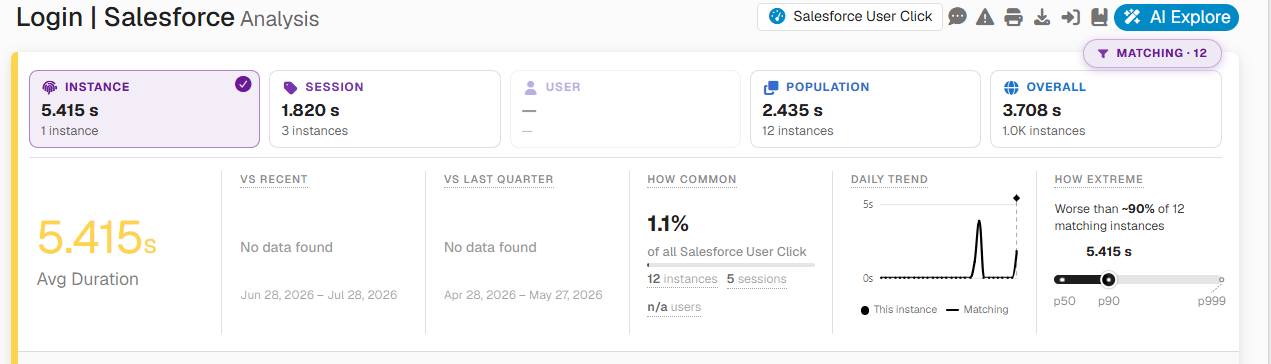
Click response time percentiles and distribution chart - GermainUX
Correlate Clicks with Technology Activity
When the appropriate sources are configured, a Salesforce User Click can be correlated with events such as:- JavaScript execution
- JavaScript console errors
- Browser freezes
- HTTP requests
- Aura requests
- API calls
- Apex classes and triggers
- SOQL queries
- Database operations
- Server-side exceptions
- Integration calls
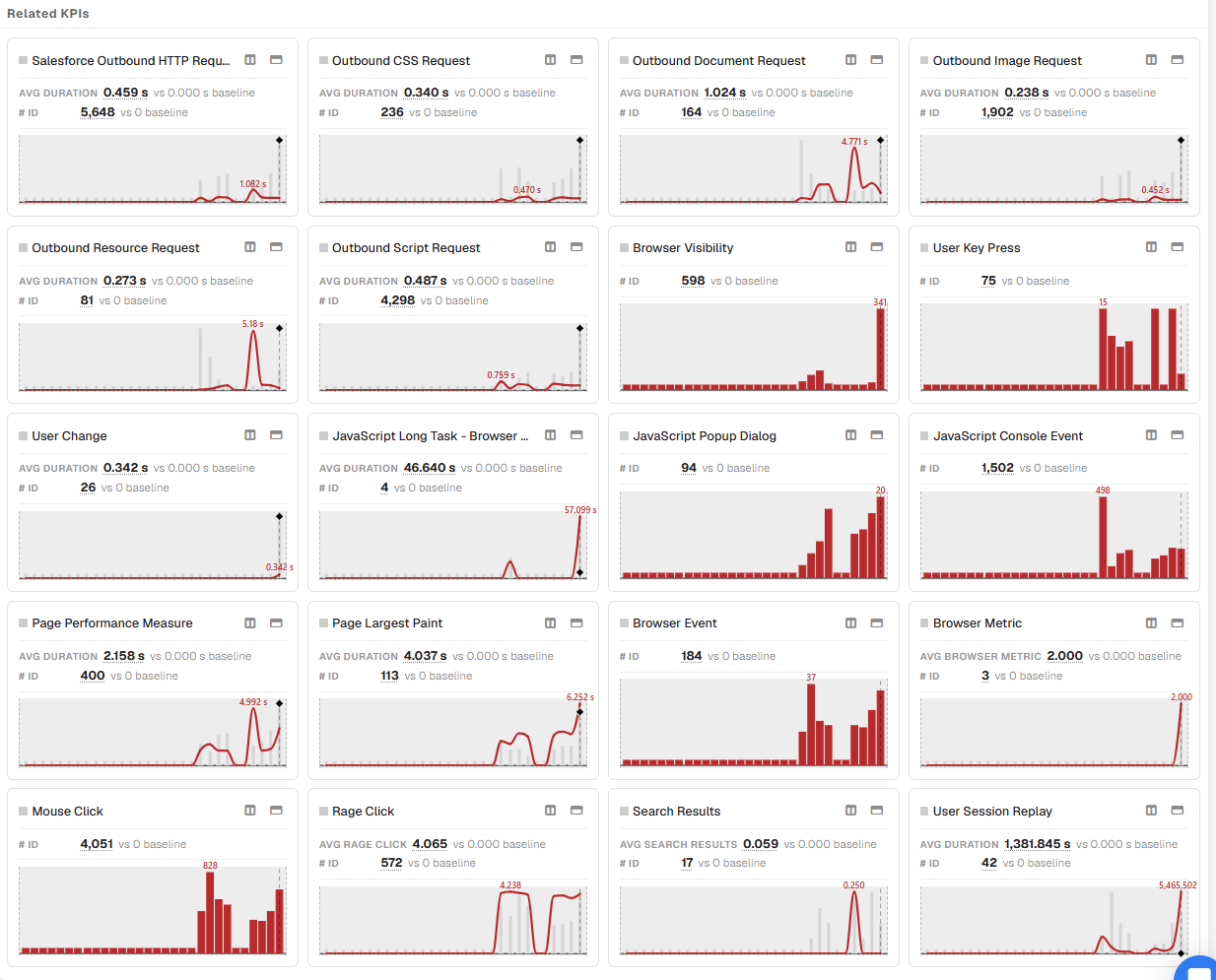
Correlate Salesforce user clicks with related technology activity - GermainUX
- The browser
- Salesforce Lightning
- Custom code
- Apex
- A query
- Salesforce infrastructure
- A connected service
- The user’s network or device

Detailed technology correlation view for a Salesforce user click - GermainUX
Configure Important Business Actions
Start with actions that directly affect adoption, productivity, or critical workflows.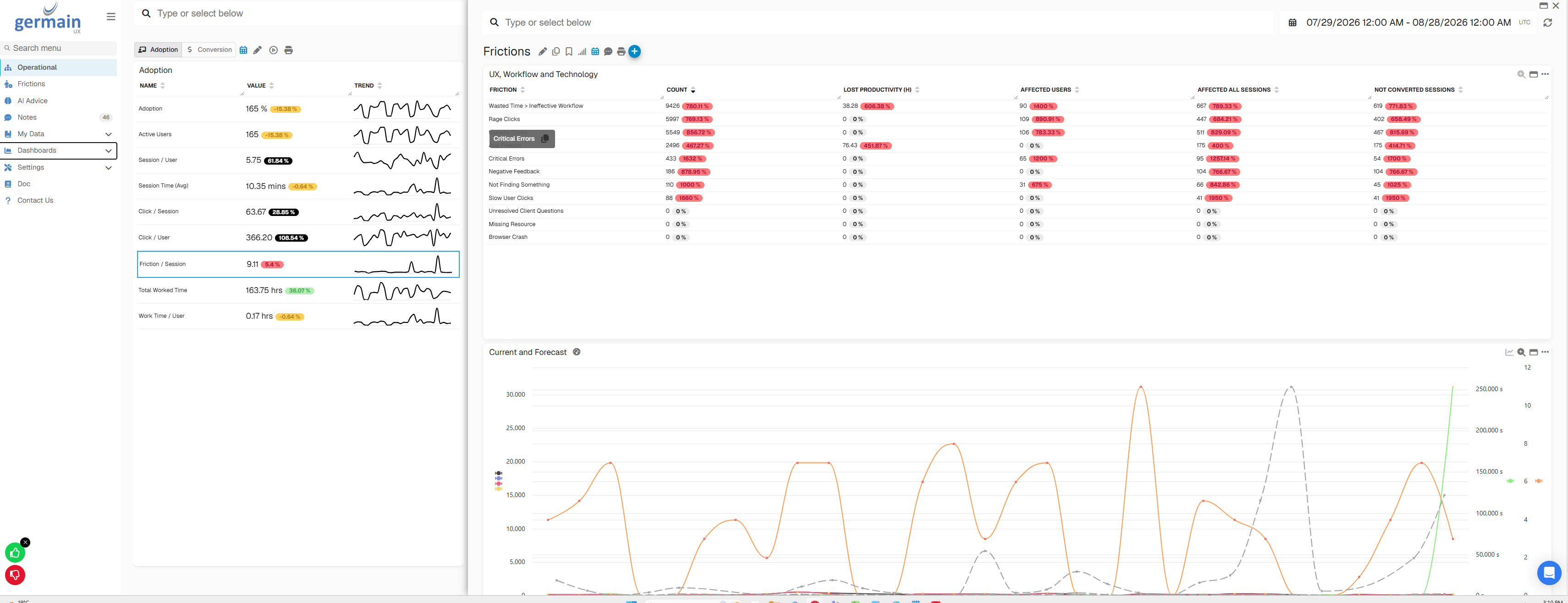
Configure important business actions for Salesforce click monitoring - GermainUX
Service and Case Management
- Create Case
- Save Case
- Assign Case
- Escalate Case
- Close Case
- Search Customer
- Add Case Comment
Sales
- Create Lead
- Convert Lead
- Create Opportunity
- Update Opportunity
- Add Product
- Submit Quote
- Submit for Approval
- Close Opportunity
General Salesforce Usage
- Open Record
- Edit
- Save
- Cancel
- Search
- Next
- Back
- Submit
- Delete
- Export
Configure Business-Process Correlation
User clicks can define or enrich Salesforce workflow steps. For example:- Step duration
- End-to-end workflow duration
- Drop-offs
- Repeated steps
- Unexpected paths
- Process overruns
- Lost productivity
- Differences between user groups
- Technical problems affecting specific steps
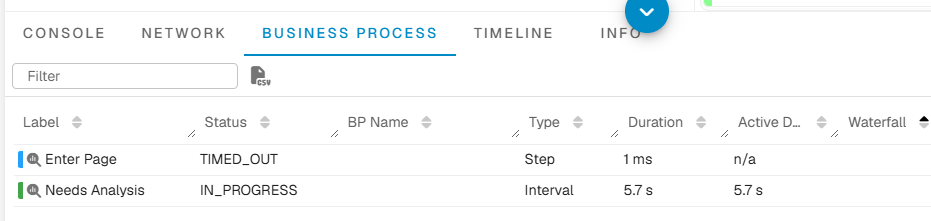
Configure business-process correlation for Salesforce user clicks - GermainUX
Configure Success and Failure
GermainUX marks a Salesforce click as failed when one of the requests it triggered fails. An Aura request fails when Salesforce returns an action in error, even with HTTP status 200. The click also takes the business object of that request, which for a failed Aura action is the error message. This way, a click that ended in a Salesforce error shows the error without opening the session. Where possible, determine whether a click achieved its intended outcome. A click may be considered unsuccessful when followed by:- A Salesforce error toast
- An application error
- An Apex exception
- A failed HTTP request
- An expected page or state not appearing
- A repeated click
- Workflow abandonment
- An excessive response time
Configure Adoption Analysis
User Click data can measure:- Feature adoption
- Usage frequency
- Active users
- New versus returning users
- Adoption by profile, role, or business unit
- Underused functionality
- Workflow completion
- Training opportunities
- Changes following a Salesforce release
- Users who adopted a new Salesforce feature
- Users who still use an older workflow
- Response time for each approach
- Error rate
- Completion time
- Business outcomes
Story Beats for Salesforce
Story Beats describe what a user was doing in each short interval of a session. The Salesforce profile labels them in Salesforce terms, so Session Replay and adoption analysis read like a description of the work. Each label names the action and, where there is one, the process it belongs to:Configure Privacy
With the default Salesforce UX Monitoring Profile, GermainUX stores:- The record ID of each View Record and Update Record click, as its business object.
- The search term of list view, folder and global searches, in the Search Results KPI. See Salesforce Browser Monitoring Data.
- User identity
- Record identifiers
- Customer or patient names
- Search terms
- Form values
- Business-object details
- Error messages
- Anonymize user identities where required.
- Exclude sensitive record identifiers.
- Mask search terms or field values.
- Avoid using private data in click names.
- Review request and response-body collection.
- Restrict access to user-level analytics and Session Replay.
- Apply appropriate retention.
Salesforce Click KPIs
The Salesforce UX Monitoring Profile replaces two generic browser KPIs with Salesforce versions:- Click count
- Unique users
- Unique sessions
- Average duration
- Percentile duration
- Maximum duration
- Error count
- Failure rate
- SLA violation count
- Total lost-productivity time
View User Click Data
Open Dashboards
Select All
Search for: Salesforce User Click
Open the applicable portlet or KPI
Select a click name to drill into its instances
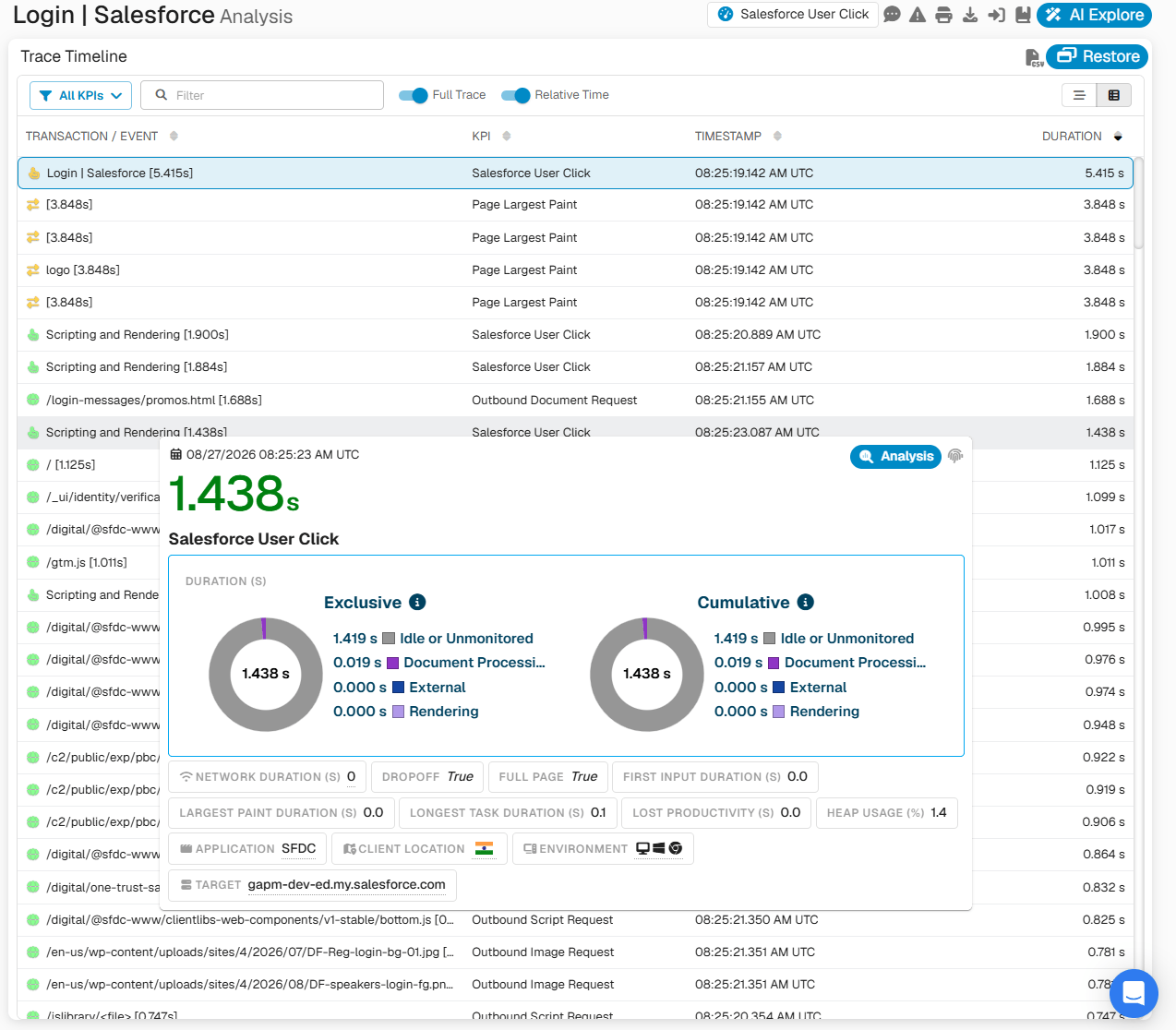
Open an instance to review related events and Session Replay
Recommended Dashboard Views
Create views that answer specific questions.Adoption
- Most and least used actions
- Unique users by action
- Adoption by team or profile
- Usage before and after a release
Performance
- Slowest actions
- p95 response time by action
- SLA violations
- Degradation by browser, location, or application version
Performance dashboard showing slowest Salesforce user actions - GermainUX
Insights for DX or UX
- Time spent on high-volume actions
- Repeated or unnecessary interactions
- Workflow overruns
- Total lost productivity
Validate User Click Monitoring
Test representative Salesforce actions after configuration. For each action, verify that:- One click fact is generated.
- The click has a meaningful name.
- The correct application and page are assigned.
- User and session context are present.
- Duration is reasonable.
- Related HTTP or Aura activity is correlated.
- Backend evidence appears when configured.
- Errors are attached to unsuccessful interactions.
- Session Replay opens at the relevant moment.
- Sensitive values are masked or excluded.
- Repeated clicks are not incorrectly counted as separate business actions unless intended.
Clicks Are Missing
If expected clicks do not appear:Confirm that the RUM Extension is installed and enabled
Confirm that the Salesforce website and profile are configured
Verify Salesforce CSP Trusted Sites
Confirm browser connectivity to GermainUX
Check that the Salesforce UX Monitoring Profile is active
Inspect the clicked control’s text, accessible label, and stable attributes
Confirm that the control is not inside an unmonitored context
Review inclusion and exclusion rules
Check the selected dashboard time range and environment
Compare behavior across Salesforce profiles and browsers
Click Names Are Incorrect or Unstable
If the same action appears under multiple names:- Normalize capitalization and whitespace.
- Remove dynamic record values.
- Avoid generated identifiers.
- Prefer visible or accessible labels.
- Add Salesforce-specific mappings.
- Group equivalent names through categorization.
- Test across Salesforce layouts and user profiles.
Click Durations Are Incorrect
If interaction duration appears too short or too long:- Confirm which completion event closes the interaction.
- Check for asynchronous Salesforce updates.
- Review related Aura and HTTP calls.
- Identify background calls unrelated to the click.
- Confirm that repeated clicks do not overlap.
- Compare the measurement with Session Replay.
- Review the Salesforce UX profile’s event-processing logic.
Too Many Clicks Are Collected
If raw activity creates excessive noise:- Focus on business-meaningful selectors.
- Exclude decorative or low-value controls.
- Aggregate repeated UI patterns.
- Separate raw click heatmaps from business-action KPIs.
- Retain only the context required for analysis.
- Prioritize actions tied to critical Salesforce workflows.
Related Documentation
For everything the Salesforce UX Monitoring Profile captures and the KPI that holds it, see Salesforce Browser Monitoring Data.Dashboard & Reports
AI
Analytics
Automation
Get Help
Contact GermainUX Support
Can't Find What You Need?
The content of this document is proprietary to GERMAIN SOFTWARE.