

How It Works
Captured in the agent’s browser
Before You Start
Salesforce RUM in place
Set It Up
Part of the Salesforce profile
KPIs
Chat Event and Chat Transaction
Overview
GermainUX records Omni-Channel activity as your agents experience it in the Salesforce console. You see when each agent logged in, how long they spent in each presence status, how quickly they accepted work, and how long customers and agents waited for each other’s replies. Each record sits in the agent’s session, next to their clicks, errors and Session Replay.Questions It Answers
- How long do agents take to accept work offered by Omni-Channel?
- How much time do agents spend in each presence status?
- How long do customers wait for an agent’s reply, and agents for the customer’s?
- Which agents reach their maximum capacity, and when?
- Why did an agent fail to log into Omni-Channel?
- What did the agent see when a conversation went wrong?
How It Works
The Salesforce UX Monitoring Profile listens to the Omni-Channel and conversation events of the Salesforce console in the agent’s browser. GermainUX turns each event into a Chat Event record and measures the time between related events as Chat Transaction records. All Omni-Channel records carry Chat =Omni Channel, which tells them apart from other chats such as Agentforce. Because the data comes from the browser, it covers the agents monitored by RUM JS or the RUM Extension, in real time, with no Salesforce API calls.
Chat Events
Other conversation and chat events that Salesforce raises in the console, such as transfers, are recorded under their Salesforce event name, with the event data in Details.
Chat Transactions
Response times are measured for work assigned to the agent while GermainUX monitored their browser. A run of messages from the same person counts from the first one.
Customer Context
When the agent has a contact record open in the console, GermainUX adds the contact’s account and name to each Omni-Channel record. Use them to see which customers waited longest.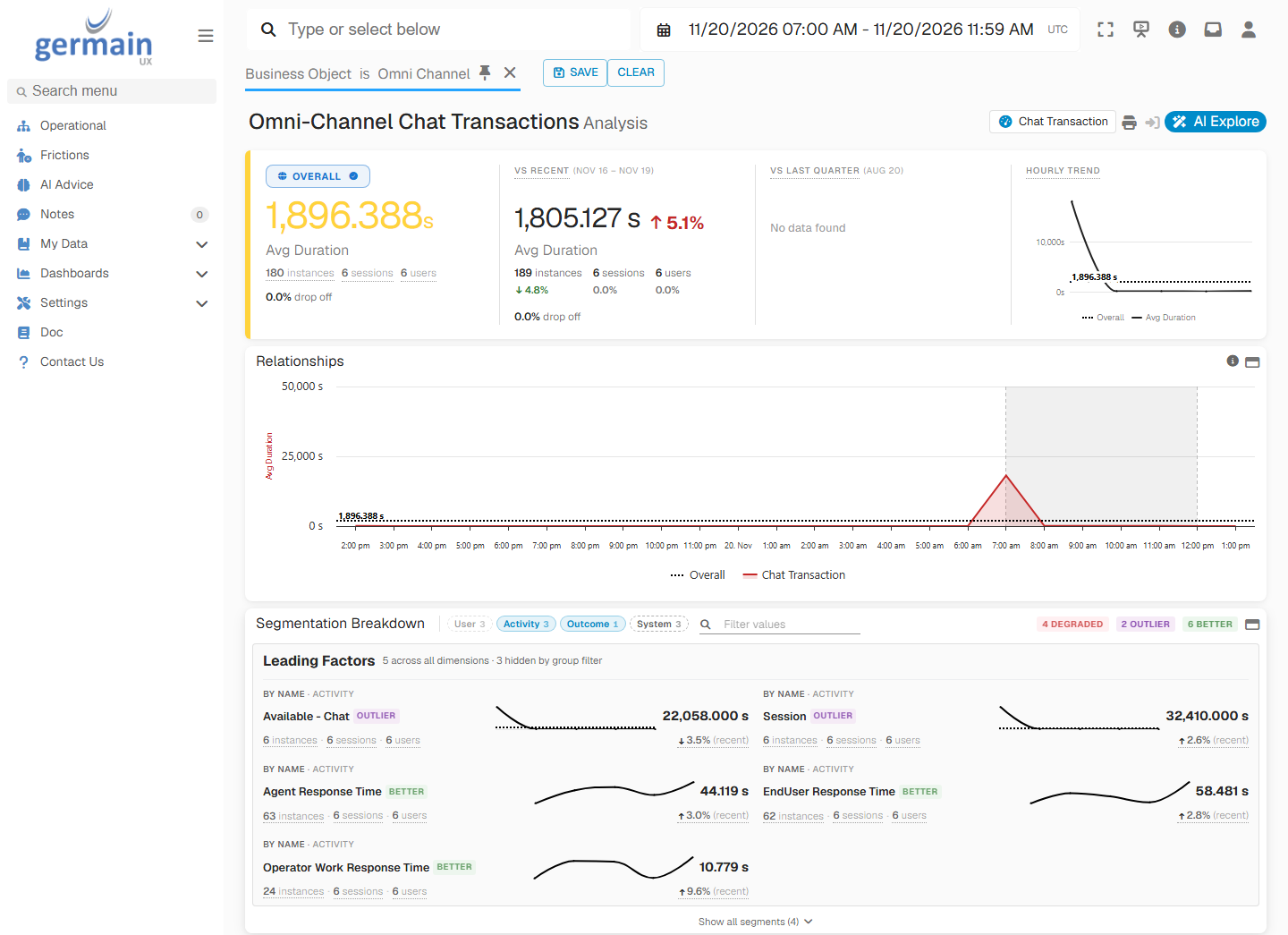
Omni-Channel Response Times by Transaction - GermainUX
Before You Start
- Salesforce Omni-Channel is configured and agents use it in Salesforce Lightning.
- Salesforce Real User Monitoring is deployed for your agents. See Deploy Monitoring for Salesforce.
- Your agents are monitored by the Salesforce UX Monitoring Profile.
Set It Up
Omni-Channel monitoring is part of the Salesforce UX Monitoring Profile. Once the profile monitors your agents, GermainUX records Omni-Channel activity with no extra setup. To check the profile, in the left menu, go to Settings > Analytics > UX Monitoring Profiles and open the Salesforce profile. It ships with two Omni-Channel defaults:
For more on the profile, see User Monitoring and Session Replay for Salesforce Cloud.
Analyze Omni-Channel Data
Build portlets on the Chat Event and Chat Transaction KPIs, filtered on Chat =Omni Channel.
Recommended Dashboard Measures
Useful measures include:- Count
- Unique agents or users
- Unique work items
- Average duration
- Percentile duration
- Maximum duration
- Completed or declined work
Recommended Pivots
Useful dimensions include:- Agent
- Transaction or event name
- Work status (displayed name of Work events)
- Presence status
- Customer account
- Time period
- Average and percentile Operator Work Response Time by agent
- Average Agent Response Time and EndUser Response Time
- Time in each presence status, by agent and day
- Count of Workload Max Capacity Reached events
- Count of Work events by displayed name (Assigned, Accepted, Declined)
- Conversation duration by customer account
Configure Alerts
Create alerts for actionable conditions, such as:- Operator Work Response Time exceeds your target
- Agent or customer response time exceeds an SLA
- Agents decline more work than usual
- Agents reach maximum capacity often
- Work volume changes unexpectedly
- No new Omni-Channel data arrives within the expected period
- “Log into Omni-Channel failed” errors appear
- Contact-center operations
- Salesforce administrators
- Application owners
- Service-desk teams
Correlate Omni-Channel Data with User Experience
Omni-Channel records sit in the agent’s monitored session, next to their:- User interactions
- Navigation
- Browser errors
- Failed requests
- Slow page or component behavior
- Session Replay
- Whether agents could access and use Omni-Channel
- What the agent saw when work was offered
- Whether an accept or decline action succeeded
- Whether the Salesforce UI froze or returned an error
- Whether delays originated in the UI, Salesforce, or an integration
- Which users and workflows were affected
Validate
1
Generate Omni-Channel activity
In a monitored browser, log into Omni-Channel, change your presence status, and accept a work item.
2
Find the events
Open the Chat Event KPI, filter on Chat =
Omni Channel, and confirm Session Login, Status Changed and Work events for your user.3
Find the transactions
Open the Chat Transaction KPI with the same filter, and confirm an Operator Work Response Time record for the work you accepted.
4
Check the details
Confirm timestamps, agents, statuses and the customer account where applicable.
5
Test applicable alerts
Trigger each alert you configured, for example with a slow accept, and confirm that it notifies the right team.
Troubleshooting
No Omni-Channel data at all
No Omni-Channel data at all
Check that:
- The agent is monitored by the Salesforce UX Monitoring Profile. Other Salesforce data, such as Salesforce User Click, appears for the same user.
- The agent uses Omni-Channel in Salesforce Lightning. Salesforce Classic isn’t covered.
- The filter is Chat =
Omni Channeland the time range covers the activity.
Events appear but response times are missing
Events appear but response times are missing
Response times need the work assignment to happen while GermainUX monitors the agent’s browser. Work assigned before the page loaded, or in a browser tab that isn’t monitored, gets events but no response time.
Some agents or work items are missing
Some agents or work items are missing
Check that:
- Each missing agent is monitored by the Salesforce UX Monitoring Profile, in every browser they use for the console.
- The records fall inside the selected time range.
- Your filters and dashboard pivots don’t exclude them.
- You compare with the same period in the Salesforce Omni-Channel interface.
No customer account or name
No customer account or name
GermainUX reads the account and name from the contact record open in the agent’s active tab. Records created while no contact is open have no customer context.
Security and Privacy
With the default Salesforce UX Monitoring Profile, GermainUX stores:- The full text of each Omni-Channel message, in the Details of its Message event.
- The customer’s name on customer messages.
- The contact name and account shown on the record the agent has open, on each Omni-Channel record.
- Agent identities
- Customer identifiers
- Work-item identifiers
- Queue assignments
- Conversation metadata
- Error details
- Activity timestamps
- Monitor only the agents and browsers that need it.
- Restrict access to dashboards and detailed records.
- Apply masking, anonymization, and exclusions.
- Avoid collecting conversation content unless required and approved.
- Configure appropriate retention.
- Review access with Salesforce, contact-center, security, and privacy owners.
KPIs
See KPIs for Salesforce Monitoring.
Related Documentation
For everything the Salesforce UX Monitoring Profile captures and the KPI that holds it, see Salesforce Browser Monitoring Data.Dashboard & Reports
Dashboard & Reports
AI
Insights & Recommendations
Analytics
More Analytics Features
Automation
More Automation Features
Get Help
Contact GermainUX Support
The GermainUX team helps you get up and running faster, empower your team, turn data into actionable insights, and optimize performance to deliver measurable business outcomes.
Can't Find What You Need?
Search all GermainUX docs with Ctrl + K, or use the feedback buttons at the bottom of this page to tell us what is missing.
The content of this document is proprietary to GERMAIN SOFTWARE.