

How It Works
Events from the chat widget
Before You Start
RUM JS on the chat pages
Set It Up
Plugin and conversation analysis
KPIs
Chat Event and Chat Transaction
Overview
GermainUX follows every Salesforce Enhanced Chat conversation from the customer’s side: how long the chat button took to appear, how fast the bot or the rep answered, and how long customers waited for a hand-off. It flags each message that got no answer, and each customer who left while waiting. Every conversation sits in the customer’s session, so you can replay what they saw before and during the chat. Enhanced Chat is the Salesforce chat for websites and Experience Cloud sites, also called Messaging for In-App and Web. Monitoring covers chats answered by an Agentforce service agent, by human reps, or by both.Questions It Answers
- How long does the chat widget take to load on our pages?
- How fast does our bot answer, and how often does it not answer at all?
- How long do customers wait after the bot hands them to a rep?
- Which conversations did customers abandon with an unanswered message?
- Which hand-offs failed, and why?
- What did the customer do on the site before they opened the chat?
How It Works
The Enhanced Chat plugin for RUM JS listens to the events the Enhanced Chat widget raises in the customer’s browser. GermainUX records each event as a Chat Event and measures the waits between events as Chat Transaction records. Every record carries Chat =Enhanced Chat. Records that belong to a conversation also carry the conversation ID and the Salesforce messaging session ID, so you can look the conversation up in Salesforce.
Chat Events
No Response and failed routings also count in the User-Facing Error KPI.
Chat Transactions
A turn starts with the first customer message after an answer. Bot entries without text, which Salesforce sends before the answer, don’t end the turn.
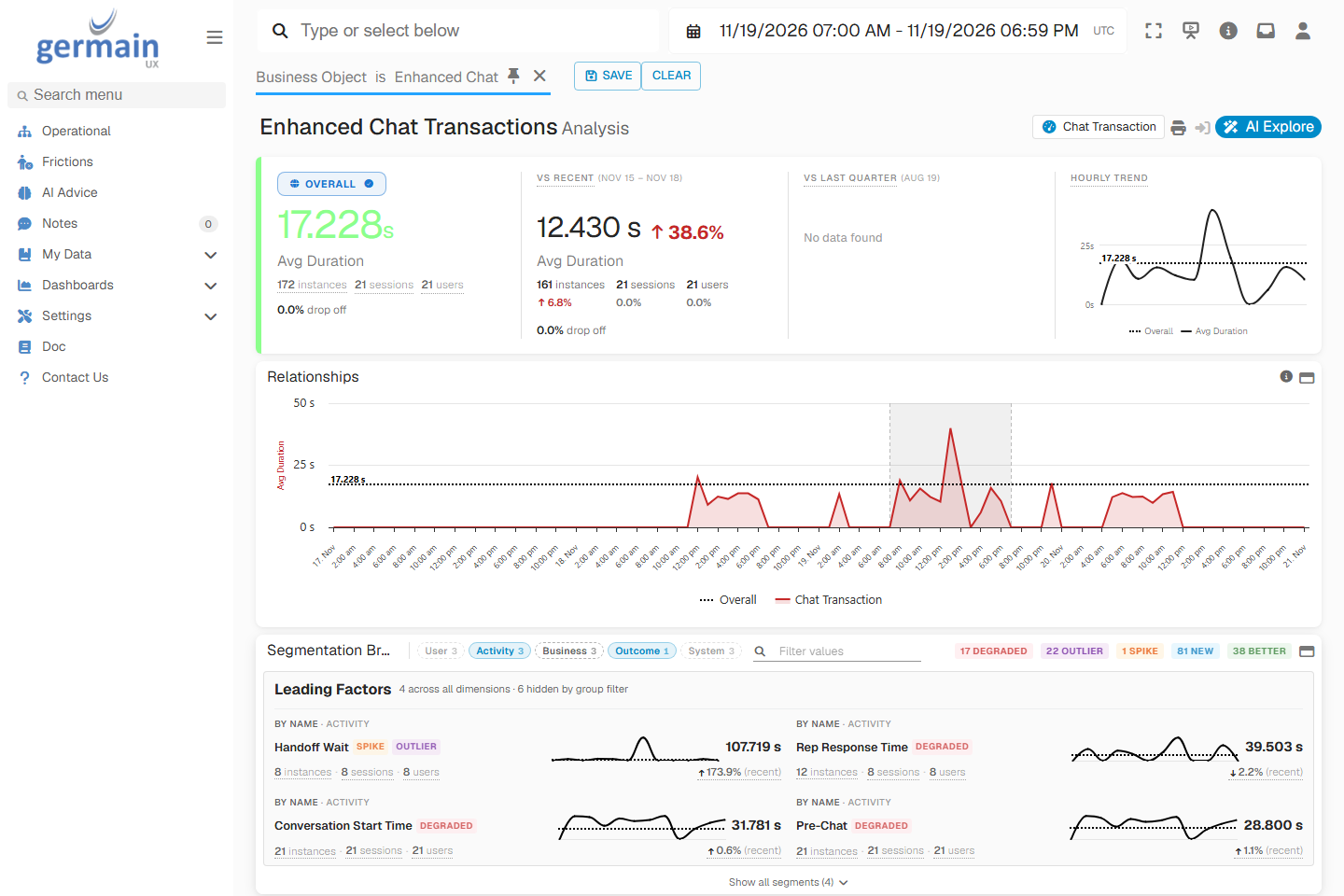
Enhanced Chat Wait Times by Transaction - GermainUX
Before You Start
- Enhanced Chat (Messaging for In-App and Web) is deployed on your website or Experience Cloud site.
- GermainUX RUM JS monitors the pages that show the chat. See Deploy GermainUX RUM JS.
- You know which UX Monitoring Profile monitors those pages.
Set It Up
Add the Enhanced Chat Plugin
GermainUX captures Enhanced Chat with a plugin for RUM JS. Add the plugin to the init script of the UX Monitoring Profile that monitors your chat pages. The GermainUX team provides the plugin script and can add it for you.Turn On Conversation Analysis (Optional)
GermainUX can collect the messages of each conversation into one Chat Conversation record and analyze it with AI. This is off by default. To turn it on:1
Confirm AI features are on
In the left menu, go to Settings > System > AI > Settings and check that AI Features is enabled.
2
Enable the chat processor for Enhanced Chat
In the left menu, go to Settings > System > AI > Settings. In the Chat Analysis section, open Processors, enable the processor named Enhanced Chat, and save.
Validate
1
Start a test conversation
On a monitored page, click the chat button, fill in the pre-chat form if there is one, and send a message.
2
Check the events
Open the Chat Event KPI filtered on Chat =
Enhanced Chat. You should see Chat Button Clicked, Conversation Started and Message events in the test session.3
Check the transactions
Open the Chat Transaction KPI with the same filter. You should see Widget Ready, Conversation Start Time and a Bot Response Time or Rep Response Time for the answer.
Troubleshooting
No Enhanced Chat events at all
No Enhanced Chat events at all
Check that:
- RUM JS is running on the page. Other browser data for the session reaches GermainUX.
- The page is monitored by the UX Monitoring Profile whose init script contains the Enhanced Chat plugin.
- The page uses Enhanced Chat. The older Salesforce Embedded Chat (Live Agent) widget raises different events.
Many No Response events
Many No Response events
GermainUX records No Response when neither the bot nor a rep answers a customer message within 60 seconds. Check the bot’s flows and the rep queue for that time, then replay a few of the sessions to see what the customer saw.
No Handoff Wait or First Rep Reply
No Handoff Wait or First Rep Reply
Handoff Wait needs a successful transfer followed by a rep joining. First Rep Reply needs a rep to join and send a message. Conversations answered only by the bot have neither.
KPIs
Related Documentation
Chat and CTI Monitoring
Other supported chat integrations
Agentforce Monitoring
Agentforce for employees in Lightning
Chat Analysis
AI Conversation Summaries and Frictions
Get Help
The GermainUX team can add the Enhanced Chat plugin to your UX Monitoring Profile and help you set up SLAs and alerts on response times.Contact GermainUX Support
The GermainUX team helps you get up and running faster, empower your team, turn data into actionable insights, and optimize performance to deliver measurable business outcomes.
Can't Find What You Need?
Search all GermainUX docs with Ctrl + K, or use the feedback buttons at the bottom of this page to tell us what is missing.
The content of this document is proprietary to GERMAIN SOFTWARE.