

Before You Begin
Decide what the script does
Configure the Script
Settings and secret handling
Test the Script
Test success and failure paths
Security
Limit actions on live systems
Configuring Script Execution in GermainUX for Automated Workflows
Overview
Configure Script Execution to allow GermainUX to run custom Batch, Perl, PowerShell, Python, or Shell scripts as part of an automated workflow. Scripts can execute:
This page explains how to configure, test, and validate Script Execution.
Before You Begin
Before configuring a script, determine:- What the script should accomplish
- Where the script needs to execute
- Which script type is required
- What permissions are required
- Whether parameters or credentials are needed
- What should trigger execution
- How often it should run
- What should happen when it succeeds or fails
Create a Script
Go to: Germain Workspace -> Left Menu -> Settings -> Wizards -> Script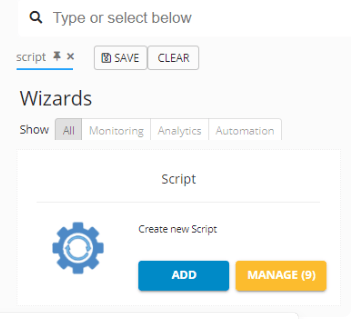
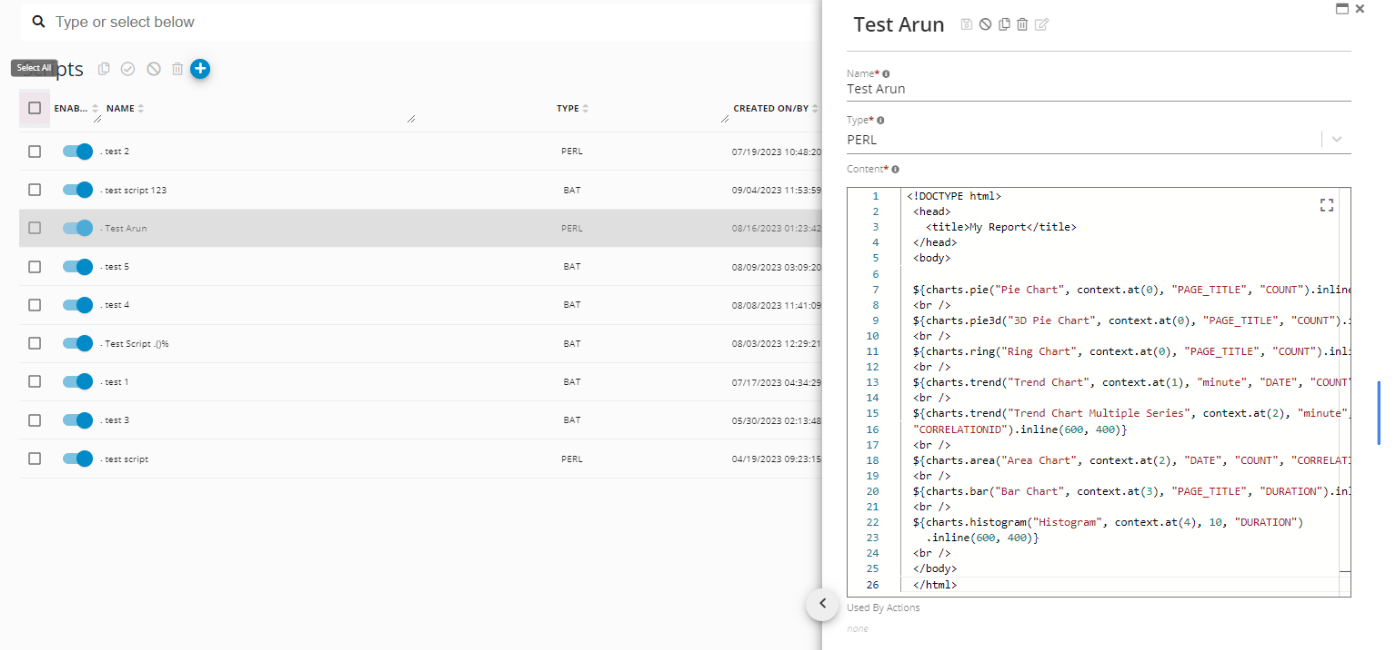
- Restart Application Service
- Validate Database Connectivity
- Collect Application Diagnostics
- Clear Temporary Files
- Check Integration Status
Select the Script Type
Select the appropriate script type:- Batch
- Perl
- PowerShell
- Python
- Shell
Configure the Script
Add the script content and configure the settings required for execution. Depending on the script and environment, this may include:- Script content
- Command-line arguments
- Parameters
- Environment variables
- Working directory
- Execution timeout
- Runtime or interpreter
- Output handling
Configure Where the Script Executes
Scripts are executed by the applicable GermainUX Engine. Select or configure an Engine that has:- Network access to the required systems
- The appropriate runtime or interpreter
- Required operating-system permissions
- Access to required files or directories
- Access to external applications or services used by the script
Configure When the Script Executes
Choose how the script should be triggered.Continuous
Use continuous execution when the script needs to run repeatedly as part of ongoing monitoring or automation.Scheduled
Configure a schedule when the script should run at defined intervals or times. For example:- Every hour
- Every night
- Every Monday
- During a defined operational window
Condition-Based
A script can execute when a monitored condition is detected. For example: Service unavailable → Execute diagnostic script or: Repeated application error → Execute remediation scriptAs Part of an Automated Workflow
Scripts can also be combined with Rules and other Automated Actions. For example:DetectAnalyzeExecute ScriptValidateNotify or Escalate
This enables GermainUX to use monitoring and analytics to determine when an operational action should occur and then continue monitoring to validate the result.
Configure Parameters
When the script requires input values, configure the required parameters. Parameters can be used to make scripts reusable across different:- Applications
- Servers
- Environments
- Users
- Processes
- Technologies
Configure Success and Failure Handling
Determine what GermainUX should do after execution. Depending on the use case, this may include:- Capture the execution result
- Analyze returned output
- Generate an event
- Send a notification
- Create or update a ticket
- Execute another action
- Escalate when execution fails
- Continue monitoring to validate remediation
Test the Script
Test Script Execution in a non-production environment before enabling it in production. Verify that:- The correct Engine executes the script.
- The required runtime or interpreter is available.
- Parameters are passed correctly.
- The script has the required permissions.
- Network and system dependencies are accessible.
- The expected action occurs.
- Output and errors are handled correctly.
- Failure conditions do not cause unintended actions.
Validate in GermainUX
After enabling the configuration, confirm that:- The script executes at the expected time or condition.
- Execution completes within the expected duration.
- The expected output is returned.
- Associated events or actions are generated correctly.
- Alerts or notifications occur when expected.
- The monitored system reaches the expected state after execution.
Troubleshooting
If a script does not execute as expected, verify:- The selected Engine is running.
- The script runtime or interpreter is installed.
- The Engine account has sufficient permissions.
- Required files and directories exist.
- Network connectivity is available.
- Parameters and arguments are valid.
Show all 9
Show all 9
- Environment variables are available.
- The configured trigger or schedule is active.
- The script executes successfully outside GermainUX under the same account and environment.
Security
Scripts can perform powerful actions on monitored systems. Follow these practices:- Use least-privilege execution accounts.
- Do not store credentials directly in scripts.
- Restrict access to script configuration.
- Validate external inputs and parameters.
- Define appropriate execution timeouts.
- Limit the systems and resources accessible to scripts.
- Test potentially disruptive actions outside production.
- Follow your organization’s security, privacy, approval, and change-management requirements.
Related Documentation
Get Help
Contact GermainUX Support
The GermainUX team helps you get up and running faster, empower your team, turn data into actionable insights, and optimize performance to deliver measurable business outcomes.
Can't find what you need?
Search all GermainUX docs with Ctrl + K, or use the feedback buttons at the bottom of this page to tell us what is missing.
The content of this document is proprietary to GERMAIN SOFTWARE.