

Configure User Feedback for SAP Commerce Cloud
Configure User Feedback
Configure User Feedback for SAP Commerce Cloud
Overview
GermainUX enables users to submit feedback directly from SAP Commerce Cloud and other compatible browser-based SAP applications. Feedback can be correlated with the user’s digital experience, including:- Application and page
- User session
- Business-process step
- User actions
- Application errors
- Performance issues
- Browser and device
- Session Replay, when enabled
Prerequisites
Before configuring user feedback:Deploy GermainUX RUM JS in the SAP Commerce Cloud web application
Confirm that user sessions and application activity are reaching GermainUX
Configure data masking and privacy rules
Enable Session Replay if visual context is required
Identify the applications, pages, and business processes where feedback should be available
Supported Applications
User feedback can be configured for compatible browser-based SAP applications, including:- SAP Fiori
- SAPUI5
- SAP Web GUI
- SAP portals
- Custom SAP web applications
- SAP Commerce Cloud storefronts
- SAP Commerce Cloud administrative interfaces
Configure User Feedback
Go to Settings > Analytics > UX Monitoring Profiles
Select the profile used to monitor the SAP Commerce Cloud application
Enable user feedback collection
Configure the feedback prompt
Select the rating scale and optional comment field
Define the applications, pages, or users in scope
Configure when the prompt can appear
Save and publish the updated profile
Test the feedback experience in a nonproduction environment
Configure the Feedback Form
A feedback form can include:- Satisfaction rating
- Category or reason
- Optional written comment
- Page or process context
- Contact permission or follow-up request
- Custom fields relevant to the application
Configure When Feedback Appears
Feedback can be collected through a user-initiated control or a configured prompt. Depending on the application and configuration, the prompt can be associated with:- A selected page or application
- Completion of a business process
- Abandonment of a process
- An application error
- A slow user interaction
- A specific SAP Commerce Cloud journey step
- Configured targeting or sampling rules
SAP Commerce Cloud Feedback
For SAP Commerce Cloud, feedback can help identify issues affecting:- Product discovery
- Search results
- Product information
- Add-to-cart activity
- Cart management
- Checkout
- Payment
- Order confirmation
- Account management
- Overall storefront experience
Analyze Feedback
Use GermainUX dashboards to analyze feedback by:- Rating
- Feedback category
- Comment
- Application and environment
- Page or route
- Business process and step
- SAP Commerce Cloud journey stage
- User session
- Error type
- Performance
- Browser, device, or location
- Application release
Correlate Feedback with Session Replay
When Session Replay is enabled, authorized users can review the captured session leading to the feedback. Session Replay can help determine:- What the user attempted to do
- Where the user encountered difficulty
- Which errors appeared
- Whether an interaction was slow
- Which process step failed or was abandoned
- Whether the problem can be reproduced
Alerts and Reports
Configure alerts for feedback that requires immediate attention, such as:- Very low ratings
- Feedback associated with an application error
- Failed checkout or payment feedback
- Repeated complaints about the same process
- Sudden increases in negative feedback
- Feedback from a critical user group or business process
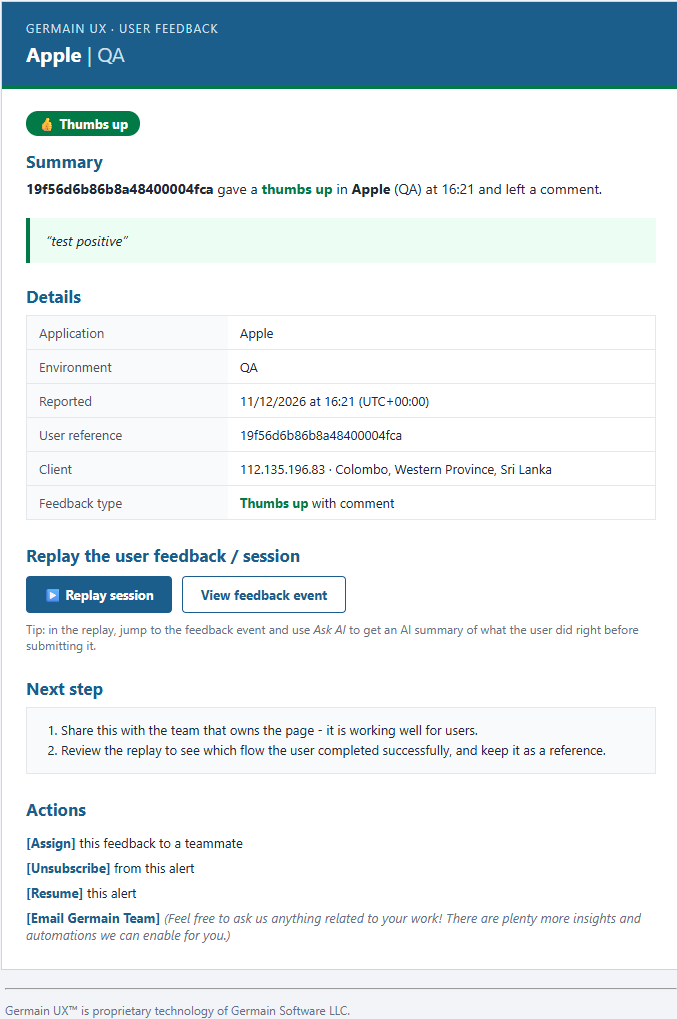
User Feedback Alert Notification - GermainUX
- Feedback volume
- Average rating
- Rating trends
- Most frequent categories
- Applications and processes receiving the most negative feedback
- Related errors and performance problems
- SAP Commerce Cloud feedback by journey stage
- New or recurring comments
Validation
After enabling user feedback:Confirm that the feedback control or prompt appears in the intended application
Verify that it does not interfere with Commerce Cloud navigation or business processes
Submit test ratings and comments
Confirm that the feedback reaches GermainUX
Verify that it is associated with the correct application and session
Confirm that related errors and performance telemetry are available
Test the Session Replay link, when enabled
Verify that sensitive information is masked or excluded
Confirm that alerts and reports reach the correct recipients
Troubleshooting
The feedback prompt does not appear
Verify that:- RUM JS is deployed and running.
- The correct UX Monitoring Profile is enabled.
- The application URL matches the configured scope.
- Targeting and sampling rules include the current session.
- The prompt has not already been dismissed or submitted.
- The application permits GermainUX to execute in the required browser context.
Feedback is not associated with a session
Confirm that:- User-session monitoring is enabled.
- Feedback and session telemetry use the same application profile.
- The session remained active when the feedback was submitted.
- Required identifiers have not been removed by configuration.
Session Replay is unavailable
Verify that:- Session Replay is enabled for the application.
- The session was selected for recording.
- Privacy or retention settings have not excluded the recording.
- The replay data has completed processing.
Privacy and Security
Apply appropriate privacy controls before collecting user feedback:Get Help
GermainUX can help determine which monitoring, analytics and automation capabilities are appropriate for your SAP Commerce Cloud environment.Contact GermainUX Support
Can't Find What You Need?
The content of this document is proprietary to GERMAIN SOFTWARE.