

How It Works
Two shipped examples
Before You Start
Real User Monitoring
Set It Up
Configure your own
KPIs
Process and step KPIs
Overview
GermainUX monitors any Salesforce workflow as a business process. You define where a process starts, the steps in between and where it ends, from the clicks, pages, records and events GermainUX already records. GermainUX then measures every run, by user, team and step, alerts when a run takes too long or stops halfway, and links each run to its Session Replay. Everything is configurable: the steps, the conditions, the SLAs and the alerts. GermainUX ships two processes as ready-made examples, Salesforce Opportunity BP and Salesforce Record Creation BP. They’re described in detail in How It Works.Other Salesforce Processes You Can Monitor
These are examples of processes you configure yourself. Name the steps after the actions your users take in your org.
A process can also continue outside Salesforce. For example, an order that starts in Salesforce can be followed through MuleSoft and SAP ERP. See Prevent and Trace Failed Orders.
Questions It Answers
- How long does each step of a Salesforce workflow take, and for which teams?
- Where do users abandon a process, or loop back to an earlier step?
- How long do opportunities stay in each stage?
- Which object types take users the longest to create?
- Which users or teams take longer than expected to resolve a case?
How It Works
A business process is built from data GermainUX already collects. The two shipped examples show how. Both are built from what the Salesforce UX Monitoring Profile records in the user’s browser, with no Engine component and no Salesforce API call.
An opportunity interval starts when the user works on the record (clicks, types or scrolls). It ends when the stage changes, the user leaves the record, or after 5 minutes without activity.
Before You Start
- Real User Monitoring is deployed with the Salesforce UX Monitoring Profile. See Deploy Real User Monitoring for Salesforce.
- For the shipped Opportunity example, users work in Lightning Experience, and the opportunity record page shows the Path component with the opportunity stages.
Set It Up
The two shipped examples are enabled by default, so there is nothing to deploy for them. To add a process for your own Salesforce workflow, or to change the shipped examples, in the left menu, go to Settings > Analytics > Business Processes:1
Define the start and the end
Choose the KPI records that start and end a run, for example a Salesforce User Click with a given click name, or a record that reaches a given status.
2
Add the steps
Add one step for each action in between, with the condition that marks it. Name each step the way your users talk about it.
3
Set the SLAs
Set how long the whole process and each step may take. GermainUX alerts when a run breaches them.
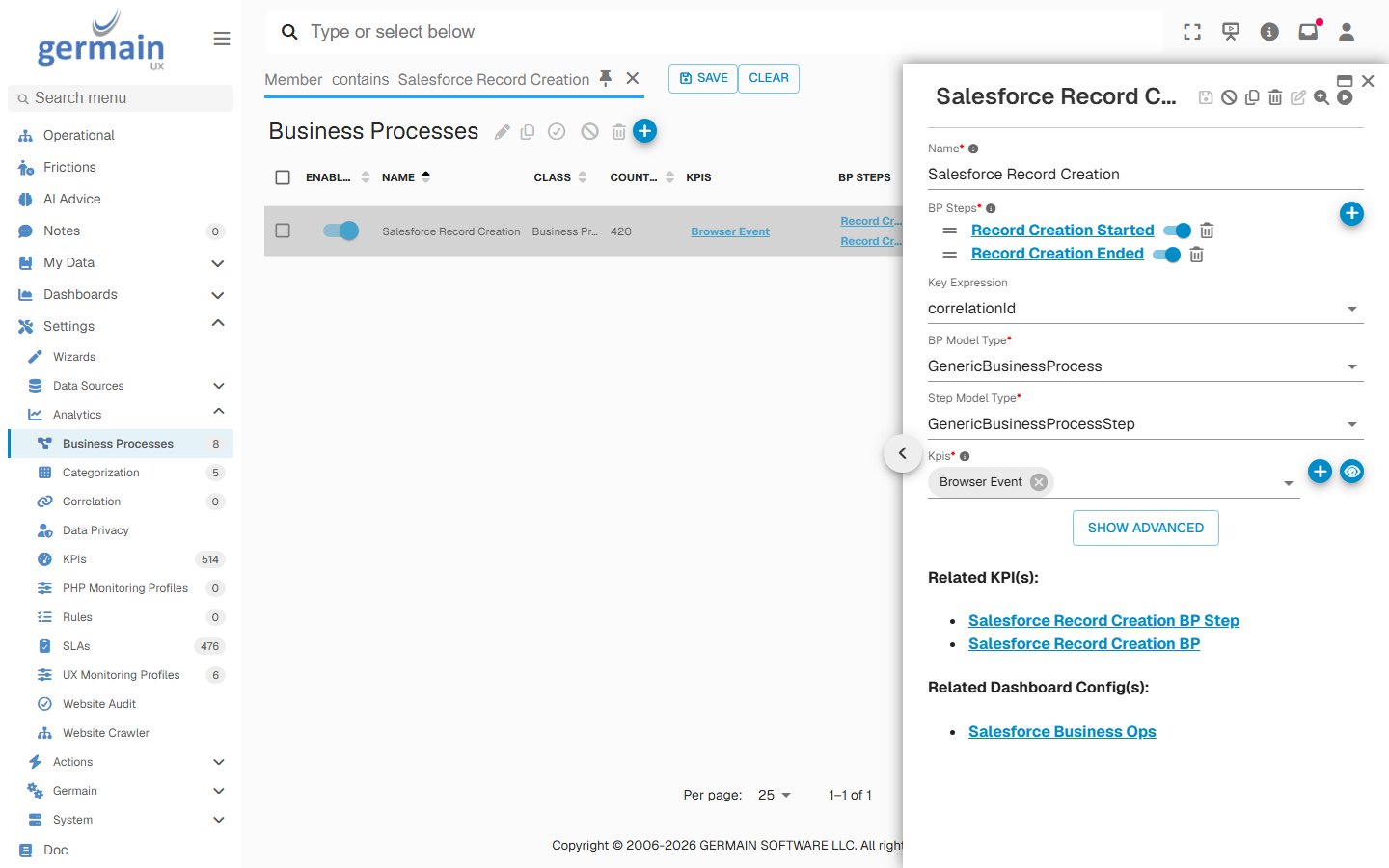
Salesforce Record Creation Business Process - GermainUX
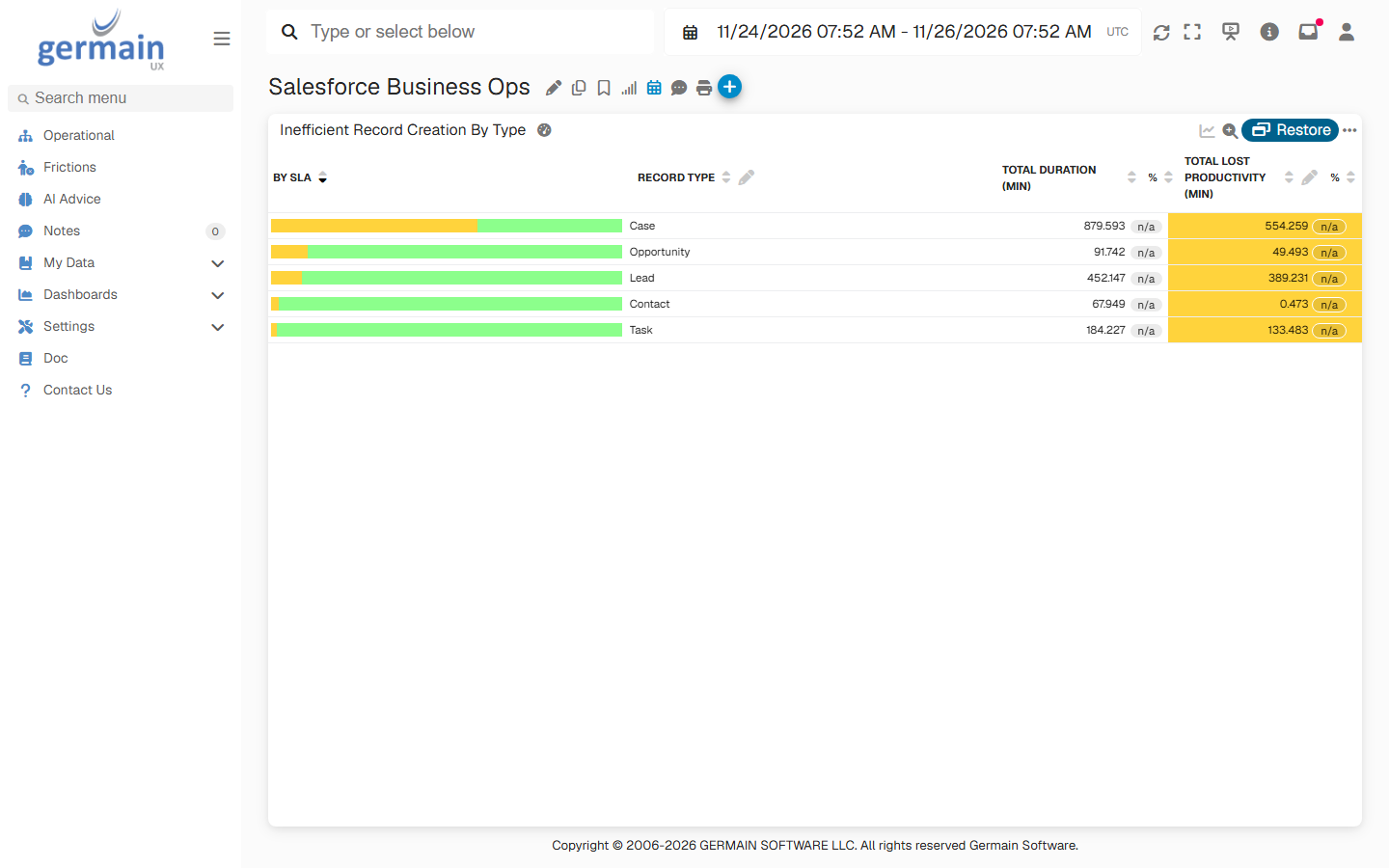
Inefficient Record Creation By Type Portlet - GermainUX
Validate
1
Work on an opportunity
In a monitored browser, open an opportunity in Lightning, work on it for a moment, and move it to the next stage.
2
Create a record
Click New on any object, such as Cases, fill in the form and save it.
3
Check the KPIs
After a few minutes, check that Salesforce Opportunity Interval and Salesforce Record Creation BP have new data.
Troubleshooting
No opportunity intervals appear
No opportunity intervals appear
Check that the opportunity record page shows the Path component, and that the user is in Lightning Experience. GermainUX reads the current stage from the path. Intervals also need user activity on the record: opening a record and leaving it untouched records nothing.
A created record doesn't appear in Record Creation
A created record doesn't appear in Record Creation
GermainUX starts the measurement when Salesforce opens the standard new-record form from New, and ends it when the user saves. Check that the user started from New and saved the record.
Security and Privacy
Business process data includes:- Record identifiers: the opportunity ID, and the object type of each created record.
- Identity data: the user and session of each interval and record creation.
KPIs
For data models and descriptions, see KPIs for Salesforce Monitoring.
Related Documentation
Business Process Monitoring
How business processes work in GermainUX
Analytics
More Analytics Features
Automation
More Automation Features
Get Help
The GermainUX team can help you model your own Salesforce workflows, such as case handling or lead conversion, as business processes.Contact GermainUX Support
The GermainUX team helps you get up and running faster, empower your team, turn data into actionable insights, and optimize performance to deliver measurable business outcomes.
Can't Find What You Need?
Search all GermainUX docs with Ctrl + K, or use the feedback buttons at the bottom of this page to tell us what is missing.
The content of this document is proprietary to GERMAIN SOFTWARE.