

Before You Start
Deploy
Validate
Troubleshooting
Overview
Real User Monitoring records what Salesforce users do and see in the browser, and feeds Session Replay. This page covers the browser side of a Salesforce deployment. For the Engine side, see Deploy Engine Monitoring for Salesforce. For what Salesforce monitoring gives you, see Salesforce Operational Experience Intelligence.Choose an Option
The RUM Extension is the recommended option for Salesforce. It covers the pages RUM JS can’t, such as Setup, Salesforce Classic and pages outside the Lightning app, and it starts monitoring with the page load. RUM JS through the Germain RUM Agent is the alternative for Salesforce Lightning when browser extensions can’t be deployed to your users. It needs no extension, but it only monitors the Lightning apps whose utility bar loads it. See the limits below. Both options use the Salesforce UX Monitoring Profile. For what it captures, see Salesforce Browser Monitoring Data.Comparison
Before You Start
Before deploying Salesforce Real User Monitoring, confirm the following:Deploy
Option 1: Deploy RUM JS Through the Salesforce Lightning Utility Bar
RUM JS is loaded by the Germain RUM Agent, an Aura utility item that you deploy into your Salesforce org. When a user opens a Lightning app with the utility item, the agent loads its monitoring script from your GermainUX instance and starts monitoring. The GermainUX team provides the Germain RUM Agent, either as a package installation URL or as a Salesforce DX project to deploy with the Salesforce CLI. Before you start, make sure that:- You can edit Lightning apps in the target org
- Browsers can reach your GermainUX instance
- To deploy with the CLI, the Salesforce CLI (
sf) is installed
-
Install the Germain RUM Agent:
- From a package: open the package installation URL from the GermainUX team and install the package. When it completes, confirm that the package appears under Installed Packages.
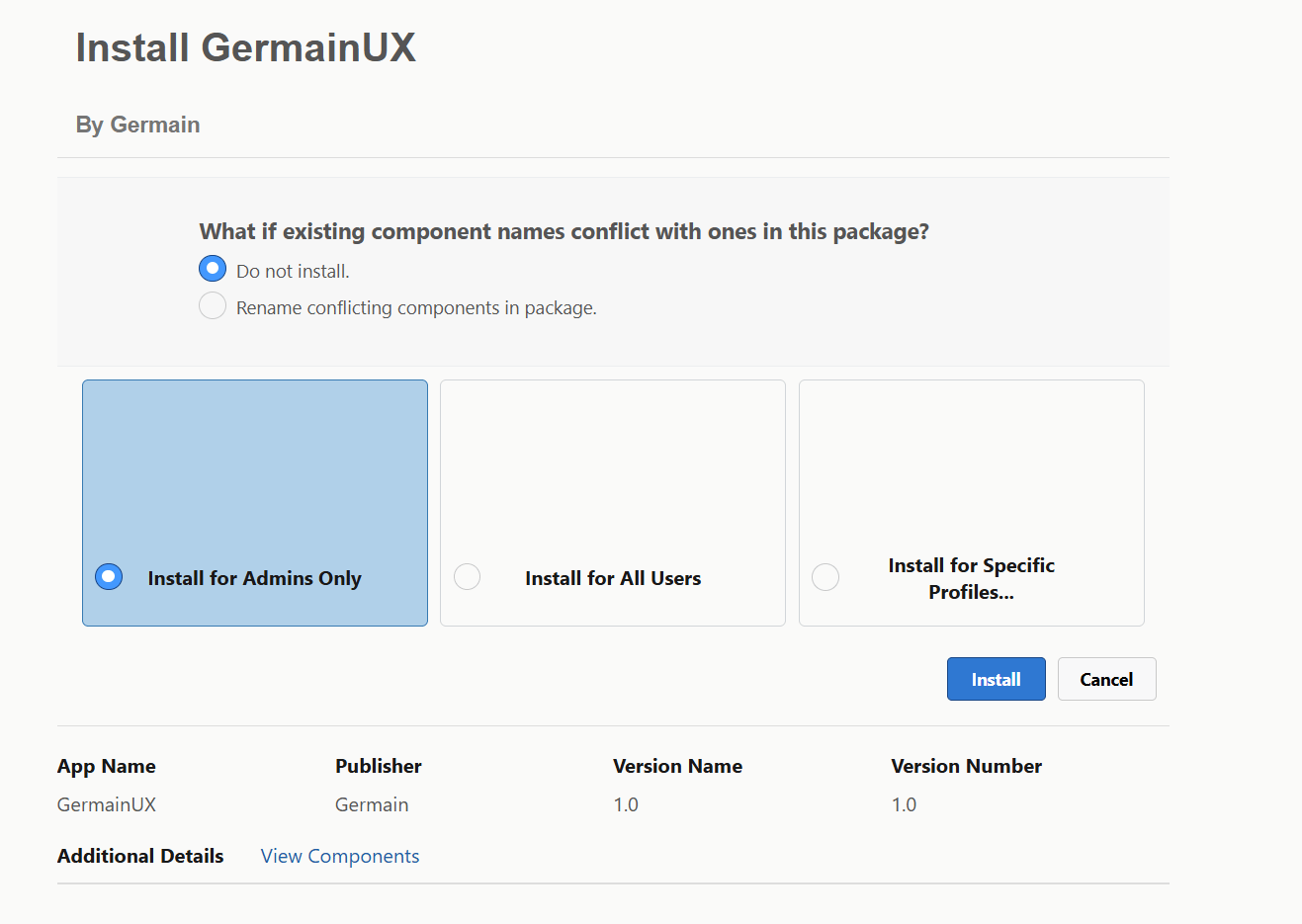
Install GermainUX Salesforce Aura package - GermainUX
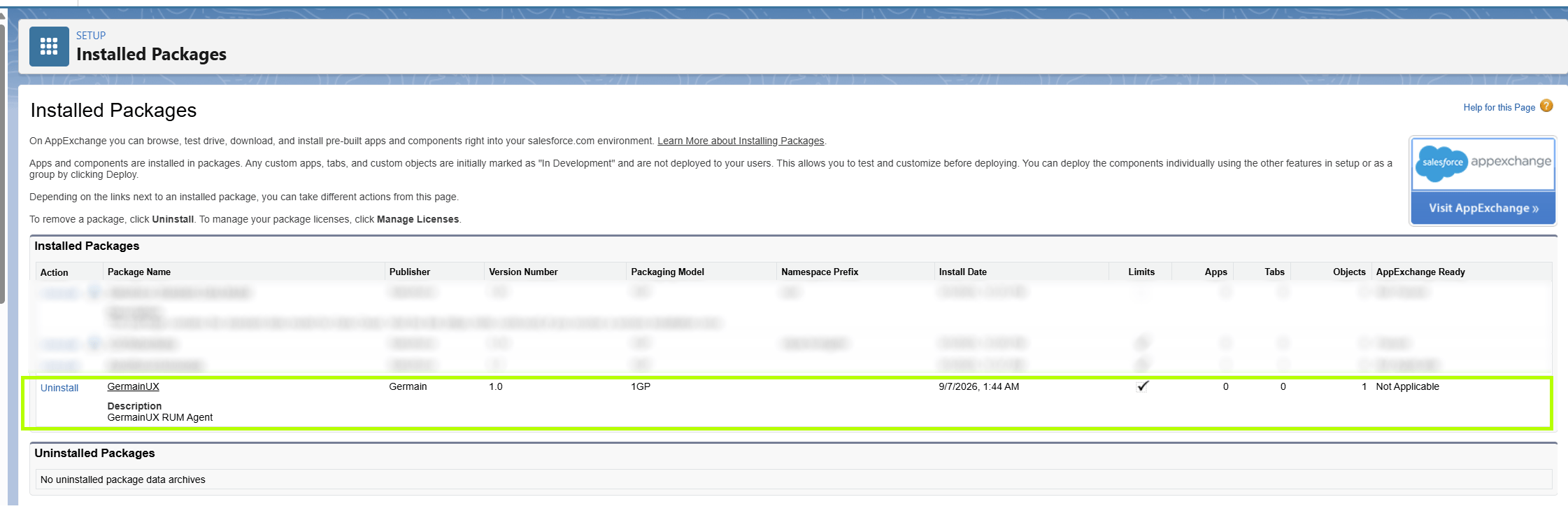
GermainUX package listed under Installed Packages - GermainUX
- With the Salesforce CLI: log in to the org, then deploy the project from its folder.
A production org also runs the Apex tests during deployment:
- From a package: open the package installation URL from the GermainUX team and install the package. When it completes, confirm that the package appears under Installed Packages.
- In Salesforce Setup, open App Manager.
-
Edit the target Lightning app, such as Service Console.
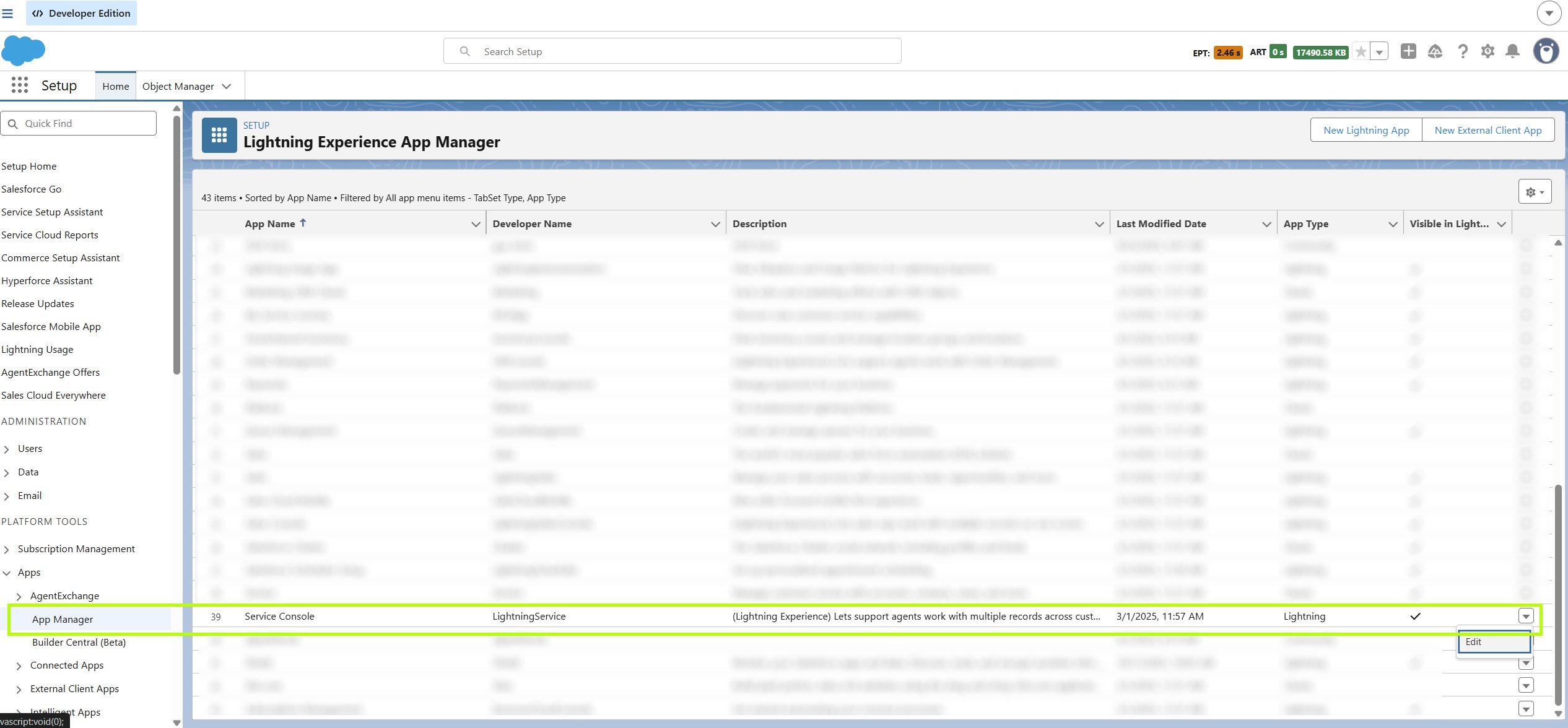
Edit target Lightning app in App Manager - GermainUX
-
Open Utility Items (Desktop Only).
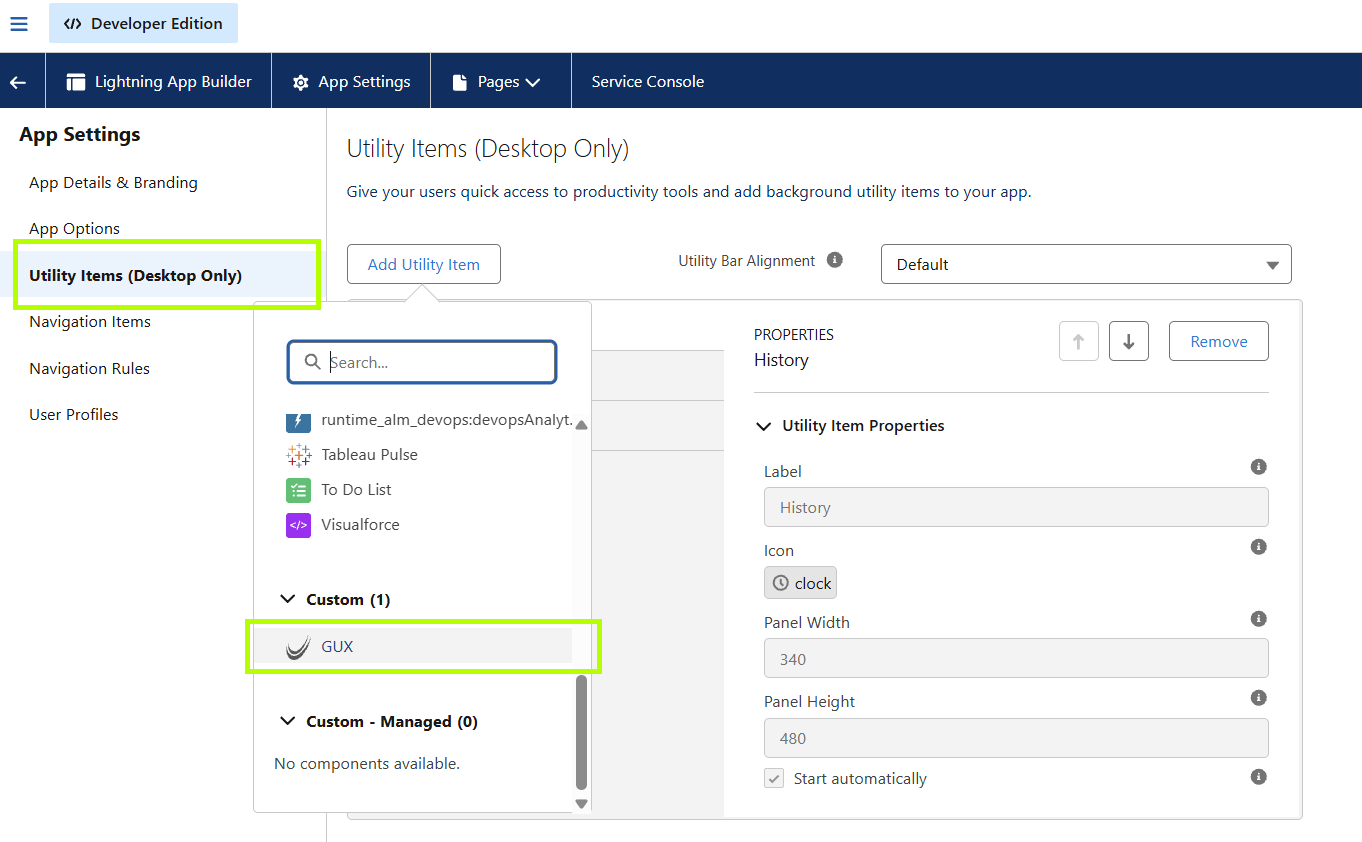
Utility Items configuration in Lightning app - GermainUX
- Select Add Utility Item, then choose GUX, the Germain RUM Agent component. Keep its label GUX, or give it a label your users recognize.
-
Enable Start automatically, and save the app. Without it, the agent only loads once a user opens the utility panel.
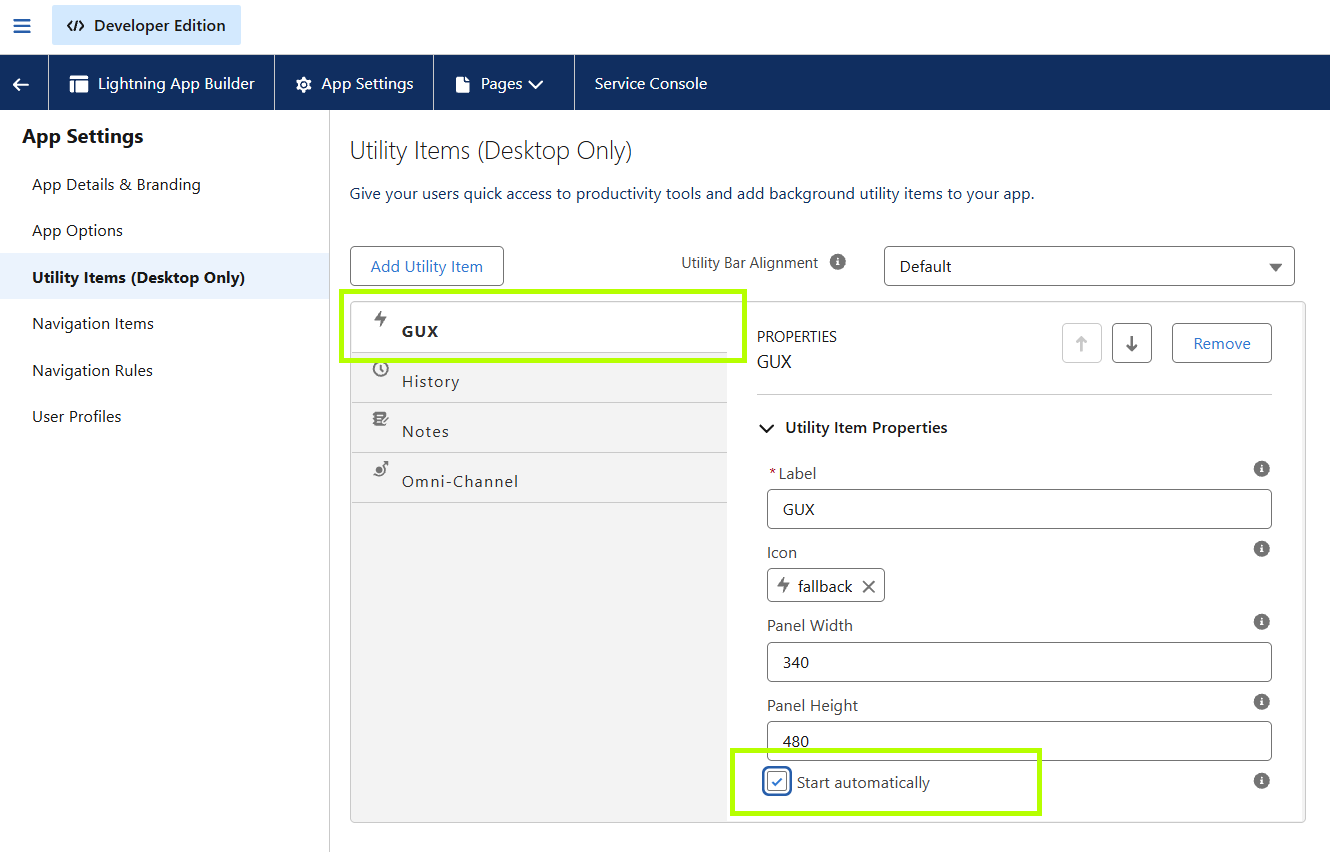
Configure GUX utility item properties with Start automatically enabled - GermainUX
-
Open the app, click GUX (or the label you gave it) in the utility bar, enter these values, and click Apply:
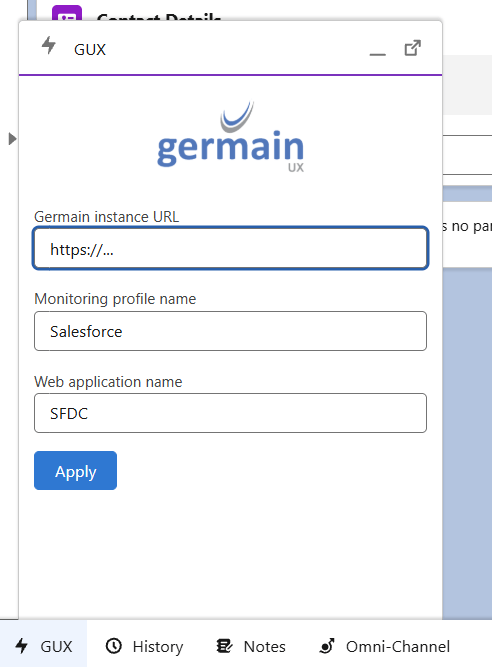
Germain RUM Agent Settings in the Utility Bar - GermainUX
Germain RUM Agent Constraints
- The agent runs at Salesforce API version 39.0, which keeps Lightning Locker off for the component so it can load RUM JS. Don’t raise its API version.
- Salesforce retires API versions 31.0 to 40.0 in June 2028, so this deployment method has a known end date.
- The GermainUX team distributes the agent directly, not through AppExchange.
- It only runs in Lightning apps with a utility bar.
Option 2: Deploy the RUM Extension
The RUM Extension is the recommended option for Salesforce Lightning and Salesforce Classic. Use it unless browser extensions can’t be deployed to your users.Organization-Wide Deployment
Use enterprise browser-management policies, such as Windows Group Policy, to deploy the extension to all applicable Salesforce users. This approach is recommended for managed production environments because it provides:- Consistent installation
- Centralized upgrades
- Reduced user involvement
- Controlled extension permissions
- Reliable monitoring coverage
Individual Deployment
Install the extension manually for selected users when:- Running a proof of concept
- Testing a new configuration
- Troubleshooting a specific user issue
- Monitoring a small user group
Configure the RUM Extension
After installation, configure the extension using one of these methods:Automatic Extension Configuration
On request, the Germain Team can provide a prefilled/preconfigured extension so no manual configuration changes are needed.Manual Extension Configuration
Use manual configuration when selected users should control whether Salesforce monitoring is active.Open the extension settings
Enter your GermainUX URL
https://abc.cloud.germainux.com.Add the Salesforce org
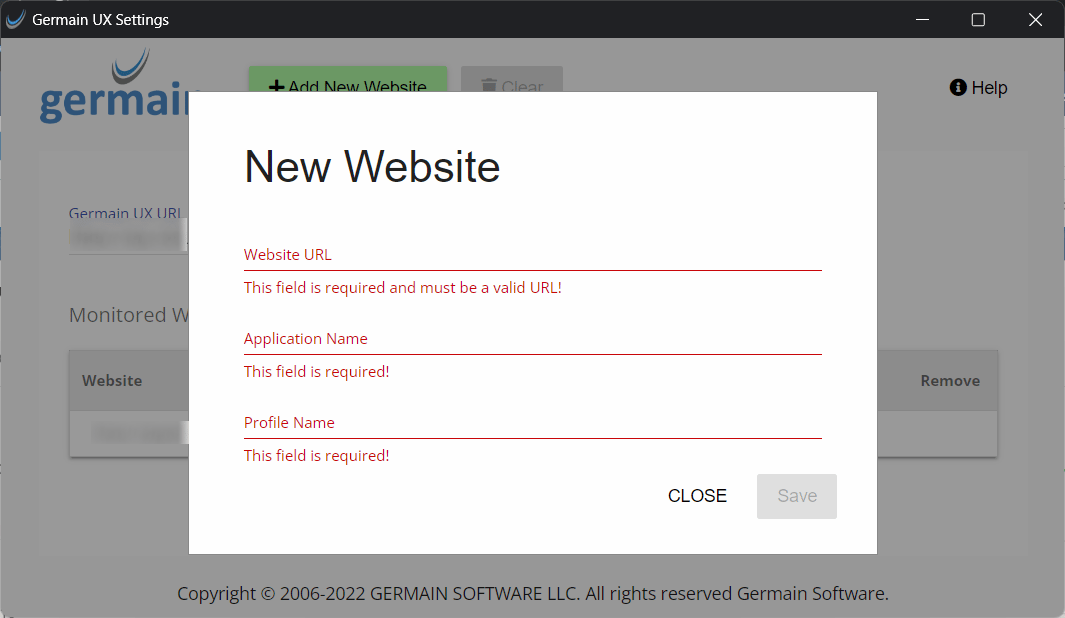
GermainUX RUM Extension settings with website and profile configuration - GermainUX
Reload Salesforce
Configure CSP Trusted Sites
Configure CSP Trusted Sites whether the extension is configured automatically or manually. In Salesforce:- Open Setup.
- Search for Trusted URLs.
- Add the required origins.
- Set each entry to Active.
- Select the appropriate Salesforce context.
- Enable only the CSP directives required by the integration.
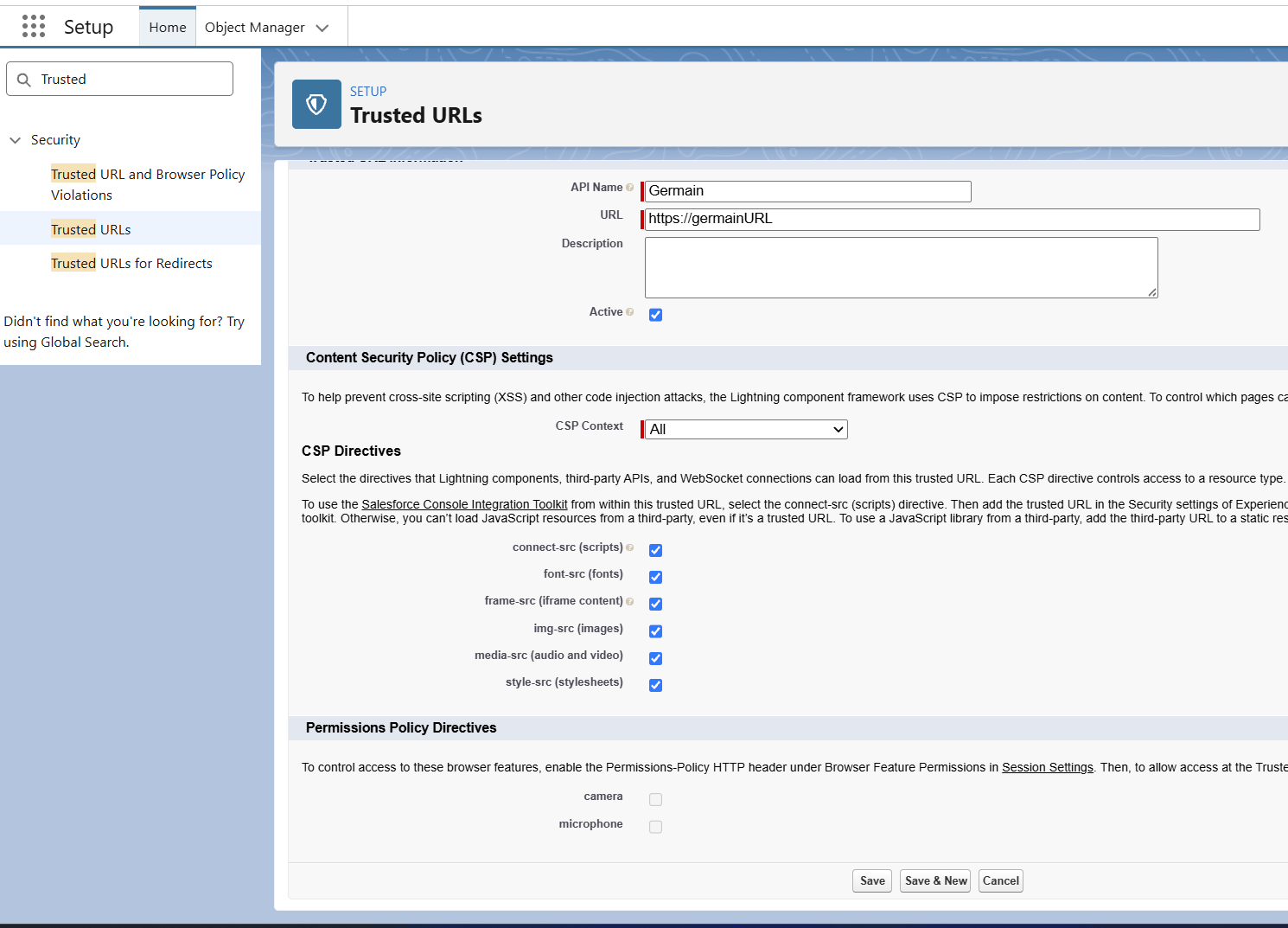
Configure Salesforce CSP Trusted Sites for GermainUX origins - GermainUX
GermainUX entry needs at least the connect-src directive. The browser loads its monitoring configuration from GermainUX and sends monitoring data to /ingestion/beacon/fact on that origin.
Do not add URL paths, wildcards, or unrelated domains unless specifically required.
Validate
After deployment:Open Salesforce in a supported non-private browser window
Confirm that the RUM Extension is installed and enabled
Confirm that the Salesforce website appears in the extension configuration
Perform several Salesforce actions:
- Navigate to another page.
- Open a record.
- Click a button.
- Run a search.
- Complete a monitored workflow step.
- In GermainUX, verify that:
- A user session appears.
- User clicks and navigation are captured.
- Page and interaction durations are available.
- The correct application and profile are assigned.
- Session Replay opens and contains the expected activity.
- Sensitive values are masked or excluded as designed.
Troubleshooting
If no data appears, check:- Browser extension policies
- CSP Trusted Sites
- Network access to GermainUX
- Application and profile names
- Salesforce origin matching
- Browser console and extension errors
- Private-browsing status
Next Steps
Deploy Engine Monitoring
Browser Monitoring Data
Get Help
Contact GermainUX Support
Can't Find What You Need?
The content of this document is proprietary to GERMAIN SOFTWARE.