

Deploy for Shopify
Automatic Installation
Manual RUM JS Deployment
Troubleshooting
Deploy Monitoring, Automated Insights & Actions for Shopify
Deploy GermainUX on Shopify to monitor real-user experience, session replay, conversion funnels, errors, customer feedback, storefront performance, checkout activity, integrations, and critical customer journeys. The recommended deployment method is the GermainUX Shopify App, which installs everything automatically. A manual deployment, with a theme snippet and a custom pixel, is also available when the app cannot be installed.Monitoring Components
Before You Begin
You need:- A Shopify account with permission to install apps or modify the active theme
- A GermainUX Cloud or on-premise environment
- Your GermainUX hostname
- The Shopify stores and environments to monitor
- Approved privacy, consent, masking, and data-retention requirements
- Test access to the monitored storefront and checkout journey
Choose a Deployment Method
Method 1: Automatic Installation with the GermainUX Shopify App
This is the recommended and simplest deployment method. The app adds two things to your store:- The Start Monitoring app embed, which loads RUM JS on every storefront page
- A web pixel, which collects Shopify events, including every checkout step
Install the App
- Open the GermainUX app in the Shopify App Store.
- Click Install.
- Sign in to Shopify if prompted.
- Select the store you want to monitor.
- Review the permissions requested by the app.
- Approve the installation.
Complete Onboarding
After installation, the app opens the onboarding form.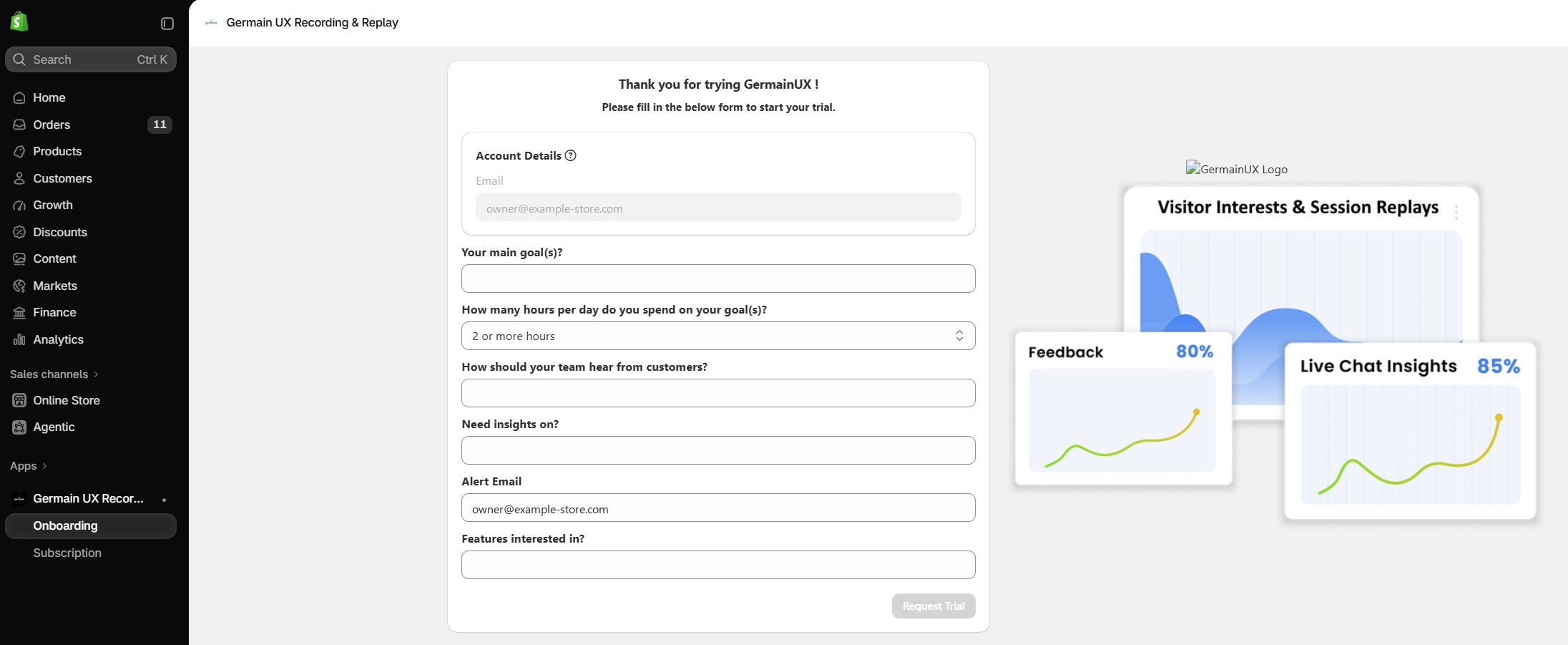
Onboarding form in the GermainUX Shopify App - GermainUX
- Your main goals
- How many hours per day you spend on them
- How your team should hear from customers
- The insights you need
- Alert Email: where GermainUX sends alerts about issues on your store
- The features you’re interested in
Turn On Monitoring
When your environment is ready, the app’s home page shows GermainUX Instance Ready! with your environment URL. GermainUX connects the web pixel for you. To start storefront monitoring, turn on the app embed:On the app's home page, click Open Theme Editor
Find Start Monitoring
Turn on the switch and click Save
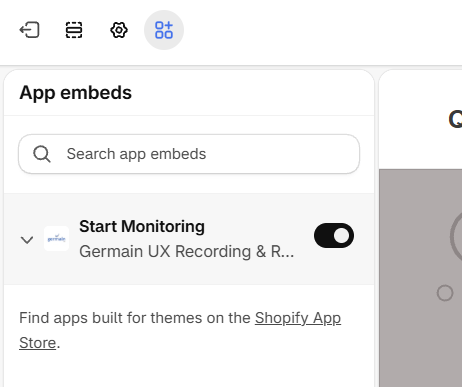
Start Monitoring app embed in the Shopify theme editor - GermainUX
Trial and Subscription
The trial starts when GermainUX enables monitoring for your store. The app’s home page shows your current subscription and its expiration date. To choose a plan, click the subscription name under Current Subscription.Validate the Installation
After onboarding:Open the storefront in a new browser session
Accept or reject tracking consent according to the configured test case
Browse a collection and product page
Search for a product
Add a product to the cart
Begin checkout
Complete a test purchase when permitted
Open GermainUX and confirm that the session and Shopify events were collected
Method 2: Manual RUM JS Deployment via Shopify Theme
Use this method when you cannot install the Shopify App. It has two parts:- A theme snippet that loads RUM JS on the storefront
- The GermainUX custom pixel, which collects Shopify events, including every checkout step
Add the GermainUX Script
- Sign in to the Shopify Admin.
- Go to Online Store > Themes.
- Locate the active theme.
- Open the theme actions menu.
- Select Edit code.
- Open the primary theme layout, normally:
layout/theme.liquid - Add the following code inside the
<head>element:
Replace both occurrences of GERMAIN_UX_HOSTNAME with the hostname of your GermainUX environment
Save the file
Preview the theme before publishing it
mycompany.germainux.com, the script source begins with:
https:// prefix if the value supplied for the placeholder already includes one. Follow the hostname format used by your GermainUX environment and generated monitoring profile.
Deploy to Multiple Themes
Shopify executes the snippet only on pages rendered by a theme containing it. If you publish a different theme, confirm that the GermainUX snippet is present in the newly published theme. Repeat the deployment for:- Production themes
- Development or staging themes
- Country- or brand-specific storefront themes
- Additional Shopify stores
Add the GermainUX Custom Pixel
The custom pixel collects the same Shopify events as the app’s web pixel, including every checkout step. Ask GermainUX Support for the GermainUX custom pixel code. Support sends it with your application name and GermainUX URL already set. The application name is your store name, the same name the theme snippet sends, so checkout events join the storefront session.- In the Shopify Admin, go to Settings > Customer events.
- Click Add custom pixel.
- Enter a name for the pixel, such as
GermainUX, and click Add pixel. - Under Customer privacy, set Permission and Data sale to match your store’s consent policy.
- Replace the sample code in the code editor with the GermainUX custom pixel code.
- Click Save, then click Connect.
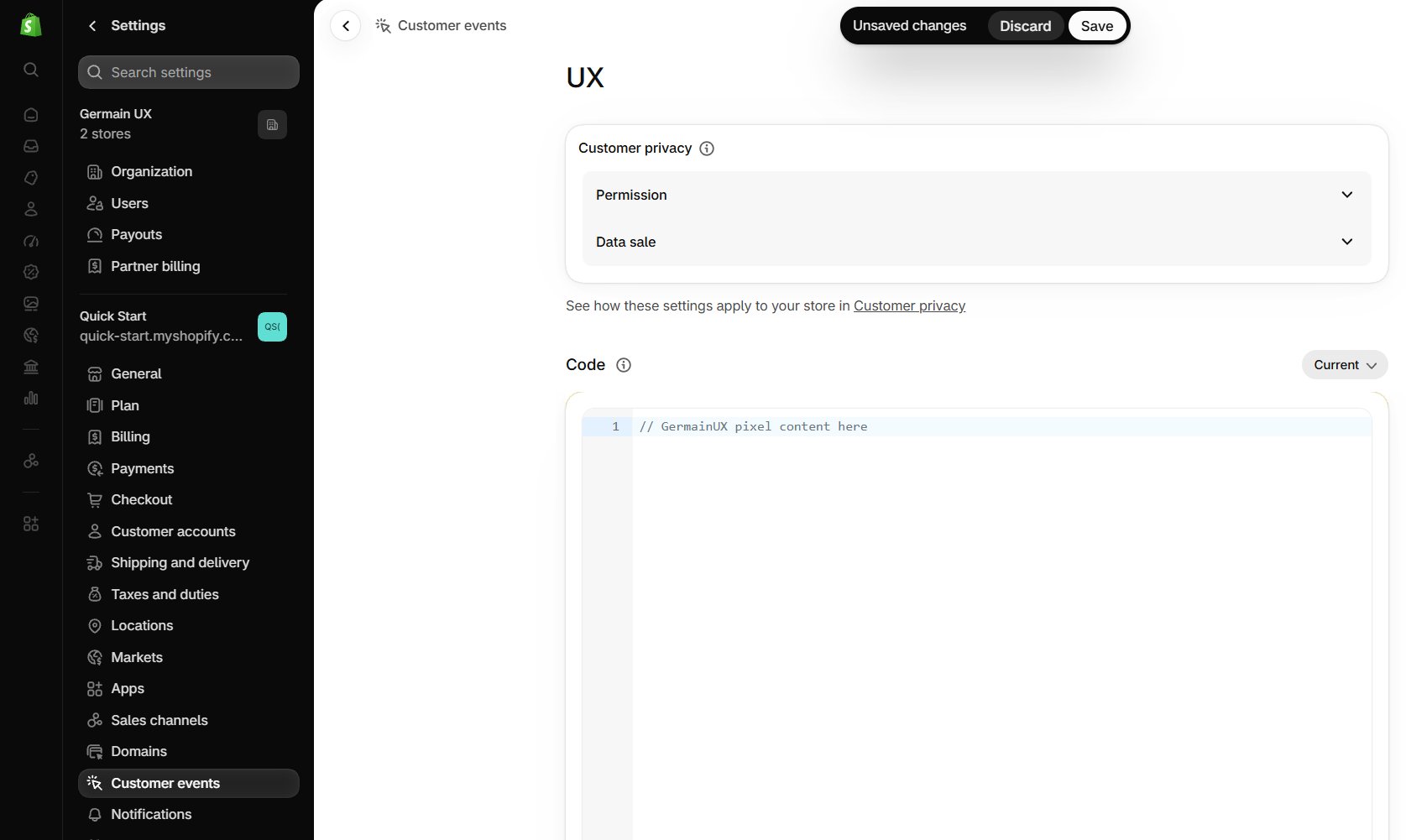
Custom pixel editor in Shopify customer events - GermainUX
Validate the Theme Deployment
- Open the storefront.
- Use the browser’s developer tools to confirm that
germainapm.jsloads successfully. - Confirm that the request is not blocked by Content Security Policy, consent management, an ad blocker, or a network proxy.
- Navigate across several storefront pages.
- Perform clicks, searches, cart updates, and other monitored actions.
- Confirm that a new session appears in GermainUX.
- Open the session and verify page views, clicks, network requests, and replay data.
- If you added the custom pixel, add a product to the cart and start checkout. Confirm that Shopify Product Cart Addition and Shopify Checkout events appear in the same session.
Configure Data Privacy and Consent
Before production rollout, set the masking, exclusion, and consent rules in the Shopify UX monitoring profile. Never capture passwords, payment-card details, security codes, authentication tokens, or other protected credentials. For what to mask or exclude and how to test consent, see Privacy and Consent.Deploy Customer-Feedback Monitoring
GermainUX can display a feedback popup that lets shoppers report satisfaction, frustration, or a specific problem while it occurs, linked to their session and Session Replay. The Shopify profile ships with the popup turned off. For setup, see Configure User Feedback for Shopify.Deploy Business-Process and Conversion Monitoring
GermainUX ships three Shopify business processes: Shopify Checkout, Shopify Landing Page to Checkout, and Shopify All Steps. They measure completion, duration, abandonment, and delays for the whole journey and for each step. Add your own processes for other journeys, such as login or returns. For the shipped processes, see Ready-to-Use Dashboards, Business Processes and Reports. To add a process, see Configure Business-Process Monitoring.Deploy Shopify Event Monitoring
The GermainUX Shopify App, or the GermainUX custom pixel in a manual installation, collects the Shopify standard events automatically, from page and product views to every checkout step and the purchase. Available events depend on the store configuration and consent status. Validate product identifiers, currency, values, discounts, and quantities before using the data for conversion or revenue reporting. For the event-to-KPI mapping, see Configure Shopify Events.Deploy Monitoring for Third-Party Checkout
Some stores send customers to an external checkout. GermainUX monitors it only when RUM JS is deployed there too, with the same application name, so the checkout joins the storefront journey. When that isn’t possible, use the Engine to monitor the provider’s API instead. For the supported providers and their steps, see Configure Third-Party Checkout Monitoring.Deploy Shopify API and Integration Monitoring
RUM JS provides browser-side storefront telemetry. Use the GermainUX Engine when you also need backend or integration monitoring. The Engine can monitor supported:- Shopify REST API availability, duration, and errors
- Orders, products, and collections read from the Shopify REST API
- The availability of other HTTP endpoints your store depends on
- Changes to your store, recorded as Deployment Run events: themes published, created, updated or deleted, including changes to the files of the published theme, apps installed or uninstalled, and changes to script tags, the checkout profile, payment and delivery customizations, and automatic discounts
- The status of each Shopify platform component, such as Storefront and Checkout, from shopifystatus.com
Deploy the JS Profiler
Deploy the GermainUX JS Profiler when standard RUM telemetry doesn’t give enough browser-side detail, typically for support teams, QA users, or test devices. It isn’t required for Shopify RUM and Session Replay. It analyzes browser-side JavaScript and network activity, not Shopify’s server-side code. For its capabilities and deployment, see JS Profiler.Deploy Synthetic Monitoring
Use the GermainUX RPA Bot Recorder to record a Shopify customer journey as a Selenium scenario. Typical scenarios include:- Open the storefront
- Search for a product
- Open a product page
- Add an item to the cart
- Start checkout
- Validate availability, price, or shipping information
- Confirm that a critical page or integration is working
- Storefront outages
- Slow pages
- Broken searches
- Add-to-cart failures
- Checkout failures
- Missing products or content
- Integration failures
- Regional or network-specific issues
Deploy Automation
After monitoring produces reliable data, configure GermainUX automation to detect, analyze, notify, or remediate problems. Examples include:- Alert when checkout failures exceed a threshold
- Detect an increase in cart abandonment
- Identify dead-end searches
- Notify a team when a third-party service fails
- Run a synthetic scenario after a deployment
- Trigger an API or webhook action
- Restart a failed integration where authorized
- Generate recurring conversion or experience reports
- Use AI-driven analysis to summarize affected sessions and likely causes
Production Rollout Checklist
Before completing the deployment, verify that:Troubleshooting
No Shopify Data Appears
Confirm that:- The GermainUX App is installed and onboarding is complete.
- The theme containing the snippet is published.
- The GermainUX hostname is correct.
germainapm.jsloads successfully.- The configured application and profile names exist.
- Tracking consent has been granted when required.
- Browser extensions or network security tools are not blocking collection.
- The storefront URL matches the monitoring profile.
Storefront Data Appears but Checkout Data Does Not
A theme snippet normally covers pages rendered by that theme. Confirm that:- The GermainUX Shopify App is installed, or, for a manual installation, the GermainUX custom pixel is connected.
- The pixel shows as connected in the Shopify Admin under Settings > Customer events.
- Consent permits checkout collection.
- The checkout is hosted by Shopify rather than an unmonitored third party.
- The store and Shopify plan support the required integration.
Sessions or Events Are Duplicated
Check whether RUM JS is being loaded by more than one source, such as:- The GermainUX Shopify App
theme.liquid- A tag manager
- A custom pixel
- Another theme integration
Session Replay Is Incomplete
Review:- Consent status
- Privacy exclusions
- Capture limits
- Dynamic or iframe-hosted content
- Cross-domain transitions
- Unsupported checkout or third-party pages
- Network interruptions
- RUM profile settings
Related Documentation
- Configure Monitoring for Shopify
- Configure Third-Party Checkout Monitoring
- Configure Error Monitoring
- Configure Shopify Events
- Configure User Feedback
- KPIs for Shopify Monitoring
- GermainUX in Shopify Store
Get Help
Contact GermainUX Support
Can't Find What You Need?
The content of this document is proprietary to GERMAIN SOFTWARE.