

Configure the Shopify UX Monitoring Profile
Choose the store profile
Configure Shopify Events
Commerce events tied to sessions
Configure Third-Party Checkout Monitoring
Extend to external checkouts
Configure Error Monitoring
Customer-impacting errors only
Overview
Configure GermainUX to capture, correlate, and analyze Shopify customer journeys across the storefront, cart, checkout, third-party services, and supporting integrations. This guide assumes that you have already deployed monitoring for Shopify.Configuration Overview
Configure the Shopify UX Monitoring Profile
In the left menu, go to Settings > Analytics > UX Monitoring Profiles. Select the profile created for your Shopify store. The default profile is typically named Shopify, although your environment may use a store- or environment-specific name.Application Identification
Configure:- Application name
- Store name
- Production, test, or development environment
- Primary storefront domain
- Alternate domains
- Locale- or country-specific domains
- Checkout and third-party domains, where applicable
URL Matching and Page Identification
Configure URL rules for the monitored Shopify pages, including:- Home page
- Collection pages
- Product pages
- Search results
- Cart
- Customer account
- Checkout
- Order confirmation
- Contact and support pages
- Custom landing pages
- Product and variant identifiers
- Collection handles
- Order identifiers
- Search terms
- Locale prefixes
- Query parameters
- Tracking and campaign parameters
Session Configuration
Review:- Session inactivity timeout
- Guest-session identification
- Authenticated-customer identification
- Guest-to-authenticated session continuity
- Cross-tab correlation
- Cross-domain correlation
- Application and environment naming
- Session sampling, if enabled
Session Replay
Enable Session Replay when detailed reconstruction of customer journeys is required. Configure:- Replay sampling
- Maximum capture duration
- Text masking
- Input masking
- Element exclusion
- Page exclusion
- Network capture
- Resource capture
- Consent requirements
- Retention
Privacy and Consent
Configure privacy controls before enabling production collection. Mask or exclude:- Passwords
- Payment-card information
- Security codes
- Authentication tokens
- Customer names and contact details, when required
- Billing and shipping addresses
- Order identifiers
- Form inputs
- Free-text comments
- Request bodies, parameters, and headers
- Any organization-specific sensitive data
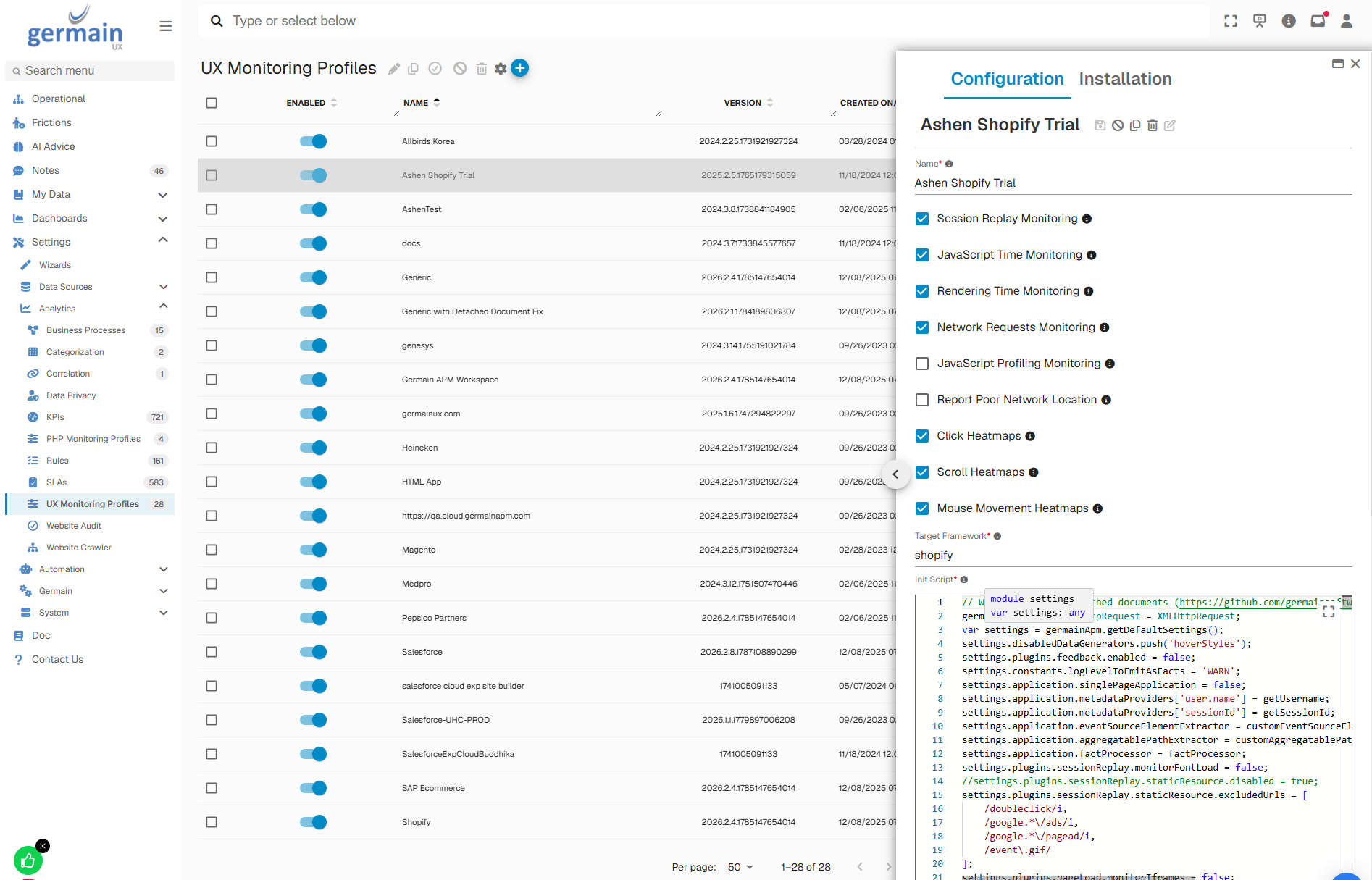
Shopify UX Monitoring Profile configuration - GermainUX
Configure Shopify Events
The GermainUX Shopify App collects the Shopify standard events automatically: collection and product views, search, cart changes, and every checkout step. Each event is mapped to a KPI and, for the key steps, to a Session Replay timeline event. You add custom events only for actions specific to your store. For the event-to-KPI mapping, custom events, and timeline events, see Configure Shopify Events.Configure Third-Party Checkout Monitoring
When customers leave the Shopify storefront for a third-party checkout, deploy RUM JS on the external checkout with the same application name, so the checkout joins the storefront journey. Step-by-step instructions are available for Checkify, Funnelish, and Recharge custom checkout (Thank You page only). For the script and the steps for each provider, see Configure Third-Party Checkout Monitoring.Configure Error Monitoring
GermainUX separates user-facing application errors, silent errors, and user validation, groups recurring errors through categorization, and links every error to the affected session and Session Replay. For error classifications, detecting failures in HTTP200 responses, categorization, dashboards, and alerts, see Configure Error Monitoring for Shopify.
Configure User Feedback
The feedback popup collects positive or negative feedback, with an optional comment, and links it to the customer’s session and technical context. The Shopify profile ships with the popup turned off. You turn it on in the profile’s initialization script.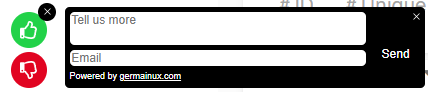
Shopper feedback popup - GermainUX
Configure Business-Process Monitoring
Define the Shopify journeys that matter to conversion and customer experience. Recommended processes include:- Landing page to product view
- Search to product selection
- Product view to add-to-cart
- Add-to-cart to checkout
- Checkout to purchase
- Registration and login
- Discount-code application
- Order tracking
- Return request
- Support contact
- Start condition
- Completion condition
- Ordered or optional steps
- Failure conditions
- Abandonment timeout
- Expected duration
- Customer and session correlation
- Store and environment
- Relevant product, cart, checkout, and revenue attributes
Configure Alerts and Reports
Configure alerts for actionable conditions such as:- New application error
- Checkout failure
- Increase in cart abandonment
- Conversion-rate degradation
- Failed product search
- Sold-out product activity
- Slow page or request
- Third-party checkout outage
- API or integration failure
- Increase in negative feedback
- Conversion and abandonment
- Customer feedback
- Error trends
- Slow customer journeys
- Product and collection engagement
- Checkout performance
- Revenue impact
- New or increasing issues
Validation Checklist
After configuration, confirm that:Related Documentation
Get Help
Contact GermainUX Support
The GermainUX team helps you get up and running faster, empower your team, turn data into actionable insights, and optimize performance to deliver measurable business outcomes.
Can't Find What You Need?
Search all GermainUX docs with Ctrl + K, or use the feedback buttons at the bottom of this page to tell us what is missing.
The content of this document is proprietary to GERMAIN SOFTWARE.