

Before You Start
RUM JS already deployed
Configure
Replay, profiling, exclusions
Validate
Check activity and overhead
Troubleshooting
Missing replays and users
Before You Start
- GermainUX RUM JS is already deployed in the ReactJS application. See Deploy Monitoring for ReactJS.
Configure
The ReactJS UX Monitoring Profile controls what RUM JS collects. This section covers the settings you change most for a ReactJS application. Browser monitoring features that work the same in every web application are listed under Other Browser Monitoring Features, with links to their pages.Open the UX Monitoring Profile
In the left menu, go to Settings > Analytics > UX Monitoring Profiles. Select the UX Monitoring Profile used by the ReactJS application. The profile controls the browser-side monitoring behavior for the application. Verify that monitored activity is associated with the correct application. Use consistent application and environment names across:- Production
- Staging
- Development
- Other monitored environments
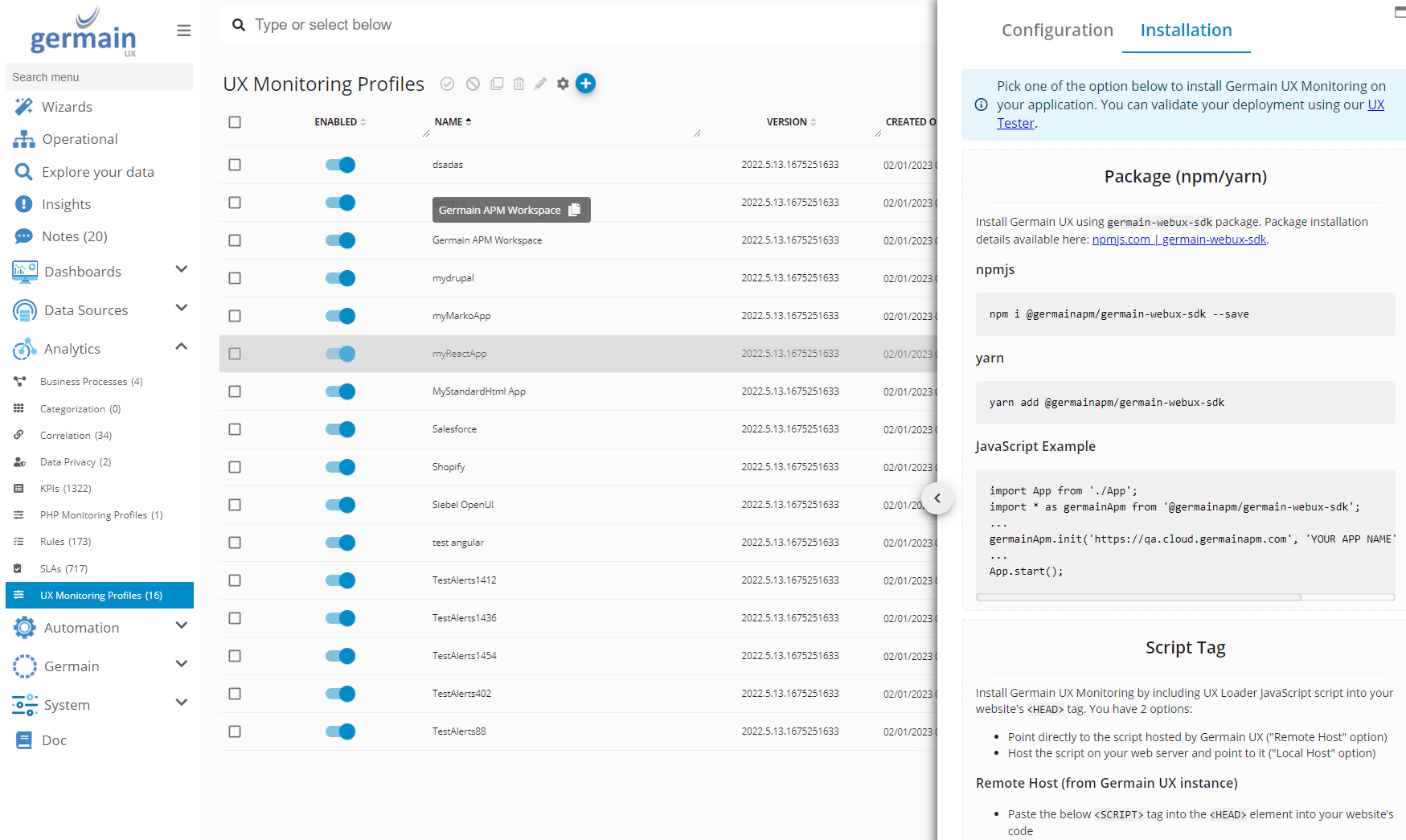
UX Monitoring Profiles list, including a ReactJS application profile - GermainUX
Session Replay
Session Replay is controlled by the ReactJS UX Monitoring Profile. In the left menu, go to Settings > Analytics > UX Monitoring Profiles, open the ReactJS profile, and turn Session Replay Monitoring on or off. Session Replay can be configured to control:- Whether sessions are recorded
- Session duration
- Session timeout
- User/session behavior
- Privacy
- Exclusions
- Timeline events
settings.constants.maxSessionDurationMillis to limit the maximum recording duration. Session timeout can also be configured globally through Settings > System > UX/Session Replay Settings.
Users who change. For environments where multiple users may authenticate through the same browser, set settings.constants.createNewSessionIfUsernameChanges to create a new monitored session when the username changes:
JavaScript Profiling
For deeper JavaScript performance analysis, go to Settings > Analytics > UX Monitoring Profiles in the left menu, open the ReactJS profile, and turn on JavaScript Profiling Monitoring. GermainUX supports JavaScript profiling through the available browser profiling mechanisms. Use profiling selectively where code-level execution analysis is required. Advanced profiling behavior is available throughsettings.plugins.jsProfiling. Configuration options include:
functionMinStackHitsmaxSampleBufferSizemaxProfileDurationprofileOnPageReadysampleIntervalMillisuseSelfProfilingAPIexcludedUsernamesincludedUsernames
ReactJS Component Analysis
Configure analytics for ReactJS component activity captured from the application. Use component analysis to identify:- Component usage
- Rendering performance
- Slow-performing components
- Components associated with poor user experience
Exclusions
To keep bots, test traffic and automated users out of ReactJS user analytics and Session Replay, configure these settings in the ReactJS profile (Settings > Analytics > UX Monitoring Profiles):Phrases of Interest
Configure Phrases of Interest to detect important text appearing in the ReactJS application. Examples include:- Error messages
- Warnings
- Confirmation messages
- Out-of-stock messages
- Compliance messages
- Application-specific conditions
Data Privacy
Review the data collected from the ReactJS application. GermainUX supports privacy controls to exclude, mask, anonymize or encrypt data where applicable. Review:- Form fields
- User input
- DOM content
- URLs
- Query parameters
- Usernames
- Session identifiers
- Request/response information
Other Browser Monitoring Features
RUM JS monitors a ReactJS application the same way as any web application, so these features are configured on their Browser Monitoring pages:Analytics, Alerts and Automation
Once data arrives, set up the analytics and alerting for the ReactJS conditions important to the application. Configure thresholds, recipients and schedules according to expected application behavior and operational ownership.Validate
Generate representative ReactJS activity and verify: Also verify that monitoring introduces acceptable browser overhead and does not collect unapproved sensitive information.Troubleshooting
Sessions are monitored but can't be replayed
Sessions are monitored but can't be replayed
Check that Session Replay Monitoring is turned on in the ReactJS profile, and that the users are not excluded (see Exclusions).
A test user's sessions are missing
A test user's sessions are missing
Check the profile’s Excluded Usernames, Excluded IP Ranges and Included IP Ranges. If the test runs in an automated or headless browser, check Exclude Headless Browsers too.
Advanced Configuration
Advanced ReactJS monitoring should use the underlying GermainUX RUM JS and JavaScript configuration rather than duplicating all browser configuration on this page. Use the corresponding technical configuration references for:Get Help
You can tailor ReactJS monitoring to the application’s components, user journeys, errors, performance requirements, privacy requirements, APIs, and integrations. The GermainUX team can help you decide which monitoring, analytics and automation capabilities fit your ReactJS environment.Contact GermainUX Support
The GermainUX team helps you get up and running faster, empower your team, turn data into actionable insights, and optimize performance to deliver measurable business outcomes.
Can't Find What You Need?
Search all GermainUX docs with Ctrl + K, or use the feedback buttons at the bottom of this page to tell us what is missing.
The content of this document is proprietary to GERMAIN SOFTWARE.