

Deploy Monitoring for Vue.js
Vue RUM via wizard
4. Deploy Using npm or Yarn
Bundle RUM with build
7. Retrieve Deployment Instructions Later
Reopen Vue instructions anytime
13. Validate the Deployment
Verify Vue deployment
Overview
Deploy GermainUX monitoring for a Vue.js application. The Vue.js Wizard generates the required Real User Monitoring configuration and provides the supported installation methods for your application.Monitoring Components
Depending on the required monitoring coverage, Vue.js monitoring can use:
Deploy only the components required for your use cases.
Prerequisites
Before deployment, confirm:- You have access to Germain Workspace.
- You have the Vue.js application URL.
- You can modify the Vue.js application or its deployment configuration.
- The application can communicate with the GermainUX environment.
- Required privacy and security requirements have been defined.
- You know which application environments will be monitored.
- Development
- QA
- Staging
- Production
1. Open the Vue.js Wizard
In the left menu, go to Settings > Wizards > Vue.js. Start the Vue.js Wizard.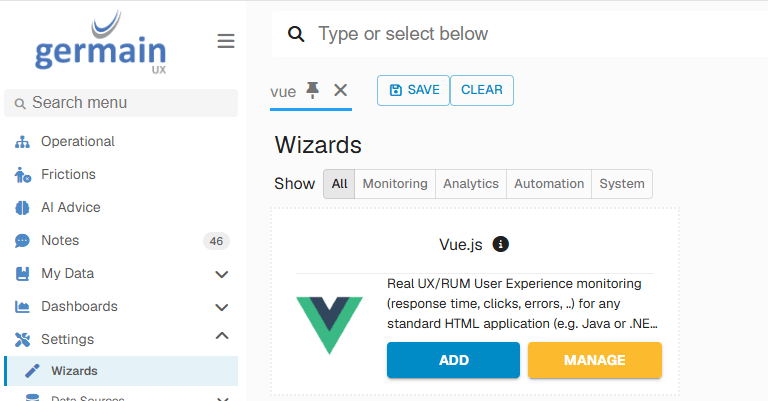
Vue.js Wizard start page - GermainUX
2. Configure the Application
Enter:- Application Name
- Application URL
Customer Portal - Vue.js - Production
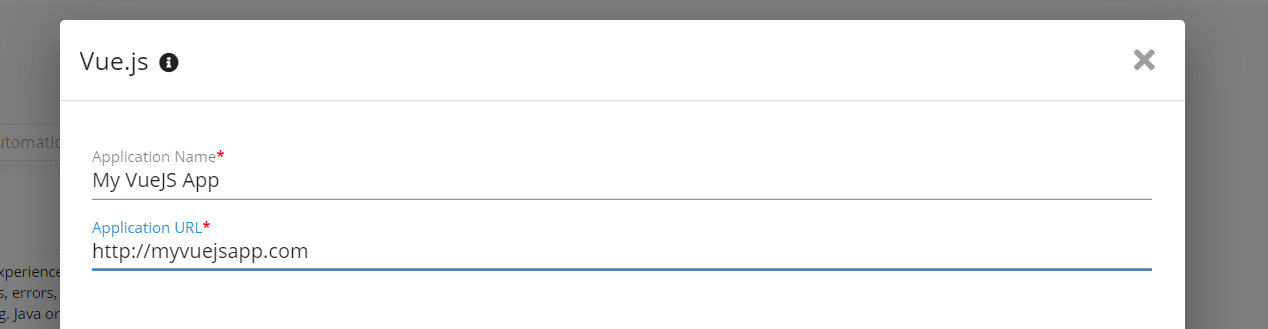
Vue.js application configuration details - GermainUX
3. Complete the Wizard
Continue through the Vue.js Wizard. At the end of the wizard, GermainUX displays the available deployment options. Supported deployment methods include:- Package dependency using npm or yarn
- Script tag injection
- JavaScript code snippet
4. Deploy Using npm or Yarn
Use the package dependency option when GermainUX RUM JS should be included as part of the Vue.js application’s dependency and build process. Follow the package installation and initialization instructions generated by the Vue.js Wizard. Use the exact package name and configuration generated for your GermainUX environment. After installation:- Build the application.
- Deploy it to the target environment.
- Open the application.
- Verify that GermainUX monitoring initializes.
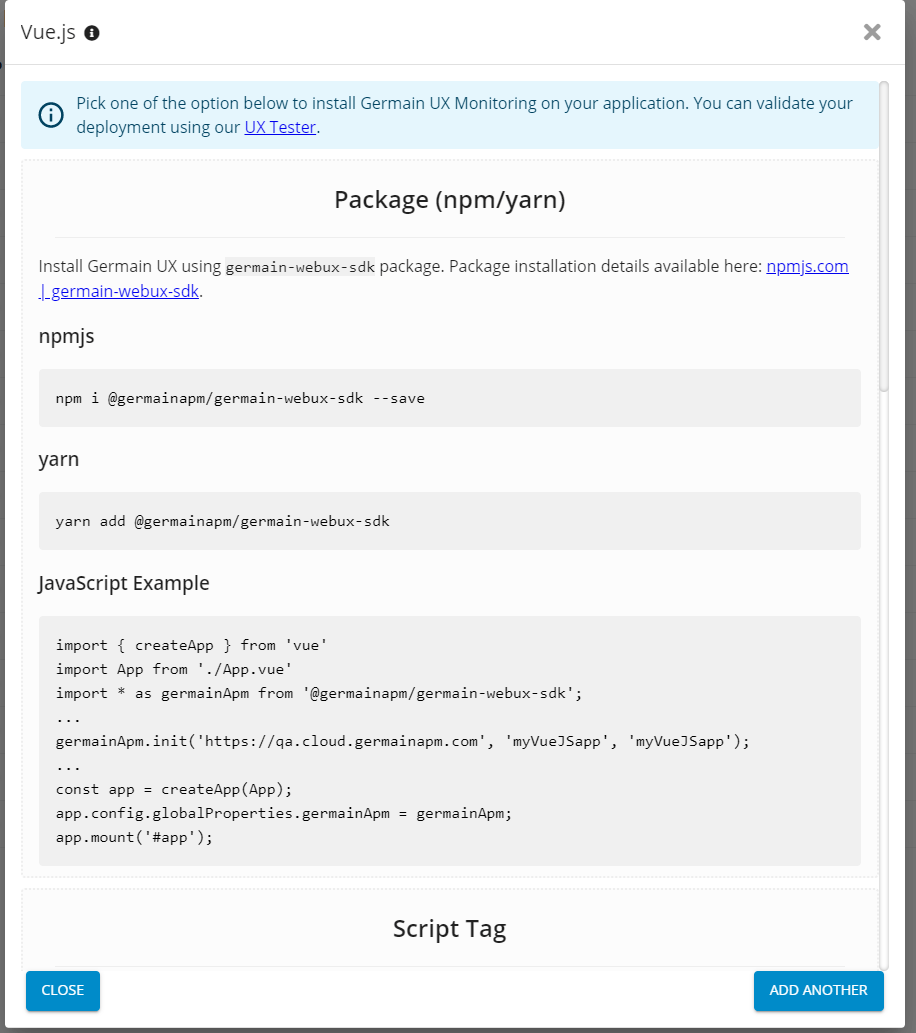
Vue.js npm package deployment option - GermainUX
5. Deploy Using Script Tag Injection
Use script tag deployment when monitoring is loaded separately from the Vue application bundle. Follow the script-tag instructions generated by the Wizard. Depending on the selected configuration, the monitoring script may be hosted:- Locally
- Remotely
6. Deploy Using a JavaScript Code Snippet
Use the JavaScript snippet option when the monitoring configuration needs to be initialized directly within application code or an approved application bootstrap location. Follow the code-snippet instructions generated by the Wizard. Ensure that the monitoring code executes early enough in the application lifecycle to capture the required user activity.7. Retrieve Deployment Instructions Later
You can return to the generated deployment instructions after completing the Wizard. In the left menu, go to Settings > Analytics > UX Monitoring Profiles. Select the UX Monitoring Profile created for the Vue.js application. In the Configuration Editor, select: Installation The generated installation instructions are displayed.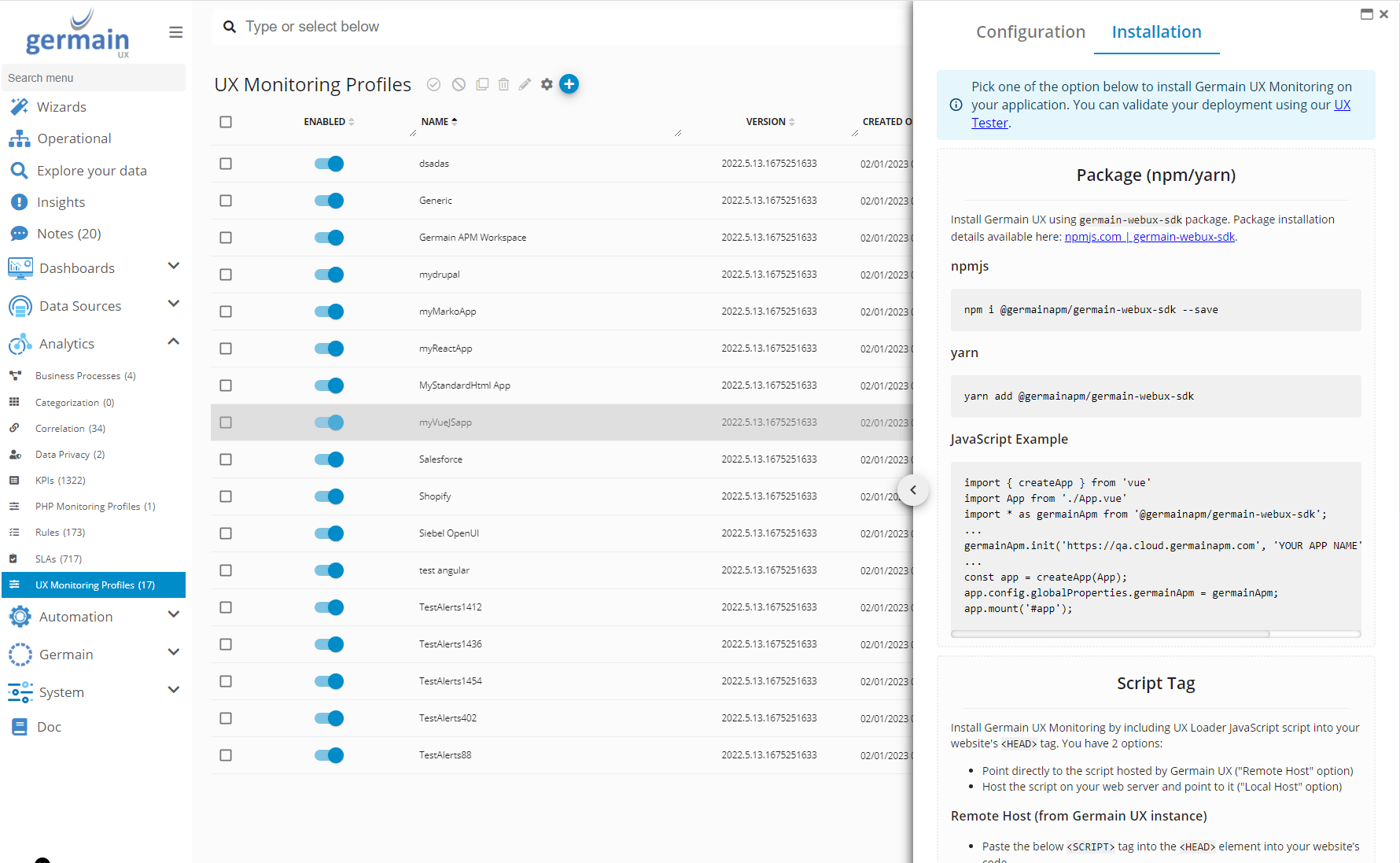
Vue.js npm and yarn package install instructions - GermainUX
8. Deploy JS Profiler — Optional
Deploy GermainUX JS Profiler when deeper JavaScript analysis is required. Use JS Profiler when Real User Monitoring identifies issues that require additional visibility into:- JavaScript execution
- Slow functions
- Browser processing
- Network activity
- Integration activity
9. Deploy Synthetic Monitoring — Optional
Use GermainUX RPA Bot Recorder to create synthetic scenarios for critical Vue.js workflows. Examples include:Open ApplicationSign InNavigateVerify Result
or:
Open ApplicationSearchSelectSubmitVerify Confirmation
Use dedicated test accounts and test data when appropriate.
Avoid workflows that unintentionally modify production data.
10. Deploy Backend Monitoring — Optional
When the Vue.js application depends on customer-controlled backend services, deploy GermainUX monitoring for those systems separately. Examples include:- REST APIs
- Application servers
- Databases
- Logs
- Operating systems
- Containers
- Cloud infrastructure
11. Validate Real User Monitoring
After deployment:1
Open the Vue.js application
2
Navigate through several pages or views
3
Perform representative interactions
4
Execute a representative workflow
- User session
- Navigation
- User interactions
- Performance
- Network requests
- JavaScript errors
12. Validate Session Replay
When Session Replay is enabled:1
Open the application
2
Perform representative actions
3
End the test session
4
Locate the session in GermainUX
5
Open Session Replay
6
Verify that expected activity can be replayed
13. Validate the Deployment
Confirm: Once deployment has been validated, continue with Configure Monitoring for Vue.js.Get Help
GermainUX can help determine which monitoring, analytics and automation capabilities are appropriate for your Vue environment.Contact GermainUX Support
The GermainUX team helps you get up and running faster, empower your team, turn data into actionable insights, and optimize performance to deliver measurable business outcomes.
Can't Find What You Need?
Search all GermainUX docs with Ctrl + K, or use the feedback buttons at the bottom of this page to tell us what is missing.
The content of this document is proprietary to GERMAIN SOFTWARE.