

Prerequisites
Initial Configuration
Configure Privacy
Troubleshooting
Overview
GermainUX Real User Monitoring captures how guest and authenticated users interact with Salesforce Experience Cloud. Session Replay reconstructs their experience and correlates it with performance, errors, network activity, feedback, and business processes.This Helps Teams Understand:
- What users were trying to accomplish
- Which pages and components they used
- Where they waited, repeated actions, or abandoned
- Which errors and validations appeared
- Whether a control failed to respond
- Which workflow step became inefficient
- Whether browser, Salesforce, integration, or network performance contributed
Optional components: Engine, JS Profiler, Mobile App, and RPA Bot Recorder
Feature availability: GermainUX 2023.1 or later
Prerequisites
Before configuring user monitoring:- Deploy RUM JS on the Experience Cloud site.
- Publish the updated site.
- Confirm that the browser can reach GermainUX.
- Add the required Salesforce Trusted URLs or CSP permissions.
- Identify every site domain and environment.
- Determine how guest and authenticated users should be identified.
- Review privacy, consent, and retention requirements.
- Identify bots, crawlers, synthetic accounts, and service users to exclude.
- Select controlled guest and authenticated sessions for validation.
- Deploy RUM JS on the Experience Cloud site.
- Publish the updated site.
- Confirm that the browser can reach GermainUX.
- Add the required Salesforce Trusted URLs or CSP permissions.
- Identify every site domain and environment.
- Determine how guest and authenticated users should be identified.
- Review privacy, consent, and retention requirements.
- Identify bots, crawlers, synthetic accounts, and service users to exclude.
- Select controlled guest and authenticated sessions for validation.
Initial Configuration
For a new Experience Cloud site:- In the left menu, go to Settings > Wizards.
- Select Salesforce Experience Cloud.
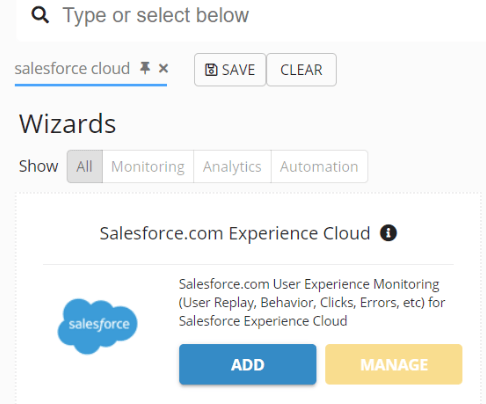
User Monitoring for Salesforce Experience Cloud Initial Configuration - GermainUX
- Enter the Application Name.
- Enter the site URL.
- Configure privacy and bot-exclusion options.
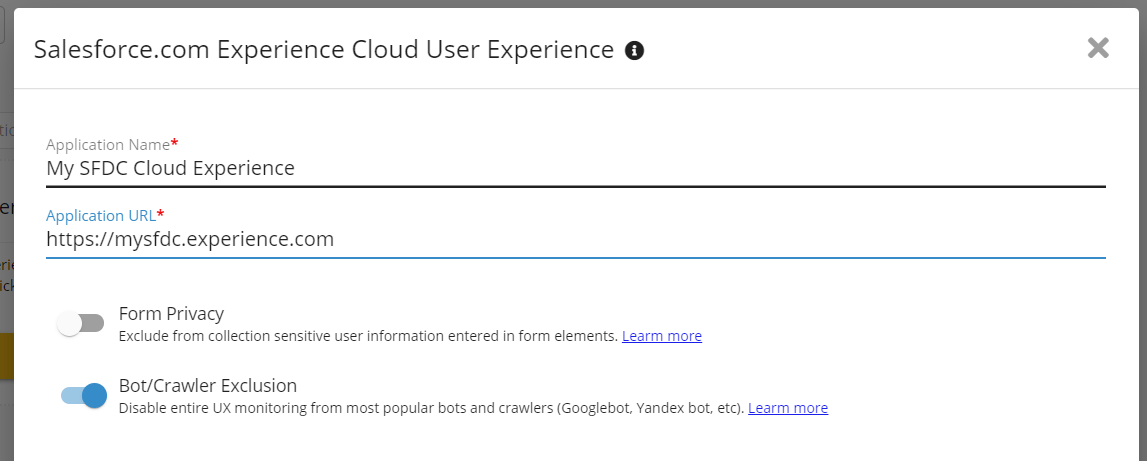
User Monitoring for Salesforce Experience Cloud Privacy and Bot Settings - GermainUX
- Complete the wizard.
- Follow the installation steps displayed in the wizard summary.
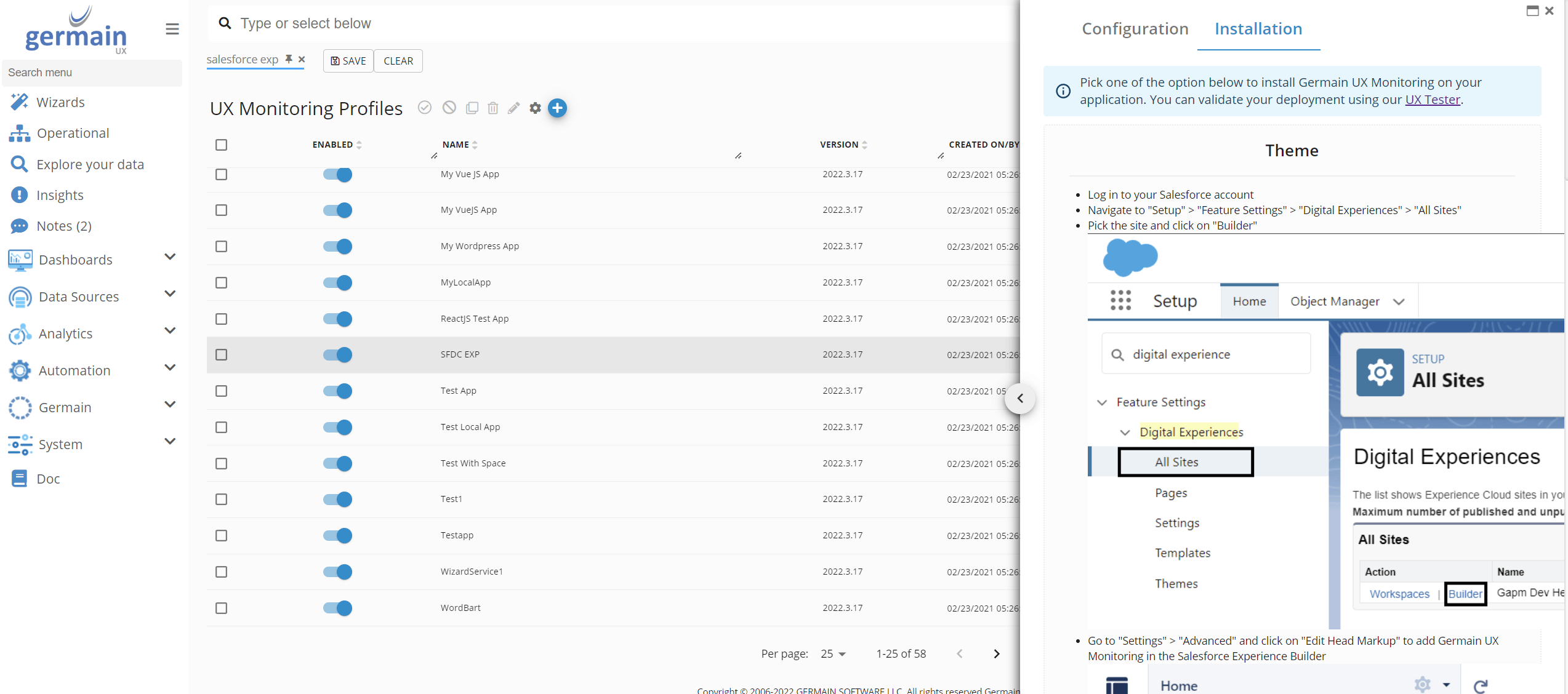
Installation Steps in Salesforce Experience Cloud Wizard - GermainUX
- Publish the Experience Cloud site.
- Validate the deployment with a new browser session.
Application Name
Use a name that identifies both the site and environment. Examples:Configure Site URLs
The UX Monitoring Profile must match every intended site URL while excluding unrelated Salesforce applications. Review:- Salesforce-provided Experience Cloud domain
- Custom domain
- Sandbox domain
- Login and logout URLs
- Guest pages
- Authenticated pages
- Language-specific paths
- Redirected URLs
- Legacy site paths
- Mobile routes
- Salesforce Setup
- Internal Lightning applications
- Other Experience Cloud sites
- Administrative pages
- Unrelated Salesforce organizations
Review the Generated Profile
After completing the wizard, go to Settings > Analytics > UX Monitoring Profiles. Select the newly created Experience Cloud profile and review:- Application
- Environment
- URL matching
- Monitoring status
- Session Replay status
- Privacy configuration
- Bot and crawler exclusions
- User and session metadata
- Initialization script
- Data generators
- Installation instructions
Configure Authenticated Users
Select an approved user identifier for authenticated customers, partners, or employees. Possible identifiers include:- Salesforce user ID
- Experience Cloud user ID
- A pseudonymous customer or partner ID
- Another authorized application identifier
- The identifier becomes available after login.
- It remains stable throughout the authenticated session.
- It is removed or changed after logout.
- It does not expose authentication credentials.
- It complies with privacy requirements.
- Passwords
- OAuth access tokens
- Salesforce session identifiers
- Authentication cookies
- Security answers
- MFA values
Configure Guest Users
Guest users should remain anonymous unless explicit identification and consent are available. Use an anonymous browser or session identifier to:- Associate events within one visit
- Distinguish separate guest sessions
- Analyze guest journeys
- Measure conversion and abandonment
- Correlate errors and feedback
Handle Guest-to-Authenticated Transitions
A user may begin as a guest and sign in during the same journey. Choose and test the intended behavior:- Continue one journey while changing the user identity
- Close the guest session and create an authenticated session
- Correlate the two sessions through an approved journey identifier
- One user inheriting another user’s activity
- Anonymous behavior being assigned to the wrong account
- Authentication tokens being stored as correlation identifiers
- Multiple users on a shared device appearing as one user
Configure Session Boundaries
Define when a session begins and ends. Review:- First site visit
- Login
- Logout
- Guest-to-authenticated transition
- Authentication timeout
- Browser inactivity
- Browser close
- Multiple tabs
- Shared devices
- Account switching
Configure Session Timeout
By default, GermainUX closes a session after one hour without receiving a new event. The session is marked Timed Out, and a later event starts a new session. To change the timeout:Go to Settings > System > UX/Session Replay Settings
Update Session Timeout, in minutes
Save the configuration
Enable or Disable Session Replay
Session Replay is enabled by default for each UX Monitoring Profile unless disabled at the profile or global level. To change it for this Experience Cloud site:Open UX Monitoring Profiles
Select the Experience Cloud profile
Enable or disable Session Replay Monitoring
Save the profile
Disable Session Replay Globally
To stop collecting replay data for all monitored applications:Go to Settings > System > UX/Session Replay Settings
Disable Session Replay Data
Save the configuration
Configure Page and Component Context
Capture enough context to identify where each event occurred. Useful dimensions include: Use stable, business-readable page and component names rather than long URLs or generated technical identifiers. Normalize dynamic route values such as record IDs so similar pages are analyzed together.Configure Navigation Monitoring
Experience Cloud applications may update routes and components without a full browser page load. Confirm that GermainUX detects:- Initial page load
- Client-side route changes
- Navigation-menu selections
- Custom component changes
- Modal dialogs
- Login redirects
- Logout redirects
- Browser back and forward navigation
Configure Click Monitoring
Capture user actions required to analyze:- Navigation
- Form completion
- Search
- Case submission
- Knowledge use
- Partner workflows
- Registration
- Login
- Self-service activity
- Conversion and abandonment
User Click KPI to measure the cumulative duration of synchronous and asynchronous activity initiated between consecutive clicks.
Configure Network Monitoring
Capture requests required to explain Experience Cloud performance and errors. Review:- Salesforce endpoints
- Aura or Lightning requests
- REST APIs
- GraphQL requests, when used
- Custom services
- Third-party services
- Authentication endpoints
- Content delivery
- Chat and support integrations
- Authentication tokens
- Session identifiers
- Sensitive request bodies
- Sensitive response bodies
- Unrelated third-party telemetry
- High-volume requests with no diagnostic value
Configure Error Monitoring
Collect and distinguish:- JavaScript exceptions
- Console events
- Failed network requests
- Salesforce error responses
- Custom Lightning component errors
- Popup or inline messages
- Apex exceptions collected through Engine monitoring
- Integration failures
Configure Privacy
Experience Cloud sites can display sensitive customer, partner, employee, case, account, order, and payment information. Mask, anonymize, or exclude: Apply privacy rules to:- Visible page text
- Input values
- Tables and lists
- URLs
- Popup dialogs
- Network bodies
Exclude Bots and Crawlers
Exclude automated traffic so it does not affect user, adoption, conversion, and performance analytics. Common exclusions include:- Googlebot
- Bingbot
- Baiduspider
- DuckDuckBot
- YandexBot
- Social-media preview bots
- Selenium scenarios
- Load tests
- Health checks
- Synthetic accounts
- Organization-specific bots
Open the Experience Cloud UX Monitoring Profile
Modify Excluded User Agents
Save the profile
Configure Capture Scope
Enable only the data needed for the monitoring objectives. Possible data includes:- Sessions
- Clicks
- Route changes
- Page changes
- Form interactions
- Browser errors
- Console events
- Network requests
- Performance timings
- Business-process events
- Feedback
- Session Replay changes
Configure User Feedback
Enable the Feedback Popup when users should be able to report their experience directly from the site. Feedback can be associated with:- User session
- Page
- Journey step
- Error
- Performance activity
- Session Replay
Configure Business-Process Monitoring
Define critical journeys such as:- Registration
- Login
- Customer onboarding
- Case submission
- Knowledge search
- Partner lead submission
- Order or application submission
- Profile update
- Self-service support
- Start
- Steps
- Completion
- Failure
- Correlation
- Expected duration
- Timeout
- Dimensions
Recommended Rollout
Use a phased rollout:Sandbox or Development
QA
UAT
Controlled production users
All intended production traffic
Validate Real User Monitoring
Test a representative journey:Open the site as a guest
Navigate between pages
Search or browse content
Sign in
Complete a safe authenticated workflow
Trigger a known validation when appropriate
Sign out
- The correct site and environment are assigned.
- Guest and authenticated identities are handled correctly.
- Pages, routes, and clicks are captured.
- Network requests and durations appear.
- Errors and validations use the correct KPIs.
- Journey or process context is retained.
- Logout ends or updates the session appropriately.
Validate Session Replay
Confirm that replay:- Reconstructs the expected journey
- Displays activity in chronological order
- Includes client-side route changes
- Shows relevant clicks and interactions
- Includes errors and process events
- Protects sensitive information
- Handles login and logout correctly
- Does not combine unrelated users
KPIs
See KPIs for Salesforce Experience Cloud. Relevant KPI categories include:- User sessions
- Session Replay
- User clicks
- Pages and routes
- Browser events
- Network requests
- Errors
- User feedback
- Business processes
- Business-process steps
- Synthetic transactions
Dashboards
In the left menu, go to Dashboards > All. Search for Salesforce Experience Cloud, User Experience, Adoption, Marketing, Journey, and Feedback dashboards. Use filters for:- Site
- Environment
- Guest versus authenticated
- User type
- Page
- Journey
- Browser
- Device
- Region
- Time range
Troubleshooting
No Sessions Appear
Verify that:- RUM JS loads.
- The profile is enabled.
- The site URL matches.
- CSP permits GermainUX.
- Telemetry requests succeed.
- The user agent is not excluded.
- The site was published after deployment.
Authenticated Identity Is Missing
Check:- Identity-provider timing
- Login completion
- User metadata availability
- Profile initialization
- Whether the selected field is permitted and populated
- Whether the event occurred before authentication completed
Guest and Authenticated Activity Are Combined Incorrectly
Review:- Login transition handling
- Session reset behavior
- User metadata updates
- Shared-device behavior
- Multiple tabs
- Logout handling
- Session timeout
Session Replay Is Unavailable
Confirm that:- Replay is enabled for the profile.
- Replay is enabled globally.
- The user is within scope.
- Replay telemetry succeeds.
- Privacy rules do not exclude the entire page.
- The session contains recordable activity.
Pages Are Grouped Incorrectly
Review:Go to Settings > System > UX/Session Replay Settings
Update Session Timeout, in minutes
Save the configuration
Open UX Monitoring Profiles
Select the Experience Cloud profile
Enable or disable Session Replay Monitoring
Save the profile
Go to Settings > System > UX/Session Replay Settings
Disable Session Replay Data
Save the configuration
- Route normalization
- Dynamic record IDs
- Query parameters
- Custom domains
- Page-name logic
- Client-side navigation detection
Browser Performance Degrades
Check:- Duplicate RUM initialization
- Excessive mutation capture
- Response-body monitoring
- High-volume network events
- Third-party scripts
- Replay scope
- Browser CPU and memory
Related Documentation
Get Help
GermainUX can help determine which monitoring, analytics and automation capabilities are appropriate for your Salesforce Experience Cloud environment.Contact GermainUX Support
Can't Find What You Need?
The content of this document is proprietary to GERMAIN SOFTWARE.
Mask, anonymize, or exclude:Open the Experience Cloud UX Monitoring Profile
Modify Excluded User Agents
Save the profile
Sandbox or Development
QA
UAT
Controlled production users
All intended production traffic
Open the site as a guest
Navigate between pages
Search or browse content
Sign in
Complete a safe authenticated workflow
Trigger a known validation when appropriate
Sign out