This page is for GermainUX administrators. Once the MCP Server is on, each user connects their own AI client. See Connect an AI Client.
The MCP Server is off by default.
How AI clients sign in
AI clients can sign in to the MCP Server in two ways. You can enable both, and the server tells them apart automatically.
OAuth sign-in (recommended)
API key
How a user connects
Adds the server URL to their AI client, then signs in with their normal GermainUX login and approves the client
Pastes an API key into the client’s configuration as a bearer token
Login methods supported
All of them: form, LDAP, database and SSO
Not applicable
Expiry
Access tokens are short-lived and renew automatically
Depends on the API key
Works with
Claude, ChatGPT, Claude Code, Cursor, VS Code and other clients that support MCP OAuth
Clients that let you set a custom Authorization header
Server setup
One-time setup below. Needs a service restart.
Bearer authentication must be enabled
Turn on the MCP Server
1
Open the MCP settings
Open the configuration console and go to Services → REST → MCP.
2
Enable it
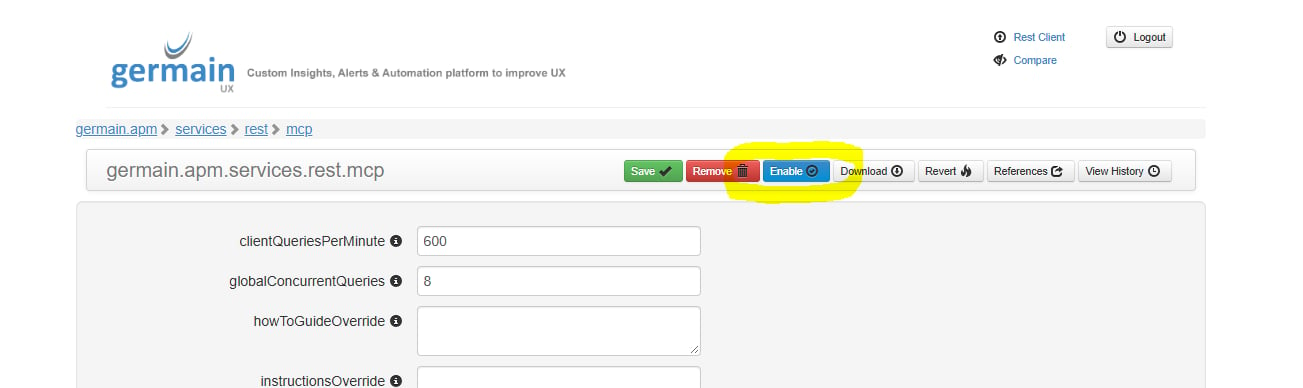
Click Enable.
The MCP configuration with the Enable button highlighted
This takes effect immediately on every node, without a restart. Turning it off again takes the MCP endpoint offline straight away.The endpoint URL is your GermainUX address followed by /mcp, for example https://example.cloud.germainux.com/mcp.
Set up OAuth sign-in (recommended)
With OAuth, users connect by entering only the endpoint URL in their AI client. The client then opens a browser window where the user logs in to GermainUX and approves access.
1
Open the OAuth server settings
Go to Services → REST → MCP → OAuth Server and set Enabled to on.
2
Set the issuer
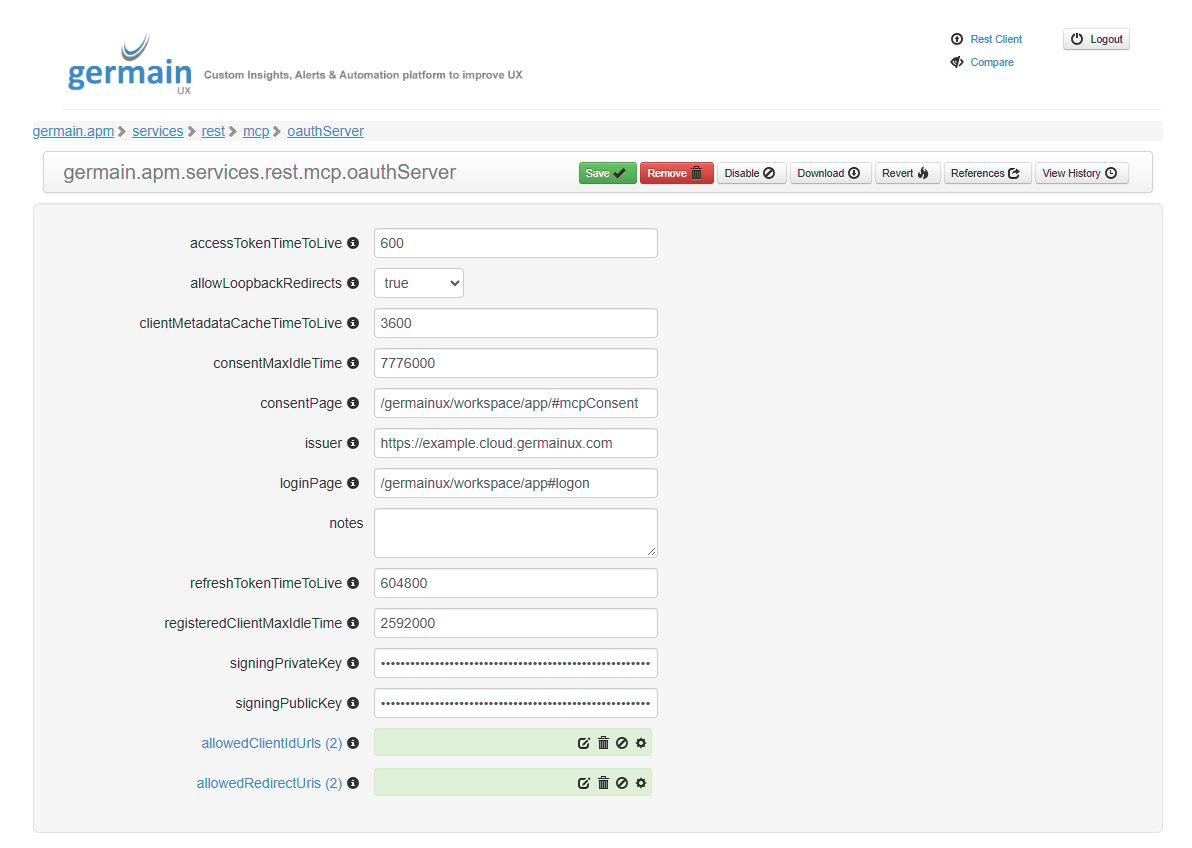
Set Issuer (issuer) to the address users reach GermainUX on, for example https://example.cloud.germainux.com. The MCP endpoint is then <Issuer>/mcp.Leave Login Page (loginPage) and Consent Page (consentPage) at their defaults unless your workspace is served from a different address.
The OAuth server configuration with the Issuer set
3
Check which AI clients are allowed
Claude, ChatGPT and clients that run on the user’s machine are allowed by default. See Allowed AI clients.
4
Restart the REST service
OAuth settings are only read at startup.
If the OAuth settings are invalid (for example, a missing or malformed Issuer), the MCP Server stays offline. The rest of GermainUX starts normally. The service log explains what to fix.
Allowed AI clients
GermainUX only issues tokens to clients you have allowed. The defaults cover Claude, ChatGPT and clients that run on the user’s machine, so most installations don’t need to change anything here.
Setting
Default
What it allows
Allow Loopback Redirects (allowLoopbackRedirects)
On (true)
Clients that run on the user’s machine, such as Claude Code, Cursor and VS Code. These clients receive their sign-in result on an http://localhost or http://127.0.0.1 address.
Allowed Client ID URLs (allowedClientIdUrls)
https://claude.ai/ https://chatgpt.com/
Hosted clients that identify themselves with a client metadata URL. Enter https:// URL prefixes.
Hosted clients that register themselves automatically. Enter their exact callback URLs.
To allow another hosted AI client, add its client metadata URL or callback URL to the matching list. To block one, remove its entries. For example, remove the chatgpt.com entries to stop ChatGPT from connecting. Turn off Allow Loopback Redirects to block clients that run on users’ machines.
Session lifetimes
Advanced: token and approval lifetimes
Enter these values in seconds.
Setting
Default
Meaning
Access Token Time To Live (accessTokenTimeToLive)
600 (10 minutes)
How long one access token is valid. Clients renew it automatically.
Refresh Token Time To Live (refreshTokenTimeToLive)
604800 (7 days)
A client that isn’t used for this long has to sign in again.
Consent Max Idle Time (consentMaxIdleTime)
7776000 (90 days)
After this long without use, the user is asked to approve the client again.
Registered Client Max Idle Time (registeredClientMaxIdleTime)
2592000 (30 days)
A self-registered client that isn’t used for this long has to register again.
Use API keys (alternative)
Use a GermainUX API key if your AI client can’t use OAuth, or if you’re connecting an automated agent.
1
Enable bearer authentication
Make sure bearer (API key) authentication is enabled in your authentication settings.
2
Create an API key
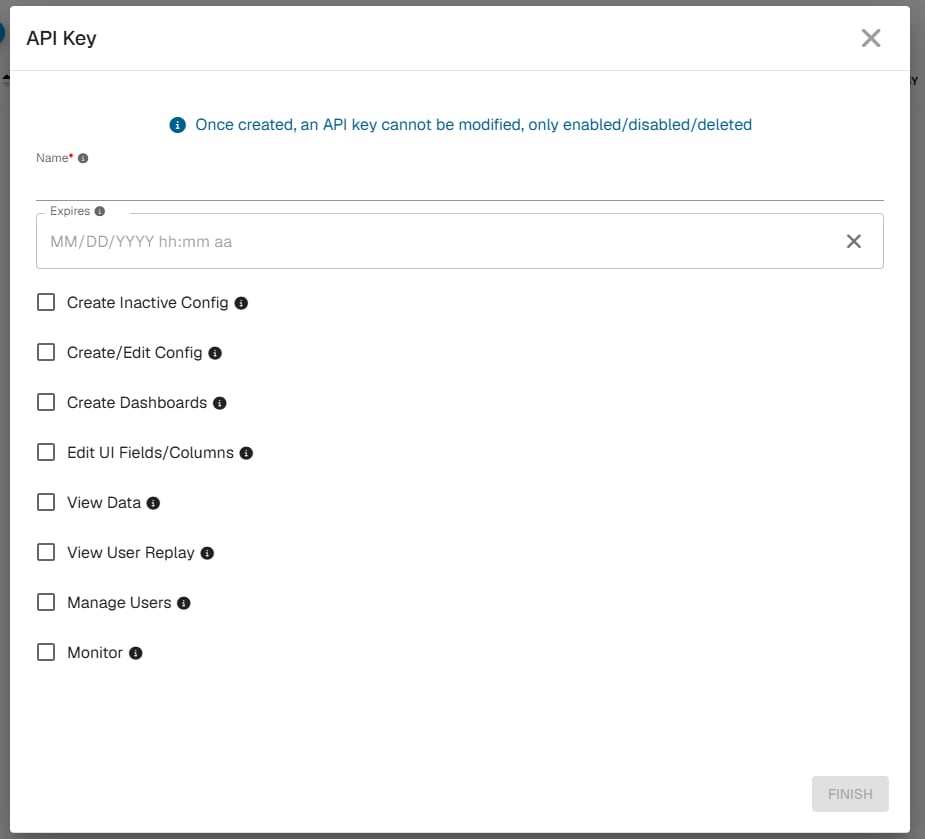
Create an API key for the user the AI client should act as from the GermainUX workspace.
Creating an API key
3
Hand it to the user
Give the user the endpoint URL and the key. They add it to their client as an Authorization: Bearer <key> header.
API keys don’t expire on the short OAuth schedule. Store them like passwords and rotate them regularly.
What users can see and do
Every tool call runs as the signed-in user (or the API key’s user). That user’s permissions, team-based visibility and data-masking settings apply exactly as they do in the workspace.
Almost all tools only read data. The exception is update_ux_profile_customizations, which changes UX monitoring profile scripts. It requires the configuration-write permission, and its changes only apply to new sessions.
search_content is only offered when a content indexer is configured.
Limit which tools are offered
To hide tools from all AI clients, add their names to Disabled Tools under Services → REST → MCP. For example, add update_ux_profile_customizations to make the server strictly read-only. This takes effect immediately, without a restart.See Available Tools for all tool names.
Query limits
These limits protect GermainUX’s query capacity for dashboards and alerting. They apply per server node and take effect immediately.
Setting
Default
Meaning
Tool Deadline Seconds
60
A tool call that runs longer is cancelled, and the AI client is asked to narrow its query.
User Queries Per Minute
300
Maximum queries per user per minute
Client Queries Per Minute (clientQueriesPerMinute)
600
Maximum queries per AI client (across all its users) per minute
User Concurrent Queries
2
Queries one user can have running at once
Global Concurrent Queries (globalConcurrentQueries)
8
MCP queries running at once across all users
When a limit is hit, the AI client gets a message explaining what to change or how long to wait. It can usually recover by itself.
Monitor MCP usage
Every MCP tool call is recorded in the Audit Log. This includes calls that failed or were stopped by a query limit.
1
Open the Audit Log
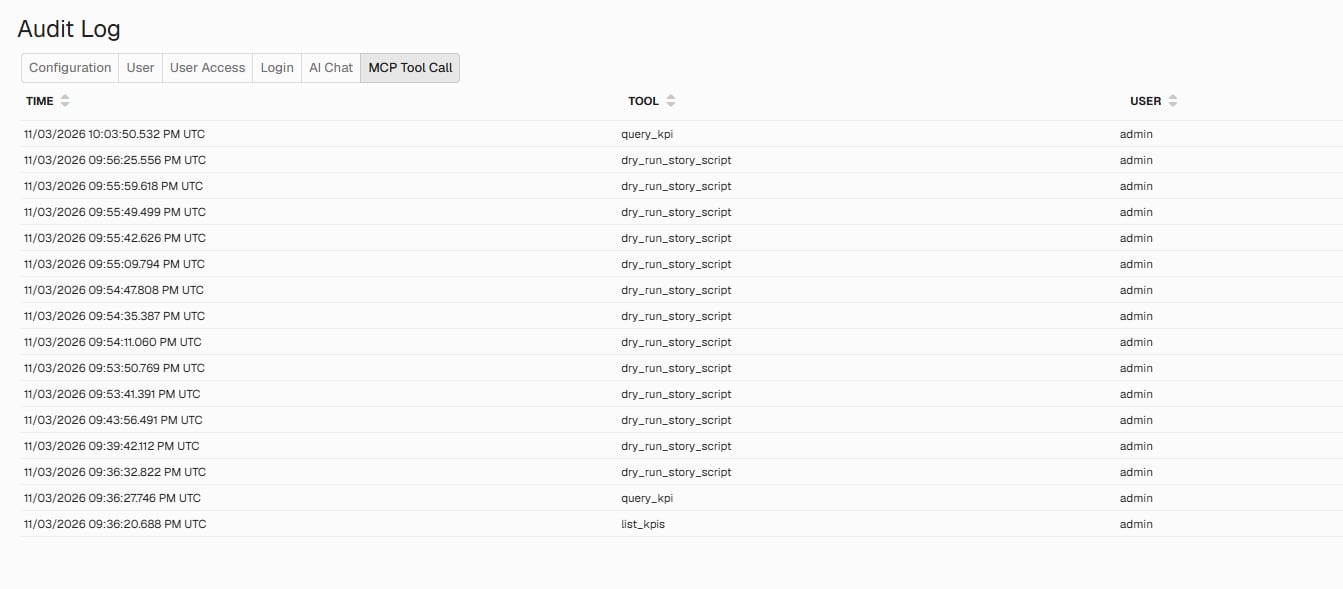
In the workspace, go to System → Audit Log and select the MCP Tool Call tab. You need the configuration-write permission to see this tab.
2
Find the calls you're interested in
The list shows each call’s time, tool and user, for the selected time range. Use the search bar to filter by tool or user.
MCP tool calls in the Audit Log
3
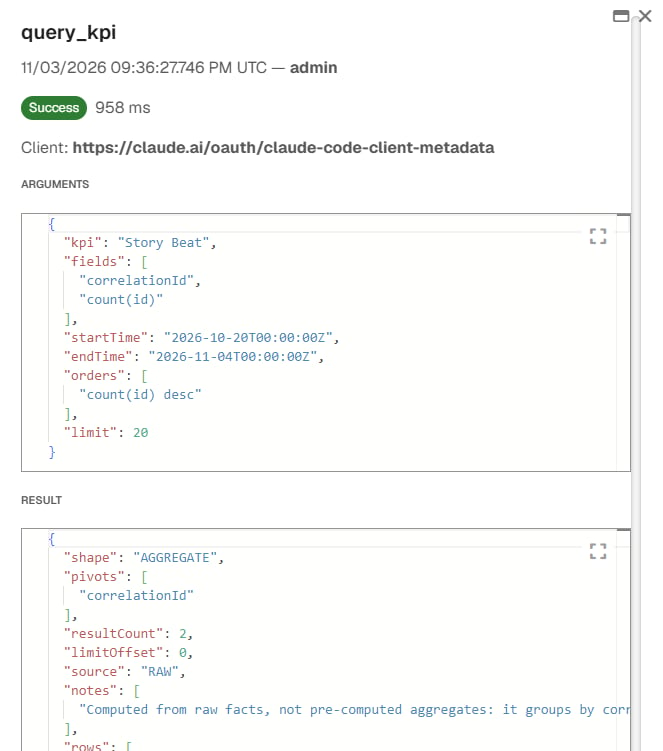
Open a call for details
Click a call to see:
whether it succeeded or failed, and how long it took
the AI client that made the call (for OAuth sign-in)
the error, if it failed
the arguments the AI client sent. For run_scripted_query, the script is shown separately as code.
the result. Small results are shown in full. Larger ones are summarized, for example as a row count rather than the rows themselves.
Details of one MCP tool call
Each call is also recorded as an Audit:MCP Tool Call fact, so you can analyze MCP usage like any other GermainUX data.
Next steps
Connect an AI Client
Add GermainUX to Claude, ChatGPT, Cursor, VS Code and more.
Example Prompts
See what you can ask, and how the tools answer.
Get Help
Contact GermainUX Support
The GermainUX team helps you get up and running faster, empower your team, turn data into actionable insights, and optimize performance to deliver measurable business outcomes.
Can't Find What You Need?
Search all GermainUX docs with Ctrl + K, or use the feedback buttons at the bottom of this page to tell us what is missing.
The content of this document is proprietary to GERMAIN SOFTWARE.
Was this page helpful?
{"docsConfig":{"theme":"mint","$schema":"https://mintlify.com/docs.json","name":"GermainUX Docs","description":"GermainUX is a real-time Operational Experience Intelligence platform that combines Monitoring + Analytics + AI + Automation to help organizations detect and resolve user, workflow, and technology issues faster, in order to 1)Improve CRM and ERP Adoption and Productivity 2)Increase eCommerce Conversion","colors":{"primary":"#2E7DF2","light":"#5B9CFF","dark":"#1A5FC8"},"logo":{"light":"https://mintcdn.com/germain-ux/ok7-BbqwVV0uk3t8/images/logo-light.png?fit=max\u0026auto=format\u0026n=ok7-BbqwVV0uk3t8\u0026q=85\u0026s=3cfe3238ac55802e43da3e4da5806f0d","dark":"https://mintcdn.com/germain-ux/ok7-BbqwVV0uk3t8/images/logo-dark.png?fit=max\u0026auto=format\u0026n=ok7-BbqwVV0uk3t8\u0026q=85\u0026s=1886121bf4312c96b6321ea733078b7f","href":"/"},"favicon":"https://mintcdn.com/germain-ux/Jw6D65yKWJ4U5yOS/images/favicon.png?fit=max\u0026auto=format\u0026n=Jw6D65yKWJ4U5yOS\u0026q=85\u0026s=bcc4dd08f0edb299e0b2af2f079f8526","appearance":{"default":"light"},"background":{"color":{"light":"#FFFFFF","dark":"#00112A"}},"navbar":{"links":[{"href":"https://germainux.atlassian.net/servicedesk/customer/portal/1","label":"Ticket"},{"href":"https://calendly.com/germainux","label":"Schedule"}],"primary":{"type":"button","label":"Contact GermainUX","href":"https://docs.germainux.com/getting-started/support"}},"footer":{"socials":{"website":"https://germainux.com"}},"seo":{"metatags":{"canonical":"https://docs.germainux.com","og:locale":"en_US","og:site_name":"GermainUX Docs","twitter:card":"summary_large_image"},"indexing":"navigable"},"styling":{"eyebrows":"section","latex":true},"integrations":{"gtm":{"tagId":"GTM-MRCBSV5R"}},"contextual":{"options":["view","chatgpt","claude"],"display":"header"},"navigation":{"pages":[]}},"deployment":{"deploymentMetadataValue":{"subdomain":"germain-ux","hasAudioNarration":false,"actualSubdomain":"germain-ux","customDomains":["docs.germainux.com"],"gitSource":{"type":"github","owner":"germainsoftware","repo":"germain-docs","deployBranch":"main","contentDirectory":"","isPrivate":true,"mountPath":"","label":"","_id":"6ae890c6c73aaa2ebb8f7a7f"},"feedback":{"contextualFeedback":{"allowEmail":true,"textInputOnly":false},"edits":false,"issues":false,"thumbs":true},"entitlements":{"AI_CHAT":{"status":"ENABLED"},"WEB_MCP":{"status":"ENABLED"},"NARRATION":{"status":"ENABLED"}},"buildId":"6afce1af74df63670e0e687f","clientVersion":"0.0.4177","searchFilterCounts":[{"language":"default","tag":"Documentation","count":511},{"language":"default","tag":"GermainUX Documentation","count":511},{"language":"default","tag":"Integrations","count":274},{"language":"default","tag":"Release Notes","count":81},{"language":"default","tag":"Archive","count":73},{"language":"default","tag":"Management","count":57},{"language":"default","tag":"Analytics","count":53},{"language":"default","tag":"Deploy GermainUX","count":53},{"language":"default","tag":"Action","count":48},{"language":"default","tag":"Success Stories","count":34}],"searchSettings":{"fullPageSearch":true,"showContentSnippets":true}},"assistantConfig":{"enableAskAiButton":false,"enableStarterQuestions":false,"enableContextualStarterQuestions":false,"enableAskAiSearchBar":true},"basePath":"","hasChatPermissions":true,"hasWebMcpPermissions":true,"toggles":[{"name":"kill-isr","enabled":true,"variant":{"name":"disabled","enabled":false,"feature_enabled":true},"impressionData":false},{"name":"custom-rbac-roles","enabled":true,"variant":{"name":"disabled","enabled":false,"feature_enabled":true},"impressionData":false},{"name":"agent-mintlify-slack","enabled":true,"variant":{"name":"disabled","enabled":false,"feature_enabled":true},"impressionData":false},{"name":"agent-integrations-settings","enabled":true,"variant":{"name":"disabled","enabled":false,"feature_enabled":true},"impressionData":false},{"name":"rbac-expansion","enabled":true,"variant":{"name":"disabled","enabled":false,"feature_enabled":true},"impressionData":false},{"name":"automations-pr-grouping","enabled":true,"variant":{"name":"disabled","enabled":false,"feature_enabled":true},"impressionData":false},{"name":"custom-prefix","enabled":true,"variant":{"name":"disabled","enabled":false,"feature_enabled":true},"impressionData":false},{"name":"analytics-v7","enabled":true,"variant":{"name":"disabled","enabled":false,"feature_enabled":true},"impressionData":false},{"name":"user-flows-analytics","enabled":true,"variant":{"name":"disabled","enabled":false,"feature_enabled":true},"impressionData":false},{"name":"no-publish-flow","enabled":true,"variant":{"name":"disabled","enabled":false,"feature_enabled":true},"impressionData":false},{"name":"workos-onboarding","enabled":true,"variant":{"name":"disabled","enabled":false,"feature_enabled":true},"impressionData":false},{"name":"snapshot-serving-live","enabled":true,"variant":{"name":"disabled","enabled":false,"feature_enabled":true},"impressionData":false},{"name":"stripTemperatureMiddleware","enabled":true,"variant":{"name":"disabled","enabled":false,"feature_enabled":true},"impressionData":false},{"name":"support-platform-pylon-zendesk","enabled":true,"variant":{"name":"disabled","enabled":false,"feature_enabled":true},"impressionData":false},{"name":"snapshot-serving","enabled":true,"variant":{"name":"disabled","enabled":false,"feature_enabled":true},"impressionData":false},{"name":"instant-rollback","enabled":true,"variant":{"name":"disabled","enabled":false,"feature_enabled":true},"impressionData":false},{"name":"granular-notifications-server","enabled":true,"variant":{"name":"disabled","enabled":false,"feature_enabled":true},"impressionData":false},{"name":"granular-notifications","enabled":true,"variant":{"name":"disabled","enabled":false,"feature_enabled":true},"impressionData":false},{"name":"automations-fable","enabled":true,"variant":{"name":"disabled","enabled":false,"feature_enabled":true},"impressionData":false},{"name":"fixed-ai-action-pricing","enabled":true,"variant":{"name":"disabled","enabled":false,"feature_enabled":true},"impressionData":false},{"name":"automation-resolve-merge-conflict","enabled":true,"variant":{"name":"disabled","enabled":false,"feature_enabled":true},"impressionData":false},{"name":"scoped-publishing","enabled":true,"variant":{"name":"disabled","enabled":false,"feature_enabled":true},"impressionData":false},{"name":"mintql","enabled":true,"variant":{"name":"disabled","enabled":false,"feature_enabled":true},"impressionData":false},{"name":"page-level-analytics","enabled":true,"variant":{"name":"disabled","enabled":false,"feature_enabled":true},"impressionData":false},{"name":"editor-version-history-v2","enabled":true,"variant":{"name":"disabled","enabled":false,"feature_enabled":true},"impressionData":false},{"name":"billing-page-v2","enabled":true,"variant":{"name":"disabled","enabled":false,"feature_enabled":true},"impressionData":false},{"name":"full-page-search","enabled":true,"variant":{"name":"disabled","enabled":false,"feature_enabled":true},"impressionData":false},{"name":"workspace-projects","enabled":true,"variant":{"name":"disabled","enabled":false,"feature_enabled":true},"impressionData":false},{"name":"assistant-v5","enabled":true,"variant":{"name":"disabled","enabled":false,"feature_enabled":true},"impressionData":false},{"name":"fork-pr-previews","enabled":true,"variant":{"name":"disabled","enabled":false,"feature_enabled":true},"impressionData":false},{"name":"revalidation-jwt","enabled":true,"variant":{"name":"disabled","enabled":false,"feature_enabled":true},"impressionData":false},{"name":"workos-sso-scim","enabled":true,"variant":{"name":"disabled","enabled":false,"feature_enabled":true},"impressionData":false},{"name":"hobby-abuse-scan","enabled":true,"variant":{"name":"disabled","enabled":false,"feature_enabled":true},"impressionData":false},{"name":"dashboard-inbox","enabled":true,"variant":{"name":"disabled","enabled":false,"feature_enabled":true},"impressionData":false},{"name":"workos-signup","enabled":true,"variant":{"name":"disabled","enabled":false,"feature_enabled":true},"impressionData":false},{"name":"turbopuffer-dual-write","enabled":true,"variant":{"name":"disabled","enabled":false,"feature_enabled":true},"impressionData":false},{"name":"workos-enabled","enabled":true,"variant":{"name":"disabled","enabled":false,"feature_enabled":true},"impressionData":false},{"name":"approve-review-flow","enabled":true,"variant":{"name":"disabled","enabled":false,"feature_enabled":true},"impressionData":false},{"name":"editor-metadata","enabled":true,"variant":{"name":"disabled","enabled":false,"feature_enabled":true},"impressionData":false},{"name":"sso-setup-deadline-banner","enabled":true,"variant":{"name":"disabled","enabled":false,"feature_enabled":true},"impressionData":false},{"name":"turbopuffer-serve","enabled":true,"variant":{"name":"disabled","enabled":false,"feature_enabled":true},"impressionData":false},{"name":"live-agents","enabled":true,"variant":{"name":"disabled","enabled":false,"feature_enabled":true},"impressionData":false},{"name":"starter-pricing","enabled":true,"variant":{"name":"control","enabled":true,"payload":{"type":"string","value":"control"},"feature_enabled":true},"impressionData":false},{"name":"llms-txt-v2","enabled":true,"variant":{"name":"disabled","enabled":false,"feature_enabled":true},"impressionData":false},{"name":"wildcard-email-auth","enabled":true,"variant":{"name":"disabled","enabled":false,"feature_enabled":true},"impressionData":false}],"googleFontsInlined":false},"customCss":[],"page":{"pagePath":"integrations/mcp-server/enable-the-mcp-server","slug":"/integrations/mcp-server/enable-the-mcp-server","pageMetadata":{"title":"Enable the MCP Server","sidebarTitle":"Enable the MCP Server","description":"Turn on the GermainUX MCP Server, choose how AI clients sign in, and control what they can do.","icon":"toggle-on","keywords":["MCP Server","enable MCP","MCP OAuth","MCP API key","MCP query limits","MCP audit log"],"href":"/integrations/mcp-server/enable-the-mcp-server"},"description":{"compiledSource":"\"use strict\";\nconst {jsx: _jsx} = arguments[0];\nconst {useMDXComponents: _provideComponents} = arguments[0];\nfunction _createMdxContent(props) {\n const _components = {\n p: \"p\",\n ..._provideComponents(),\n ...props.components\n };\n return _jsx(_components.p, {\n children: \"Turn on the GermainUX MCP Server, choose how AI clients sign in, and control what they can do.\"\n });\n}\nfunction MDXContent(props = {}) {\n const {wrapper: MDXLayout} = {\n ..._provideComponents(),\n ...props.components\n };\n return MDXLayout ? _jsx(MDXLayout, {\n ...props,\n children: _jsx(_createMdxContent, {\n ...props\n })\n }) : _createMdxContent(props);\n}\nreturn {\n default: MDXContent\n};\n","frontmatter":{},"scope":{}},"pageType":"default","mdx":{"mdxSource":{"compiledSource":"\"use strict\";const{Fragment:_Fragment,jsx:_jsx,jsxs:_jsxs}=arguments[0];const{useMDXComponents:_provideComponents}=arguments[0];const GxFooter=()=>_jsx(`p`,{className:`gx-fine`,children:`The content of this document is proprietary to GERMAIN SOFTWARE.`});const GxStyle=()=>_jsx(`style`,{children:`\n.gx-meta { display:flex; flex-direction:column; gap:10px; margin:22px 0 6px; padding:16px 18px; border:1px solid rgba(15,23,42,.08); border-radius:16px; background:rgba(46,125,242,.035); font-size:13.5px; }\n.gx-meta-row { display:flex; flex-wrap:wrap; align-items:center; gap:6px; }\n.gx-meta-label { width:96px; flex:none; color:#64748b; }\n.dark .gx-meta-label { color:#94a3b8; }\n.gx-meta code { border-color:rgba(46,125,242,.25) !important; color:#1A5FC8 !important; background:rgba(46,125,242,.08) !important; }\n.dark .gx-meta { background:linear-gradient(135deg,rgba(46,125,242,.16),rgba(0,17,42,.4)); border-color:rgba(91,156,255,.22); }\n.dark .gx-meta code { color:#BFD6FF !important; background:rgba(91,156,255,.12) !important; border-color:rgba(91,156,255,.28) !important; }\n.gx-list ul { columns:2; column-gap:24px; list-style:none !important; padding-left:0 !important; margin:14px 0 0 !important; }\n.gx-list ul:has(> li:only-child) { columns:1; }\n.gx-list li { break-inside:avoid; position:relative; padding:4px 0 4px 22px !important; margin:0 !important; font-size:14.5px; }\n.gx-list li::marker { content:\"\"; }\n.gx-list li::before { content:\"\"; position:absolute; left:3px; top:13px; width:7px; height:7px; border-radius:50%; background:#2E7DF2; opacity:.75; }\n.dark .gx-list li::before { background:#5B9CFF; }\n.gx-flow { display:flex; flex-wrap:wrap; align-items:center; gap:10px 32px; margin:16px 0; }\n.gx-flow span { position:relative; display:inline-flex; align-items:center; padding:6px 12px; border-radius:8px; font-size:13.5px; font-weight:500; background:#fff; border:1px solid rgba(15,23,42,.12); color:#0f172a; box-shadow:0 1px 2px rgba(15,23,42,.05); }\n.gx-flow span:first-child, .gx-flow span:last-child { background:rgba(46,125,242,.08); border-color:rgba(46,125,242,.25); color:#1A5FC8; }\n.gx-flow span:not(:last-child)::after { content:\"\\\\2192\"; position:absolute; left:calc(100% + 9px); color:#94a3b8; font-weight:400; }\n.dark .gx-flow span { background:rgba(255,255,255,.03); border-color:rgba(255,255,255,.12); color:#e2e8f0; box-shadow:none; }\n.dark .gx-flow span:first-child, .dark .gx-flow span:last-child { background:rgba(91,156,255,.10); border-color:rgba(91,156,255,.28); color:#BFD6FF; }\n.dark .gx-flow span:not(:last-child)::after { color:#64748b; }\n#sidebar li[id] > a > div:first-child:has(> svg[aria-hidden]) { display: none; }\n#sidebar svg[style*=\"mask-image\"], #sidebar-content svg[style*=\"mask-image\"], #navigation-items svg[style*=\"mask-image\"], aside svg[style*=\"mask-image\"] { display: none !important; }\n#sidebar div:has(> svg[style*=\"mask-image\"]), #sidebar-content div:has(> svg[style*=\"mask-image\"]), #navigation-items div:has(> svg[style*=\"mask-image\"]), aside div:has(> svg[style*=\"mask-image\"]) { display: none !important; }\n.gx-fine { margin-top:56px; padding-top:20px; border-top:1px solid rgba(15,23,42,.08); font-size:13px; color:#64748b; }\n.dark .gx-fine { border-top-color:rgba(255,255,255,.08); color:#94a3b8; }\n.gx-fine p { margin:0 !important; font-size:13px !important; color:inherit !important; }\n.eyebrow { font-size:13px !important; font-weight:700 !important; letter-spacing:.12em !important; text-transform:uppercase; color:#2E7DF2 !important; display:inline-flex; align-items:center; gap:8px; padding:4px 12px; border-radius:999px; background:rgba(46,125,242,.10); border:1px solid rgba(46,125,242,.25); height:auto !important; margin-bottom:6px; }\n.dark .eyebrow { color:#8DB8FF !important; background:rgba(91,156,255,.12); border-color:rgba(91,156,255,.30); }\n#page-title { letter-spacing:-.02em; }\n.dark #page-title { background:linear-gradient(90deg,#FFFFFF 0%,#BFD6FF 100%); -webkit-background-clip:text; background-clip:text; -webkit-text-fill-color:transparent; }\n.mdx-content h2:not(.not-prose) { position:relative; padding-left:16px; }\n.mdx-content h2:not(.not-prose)::before { content:\"\"; position:absolute; left:0; top:.2em; bottom:.2em; width:4px; border-radius:4px; background:linear-gradient(180deg,#2E7DF2,#5B9CFF); }\n.dark table th { color:#BFD6FF; }\n.dark table td:first-child { color:#FFFFFF; font-weight:500; }\n@media (max-width: 820px) { .gx-list ul { columns:1; } }\n.gx-list-more:not(.is-open) > ul > li:nth-child(n+11) { display:none; }\n.gx-more-toggle { display:inline-flex; align-items:center; gap:6px; margin:8px 0 12px 22px; padding:0; border:0; background:none; cursor:pointer; font-size:14px; font-weight:600; color:#1A5FC8; }\n.gx-more-toggle:hover { text-decoration:underline; }\n.gx-more-toggle::after { content:\"\\\\25BE\"; display:inline-block; font-size:12px; transition:transform .15s; }\n.gx-list-more.is-open .gx-more-toggle::after { transform:rotate(180deg); }\n.dark .gx-more-toggle { color:#8DB8FF; }\n/* === Concept #1: hero header + numbered section tiles === */\n#content-area { counter-reset: gxsec; }\n#header { position:relative; overflow:hidden; padding:36px 30px 24px; border-radius:24px; border:1px solid rgba(91,156,255,.22); background:radial-gradient(800px 300px at 100% 0%, rgba(46,125,242,.32), transparent 65%), #0B2147; }\n#header::before { content:\"\"; position:absolute; inset:0; pointer-events:none; background-image:linear-gradient(rgba(255,255,255,.045) 1px,transparent 1px),linear-gradient(90deg,rgba(255,255,255,.045) 1px,transparent 1px); background-size:34px 34px; -webkit-mask-image:linear-gradient(100deg,transparent 15%,#000 75%); mask-image:linear-gradient(100deg,transparent 15%,#000 75%); }\n#header > * { position:relative; }\n#header #page-title { color:#fff !important; -webkit-text-fill-color:#fff !important; background:none !important; font-size:clamp(1.9rem,3.4vw,2.6rem) !important; line-height:1.06 !important; font-weight:800 !important; letter-spacing:-.035em !important; }\n#header .prose, #header .prose p, #header p { color:rgba(222,233,255,.82) !important; font-size:1.06rem; line-height:1.6; }\n#header .eyebrow { color:#BFD6FF !important; background:rgba(91,156,255,.14) !important; border-color:rgba(91,156,255,.32) !important; }\n#header button, #header [role=\"button\"] { color:#DCE8FF !important; border-color:rgba(191,214,255,.25) !important; background:rgba(255,255,255,.04) !important; }\n#content-area:has(#content > .gx-meta:first-child) #header { border-radius:24px 24px 0 0; border-bottom:0; padding-bottom:18px; }\n#content:has(> .gx-meta:first-child) { margin-top:0 !important; }\n#content > .gx-meta:first-child { margin:0 !important; padding:4px 30px 28px !important; border-radius:0 0 24px 24px !important; border:1px solid rgba(91,156,255,.22) !important; border-top:0 !important; background:#0B2147 !important; }\n#content > .gx-meta:first-child:has(+ .columns) { border-radius:0 !important; border-bottom:0 !important; padding-bottom:18px !important; }\n#content > .gx-meta:first-child + .columns { margin:0 0 8px !important; padding:4px 30px 30px !important; border:1px solid rgba(91,156,255,.22); border-top:0; border-radius:0 0 24px 24px; background:#0B2147; gap:12px !important; }\n#content > .gx-meta:first-child + .columns > * { background:rgba(255,255,255,.035) !important; border-color:rgba(91,156,255,.28) !important; border-radius:16px !important; }\n#content > .gx-meta:first-child + .columns h2, #content > .gx-meta:first-child + .columns [data-component-part=\"card-title\"] { color:#fff !important; font-size:15px !important; overflow-wrap:normal !important; word-break:normal !important; }\n#content > .gx-meta:first-child + .columns p, #content > .gx-meta:first-child + .columns [data-component-part=\"card-content\"] { color:rgba(214,226,250,.7) !important; }\n#content > .gx-meta:first-child + .columns svg { background-color:#5B9CFF !important; }\n#content > .gx-meta:first-child .gx-meta-label { color:rgba(191,214,255,.6) !important; }\n#content > .gx-meta:first-child code { font-family:inherit !important; font-weight:600 !important; font-size:12.5px !important; padding:5px 13px !important; border-radius:999px !important; color:#DCE8FF !important; background:rgba(46,125,242,.14) !important; border:1px solid rgba(91,156,255,.55) !important; }\n#content > .gx-meta:first-child a { text-decoration:none !important; border:0 !important; }\n#content > .gx-meta:first-child a:not(:has(code)) { color:#BFD6FF !important; font-weight:600; }\n#content > .gx-meta:first-child .gx-meta-row > span:not(.gx-meta-label) { color:#86EFAC !important; background:rgba(34,197,94,.14) !important; border-color:rgba(134,239,172,.35) !important; }\n.mdx-content > h2:not(.not-prose), #content > h2 { counter-increment:gxsec; display:flex !important; align-items:center; gap:14px; padding-left:0 !important; margin-top:2.6em !important; font-weight:750; letter-spacing:-.02em; }\n.mdx-content > h2:not(.not-prose)::before, #content > h2::before { content:counter(gxsec, decimal-leading-zero) !important; position:static !important; flex:none; width:40px; height:40px; border-radius:12px; display:inline-flex; align-items:center; justify-content:center; font-size:13px; font-weight:700; letter-spacing:0; color:#fff; background:linear-gradient(135deg,#2E7DF2,#5B9CFF) !important; box-shadow:0 6px 18px rgba(46,125,242,.35); }\n@media (max-width:820px) { #header, #content > .gx-meta:first-child, #content > .gx-meta:first-child + .columns { padding-left:20px !important; padding-right:20px !important; } }\n#content-area:has(#content > .columns:first-child) #header { border-radius:24px 24px 0 0; border-bottom:0; padding-bottom:18px; }\n#content:has(> .columns:first-child) { margin-top:0 !important; }\n#content > .columns:first-child { margin:0 0 8px !important; padding:4px 30px 30px !important; border:1px solid rgba(91,156,255,.22); border-top:0; border-radius:0 0 24px 24px; background:#0B2147; gap:12px !important; }\n#content > .columns:first-child > * { background:rgba(255,255,255,.035) !important; border-color:rgba(91,156,255,.28) !important; border-radius:16px !important; }\n#content > .columns:first-child h2, #content > .columns:first-child [data-component-part=\"card-title\"] { color:#fff !important; font-size:15px !important; overflow-wrap:normal !important; word-break:normal !important; }\n#content > .columns:first-child p, #content > .columns:first-child [data-component-part=\"card-content\"] { color:rgba(214,226,250,.7) !important; }\n#content > .columns:first-child svg { background-color:#5B9CFF !important; }\n/* === Shell: concept #1 (top bar, menus, page) === */\n#navbar, #navbar-transition, #navbar > div { background:#00112A !important; }\n#navbar { border-bottom:1px solid rgba(91,156,255,.18) !important; }\n#navbar a, #navbar button, #navbar .nav-tabs-item { color:rgba(220,232,255,.78) !important; }\n#navbar a:hover, #navbar button:hover, #navbar .nav-tabs-item[data-active=\"true\"] { color:#FFFFFF !important; }\n#navbar a[class*=\"bg-primary\"], #navbar a[class*=\"bg-primary\"] * { color:#FFFFFF !important; }\n#navbar a[href=\"/\"], #navbar a[href=\"/\"] * { color:#FFFFFF !important; }\n#search-bar-entry { background:rgba(255,255,255,.06) !important; border:1px solid rgba(255,255,255,.14) !important; box-shadow:none !important; }\n#search-bar-entry, #search-bar-entry * { color:rgba(220,232,255,.72) !important; }\nhtml:not(.dark) #navbar img[src*=\"logo-light\"] { display:none !important; }\nhtml:not(.dark) #navbar img[src*=\"logo-dark\"] { display:block !important; }\nhtml:not(.dark) #sidebar, html:not(.dark) #sidebar-content { background:#FFFFFF !important; }\nhtml:not(.dark) #sidebar { border-right:1px solid #E6ECF5 !important; }\n#navigation-items .sidebar-group-header { font-size:11.5px !important; letter-spacing:.08em; text-transform:uppercase; }\nhtml:not(.dark) #navigation-items .sidebar-group-header { color:#0B1B33 !important; }\n#navigation-items a { font-size:13.5px !important; border-radius:10px !important; }\nhtml:not(.dark) #navigation-items a { color:#4A5A75 !important; }\nhtml:not(.dark) #navigation-items a:hover { background:#F1F5FC !important; color:#0B1B33 !important; }\n#navigation-items li[data-active] > a, #navigation-items a[aria-current=\"page\"], #navigation-items a[class*=\"bg-primary\"] { background:#EAF2FF !important; color:#1A5FC8 !important; font-weight:600 !important; box-shadow:inset 3px 0 0 #2E7DF2; }\n.dark #navigation-items li[data-active] > a, .dark #navigation-items a[aria-current=\"page\"], .dark #navigation-items a[class*=\"bg-primary\"] { background:rgba(46,125,242,.16) !important; color:#BFD6FF !important; }\nhtml:not(.dark) #table-of-contents a { color:#5B6B85; }\nhtml:not(.dark) .mdx-content h2, html:not(.dark) .mdx-content h3 { color:#0B1B33; }\nhtml:not(.dark) .mdx-content p, html:not(.dark) .mdx-content li { color:#33415C; }\n`});function _createMdxContent(props){const _components={a:`a`,code:`code`,li:`li`,p:`p`,strong:`strong`,tbody:`tbody`,td:`td`,th:`th`,thead:`thead`,tr:`tr`,ul:`ul`,..._provideComponents(),...props.components},{Accordion,Badge,Card,CardGroup,Frame,Heading,Note,OptimizedImage,Step,Steps,Table,Tip,Warning,_MdxComponentBoundary}=_components;if(!Accordion)_missingMdxReference(`Accordion`,true);if(!Badge)_missingMdxReference(`Badge`,true);if(!Card)_missingMdxReference(`Card`,true);if(!CardGroup)_missingMdxReference(`CardGroup`,true);if(!Frame)_missingMdxReference(`Frame`,true);if(!Heading)_missingMdxReference(`Heading`,true);if(!Note)_missingMdxReference(`Note`,true);if(!OptimizedImage)_missingMdxReference(`OptimizedImage`,true);if(!Step)_missingMdxReference(`Step`,true);if(!Steps)_missingMdxReference(`Steps`,true);if(!Table)_missingMdxReference(`Table`,true);if(!Tip)_missingMdxReference(`Tip`,true);if(!Warning)_missingMdxReference(`Warning`,true);if(!_MdxComponentBoundary)_missingMdxReference(`_MdxComponentBoundary`,true);return _jsxs(_Fragment,{children:[_jsxs(`div`,{className:`gx-meta`,children:[_jsxs(`div`,{className:`gx-meta-row`,children:[_jsx(`span`,{className:`gx-meta-label`,children:`Components`}),_jsx(_components.a,{href:`/deploy/germain-ux-engine`,children:_jsx(`code`,{children:`Engine`})})]}),_jsxs(`div`,{className:`gx-meta-row`,children:[_jsx(`span`,{className:`gx-meta-label`,children:`Availability`}),_jsx(Badge,{color:`green`,children:`2026.3 or later`})]})]}),`\n`,_jsxs(_components.p,{children:[`This page is for GermainUX administrators. Once the MCP Server is on, each user connects their own AI client. See `,_jsx(_components.a,{href:`/integrations/mcp-server/connect-an-ai-client`,children:`Connect an AI Client`}),`.`]}),`\n`,_jsx(Note,{children:_jsxs(_components.p,{children:[`The MCP Server is `,_jsx(_components.strong,{children:`off by default`}),`.`]})}),`\n`,_jsx(Heading,{level:`2`,id:`how-ai-clients-sign-in`,children:`How AI clients sign in`}),`\n`,_jsx(_components.p,{children:`AI clients can sign in to the MCP Server in two ways. You can enable both, and the server tells them apart automatically.`}),`\n`,_jsxs(Table,{children:[_jsx(_components.thead,{children:_jsxs(_components.tr,{children:[_jsx(_components.th,{}),_jsxs(_components.th,{children:[_jsx(_components.strong,{children:`OAuth sign-in`}),` (recommended)`]}),_jsx(_components.th,{children:_jsx(_components.strong,{children:`API key`})})]})}),_jsxs(_components.tbody,{children:[_jsxs(_components.tr,{children:[_jsx(_components.td,{children:`How a user connects`}),_jsx(_components.td,{children:`Adds the server URL to their AI client, then signs in with their normal GermainUX login and approves the client`}),_jsx(_components.td,{children:`Pastes an API key into the client’s configuration as a bearer token`})]}),_jsxs(_components.tr,{children:[_jsx(_components.td,{children:`Login methods supported`}),_jsx(_components.td,{children:`All of them: form, LDAP, database and SSO`}),_jsx(_components.td,{children:`Not applicable`})]}),_jsxs(_components.tr,{children:[_jsx(_components.td,{children:`Expiry`}),_jsx(_components.td,{children:`Access tokens are short-lived and renew automatically`}),_jsx(_components.td,{children:`Depends on the API key`})]}),_jsxs(_components.tr,{children:[_jsx(_components.td,{children:`Works with`}),_jsx(_components.td,{children:`Claude, ChatGPT, Claude Code, Cursor, VS Code and other clients that support MCP OAuth`}),_jsxs(_components.td,{children:[`Clients that let you set a custom `,_jsx(_components.code,{children:`Authorization`}),` header`]})]}),_jsxs(_components.tr,{children:[_jsx(_components.td,{children:`Server setup`}),_jsx(_components.td,{children:`One-time setup below. Needs a service restart.`}),_jsx(_components.td,{children:`Bearer authentication must be enabled`})]})]})]}),`\n`,_jsx(Heading,{level:`2`,id:`turn-on-the-mcp-server`,children:`Turn on the MCP Server`}),`\n`,_jsxs(Steps,{children:[_jsx(Step,{title:`Open the MCP settings`,children:_jsxs(_components.p,{children:[`Open the configuration console and go to `,_jsx(_components.strong,{children:`Services → REST → MCP`}),`.`]})}),_jsxs(Step,{title:`Enable it`,children:[_jsxs(_components.p,{children:[`Click `,_jsx(_components.strong,{children:`Enable`}),`.`]}),_jsx(Frame,{caption:`The MCP configuration with the Enable button highlighted`,children:_jsx(OptimizedImage,{src:`https://mintcdn.com/germain-ux/CECS6ywIQd1P2KNL/images/image-213.png?fit=max\u0026auto=format\u0026n=CECS6ywIQd1P2KNL\u0026q=85\u0026s=15a30da78b530e04703f16bf875b0051`,alt:`The germain.apm.services.rest.mcp configuration page with the Enable button highlighted`,\"data-og-width\":`1303`,width:`1303`,\"data-og-height\":`388`,height:`388`,\"data-path\":`images/image-213.png`,\"data-optimize\":`true`,\"data-opv\":`3`,srcset:`https://mintcdn.com/germain-ux/CECS6ywIQd1P2KNL/images/image-213.png?w=280\u0026fit=max\u0026auto=format\u0026n=CECS6ywIQd1P2KNL\u0026q=85\u0026s=0294e82a37dc9bb5fca017f6ea17af12 280w, https://mintcdn.com/germain-ux/CECS6ywIQd1P2KNL/images/image-213.png?w=560\u0026fit=max\u0026auto=format\u0026n=CECS6ywIQd1P2KNL\u0026q=85\u0026s=37cfd1b3eabda184d8acd8340d16c244 560w, https://mintcdn.com/germain-ux/CECS6ywIQd1P2KNL/images/image-213.png?w=840\u0026fit=max\u0026auto=format\u0026n=CECS6ywIQd1P2KNL\u0026q=85\u0026s=c18b42c9dda84645dd409b2d5e9b8b23 840w, https://mintcdn.com/germain-ux/CECS6ywIQd1P2KNL/images/image-213.png?w=1100\u0026fit=max\u0026auto=format\u0026n=CECS6ywIQd1P2KNL\u0026q=85\u0026s=115b239d33ab9e7c96b02635035bf47e 1100w, https://mintcdn.com/germain-ux/CECS6ywIQd1P2KNL/images/image-213.png?w=1650\u0026fit=max\u0026auto=format\u0026n=CECS6ywIQd1P2KNL\u0026q=85\u0026s=503a14aad26ddda66963e8fb54328726 1650w, https://mintcdn.com/germain-ux/CECS6ywIQd1P2KNL/images/image-213.png?w=2500\u0026fit=max\u0026auto=format\u0026n=CECS6ywIQd1P2KNL\u0026q=85\u0026s=adca902e4de52147817f4a65fb593be0 2500w`})})]})]}),`\n`,_jsx(_components.p,{children:`This takes effect immediately on every node, without a restart. Turning it off again takes the MCP endpoint offline straight away.`}),`\n`,_jsxs(_components.p,{children:[`The endpoint URL is your GermainUX address followed by `,_jsx(_components.code,{children:`/mcp`}),`, for example `,_jsx(_components.code,{children:`https://example.cloud.germainux.com/mcp`}),`.`]}),`\n`,_jsx(Heading,{level:`2`,id:`set-up-oauth-sign-in-recommended`,children:`Set up OAuth sign-in (recommended)`}),`\n`,_jsx(_components.p,{children:`With OAuth, users connect by entering only the endpoint URL in their AI client. The client then opens a browser window where the user logs in to GermainUX and approves access.`}),`\n`,_jsxs(Steps,{children:[_jsx(Step,{title:`Open the OAuth server settings`,children:_jsxs(_components.p,{children:[`Go to `,_jsx(_components.strong,{children:`Services → REST → MCP → OAuth Server`}),` and set `,_jsx(_components.strong,{children:`Enabled`}),` to on.`]})}),_jsxs(Step,{title:`Set the issuer`,children:[_jsxs(_components.p,{children:[`Set `,_jsx(_components.strong,{children:`Issuer`}),` (`,_jsx(_components.code,{children:`issuer`}),`) to the address users reach GermainUX on, for example `,_jsx(_components.code,{children:`https://example.cloud.germainux.com`}),`. The MCP endpoint is then `,_jsx(_components.code,{children:`\u003cIssuer>/mcp`}),`.`]}),_jsxs(_components.p,{children:[`Leave `,_jsx(_components.strong,{children:`Login Page`}),` (`,_jsx(_components.code,{children:`loginPage`}),`) and `,_jsx(_components.strong,{children:`Consent Page`}),` (`,_jsx(_components.code,{children:`consentPage`}),`) at their defaults unless your workspace is served from a different address.`]}),_jsx(Frame,{caption:`The OAuth server configuration with the Issuer set`,children:_jsx(OptimizedImage,{src:`https://mintcdn.com/germain-ux/CECS6ywIQd1P2KNL/images/image-215.png?fit=max\u0026auto=format\u0026n=CECS6ywIQd1P2KNL\u0026q=85\u0026s=95e999cc8145bcae02ac3c1dada3f054`,alt:`OAuth server configuration with the Issuer field filled in`,\"data-og-width\":`1192`,width:`1192`,\"data-og-height\":`848`,height:`848`,\"data-path\":`images/image-215.png`,\"data-optimize\":`true`,\"data-opv\":`3`,srcset:`https://mintcdn.com/germain-ux/CECS6ywIQd1P2KNL/images/image-215.png?w=280\u0026fit=max\u0026auto=format\u0026n=CECS6ywIQd1P2KNL\u0026q=85\u0026s=1e02830f2be12e1364696fedefb55313 280w, https://mintcdn.com/germain-ux/CECS6ywIQd1P2KNL/images/image-215.png?w=560\u0026fit=max\u0026auto=format\u0026n=CECS6ywIQd1P2KNL\u0026q=85\u0026s=68c88764344c31ba7cd6e40e34b9312b 560w, https://mintcdn.com/germain-ux/CECS6ywIQd1P2KNL/images/image-215.png?w=840\u0026fit=max\u0026auto=format\u0026n=CECS6ywIQd1P2KNL\u0026q=85\u0026s=97b883564c963d03248ed6a0837ff06c 840w, https://mintcdn.com/germain-ux/CECS6ywIQd1P2KNL/images/image-215.png?w=1100\u0026fit=max\u0026auto=format\u0026n=CECS6ywIQd1P2KNL\u0026q=85\u0026s=b45431df0c9cacd50348f4197cc31b75 1100w, https://mintcdn.com/germain-ux/CECS6ywIQd1P2KNL/images/image-215.png?w=1650\u0026fit=max\u0026auto=format\u0026n=CECS6ywIQd1P2KNL\u0026q=85\u0026s=d508ec8a5169224adbb84e1587be7fa4 1650w, https://mintcdn.com/germain-ux/CECS6ywIQd1P2KNL/images/image-215.png?w=2500\u0026fit=max\u0026auto=format\u0026n=CECS6ywIQd1P2KNL\u0026q=85\u0026s=52fe4bfd2217a731b8b7c1ba90b58864 2500w`})})]}),_jsx(Step,{title:`Check which AI clients are allowed`,children:_jsxs(_components.p,{children:[`Claude, ChatGPT and clients that run on the user’s machine are allowed by default. See `,_jsx(_components.a,{href:`#allowed-ai-clients`,children:`Allowed AI clients`}),`.`]})}),_jsx(Step,{title:`Restart the REST service`,children:_jsx(_components.p,{children:`OAuth settings are only read at startup.`})})]}),`\n`,_jsx(Warning,{children:_jsxs(_components.p,{children:[`If the OAuth settings are invalid (for example, a missing or malformed `,_jsx(_components.strong,{children:`Issuer`}),`), the MCP Server stays offline. The rest of GermainUX starts normally. The service log explains what to fix.`]})}),`\n`,_jsx(Heading,{level:`3`,id:`allowed-ai-clients`,children:`Allowed AI clients`}),`\n`,_jsx(_components.p,{children:`GermainUX only issues tokens to clients you have allowed. The defaults cover Claude, ChatGPT and clients that run on the user’s machine, so most installations don’t need to change anything here.`}),`\n`,_jsxs(Table,{children:[_jsx(_components.thead,{children:_jsxs(_components.tr,{children:[_jsx(_components.th,{children:`Setting`}),_jsx(_components.th,{children:`Default`}),_jsx(_components.th,{children:`What it allows`})]})}),_jsxs(_components.tbody,{children:[_jsxs(_components.tr,{children:[_jsxs(_components.td,{children:[_jsx(_components.strong,{children:`Allow Loopback Redirects`}),` (`,_jsx(_components.code,{children:`allowLoopbackRedirects`}),`)`]}),_jsxs(_components.td,{children:[`On (`,_jsx(_components.code,{children:`true`}),`)`]}),_jsxs(_components.td,{children:[`Clients that run on the user’s machine, such as Claude Code, Cursor and VS Code. These clients receive their sign-in result on an `,_jsx(_components.code,{children:`http://localhost`}),` or `,_jsx(_components.code,{children:`http://127.0.0.1`}),` address.`]})]}),_jsxs(_components.tr,{children:[_jsxs(_components.td,{children:[_jsx(_components.strong,{children:`Allowed Client ID URLs`}),` (`,_jsx(_components.code,{children:`allowedClientIdUrls`}),`)`]}),_jsxs(_components.td,{children:[_jsx(_components.code,{children:`https://claude.ai/`}),_jsx(`br`,{}),_jsx(_components.code,{children:`https://chatgpt.com/`})]}),_jsxs(_components.td,{children:[`Hosted clients that identify themselves with a client metadata URL. Enter `,_jsx(_components.code,{children:`https://`}),` URL prefixes.`]})]}),_jsxs(_components.tr,{children:[_jsxs(_components.td,{children:[_jsx(_components.strong,{children:`Allowed Redirect URIs`}),` (`,_jsx(_components.code,{children:`allowedRedirectUris`}),`)`]}),_jsxs(_components.td,{children:[_jsx(_components.code,{children:`https://claude.ai/api/mcp/auth_callback`}),_jsx(`br`,{}),_jsx(_components.code,{children:`https://chatgpt.com/connector_platform_oauth_redirect`})]}),_jsx(_components.td,{children:`Hosted clients that register themselves automatically. Enter their exact callback URLs.`})]})]})]}),`\n`,_jsxs(_components.p,{children:[`To allow another hosted AI client, add its client metadata URL or callback URL to the matching list. To block one, remove its entries. For example, remove the `,_jsx(_components.code,{children:`chatgpt.com`}),` entries to stop ChatGPT from connecting. Turn off `,_jsx(_components.strong,{children:`Allow Loopback Redirects`}),` to block clients that run on users’ machines.`]}),`\n`,_jsx(Heading,{level:`3`,id:`session-lifetimes`,children:`Session lifetimes`}),`\n`,_jsxs(Accordion,{title:`Advanced: token and approval lifetimes`,id:`advanced-token-and-approval-lifetimes`,children:[_jsx(_components.p,{children:`Enter these values in seconds.`}),_jsxs(Table,{children:[_jsx(_components.thead,{children:_jsxs(_components.tr,{children:[_jsx(_components.th,{children:`Setting`}),_jsx(_components.th,{children:`Default`}),_jsx(_components.th,{children:`Meaning`})]})}),_jsxs(_components.tbody,{children:[_jsxs(_components.tr,{children:[_jsxs(_components.td,{children:[`Access Token Time To Live (`,_jsx(_components.code,{children:`accessTokenTimeToLive`}),`)`]}),_jsx(_components.td,{children:`600 (10 minutes)`}),_jsx(_components.td,{children:`How long one access token is valid. Clients renew it automatically.`})]}),_jsxs(_components.tr,{children:[_jsxs(_components.td,{children:[`Refresh Token Time To Live (`,_jsx(_components.code,{children:`refreshTokenTimeToLive`}),`)`]}),_jsx(_components.td,{children:`604800 (7 days)`}),_jsx(_components.td,{children:`A client that isn’t used for this long has to sign in again.`})]}),_jsxs(_components.tr,{children:[_jsxs(_components.td,{children:[`Consent Max Idle Time (`,_jsx(_components.code,{children:`consentMaxIdleTime`}),`)`]}),_jsx(_components.td,{children:`7776000 (90 days)`}),_jsx(_components.td,{children:`After this long without use, the user is asked to approve the client again.`})]}),_jsxs(_components.tr,{children:[_jsxs(_components.td,{children:[`Registered Client Max Idle Time (`,_jsx(_components.code,{children:`registeredClientMaxIdleTime`}),`)`]}),_jsx(_components.td,{children:`2592000 (30 days)`}),_jsx(_components.td,{children:`A self-registered client that isn’t used for this long has to register again.`})]})]})]})]}),`\n`,_jsx(Heading,{level:`2`,id:`use-api-keys-alternative`,children:`Use API keys (alternative)`}),`\n`,_jsx(_components.p,{children:`Use a GermainUX API key if your AI client can’t use OAuth, or if you’re connecting an automated agent.`}),`\n`,_jsxs(Steps,{children:[_jsx(Step,{title:`Enable bearer authentication`,children:_jsx(_components.p,{children:`Make sure bearer (API key) authentication is enabled in your authentication settings.`})}),_jsxs(Step,{title:`Create an API key`,children:[_jsx(_components.p,{children:`Create an API key for the user the AI client should act as from the GermainUX workspace.`}),_jsx(Frame,{caption:`Creating an API key`,children:_jsx(OptimizedImage,{src:`https://mintcdn.com/germain-ux/CECS6ywIQd1P2KNL/images/image-216.png?fit=max\u0026auto=format\u0026n=CECS6ywIQd1P2KNL\u0026q=85\u0026s=8597d3f7264aaa0400cad998a8c6ff6e`,alt:`The API Key dialog with Name, Expires and permission options`,\"data-og-width\":`925`,width:`925`,\"data-og-height\":`839`,height:`839`,\"data-path\":`images/image-216.png`,\"data-optimize\":`true`,\"data-opv\":`3`,srcset:`https://mintcdn.com/germain-ux/CECS6ywIQd1P2KNL/images/image-216.png?w=280\u0026fit=max\u0026auto=format\u0026n=CECS6ywIQd1P2KNL\u0026q=85\u0026s=ef39a05d8ef2bdbaf4a197245dbf9d54 280w, https://mintcdn.com/germain-ux/CECS6ywIQd1P2KNL/images/image-216.png?w=560\u0026fit=max\u0026auto=format\u0026n=CECS6ywIQd1P2KNL\u0026q=85\u0026s=2e7197aab72359a8b658ee344e8c8f56 560w, https://mintcdn.com/germain-ux/CECS6ywIQd1P2KNL/images/image-216.png?w=840\u0026fit=max\u0026auto=format\u0026n=CECS6ywIQd1P2KNL\u0026q=85\u0026s=1d803a153b03b1842e81d3c6f261d6d5 840w, https://mintcdn.com/germain-ux/CECS6ywIQd1P2KNL/images/image-216.png?w=1100\u0026fit=max\u0026auto=format\u0026n=CECS6ywIQd1P2KNL\u0026q=85\u0026s=101049c3bad101e1ceb069ea0f541836 1100w, https://mintcdn.com/germain-ux/CECS6ywIQd1P2KNL/images/image-216.png?w=1650\u0026fit=max\u0026auto=format\u0026n=CECS6ywIQd1P2KNL\u0026q=85\u0026s=86a7cccbed251fc37dcd60ac326058a3 1650w, https://mintcdn.com/germain-ux/CECS6ywIQd1P2KNL/images/image-216.png?w=2500\u0026fit=max\u0026auto=format\u0026n=CECS6ywIQd1P2KNL\u0026q=85\u0026s=7c3cc1a81c44d73efab5ecb4a3ebae23 2500w`})})]}),_jsx(Step,{title:`Hand it to the user`,children:_jsxs(_components.p,{children:[`Give the user the endpoint URL and the key. They add it to their client as an `,_jsx(_components.code,{children:`Authorization: Bearer \u003ckey>`}),` header.`]})})]}),`\n`,_jsx(Warning,{children:_jsx(_components.p,{children:`API keys don’t expire on the short OAuth schedule. Store them like passwords and rotate them regularly.`})}),`\n`,_jsx(Heading,{level:`2`,id:`what-users-can-see-and-do`,children:`What users can see and do`}),`\n`,_jsx(`div`,{className:`gx-list`,children:_jsxs(_components.ul,{children:[`\n`,_jsxs(_components.li,{children:[`Every tool call runs `,_jsx(_components.strong,{children:`as the signed-in user`}),` (or the API key’s user). That user’s permissions, team-based visibility and data-masking settings apply exactly as they do in the workspace.`]}),`\n`,_jsxs(_components.li,{children:[`Almost all tools only read data. The exception is `,_jsx(_components.code,{children:`update_ux_profile_customizations`}),`, which changes UX monitoring profile scripts. It requires the configuration-write permission, and its changes only apply to new sessions.`]}),`\n`,_jsxs(_components.li,{children:[_jsx(_components.code,{children:`search_content`}),` is only offered when a content indexer is configured.`]}),`\n`]})}),`\n`,_jsx(Heading,{level:`2`,id:`limit-which-tools-are-offered`,children:`Limit which tools are offered`}),`\n`,_jsxs(_components.p,{children:[`To hide tools from all AI clients, add their names to `,_jsx(_components.strong,{children:`Disabled Tools`}),` under `,_jsx(_components.strong,{children:`Services → REST → MCP`}),`. For example, add `,_jsx(_components.code,{children:`update_ux_profile_customizations`}),` to make the server strictly read-only. This takes effect immediately, without a restart.`]}),`\n`,_jsxs(_components.p,{children:[`See `,_jsx(_components.a,{href:`/integrations/mcp-server#available-tools`,children:`Available Tools`}),` for all tool names.`]}),`\n`,_jsx(Heading,{level:`2`,id:`query-limits`,children:`Query limits`}),`\n`,_jsx(_components.p,{children:`These limits protect GermainUX’s query capacity for dashboards and alerting. They apply per server node and take effect immediately.`}),`\n`,_jsxs(Table,{children:[_jsx(_components.thead,{children:_jsxs(_components.tr,{children:[_jsx(_components.th,{children:`Setting`}),_jsx(_components.th,{children:`Default`}),_jsx(_components.th,{children:`Meaning`})]})}),_jsxs(_components.tbody,{children:[_jsxs(_components.tr,{children:[_jsx(_components.td,{children:`Tool Deadline Seconds`}),_jsx(_components.td,{\"data-numeric\":`true`,children:`60`}),_jsx(_components.td,{children:`A tool call that runs longer is cancelled, and the AI client is asked to narrow its query.`})]}),_jsxs(_components.tr,{children:[_jsx(_components.td,{children:`User Queries Per Minute`}),_jsx(_components.td,{\"data-numeric\":`true`,children:`300`}),_jsx(_components.td,{children:`Maximum queries per user per minute`})]}),_jsxs(_components.tr,{children:[_jsxs(_components.td,{children:[`Client Queries Per Minute (`,_jsx(_components.code,{children:`clientQueriesPerMinute`}),`)`]}),_jsx(_components.td,{\"data-numeric\":`true`,children:`600`}),_jsx(_components.td,{children:`Maximum queries per AI client (across all its users) per minute`})]}),_jsxs(_components.tr,{children:[_jsx(_components.td,{children:`User Concurrent Queries`}),_jsx(_components.td,{\"data-numeric\":`true`,children:`2`}),_jsx(_components.td,{children:`Queries one user can have running at once`})]}),_jsxs(_components.tr,{children:[_jsxs(_components.td,{children:[`Global Concurrent Queries (`,_jsx(_components.code,{children:`globalConcurrentQueries`}),`)`]}),_jsx(_components.td,{\"data-numeric\":`true`,children:`8`}),_jsx(_components.td,{children:`MCP queries running at once across all users`})]})]})]}),`\n`,_jsx(_components.p,{children:`When a limit is hit, the AI client gets a message explaining what to change or how long to wait. It can usually recover by itself.`}),`\n`,_jsx(Heading,{level:`2`,id:`monitor-mcp-usage`,children:`Monitor MCP usage`}),`\n`,_jsxs(_components.p,{children:[`Every MCP tool call is recorded in the `,_jsx(_components.strong,{children:`Audit Log`}),`. This includes calls that failed or were stopped by a `,_jsx(_components.a,{href:`#query-limits`,children:`query limit`}),`.`]}),`\n`,_jsxs(Steps,{children:[_jsx(Step,{title:`Open the Audit Log`,children:_jsxs(_components.p,{children:[`In the workspace, go to `,_jsx(_components.strong,{children:`System → Audit Log`}),` and select the `,_jsx(_components.strong,{children:`MCP Tool Call`}),` tab. You need the configuration-write permission to see this tab.`]})}),_jsxs(Step,{title:`Find the calls you're interested in`,children:[_jsx(_components.p,{children:`The list shows each call’s time, tool and user, for the selected time range. Use the search bar to filter by tool or user.`}),_jsx(Frame,{caption:`MCP tool calls in the Audit Log`,children:_jsx(OptimizedImage,{src:`https://mintcdn.com/germain-ux/CECS6ywIQd1P2KNL/images/image-217.png?fit=max\u0026auto=format\u0026n=CECS6ywIQd1P2KNL\u0026q=85\u0026s=e6433e0e1458d397fb643820868ffa8a`,alt:`Audit Log screen with the MCP Tool Call tab selected, listing tool calls by time, tool and user`,\"data-og-width\":`1343`,width:`1343`,\"data-og-height\":`589`,height:`589`,\"data-path\":`images/image-217.png`,\"data-optimize\":`true`,\"data-opv\":`3`,srcset:`https://mintcdn.com/germain-ux/CECS6ywIQd1P2KNL/images/image-217.png?w=280\u0026fit=max\u0026auto=format\u0026n=CECS6ywIQd1P2KNL\u0026q=85\u0026s=8fa7f5f5d7ae58b3b9eeb378c7f43f67 280w, https://mintcdn.com/germain-ux/CECS6ywIQd1P2KNL/images/image-217.png?w=560\u0026fit=max\u0026auto=format\u0026n=CECS6ywIQd1P2KNL\u0026q=85\u0026s=506881822ae22d9421ac5e5198e893e6 560w, https://mintcdn.com/germain-ux/CECS6ywIQd1P2KNL/images/image-217.png?w=840\u0026fit=max\u0026auto=format\u0026n=CECS6ywIQd1P2KNL\u0026q=85\u0026s=3cde8d3c4d6267ed6fa1d002f6ee98b8 840w, https://mintcdn.com/germain-ux/CECS6ywIQd1P2KNL/images/image-217.png?w=1100\u0026fit=max\u0026auto=format\u0026n=CECS6ywIQd1P2KNL\u0026q=85\u0026s=721d1f191a8ee3de13cef2b9079e7e53 1100w, https://mintcdn.com/germain-ux/CECS6ywIQd1P2KNL/images/image-217.png?w=1650\u0026fit=max\u0026auto=format\u0026n=CECS6ywIQd1P2KNL\u0026q=85\u0026s=d60f5c4be7c37edf5d52df7de48740d3 1650w, https://mintcdn.com/germain-ux/CECS6ywIQd1P2KNL/images/image-217.png?w=2500\u0026fit=max\u0026auto=format\u0026n=CECS6ywIQd1P2KNL\u0026q=85\u0026s=aacd8fba7558fcb0cf9244fcbb5faf31 2500w`})})]}),_jsxs(Step,{title:`Open a call for details`,children:[_jsx(_components.p,{children:`Click a call to see:`}),_jsxs(_components.ul,{children:[`\n`,_jsx(_components.li,{children:`whether it succeeded or failed, and how long it took`}),`\n`,_jsx(_components.li,{children:`the AI client that made the call (for OAuth sign-in)`}),`\n`,_jsx(_components.li,{children:`the error, if it failed`}),`\n`,_jsxs(_components.li,{children:[`the arguments the AI client sent. For `,_jsx(_components.code,{children:`run_scripted_query`}),`, the script is shown separately as code.`]}),`\n`,_jsx(_components.li,{children:`the result. Small results are shown in full. Larger ones are summarized, for example as a row count rather than the rows themselves.`}),`\n`]}),_jsx(Frame,{caption:`Details of one MCP tool call`,children:_jsx(OptimizedImage,{src:`https://mintcdn.com/germain-ux/CECS6ywIQd1P2KNL/images/image-218.png?fit=max\u0026auto=format\u0026n=CECS6ywIQd1P2KNL\u0026q=85\u0026s=0f4fb9a49768281a15f054b99269c5a6`,alt:`Audit Log details panel for an MCP tool call, showing status, duration, client, arguments and result`,\"data-og-width\":`663`,width:`663`,\"data-og-height\":`751`,height:`751`,\"data-path\":`images/image-218.png`,\"data-optimize\":`true`,\"data-opv\":`3`,srcset:`https://mintcdn.com/germain-ux/CECS6ywIQd1P2KNL/images/image-218.png?w=280\u0026fit=max\u0026auto=format\u0026n=CECS6ywIQd1P2KNL\u0026q=85\u0026s=c347d5883560705b3202f75a7b4f05bd 280w, https://mintcdn.com/germain-ux/CECS6ywIQd1P2KNL/images/image-218.png?w=560\u0026fit=max\u0026auto=format\u0026n=CECS6ywIQd1P2KNL\u0026q=85\u0026s=968bbf46e8237ab376cae4fe34cbe8ef 560w, https://mintcdn.com/germain-ux/CECS6ywIQd1P2KNL/images/image-218.png?w=840\u0026fit=max\u0026auto=format\u0026n=CECS6ywIQd1P2KNL\u0026q=85\u0026s=7a3afdb10da6255cdfb54d64d47b337b 840w, https://mintcdn.com/germain-ux/CECS6ywIQd1P2KNL/images/image-218.png?w=1100\u0026fit=max\u0026auto=format\u0026n=CECS6ywIQd1P2KNL\u0026q=85\u0026s=947c104ddd654686d13515f01267bdd2 1100w, https://mintcdn.com/germain-ux/CECS6ywIQd1P2KNL/images/image-218.png?w=1650\u0026fit=max\u0026auto=format\u0026n=CECS6ywIQd1P2KNL\u0026q=85\u0026s=689139b404c6b35bbb1dc988b9804107 1650w, https://mintcdn.com/germain-ux/CECS6ywIQd1P2KNL/images/image-218.png?w=2500\u0026fit=max\u0026auto=format\u0026n=CECS6ywIQd1P2KNL\u0026q=85\u0026s=38b32f0f90104a208cb47da02617f3b0 2500w`})})]})]}),`\n`,_jsx(Tip,{children:_jsxs(_components.p,{children:[`Each call is also recorded as an `,_jsx(_components.code,{children:`Audit:MCP Tool Call`}),` fact, so you can analyze MCP usage like any other GermainUX data.`]})}),`\n`,_jsx(Heading,{level:`2`,id:`next-steps`,children:`Next steps`}),`\n`,_jsxs(CardGroup,{cols:2,children:[_jsx(Card,{title:`Connect an AI Client`,icon:`plug`,href:`/integrations/mcp-server/connect-an-ai-client`,children:_jsx(_components.p,{children:`Add GermainUX to Claude, ChatGPT, Cursor, VS Code and more.`})}),_jsx(Card,{title:`Example Prompts`,icon:`message`,href:`/integrations/mcp-server/example-prompts`,children:_jsx(_components.p,{children:`See what you can ask, and how the tools answer.`})})]}),`\n`,_jsx(Heading,{level:`2`,id:`get-help`,children:`Get Help`}),`\n`,_jsxs(CardGroup,{cols:2,children:[_jsx(Card,{title:`Contact GermainUX Support`,icon:`headset`,href:`/getting-started/support`,children:_jsx(_components.p,{children:`The GermainUX team helps you get up and running faster, empower your team, turn data into actionable insights, and optimize performance to deliver measurable business outcomes.`})}),_jsx(Card,{title:`Can't Find What You Need?`,icon:`magnifying-glass`,children:_jsxs(_components.p,{children:[`Search all GermainUX docs with `,_jsx(_components.strong,{children:`Ctrl + K`}),`, or use the feedback buttons at the bottom of this page to tell us what is missing.`]})})]}),`\n`,_jsx(_MdxComponentBoundary,{name:`GxFooter`,children:_jsx(GxFooter,{})}),`\n`,_jsx(_MdxComponentBoundary,{name:`GxStyle`,children:_jsx(GxStyle,{})})]})}function MDXContent(props={}){const{wrapper:MDXLayout}={..._provideComponents(),...props.components};return MDXLayout?_jsx(MDXLayout,{...props,children:_jsx(_createMdxContent,{...props})}):_createMdxContent(props)}return{GxFooter,GxStyle,default:MDXContent};function _missingMdxReference(id,component){throw new Error(`Expected `+(component?`component`:`object`)+\" `\"+id+\"` to be defined: you likely forgot to import, pass, or provide it.\")}","frontmatter":{},"scope":{"config":{},"pageMetadata":{"title":"Enable the MCP Server","sidebarTitle":"Enable the MCP Server","description":"Turn on the GermainUX MCP Server, choose how AI clients sign in, and control what they can do.","icon":"toggle-on","keywords":["MCP Server","enable MCP","MCP OAuth","MCP API key","MCP query limits","MCP audit log"],"href":"/integrations/mcp-server/enable-the-mcp-server"}}},"mdxSourceWithNoJs":null,"noJsSplices":[[136,153,"Style=()=>null;const GxFooter=()=>_jsx(`"],[255,12837,""],[39340,39360,"Style,GxFooter,defau"]]},"mdxExtracts":{"tableOfContents":[{"title":"How AI clients sign in","slug":"how-ai-clients-sign-in","depth":2,"children":[]},{"title":"Turn on the MCP Server","slug":"turn-on-the-mcp-server","depth":2,"children":[]},{"title":"Set up OAuth sign-in (recommended)","slug":"set-up-oauth-sign-in-recommended","depth":2,"children":[{"title":"Allowed AI clients","slug":"allowed-ai-clients","depth":3,"children":[]},{"title":"Session lifetimes","slug":"session-lifetimes","depth":3,"children":[]}]},{"title":"Use API keys (alternative)","slug":"use-api-keys-alternative","depth":2,"children":[]},{"title":"What users can see and do","slug":"what-users-can-see-and-do","depth":2,"children":[]},{"title":"Limit which tools are offered","slug":"limit-which-tools-are-offered","depth":2,"children":[]},{"title":"Query limits","slug":"query-limits","depth":2,"children":[]},{"title":"Monitor MCP usage","slug":"monitor-mcp-usage","depth":2,"children":[]},{"title":"Next steps","slug":"next-steps","depth":2,"children":[]},{"title":"Get Help","slug":"get-help","depth":2,"children":[]}],"codeExamples":{}},"jsLinks":[],"subdomain":"germain-ux","siteName":"GermainUX Docs","title":"Enable the MCP Server - GermainUX Docs","navMaps":{"firstHrefInVersion":{},"firstHrefInLanguage":{}},"lastModified":"2026-11-17T14:42:17.321Z","originalFileLocation":"integrations/mcp-server/enable-the-mcp-server.mdx"},"headHtml":"\u003cscript data-mint-head>(function(){var d=document.documentElement,p=null;if(!p){try{p=localStorage.getItem(\"isDarkMode\")}catch(e){}if(p==='true')p='dark';else if(p==='false')p='light';if(p!=='light'\u0026\u0026p!=='dark'\u0026\u0026p!=='system')p=\"light\"}var r=p==='system'?(matchMedia(\"(prefers-color-scheme: dark)\").matches?'dark':'light'):p;d.classList.remove(r==='dark'?'light':'dark');d.classList.add(r);d.setAttribute(\"data-theme-preference\",p)})();\u003c/script>\u003cmeta data-mint-head name=\"description\" content=\"Turn on the GermainUX MCP Server, choose how AI clients sign in, and control what they can do.\">\u003cmeta data-mint-head name=\"application-name\" content=\"GermainUX Docs\">\u003cmeta data-mint-head name=\"generator\" content=\"Mintlify\">\u003clink data-mint-head rel=\"icon\" type=\"image/png\" sizes=\"192x192\" href=\"/mintlify-assets/_mintlify/favicons/germain-ux/_Kw8Od9IpYFcCZNX/_generated/favicon/android-chrome-192x192.png\" media=\"(prefers-color-scheme: light)\">\u003clink data-mint-head rel=\"apple-touch-icon\" type=\"image/png\" sizes=\"180x180\" href=\"/mintlify-assets/_mintlify/favicons/germain-ux/_Kw8Od9IpYFcCZNX/_generated/favicon/apple-touch-icon.png\">\u003clink data-mint-head rel=\"icon\" type=\"image/png\" sizes=\"16x16\" href=\"/mintlify-assets/_mintlify/favicons/germain-ux/_Kw8Od9IpYFcCZNX/_generated/favicon/favicon-16x16.png\" media=\"(prefers-color-scheme: light)\">\u003clink data-mint-head rel=\"icon\" type=\"image/png\" sizes=\"32x32\" href=\"/mintlify-assets/_mintlify/favicons/germain-ux/_Kw8Od9IpYFcCZNX/_generated/favicon/favicon-32x32.png\" media=\"(prefers-color-scheme: light)\">\u003clink data-mint-head rel=\"shortcut icon\" type=\"image/x-icon\" href=\"/mintlify-assets/_mintlify/favicons/germain-ux/_Kw8Od9IpYFcCZNX/_generated/favicon/favicon.ico\" media=\"(prefers-color-scheme: light)\">\u003clink data-mint-head rel=\"icon\" type=\"image/png\" sizes=\"192x192\" href=\"/mintlify-assets/_mintlify/favicons/germain-ux/_Kw8Od9IpYFcCZNX/_generated/favicon-dark/android-chrome-192x192.png\" media=\"(prefers-color-scheme: dark)\">\u003clink data-mint-head rel=\"icon\" type=\"image/png\" sizes=\"16x16\" href=\"/mintlify-assets/_mintlify/favicons/germain-ux/_Kw8Od9IpYFcCZNX/_generated/favicon-dark/favicon-16x16.png\" media=\"(prefers-color-scheme: dark)\">\u003clink data-mint-head rel=\"icon\" type=\"image/png\" sizes=\"32x32\" href=\"/mintlify-assets/_mintlify/favicons/germain-ux/_Kw8Od9IpYFcCZNX/_generated/favicon-dark/favicon-32x32.png\" media=\"(prefers-color-scheme: dark)\">\u003clink data-mint-head rel=\"shortcut icon\" type=\"image/x-icon\" href=\"/mintlify-assets/_mintlify/favicons/germain-ux/_Kw8Od9IpYFcCZNX/_generated/favicon-dark/favicon.ico\" media=\"(prefers-color-scheme: dark)\">\u003cmeta data-mint-head property=\"og:title\" content=\"Enable the MCP Server - GermainUX Docs\">\u003cmeta data-mint-head property=\"og:description\" content=\"Turn on the GermainUX MCP Server, choose how AI clients sign in, and control what they can do.\">\u003cmeta data-mint-head property=\"og:site_name\" content=\"GermainUX Docs\">\u003cmeta data-mint-head property=\"og:url\" content=\"https://docs.germainux.com/integrations/mcp-server/enable-the-mcp-server\">\u003cmeta data-mint-head property=\"og:type\" content=\"website\">\u003cmeta data-mint-head property=\"og:image\" content=\"https://germain-ux.mintlify.site/_mintlify/api/og/v2?division=MCP+Server\u0026amp;title=Enable+the+MCP+Server\u0026amp;description=Turn+on+the+GermainUX+MCP+Server%2C+choose+how+AI+clients+sign+in%2C+and+control+what+they+can+do.\u0026amp;theme=f29cc06a49affea3bfdf77b7\u0026amp;signature=357a07261b6cbc04f8f1881c344063aa051b283d8404ba5331a5ae8fde383fc3\">\u003cmeta data-mint-head property=\"og:image:width\" content=\"1200\">\u003cmeta data-mint-head property=\"og:image:height\" content=\"630\">\u003cmeta data-mint-head name=\"twitter:card\" content=\"summary_large_image\">\u003cmeta data-mint-head name=\"twitter:title\" content=\"Enable the MCP Server - GermainUX Docs\">\u003cmeta data-mint-head name=\"twitter:description\" content=\"Turn on the GermainUX MCP Server, choose how AI clients sign in, and control what they can do.\">\u003cmeta data-mint-head name=\"twitter:image\" content=\"https://germain-ux.mintlify.site/_mintlify/api/og/v2?division=MCP+Server\u0026amp;title=Enable+the+MCP+Server\u0026amp;description=Turn+on+the+GermainUX+MCP+Server%2C+choose+how+AI+clients+sign+in%2C+and+control+what+they+can+do.\u0026amp;theme=f29cc06a49affea3bfdf77b7\u0026amp;signature=357a07261b6cbc04f8f1881c344063aa051b283d8404ba5331a5ae8fde383fc3\">\u003cmeta data-mint-head name=\"twitter:image:width\" content=\"1200\">\u003cmeta data-mint-head name=\"twitter:image:height\" content=\"630\">\u003cmeta data-mint-head name=\"msapplication-config\" content=\"/mintlify-assets/_mintlify/favicons/germain-ux/_Kw8Od9IpYFcCZNX/_generated/favicon/browserconfig.xml\">\u003cmeta data-mint-head name=\"apple-mobile-web-app-title\" content=\"GermainUX Docs\">\u003cmeta data-mint-head name=\"msapplication-TileColor\" content=\"#2E7DF2\">\u003cmeta data-mint-head name=\"og:locale\" content=\"en_US\">\u003clink data-mint-head rel=\"canonical\" href=\"https://docs.germainux.com/integrations/mcp-server/enable-the-mcp-server\">\u003clink data-mint-head rel=\"alternate\" type=\"application/xml\" href=\"/sitemap.xml\">\u003clink data-mint-head rel=\"alternate\" type=\"text/markdown\" href=\"/integrations/mcp-server/enable-the-mcp-server.md\">\u003cscript data-mint-head type=\"application/ld+json\">{\"@context\":\"https://schema.org\",\"@graph\":[{\"@type\":\"Organization\",\"@id\":\"https://docs.germainux.com/#organization\",\"name\":\"GermainUX Docs\",\"url\":\"https://docs.germainux.com\",\"logo\":{\"@type\":\"ImageObject\",\"url\":\"https://mintcdn.com/germain-ux/ok7-BbqwVV0uk3t8/images/logo-light.png?fit=max\u0026auto=format\u0026n=ok7-BbqwVV0uk3t8\u0026q=85\u0026s=3cfe3238ac55802e43da3e4da5806f0d\"}},{\"@type\":\"WebSite\",\"@id\":\"https://docs.germainux.com#website\",\"name\":\"GermainUX Docs\",\"url\":\"https://docs.germainux.com\",\"publisher\":{\"@id\":\"https://docs.germainux.com/#organization\"}},{\"@type\":\"WebPage\",\"@id\":\"https://docs.germainux.com/integrations/mcp-server/enable-the-mcp-server#webpage\",\"url\":\"https://docs.germainux.com/integrations/mcp-server/enable-the-mcp-server\",\"name\":\"Enable the MCP Server\",\"description\":\"Turn on the GermainUX MCP Server, choose how AI clients sign in, and control what they can do.\",\"dateModified\":\"2026-11-17T14:42:17.321Z\",\"isPartOf\":{\"@id\":\"https://docs.germainux.com#website\"},\"breadcrumb\":{\"@id\":\"https://docs.germainux.com/integrations/mcp-server/enable-the-mcp-server#breadcrumb\"}},{\"@type\":\"BreadcrumbList\",\"@id\":\"https://docs.germainux.com/integrations/mcp-server/enable-the-mcp-server#breadcrumb\",\"itemListElement\":[{\"@type\":\"ListItem\",\"position\":1,\"name\":\"GermainUX Documentation\",\"item\":\"https://docs.germainux.com\"},{\"@type\":\"ListItem\",\"position\":2,\"name\":\"Integrations\",\"item\":\"https://docs.germainux.com/integrations/monitoring\"},{\"@type\":\"ListItem\",\"position\":3,\"name\":\"MCP Server\",\"item\":\"https://docs.germainux.com/integrations/mcp-server\"},{\"@type\":\"ListItem\",\"position\":4,\"name\":\"Enable the MCP Server\",\"item\":\"https://docs.germainux.com/integrations/mcp-server/enable-the-mcp-server\"}]},{\"@type\":[\"Article\",\"TechArticle\"],\"@id\":\"https://docs.germainux.com/integrations/mcp-server/enable-the-mcp-server#article\",\"headline\":\"Enable the MCP Server\",\"name\":\"Enable the MCP Server\",\"description\":\"Turn on the GermainUX MCP Server, choose how AI clients sign in, and control what they can do.\",\"url\":\"https://docs.germainux.com/integrations/mcp-server/enable-the-mcp-server\",\"mainEntityOfPage\":{\"@id\":\"https://docs.germainux.com/integrations/mcp-server/enable-the-mcp-server#webpage\"},\"dateModified\":\"2026-11-17T14:42:17.321Z\",\"keywords\":\"MCP Server, enable MCP, MCP OAuth, MCP API key, MCP query limits, MCP audit log\",\"publisher\":{\"@id\":\"https://docs.germainux.com/#organization\"},\"isPartOf\":{\"@id\":\"https://docs.germainux.com#website\"}}]}\u003c/script>\u003cscript data-mint-head type=\"application/ld+json\">{\"@context\":\"https://schema.org\",\"@type\":\"WebSite\",\"name\":\"GermainUX Docs\",\"publisher\":{\"@type\":\"Organization\",\"name\":\"GermainUX Docs\"},\"provider\":{\"@type\":\"Organization\",\"name\":\"Mintlify\",\"url\":\"https://mintlify.com\"}}\u003c/script>","agentPointerHref":"/integrations/mcp-server/enable-the-mcp-server.md","siteName":"GermainUX Docs","nav":{"global":null,"tabs":[{"tab":"Documentation","groups":[{"group":"GermainUX Documentation","pages":[{"title":"GermainUX Documentation","sidebarTitle":"Overview","icon":"book-open","mode":"wide","href":""},{"group":"Getting Started","pages":[{"title":"GermainUX Overview","sidebarTitle":"At a Glance","icon":"flag","href":"/getting-started/germain-ux-getting-started"},{"title":"Overview \u0026 Key Benefits","sidebarTitle":"Overview \u0026 Key Benefits","icon":"lightbulb","href":"/getting-started/key-benefits-features"},{"title":"How GermainUX Works","sidebarTitle":"How GermainUX Works","icon":"diagram-project","href":"/getting-started/strategy-architecture"},{"title":"GermainUX Components","sidebarTitle":"Components","icon":"lightbulb","href":"/getting-started/components"},{"title":"Concepts \u0026 Terminologies","sidebarTitle":"Concepts \u0026 Terminologies","href":"/getting-started/concepts-terminologies"},{"title":"Sizing and Deployment Impact Analysis","sidebarTitle":"Sizing and Deployment Impact Analysis","href":"/getting-started/impact-analysis"},{"title":"Support and Contact","sidebarTitle":"Support and Contact","icon":"headset","href":"/getting-started/support"}]},{"group":"Deploy GermainUX","icon":"rocket","pages":[{"title":"Deploy GermainUX","sidebarTitle":"Overview","icon":"rocket","href":"/deploy/install-on-premise-or-cloud"},{"group":"GermainUX Agent","pages":[{"title":"GermainUX Agent","sidebarTitle":"Overview","icon":"lightbulb","href":"/deploy/germainux-agent/index"},{"title":"Setup \u0026 Configuration","sidebarTitle":"Setup \u0026 Configuration","icon":"rocket","href":"/deploy/germainux-agent/setup-configuration"},{"title":"Agent Installation","sidebarTitle":"Agent Installation","icon":"rocket","href":"/deploy/germainux-agent/agent-installation"},{"title":"Agent Settings(Registry)","sidebarTitle":"Agent Settings(Registry)","href":"/deploy/germainux-agent/agent-settings-registry"},{"title":"Monitoring Config Reference","sidebarTitle":"Monitoring Config Reference","icon":"lightbulb","href":"/deploy/germainux-agent/monitoring-config-reference"}]},{"title":"GermainUX Enterprise On Cloud","sidebarTitle":"GermainUX-Enterprise - On Cloud","icon":"lightbulb","href":"/deploy/deployment-on-our-cloud"},{"group":"GermainUX Enterprise On Premise","pages":[{"title":"GermainUX Enterprise On Premise","sidebarTitle":"Overview","icon":"lightbulb","href":"/deploy/deployment-on-premise/index"},{"group":"Requirements","pages":[{"title":"Requirements","sidebarTitle":"Overview","icon":"book","href":"/deploy/deployment-on-premise/requirements"},{"title":"Hardware Requirements","sidebarTitle":"Hardware Requirements","icon":"book","href":"/deploy/deployment-on-premise/hardware-requirements"},{"title":"Network Requirements","sidebarTitle":"Network Requirements","href":"/deploy/deployment-on-premise/network-requirements"},{"title":"Software Requirements","sidebarTitle":"Software Requirements","href":"/deploy/deployment-on-premise/software-requirements"},{"group":"Storage Requirements","pages":[{"title":"Storage Requirements","sidebarTitle":"Overview","icon":"book","href":"/deploy/deployment-on-premise/storage-requirements"},{"title":"Datastore Recommendation and Benchmark","sidebarTitle":"Datastore Recommendation and Benchmark","icon":"lightbulb","href":"/deploy/deployment-on-premise/datastore-which-to-choose"}]}]},{"title":"Package and License","sidebarTitle":"Package and License","icon":"lightbulb","href":"/deploy/deployment-on-premise/prerequisites"},{"group":"Installation","pages":[{"title":"Installation","sidebarTitle":"Overview","icon":"rocket","href":"/deploy/deployment-on-premise/installation"},{"title":"Quick Start Setup","sidebarTitle":"Quick Start Setup","icon":"rocket","href":"/deploy/deployment-on-premise/quick-start-setup"},{"group":"GermainUX Datastore","pages":[{"title":"GermainUX Datastore","sidebarTitle":"Overview","icon":"lightbulb","href":"/deploy/deployment-on-premise/germain-ux-datastore"},{"group":"Elasticsearch On Premise (Preferred)","pages":[{"title":"Elasticsearch On Premise (Preferred)","sidebarTitle":"Overview","icon":"lightbulb","href":"/deploy/deployment-on-premise/elasticsearch-database-preferred"},{"title":"Secure Elasticsearch and Kibana","sidebarTitle":"Secure Elasticsearch and Kibana","icon":"lightbulb","href":"/deploy/deployment-on-premise/securing-elastic-search-and-kibana"}]},{"title":"Elasticsearch On Cloud","sidebarTitle":"Elasticsearch - On Cloud","icon":"lightbulb","href":"/deploy/deployment-on-premise/elasticsearch-saas"},{"title":"MySQL Database Setup","sidebarTitle":"MySQL Database Setup","icon":"rocket","href":"/deploy/deployment-on-premise/mysql-database"},{"group":"Oracle Database Setup","pages":[{"title":"Oracle Database Setup","sidebarTitle":"Overview","icon":"rocket","href":"/deploy/deployment-on-premise/oracle-database"},{"title":"Oracle Database Troubleshooting","sidebarTitle":"Troubleshooting","icon":"wrench","href":"/deploy/deployment-on-premise/oracle-database-troubleshooting"}]},{"title":"PostgreSQL Database Setup","sidebarTitle":"PostgreSQL Database Setup","icon":"rocket","href":"/deploy/deployment-on-premise/postgresql-database"},{"title":"Other Databases","sidebarTitle":"Other Databases","icon":"lightbulb","href":"/deploy/deployment-on-premise/other-databases"}]},{"group":"GermainUX Enterprise (on Tomcat)","pages":[{"title":"GermainUX Enterprise (on Tomcat)","sidebarTitle":"Overview","icon":"lightbulb","href":"/deploy/deployment-on-premise/germain-ux-enterprise-on-tomcat"},{"group":"Apache ActiveMQ Setup","pages":[{"title":"Apache ActiveMQ Setup","sidebarTitle":"Overview","icon":"rocket","href":"/deploy/deployment-on-premise/apache-activemq-setup"},{"title":"Apache ActiveMQ Troubleshooting","sidebarTitle":"Apache ActiveMQ Troubleshooting","icon":"wrench","href":"/deploy/deployment-on-premise/apache-activemq-troubleshooting"}]},{"title":"Apache Kafka Setup","sidebarTitle":"Apache Kafka Setup","icon":"rocket","href":"/deploy/deployment-on-premise/apache-kafka-setup"},{"title":"Hazelcast Setup","sidebarTitle":"Hazelcast Setup","href":"/deploy/deployment-on-premise/hazelcast-setup"},{"title":"ZooKeeper Setup","sidebarTitle":"ZooKeeper Setup","href":"/deploy/deployment-on-premise/zookeeper-setup"},{"title":"GermainUX Services","sidebarTitle":"GermainUX Services","icon":"lightbulb","href":"/deploy/deployment-on-premise/germain-ux-services"},{"title":"GermainUX Init Configuration","sidebarTitle":"GermainUX Init Configuration","icon":"lightbulb","href":"/deploy/deployment-on-premise/germain-ux-init-configuration"},{"title":"GermainUX Enterprise Troubleshooting","sidebarTitle":"Troubleshooting","icon":"wrench","href":"/deploy/deployment-on-premise/germain-enterprise-troubleshooting"}]},{"title":"Kubernetes Setup","sidebarTitle":"Kubernetes Setup","icon":"rocket","href":"/deploy/deployment-on-premise/kubernetes-setup"},{"title":"OpenShift Setup","sidebarTitle":"OpenShift Setup","href":"/deploy/deployment-on-premise/openshift-setup"},{"title":"Validate Customizations","sidebarTitle":"Validate Customizations","icon":"lightbulb","href":"/deploy/deployment-on-premise/customizations"},{"title":"Sentinel: GermainUX Self-Monitoring","sidebarTitle":"Sentinel: GermainUX Self-Monitoring","icon":"lightbulb","href":"/deploy/deployment-on-premise/sentinel"}]}]},{"group":"GermainUX Engine","pages":[{"title":"GermainUX Engine","sidebarTitle":"Overview","icon":"lightbulb","href":"/deploy/germain-ux-engine/index"},{"group":"Engine Deployment","pages":[{"title":"Engine Deployment","sidebarTitle":"Overview","icon":"rocket","href":"/deploy/germain-ux-engine/engine-deployment"},{"title":"Deploy at Scale","sidebarTitle":"Deploy at Scale","icon":"rocket","href":"/deploy/germain-ux-engine/deploy-at-scale-using-profiles"}]},{"group":"Engine Configuration","pages":[{"title":"Engine Configuration","sidebarTitle":"Overview","icon":"lightbulb","href":"/deploy/germain-ux-engine/engine-configuration"},{"title":"Engine Memory Configuration","sidebarTitle":"Engine Memory Configuration","icon":"lightbulb","href":"/deploy/germain-ux-engine/engine-memory-configuration"},{"title":"Engine Proxy Configuration","sidebarTitle":"Engine Proxy Configuration","icon":"lightbulb","href":"/deploy/germain-ux-engine/engine-proxy-configuration"}]}]},{"title":"GermainUX Mobile App","sidebarTitle":"GermainUX-Mobile App","icon":"lightbulb","href":"/deploy/germain-ux-mobile-app"},{"title":"GermainUX Code Profiler","sidebarTitle":"GermainUX-Code Profiler","icon":"lightbulb","href":"/deploy/germain-ux-code-profiler"},{"title":"GermainUX JS Profiler","sidebarTitle":"GermainUX-JS Profiler","icon":"lightbulb","href":"/deploy/germain-ux-js-profiler"},{"title":"GermainUX RPA Bot Recorder","sidebarTitle":"GermainUX-RPA Bot Recorder","icon":"lightbulb","href":"/deploy/germain-ux-rpa-bot-recorder"},{"title":"GermainUX RUM Extension","sidebarTitle":"GermainUX-RUM Extension","icon":"lightbulb","href":"/deploy/germain-ux-rum-extension"},{"group":"GermainUX RUM JS","pages":[{"title":"GermainUX RUM JS","sidebarTitle":"Overview","icon":"lightbulb","href":"/deploy/germain-ux-rum-js/index"},{"title":"Deploy RUM JS (Google Tag Manager)","sidebarTitle":"Deploy RUM JS (Google Tag Manager)","icon":"rocket","href":"/deploy/germain-ux-rum-js/deploy-rum-js-google-tag-manager"}]},{"title":"GermainUX RUM Windows","sidebarTitle":"GermainUX-RUM Windows","icon":"lightbulb","href":"/deploy/germainux-rum-windows"}]},{"group":"Analytics","icon":"chart-simple","pages":[{"title":"Analytics","sidebarTitle":"Overview","icon":"chart-simple","href":"/analytics/index"},{"title":"Adoption Insights","sidebarTitle":"Adoption Insights","icon":"lightbulb","href":"/analytics/adoption-insights"},{"group":"AI Insights \u0026 Recommendations","pages":[{"title":"AI Insights \u0026 Recommendations","sidebarTitle":"Overview","icon":"lightbulb","href":"/analytics/ai-driven-insights/index"},{"title":"Configure AI Services \u0026 Prompts","sidebarTitle":"Configure AI Services \u0026 Prompts","icon":"list-check","href":"/analytics/ai-driven-insights/configure-ai-services-prompts"}]},{"title":"Averages vs Percentiles","sidebarTitle":"Averages vs Percentiles","icon":"lightbulb","href":"/analytics/averages-vs-percentiles"},{"title":"Impact at Scale for Any Issue","sidebarTitle":"Impact at Scale for Any Issue","icon":"lightbulb","href":"/analytics/business-impact-at-scale-for-any-issue"},{"title":"Behavior Analysis","sidebarTitle":"Behavior Analysis","icon":"lightbulb","href":"/analytics/behavior-analysis"},{"group":"Business Process and Workflow Mining","pages":[{"title":"Business Process and Workflow Mining","sidebarTitle":"Overview","icon":"lightbulb","href":"/analytics/business-process-workflow-monitoring/index"},{"title":"Configure a Business Process or Workflow","sidebarTitle":"Configure a Business Process or Workflow","icon":"list-check","href":"/analytics/business-process-workflow-monitoring/configure-a-business-process"}]},{"group":"Campaign","pages":[{"title":"Campaign","sidebarTitle":"Overview","icon":"lightbulb","href":"/analytics/marketing-campaign-monitoring/index"},{"title":"Configure Campaign Monitoring","sidebarTitle":"Configure Campaign Monitoring","icon":"list-check","href":"/analytics/marketing-campaign-monitoring/configure-campaign-monitoring"}]},{"group":"Categorization","pages":[{"title":"Categorization","sidebarTitle":"Overview","icon":"lightbulb","href":"/analytics/data-categorization/index"},{"title":"Configure Categorization","sidebarTitle":"Configure Categorization","icon":"list-check","href":"/analytics/data-categorization/configure-categorization"}]},{"title":"Code Profiling","sidebarTitle":"Code Profiling","icon":"lightbulb","href":"/analytics/code-profiling"},{"title":"Chat Analysis","sidebarTitle":"Chat Analysis","icon":"lightbulb","href":"/analytics/conversation-analysis"},{"title":"Conversion Insights","sidebarTitle":"Conversion Insights","icon":"lightbulb","href":"/analytics/conversion-analysis"},{"title":"Document Audit","sidebarTitle":"Document Audit","icon":"lightbulb","href":"/analytics/document-audit"},{"title":"Drop-Offs","sidebarTitle":"Drop-Offs","icon":"lightbulb","href":"/analytics/drop-offs"},{"group":"Error Analysis","pages":[{"title":"Error Analysis","sidebarTitle":"Overview","icon":"lightbulb","href":"/analytics/errors-analysis-ai-powered/index"},{"title":"Configure User Error Monitoring","sidebarTitle":"Configure User Error Monitoring","icon":"list-check","href":"/analytics/errors-analysis-ai-powered/configure-user-error-monitoring"}]},{"title":"Heatmaps","sidebarTitle":"Heatmaps","icon":"lightbulb","href":"/analytics/heatmaps"},{"title":"Insights (Automate Your Own)","sidebarTitle":"Insights (Automate Your Own)","icon":"lightbulb","href":"/analytics/custom-insights"},{"title":"Insights (Automated \u0026 Preconfigured)","sidebarTitle":"Insights (Automated \u0026 Preconfigured)","icon":"lightbulb","href":"/analytics/insights-to-boost-ux"},{"title":"Journey","sidebarTitle":"Journey","icon":"lightbulb","href":"/analytics/customer-journey"},{"group":"KPIs, Pivots \u0026 Measures","pages":[{"title":"AI KPIs, Pivots, Measures","sidebarTitle":"AI KPIs, Pivots, Measures","icon":"brain","href":"/analytics/kpis/ai-kpis-pivots-measures"},{"title":"KPIs, Pivots \u0026 Measures","sidebarTitle":"Overview","icon":"gauge","href":"/analytics/kpis/index"},{"title":"Business Process/Workflow KPIs, Pivots \u0026 Measures","sidebarTitle":"Business Process/Workflow KPIs, Pivots \u0026 Measures","icon":"gauge","href":"/analytics/kpis/kpis-business-process"},{"title":"Marketing KPIs, Pivots \u0026 Measures","sidebarTitle":"Marketing KPIs, Pivots \u0026 Measures","icon":"gauge","href":"/analytics/kpis/marketing-kpis-pivots-measures"},{"title":"Technologies KPIs, Pivots \u0026 Measures","sidebarTitle":"Technologies KPIs, Pivots \u0026 Measures","href":"/analytics/kpis/kpis-technologies-availability-performance-mobile"},{"title":"User Experience KPIs, Pivots \u0026 Measures","sidebarTitle":"User Experience KPIs, Pivots \u0026 Measures","href":"/analytics/kpis/kpis-user-monitoring-and-replay"},{"title":"Web Analytics KPIs, Pivots \u0026 Measures","sidebarTitle":"Web Analytics KPIs, Pivots \u0026 Measures","icon":"gauge","href":"/analytics/kpis/kpis-web-analytics"},{"title":"Display Name for KPIs, Pivots \u0026 Measures","sidebarTitle":"Display Name for KPIs, Pivots \u0026 Measures","icon":"gauge","href":"/analytics/kpis/display-name-for-kpi-field"},{"title":"KPI Relationships","sidebarTitle":"KPI Relationships","icon":"gauge","href":"/analytics/kpis/kpi-relationships"}]},{"title":"Outlier and Anomaly Detection","sidebarTitle":"Outlier and Anomaly Detection","icon":"lightbulb","href":"/analytics/outlier-detection"},{"title":"Preconfigured Analytics by Technology","sidebarTitle":"Preconfigured Analytics by Technology","href":"/analytics/plugins-that-use-these-analytics-features"},{"group":"Rules: Advanced Automated Analytics","pages":[{"title":"Rules: Advanced Automated Analytics","sidebarTitle":"Overview","icon":"lightbulb","href":"/analytics/rules-advanced-automated-analytics/index"},{"title":"Configure a Rule for Advanced Analytics","sidebarTitle":"Configure a Rule for Advanced Analytics","icon":"list-check","href":"/analytics/rules-advanced-automated-analytics/configure-a-rule-for-advanced-analytics"}]},{"title":"Sentiment Analysis","sidebarTitle":"Sentiment Analysis","icon":"lightbulb","href":"/analytics/sentiment-analysis-ai-driven"},{"group":"SLAs","pages":[{"title":"SLAs","sidebarTitle":"Overview","icon":"lightbulb","href":"/analytics/slas/index"},{"title":"Configure SLA","sidebarTitle":"Configure SLA","icon":"list-check","href":"/analytics/slas/configure-sla"}]},{"title":"SQL Query","sidebarTitle":"SQL Query","icon":"lightbulb","href":"/analytics/query-monitoring"},{"title":"Story Beat","sidebarTitle":"Story Beat","icon":"lightbulb","href":"/analytics/story-beat"},{"title":"Transaction Insights","sidebarTitle":"Transaction Insights","icon":"lightbulb","href":"/analytics/transaction-insights"},{"title":"User Role Lookup","sidebarTitle":"User Role Lookup","href":"/analytics/user-role-lookup"},{"group":"User Session Monitoring, Replay \u0026 6 Heatmaps","pages":[{"title":"User Session Monitoring, Replay \u0026 6 Heatmaps","sidebarTitle":"Overview","icon":"lightbulb","href":"/analytics/user-monitoring-and-replay/index"},{"title":"Deploy User Monitoring and Session Replay","sidebarTitle":"Deploy User Monitoring and Session Replay","icon":"rocket","href":"/analytics/user-monitoring-and-replay/user-monitoring-and-replay-deployment"},{"title":"Configure User Monitoring and Session Replay","sidebarTitle":"Configure User Monitoring and Session Replay","icon":"list-check","href":"/analytics/user-monitoring-and-replay/user-monitoring-and-replay-configuration"},{"group":"Session Replay Player","pages":[{"title":"Session Replay Player","sidebarTitle":"Overview","icon":"lightbulb","href":"/analytics/user-monitoring-and-replay/session-replay-player"},{"title":"Configure Session Replay Player","sidebarTitle":"Configure Session Replay Player","icon":"list-check","href":"/analytics/user-monitoring-and-replay/configure-session-replay-player"}]},{"title":"KPIs for User Monitoring and Session Replay","sidebarTitle":"KPIs for User Monitoring and Session Replay","icon":"gauge","href":"/analytics/user-monitoring-and-replay/user-monitoring-and-replay-kpis"},{"title":"APIs for User Monitoring and Session Replay","sidebarTitle":"APIs for User Monitoring and Session Replay","icon":"code","href":"/analytics/user-monitoring-and-replay/user-monitoring-and-replay-apis"}]},{"title":"Work Time Insights","sidebarTitle":"Work Time Insights","icon":"lightbulb","href":"/analytics/work-time-insights"},{"title":"Root-Cause Analysis","sidebarTitle":"Root-Cause Analysis","href":"/analytics/root-cause-analysis"}]},{"group":"Action","icon":"robot","pages":[{"title":"Automation","sidebarTitle":"Overview","icon":"robot","href":"/automation/index"},{"group":"Automated Actions","pages":[{"title":"Automated Actions","sidebarTitle":"Overview","icon":"lightbulb","href":"/automation/automated-actions/index"},{"title":"Configure AI Services \u0026 Prompts (Automated Actions)","sidebarTitle":"Configure AI Services \u0026 Prompts (Automated Actions)","icon":"list-check","href":"/automation/automated-actions/configure-ai-services-prompts-automated-actions"},{"title":"Scheduling of an Action","sidebarTitle":"Scheduling of an Action","icon":"lightbulb","href":"/automation/automated-actions/component-scheduling"}]},{"group":"Correlation or Tracing","pages":[{"title":"Correlation or Tracing","sidebarTitle":"Overview","icon":"lightbulb","href":"/analytics/correlation-and-tracing/index"},{"title":"Exact-Match Correlation","sidebarTitle":"Exact-Match Correlation","icon":"lightbulb","href":"/analytics/correlation-and-tracing/exact-match-correlation"},{"title":"Id-Based Correlation","sidebarTitle":"Id-Based Correlation","icon":"lightbulb","href":"/analytics/correlation-and-tracing/id-based-correlation"},{"title":"Stream Correlation","sidebarTitle":"Stream Correlation","icon":"lightbulb","href":"/analytics/correlation-and-tracing/stream-correlation"}]},{"title":"File Archiving","sidebarTitle":"File Archiving","icon":"lightbulb","href":"/automation/file-archiving"},{"title":"File Deletion/Purge","sidebarTitle":"File Deletion/Purge","icon":"lightbulb","href":"/automation/automatic-delete-purge-of-files"},{"title":"File Download","sidebarTitle":"File Download","icon":"lightbulb","href":"/automation/file-download"},{"group":"HTTP and HTTPS Execution","pages":[{"title":"HTTP and HTTPS Execution","sidebarTitle":"Overview","icon":"lightbulb","href":"/automation/synthetic-http-execution/index"},{"title":".Har File (Import/Export)","sidebarTitle":".Har File (Import/Export)","icon":"lightbulb","href":"/automation/synthetic-http-execution/har-file-import-export"},{"title":"Configure Execution of Http Request","sidebarTitle":"Configure Execution of Http Request","icon":"list-check","href":"/automation/synthetic-http-execution/configure-execution-of-http-request"}]},{"title":"Log File Analysis","sidebarTitle":"Log File Analysis","icon":"file-lines","href":"/automation/log-file-analysis"},{"title":"Log Level Auto-Setting","sidebarTitle":"Log Level Auto-Setting","icon":"lightbulb","href":"/automation/log-level-auto-setting"},{"title":"Monitoring","sidebarTitle":"Monitoring","icon":"lightbulb","href":"/automation/monitoring"},{"title":"Moogsoft","sidebarTitle":"Moogsoft","icon":"lightbulb","href":"/automation/moogsoft"},{"group":"Notifications","pages":[{"title":"Notifications","sidebarTitle":"Overview","icon":"lightbulb","href":"/automation/notifications/index"},{"group":"Alert (email and sms)","pages":[{"title":"Alert (Email and Sms)","sidebarTitle":"Overview","icon":"lightbulb","href":"/automation/notifications/alert-email-and-sms"},{"title":"Create an Alert","sidebarTitle":"Create an Alert","icon":"list-check","href":"/automation/notifications/create-an-alert"}]},{"title":"Quiet Times","sidebarTitle":"Quiet Times","icon":"lightbulb","href":"/automation/notifications/quiet-times"},{"title":"Microsoft Teams Notification","sidebarTitle":"Microsoft Teams","icon":"lightbulb","href":"/automation/notifications/microsoft-teams-notification"},{"title":"Slack","sidebarTitle":"Slack","icon":"lightbulb","href":"/automation/notifications/slack"},{"title":"Watch \u0026 Be Notified","sidebarTitle":"Watch \u0026 Be Notified","icon":"lightbulb","href":"/automation/notifications/watch"}]},{"title":"Plugins (That Use These Automation Features)","sidebarTitle":"Plugins (That Use These Automation Features)","href":"/automation/plugins-that-use-these-automation-features"},{"title":"Program Execution (RPA Bots)","sidebarTitle":"Program Execution (RPA Bots)","icon":"lightbulb","href":"/automation/local-program-execution"},{"group":"Reports (Automatic, Scheduled)","pages":[{"title":"Reports (Automatic, Scheduled)","sidebarTitle":"Overview","icon":"lightbulb","href":"/automation/notifications/reporting-automatic"},{"title":"Create a Report","sidebarTitle":"Create a Report","icon":"list-check","href":"/automation/notifications/create-a-automatic-report"}]},{"group":"Rules: Advanced Automation","pages":[{"title":"Rules: Advanced Automation","sidebarTitle":"Overview","icon":"lightbulb","href":"/automation/rules/index"},{"title":"Create a Rule for Advanced Automation","sidebarTitle":"Create a Rule for Advanced Automation","icon":"list-check","href":"/automation/rules/create-a-rule-for-advanced-automation"}]},{"group":"Script Execution","pages":[{"title":"Script Execution","sidebarTitle":"Overview","icon":"lightbulb","href":"/automation/script/index"},{"title":"Configure Script Execution","sidebarTitle":"Configure Script Execution","icon":"list-check","href":"/automation/script/configure-script-execution"}]},{"title":"ServiceNow","sidebarTitle":"ServiceNow","icon":"lightbulb","href":"/automation/servicenow"},{"title":"SQL Execution","sidebarTitle":"SQL Execution","icon":"lightbulb","href":"/automation/sql-execution"},{"title":"SSH Execution","sidebarTitle":"SSH Execution","icon":"lightbulb","href":"/automation/ssh-execution"},{"group":"Synthetic/User Click Scenario","pages":[{"title":"Synthetic/User Click Scenario","sidebarTitle":"Overview","icon":"lightbulb","href":"/automation/user-click-synthetic-user-scenario/index"},{"title":"Record a Synthetic Scenario","sidebarTitle":"Record a Synthetic Scenario","icon":"list-check","href":"/automation/user-click-synthetic-user-scenario/record-a-synthetic-scenario"},{"title":"Configure a Synthetic Scenario","sidebarTitle":"Configure a Synthetic Scenario","icon":"list-check","href":"/automation/user-click-synthetic-user-scenario/configure-a-synthetic-scenario"},{"title":"Deploy Synthetic Scenario","sidebarTitle":"Deploy Synthetic Scenario","icon":"rocket","href":"/automation/user-click-synthetic-user-scenario/deploy-synthetic-scenario"},{"title":"Troubleshoot Synthetic Scenario","sidebarTitle":"Troubleshoot Synthetic Scenario","href":"/automation/user-click-synthetic-user-scenario/troubleshoot-synthetic-scenario"},{"title":"Monitor a Synthetic Scenario","sidebarTitle":"Monitor a Synthetic Scenario","icon":"list-check","href":"/automation/user-click-synthetic-user-scenario/monitor-a-synthetic-scenario"}]},{"group":"User Feedback","pages":[{"title":"User Feedback","sidebarTitle":"Overview","icon":"lightbulb","href":"/automation/user-feedback/index"},{"title":"Configure User Feedback","sidebarTitle":"Configure User Feedback","icon":"list-check","href":"/automation/user-feedback/configure-user-feedback"}]},{"title":"Web Driver Auto-Update","sidebarTitle":"Web Driver Auto-Update","icon":"lightbulb","href":"/automation/browser-auto-update"},{"title":"Website Audit and SEO","sidebarTitle":"Website Audit and SEO","icon":"lightbulb","href":"/automation/website-audit-seo"},{"title":"Website Crawler","sidebarTitle":"Website Crawler","icon":"lightbulb","href":"/automation/crawler"},{"title":"WMI Execution","sidebarTitle":"WMI Execution","icon":"lightbulb","href":"/automation/wmi-execution"}]},{"group":"Integrations","icon":"plug","pages":[{"title":"Integrations","sidebarTitle":"Overview","icon":"plug","href":"/integrations/monitoring"},{"group":".NET Operational Experience Intelligence","pages":[{"title":".NET Operational Experience Intelligence","sidebarTitle":"Overview","icon":"plug","href":"/integrations/net-monitoring/index"},{"title":"Deploy and Configure Monitoring for .NET","sidebarTitle":"Deploy and Configure Monitoring for .NET","icon":"rocket","href":"/integrations/net-monitoring/deploy-and-configure-monitoring-for-net"},{"title":"KPIs for .NET Monitoring, Automation \u0026 Session Replay","sidebarTitle":"KPIs for .NET Monitoring, Automation \u0026 Session Replay","icon":"gauge","href":"/integrations/net-monitoring/kpis-for-net-monitoring-automation-session-replay"}]},{"title":"ActiveMQ Observability","sidebarTitle":"ActiveMQ Observability","icon":"plug","href":"/integrations/apache-activemq-monitoring"},{"title":"Apache HTTP Server Monitoring","sidebarTitle":"Apache HTTP Server Observability","icon":"plug","href":"/integrations/apache-http-server-monitoring"},{"title":"AIX Observability","sidebarTitle":"AIX Observability","icon":"plug","href":"/integrations/aix-monitoring"},{"group":"Amazon EC2 Observability","pages":[{"title":"Amazon EC2 Observability","sidebarTitle":"Overview","icon":"plug","href":"/integrations/amazon-ec2-observability/index"},{"title":"Configure Monitoring for Amazon EC2","sidebarTitle":"Configure Monitoring for Amazon EC2","icon":"list-check","href":"/integrations/amazon-ec2-observability/amazon-ec2-monitoring-configuration"}]},{"title":"Amazon Web Services Monitoring","sidebarTitle":"AWS Inspector, RDS and SES Observability","icon":"plug","href":"/integrations/aws-monitoring"},{"group":"Android Application Observability","pages":[{"title":"Android Application Observability","sidebarTitle":"Overview","icon":"plug","href":"/integrations/android-application-observability/index"},{"title":"Deploy Monitoring for Android App","sidebarTitle":"Deploy Monitoring for Android App","icon":"rocket","href":"/integrations/android-application-observability/android-app-monitoring-deployment"},{"group":"Configure Monitoring for Android App","pages":[{"title":"Configure Monitoring for Android App","sidebarTitle":"Overview","icon":"list-check","href":"/integrations/android-application-observability/android-app-monitoring-configuration"},{"title":"Error and Exception Monitoring for Android App","sidebarTitle":"Error and Exception Monitoring for Android App","icon":"lightbulb","href":"/integrations/android-application-observability/android-app-error-and-exception-monitoring"},{"title":"Event Monitoring for Android App","sidebarTitle":"Event Monitoring for Android App","icon":"lightbulb","href":"/integrations/android-application-observability/android-app-event-monitoring"},{"title":"Session Monitoring for Android App","sidebarTitle":"Session Monitoring for Android App","icon":"lightbulb","href":"/integrations/android-application-observability/android-app-session-monitoring"},{"title":"Transaction Monitoring for Android App","sidebarTitle":"Transaction Monitoring for Android App","icon":"lightbulb","href":"/integrations/android-application-observability/android-app-transaction-monitoring"},{"title":"Fragment and View Monitoring for Android App","sidebarTitle":"Fragment and View Monitoring for Android App","icon":"lightbulb","href":"/integrations/android-application-observability/android-app-fragment-and-view-monitoring"}]},{"title":"KPIs for Android App Monitoring","sidebarTitle":"KPIs for Android App Monitoring","icon":"gauge","href":"/integrations/android-application-observability/android-app-monitoring-kpis"}]},{"title":"Android Device Observability","sidebarTitle":"Android Device Observability","icon":"plug","href":"/integrations/android-mobile-device-monitoring"},{"group":"Angular Operational Experience Intelligence","pages":[{"title":"Angular Operational Experience Intelligence","sidebarTitle":"Overview","icon":"plug","href":"/integrations/angular-monitoring/index"},{"title":"Deploy Monitoring for Angular","sidebarTitle":"Deploy Monitoring for Angular","icon":"rocket","href":"/integrations/angular-monitoring/deploy-monitoring-for-angular"}]},{"group":"BigCommerce Operational Experience Intelligence","pages":[{"title":"BigCommerce Operational Experience Intelligence","sidebarTitle":"Overview","icon":"plug","href":"/integrations/bigcommerce-monitoring/index"},{"title":"Deploy Monitoring for BigCommerce","sidebarTitle":"Deploy Monitoring for BigCommerce","icon":"rocket","href":"/integrations/bigcommerce-monitoring/deploy-monitoring-for-bigcommerce"}]},{"group":"BigPanda Incident Intelligence","pages":[{"title":"BigPanda Incident Intelligence","sidebarTitle":"Overview","icon":"plug","href":"/integrations/bigpanda-incident-intelligence/index"},{"title":"Deploy Incident Intelligence for BigPanda","sidebarTitle":"Deploy Incident Intelligence for BigPanda","icon":"rocket","href":"/integrations/bigpanda-incident-intelligence/deploy-incident-intelligence-for-bigpanda"}]},{"group":"Browser Observability","pages":[{"title":"Browser Observability","sidebarTitle":"Overview","icon":"plug","href":"/integrations/browser-monitoring/index"},{"title":"Deploy Monitoring for Browsers","sidebarTitle":"Deploy Monitoring for Browsers","href":"/integrations/browser-monitoring/deployment-for-browser-monitoring"},{"group":"Configure Monitoring for Browsers","pages":[{"title":"Configure Monitoring for Browsers","sidebarTitle":"Overview","icon":"list-check","href":"/integrations/browser-monitoring/configuration-for-browser-monitoring"},{"title":"Battery Level Monitoring","sidebarTitle":"Battery Level Monitoring","icon":"lightbulb","href":"/integrations/browser-monitoring/battery-level-monitoring"},{"title":"Browser Crash Monitoring","sidebarTitle":"Browser Crash Monitoring","icon":"lightbulb","href":"/integrations/browser-monitoring/browser-crash-monitoring"},{"title":"Browser Deprecated Features and Policy Violations Monitoring","sidebarTitle":"Browser Deprecated Features and Policy Violations Monitoring","icon":"lightbulb","href":"/integrations/browser-monitoring/deprecated-features-and-policy-violations-monitoring"},{"title":"Chat/CTI Monitoring","sidebarTitle":"Chat/CTI Monitoring","icon":"lightbulb","href":"/integrations/browser-monitoring/chat-cti-monitoring"},{"title":"Core Web Vitals","sidebarTitle":"Core Web Vitals","icon":"lightbulb","href":"/integrations/browser-monitoring/core-web-vitals"},{"title":"Dead, Error and Rage Click Monitoring","sidebarTitle":"Dead, Error and Rage Click Monitoring","icon":"lightbulb","href":"/integrations/browser-monitoring/dead-error-and-rage-click-monitoring"},{"title":"Element and Mark Performance Monitoring","sidebarTitle":"Element and Mark Performance Monitoring","icon":"lightbulb","href":"/integrations/browser-monitoring/element-and-mark-performance-monitoring"},{"title":"JavaScript and Page Memory Monitoring","sidebarTitle":"JavaScript and Page Memory Monitoring","icon":"lightbulb","href":"/integrations/browser-monitoring/javascript-and-page-memory-monitoring"},{"title":"JavaScript Console and Error Monitoring","sidebarTitle":"JavaScript Console and Error Monitoring","icon":"lightbulb","href":"/integrations/browser-monitoring/javascript-console-and-error-monitoring"},{"title":"JavaScript Long Task or Browser Freeze Detection Configuration","sidebarTitle":"JavaScript Long Task or Browser Freeze Detection Configuration","icon":"lightbulb","href":"/integrations/browser-monitoring/javascript-long-task-monitoring"},{"title":"Metadata Extractors","sidebarTitle":"Metadata Extractors","icon":"lightbulb","href":"/integrations/browser-monitoring/metadata-extractors"},{"title":"Network Requests Monitoring","sidebarTitle":"Network Requests Monitoring","icon":"lightbulb","href":"/integrations/browser-monitoring/network-requests-monitoring"},{"title":"Popup Dialog Monitoring","sidebarTitle":"Popup Dialog Monitoring","icon":"lightbulb","href":"/integrations/browser-monitoring/popup-dialog-monitoring"},{"title":"Server Timing Monitoring","sidebarTitle":"Server Timing Monitoring","icon":"lightbulb","href":"/integrations/browser-monitoring/server-timing-monitoring"},{"title":"Unhandled Promise Rejection Monitoring","sidebarTitle":"Unhandled Promise Rejection Monitoring","icon":"lightbulb","href":"/integrations/browser-monitoring/unhandled-promise-rejection-monitoring"},{"title":"Video Monitoring (Vimeo, ...)","sidebarTitle":"Video Monitoring (Vimeo, ...)","icon":"lightbulb","href":"/integrations/browser-monitoring/video-monitoring-vimeo"},{"title":"WebMCP Monitoring","sidebarTitle":"WebMCP Monitoring","icon":"lightbulb","href":"/integrations/browser-monitoring/webmcp-monitoring"},{"title":"WebSocket Monitoring","sidebarTitle":"WebSocket Monitoring","icon":"lightbulb","href":"/integrations/browser-monitoring/websocket-monitoring"}]},{"title":"KPIs for Browser Monitoring","sidebarTitle":"KPIs for Browser Monitoring","icon":"gauge","href":"/integrations/browser-monitoring/kpis-for-browser-monitoring"},{"title":"APIs for Browser Monitoring","sidebarTitle":"APIs for Browser Monitoring","icon":"code","href":"/integrations/browser-monitoring/apis-for-browser-monitoring"}]},{"title":"Channel Talk Observability","sidebarTitle":"Channel Talk Observability","icon":"plug","href":"/integrations/channel-talk-monitoring"},{"title":"Chatbot Observability","sidebarTitle":"Chatbot Observability","icon":"plug","href":"/integrations/chat-monitoring"},{"title":"Citrix Observability","sidebarTitle":"Citrix Observability","icon":"plug","href":"/integrations/citrix-user-monitoring"},{"title":"DB2 UDB Observability","sidebarTitle":"DB2 UDB Observability","icon":"plug","href":"/integrations/db2-udb-monitoring"},{"group":"Docker Observability","pages":[{"title":"Docker Observability","sidebarTitle":"Overview","icon":"plug","href":"/integrations/docker-monitoring/index"},{"title":"Deploy Monitoring for Docker","sidebarTitle":"Deploy Monitoring for Docker","icon":"rocket","href":"/integrations/docker-monitoring/deploy-monitoring-for-docker"}]},{"group":"Drupal Operational Experience Intelligence","pages":[{"title":"Drupal Operational Experience Intelligence","sidebarTitle":"Overview","icon":"plug","href":"/integrations/drupal-monitoring/index"},{"title":"Deploy Monitoring for Drupal","sidebarTitle":"Deploy Monitoring for Drupal","icon":"rocket","href":"/integrations/drupal-monitoring/deploy-monitoring-for-drupal"}]},{"title":"Elasticsearch Monitoring","sidebarTitle":"Elasticsearch Observability","icon":"plug","href":"/integrations/elasticsearch-monitoring"},{"title":"Files / Logs Observability","sidebarTitle":"Files / Logs Observability","icon":"plug","href":"/integrations/file-log-monitoring"},{"title":"Genesys Cloud Observability","sidebarTitle":"Genesys Cloud Observability","icon":"plug","href":"/integrations/genesys-cloud-desktop"},{"title":"Genesys CTI Observability","sidebarTitle":"Genesys CTI Observability","icon":"plug","href":"/integrations/genesys-monitoring"},{"title":"GlassFish Server Monitoring","sidebarTitle":"GlassFish Observability","icon":"plug","href":"/integrations/glassfish-monitoring"},{"group":"Go Observability","pages":[{"title":"Go Observability","sidebarTitle":"Overview","icon":"plug","href":"/integrations/golang-monitoring/index"},{"title":"Deploy Monitoring for GoLang","sidebarTitle":"Deploy Monitoring for GoLang","icon":"rocket","href":"/integrations/golang-monitoring/deploy-code-profiling-usage-monitoring-for-golang"},{"title":"Configure Monitoring for GoLang","sidebarTitle":"Configure Monitoring for GoLang","icon":"table-columns","href":"/integrations/golang-monitoring/configure-analytics-automation-dashboard-and-report-for-golang"}]},{"title":"Hazelcast Monitoring","sidebarTitle":"Hazelcast Observability","icon":"plug","href":"/integrations/hazelcast-monitoring"},{"group":"HTML/JQuery Operational Experience Intelligence","pages":[{"title":"HTML/JQuery Operational Experience Intelligence","sidebarTitle":"Overview","icon":"plug","href":"/integrations/html-jquery-monitoring/index"},{"title":"Deploy Monitoring for HTML/JQuery","sidebarTitle":"Deploy Monitoring for HTML/JQuery","icon":"rocket","href":"/integrations/html-jquery-monitoring/deploy-monitoring-for-html-jquery"}]},{"title":"HPUX Observability","sidebarTitle":"HPUX Observability","icon":"plug","href":"/integrations/hpux-monitoring"},{"title":"IBM HTTP Server Monitoring","sidebarTitle":"IBM HTTP Server Observability","icon":"plug","href":"/integrations/ibm-http-server-monitoring"},{"title":"IIS / Internet Information Services Observability","sidebarTitle":"IIS / Internet Information Services Observability","icon":"plug","href":"/integrations/iis-log-parsing-monitoring"},{"title":"IMAP Observability","sidebarTitle":"IMAP Observability","icon":"plug","href":"/integrations/imap-monitoring"},{"title":"Infrastructure, Cloud and Operating Systems","sidebarTitle":"Infrastructure","icon":"server","href":"/integrations/infrastructure-monitoring"},{"group":"Java Operational Experience Intelligence","pages":[{"title":"Java Operational Experience Intelligence","sidebarTitle":"Overview","icon":"plug","href":"/integrations/java-monitoring/index"},{"title":"Deploy Monitoring for Java","sidebarTitle":"Deploy Monitoring for Java","icon":"rocket","href":"/integrations/java-monitoring/deploy-monitoring-automation-for-java-with-germainux"},{"title":"Configure Monitoring for Java","sidebarTitle":"Configure Monitoring for Java","icon":"list-check","href":"/integrations/java-monitoring/configuring-monitoring-and-automation-for-java-with-germainux"}]},{"group":"JavaScript Observability","pages":[{"title":"JavaScript Observability","sidebarTitle":"Overview","icon":"plug","href":"/integrations/javascript-profiling/index"},{"title":"Deploy Monitoring for JavaScript","sidebarTitle":"Deploy Monitoring for JavaScript","icon":"rocket","href":"/integrations/javascript-profiling/deploy-monitoring-for-javascript"},{"title":"Configure Monitoring for JavaScript","sidebarTitle":"Configure Monitoring for JavaScript","icon":"list-check","href":"/integrations/javascript-profiling/configure-monitoring-for-javascript"}]},{"title":"Kafka Observability","sidebarTitle":"Kafka Observability","icon":"plug","href":"/integrations/apache-kafka-monitoring"},{"group":"Kubernetes Observability","pages":[{"title":"Kubernetes Observability","sidebarTitle":"Overview","icon":"plug","href":"/integrations/kubernetes-monitoring/index"},{"title":"Deploy Monitoring for Kubernetes","sidebarTitle":"Deploy Monitoring for Kubernetes","icon":"rocket","href":"/integrations/kubernetes-monitoring/deploy-monitoring-for-kubernetes"},{"title":"Kubernetes KPIs","sidebarTitle":"Kubernetes KPIs","icon":"gauge","href":"/integrations/kubernetes-monitoring/kubernetes-kpis"}]},{"group":"Linux (RedHat, SUSE) Observability","pages":[{"title":"Linux (RedHat, SUSE) Observability","sidebarTitle":"Overview","icon":"plug","href":"/integrations/linux-redhat-suse-monitoring/index"},{"title":"Deploy Monitoring for Linux","sidebarTitle":"Deploy Monitoring for Linux","icon":"rocket","href":"/integrations/linux-redhat-suse-monitoring/deploy-monitoring-for-linux"}]},{"group":"Magento Operational Experience Intelligence","pages":[{"title":"Magento Operational Experience Intelligence","sidebarTitle":"Overview","icon":"plug","href":"/integrations/magento-monitoring/index"},{"title":"Deploy Monitoring for Magento","sidebarTitle":"Deploy Monitoring for Magento","icon":"rocket","href":"/integrations/magento-monitoring/deploy-monitoring-for-magento"},{"title":"Configure Error Monitoring for Magento","sidebarTitle":"Configure Error Monitoring for Magento","icon":"list-check","href":"/integrations/magento-monitoring/deploy-critical-user-error-monitoring-for-magento"}]},{"group":"Marko Operational Experience Intelligence","pages":[{"title":"Marko Operational Experience Intelligence","sidebarTitle":"Overview","icon":"plug","href":"/integrations/markojs-monitoring/index"},{"title":"Deploy Monitoring for MarkoJS","sidebarTitle":"Deploy Monitoring for MarkoJS","icon":"rocket","href":"/integrations/markojs-monitoring/deploy-monitoring-for-marko"},{"title":"Configure Monitoring for MarkoJS","sidebarTitle":"Configure Monitoring for MarkoJS","icon":"list-check","href":"/integrations/markojs-monitoring/configure-monitoring-for-markojs"}]},{"group":"MCP Server","icon":"plug","pages":[{"title":"GermainUX MCP Server","sidebarTitle":"Overview","description":"MCP Server: connect AI assistants and agents to GermainUX through the built-in Model Context Protocol (MCP) Server to query monitoring, analytics, and insights.","icon":"plug","href":"/integrations/mcp-server"},{"title":"Enable the MCP Server","sidebarTitle":"Enable the MCP Server","icon":"toggle-on","href":"/integrations/mcp-server/enable-the-mcp-server"},{"title":"Connect an AI Client","sidebarTitle":"Connect an AI Client","description":"Add the GermainUX MCP Server to Claude, ChatGPT, Claude Code, Cursor, VS Code and other MCP clients.","icon":"plug","href":"/integrations/mcp-server/connect-an-ai-client"},{"title":"Example Prompts","sidebarTitle":"Example Prompts","icon":"message","href":"/integrations/mcp-server/example-prompts"}]},{"group":"Microsoft Dynamics 365 Operational Experience Intelligence","pages":[{"title":"Microsoft Dynamics 365 Operational Experience Intelligence","sidebarTitle":"Overview","icon":"plug","href":"/integrations/microsoft-dynamics-365-monitoring/index"},{"title":"Deploy Monitoring for Microsoft Dynamics 365","sidebarTitle":"Deploy Monitoring for Microsoft Dynamics 365","icon":"rocket","href":"/integrations/microsoft-dynamics-365-monitoring/deploy-monitoring-for-microsoft-dynamics-365"}]},{"group":"Microsoft Power BI Operational Experience Intelligence","pages":[{"title":"Microsoft Power BI Operational Experience Intelligence","sidebarTitle":"Overview","icon":"plug","href":"/integrations/microsoft-power-bi-monitoring/index"},{"title":"Deploy Monitoring for Microsoft Power BI","sidebarTitle":"Deploy Monitoring for Microsoft Power BI","icon":"rocket","href":"/integrations/microsoft-power-bi-monitoring/deploy-monitoring-for-microsoft-power-bi"},{"title":"Configure Monitoring for Microsoft Power BI","sidebarTitle":"Configure Monitoring for Microsoft Power BI","icon":"list-check","href":"/integrations/microsoft-power-bi-monitoring/configure-monitoring-for-microsoft-power-bi"}]},{"group":"Microsoft SQL Server Observability","pages":[{"title":"Microsoft SQL Server Observability","sidebarTitle":"Overview","icon":"plug","href":"/integrations/sql-server-monitoring/index"},{"title":"Deploy Monitoring for Microsoft SQL Server","sidebarTitle":"Deploy Monitoring for Microsoft SQL Server","icon":"rocket","href":"/integrations/sql-server-monitoring/deploy-monitoring-for-microsoft-sql-server"},{"title":"Configure Monitoring for Microsoft SQL Server","sidebarTitle":"Configure Monitoring for Microsoft SQL Server","icon":"gauge","href":"/integrations/sql-server-monitoring/configure-monitoring-for-microsoft-sql-server"}]},{"title":"Microsoft Teams","icon":"lightbulb","href":"/integrations/microsoft-teams-notifications"},{"title":"Middleware and Integrations","sidebarTitle":"Middleware and Integrations","icon":"network-wired","href":"/integrations/middleware-and-integrations-monitoring"},{"group":"Mobile Operational Experience Intelligence","pages":[{"title":"Mobile Operational Experience Intelligence","sidebarTitle":"Overview","icon":"plug","href":"/integrations/mobile-monitoring/index"},{"title":"Deploy Monitoring for Mobile Applications and Devices","sidebarTitle":"Deploy Monitoring for Mobile Applications and Devices","icon":"rocket","href":"/integrations/mobile-monitoring/deploying-germainux-monitoring-for-mobile-applications-and-devices"},{"title":"Configure Monitoring for Mobile Applications","sidebarTitle":"Configure Monitoring for Mobile Applications","icon":"list-check","href":"/integrations/mobile-monitoring/configuring-monitoring-for-mobile-applications-with-germainux"}]},{"title":"Moogsoft Incident Intelligence","icon":"lightbulb","href":"/integrations/moogsoft-incident-intelligence"},{"group":"MuleSoft Observability","pages":[{"title":"MuleSoft Observability","sidebarTitle":"Overview","icon":"plug","href":"/integrations/mulesoft-monitoring/index"},{"title":"Deploy Monitoring for MuleSoft","sidebarTitle":"Deploy Monitoring for MuleSoft","icon":"rocket","href":"/integrations/mulesoft-monitoring/deploying-germainux-monitoring-for-mulesoft-a-step-by-step-guide"},{"title":"Configure Monitoring for MuleSoft","sidebarTitle":"Configure Monitoring for MuleSoft","icon":"gauge","href":"/integrations/mulesoft-monitoring/configure-monitoring-for-mulesoft"},{"title":"Anypoint Platform Monitoring for MuleSoft","sidebarTitle":"Anypoint Platform Monitoring","icon":"cloud","href":"/integrations/mulesoft-monitoring/mulesoft-anypoint-platform-monitoring"},{"title":"Runtime Monitoring for MuleSoft","sidebarTitle":"Runtime Monitoring","icon":"server","href":"/integrations/mulesoft-monitoring/mulesoft-runtime-monitoring"}]},{"group":"MySQL Observability","pages":[{"title":"MySQL Observability","sidebarTitle":"Overview","icon":"plug","href":"/integrations/mysql-monitoring/index"},{"title":"Deploy Monitoring for MySQL","sidebarTitle":"Deploy Monitoring for MySQL","icon":"rocket","href":"/integrations/mysql-monitoring/deploy-monitoring-for-mysql-with-germainux"},{"title":"Configure Monitoring for MySQL","sidebarTitle":"Configure Monitoring for MySQL","icon":"gauge","href":"/integrations/mysql-monitoring/configure-monitoring-for-mysql"}]},{"group":"Network Observability","pages":[{"title":"Network Observability","sidebarTitle":"Overview","icon":"plug","href":"/integrations/network-monitoring/index"},{"title":"Deploy Monitoring for Networks","sidebarTitle":"Deploy Monitoring for Networks","icon":"rocket","href":"/integrations/network-monitoring/deploy-monitoring-for-network"},{"title":"Configure Monitoring for Networks","sidebarTitle":"Configure Monitoring for Networks","icon":"list-check","href":"/integrations/network-monitoring/configure-monitoring-for-network"}]},{"title":"Nginx Web Server Monitoring","sidebarTitle":"Nginx Observability","icon":"plug","href":"/integrations/nginx-monitoring"},{"group":"Node.js Observability","pages":[{"title":"Node.js Observability","sidebarTitle":"Overview","icon":"plug","href":"/integrations/node-js-monitoring/index"},{"title":"Deploy Monitoring for Node.js","sidebarTitle":"Deploy Monitoring for Node.js","icon":"rocket","href":"/integrations/node-js-monitoring/node-js-monitoring-deployment"},{"group":"Configure Monitoring for Node.js","pages":[{"title":"Configure Monitoring for Node.js","sidebarTitle":"Overview","icon":"list-check","href":"/integrations/node-js-monitoring/node-js-monitoring-configuration"},{"title":"Node.js Error and Exception Monitoring","sidebarTitle":"Node.js Error and Exception Monitoring","icon":"lightbulb","href":"/integrations/node-js-monitoring/node-js-error-and-exception-monitoring"},{"title":"Node.js Network Monitoring","sidebarTitle":"Node.js Network Monitoring","href":"/integrations/node-js-monitoring/node-js-network-monitoring"}]}]},{"group":"OBIEE Observability","pages":[{"title":"OBIEE Observability","sidebarTitle":"Overview","icon":"plug","href":"/integrations/obiee-monitoring/index"},{"title":"Deploy Monitoring for OBIEE","sidebarTitle":"Deploy Monitoring for OBIEE","icon":"rocket","href":"/integrations/obiee-monitoring/deploy-monitoring-for-obiee"},{"title":"Configure Monitoring for OBIEE","sidebarTitle":"Configure Monitoring for OBIEE","icon":"list-check","href":"/integrations/obiee-monitoring/configuring-monitoring-automation-for-obiee"}]},{"group":"Olark Operational Experience Intelligence","pages":[{"title":"Olark Operational Experience Intelligence","sidebarTitle":"Overview","icon":"plug","href":"/integrations/olark-monitoring/index"},{"title":"Deploy Monitoring for Olark","sidebarTitle":"Deploy Monitoring for Olark","icon":"rocket","href":"/integrations/olark-monitoring/deploying-germainux-monitoring-for-olark"},{"title":"Configure Monitoring for Olark","sidebarTitle":"Configure Monitoring for Olark","icon":"list-check","href":"/integrations/olark-monitoring/configure-monitoring-for-olark"}]},{"group":"Oracle Analytics Cloud Observability","pages":[{"title":"Oracle Analytics Cloud Observability","sidebarTitle":"Overview","icon":"plug","href":"/integrations/oracle-analytics-cloud-observability/index"},{"title":"Deploy Monitoring for Oracle Analytics Cloud","sidebarTitle":"Deploy Monitoring for Oracle Analytics Cloud","icon":"rocket","href":"/integrations/oracle-analytics-cloud-observability/deploy-monitoring-for-oracle-analytics-cloud"},{"title":"Configure Monitoring for Oracle Analytics Cloud","sidebarTitle":"Configure Monitoring for Oracle Analytics Cloud","icon":"list-check","href":"/integrations/oracle-analytics-cloud-observability/configure-monitoring-for-oracle-analytics-cloud"}]},{"title":"Oracle BI Publisher Monitoring","sidebarTitle":"Oracle BI Publisher Observability","icon":"plug","href":"/integrations/oracle-bi-publisher-monitoring"},{"group":"Oracle DB Observability","pages":[{"title":"Oracle DB Observability","sidebarTitle":"Overview","icon":"plug","href":"/integrations/oracle-db-observability/index"},{"title":"Configure Monitoring for Oracle Database","sidebarTitle":"Configure Monitoring for Oracle Database","icon":"list-check","href":"/integrations/oracle-db-observability/configure-monitoring-for-oracle-database"},{"title":"Deploy Monitoring for Oracle Database","sidebarTitle":"Deploy Monitoring for Oracle Database","icon":"rocket","href":"/integrations/oracle-db-observability/deploy-monitoring-for-oracle-database"}]},{"title":"Oracle E-Business Suite Monitoring","sidebarTitle":"Oracle E-Business Suite Operational Experience Intelligence","icon":"plug","href":"/integrations/oracle-e-business-suite-monitoring"},{"title":"Oracle Knowledge Management Monitoring","sidebarTitle":"Oracle Knowledge Operational Experience Intelligence","icon":"plug","href":"/integrations/oracle-knowledge-management-monitoring"},{"group":"Oracle Siebel CRM Operational Experience Intelligence","pages":[{"title":"Oracle Siebel CRM Operational Experience Intelligence","sidebarTitle":"Overview","icon":"plug","href":"/integrations/oracle-siebel-crm/index"},{"group":"Deploy Monitoring for Oracle Siebel CRM","pages":[{"title":"Deploy Monitoring for Oracle Siebel CRM","sidebarTitle":"Overview","icon":"rocket","href":"/integrations/oracle-siebel-crm/oracle-siebel-crm-monitoring-deployment"},{"title":"Engine Deployment for Oracle Siebel CRM","sidebarTitle":"Engine Deployment for Oracle Siebel CRM","icon":"rocket","href":"/integrations/oracle-siebel-crm/engine-deployment-for-oracle-siebel-crm"},{"title":"JS Profiler Deployment for Oracle Siebel CRM","sidebarTitle":"JS Profiler Deployment for Oracle Siebel CRM","icon":"rocket","href":"/integrations/oracle-siebel-crm/js-profiler-deployment-for-oracle-siebel-crm"},{"title":"RPA Bot Recorder Deployment for Oracle Siebel CRM","sidebarTitle":"RPA Bot Recorder Deployment for Oracle Siebel CRM","icon":"rocket","href":"/integrations/oracle-siebel-crm/rpa-bot-recorder-deployment-for-oracle-siebel-crm"},{"title":"RUM JS Deployment for Oracle Siebel CRM","sidebarTitle":"RUM JS Deployment for Oracle Siebel CRM","icon":"rocket","href":"/integrations/oracle-siebel-crm/deploy-rum-js-siebel-openui"}]},{"group":"Configure Monitoring for Oracle Siebel CRM","pages":[{"title":"Configure Monitoring for Oracle Siebel CRM","sidebarTitle":"Overview","icon":"list-check","href":"/integrations/oracle-siebel-crm/oracle-siebel-crm-monitoring-configuration"},{"title":"Application Monitoring for Oracle Siebel CRM (Configure)","sidebarTitle":"Application Monitoring for Oracle Siebel CRM (Configure)","icon":"list-check","href":"/integrations/oracle-siebel-crm/siebel-application-monitoring-configuration"},{"title":"Business Process Monitoring for Oracle Siebel CRM (Configure)","sidebarTitle":"Business Process Monitoring for Oracle Siebel CRM (Configure)","icon":"list-check","href":"/integrations/oracle-siebel-crm/siebel-business-process-monitoring-configuration"},{"title":"Crash Monitoring for Oracle Siebel CRM (Configure)","sidebarTitle":"Crash Monitoring for Oracle Siebel CRM (Configure)","icon":"list-check","href":"/integrations/oracle-siebel-crm/siebel-crash-monitoring-configuration"},{"title":"Error Monitoring for Oracle Siebel CRM (Configure)","sidebarTitle":"Error Monitoring for Oracle Siebel CRM (Configure)","icon":"list-check","href":"/integrations/oracle-siebel-crm/siebel-error-monitoring-configuration"},{"title":"eScript \u0026 Browser Real-Time Debugger for Oracle Siebel CRM (Configure)","sidebarTitle":"eScript \u0026 Browser Real-Time Debugger for Oracle Siebel CRM (Configure)","icon":"list-check","href":"/integrations/oracle-siebel-crm/siebel-escript-real-time-debugger-configuration"},{"title":"Outlier Detection for Oracle Siebel CRM (Configuration)","sidebarTitle":"Outlier Detection for Oracle Siebel CRM (Configuration)","icon":"list-check","href":"/integrations/oracle-siebel-crm/outlier-detection-for-oracle-siebel-crm-configuration"},{"title":"RPA Bots for Proactive Issue Detection and Resolution (Configure)","sidebarTitle":"RPA Bots for Proactive Issue Detection and Resolution (Configure)","icon":"list-check","href":"/integrations/oracle-siebel-crm/rpa-bots-for-proactive-issue-detection-and-resolution"},{"title":"Synthetic User Scenario for Oracle Siebel CRM (Recording)","sidebarTitle":"Synthetic User Scenario for Oracle Siebel CRM (Recording)","icon":"list-check","href":"/integrations/oracle-siebel-crm/synthetic-user-scenario-recording"},{"title":"User Feedback for Oracle Siebel CRM (Configure)","sidebarTitle":"User Feedback for Oracle Siebel CRM (Configure)","icon":"list-check","href":"/integrations/oracle-siebel-crm/siebel-user-feedback-configuration"},{"title":"User Monitoring and Session Replay for Oracle Siebel CRM (Configure)","sidebarTitle":"User Monitoring and Session Replay for Oracle Siebel CRM (Configure)","icon":"list-check","href":"/integrations/oracle-siebel-crm/siebel-user-monitoring-and-replay-configuration"}]},{"title":"KPIs for Oracle Siebel CRM Monitoring","sidebarTitle":"KPIs","icon":"gauge","href":"/integrations/oracle-siebel-crm/oracle-siebel-crm-monitoring-kpis"}]},{"title":"Oracle WebLogic Server Monitoring","sidebarTitle":"Oracle WebLogic Observability","icon":"plug","href":"/integrations/oracle-weblogic-monitoring"},{"group":"PHP Observability","pages":[{"title":"PHP Observability","sidebarTitle":"Overview","icon":"plug","href":"/integrations/php-monitoring/index"},{"title":"Deploy Monitoring for PHP","sidebarTitle":"Deploy Monitoring for PHP","icon":"rocket","href":"/integrations/php-monitoring/deploy-monitoring-for-php"},{"title":"Configure Monitoring for PHP","sidebarTitle":"Configure Monitoring for PHP","icon":"list-check","href":"/integrations/php-monitoring/configure-monitoring-for-php"}]},{"title":"Plugins (Integrate to Other Technologies)","sidebarTitle":"Plugins (Integrate to Other Technologies)","icon":"lightbulb","href":"/integrations/other-plugins"},{"group":"POP3 Mailbox Observability","pages":[{"title":"POP3 Mailbox Observability","sidebarTitle":"Overview","icon":"plug","href":"/integrations/pop3-mailbox-monitoring/index"},{"title":"Configure Monitoring for POP3 Mailbox","sidebarTitle":"Configure Monitoring for POP3 Mailbox","icon":"list-check","href":"/integrations/pop3-mailbox-monitoring/configure-pop3-mailbox"},{"title":"Deploy Monitoring for POP3 Mailbox","sidebarTitle":"Deploy Monitoring for POP3 Mailbox","icon":"rocket","href":"/integrations/pop3-mailbox-monitoring/deploy-monitoring-for-pop3-mailbox"}]},{"title":"PostgreSQL Database Monitoring","sidebarTitle":"PostgreSQL Observability","icon":"plug","href":"/integrations/postgresql-monitoring"},{"group":"ReactJS Operational Experience Intelligence","pages":[{"title":"ReactJS Operational Experience Intelligence","sidebarTitle":"Overview","icon":"plug","href":"/integrations/react-js-monitoring/index"},{"title":"Deploy Monitoring for ReactJS","sidebarTitle":"Deploy Monitoring for ReactJS","icon":"rocket","href":"/integrations/react-js-monitoring/deploy-monitoring-for-reactjs"},{"title":"Configure Monitoring for ReactJS","sidebarTitle":"Configure Monitoring for ReactJS","icon":"list-check","href":"/integrations/react-js-monitoring/configuring-germainux-monitoring-for-reactjs-applications"}]},{"group":"RingCentral Operational Experience Intelligence","pages":[{"title":"RingCentral Operational Experience Intelligence","sidebarTitle":"Overview","icon":"plug","href":"/integrations/ringcentral-monitoring/index"},{"title":"Deploy Monitoring for RingCentral","sidebarTitle":"Deploy Monitoring for RingCentral","icon":"rocket","href":"/integrations/ringcentral-monitoring/deploy-monitoring-for-ringcentral"},{"title":"Configure Monitoring for RingCentral","sidebarTitle":"Configure Monitoring for RingCentral","icon":"list-check","href":"/integrations/ringcentral-monitoring/configure-monitoring-for-ringcentral"}]},{"group":"Salesforce Experience Cloud Operational Experience Intelligence","pages":[{"title":"Salesforce Experience Cloud Operational Experience Intelligence","sidebarTitle":"Overview","icon":"plug","href":"/integrations/salesforce-experience-cloud-monitoring/index"},{"title":"Deploy Monitoring for Salesforce Experience Cloud","sidebarTitle":"Deploy Monitoring for Salesforce Experience Cloud","icon":"rocket","href":"/integrations/salesforce-experience-cloud-monitoring/deploy-monitoring-for-sfdc-experience-cloud"},{"group":"Configure Monitoring for Salesforce Experience Cloud","pages":[{"title":"Configure Monitoring for Salesforce Experience Cloud","sidebarTitle":"Overview","icon":"list-check","href":"/integrations/salesforce-experience-cloud-monitoring/configure-monitoring-for-salesforce-experience-cloud"},{"title":"User Feedback for Salesforce Experience Cloud (Configure)","sidebarTitle":"User Feedback for Salesforce Experience Cloud (Configure)","icon":"list-check","href":"/integrations/salesforce-experience-cloud-monitoring/user-feedback-for-salesforce-experience-cloud-configure"},{"title":"User Monitoring for Salesforce Experience Cloud (Configure)","sidebarTitle":"User Monitoring for Salesforce Experience Cloud (Configure)","icon":"list-check","href":"/integrations/salesforce-experience-cloud-monitoring/user-monitoring-for-salesforce-experience-cloud-configure"}]},{"title":"KPIs for Salesforce Experience Cloud Monitoring","sidebarTitle":"KPIs for Salesforce Experience Cloud Monitoring","icon":"gauge","href":"/integrations/salesforce-experience-cloud-monitoring/kpis-for-salesforce-experience-cloud-monitoring"}]},{"group":"Salesforce Operational Experience Intelligence","pages":[{"title":"Salesforce Operational Experience Intelligence","sidebarTitle":"Overview","icon":"plug","href":"/integrations/salesforce-monitoring/index"},{"title":"Deploy Monitoring for Salesforce","sidebarTitle":"Deploy Monitoring for Salesforce","icon":"rocket","href":"/integrations/salesforce-monitoring/salesforce-monitoring-deployment"},{"title":"Deploy Engine Monitoring for Salesforce","sidebarTitle":"Deploy Engine Monitoring","icon":"server","href":"/integrations/salesforce-monitoring/salesforce-engine-monitoring-deployment"},{"group":"Configure Monitoring for Salesforce","pages":[{"title":"Configure Monitoring for Salesforce","sidebarTitle":"Overview","icon":"list-check","href":"/integrations/salesforce-monitoring/salesforce-monitoring-configuration"},{"title":"Agentforce Monitoring for Salesforce","sidebarTitle":"Agentforce Monitoring for Salesforce","icon":"list-check","href":"/integrations/salesforce-monitoring/salesforce-agentforce-monitoring"},{"title":"Apex Code Monitoring for Salesforce Cloud (Configure)","sidebarTitle":"Apex Code Monitoring for Salesforce Cloud (Configure)","icon":"list-check","href":"/integrations/salesforce-monitoring/salesforce-code-monitoring"},{"title":"Apex Exception Monitoring for Salesforce Cloud (Configure)","sidebarTitle":"Apex Exception Monitoring for Salesforce Cloud (Configure)","icon":"list-check","href":"/integrations/salesforce-monitoring/apex-exception-monitoring-for-salesforce-cloud-configure"},{"title":"Audit Monitoring for Salesforce Cloud (Configuration)","sidebarTitle":"Audit Monitoring for Salesforce Cloud (Configuration)","icon":"list-check","href":"/integrations/salesforce-monitoring/salesforce-audit-monitoring"},{"title":"Debug Log Monitoring for Salesforce Cloud (Configure)","sidebarTitle":"Debug Log Monitoring for Salesforce Cloud (Configure)","icon":"list-check","href":"/integrations/salesforce-monitoring/salesforce-debug-log-monitoring"},{"title":"Error Monitoring for Salesforce Cloud (Configure)","sidebarTitle":"Error Monitoring for Salesforce Cloud (Configure)","icon":"list-check","href":"/integrations/salesforce-monitoring/error-monitoring-for-salesforce-cloud-configure"},{"title":"Instance Status Monitoring for Salesforce Cloud (Configure)","sidebarTitle":"Instance Status Monitoring for Salesforce Cloud (Configure)","icon":"list-check","href":"/integrations/salesforce-monitoring/salesforce-instance-status-monitoring"},{"title":"Log Monitoring for Salesforce Cloud (Configure)","sidebarTitle":"Log Monitoring for Salesforce Cloud (Configure)","icon":"list-check","href":"/integrations/salesforce-monitoring/salesforce-log-monitoring"},{"title":"Omni-Channel Monitoring for Salesforce Cloud (Configure)","sidebarTitle":"Omni-Channel Monitoring for Salesforce Cloud (Configure)","icon":"list-check","href":"/integrations/salesforce-monitoring/omni-channel-monitoring-for-salesforce-cloud-configure"},{"title":"Real-Time Event Monitoring for Salesforce Cloud (Configure)","sidebarTitle":"Real-Time Event Monitoring for Salesforce Cloud (Configure)","icon":"list-check","href":"/integrations/salesforce-monitoring/salesforce-real-time-event-monitoring"},{"title":"Stats Monitoring for Salesforce Cloud (Configure)","sidebarTitle":"Stats Monitoring for Salesforce Cloud (Configure)","icon":"list-check","href":"/integrations/salesforce-monitoring/salesforce-stats-monitoring"},{"title":"User Click Analysis for Salesforce Cloud (Configure)","sidebarTitle":"User Click Analysis for Salesforce Cloud (Configure)","icon":"list-check","href":"/integrations/salesforce-monitoring/salesforce-user-click-analysis"},{"title":"User Feedback for Salesforce (Configure)","sidebarTitle":"User Feedback for Salesforce (Configure)","icon":"list-check","href":"/integrations/salesforce-monitoring/user-feedback-for-salesforce-configure"},{"title":"User Monitoring and Session Replay for Salesforce Cloud (Configure)","sidebarTitle":"User Monitoring and Session Replay for Salesforce Cloud (Configure)","icon":"list-check","href":"/integrations/salesforce-monitoring/salesforce-user-monitoring-and-replay"}]},{"title":"KPIs for Salesforce Monitoring","sidebarTitle":"KPIs for Salesforce Monitoring","icon":"gauge","href":"/integrations/salesforce-monitoring/salesforce-monitoring-kpis"},{"title":"APIs for Salesforce (Classic, Lightning)","sidebarTitle":"APIs for Salesforce (Classic, Lightning)","icon":"code","href":"/integrations/salesforce-monitoring/apis-for-salesforce-classic-lightning"}]},{"group":"SAP Commerce Cloud Operational Experience Intelligence","icon":"cubes","pages":[{"title":"SAP Commerce Cloud Operational Experience Intelligence","sidebarTitle":"Overview","href":"/integrations/sap-commerce-cloud/index"},{"group":"Deploy Monitoring for SAP Commerce Cloud","pages":[{"title":"Deploy Monitoring for SAP Commerce Cloud","sidebarTitle":"Overview","href":"/integrations/sap-commerce-cloud/deploy-monitoring-for-sap"},{"title":"Engine Deployment for SAP Commerce Cloud","href":"/integrations/sap-commerce-cloud/engine-deployment-for-sap"},{"title":"JS Profiler Deployment for SAP Commerce Cloud","href":"/integrations/sap-commerce-cloud/js-profiler-deployment-for-sap"},{"title":"RPA Bot Recorder Deployment for SAP Commerce Cloud","href":"/integrations/sap-commerce-cloud/rpa-bot-recorder-deployment-for-sap"},{"title":"RUM JS Deployment for SAP Commerce Cloud","href":"/integrations/sap-commerce-cloud/rum-js-deployment-for-sap"}]},{"group":"Configure Monitoring for SAP Commerce Cloud","pages":[{"title":"Configure Monitoring for SAP Commerce Cloud","sidebarTitle":"Overview","href":"/integrations/sap-commerce-cloud/configure-monitoring-for-sap"},{"title":"Browser Real-Time Debugger for SAP Commerce Cloud (Configure)","href":"/integrations/sap-commerce-cloud/abap-browser-real-time-debugger-for-sap-configure"},{"title":"Application Monitoring for SAP Commerce Cloud (Configure)","href":"/integrations/sap-commerce-cloud/application-monitoring-for-sap-configure"},{"title":"Business Process Monitoring for SAP Commerce Cloud (Configure)","href":"/integrations/sap-commerce-cloud/business-process-monitoring-for-sap-configure"},{"title":"Crash and Diagnostic-File Monitoring for SAP Commerce Cloud (Configure)","href":"/integrations/sap-commerce-cloud/crash-monitoring-for-sap-configure"},{"title":"Error Monitoring for SAP Commerce Cloud (Configure)","href":"/integrations/sap-commerce-cloud/error-monitoring-for-sap-configure"},{"title":"Outlier Detection for SAP Commerce Cloud (Configuration)","href":"/integrations/sap-commerce-cloud/outlier-detection-for-sap-configuration"},{"title":"RPA Bots for Proactive Issue Detection and Resolution for SAP Commerce Cloud (Configure)","href":"/integrations/sap-commerce-cloud/rpa-bots-for-proactive-issue-detection-and-resolution"},{"title":"User Feedback for SAP Commerce Cloud (Configure)","href":"/integrations/sap-commerce-cloud/user-feedback-for-sap-configure"},{"title":"User Monitoring and Session Replay for SAP Commerce Cloud (Configure)","href":"/integrations/sap-commerce-cloud/user-monitoring-and-session-replay-for-sap-configure"}]},{"title":"KPIs for SAP Commerce Cloud","href":"/integrations/sap-commerce-cloud/kpis-for-sap"}]},{"group":"SAP ERP Operational Experience Intelligence","icon":"cubes","pages":[{"title":"SAP ERP Operational Experience Intelligence","sidebarTitle":"Overview","icon":"plug","href":"/integrations/sap-erp/index"}]},{"group":"Shopify Operational Experience Intelligence","pages":[{"title":"Shopify Operational Experience Intelligence","sidebarTitle":"Overview","icon":"plug","href":"/integrations/shopify/index"},{"title":"Deploy Monitoring for Shopify","sidebarTitle":"Deploy Monitoring for Shopify","icon":"rocket","href":"/integrations/shopify/deploy-monitoring-for-shopify"},{"group":"Configure Monitoring for Shopify","pages":[{"title":"Configure Monitoring for Shopify","sidebarTitle":"Overview","icon":"list-check","href":"/integrations/shopify/configure-monitoring-for-shopify"},{"title":"3rd-Party Checkouts Monitoring for Shopify (Configure)","sidebarTitle":"3rd-Party Checkouts Monitoring for Shopify (Configure)","icon":"list-check","href":"/integrations/shopify/3rd-party-checkouts-monitoring-for-shopify-configure"},{"title":"Error Monitoring for Shopify (Configure)","sidebarTitle":"Error Monitoring for Shopify (Configure)","icon":"list-check","href":"/integrations/shopify/error-monitoring-for-shopify-configure"},{"title":"Shopify Events (Configure)","sidebarTitle":"Shopify Events (Configure)","icon":"list-check","href":"/integrations/shopify/configure-shopify-events-add-to-cart-remove-from-cart"},{"title":"User Feedback for Shopify (Configure)","sidebarTitle":"User Feedback for Shopify (Configure)","icon":"list-check","href":"/integrations/shopify/user-feedback-for-shopify-configure"}]},{"title":"KPIs for Shopify Monitoring","sidebarTitle":"KPIs for Shopify Monitoring","icon":"gauge","href":"/integrations/shopify/kpis-for-shopify-monitoring"}]},{"title":"ServiceNow Incident Intelligence","icon":"lightbulb","href":"/integrations/service-now-incident-intelligence"},{"title":"SnapLogic Operational Experience Intelligence","sidebarTitle":"SnapLogic Operational Experience Intelligence","icon":"plug","href":"/integrations/snaplogic-operational-experience-intelligence"},{"title":"SNMP Device Monitoring","sidebarTitle":"SNMP Device Observability","icon":"plug","href":"/integrations/snmp-monitoring"},{"title":"Slack Notifications","icon":"lightbulb","href":"/integrations/slack-notifications"},{"group":"Soap Observability","pages":[{"title":"SOAP Observability","sidebarTitle":"Overview","icon":"plug","href":"/integrations/soap-monitoring/index"},{"title":"Deploy Monitoring for SOAP","sidebarTitle":"Deploy Monitoring for SOAP","icon":"rocket","href":"/integrations/soap-monitoring/deploy-monitoring-for-soap"},{"title":"Configure Monitoring for SOAP","sidebarTitle":"Configure Monitoring for SOAP","icon":"list-check","href":"/integrations/soap-monitoring/configure-monitoring-for-soap"}]},{"group":"Solaris Observability","pages":[{"title":"Solaris Observability","sidebarTitle":"Overview","icon":"plug","href":"/integrations/solaris-monitoring/index"},{"title":"Deploy Monitoring for Solaris","sidebarTitle":"Deploy Monitoring for Solaris","icon":"rocket","href":"/integrations/solaris-monitoring/deploy-monitoring-for-solaris"},{"title":"Configure Monitoring for Solaris","sidebarTitle":"Configure Monitoring for Solaris","icon":"list-check","href":"/integrations/solaris-monitoring/configure-monitoring-for-solaris"}]},{"group":"Squarespace Operational Experience Intelligence","pages":[{"title":"Squarespace Operational Experience Intelligence","sidebarTitle":"Overview","icon":"plug","href":"/integrations/squarespace-monitoring/index"},{"title":"Deploy Monitoring for Squarespace","sidebarTitle":"Deploy Monitoring for Squarespace","icon":"rocket","href":"/integrations/squarespace-monitoring/deploy-monitoring-for-squarespace"},{"title":"Configure Monitoring for Squarespace","sidebarTitle":"Configure Monitoring for Squarespace","icon":"list-check","href":"/integrations/squarespace-monitoring/configure-monitoring-for-squarespace"}]},{"group":"Tibco Observability","pages":[{"title":"Tibco Observability","sidebarTitle":"Overview","icon":"plug","href":"/integrations/tibco-monitoring/index"},{"title":"Deploy Monitoring for TIBCO","sidebarTitle":"Deploy Monitoring for TIBCO","href":"/integrations/tibco-monitoring/deploy-monitoring-for-tibco"},{"title":"Configure Monitoring for TIBCO","sidebarTitle":"Configure Monitoring for TIBCO","icon":"list-check","href":"/integrations/tibco-monitoring/configure-monitoring-for-tibco"}]},{"group":"Tomcat Observability","pages":[{"title":"Tomcat Observability","sidebarTitle":"Overview","icon":"plug","href":"/integrations/apache-tomcat-monitoring/index"},{"title":"Deploy Monitoring for Apache Tomcat","sidebarTitle":"Deploy Monitoring for Apache Tomcat","icon":"rocket","href":"/integrations/apache-tomcat-monitoring/deploy-monitoring-for-apache-tomcat"},{"title":"Configure Monitoring for Apache Tomcat","sidebarTitle":"Configure Monitoring for Apache Tomcat","icon":"list-check","href":"/integrations/apache-tomcat-monitoring/configure-monitoring-for-apache-tomcat"}]},{"title":"Vercel (AI Chat)","icon":"plug","href":"/integrations/vercel"},{"group":"Vue.js Operational Experience Intelligence","pages":[{"title":"Vue.js Operational Experience Intelligence","sidebarTitle":"Overview","icon":"plug","href":"/integrations/vue-js-monitoring/index"},{"title":"Deploy Monitoring for VueJS","sidebarTitle":"Deploy Monitoring for VueJS","icon":"rocket","href":"/integrations/vue-js-monitoring/deploy-monitoring-for-vuejs"},{"title":"Configure Monitoring for Vue.js","sidebarTitle":"Configure Monitoring for Vue.js","icon":"list-check","href":"/integrations/vue-js-monitoring/configure-monitoring-for-vue-js"}]},{"group":"Webflow Observability","pages":[{"title":"Webflow Observability","sidebarTitle":"Overview","icon":"plug","href":"/integrations/webflow-monitoring/index"},{"title":"Deploy Monitoring for Webflow","sidebarTitle":"Deploy Monitoring for Webflow","icon":"rocket","href":"/integrations/webflow-monitoring/deploy-monitoring-for-webflow"},{"title":"Configure Monitoring for Webflow","sidebarTitle":"Configure Monitoring for Webflow","icon":"list-check","href":"/integrations/webflow-monitoring/configure-monitoring-for-webflow"}]},{"group":"WebSphere MQ Observability","pages":[{"title":"WebSphere MQ Observability","sidebarTitle":"Overview","icon":"plug","href":"/integrations/websphere-mq-monitoring/index"},{"title":"Deploy Monitoring for IBM WebSphere MQ","sidebarTitle":"Deploy Monitoring for IBM WebSphere MQ","icon":"rocket","href":"/integrations/websphere-mq-monitoring/deploy-monitoring-for-ibm-websphere-mq"},{"title":"Configure Monitoring for IBM WebSphere MQ","sidebarTitle":"Configure Monitoring for IBM WebSphere MQ","icon":"list-check","href":"/integrations/websphere-mq-monitoring/configure-monitoring-for-ibm-websphere-mq"}]},{"group":"Windows Application Operational Experience Intelligence","pages":[{"title":"Windows Application Operational Experience Intelligence","sidebarTitle":"Overview","icon":"plug","href":"/integrations/windows-monitoring/index"},{"group":"Deploy Monitoring for Windows Application","pages":[{"title":"Deploy Monitoring for Windows Application","sidebarTitle":"Overview","icon":"rocket","href":"/integrations/windows-monitoring/deploy-monitoring-or-automation-for-windows-application"},{"title":"GermainUX Agent Installation","sidebarTitle":"GermainUX-Agent Installation","icon":"rocket","href":"/integrations/windows-monitoring/germainux-agent-installation"},{"title":"GermainUX Agent Settings (Registry)","sidebarTitle":"GermainUX-Agent Settings (Registry)","icon":"lightbulb","href":"/integrations/windows-monitoring/germainux-agent-settings-registry"}]},{"title":"Configure Monitoring for Windows Application","sidebarTitle":"Configure Monitoring for Windows Application","icon":"list-check","href":"/integrations/windows-monitoring/configure-monitoring-or-automation-for-windows-application"},{"title":"KPIs for Windows Application Monitoring, Automation \u0026 Session Replay","sidebarTitle":"KPIs for Windows Application Monitoring, Automation \u0026 Session Replay","icon":"gauge","href":"/integrations/windows-monitoring/kpis-for-windows-application-monitoring-automation-session-replay"},{"title":"GermainUX Agent Troubleshooting","sidebarTitle":"GermainUX Agent Troubleshooting","icon":"wrench","href":"/integrations/windows-monitoring/germainux-agent-troubleshooting"}]},{"group":"Wix Operational Experience Intelligence","pages":[{"title":"Wix Operational Experience Intelligence","sidebarTitle":"Overview","icon":"plug","href":"/integrations/wix-monitoring/index"},{"title":"Deploy Monitoring for Wix","sidebarTitle":"Deploy Monitoring for Wix","icon":"rocket","href":"/integrations/wix-monitoring/deploy-monitoring-for-wix"},{"title":"Configure Monitoring for Wix","sidebarTitle":"Configure Monitoring for Wix","icon":"list-check","href":"/integrations/wix-monitoring/configure-monitoring-for-wix"}]},{"group":"WooCommerce Operational Experience Intelligence","pages":[{"title":"WooCommerce Operational Experience Intelligence","sidebarTitle":"Overview","icon":"plug","href":"/integrations/woocommerce-monitoring/index"},{"title":"Deploy Monitoring for WooCommerce","sidebarTitle":"Deploy Monitoring for WooCommerce","icon":"rocket","href":"/integrations/woocommerce-monitoring/deploy-monitoring-for-woocommerce"},{"title":"Configure Monitoring for WooCommerce","sidebarTitle":"Configure Monitoring for WooCommerce","icon":"list-check","href":"/integrations/woocommerce-monitoring/configure-monitoring-for-woocommerce"}]},{"group":"WordPress Operational Experience Intelligence","pages":[{"title":"WordPress Operational Experience Intelligence","sidebarTitle":"Overview","icon":"plug","href":"/integrations/wordpress-monitoring/index"},{"title":"Deploy Monitoring for WordPress","sidebarTitle":"Deploy Monitoring for WordPress","icon":"rocket","href":"/integrations/wordpress-monitoring/deploy-monitoring-for-wordpress"},{"title":"Configure Monitoring for WordPress","sidebarTitle":"Configure Monitoring for WordPress","icon":"list-check","href":"/integrations/wordpress-monitoring/configure-monitoring-for-wordpress"}]},{"group":"Zookeeper Observability","pages":[{"title":"Zookeeper Observability","sidebarTitle":"Overview","icon":"plug","href":"/integrations/apache-zookeeper-monitoring/index"},{"title":"Deploy Monitoring for Apache ZooKeeper","sidebarTitle":"Deploy Monitoring for Apache ZooKeeper","icon":"rocket","href":"/integrations/apache-zookeeper-monitoring/deploy-monitoring-for-apache-zookeeper"},{"title":"Configure Monitoring for Apache ZooKeeper","sidebarTitle":"Configure Monitoring for Apache ZooKeeper","icon":"list-check","href":"/integrations/apache-zookeeper-monitoring/configure-monitoring-for-apache-zookeeper"}]}]},{"group":"Dashboards and Reports","icon":"table-columns","pages":[{"title":"Dashboards and Reports","sidebarTitle":"Overview","icon":"table-columns","href":"/dashboards/dashboard-and-report"},{"title":"AI Advice Dashboard","sidebarTitle":"AI Advice Dashboard","icon":"table-columns","href":"/dashboards/ai-advice-dashboard"},{"group":"Analytics Dashboard","pages":[{"title":"Analytics Dashboard","sidebarTitle":"Overview","icon":"table-columns","href":"/dashboards/analytics-dashboard/index"},{"group":"1-Aggregate Dashboard","pages":[{"title":"1-Aggregate Dashboard","sidebarTitle":"Overview","icon":"table-columns","href":"/dashboards/analytics-dashboard/1-aggregate-dashboard"},{"title":"Score Configuration (for \"Worst Instance..\")","sidebarTitle":"Score Configuration (for \"Worst Instance..\")","icon":"lightbulb","href":"/dashboards/analytics-dashboard/score-configuration-for-worst-instance"}]},{"title":"2-Pivot Dashboard","sidebarTitle":"2-Pivot Dashboard","icon":"table-columns","href":"/dashboards/analytics-dashboard/2-pivot-dashboard"},{"title":"3-Drill-Through Dashboard","sidebarTitle":"3-Drill-Through Dashboard","icon":"table-columns","href":"/dashboards/analytics-dashboard/3-drill-through-dashboard"},{"title":"4-Analysis Dashboard","sidebarTitle":"4-Analysis Dashboard","icon":"table-columns","href":"/dashboards/analytics-dashboard/4-analysis-dashboard"}]},{"title":"Configuration \u0026 Customization Dashboards","sidebarTitle":"Configuration \u0026 Customization Dashboards","icon":"table-columns","href":"/dashboards/management-dashboards"},{"title":"Frictions Dashboard","sidebarTitle":"Frictions Dashboard","icon":"table-columns","href":"/dashboards/frictions-dashboard"},{"title":"Notes and Tickets Dashboard","sidebarTitle":"Notes and Tickets Dashboard","icon":"table-columns","href":"/dashboards/note-ticket-dashboards"},{"group":"Operational Dashboard","pages":[{"title":"Operational Dashboard","sidebarTitle":"Overview","icon":"table-columns","href":"/dashboards/operational-dashboard/index"},{"title":"Adoption Tab","sidebarTitle":"Adoption Tab","icon":"table-columns","href":"/dashboards/operational-dashboard/adoption-tab"},{"title":"Conversion Tab","sidebarTitle":"Conversion Tab","icon":"table-columns","href":"/dashboards/operational-dashboard/conversion-tab"},{"title":"Technology Health Tab","sidebarTitle":"Technology Tab","icon":"table-columns","href":"/dashboards/operational-dashboard/technology-health-tab"}]},{"title":"Reports (Manual)","sidebarTitle":"Reports (Manual)","icon":"lightbulb","href":"/dashboards/reports"},{"title":"Search and Filters","sidebarTitle":"Search and Filters","icon":"lightbulb","href":"/dashboards/search-and-filters"},{"title":"SLA Violation Dashboard","sidebarTitle":"SLA Violation Dashboard","icon":"gauge-high","href":"/dashboards/sla-violation-dashboard"}]},{"group":"Management","icon":"sliders","pages":[{"title":"Management","sidebarTitle":"Overview","icon":"sliders","href":"/management/index"},{"title":"AA Unit / Day","sidebarTitle":"AA Unit / Day","icon":"lightbulb","href":"/management/analytics-and-automation-unit-aa-unit"},{"title":"Access to Germain UI/Workspace","sidebarTitle":"Access to Germain UI/Workspace","icon":"lightbulb","href":"/management/request-access"},{"title":"AI Features Management","sidebarTitle":"AI Features Management","icon":"lightbulb","href":"/management/ai-settings"},{"title":"Automation Management","sidebarTitle":"Automation Management","icon":"lightbulb","href":"/management/automation-management"},{"group":"Compliance, Data Privacy and Security","pages":[{"title":"Compliance, Data Privacy and Security","sidebarTitle":"Overview","icon":"lightbulb","href":"/management/compliance-privacy-and-security/index"},{"title":"AI Governance, Security, and Responsible Use","sidebarTitle":"AI Governance","icon":"scale-balanced","href":"/management/compliance-privacy-and-security/ai-governance"},{"title":"Certifications and Policies","sidebarTitle":"Certifications and Policies","icon":"lightbulb","href":"/management/compliance-privacy-and-security/compliance"},{"title":"Cookie Consent \u0026 User Privacy","sidebarTitle":"Cookie Consent \u0026 User Privacy","href":"/management/compliance-privacy-and-security/cookie-consent"},{"group":"Data Privacy","pages":[{"title":"Data Privacy","sidebarTitle":"Overview","icon":"lightbulb","href":"/management/compliance-privacy-and-security/data-privacy"},{"title":"AI Driven Detection","sidebarTitle":"AI Driven Detection","icon":"lightbulb","href":"/management/compliance-privacy-and-security/pii-detection-ai-driven"},{"title":"Exclusion Process","sidebarTitle":"Exclusion Process","icon":"lightbulb","href":"/management/compliance-privacy-and-security/exclusion-process"}]},{"title":"Data Security","sidebarTitle":"Data Security","icon":"lightbulb","href":"/management/compliance-privacy-and-security/data-security"},{"title":"Form Privacy and UX Monitoring Profile View","sidebarTitle":"Form Privacy and UX Monitoring Profile View","icon":"lightbulb","href":"/management/compliance-privacy-and-security/form-privacy-and-ux-monitoring-profile-view"}]},{"title":"Dashboard Management","sidebarTitle":"Dashboard Management","icon":"table-columns","href":"/management/dashboard-visibility-team-owners"},{"title":"Data Retention","sidebarTitle":"Data Retention","icon":"lightbulb","href":"/management/data-retention"},{"title":"Data Sources","sidebarTitle":"Data Sources","icon":"lightbulb","href":"/management/data-source"},{"group":"Data Warehouse","pages":[{"title":"Data Warehouse","sidebarTitle":"Overview","icon":"lightbulb","href":"/management/data-analysis/index"},{"title":"Data Model","sidebarTitle":"Data Model","icon":"lightbulb","hidden":true,"href":"/management/data-analysis/data-model"},{"title":"Data Query API","sidebarTitle":"Data Query API","icon":"code","href":"/management/data-analysis/data-query-api"},{"title":"Data Ingestion API","sidebarTitle":"Data Ingestion API","icon":"code","href":"/management/data-analysis/data-ingestion-api"},{"title":"Dynamic Database Table Creation","sidebarTitle":"Dynamic Database Table Creation","icon":"lightbulb","href":"/management/data-analysis/dynamic-database-table-creation"},{"title":"Data Model Extensibility","sidebarTitle":"Data Model Extensibility","icon":"puzzle-piece","href":"/management/data-analysis/data-model-extensibility"}]},{"title":"Display Settings","sidebarTitle":"Display Settings","icon":"lightbulb","href":"/management/display-settings"},{"group":"Germain Health","pages":[{"title":"Germain Health","sidebarTitle":"Overview","icon":"lightbulb","href":"/management/germain-health/index"},{"title":"Disaster Recovery","sidebarTitle":"Disaster Recovery","icon":"lightbulb","href":"/management/germain-health/setting-up-disaster-recovery"},{"title":"Health Check Endpoint","sidebarTitle":"Health Check Endpoint","icon":"lightbulb","href":"/management/germain-health/health-check-endpoint"},{"title":"Prometheus Metrics","sidebarTitle":"Prometheus Metrics","href":"/management/germain-health/prometheus-metrics"}]},{"title":"KPIs Management","sidebarTitle":"KPIs Management","icon":"lightbulb","href":"/management/manage-kpis"},{"title":"License","sidebarTitle":"License","icon":"lightbulb","href":"/management/license"},{"title":"Maintenance Period","sidebarTitle":"Maintenance Period","icon":"lightbulb","href":"/management/maintenance-window"},{"title":"Monitoring Management","sidebarTitle":"Monitoring Management","href":"/management/monitoring-management"},{"title":"My Data: Save Insights for Later","sidebarTitle":"My Data: Save Insights for Later","icon":"lightbulb","href":"/management/my-data-save-this-for-later"},{"title":"MySQL Database Backup","sidebarTitle":"MySQL Database Backup","icon":"lightbulb","href":"/management/how-to-backup-mysql-databases"},{"title":"Note and Ticket Management","sidebarTitle":"Note and Ticket Management","icon":"lightbulb","href":"/management/note-ticket-management"},{"title":"Presentation Mode","sidebarTitle":"Presentation Mode","icon":"lightbulb","href":"/management/presentation-mode"},{"title":"Profiles: Monitoring and Automation Sets","sidebarTitle":"Profiles: Monitoring and Automation Sets","icon":"lightbulb","href":"/management/profiles-to-deploy-at-scale"},{"group":"Template Editor for Alerts and Reports","pages":[{"title":"Template Editor for Alerts and Reports","sidebarTitle":"Overview","icon":"lightbulb","href":"/management/templates/index"},{"title":"Edit a Template","sidebarTitle":"Edit a Template","icon":"list-check","href":"/management/templates/edit-a-template"},{"title":"Template Audit Trail","sidebarTitle":"Template Audit Trail","icon":"lightbulb","href":"/management/templates/audit-trail-of-a-template"}]},{"title":"Time Ranges","sidebarTitle":"Time Ranges","icon":"lightbulb","href":"/management/time-ranges"},{"group":"User Management","pages":[{"title":"User Management","sidebarTitle":"Overview","icon":"lightbulb","href":"/management/user-management/index"},{"group":"Users","pages":[{"title":"Users","sidebarTitle":"Overview","icon":"lightbulb","href":"/management/user-management/users"},{"title":"Database Users and Roles","sidebarTitle":"Database Users and Roles","icon":"lightbulb","href":"/management/user-management/database-user-management"},{"title":"LDAP User Management","sidebarTitle":"LDAP User Management","icon":"lightbulb","href":"/management/user-management/ldap-user-management"},{"group":"OAuth User Management","pages":[{"title":"OAuth User Management","sidebarTitle":"Overview","icon":"lightbulb","href":"/management/user-management/oauth-user-management"},{"title":"Okta User Management","sidebarTitle":"Okta User Management","icon":"lightbulb","href":"/management/user-management/okta-oauth-integration-with-germain"},{"title":"PingFederate OIDC","sidebarTitle":"PingFederate OIDC","icon":"lightbulb","href":"/management/user-management/ping-federated-oidc"},{"title":"PingID User Management","sidebarTitle":"PingID User Management","icon":"lightbulb","href":"/management/user-management/pingid"}]},{"title":"Password Reset","sidebarTitle":"Password Reset","icon":"lightbulb","href":"/management/user-management/password-reset"},{"title":"User Access Request","sidebarTitle":"User Access Request","icon":"lightbulb","href":"/management/user-management/user-access-request"},{"title":"Windows Active Directory User Management","sidebarTitle":"Windows Active Directory User Management","icon":"lightbulb","href":"/management/user-management/windows-active-directory-user-management"}]},{"title":"Roles","sidebarTitle":"Roles","icon":"lightbulb","href":"/management/user-management/users-roles"},{"title":"Teams","sidebarTitle":"Teams","icon":"lightbulb","href":"/management/user-management/teams"},{"title":"API Keys","sidebarTitle":"API Keys","icon":"code","href":"/management/user-management/api-keys"}]},{"title":"Configure GermainUX with WebMCP","sidebarTitle":"WebMCP","icon":"robot","href":"/management/configure-with-webmcp"},{"title":"Wizard","sidebarTitle":"Wizard","icon":"lightbulb","href":"/management/wizard"},{"title":"Workspace","sidebarTitle":"Workspace","icon":"lightbulb","href":"/management/workspace"}]}]},{"group":"Editor Toolkit","icon":"toolbox","hidden":true,"pages":[{"title":"Gx brand","href":"/snippets/gx-brand"},{"title":"Template: Feature or concept page","sidebarTitle":"Feature or concept","icon":"lightbulb","href":"/templates/feature-page"},{"title":"Template: How-to or configuration guide","sidebarTitle":"How-to guide","icon":"list-check","href":"/templates/how-to-guide"},{"title":"Template: Deployment guide","sidebarTitle":"Deployment guide","icon":"rocket","href":"/templates/deployment-guide"},{"title":"Template: Integration overview","sidebarTitle":"Integration overview","icon":"plug","href":"/templates/integration-overview"},{"title":"Template: KPI reference","sidebarTitle":"KPI reference","icon":"gauge","href":"/templates/kpi-reference"},{"title":"Template: Dashboard guide","sidebarTitle":"Dashboard guide","icon":"table-columns","href":"/templates/dashboard-guide"},{"title":"Template: Release notes","sidebarTitle":"Release notes","icon":"rocket","href":"/templates/release-notes"},{"title":"Template: Section landing page","sidebarTitle":"Section landing page","icon":"folder-open","href":"/templates/section-landing"},{"title":"Template: Success story","sidebarTitle":"Success story","icon":"trophy","href":"/templates/success-story"},{"title":"Template: API reference","sidebarTitle":"API reference","icon":"code","href":"/templates/api-reference"},{"title":"Template: Reference or requirements","sidebarTitle":"Reference","icon":"book","href":"/templates/reference"},{"title":"Template: Troubleshooting guide","sidebarTitle":"Troubleshooting","icon":"wrench","href":"/templates/troubleshooting"},{"title":"Template: Release notes archive (2018 to 2022)","sidebarTitle":"Release notes archive","icon":"box-archive","href":"/templates/release-notes-archive"}]}]},{"tab":"Release Notes","pages":[{"title":"Release Notes","href":"/release-notes/overview"}]},{"tab":"Success Stories","pages":[{"title":"Success Stories","href":"/success-stories/overview"}]},{"tab":"Use Cases","pages":[{"title":"Use Cases","href":"/use-cases/overview"}]}]},"basePath":"","title":"Enable the MCP Server - GermainUX Docs","deploymentId":"dpl_HhUetB7eHHDAmK9T1Teip38TgFx9","buildId":"dpl_HhUetB7eHHDAmK9T1Teip38TgFx9","dynamics":["07c022d89b","a74be98ba7"],"chunks":["Frame-DevImLcx.js","DynamicMarkdown-BGHukeRM.js","zoom-image-lightbox-DQG3o8Eu.js","lightbox-handle-r17bVUz3.js"]}