

Before You Start
RUM JS and Olark in place
Configure
Capture, analysis, privacy, SLAs
Validate
Check chat data arrives
Troubleshooting
Missing events and conversations
Before You Start
This page covers what to set up after deployment so GermainUX captures and analyzes Olark chats. For what Olark monitoring gives you, see Olark Monitoring.- GermainUX RUM JS is deployed on the website where Olark runs. See Deploy Monitoring for Olark.
- You know which UX Monitoring Profile monitors the pages that show the Olark chat box.
- You have access to Settings in the GermainUX Workspace.
Configure
Add the Olark Plugin to the UX Monitoring Profile
GermainUX captures Olark activity with an Olark plugin for RUM JS. The plugin listens to the Olark JavaScript API in the visitor’s browser and turns chat activity into GermainUX events and transactions. Add the plugin to the init script of the UX Monitoring Profile that monitors your Olark pages. The GermainUX team provides the plugin script and can add it for you. Once the plugin is active, GermainUX records the following, each with Chat set toOlark:
The plugin also sets the session’s user name to the visitor’s email address or full name, when the visitor has given one in Olark.
Turn On AI Conversation Analysis
GermainUX can collect the messages of each Olark conversation into one Chat Conversation record, then use AI to summarize it and detect frictions. This is off by default. To turn it on:1
Confirm AI features are on
In the left menu, go to Settings > System > AI > Settings and check that AI Features is enabled.
2
Check the prompt for live chat
In the left menu, go to Settings > System > AI > Prompts and confirm that the prompt named Live Chat is enabled. This prompt analyzes Olark conversations, along with other live chat technologies.
3
Enable the chat processor for Olark
In the left menu, go to Settings > System > AI > Settings. In the Chat Analysis section, open Processors, enable the processor named Olark, and save.
Protect Visitor Data
Olark data in GermainUX includes:- Identity data: the visitor’s email address or full name, stored as the session’s user name
- Free text: the text of each chat message, stored in the Message event’s details
- Operator data: the operator’s nickname on operator replies
Set Up SLAs and Alerts
Use SLAs and alerts to act on chat conditions that need attention. For example:- An SLA on the Chat Transaction KPI for
Operator Response Time, so slow operator replies are flagged - An alert on
Operator Not Availableevents during your support hours
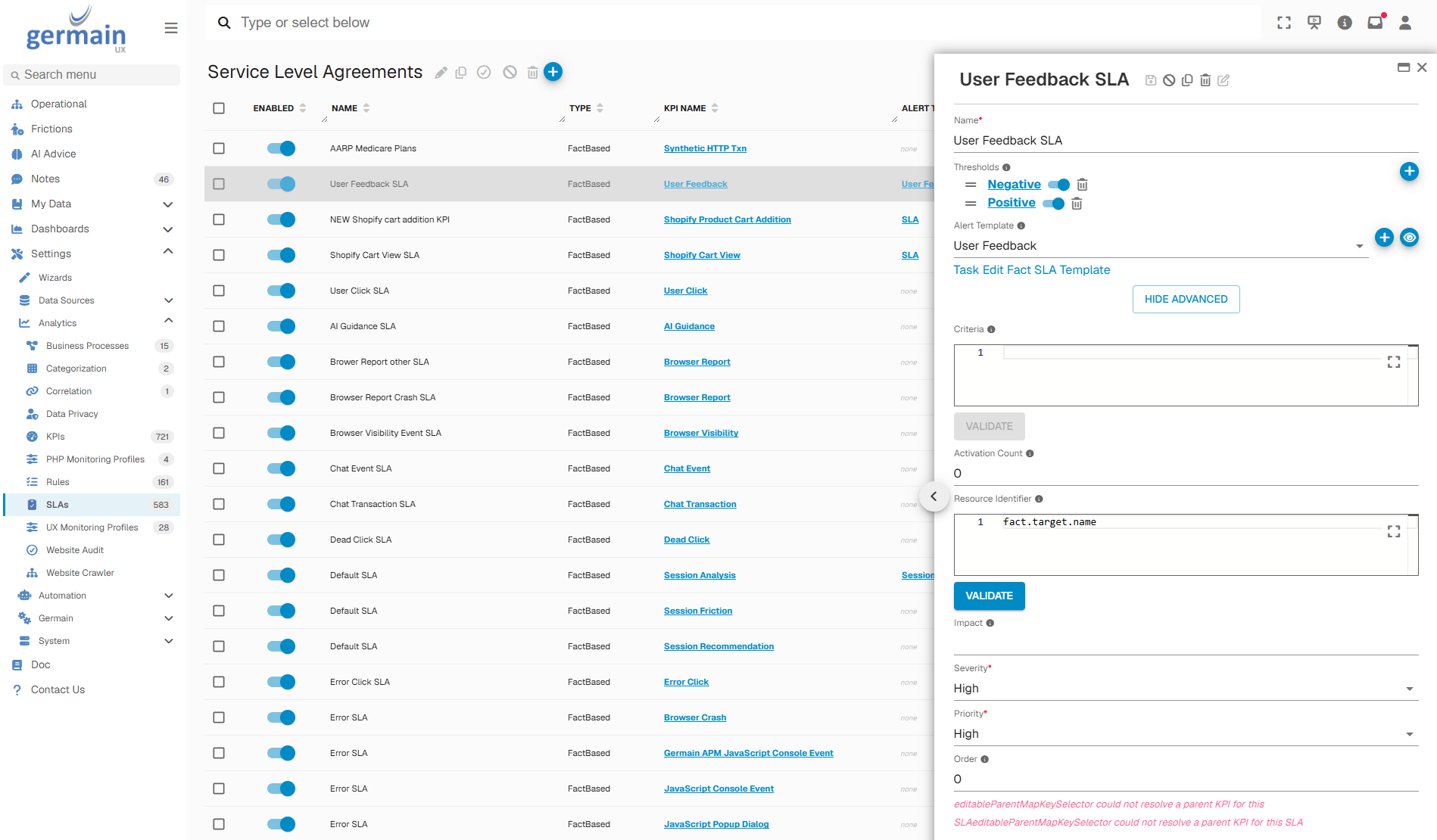
SLA Configuration Example - GermainUX
Validate
1
Generate test chat activity
On a page monitored by the UX Monitoring Profile, open the Olark chat box, start a conversation and send a message. Have an operator reply and then end the conversation.
2
Check the chat events
In the GermainUX Workspace, look at the Chat Event KPI filtered on Chat =
Olark. You should see Chat Expanded, Conversation Started, Message and Conversation Ended events in the test session.3
Check the chat transactions
Look at the Chat Transaction KPI filtered on Chat =
Olark. You should see an Operator Response Time for the operator’s reply.4
Check the conversation analysis
If you turned on AI conversation analysis, wait until the conversation closes. Then check that a Chat Conversation record for
Olark appears, with its summary.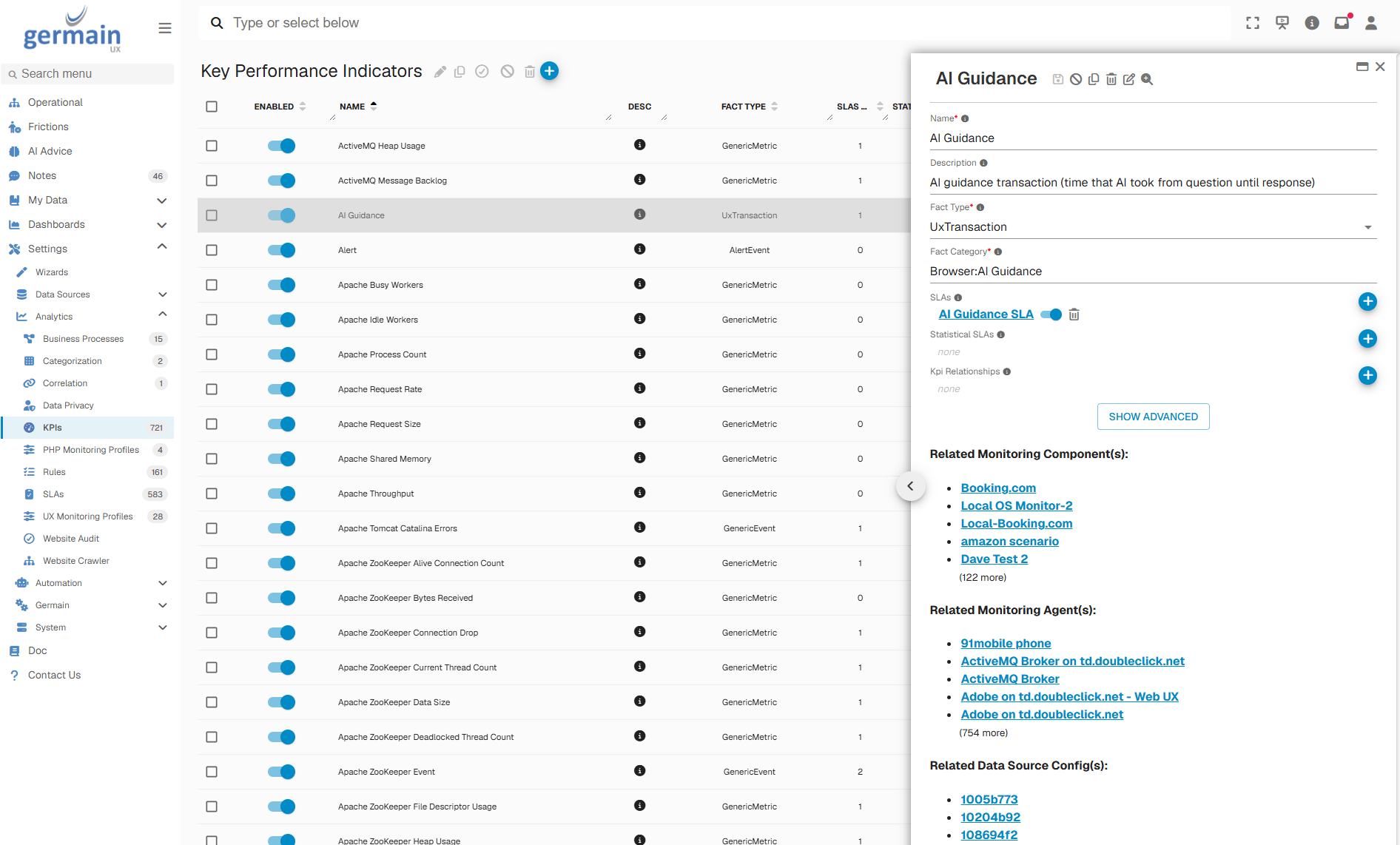
KPI Configuration Example - GermainUX
Troubleshooting
No Olark events at all
No Olark events at all
Check that:
- RUM JS is running on the page. Other browser data for the session should reach GermainUX.
- The page is monitored by the UX Monitoring Profile whose init script contains the Olark plugin.
- Olark is loaded on the page. The plugin waits for the Olark JavaScript API and records nothing if Olark doesn’t load.
No Operator Response Time
No Operator Response Time
GermainUX records
Operator Response Time when an operator replies to a visitor’s message. Messages sent while no operator is available (To Agent (Offline)) don’t get a response time.No Chat Conversation records or AI summaries
No Chat Conversation records or AI summaries
Check the three settings in Turn On AI Conversation Analysis. Records only appear once the conversation has closed, after the processor’s time-to-live has passed without a new message.
Related Documentation
Olark Monitoring
What GermainUX monitors
Chat Analysis
AI Conversation Summaries and Frictions
Data Privacy
Mask and Exclude Data
Get Help
Olark monitoring is tailored to the chat flows, operator teams and privacy requirements of your website. The GermainUX team can help you add the Olark plugin, turn on conversation analysis and set up SLAs and alerts.Contact GermainUX Support
The GermainUX team helps you get up and running faster, empower your team, turn data into actionable insights, and optimize performance to deliver measurable business outcomes.
Can't Find What You Need?
Search all GermainUX docs with Ctrl + K, or use the feedback buttons at the bottom of this page to tell us what is missing.
The content of this document is proprietary to GERMAIN SOFTWARE.