

Configuration Overview
Models and execution location
Select an LLM
Pick the analyzing model
Choose Online or Local Execution
Where AI processing runs
Customize an AI Prompt
Tailor prompts to your data
Overview
GermainUX AI Services can be customized to support your organization’s applications, data, business objectives, privacy policies, and automation requirements. AI-driven features are prompt-based. Each prompt can be tailored to a specific use case, data type, KPI, model, and expected output.Configuration Overview
Model availability and online or local execution support may vary by AI feature.
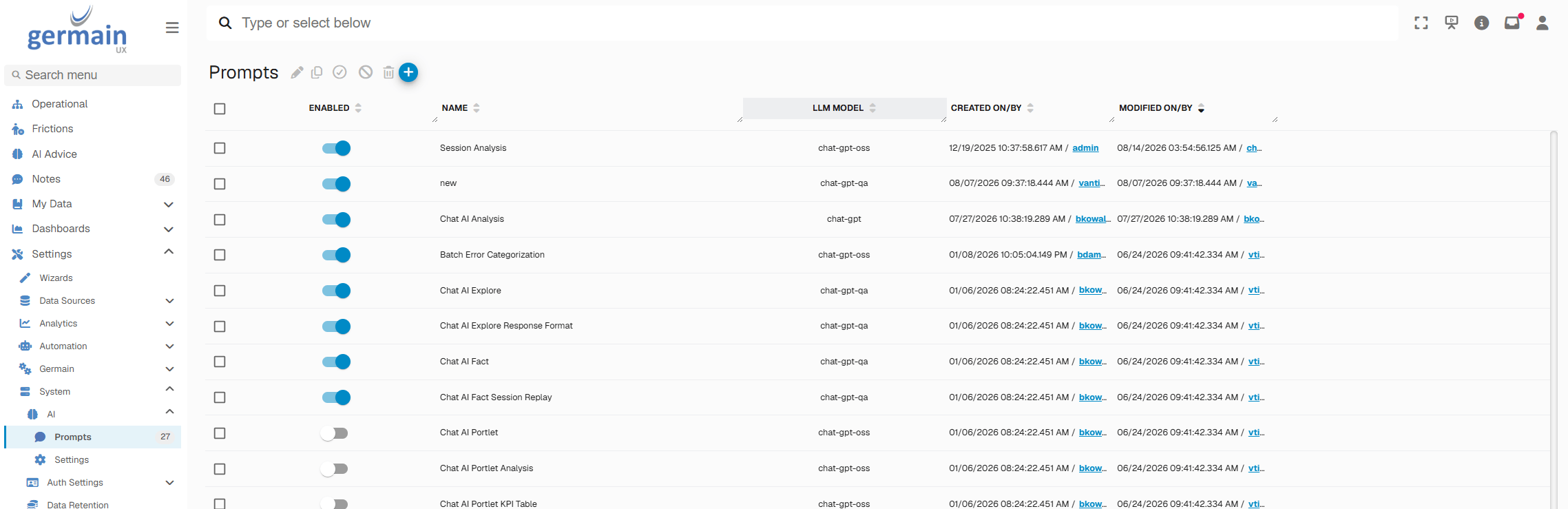
AI Prompts list showing configured prompts with model assignments - GermainUX
Select an LLM
Choose the model that will analyze the GermainUX data associated with a prompt. In the left menu, go to Settings > System > AI > Prompts. Then:- Select or create a prompt.
- Open the Model field.
- Select the LLM.
- Save the configuration.
Choose Online or Local Execution
For supported models and features, AI processing can run:
In the left menu, go to Settings > System > AI > Prompts.
Select a prompt and configure its available Online/Offline setting.
Some capabilities—particularly AI Explorer—may require or perform better with supported online models.
Before enabling online processing, confirm that the selected configuration complies with your organization’s privacy, security, contractual, and regulatory requirements.
Customize an AI Prompt
Prompts can be tailored to the application, KPI, data type, business process, or analytical objective. In the left menu, go to Settings > System > AI > Prompts.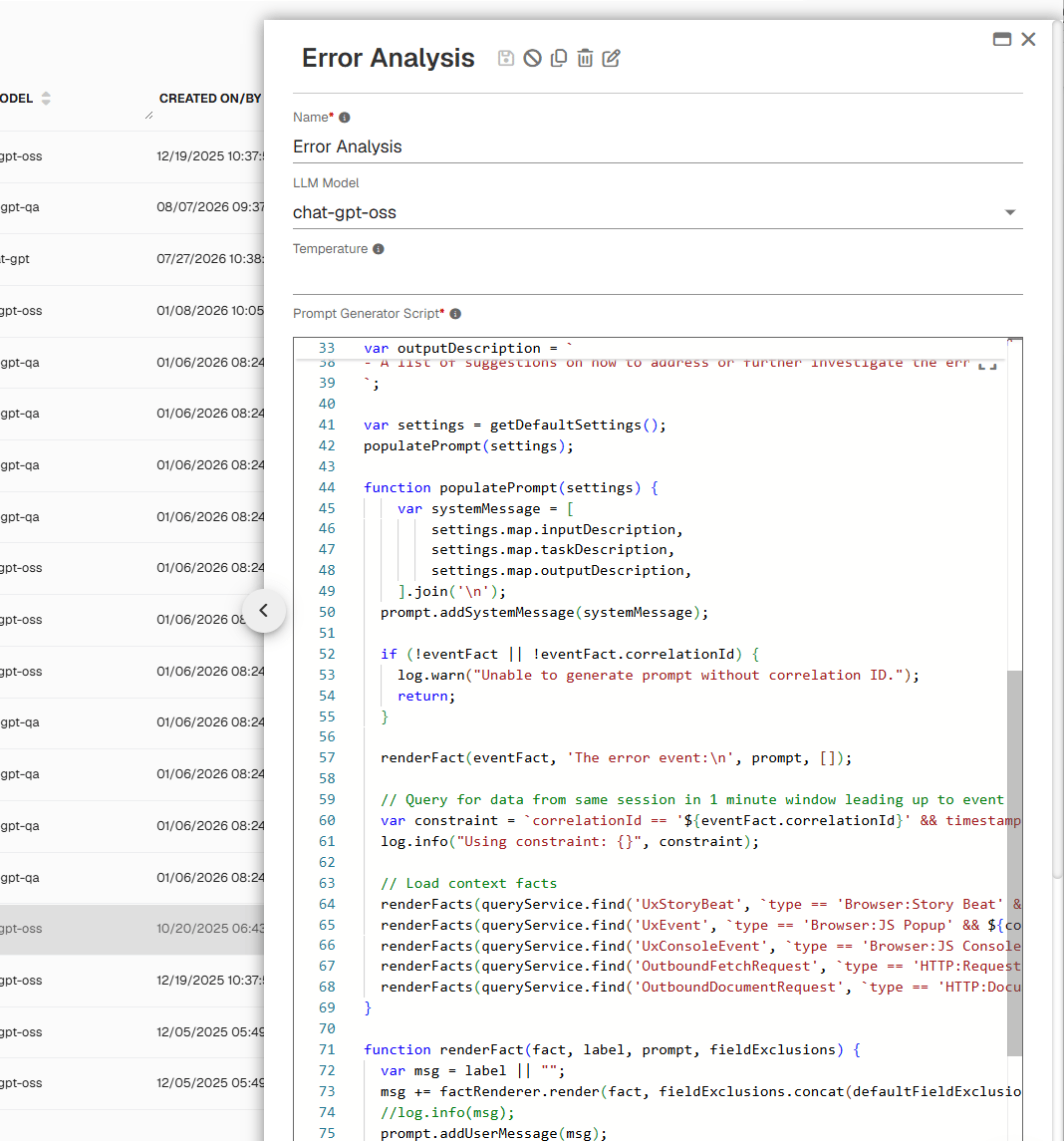
Error Analysis prompt editor showing prompt generator script with LLM model selection - GermainUX
- Select an existing prompt or create one.
- Edit the prompt in the right-side configuration panel.
- Select the appropriate model.
- Configure online or local execution, when available.
- Reference the required GermainUX data and KPIs.
- Define the expected analysis and output.
- Save and test the prompt.
- Summarize a recorded user session.
- Identify UX, workflow, or technology friction.
- Analyze errors and their user impact.
- Categorize and prioritize feedback.
- Evaluate a conversation or chatbot interaction.
- Identify causes of conversion drop-offs.
- Recommend corrective actions.
- Produce structured output for downstream automation.
Connect AI Analysis to Automated Actions
AI results can be used with GermainUX automation capabilities to create an agentic workflow. Depending on the use case, GermainUX can:- Detect a configured condition.
- Collect the relevant KPI and contextual data.
- Execute the selected AI prompt.
- Generate a summary, classification, priority, or recommendation.
- Trigger an alert, API call, script, ticket, report, remediation, or approval workflow.
- Monitor subsequent data to determine whether the issue was resolved.
Additional Resources
AI
Insights & Recommendations
AI Management
Read more
AI Advice Dashboard
Read more
AI Explore Diagnosis Feature
Read more
Analytics
More Analytics Features
Automation
More Automation Features
Dashboards
Dashboards and reports overview
Reports
Automatic and scheduled reports
Management
More Management Features
Get Help
Contact GermainUX Support
The GermainUX team helps you get up and running faster, empower your team, turn data into actionable insights, and optimize performance to deliver measurable business outcomes.
Can't Find What You Need?
Search all GermainUX docs with Ctrl + K, or use the feedback buttons at the bottom of this page to tell us what is missing.
The content of this document is proprietary to GERMAIN SOFTWARE.