

Integrate GermainUX Alerts with Moogsoft
Sending alerts over HTTP
Create a Custom Integration in Moogsoft
Setting up the endpoint
Recommended Event Fields
Context for responders
Security and Operational Considerations
Credentials and operating safeguards
Integrate GermainUX Alerts with Moogsoft
GermainUX can send real-time alerts and events to Moogsoft APEX AIOps Incident Management through an HTTP Action. The integration helps operations teams detect, correlate, prioritize, and resolve issues by sending GermainUX SLA violations and other monitored conditions directly to Moogsoft.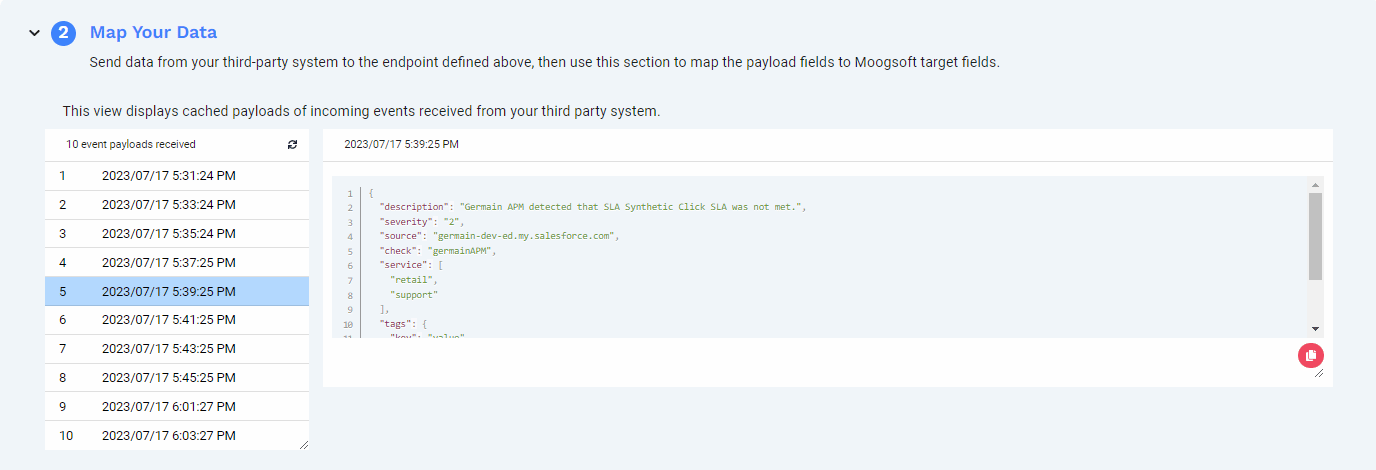
Moogsoft Map Your Data showing GermainUX event payloads - GermainUX
- When an SLA is breached
- When a synthetic scenario fails
- When a critical error or anomaly is detected
- On a configured schedule
- Through a manual execution
Create a Custom Integration in Moogsoft
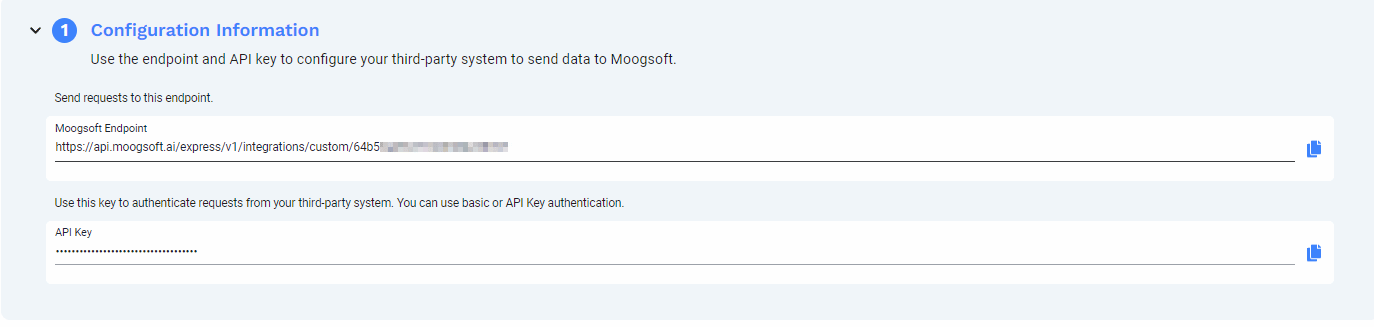
Moogsoft Configuration Information with endpoint URL and API key - GermainUX
- Sign in to Moogsoft APEX AIOps Incident Management.
- Go to Integrations > Inbound Integrations > Create Your Own Integration.
- Select Add New Integration.
- Enter a unique integration name and optional description.
- Select Events as the data type.
- Save the integration.
- Copy the generated endpoint and obtain an API key.
- Configure the required event-field mappings and severity mappings.
- Validate and enable the integration.
Create the GermainUX HTTP Action
In the left menu, go to Settings > Actions > HTTP. Select the Add icon to open the HTTP Action wizard.
HTTP Actions list showing the moogsoft-test action - GermainUX
Step 1: Configure the Action
Enter the action settings:
Select Next.
Step 2: Configure the HTTP Request
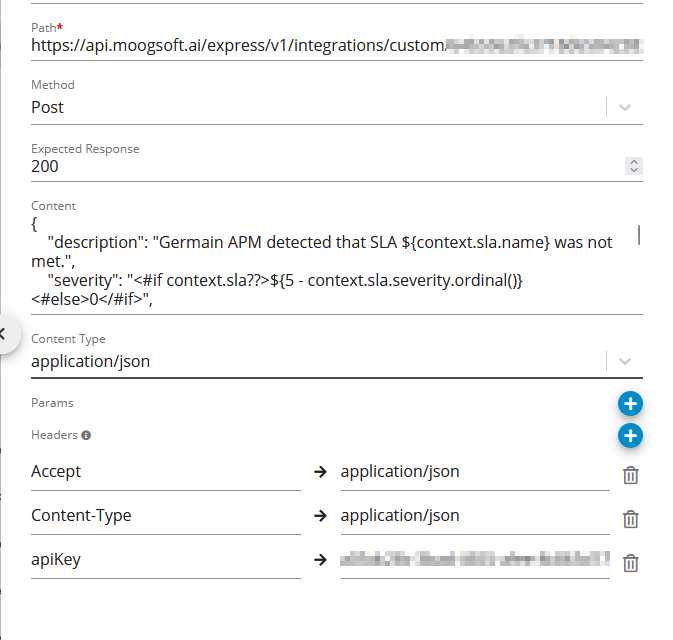
HTTP Action request configuration with Moogsoft endpoint and JSON payload - GermainUX
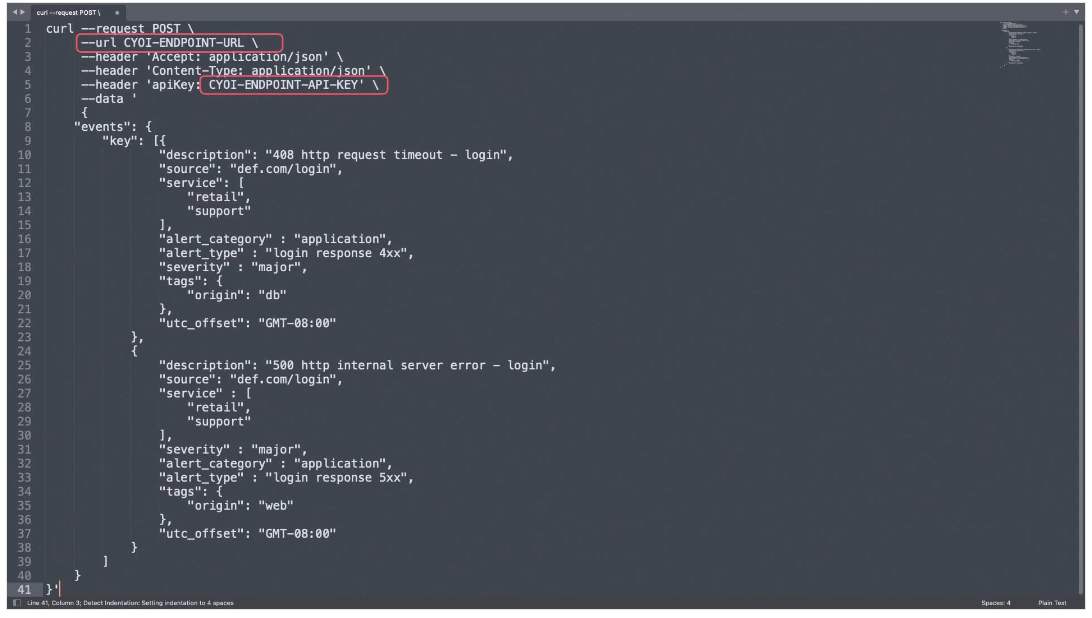
Example curl command for Moogsoft custom integration endpoint - GermainUX
Example Request Body
Example Headers
Step 3: Assign the Trigger
Configure when GermainUX should send the event. For example, to create a Moogsoft event when a synthetic scenario fails:- Select the synthetic-scenario KPI.
- Configure or select its failure SLA.
- Add the Moogsoft HTTP Action as the SLA Action.
- Save the SLA and action configuration.
Step 4: Finish and Test
- Complete the wizard.
- Run the HTTP Action manually.
- Confirm that GermainUX receives a successful HTTP response.
- Open the Moogsoft custom integration.
- Confirm that the test payload appears in Map Your Data.
- Map the incoming fields to the appropriate Moogsoft event fields.
- Validate and enable the integration.
- Force a controlled GermainUX SLA breach and confirm that a new Moogsoft event is created.
Recommended Event Fields
Include enough context for Moogsoft users to understand the issue and open the relevant GermainUX Analysis view.
Security and Operational Considerations
- Store the Moogsoft API key as a protected credential.
- Restrict access to users authorized to modify the HTTP Action.
- Use HTTPS only.
- Avoid sending unnecessary personal or sensitive data.
- Configure retries and execution limits carefully.
- Prevent duplicate incidents through Moogsoft deduplication and GermainUX Quiet Time.
- Test severity mappings before production use.
- Monitor failed HTTP executions and API-key expiration.
Get Help
Contact GermainUX Support
The GermainUX team helps you get up and running faster, empower your team, turn data into actionable insights, and optimize performance to deliver measurable business outcomes.
Can't Find What You Need?
Search all GermainUX docs with Ctrl + K, or use the feedback buttons at the bottom of this page to tell us what is missing.
The content of this document is proprietary to GERMAIN SOFTWARE.