

3. Configure Session Replay
Replay for store sessions
25. Configure Analysis Dimensions
Slice store activity by dimension
28. Configure Alerts and Watches
Alerts for store issues
30. Configure Dashboards
Store performance dashboards
1. Open the UX Monitoring Profile
In the left menu, go to Settings > Analytics > UX Monitoring Profiles. Select the UX Monitoring Profile created for the WooCommerce storefront.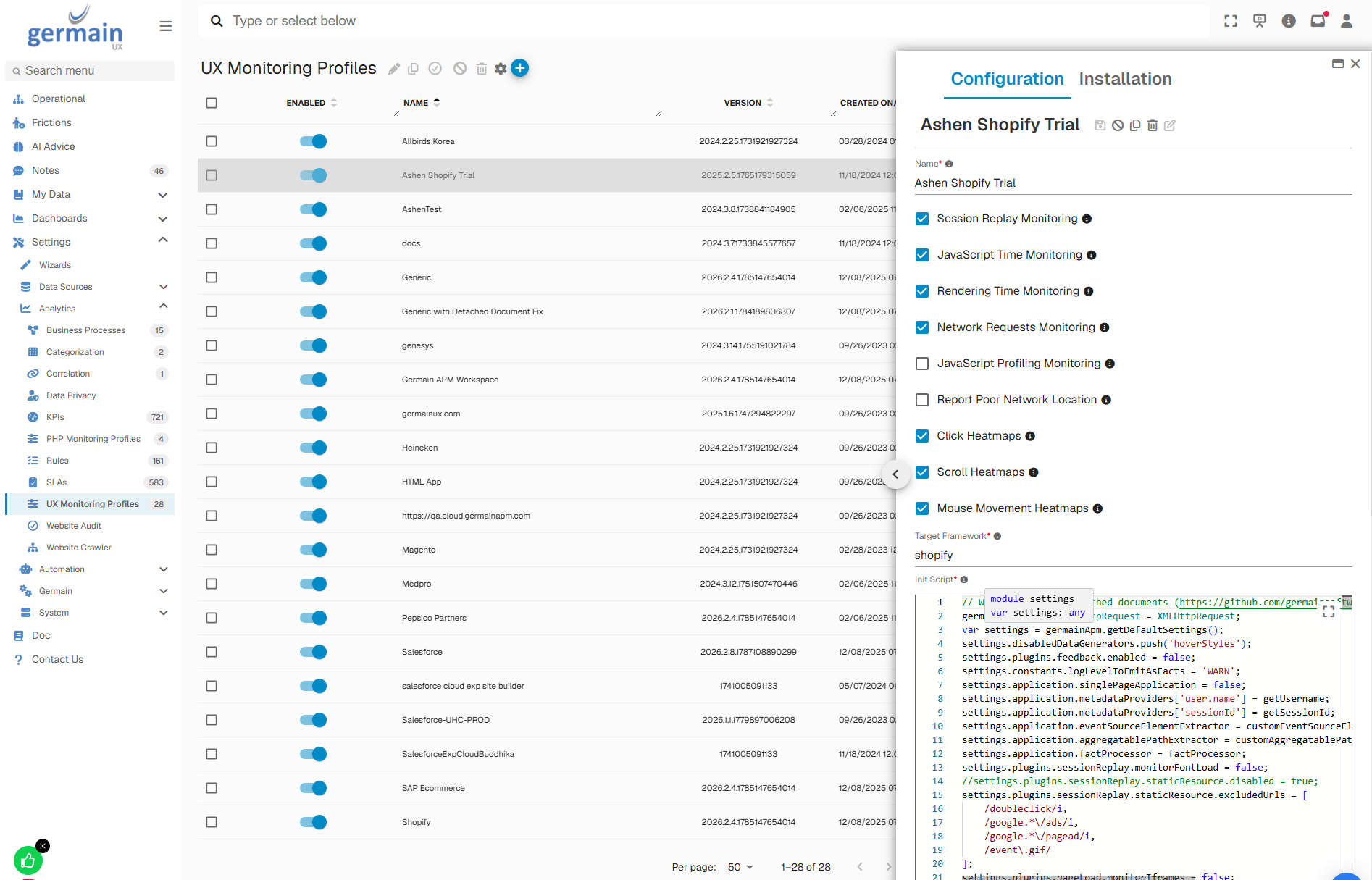
UX Monitoring Profile configuration (example: Shopify profile, similar for WooCommerce) - GermainUX
2. Configure Real User Monitoring
Configure the telemetry required for the WooCommerce storefront. Depending on your monitoring scope, collect:- User sessions
- Page views
- Navigation
- Clicks
- Product interactions
- Cart activity
- Checkout activity
- Browser performance
- Network requests
- JavaScript errors
- Customer-defined events
3. Configure Session Replay
Configure Session Replay for the WooCommerce UX Monitoring Profile. Applicable settings can include:- Enable or disable Session Replay
- Session timeout
- Maximum recording duration
- Session behavior when username changes
- IP exclusions
- Included IP ranges
- Username exclusions
- Bot and crawler exclusions
- Headless-browser exclusions
4. Configure Privacy and Consent
Configure appropriate:- Masking
- Anonymization
- Element exclusions
- Page exclusions
- Consent-dependent activation
- Retention
- Access control
- Passwords
- Authentication tokens
- Payment information
- Names
- Contact details
- Billing addresses
- Shipping addresses
- Sensitive order information
- Personal information
- URL parameters containing identifiers
5. Configure Product Discovery Events
Configure relevant product-discovery events such as:- Landing-page view
- Campaign entry
- Search
- Category view
- Filter
- Sort
- Product-list view
- Product selection
- Product view
- Variation selection
- Review interaction
- WooCommerce version
- Theme
- Plugins
- Storefront architecture
- Browser-visible information
6. Configure Cart Events
Configure applicable cart events such as:- Add to cart
- Remove from cart
- Quantity update
- Coupon application
- Cart view
- Cart abandonment
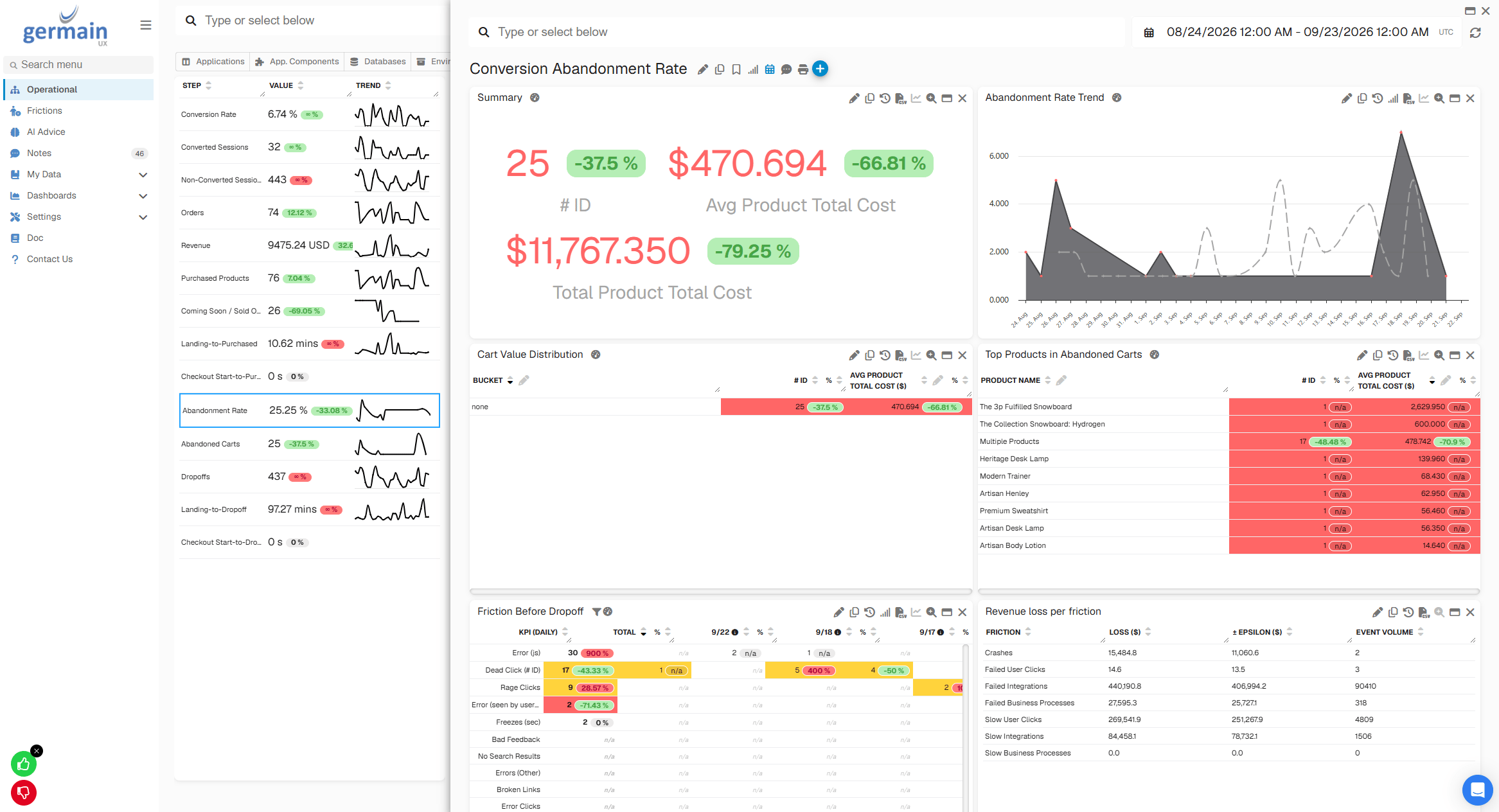
Example: cart abandonment and revenue loss per friction (eCommerce, similar for WooCommerce) - GermainUX
7. Configure Account Events
When applicable, configure:- Registration
- Login
- Logout
- Password reset
- Account access
8. Configure Checkout Events
Configure browser-visible checkout events such as:- Checkout start
- Customer-details entry
- Shipping selection
- Payment-method selection
- Validation failure
- Payment result
- Order submission
- Order confirmation
- Checkout abandonment
9. Configure Purchase Confirmation
Use authoritative WooCommerce data when exact purchase confirmation is required. Depending on your architecture, this can come from:- WooCommerce REST API
- Webhook
- Database
- Integration record
- Server-side order status
10. Configure Business Processes
Model important WooCommerce journeys as GermainUX business processes. Examples include:Product Discovery
Search → Product ViewConversion
Product ViewAdd to CartCheckoutPaymentConfirmed Order
Account
Registration → LoginCoupon
CartApply CouponCheckout
Order Service
Account → Order LookupReturn
Order → Return or Cancellation Request For each process, define:- Start
- Milestones
- Completion
- Failure
- Abandonment
11. Configure Conversion Analytics
Analyze:- Conversion rate
- Completion rate
- Funnel progression
- Funnel drop-off
- Time spent at each stage
- Abandonment
- Errors
- Performance delays
- Repeated actions
- Customers affected
- Revenue affected when available
- Device
- Browser
- Geography
- Campaign
- Product
- Customer segment
- Time period
12. Configure Click Monitoring
Monitor:- Standard clicks
- Dead clicks
- Error clicks
- Rage clicks
- Broken controls
- Repeated customer attempts
- Error-generating interactions
- User frustration
13. Configure Performance Monitoring
Analyze:- Page-load time
- Interaction response time
- Browser processing
- Network-request duration
- WooCommerce API response time
- Third-party response time
- Checkout response time
14. Configure JavaScript Error Monitoring
Monitor:- JavaScript exceptions
- Browser console errors
- Failed network requests
- Resource failures
- Theme issues
- Plugin issues
- Third-party script failures
- Customer
- Session
- Product
- Cart
- Checkout
- Conversion
- Browser
- Device
15. Configure WooCommerce REST API Monitoring — Optional
When Engine monitoring is deployed, configure approved REST API monitoring. Depending on permissions, configure:- Endpoint
- HTTP method
- Authentication
- Headers
- Request parameters
- Timeout
- Expected HTTP status
- Response validation
- Monitoring frequency
16. Configure Webhook Monitoring — Optional
Monitor important WooCommerce webhook flows. Analyze:- Delivery
- Processing time
- Failure
- Retry
- Destination availability
- Orders
- Products
- Customers
- Inventory
- Integrations
17. Configure WordPress and WooCommerce Application Monitoring — Optional
Depending on the hosting environment, configure monitoring for:- WordPress application health
- WooCommerce operations
- Scheduled actions
- Background jobs
- Plugin behavior
- PHP
- Web server
18. Configure Database Monitoring — Optional
When MySQL or MariaDB monitoring is available, analyze:- Availability
- Connections
- Query performance
- Capacity
- Locks
- Errors
19. Configure Log Monitoring — Optional
Configure log monitoring for relevant accessible logs. Examples include:- WooCommerce
- WordPress
- PHP
- Web server
- Payment provider
- Integration
- Operating system
20. Configure Infrastructure Monitoring — Optional
When hosting access is available, monitor:- CPU
- Memory
- Disk
- Filesystem
- Network
- Processes
- Containers
- Cloud resources
21. Configure JS Profiler — Optional
Use JS Profiler when deeper browser troubleshooting is required. Analyze:- JavaScript execution
- Exceptions
- Console activity
- Network requests
- Theme code
- Plugin code
- Payment integrations
- Third-party scripts
- Browser freezes
22. Configure Synthetic Monitoring — Optional
Configure synthetic WooCommerce scenarios created with GermainUX RPA Bot Recorder. Configure:- Scenario
- Execution location
- Schedule
- Credentials
- Test product
- Test customer
- Payment method
- Timeout
- Validation
- Failure condition
- Alert
- Maintenance window
- Cleanup procedure
23. Configure KPIs
Configure KPIs appropriate for the WooCommerce monitoring objective. Depending on enabled features, these can include:- User Session
- User Interaction
- Page Performance
- JavaScript Error
- HTTP Request
- Business Process
- Conversion
- Synthetic Transaction
- Application
- Database
- Infrastructure
24. Configure Measures
Measures can include:- Users
- Sessions
- Page views
- Product views
- Add-to-cart count
- Cart abandonment
- Checkout starts
- Orders
- Conversion rate
- Abandonment rate
- Errors
- Error rate
- Page-load time
- Interaction time
- API response time
- Process duration
- Revenue affected
25. Configure Analysis Dimensions
Analyze WooCommerce activity by:- Application
- Environment
- Customer
- Session
- Page
- URL
- Product
- Category
- Cart
- Order
- Customer journey
- Browser
- Device
- Operating system
- Geography
- Campaign
- Error
- API
- Payment provider
- Integration
- Conversion status
- Time period
26. Configure SLAs
Configure thresholds appropriate for the storefront and customer journey. Examples:Availability
Storefront Availability < Expected SLA
Page Performance
Page Load Time > Threshold
Checkout Performance
Checkout Response Time > Threshold
JavaScript Errors
JavaScript Error Rate > Threshold
APIs
Critical WooCommerce API Response Time > Threshold
Conversion
Conversion Rate < Expected Threshold
Checkout
Checkout Failure Rate > Expected Threshold
Synthetic Monitoring
Critical Shopping Scenario = Failed
27. Configure Rules and Automated Analysis
Create Rules such as: Slow Checkout + Conversion Decrease JavaScript Error + Cart Abandonment Payment Failure + Checkout Abandonment API Degradation + Failed Orders Database Slowness + Slow Checkout Plugin Error + Affected Customers Third-Party Service Degradation + Revenue Impact28. Configure Alerts and Watches
Examples include: Storefront Unavailable → Alert Operations Checkout Failure Rate Increasing → Notify eCommerce Team Payment Integration Failure → Alert Integration Team Conversion Drop → Notify Digital Team JavaScript Error Increase → Notify Engineering Database Performance Degradation → Notify Application and Database Teams Synthetic Checkout Failure → Alert Support GermainUX can trigger:- Alerts
- Watches
- Reports
- Approved diagnostics
- Approved automation
29. Configure Maintenance Windows
Define maintenance windows for:- WooCommerce upgrades
- WordPress upgrades
- Theme changes
- Plugin changes
- Payment-provider maintenance
- Database maintenance
- Infrastructure maintenance
30. Configure Dashboards
Conversion Dashboard
Monitor:- Funnel progression
- Conversion
- Abandonment
- Customers affected
- Revenue affected
- Root-cause indicators
Customer Experience Dashboard
Monitor:- Sessions
- User interactions
- Dead clicks
- Rage clicks
- Error clicks
- Session Replay
- Performance
Checkout Dashboard
Monitor:- Checkout starts
- Checkout progression
- Errors
- Payment results
- Abandonment
- Orders
Engineering Dashboard
Monitor:- JavaScript errors
- JS Profiler
- API performance
- Plugin issues
- PHP
- Logs
- Database
- Infrastructure
31. Validate the Configuration
Verify:1
Customer sessions are captured
2
Product events are captured
3
Cart events are captured
4
Checkout events are captured
Get Help
Contact GermainUX Support
The GermainUX team helps you get up and running faster, empower your team, turn data into actionable insights, and optimize performance to deliver measurable business outcomes.
Can't Find What You Need?
Search all GermainUX docs with Ctrl + K, or use the feedback buttons at the bottom of this page to tell us what is missing.
The content of this document is proprietary to GERMAIN SOFTWARE.