

How It Works
Global and personal quiet times
When to Use
Compare with alert Quiet Time
Silence an Alert
Mute an alert from its email
View and Stop
See what is silenced now
Overview
A Quiet Time is a period during which GermainUX holds back repeated notifications for the same alert. It keeps one ongoing issue from filling your inbox, so the alerts that still arrive are the ones that need attention. GermainUX uses Quiet Times in two ways. It starts one automatically for everyone each time an alert fires, and you can start one for yourself only when an alert is not useful to you. The Quiet Times screen lists every Quiet Time that is active right now, and lets you end one early. Quiet Times help you answer questions such as:- Why did I stop receiving this alert?
- Which alerts are silenced at the moment?
- When will this alert be able to notify me again?
- How do I stop an alert I don’t need, without changing it for my team?
How Quiet Times Work
Every Quiet Time belongs to one alert. GermainUX identifies it by the Alert Action name followed by what triggered the alert, for example the KPI, SLA and resource. A Quiet Time for a CPU alert on one server therefore doesn’t silence the same alert on another server.
During a GLOBAL Quiet Time, GermainUX doesn’t run the Alert Action again for the same issue, so nobody receives a repeat. When the period ends, the next violation sends a new alert and starts a new Quiet Time.
During a USER Quiet Time, the alert still runs. GermainUX removes your email address from the recipients, so you receive neither the email nor the Workspace notification.
GermainUX removes expired Quiet Times automatically. You don’t need to clean them up.
When to Use Quiet Times
The Quiet Time setting on an Alert Action and the Quiet Times you start yourself solve different problems:
Use the Quiet Time setting on an alert when a problem that stays open would otherwise send the same alert every few minutes. Pick a period that matches how long your team typically needs to respond, so the alert repeats only if the issue is still there after that. Quiet Time Used is on by default, so unless someone has changed it, each alert already waits for the system default period before it repeats.
Start a Quiet Time for yourself when you’re on an alert’s Distribution List but don’t need it, for example while you’re on leave or when a colleague already owns the issue. Your team keeps receiving the alert, and nobody has to edit the Distribution List.
Two other mechanisms reduce alert volume in different ways:
- Activation Count on an SLA delays the first alert until a number of violations occur. See Reduce Alert Volume.
- Maintenance periods suspend monitoring and actions during planned work. See Maintenance Window.
Silence an Alert for Yourself
The default alert email ends with two links, Unsubscribe and Resume. Scheduled report emails have the same pair, labeled Mute this report and Unmute this report.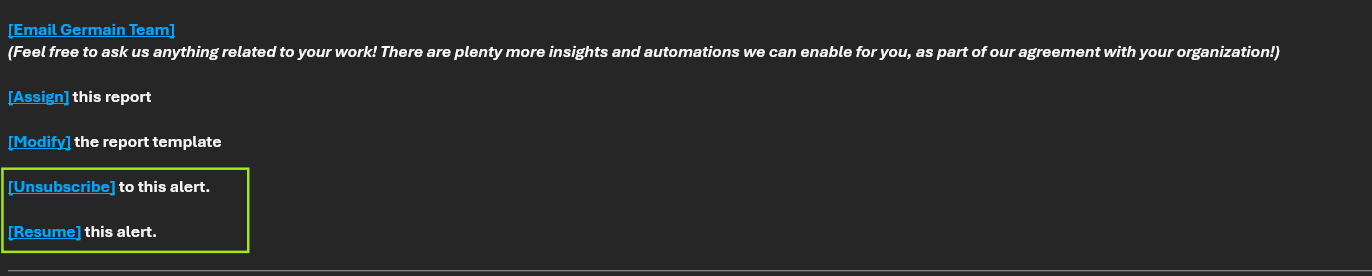
Unsubscribe and Resume Links in an Alert Email - GermainUX
1
Open the alert email
Open an email for the alert you want to silence.
2
Click Unsubscribe
Click Unsubscribe. For a report, click Mute this report.The GermainUX Workspace opens the Quiet Times screen and shows Quiet time started.
3
Check the Quiet Time
Your new Quiet Time appears in the list with the type USER. It stays active until you resume the alert.
You can only silence an alert that is sent to you through its Distribution List. If you receive it through another list, for example an external email list, GermainUX shows “Unable to silence this alert”. Ask your GermainUX administrator to change your alert settings instead.
Offer a Time-Limited Mute
The default links mute an alert until the user resumes it. To mute for a fixed time instead, add your own links to a custom alert template. See Configure Alert and Report Templates. This example mutes the alert for the reader for 24 hours. Add it to the HTML body of your alert template:86400 to the number of seconds you want the mute to last. A negative value mutes the alert until the user resumes it.
Set the Quiet Time on an Alert
The automatic, GLOBAL Quiet Time is configured on each Alert Action. Both fields are advanced settings, so they’re hidden until you show advanced fields.1
Open the Alert Action
In the left menu, go to Settings > Automation > Alert and open the alert.
2
Show the advanced fields
Click Show Advanced.
3
Set the Quiet Time fields
Enter the values below, then save the alert.
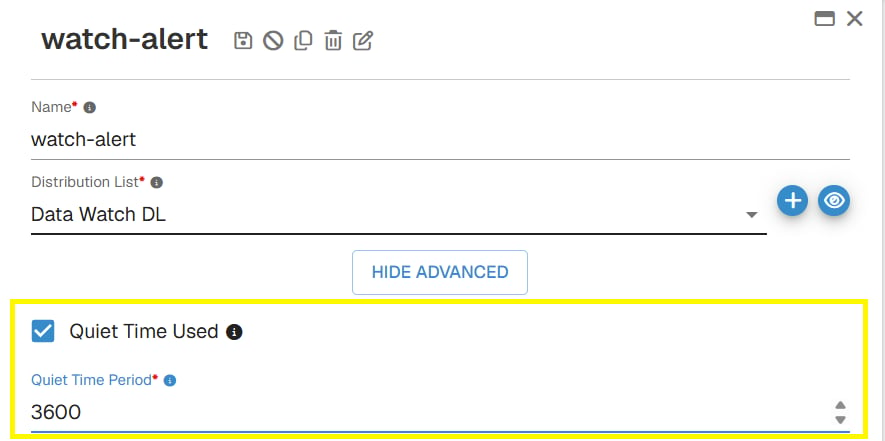
Quiet Time Fields on an Alert Action - GermainUX
View and Stop Quiet Times
The Quiet Times screen lists the Quiet Times that are active now: every GLOBAL one, plus your own USER ones. Other users’ personal Quiet Times aren’t shown. Open it in either of these ways:- In the left menu, go to Settings > System > Quiet Times.
- Open Notifications from the header and click the Quiet Times icon. A dot on the icon means at least one Quiet Time is active.
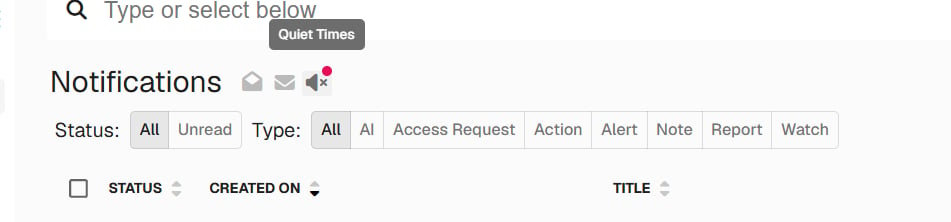
Quiet Times Icon on the Notifications Screen - GermainUX

Quiet Times Screen - GermainUX
- Stopping a USER Quiet Time affects only you. You receive the alert again from its next occurrence.
- Stopping a GLOBAL Quiet Time affects all users. The next violation sends the alert to everyone. You need permission to edit configuration to stop one.
Troubleshooting
Clicking Unsubscribe shows "Unable to silence this alert"
Clicking Unsubscribe shows "Unable to silence this alert"
Your email address isn’t on the alert’s Distribution List, for example because you receive it through an external list. Ask your GermainUX administrator to remove you from that list.
An alert stopped arriving and I didn't silence it
An alert stopped arriving and I didn't silence it
Open the Quiet Times screen and set Applies to to All Users. If the alert is listed, a GLOBAL Quiet Time is holding back repeats, and the alert resumes after its end time.
Additional Resources
Create an Alert
Configure Alert Actions and templates
Notifications
All notification types
Automation
More Automation Features
Get Help
Contact GermainUX Support
The GermainUX team helps you get up and running faster, empower your team, turn data into actionable insights, and optimize performance to deliver measurable business outcomes.
Can't Find What You Need?
Search all GermainUX docs with Ctrl + K, or use the feedback buttons at the bottom of this page to tell us what is missing.
The content of this document is proprietary to GERMAIN SOFTWARE.