

Create a Report
Step through the wizard
Add Queries to a Report
Combine multiple query results
Configure the Report Template
Control layout and format
Overview
GermainUX reports can run automatically on a schedule or as actions triggered by events such as SLA breaches. Creating a report involves three main steps:- Define the report and its execution method.
- Add one or more data queries.
- Configure the report template.
Create a Report
- In the left menu, go to Settings > Actions > Report.
- Click + to open the Report wizard.
- Configure the report details.
- Choose whether the report runs on a schedule or as a triggered action.
- Click Finish.
- When prompted, click the provided link to add queries to the report.
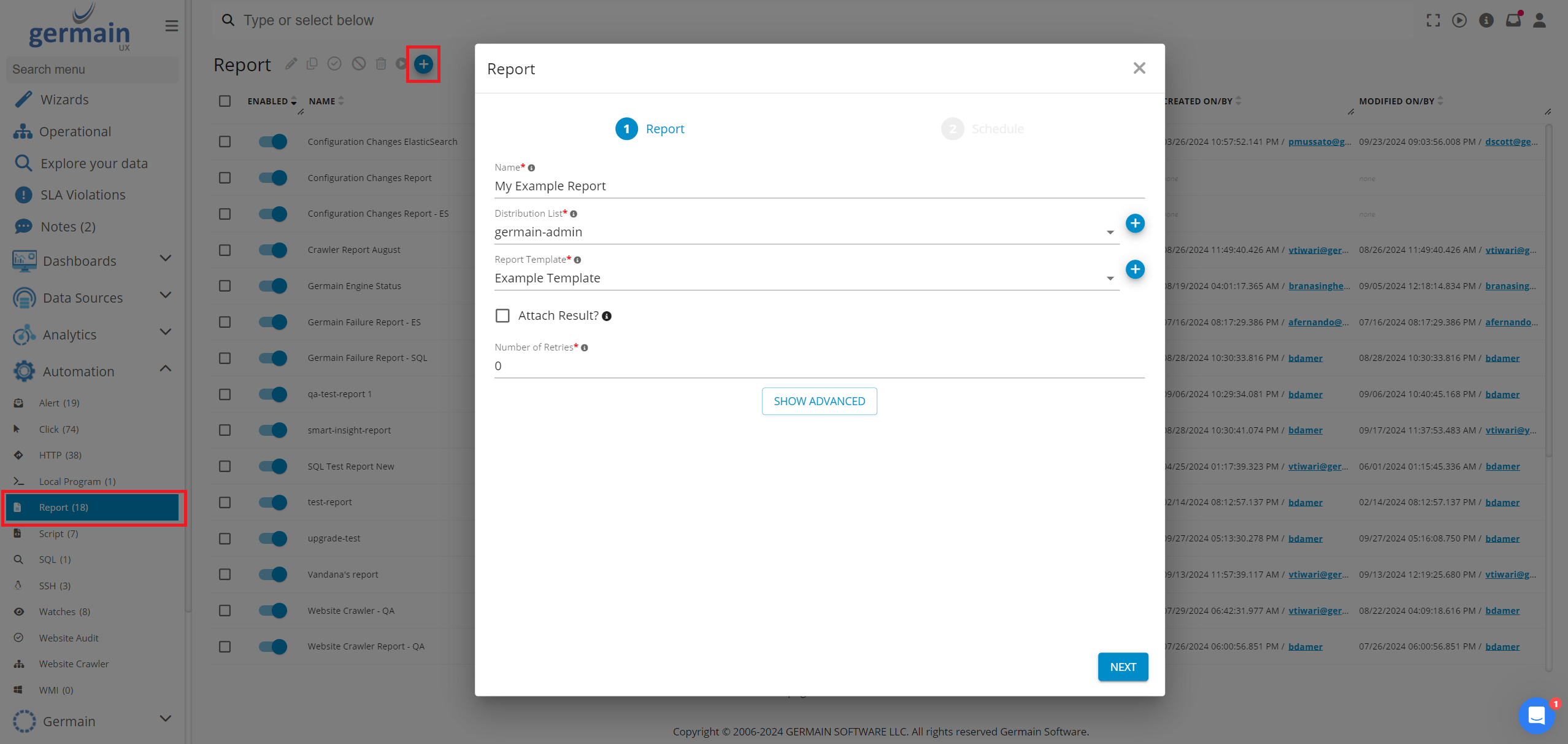
Report wizard showing report details and schedule options - GermainUX
Report Settings
Schedule the Report
Enable Run on Schedule, and then configure the desired execution frequency and time. For example, configure the schedule to generate and distribute the report every day at 09:00 AM.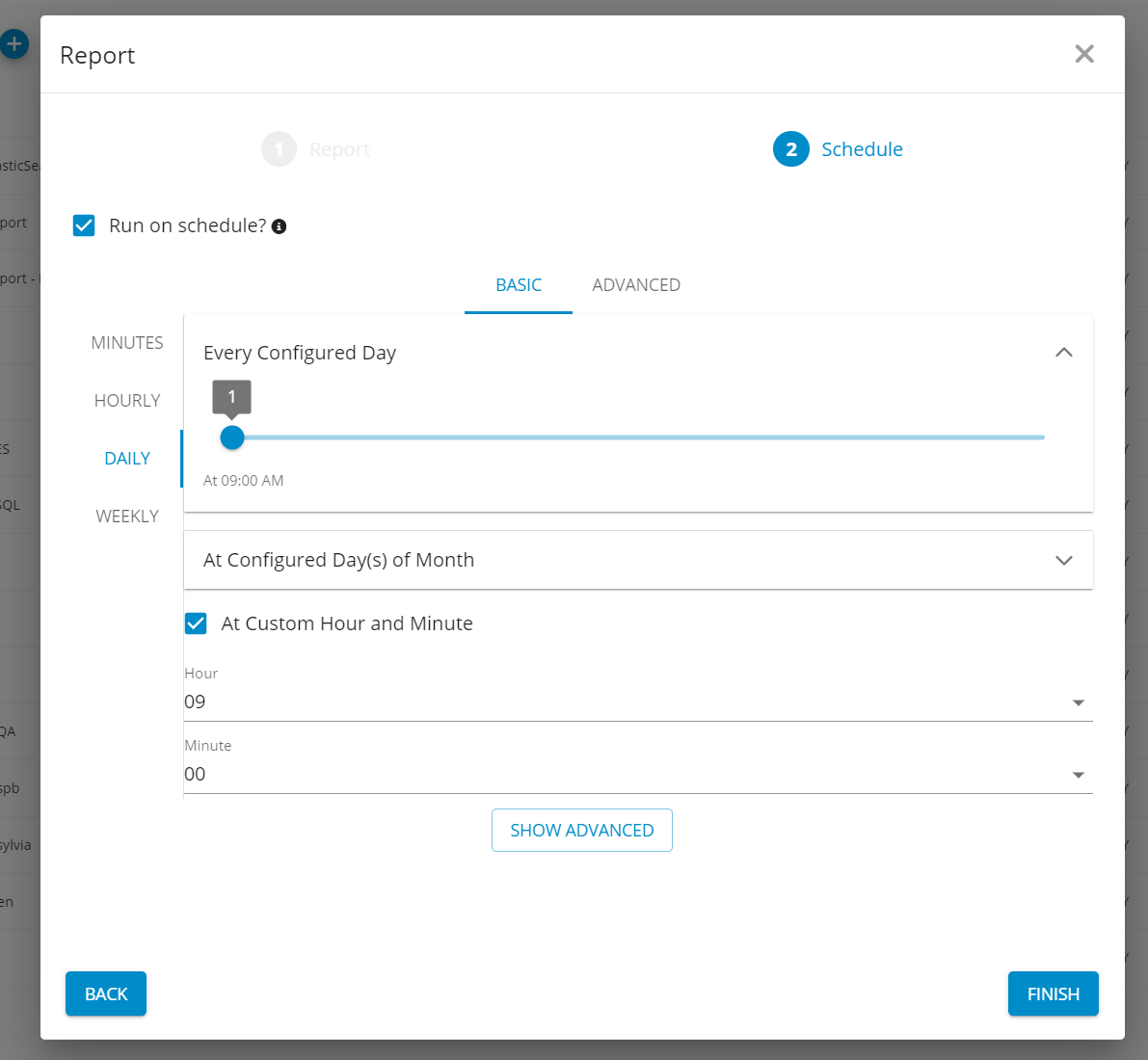
Report schedule configuration with daily execution at 09:00 AM - GermainUX
Trigger the Report as an Action
To generate the report in response to an event:- Disable Run on Schedule.
- Complete and save the report.
- Add the report as an action to an SLA or another configuration that supports actions.
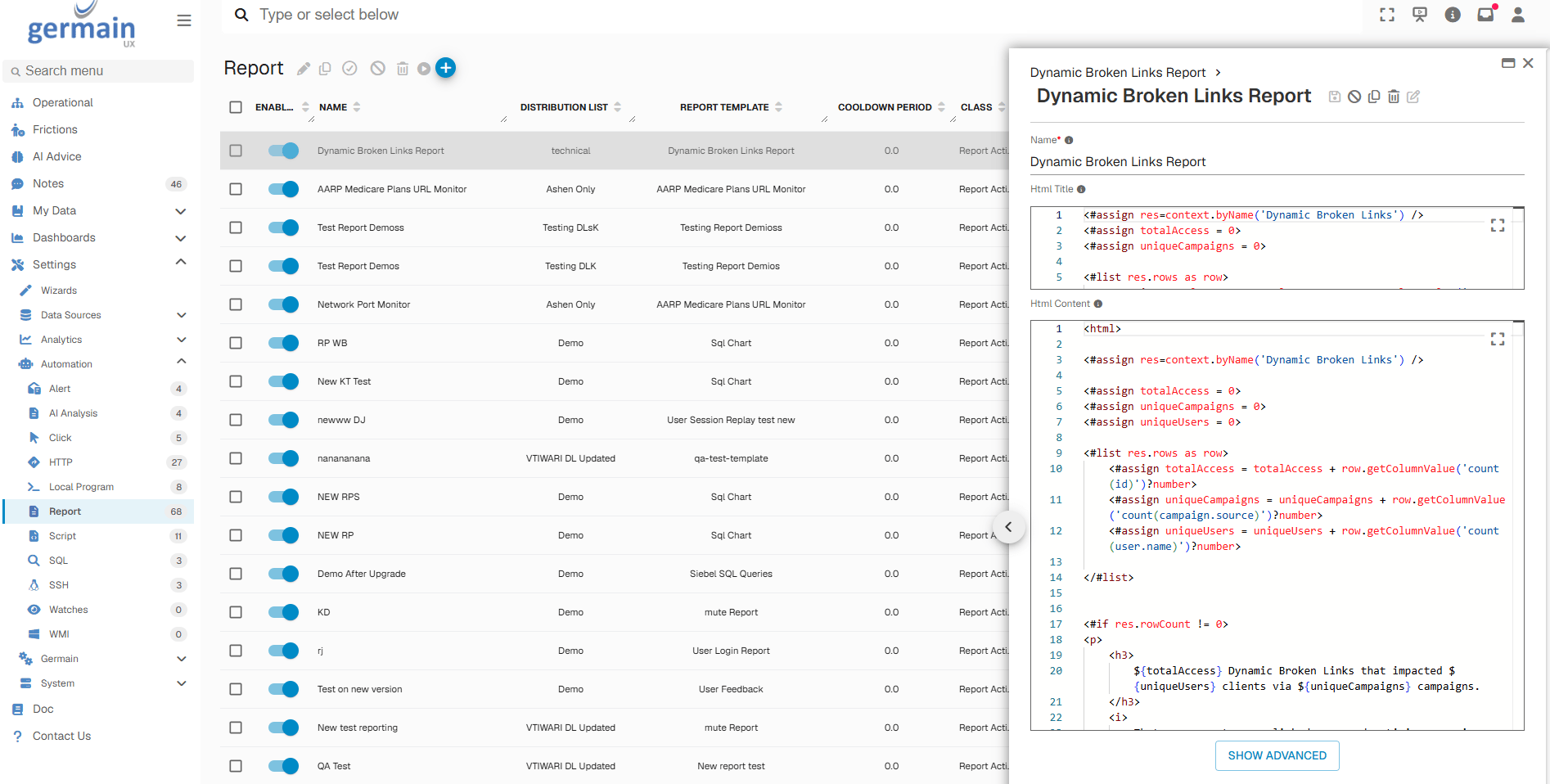
Report automation configuration showing report list and template editor - GermainUX
Add Queries to a Report
A report can contain one or more queries. Their results can be combined and presented through the report template. You can access the Query Editor in either of these ways:Choose a Query Type
Click + next to the template name, and then select a query type.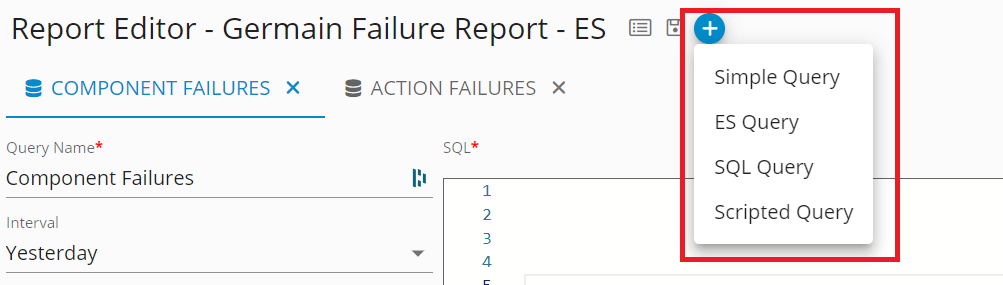
Query type selection menu in the Report Editor - GermainUX
Scripted Query
Use a Scripted Query when the report requires multiple queries, custom processing, or advanced logic.- Select the query time range. Leave it blank if the script will define the interval programmatically.
- Write the JavaScript used to query the GermainUX Datamart.
- Use autocomplete to discover available functions and variables.
- Use the Fact Model glossary to identify the fields available for each data model.
- Click Refresh Preview to validate the results.
- Click Save when the query produces the expected output.
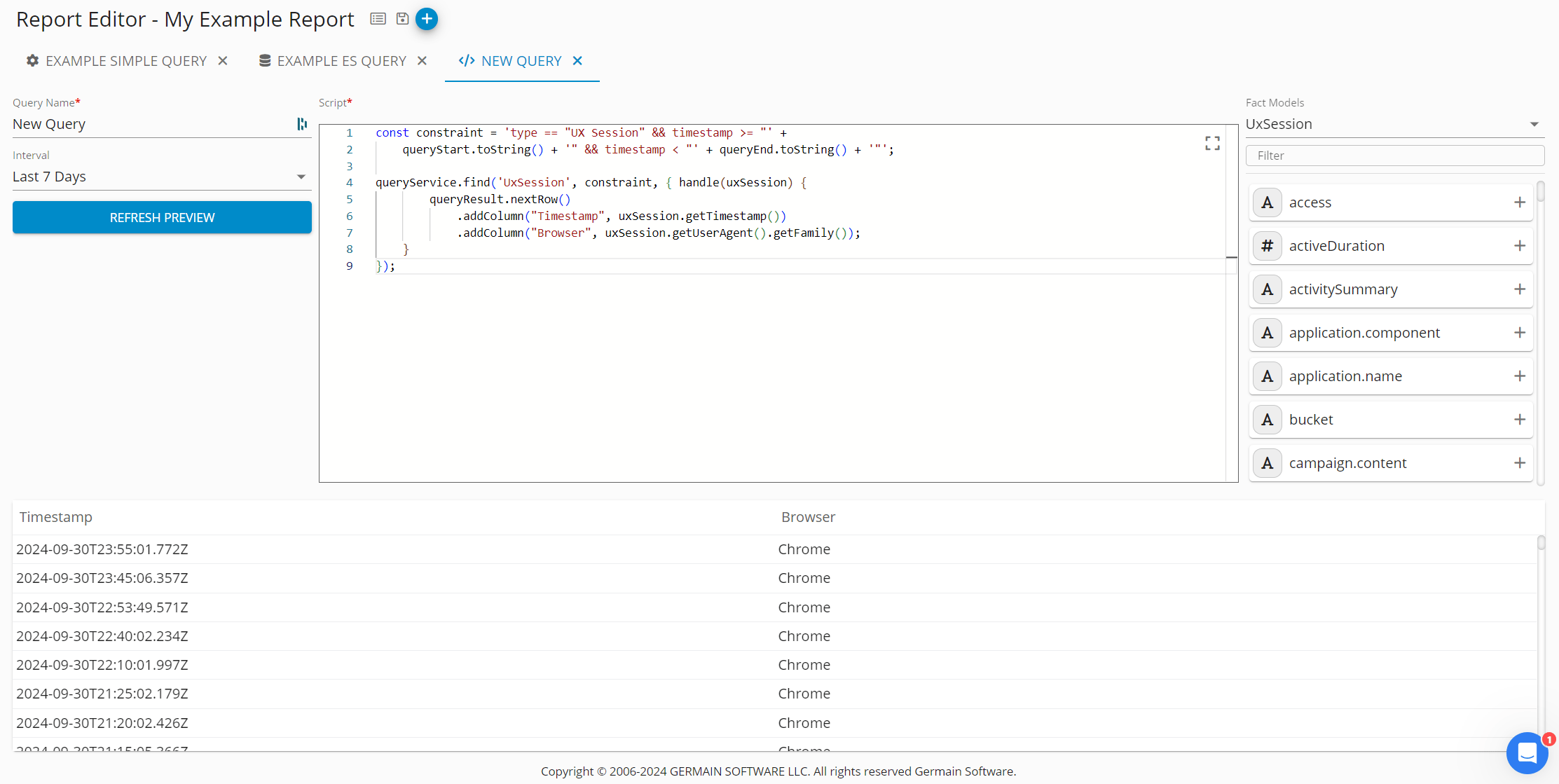
Scripted Query editor with JavaScript code and preview results - GermainUX
Simple Query
Use a Simple Query to build a report without writing SQL or JavaScript.- Complete the required fields.
- Add any necessary filters or constraints.
- Click Refresh Preview to display the results in a table.
- Review the results and click Save.
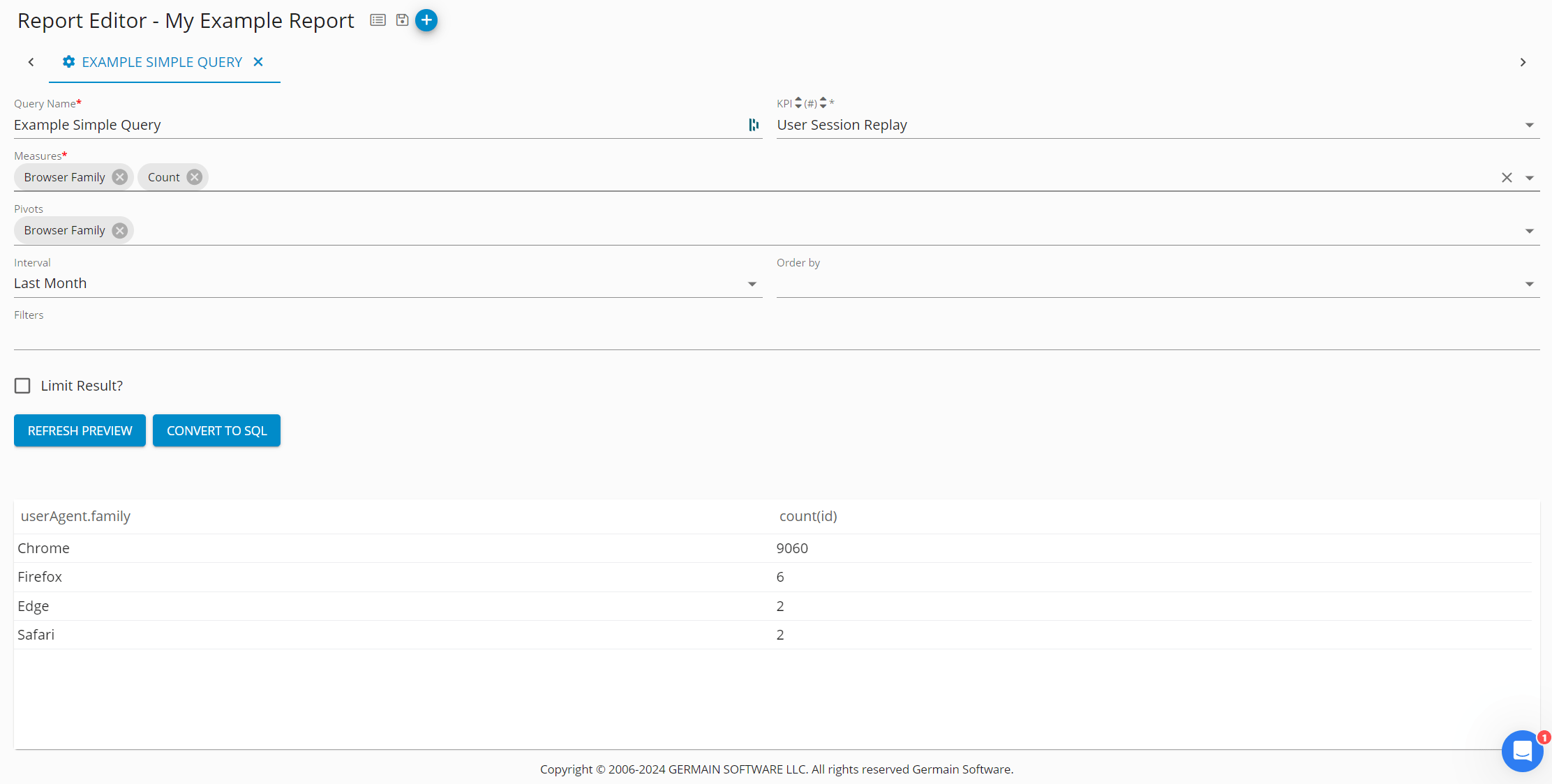
Simple Query editor showing browser family counts with preview results - GermainUX
SQL Query
Use an SQL Query when the report must retrieve data directly from a relational database.- Select the target data source.
- Enter the SQL query.
- Click Refresh Preview to validate the results.
- Click Save.
Remove a Query
To remove a query:- Click the Close icon on its query tab.
- Confirm the removal.

Removing a query from the Report Editor using the Close icon - GermainUX
Configure the Report Template
After configuring and saving the report queries, click the template button in the action panel to define how the results will be presented.
Template button in the Report Editor action panel - GermainUX
Get Help
Contact GermainUX Support
The GermainUX team helps you get up and running faster, empower your team, turn data into actionable insights, and optimize performance to deliver measurable business outcomes.
Can't Find What You Need?
Search all GermainUX docs with Ctrl + K, or use the feedback buttons at the bottom of this page to tell us what is missing.
The content of this document is proprietary to GERMAIN SOFTWARE.