

Prerequisites
Checks before installing
Run Hazelcast as a Windows Service
Install with bundled service files
Production Deployment
Cluster members must match
Troubleshooting
Fix cluster and startup issues
Overview
Hazelcast provides the distributed, real-time data-processing capabilities used internally by GermainUX. It must be installed and available before the GermainUX services that depend on it are started.Supported Version
GermainUX supports Hazelcast5.2.1-slim or later.
Use the Hazelcast version approved for your GermainUX release. Download the appropriate distribution from the Hazelcast download page.
Prerequisites
Before installing Hazelcast, confirm that:- A compatible Java runtime is installed.
- The Hazelcast host is reachable from the applicable GermainUX servers.
- Required ports are allowed through host and network firewalls.
- The service account can access the Hazelcast installation, configuration, and log directories.
- Sufficient memory is available for the Hazelcast JVM.
- All cluster members use compatible configurations and Hazelcast versions.
Install Hazelcast
Extract the Hazelcast archive to the desired installation directory. Example locations: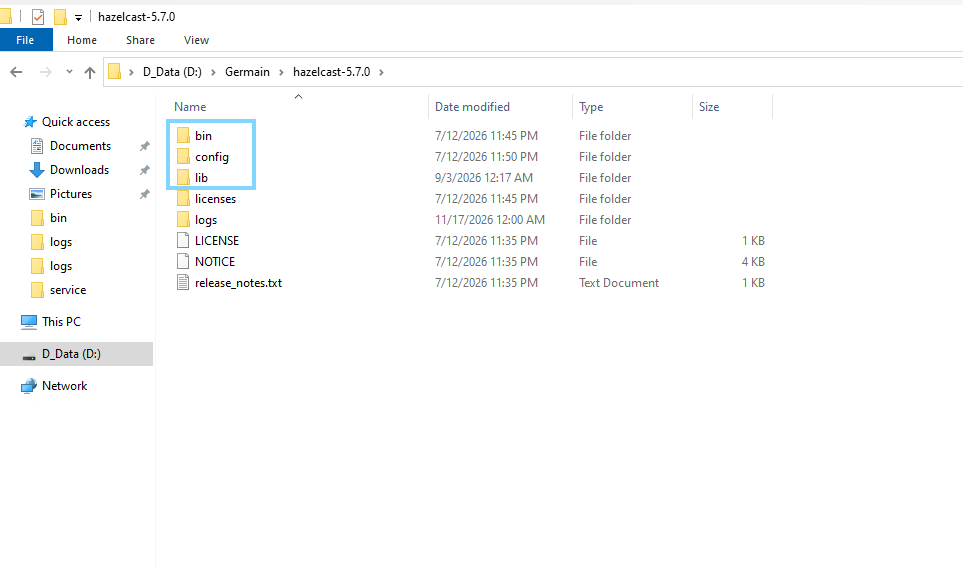
Extracted Hazelcast installation folder
Start Hazelcast Manually
Manual startup is suitable for development, testing, and initial validation. In production, configure Hazelcast as an operating-system service.Linux
Run:Windows
Open Command Prompt and run: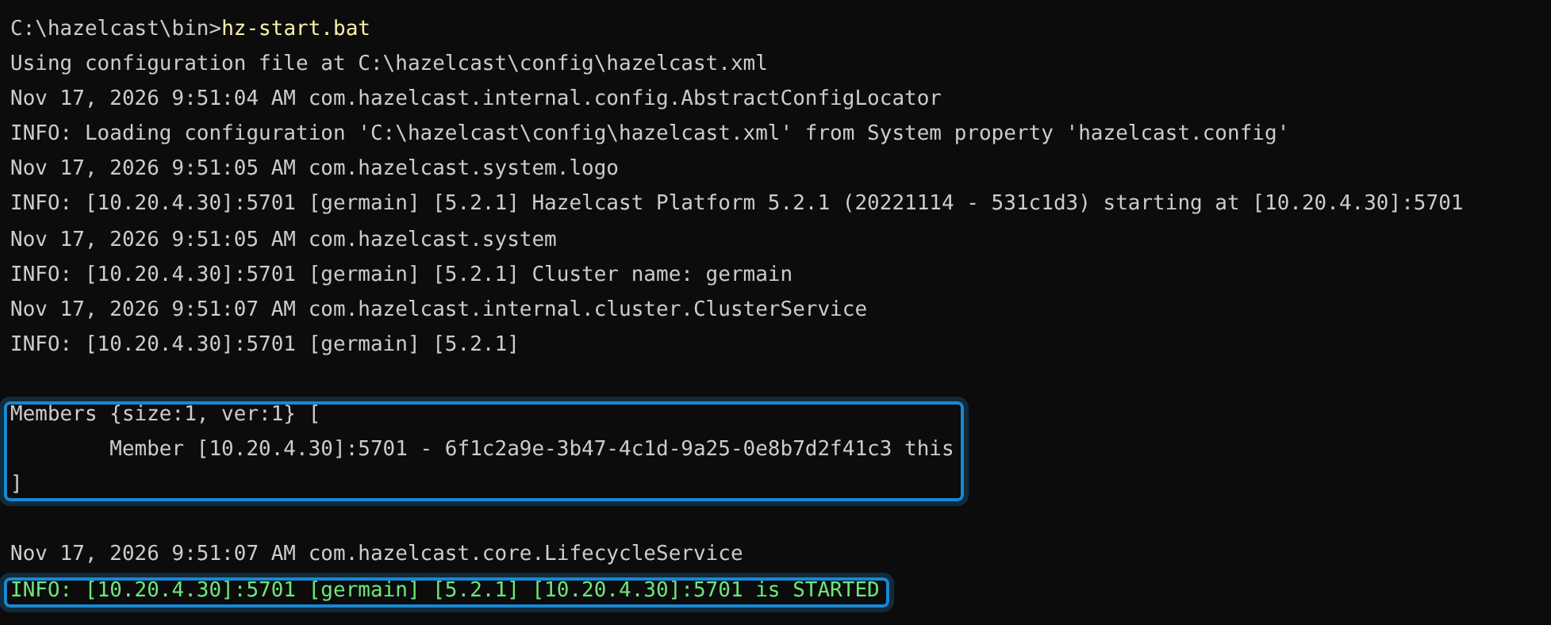
Console output after starting Hazelcast manually on Windows
Run Hazelcast as a Windows Service
GermainUX provides the files required to install Hazelcast as a Windows service.1. Copy the Service Files
Copy the following files from: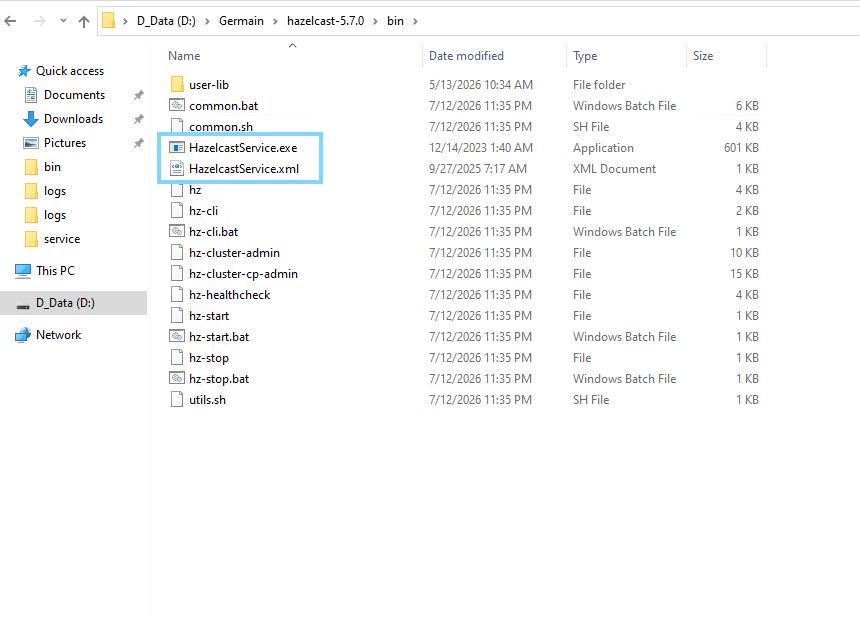
HazelcastService.exe and HazelcastService.xml copied into the Hazelcast bin directory
2. Review the Service Configuration
Before installing the service, reviewHazelcastService.xml and verify:
- The Hazelcast installation path
- The Java executable or Java home
- JVM memory settings
- Startup arguments
- Configuration-file location
- Log-file location
- The Windows service account, when applicable
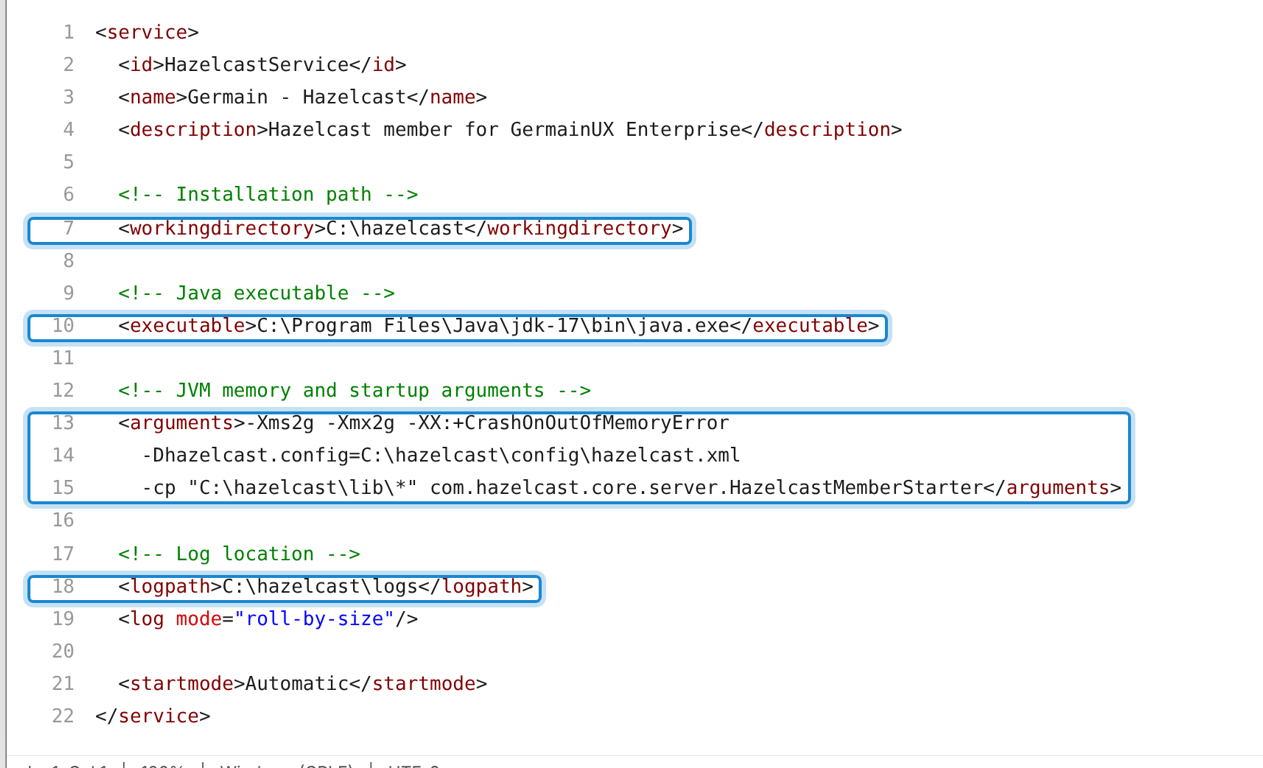
Service settings to review in HazelcastService.xml
3. Install the Service
Open Command Prompt as an administrator, navigate to the Hazelcastbin directory, and run:

Installing the Hazelcast Windows service
4. Start the Service
Start the Hazelcast Windows service using the Windows Services console or your organization’s service-management process. Configure its startup type asAutomatic if Hazelcast must start when Windows starts.
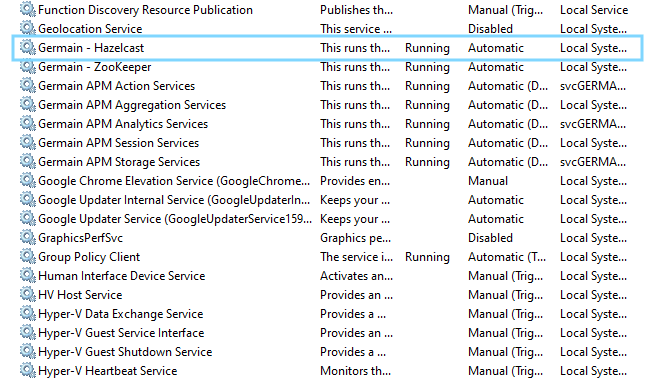
The Germain - Hazelcast service running with the Automatic startup type in the Windows Services console
Production Deployment
For production environments:- Run Hazelcast as an operating-system-managed service.
- Configure automatic startup and controlled restart.
- Allocate appropriate minimum and maximum JVM heap sizes.
- Store configuration and logs in directories accessible to the service account.
- Restrict network access to authorized GermainUX and Hazelcast hosts.
- Monitor JVM memory, CPU, network connectivity, and cluster membership.
- Use consistent Hazelcast versions and configurations across all members.
- Back up configuration files before making changes.
- Cluster name
- Discovery method
- Network configuration
- Security configuration
- GermainUX-required data structures
- Compatible Hazelcast version
Start GermainUX
Use the following startup order:Validate the Installation
After starting Hazelcast, verify that:- The Hazelcast process or Windows service is running.
- The logs contain no startup errors.
- The expected number of cluster members is reported.
- No unexpected Hazelcast instances have joined the cluster.
- The Hazelcast port is listening.
- GermainUX connects without timeout or connection-refused errors.
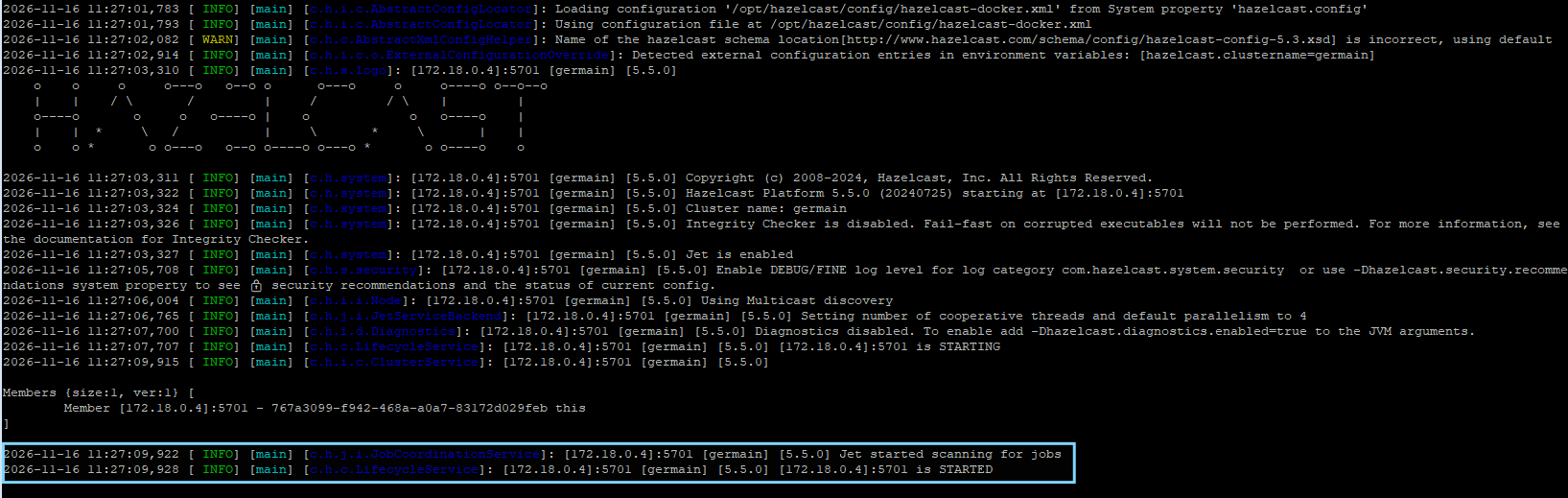
Hazelcast startup log showing the cluster member list and the STARTED status
HazelcastService.xml.
Troubleshooting
Hazelcast Does Not Start
Check for:- Missing or incompatible Java runtime
- Incorrect installation paths
- Invalid configuration
- Insufficient memory
- Port conflicts
- Directory-permission errors
- Incorrect Windows service configuration
GermainUX Cannot Connect
Confirm that:- Hazelcast is running before GermainUX starts.
- The configured hostname resolves correctly.
- The Hazelcast port is reachable from the GermainUX host.
- Firewalls allow the connection.
- GermainUX and Hazelcast use matching cluster and security settings.
- Hazelcast is listening on an externally reachable interface when components run on different hosts.
Cluster Members Do Not Discover One Another
Verify:- All members use the same cluster name.
- The configured discovery mechanism is correct.
- Advertised member addresses are reachable.
- Required ports are open between members.
- Multicast is supported when multicast discovery is used.
- Kubernetes, TCP/IP, or cloud discovery settings are consistent across members.
- No version or configuration mismatch prevents members from joining.
Windows Service Does Not Start
Verify the paths and arguments in:- Can execute Java and Hazelcast
- Can read the configuration files
- Can write to the log directory
- Has permission to run as a service
Get Help
Contact GermainUX Support
The GermainUX team helps you get up and running faster, empower your team, turn data into actionable insights, and optimize performance to deliver measurable business outcomes.
Can't Find What You Need?
Search all GermainUX docs with Ctrl + K, or use the feedback buttons at the bottom of this page to tell us what is missing.
The content of this document is proprietary to GERMAIN SOFTWARE.