

Install the Services on Windows
Configure the Services
Validate the Deployment
Troubleshooting
Overview
GermainUX Services process telemetry in real time to support alerting, analytics, session tracking, data aggregation, storage, insights, and automated actions. This guide explains how to install and configure these services from the GermainUX Service distribution.Prerequisites
Before installing the services, confirm that:- The GermainUX datastore is installed and accessible.
- Germain Enterprise and its required infrastructure components are installed.
- A compatible Java runtime is available.
- The required .NET Framework is installed when deploying the services on Windows.
- The service account can access the installation, configuration, and log directories.
- Required network connections are allowed.
- The GermainUX license has been deployed.
Extract the Service Distribution
Extract the GermainUX Service distribution to the desired installation directory. Example:SERVICES_HOME refers to that directory.
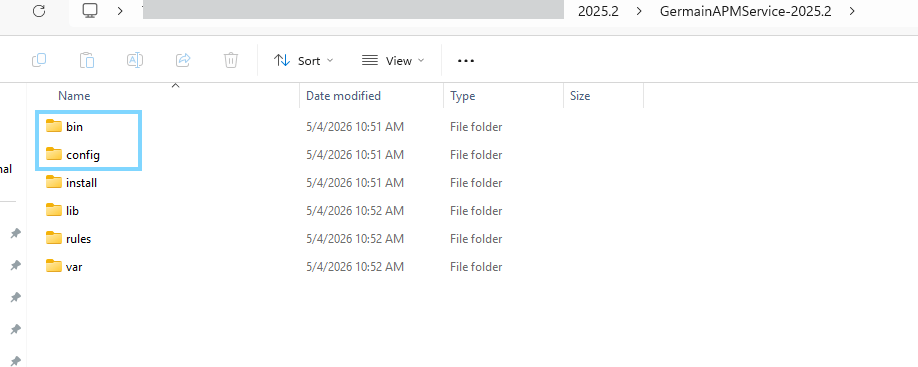
Extracted GermainUX Service distribution in the SERVICES_HOME directory
APM_HOME environment variable, set it to the same location.
Linux
Windows
Set: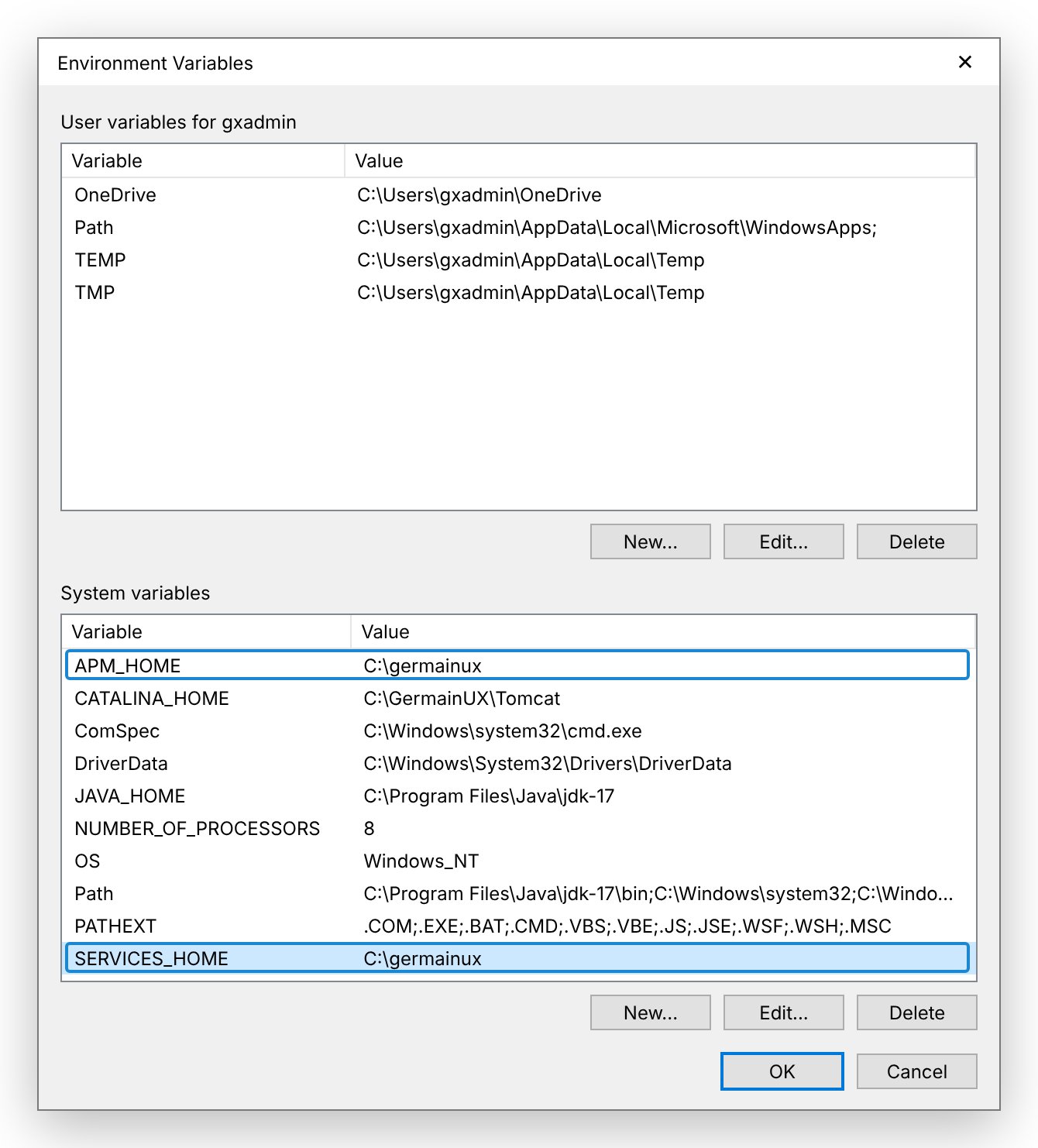
APM_HOME and SERVICES_HOME configured as Windows environment variables
GermainUX Services
The distribution includes the following services: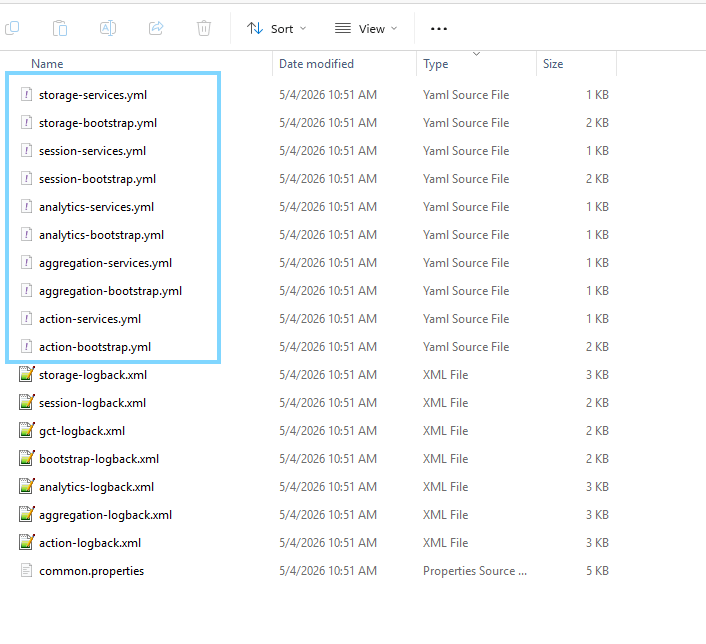
Service YAML configuration files in SERVICES_HOME/config
Install the Services on Windows
The GermainUX Service distribution uses WinSW to install and manage the services on Windows.1. Select the Correct .NET Framework Version
Open: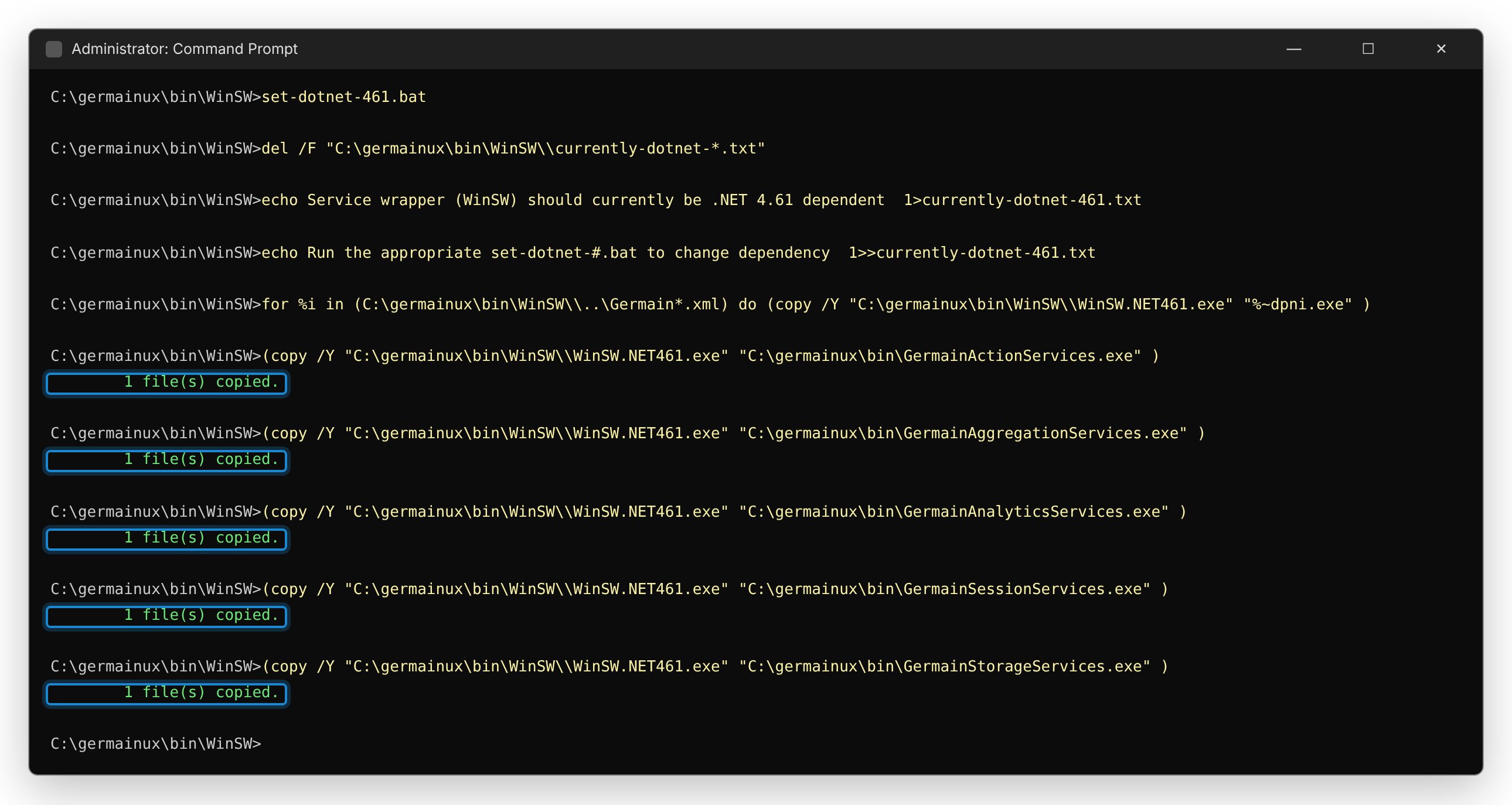
Running the .NET Framework script from SERVICES_HOME\bin\WinSW
2. Review the Service Definitions
TheSERVICES_HOME\bin directory contains an XML definition for each service.
Before installation, verify:
- Java executable or Java home
- Service installation directory
- YAML configuration-file path
- JVM memory settings
- Log directory
- Startup arguments
- Service name and display name
- Windows service account, when applicable
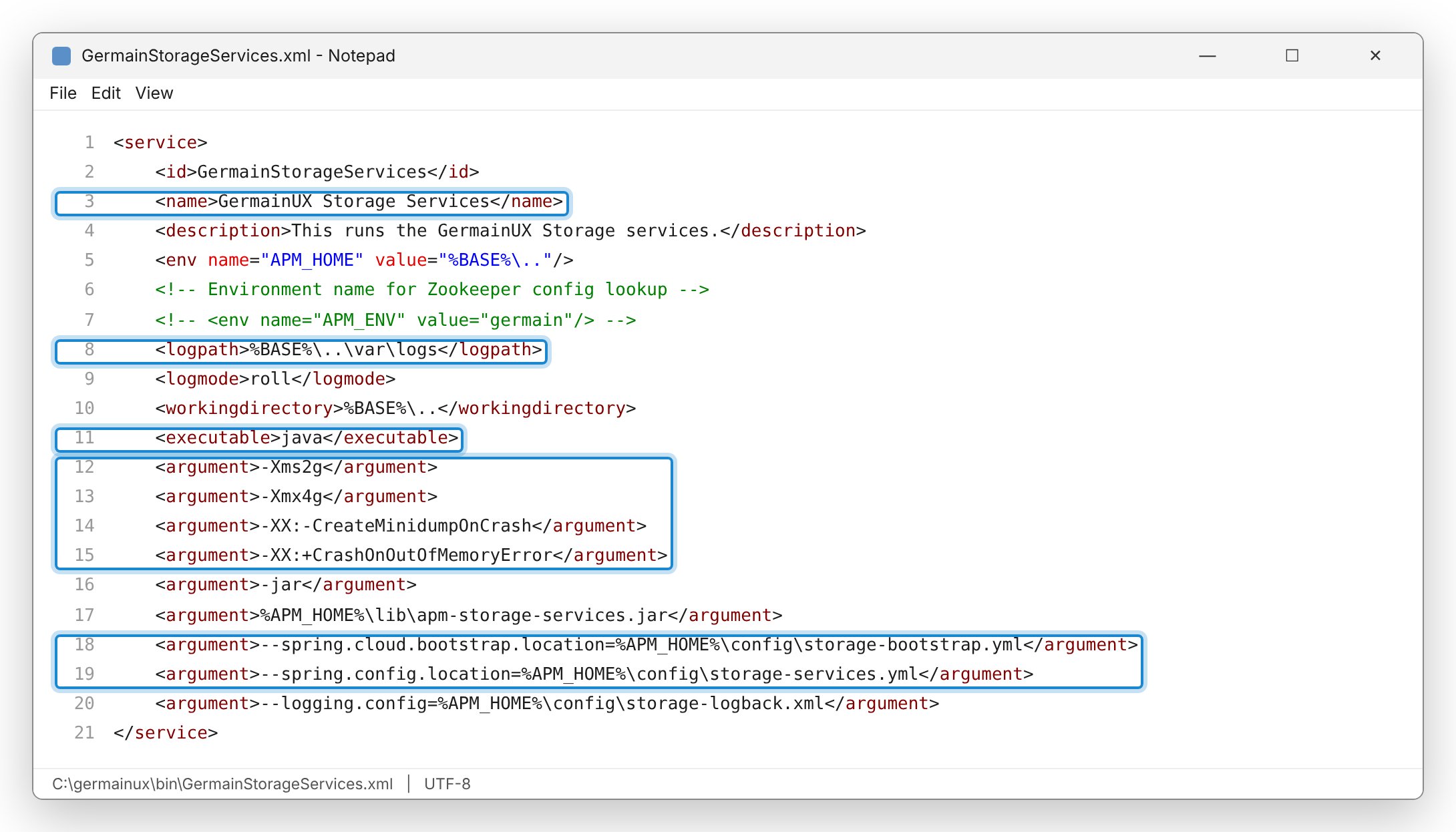
Settings to review in a GermainUX service XML definition
3. Install Each Service
From an administrative Command Prompt, navigate to:<service-name> with the executable name provided for the service.
Repeat the command for every GermainUX service required by the deployment.

Installing a GermainUX service from an administrative Command Prompt
4. Confirm That the Services Were Installed
Open the Windows Services console: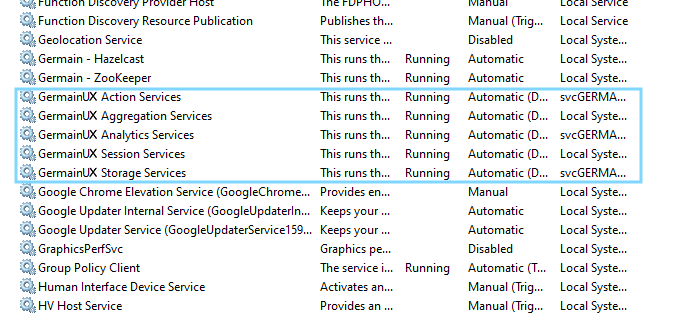
GermainUX services installed and running with the Automatic startup type in the Windows Services console
Configure the Services
Each service is configured through its YAML file under:- ZooKeeper connection
- Kafka or legacy ActiveMQ connection, depending on the GermainUX release
- Hazelcast connection
- Datastore connection
- Environment or configuration-root name
- Network ports and advertised hostnames
- Authentication and TLS settings
- Log level and output directory
- Service-specific processing settings
Configure JVM Memory
Java runtime options, including minimum and maximum heap sizes, can be adjusted in the corresponding service XML file under: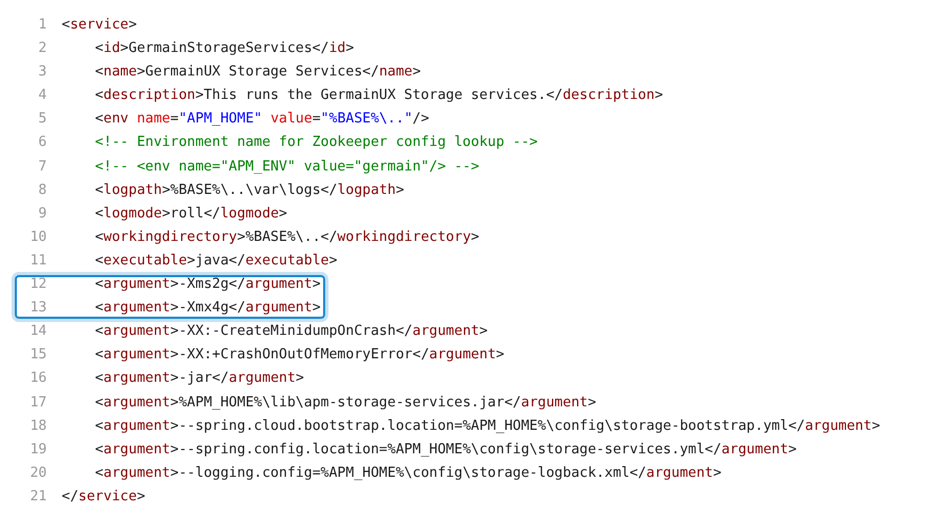
JVM heap settings in a GermainUX service XML definition
Startup Order
Start the GermainUX environment in the following order:Start the datastore
Start ZooKeeper
Start Kafka—or ActiveMQ for legacy GermainUX releases
Start Hazelcast
Start Germain Enterprise on Tomcat
Start the GermainUX services
Start the Germain nodes and other monitoring components
Verify that data is being collected and processed
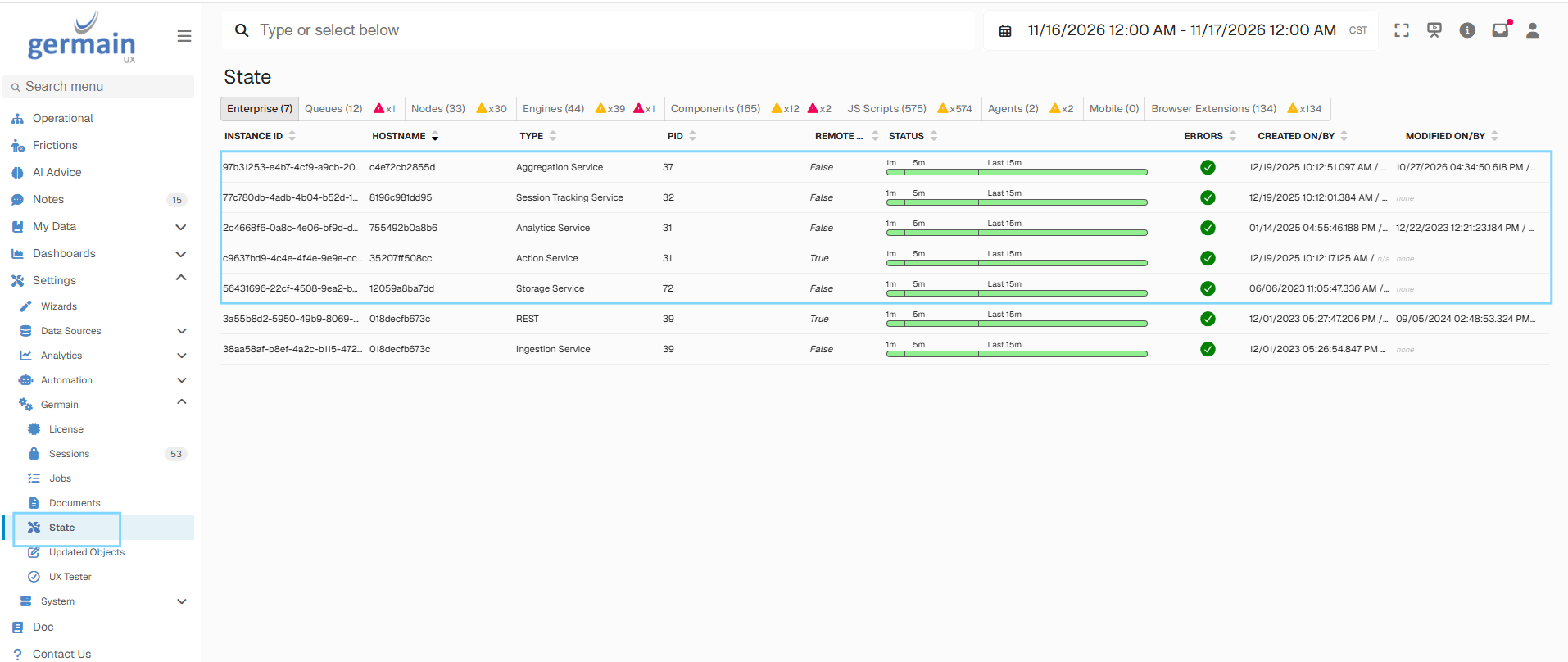
Settings > Germain > State in the GermainUX Workspace, showing the running GermainUX services on the Enterprise tab
Shutdown Order
Use the reverse order when shutting down the environment:Stop monitoring components and Germain nodes
Stop the GermainUX services
Stop Germain Enterprise
Stop Hazelcast
Stop Kafka or legacy ActiveMQ
Stop ZooKeeper
Stop the datastore, when required
Validate the Deployment
After starting the services, confirm that:- Every required Windows service is running.
- No service enters a repeated restart cycle.
- The service logs contain no configuration or connection errors.
- Each service connects to ZooKeeper, Hazelcast, Kafka or ActiveMQ, and the datastore as required.
- Incoming telemetry is stored successfully.
- Real-time metrics and aggregations are generated.
- User sessions are processed.
- Alerts and automated actions execute as expected.
- Data appears in the GermainUX Workspace.
services.msc.
Troubleshooting
A Service Does Not Start
Check for:- Missing or incompatible Java or .NET Framework
- Incorrect paths in the service XML definition
- Invalid YAML syntax
- Insufficient JVM memory
- A port conflict
- Incorrect file permissions
- An unavailable infrastructure dependency
- An invalid service account or password
A Service Starts and Then Stops
This usually indicates an application-level startup failure. Verify:- Configuration-file paths
- YAML formatting
- ZooKeeper configuration root
- Datastore connectivity
- Kafka or ActiveMQ connectivity
- Hazelcast availability
- Authentication credentials
- TLS certificates and truststores
Configuration Changes Are Not Applied
After changing a YAML file or service XML definition:Confirm that you edited the file used by the installed service
Validate the YAML syntax
Restart the affected service
Review the startup log to confirm that the expected configuration was loaded
A Service Cannot Write Logs
Confirm that:- The log directory exists.
- The Windows service account has write permission.
- The disk has sufficient free space.
- Antivirus or endpoint-security software is not blocking file creation.
- Log rotation is configured to prevent unbounded disk usage.
Next Step
After all required services are installed and running, initialize the GermainUX configuration using the GermainUX Initial Configuration procedure.Get Help
Contact GermainUX Support
Can't Find What You Need?
The content of this document is proprietary to GERMAIN SOFTWARE.