

Deploy a Synthetic Scenario
Single app or at scale
Deploy with the Wizard
Set target app and browser
Deploy at Scale with a Profile
Reuse across many environments
Validate the Deployment
Confirm scenario runs
Deploy a Synthetic Scenario
A GermainUX synthetic scenario can be deployed to one web application or reused across thousands of applications and environments. Choose the deployment method according to the required scale:Deploy with the Wizard
After recording or importing the scenario:- In the left menu, go to Settings > Wizards.
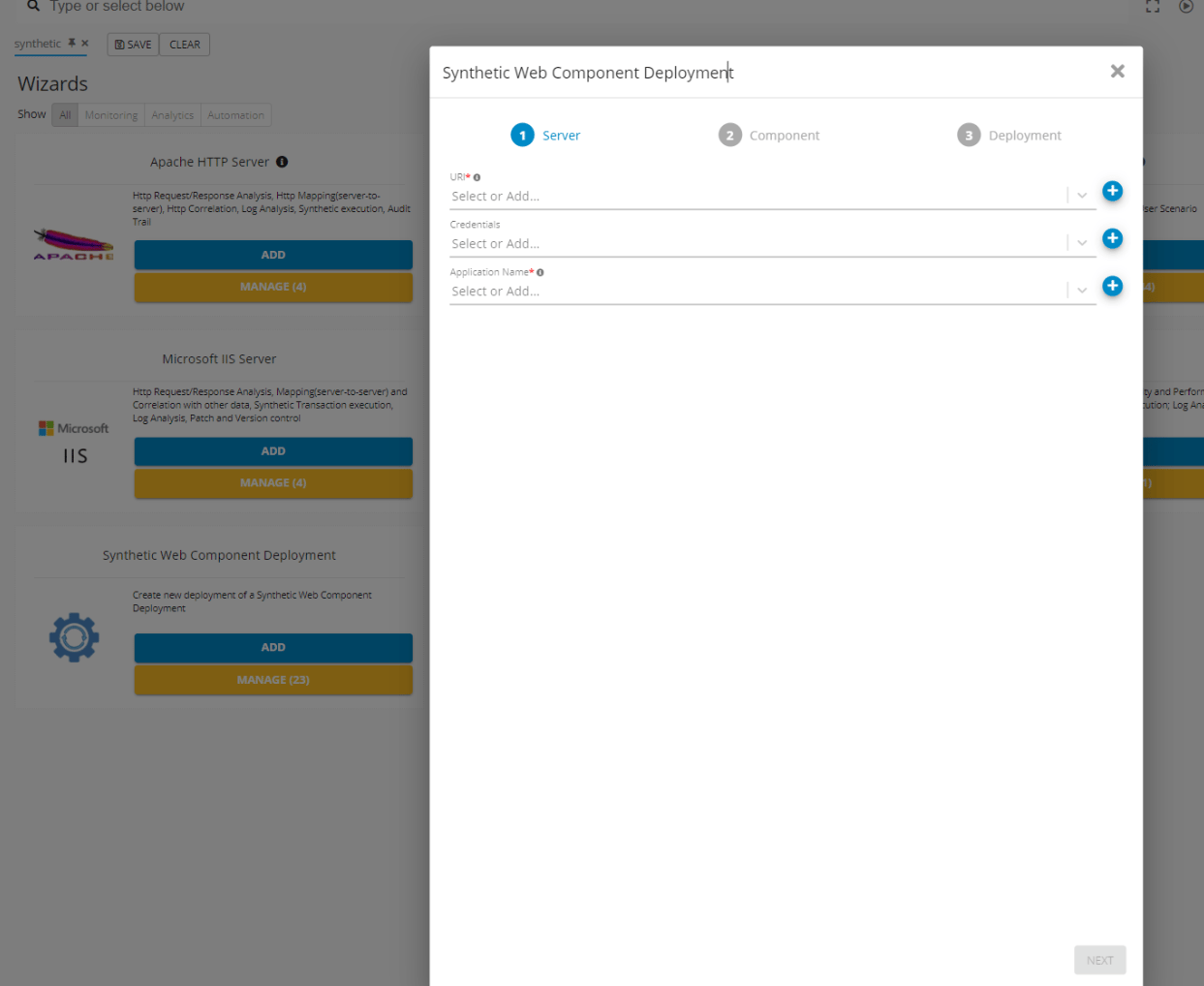
Synthetic Wizard - GermainUX
- Open Synthetic Web Component Deployment.
- Select the synthetic scenario.
- Configure the target application and browser.
- Configure the WebDriver path when required.
- Select the target component.
- Select the GermainUX Engine that will execute the scenario.
- Configure the execution schedule.
- Review the settings and finish the deployment.
Deploy Within a Component
The Synthetic Web Component contains the scenario’s execution configuration, including:- Scenario or script
- Target application
- Browser
- WebDriver
- SLA threshold
- Schedule
- Runtime settings
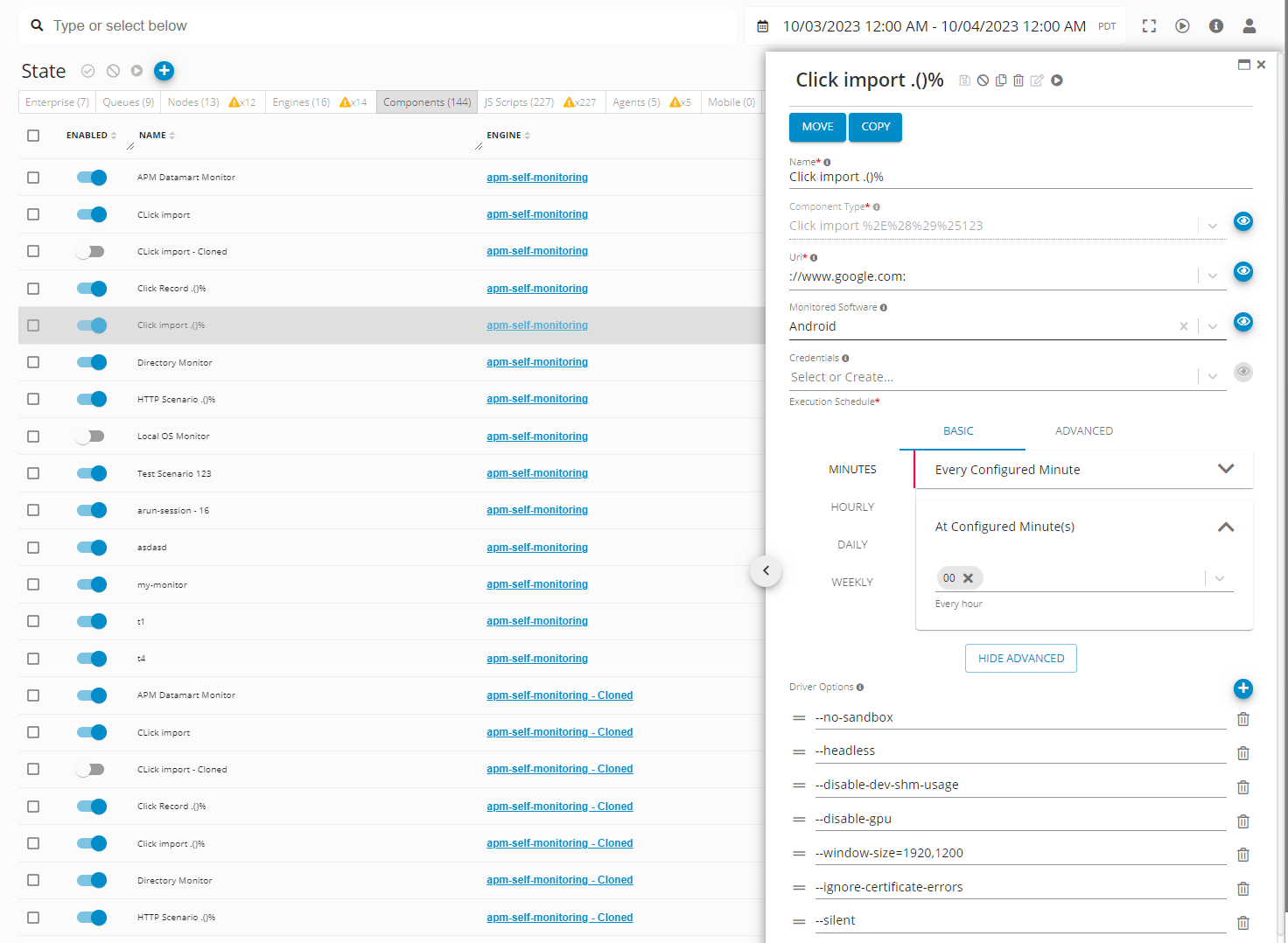
Synthetic Web Component configuration panel - GermainUX
Deploy Within an Engine
The GermainUX Engine executes the deployed Synthetic Web Component.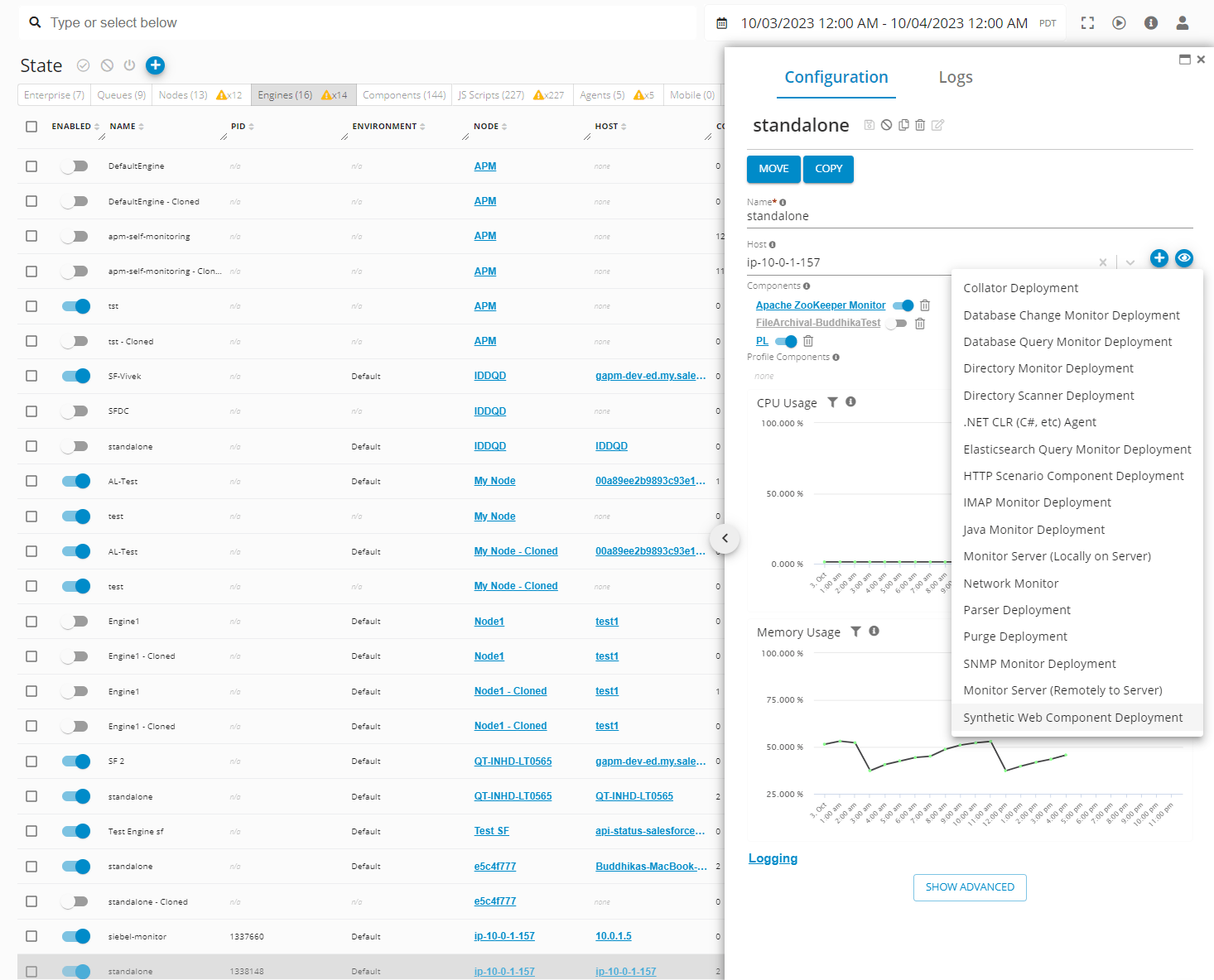
Engine selection for synthetic scenario execution - GermainUX
- Can reach the target application.
- Has the required browser and compatible WebDriver.
- Has the necessary network and application permissions.
- Has sufficient capacity to run the configured schedule.
- Runs from the geographic or network location you want to test.
Deploy at Scale with a Profile
Profiles can standardize the deployment of synthetic scenarios across many applications, environments, Monitoring Nodes, or Engines. A profile-based deployment is appropriate when you need to:- Apply the same scenario to many applications.
- Maintain common browser and runtime settings.
- Standardize schedules and SLA thresholds.
- Update deployments centrally.
- Manage large numbers of synthetic components consistently.
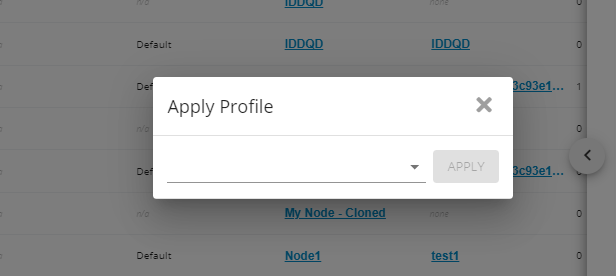
Apply Profile dialog for scaling deployments - GermainUX
Validate the Deployment
After deployment:- Run the scenario manually.
- Confirm that the selected Engine executes it.
- Verify that the scenario reaches the target application.
- Review its duration, steps, screenshots, video, and errors.
- Confirm that SLA evaluation and alerts work as expected.
- Enable or retain the recurring schedule after successful validation.
Get Help
Contact GermainUX Support
The GermainUX team helps you get up and running faster, empower your team, turn data into actionable insights, and optimize performance to deliver measurable business outcomes.
Can't Find What You Need?
Search all GermainUX docs with Ctrl + K, or use the feedback buttons at the bottom of this page to tell us what is missing.
The content of this document is proprietary to GERMAIN SOFTWARE.