

Firefox in Headless Mode
Run Firefox without a display
Google Chrome in Headless Mode
Run Chrome without a display
Microsoft Edge in Headless Mode
Run Edge without a display
Legacy Internet Explorer Configuration
Visible desktop session required
Configure Browsers for Synthetic Scenarios
GermainUX synthetic scenarios can run with Firefox, Google Chrome, or Microsoft Edge in headless mode. Legacy Internet Explorer scenarios require a visible Windows desktop session and a dedicated configuration. Before deployment, confirm that:- The browser is installed on the GermainUX Engine host.
- The corresponding WebDriver is available.
- The browser and WebDriver versions are compatible.
- The Engine account can execute both the browser and driver.
- The synthetic scenario is configured to use the correct browser, driver, Monitoring Node, and Engine.
Firefox in Headless Mode
Install Firefox
Install the current stable Firefox release using the package-management process approved for your Linux distribution.Ubuntu
Install GeckoDriver
Download a GeckoDriver release compatible with the installed Firefox version: After downloading the correct Linux archive:<VERSION> with the selected GeckoDriver version.
Configure the Scenario
In the GermainUX synthetic scenario:- Select Firefox as the browser.
- Enable headless execution.
- Set the driver path when required:
/usr/local/bin/geckodriver. - Select the Monitoring Node and Engine.
- Test the scenario manually before enabling its schedule.
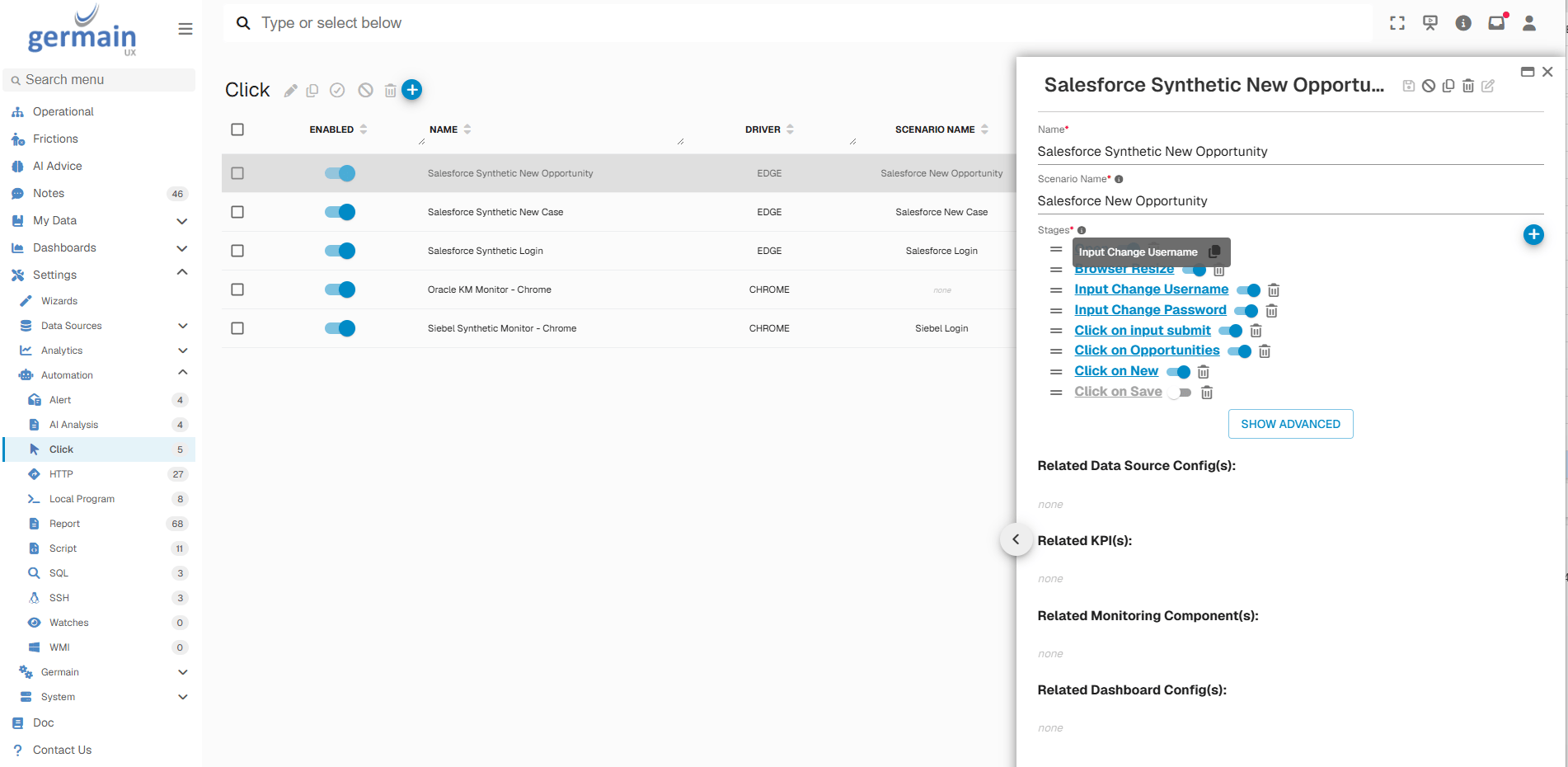
Click automation settings showing scenario stages - GermainUX
Google Chrome in Headless Mode
Install Google Chrome
Install the current stable Chrome release using Google’s supported Linux package. For Debian- or Ubuntu-based systems, download the current.deb package and install it using the organization’s approved package-management process.
Verify the installation:
Install ChromeDriver
For Chrome 115 and later, Chrome and ChromeDriver releases are distributed through Chrome for Testing. Select a ChromeDriver version compatible with the installed Chrome version. See ChromeDriver version selection and Chrome for Testing availability. After downloading the correct Linux archive:Configure the Scenario
In the GermainUX synthetic scenario:- Select Chrome as the browser.
- Enable headless execution.
- Set the driver path when required:
/usr/local/bin/chromedriver. - Select the Monitoring Node and Engine.
- Test the scenario manually before enabling its schedule.
Microsoft Edge in Headless Mode
Install Microsoft Edge
Install the current stable Microsoft Edge release using Microsoft’s supported Linux repository or installation package. Verify the installation:Install Edge WebDriver
Download Microsoft Edge WebDriver from the official Edge WebDriver page. The first three components of the Edge WebDriver version must match the installed Microsoft Edge version. See Microsoft Edge WebDriver documentation. After downloading the appropriate Linux archive:Configure the Scenario
In the GermainUX synthetic scenario:- Select Microsoft Edge as the browser.
- Enable headless execution.
- Set the driver path when required:
/usr/local/bin/msedgedriver. - Select the Monitoring Node and Engine.
- Test the scenario manually before enabling its schedule.
Legacy Internet Explorer Configuration
Internet Explorer does not support headless execution. It requires a visible Windows desktop session and should be used only for supported legacy applications.Prerequisites
Configure the Dedicated Engine
Configure the Engine using the standard Engine setup procedure, but dedicate the instance to Internet Explorer synthetic monitoring. Set a unique node name ingermain-bootstrap.properties:
Configure a Different Engine Manager Port
- Go to Settings > Germain > State.
- Select the applicable Engine Manager or Monitoring Node.
- Update State Store URL to reference the new port.
- Update State Store Server Port with the same unused port.
- Save the configuration and restart the applicable component.
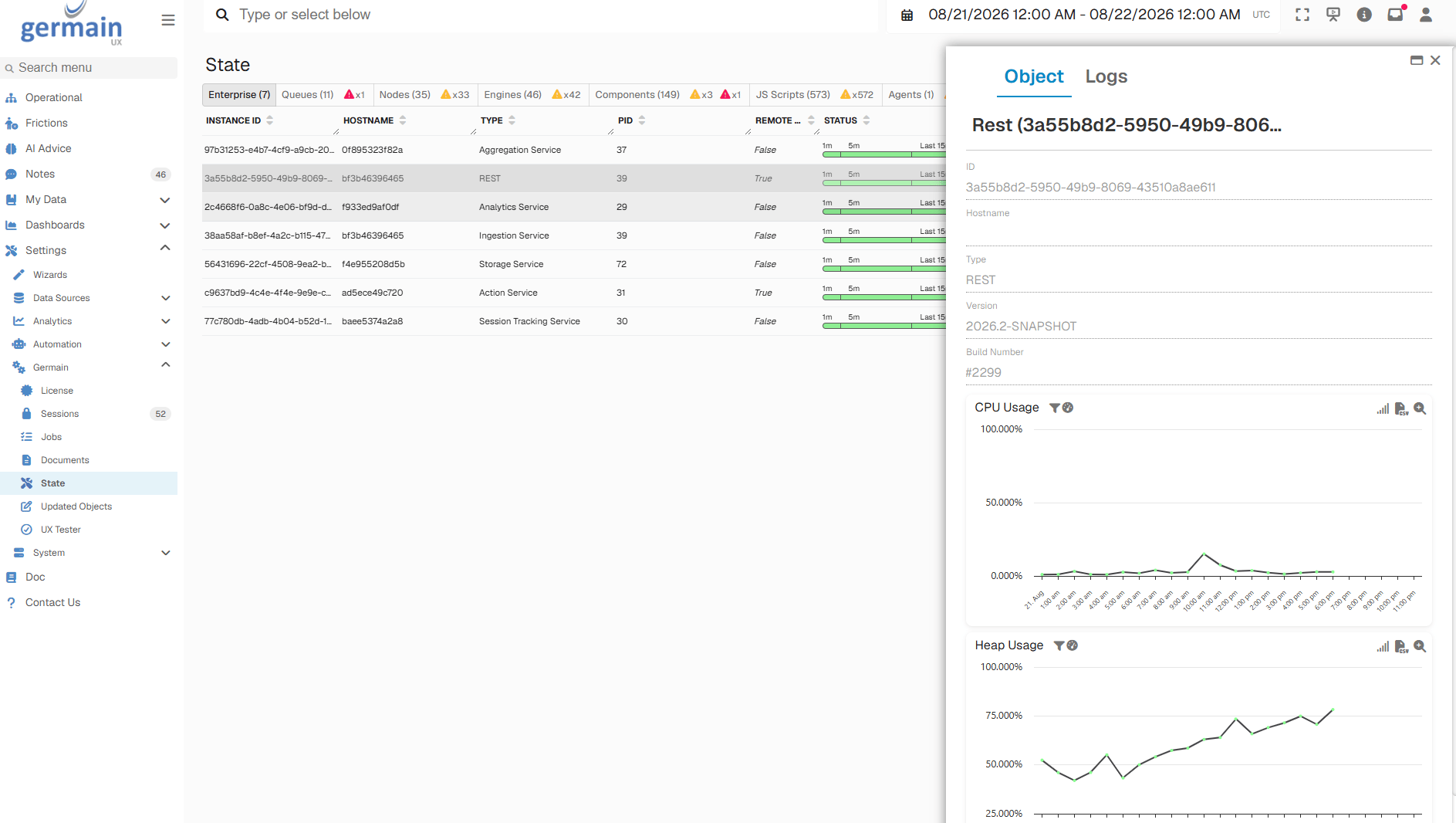
Platform State view showing Engine and component status - GermainUX
Validate the Browser Configuration
Before scheduling the scenario:- Run the browser-version command.
- Run the WebDriver-version command.
- Confirm that the Engine account can execute both.
- Run the scenario manually.
- Confirm that it completes successfully.
- Review its screenshots, video, events, duration, and errors.
- Enable the recurring schedule only after validation.
Get Help
Contact GermainUX Support
The GermainUX team helps you get up and running faster, empower your team, turn data into actionable insights, and optimize performance to deliver measurable business outcomes.
Can't Find What You Need?
Search all GermainUX docs with Ctrl + K, or use the feedback buttons at the bottom of this page to tell us what is missing.
The content of this document is proprietary to GERMAIN SOFTWARE.