

Before You Begin
Define the rule goal
Validate the Rule
Catch syntax errors early
Test the Rule
Verify before production release
Security
Limit rule permissions
Creating and Configuring Rules for GermainUX Automation
Overview
Rules provide an advanced way to customize GermainUX Automation using custom logic. A Rule can analyze and transform data, detect conditions, generate insights or events, trigger automated actions, process action results, and determine what should happen next. This page explains how to create, configure, test, and deploy a Rule.Before You Begin
Before creating a Rule, determine what you want it to accomplish. For example:Automation
- Determine when an action should occur
- Apply custom decision logic
- Trigger an automated action
- Execute a command or script
- Analyze the result of an action
- Determine the next action or escalation
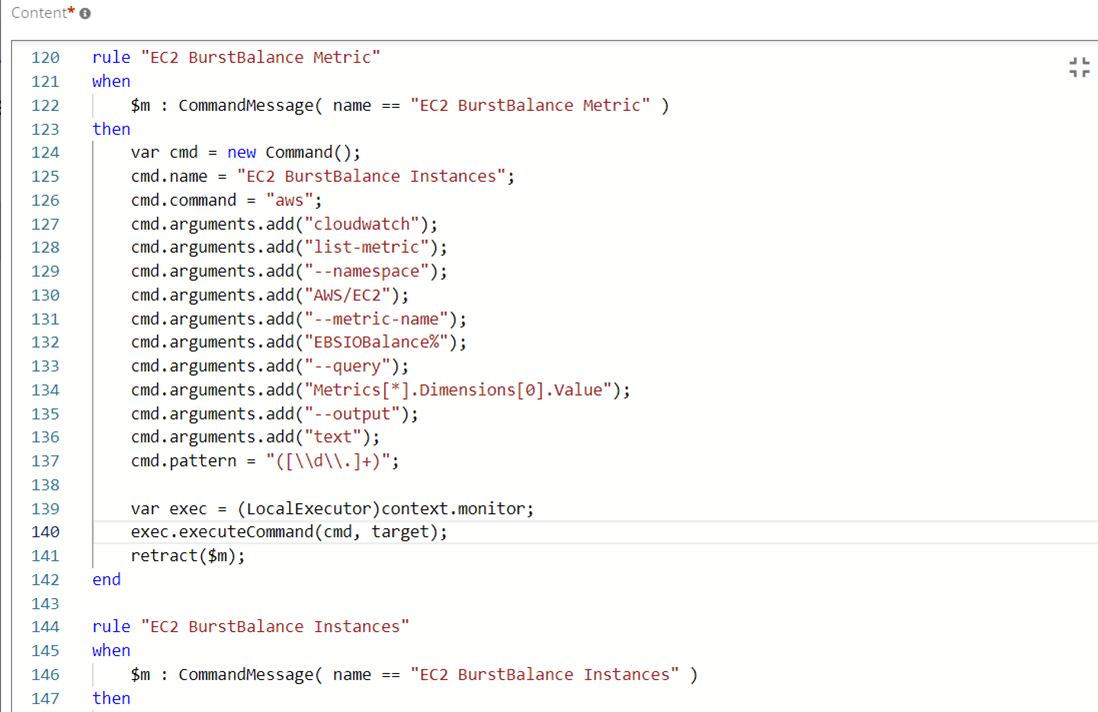
MVEL automation rule logic for EC2 BurstBalance - GermainUX
Create a Rule
In the left menu, go to Settings > Analytics > Rules. Click + to create a Rule. Or start the rule creation from the Wizard page: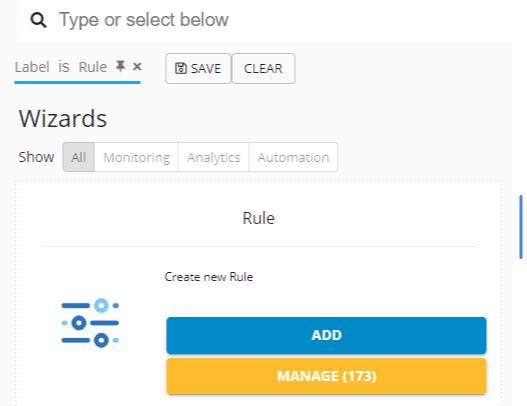
Wizards page with Rule creation option - GermainUX
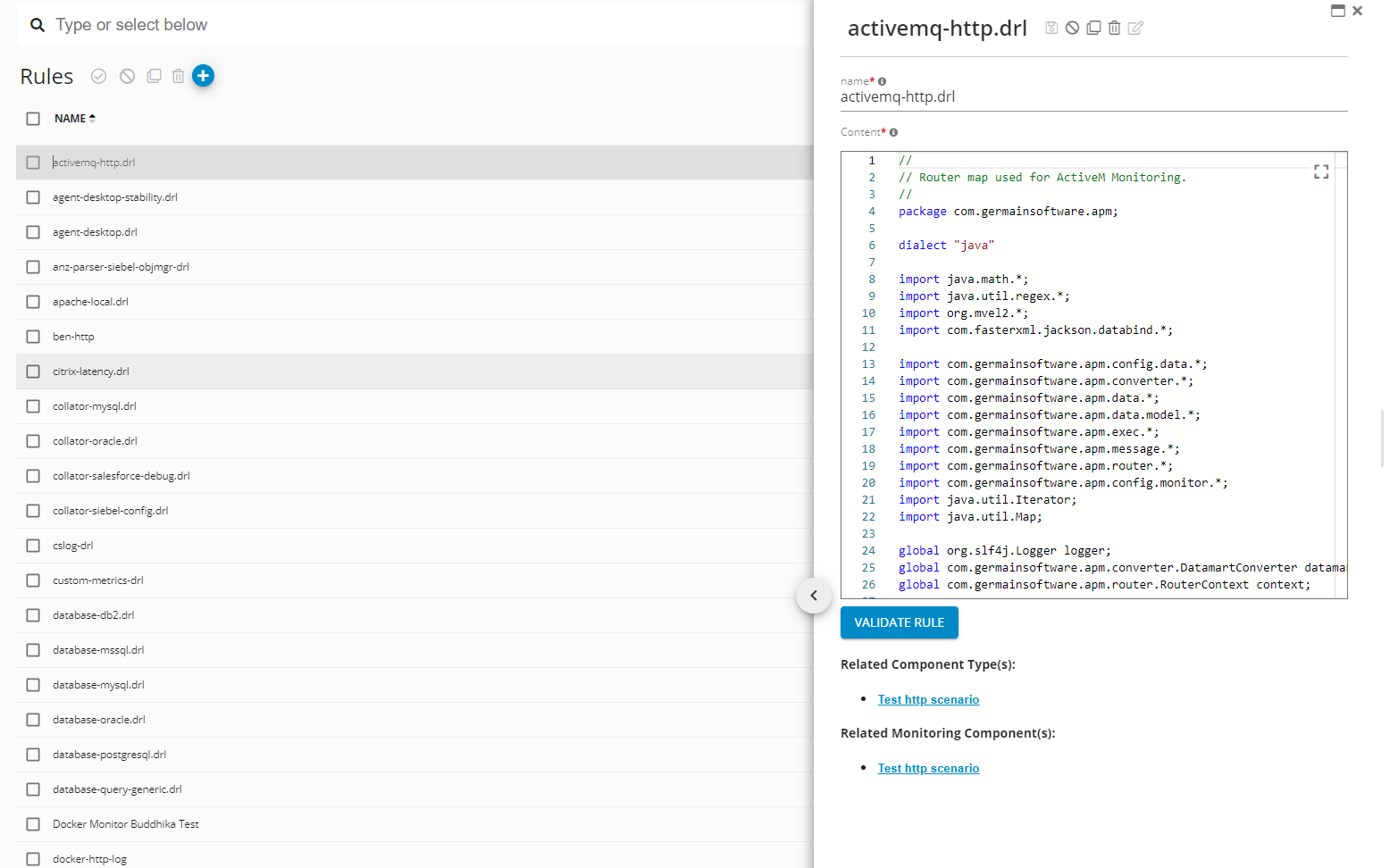
Rules list with activemq-http.drl editor open - GermainUX
Configure the Rule
Name
Enter a unique and descriptive name that identifies the purpose of the Rule. For example: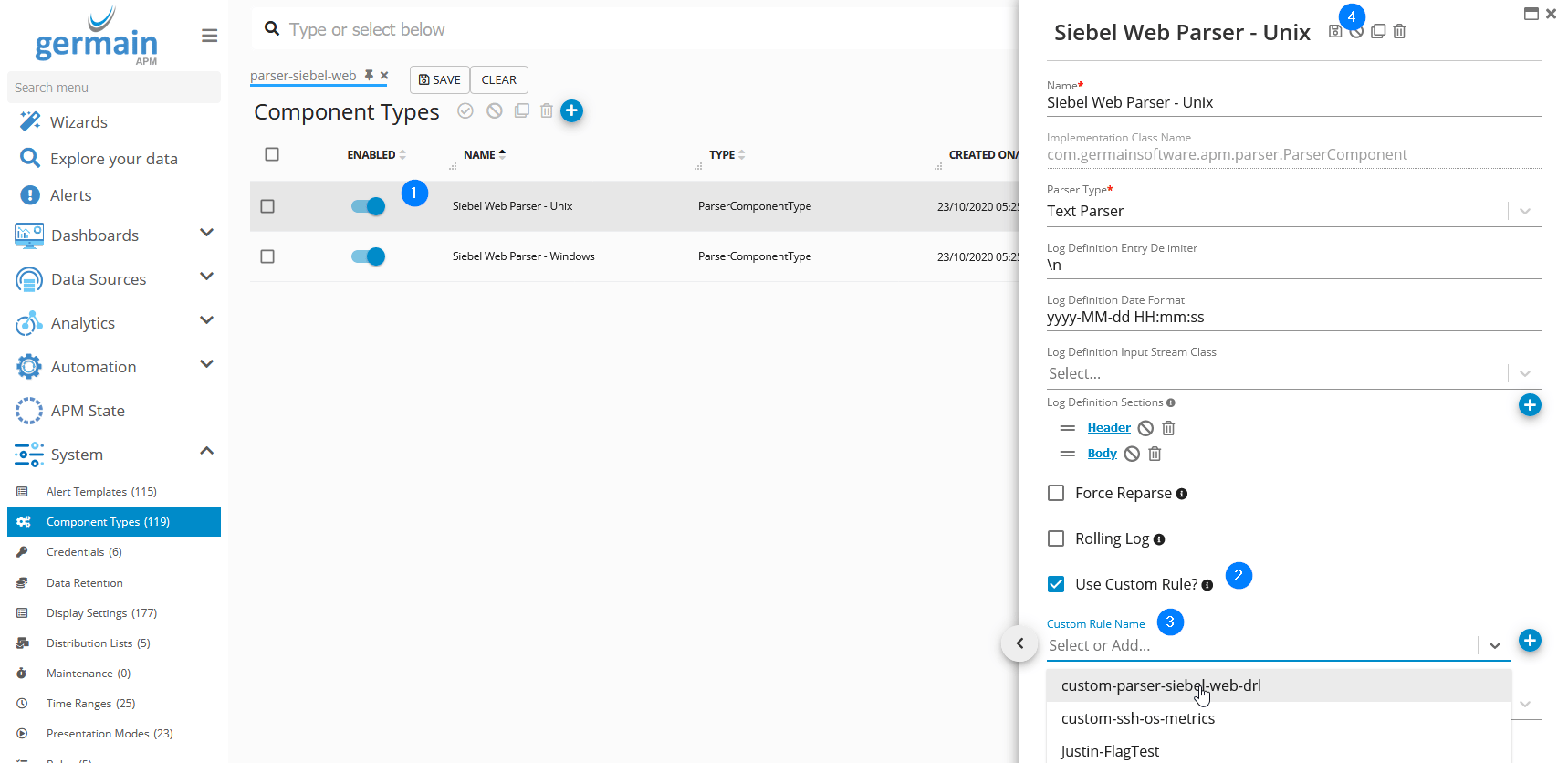
Component Types page with custom rule assignment - GermainUX
Rule Logic
Add the logic that GermainUX should execute. Rules can evaluate monitored data and context to determine:- What data should be analyzed
- Which conditions should be detected
- How data should be categorized or transformed
- Whether an event or insight should be generated
- Whether an automated action should be triggered
- How the result of an action should be processed
- What should happen next
Validate the Rule
After configuring or modifying the Rule, click Validate. Validation helps identify syntax and configuration issues before the Rule is used. Resolve any reported issues and validate again until the Rule is valid. Then save the configuration.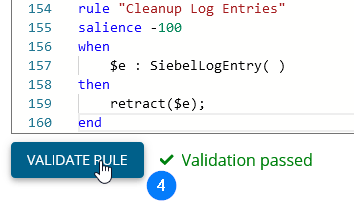
Rule validation passed with green checkmark - GermainUX
Assign the Rule
After the Rule has been created and validated, assign it to the GermainUX configuration or component where the custom logic should execute. Depending on the use case, the Rule may be associated with:- Monitoring configuration
- Analytics
- Data processing
- An automated action
- A technology-specific component
Test the Rule
Test custom Rules in a non-production environment before enabling them in production. Verify that:- The Rule receives the expected data
- Conditions are detected correctly
- Data is analyzed or transformed as expected
- Generated events or insights are correct
- Automated actions occur only under the intended conditions
- Action results are processed correctly
- Unexpected data does not trigger unintended behavior
Monitor the Rule
After deploying the Rule, verify its behavior using the applicable GermainUX analytics, events, logs, dashboards, or automation results. Confirm that the Rule:- Executes when expected.
- Produces the expected analytical result or action.
- Does not generate unnecessary events or actions.
- Handles unexpected conditions appropriately.
- Continues to behave as expected as monitored applications and data change.
Modify a Rule
To modify an existing Rule:- Go to Settings > Analytics > Rules
- Select the Rule
- Modify the configuration or logic
- Click Validate
- Resolve any validation issues
- Save the Rule
- Test the updated behavior before broad production use
Security
Rules can perform powerful analytical and automation operations. When configuring Rules:- Use the minimum permissions required.
- Secure credentials and sensitive information.
- Validate external inputs before using them in commands or actions.
- Limit the scope of automated actions.
- Avoid including sensitive information directly in Rule logic.
- Test potentially impactful actions in a non-production environment.
- Follow your organization’s security, privacy, approval, and change-management requirements.
Related Documentation
Get Help
Contact GermainUX Support
The GermainUX team helps you get up and running faster, empower your team, turn data into actionable insights, and optimize performance to deliver measurable business outcomes.
Can't Find What You Need?
Search all GermainUX docs with Ctrl + K, or use the feedback buttons at the bottom of this page to tell us what is missing.
The content of this document is proprietary to GERMAIN SOFTWARE.