

Request Access
Submit a login access request
Approve an Access Request
Review, approve and assign roles
Review Request History
Audit past access requests
Recommended Practices
Guidance for access approvals
Overview
GermainUX allows prospective users to request access to the Germain Workspace. Administrators can review each request, assign the appropriate Roles and Teams, and then approve or reject it.This Workflow Helps Organizations:
Request Access
From the GermainUX login page:- Click Request Access.
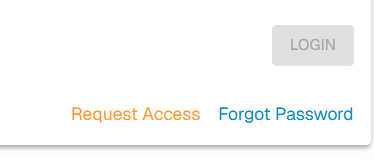
- Enter the required user information.
- Submit the request.
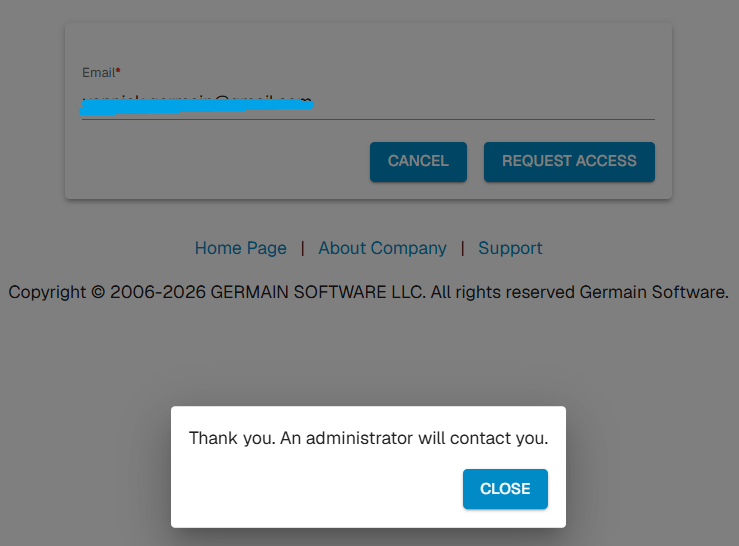
- Wait for an administrator to review it.
Review Access Requests
Administrators can review pending requests from the Germain Workspace. In the left menu, go to Settings > System > Auth Settings > User Access Requests.
- Requester’s identity and email address
- Date and time of the request
- Requested access
- Current request status
- Any additional information provided by the requester
Approve an Access Request
To approve a request:1
Go to Settings > System > Auth Settings > User Access Requests
2
Select the pending request
3
Review the requester’s information
4
Assign the appropriate Roles
5
Assign the user to the appropriate Teams
6
Click Approve
Assign only the Roles and Teams required for the user’s responsibilities.
Reject an Access Request
To reject a request:1
Go to Settings > System > Auth Settings > User Access Requests
2
Select the pending request
3
Review the requester’s information
4
Click Reject
5
Enter a reason when required
6
Confirm the rejection
- The requester’s identity cannot be verified
- Access is not authorized
- The request is incomplete
- The requested permissions exceed the user’s responsibilities
- The request was submitted accidentally or more than once
Review Request History
The access-request list provides a record of submitted requests and their status. Depending on the available filters, administrators can review:- Pending requests
- Approved requests
- Rejected requests
- Requesters
- Reviewers
- Submission and decision dates
Manage an Approved User
After approving a request, manage the account from Settings > System > Auth Settings > Users. From the Users page, an administrator can:- Update assigned Roles
- Update Team memberships
- Reset the user’s password
- Enable or disable the account
- Remove access when it is no longer required
Recommended Practices
- Verify each requester before granting access.
- Apply the principle of least privilege.
- Assign Teams according to data-visibility requirements.
- Avoid granting administrative Roles unless necessary.
- Document the reason for rejected requests.
- Periodically review approved users, Roles, and Team memberships.
- Disable or remove accounts that no longer require access.
Get Help
Contact GermainUX Support
The GermainUX team helps you get up and running faster, empower your team, turn data into actionable insights, and optimize performance to deliver measurable business outcomes.
Can't Find What You Need?
Search all GermainUX docs with Ctrl + K, or use the feedback buttons at the bottom of this page to tell us what is missing.
The content of this document is proprietary to GERMAIN SOFTWARE.