

Manage the Engine Manager on Linux
Control Engine Manager service
Manage Individual Engines
Enable or disable Engines
Validate the Configuration
Confirm settings took effect
Troubleshooting
Resolve Engine config issues
Overview
The GermainUX Engine Manager controls all Engine instances deployed on the same host. Administrators can manage the Engine Manager at the operating-system level and control individual Engines centrally through the GermainUX Workspace. This page explains the day-to-day management of the Engine Manager and its Engines. Memory and proxy settings are covered in their dedicated guides.Engine Manager and Engine
A host normally runs one Engine Manager and one or more Engines. Stopping the Engine Manager also affects its managed Engines.
Manage the Engine Manager on Windows
On Windows, the Engine Manager runs as a system service. To manage it:- Open the Windows Services console:
services.msc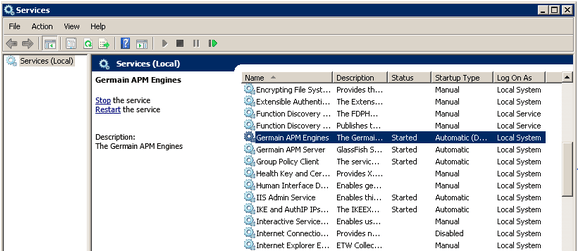
The Engine Manager service in the Windows Services console, with Stop and Restart controls
- Find the GermainUX Engine Manager service.
- Use the available controls to start, stop, or restart it.
- Confirm that its status changes to Running after startup.
Manage the Engine Manager on Linux
Start the Engine Manager Manually
FromENGINE_HOME, run:
systemd or another operating-system service manager.
Find the Engine Manager Process
Stop the Engine Manager
Send a standard termination signal to the identified process:Do not use
kill -9 for a routine shutdown. A forced termination prevents the Engine Manager from stopping its managed Engines cleanly and may leave separate Engine processes running.Review the Engine Manager Log
The primary Engine Manager log is:- Connection to Germain Enterprise
- Node registration
- Authorization status
- Configuration retrieval
- Engine startup and shutdown
- Heartbeats
- Proxy or network errors
- Java and memory errors
- Component startup failures
- Local state-store errors
Authorize an Engine Manager
A newly installed Engine Manager may appear in GermainUX but remain unable to retrieve its configuration until authorized. In the GermainUX Workspace:1
Go to Settings > Germain > State
2
Select Nodes
3
Find the Engine Manager
4
Select the lock in the Sessions column
5
Confirm the authorization
EngineManager.log and confirm that the Manager retrieves its configuration and starts its Engines.
Manage Individual Engines
Individual Engines can be enabled or disabled without disabling every Engine managed by the same Engine Manager. In the GermainUX Workspace:- Sign in as an administrator.
- In the left menu, go to Settings > Germain > State.
- Select the Engines view.
- Search for the Engine by name or browse the list.
- Select the Engine.
- Change its status to enabled or disabled.
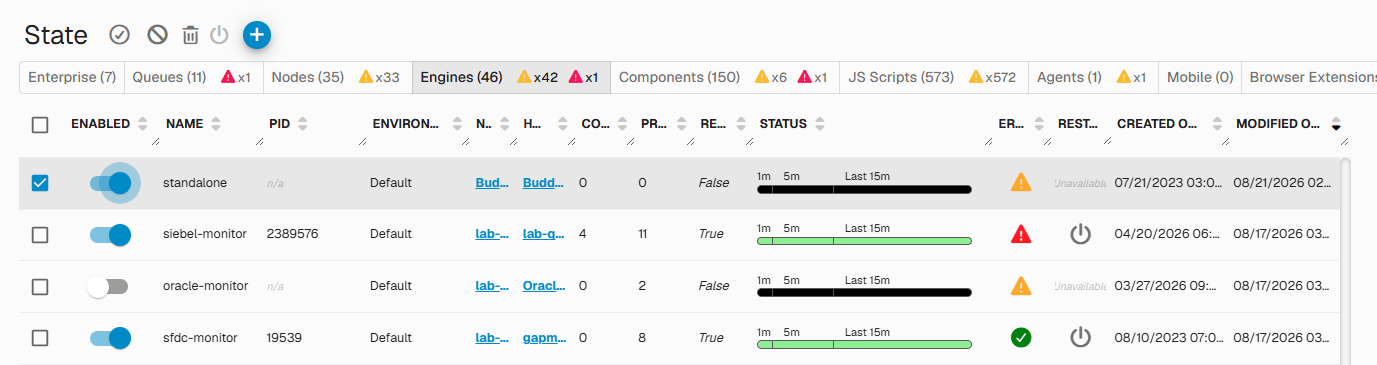
The Engines tab of Settings > Germain > State, where the Enabled toggle turns each Engine on or off
- Confirm the requested state is reflected in the Workspace and logs.
Disable an Engine When
- Performing maintenance on its host
- Investigating repeated component failures
- Moving components to another Engine
- Preventing monitoring during an approved change
- Retiring the Engine
Enable an Engine When
- Initial configuration is complete
- Maintenance has ended
- Required dependencies are available
- Its assigned components are ready to run
Restart an Individual Engine
Restart an Engine after changing settings that are applied only at startup, including:- JVM memory
- JVM system properties
- Proxy settings
- Engine-specific runtime options
- Certain component configurations
1
Select the Engine
2
Save the updated configuration
3
Select Restart this Engine
4
Monitor its status
5
Review the Engine logs
6
Confirm that its monitoring components resume execution
Configure Engine Memory
Engine heap settings can be updated from Settings > Germain > State. After modifying the JVM options, save the configuration and restart the affected Engine. Use the dedicated Engine Memory Configuration guide for the complete procedure, default JVM parameters, and validation steps. Increase memory only when the Engine host has sufficient free capacity. If the host is constrained, move components or Engines to another host instead.Configure Proxy Access
Proxy settings may need to be configured separately for:- The Engine Manager
- Individual Engines
Validate the Configuration
After changing the Engine configuration, confirm that:- The Engine Manager is running.
- Its node is authorized.
- The heartbeat appears in Settings > Germain > State.
- All expected Engines are listed.
- Required Engines are enabled.
- Engine restarts complete successfully.
- The effective JVM command line contains the expected settings.
- Proxy connectivity works when required.
- Monitoring components resume execution.
- New telemetry appears in GermainUX.
- No repeated errors appear in
EngineManager.log. - CPU, memory, and disk utilization remain acceptable.
Troubleshooting
Engine Manager Does Not Start
Check:- Java version and
JAVA_HOME - Germain Enterprise connectivity
- Service-account permissions
- JVM memory settings
- Proxy configuration
- Port and firewall access
EngineManager.log
Engine Appears but Does Not Load
Confirm that:- The node was authorized.
- The Engine is enabled.
- Germain Enterprise is reachable.
- The configuration account is valid.
- The Manager can retrieve the node configuration.
- The configured messaging transport is available.
Configuration Changes Are Not Applied
Verify that:- You updated the intended Engine.
- The configuration was saved successfully.
- The Engine was restarted when required.
- No invalid JVM option prevents startup.
- The effective command line contains the new setting.
- No node- or host-level configuration overrides it.
Engine Repeatedly Restarts
Review the logs for:- Out-of-memory errors
- Invalid JVM options
- Component initialization failures
- Local state-store problems
- Missing drivers
- Permission failures
- Unavailable dependencies
Related Guides
Get Help
Contact GermainUX Support
The GermainUX team helps you get up and running faster, empower your team, turn data into actionable insights, and optimize performance to deliver measurable business outcomes.
Can't Find What You Need?
Search all GermainUX docs with Ctrl + K, or use the feedback buttons at the bottom of this page to tell us what is missing.
The content of this document is proprietary to GERMAIN SOFTWARE.